

Profile
Introduction
Section titled “Introduction”What is the Profile screen?
Section titled “What is the Profile screen?”The Profile screen is your personal corner of Testver. Where Settings governs the whole project and applies to everyone who opens it, Profile is just yours: your display name, your password, two-factor authentication, the devices you are currently signed in on, a log of your own recent actions, and your theme.
Nothing you change here affects other users or the project’s data. Editing your display name changes only how your name appears; changing your password changes only your login; revoking a session signs out only your devices. Think of Profile as the account-settings page you would expect in any web app — small, safe, and entirely self-service.
Who this guide is for
Section titled “Who this guide is for”- Every Testver user, regardless of role — Profile is available to the Super admin, Admins, Testers and Viewers alike.
- Anyone who just created an account and wants to set a friendly display name and a personal password.
- Security-conscious users who want to review where they are logged in and sign out a lost or shared device.
- People investigating their own account — “did I really delete that case?” — using the Recent Activity list.
Key terms
Section titled “Key terms”These terms appear throughout the Profile screen and this guide.
| Term | What it means |
|---|---|
| Username | Your unique handle, chosen at account creation. Used to sign in and shown throughout Testver. It cannot be changed after creation. |
| Display name | The friendly name shown alongside your username. Editable here at any time with the pencil next to it. |
| Role | Your permission level — Super admin, Admin, Tester, or Viewer. Set by an admin on the Users screen; shown here read-only as a badge. |
| Session | One active login. Each browser or device you sign in from creates its own session, shown with its browser, operating system and IP address. |
| Current session | The session you are using to view this page right now. It carries a Current badge and has no revoke button (sign out instead). |
| Activity | A record of a consequential action you took — a login, an edit, a run, an AI call. The personal subset of the audit trail. |
| Theme | Light or dark appearance. Remembered by this browser — another browser or device keeps its own choice. |
How the data is scoped
Section titled “How the data is scoped”Everything on this screen is scoped to the signed-in account and stored server-side:
- Display name is saved against your user record and applies on every device the moment you sign in. (The theme is the exception — it is remembered per browser.)
- Sessions are live server records. Revoking one invalidates the token immediately, so the affected device is signed out on its very next request — not at some later expiry.
- Recent Activity is a read-only slice of the central audit log, filtered to just your actions. The full, all-users view lives in Audit Log and is admin-only.
Getting Started
Section titled “Getting Started”Opening Profile
Section titled “Opening Profile”- Sign in to Testver as usual.
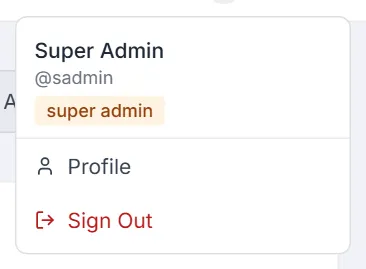
- Click your avatar / name in the top-right of the header to open the user menu.
- Choose Profile from the dropdown.
- The page opens as a single vertically-scrolling column.
The screen layout
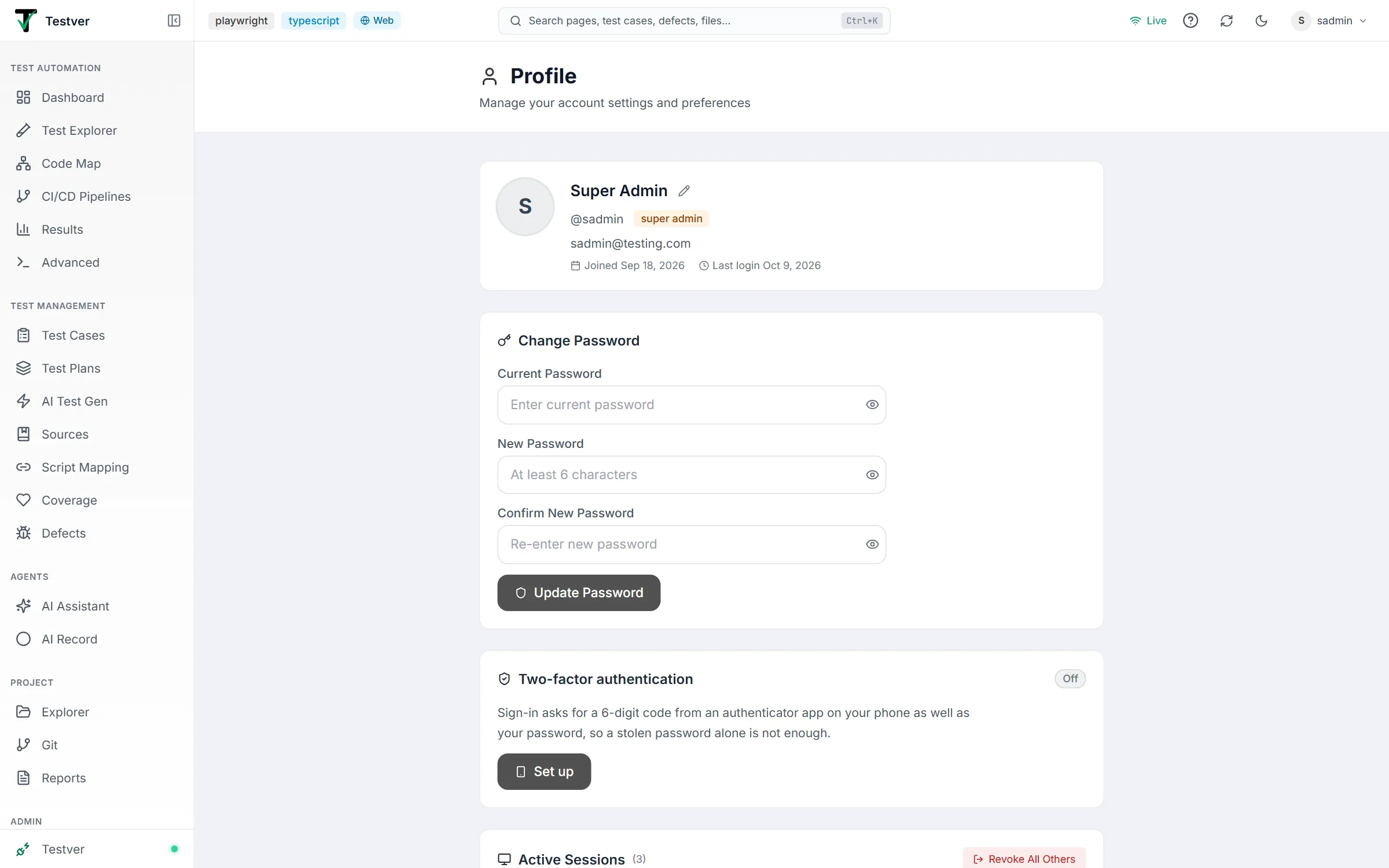
Section titled “The screen layout”Profile is a single-column page with six stacked sections, top to bottom:
- Profile Overview — your display name (with a pencil to edit it), username, role, email, and when you joined and last signed in.
- Change Password — a short form to set a new password.
- Two-factor authentication — turn sign-in codes on or off, with an On / Off badge.
- Active Sessions — every device you are currently signed in on.
- Recent Activity — a chronological list of your own recent actions.
- Preferences — your theme and other personal settings.
At a glance
Section titled “At a glance”- Read Profile Overview first to confirm who you are signed in as and with what role.
- Glance at Active Sessions to make sure every listed device is one you recognise.
- Skim Recent Activity to confirm the last few actions match what you remember doing.
- Set your theme once per browser — that browser remembers it.
Profile Overview
Section titled “Profile Overview”The first section shows your account’s core identity:
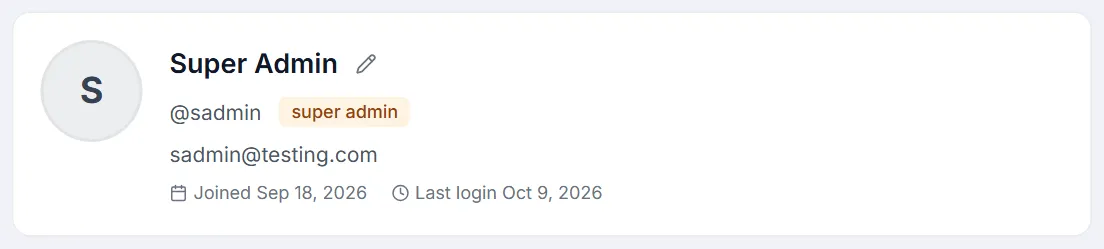
- Username — your unique login handle. Read-only; it is fixed at account creation.
- Email — the address on your account, used for password-reset links and account mail. If there is none, the card says No email on file — ask an administrator to add one (needed for password reset). Only an admin can change it, on the Users screen.
- Role — your current permission level as a badge: super admin, admin, tester, or viewer. Read-only here; only an admin can change it on the Users screen.
- Joined and Last login — the dates your account was created and you last signed in.
- Display name — the one editable field. It is what other users see next to your username throughout Testver — on activity feeds, defect reporters, commit authors, and more.
Editing your display name
Section titled “Editing your display name”- Click the pencil next to your display name — it turns into a text box.
- Type the name you want others to see.
- Click the check mark (or press Enter) to save; the ✕ (or Esc) cancels. The change takes effect immediately and is reflected wherever your name appears.
Change Password
Section titled “Change Password”A simple three-field form to rotate your own password without involving an admin.
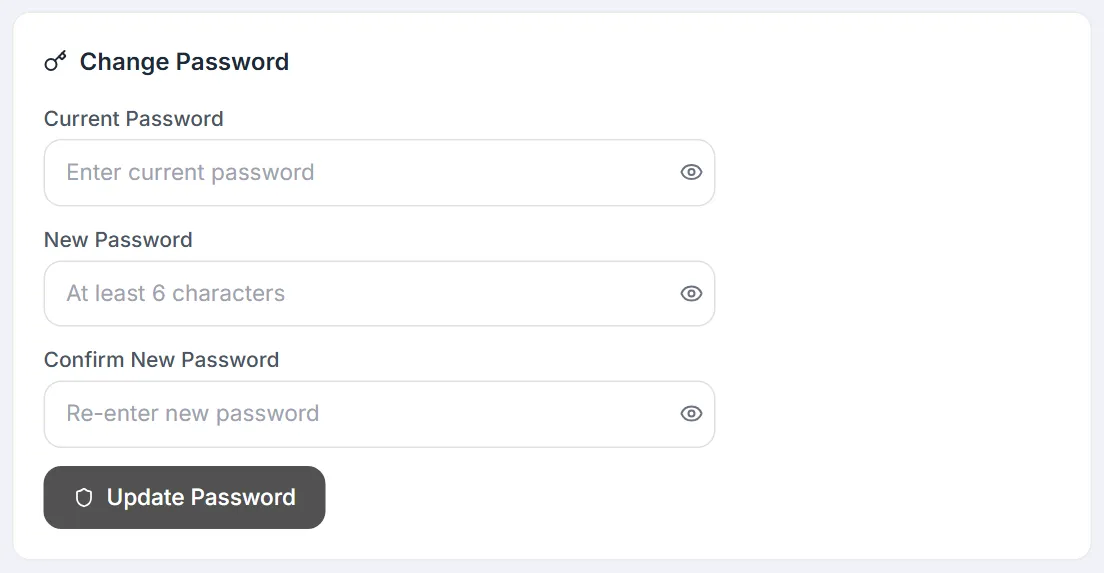
- Current Password — required, to prove it is really you.
- New Password — at least 6 characters.
- Confirm New Password — must match the new password exactly.
Each field has an eye icon to show what you typed. Click Update Password: your password is updated immediately, and you get an email about the change when email is set up. Your current session stays signed in, but any future sign-in must use the new password.
Two-factor authentication
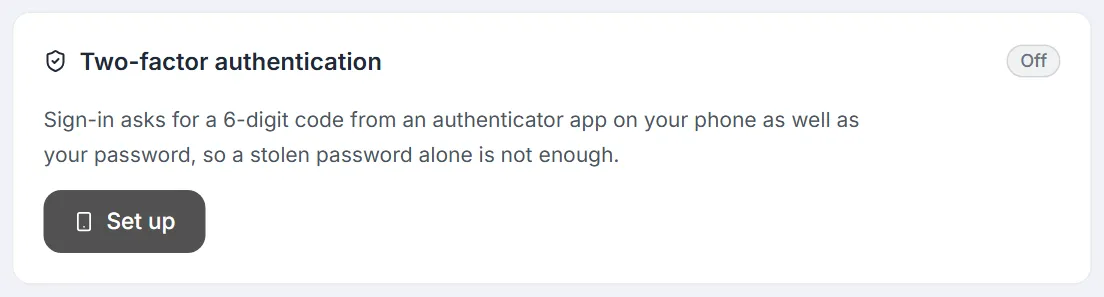
Section titled “Two-factor authentication”With two-factor authentication (2FA) on, signing in asks for a 6-digit code from an authenticator app on your phone as well as your password — so a stolen password alone is not enough to get in.
Turning it on
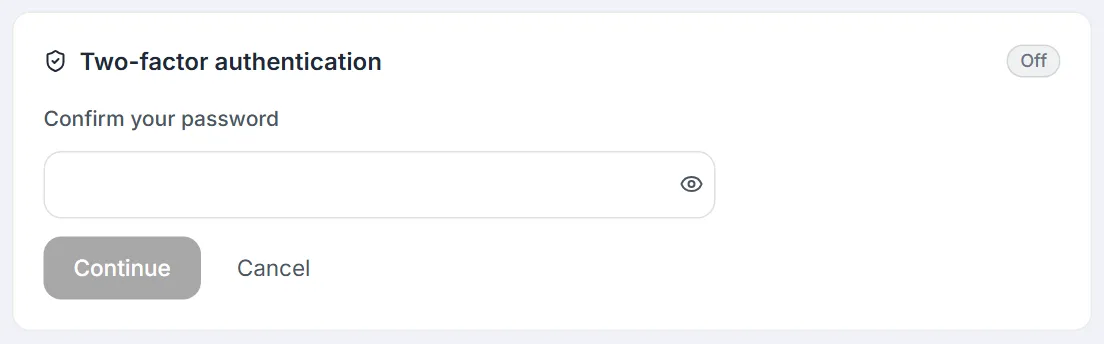
Section titled “Turning it on”- Click Set up and confirm your password.
- Scan the QR code with your authenticator app — Google Authenticator, Microsoft Authenticator, Authy, 1Password or Bitwarden all work. Can’t scan? Type the key shown next to it (time-based).
- Enter the 6-digit code the app shows for Testver. Sign out my other sessions (on by default) ends every other sign-in of your account at the same moment.
- Save your recovery codes. Ten single-use codes are shown once — copy or download them into a password manager, tick I have saved my recovery codes, and click Done.
The QR code is drawn in your browser; your secret never goes to an outside service. You get an email when 2FA is turned on or off (when email is set up for Testver).
When it is on
Section titled “When it is on”- Recovery codes left — each recovery code signs you in once without your phone. When two or fewer are left, make new ones.
- New recovery codes — needs your password and a code (from the app, or a recovery code). The old codes stop working.
- Turn off — needs your password and a code. Not available when your administrator requires 2FA.
- Trusted browsers — browsers where you ticked Trust this browser at sign-in, with when they were trusted and last used. Remove one (or all) to make it ask for the code again.
If you lose your phone: sign in with a recovery code, then Turn off and Set up again with the new phone. No recovery codes left either? Ask an administrator to reset your two-factor authentication from Users.
Active Sessions
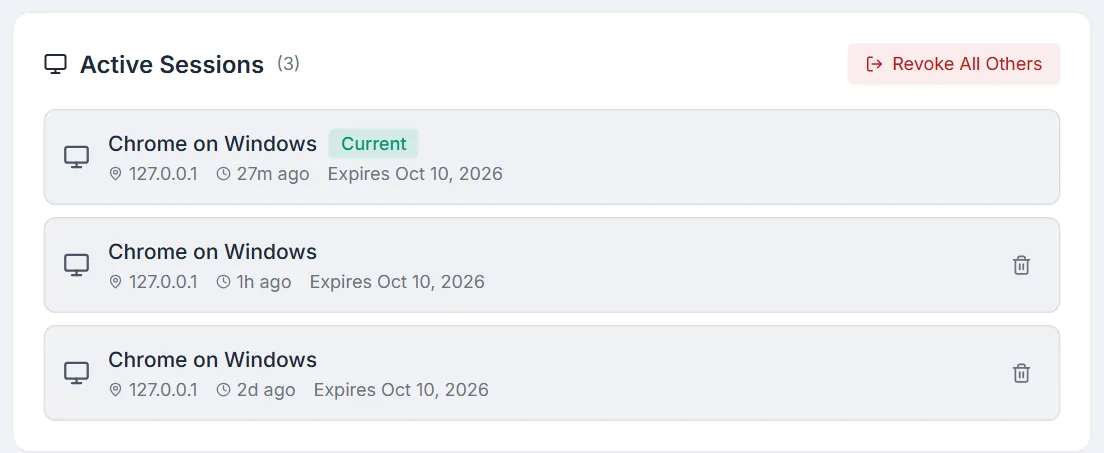
Section titled “Active Sessions”This section lists every login your account currently has open — one entry per browser or device. It is the single most useful security tool on the page.
What each entry shows
Section titled “What each entry shows”- Browser / OS — detected from the session’s user-agent, e.g. “Chrome on Windows”, with a desktop or phone icon.
- IP address — the address the session was created from.
- Age — how long ago the session began, e.g. 13m ago.
- Expires — the date the session ends at the latest.
- Current badge — marks the session you are using to view this page right now.
The heading shows how many sessions you have, e.g. Active Sessions (2).
Revoking a single session
Section titled “Revoking a single session”Every session except the current one has a trash-can Revoke session button. Revoking invalidates that session immediately: the user on that device is signed out on their next request and must sign in again. Use it when you spot a login you do not recognise, or to clear out an old device you no longer use.
Revoke All Others
Section titled “Revoke All Others”Revoke All Others, at the top of the section (shown when you have other sessions), signs out every session except the one you are using now. Reach for it when:
- You suspect your account is compromised.
- You just changed your password and want a clean slate everywhere.
- You signed in on a shared or public machine and forgot to sign out.
Recent Activity
Section titled “Recent Activity”A chronological list of your own recent actions in Testver — logins, edits, runs, AI calls, and more. Each entry shows the action (e.g. Auth Login, Run Start), the resource it targeted when there is one (a run ID, a file path…), and a relative timestamp (4h ago). The heading shows the total count; the list shows 20 entries at a time with Showing 1–20 of N, Previous / Next and Page 1 of N.
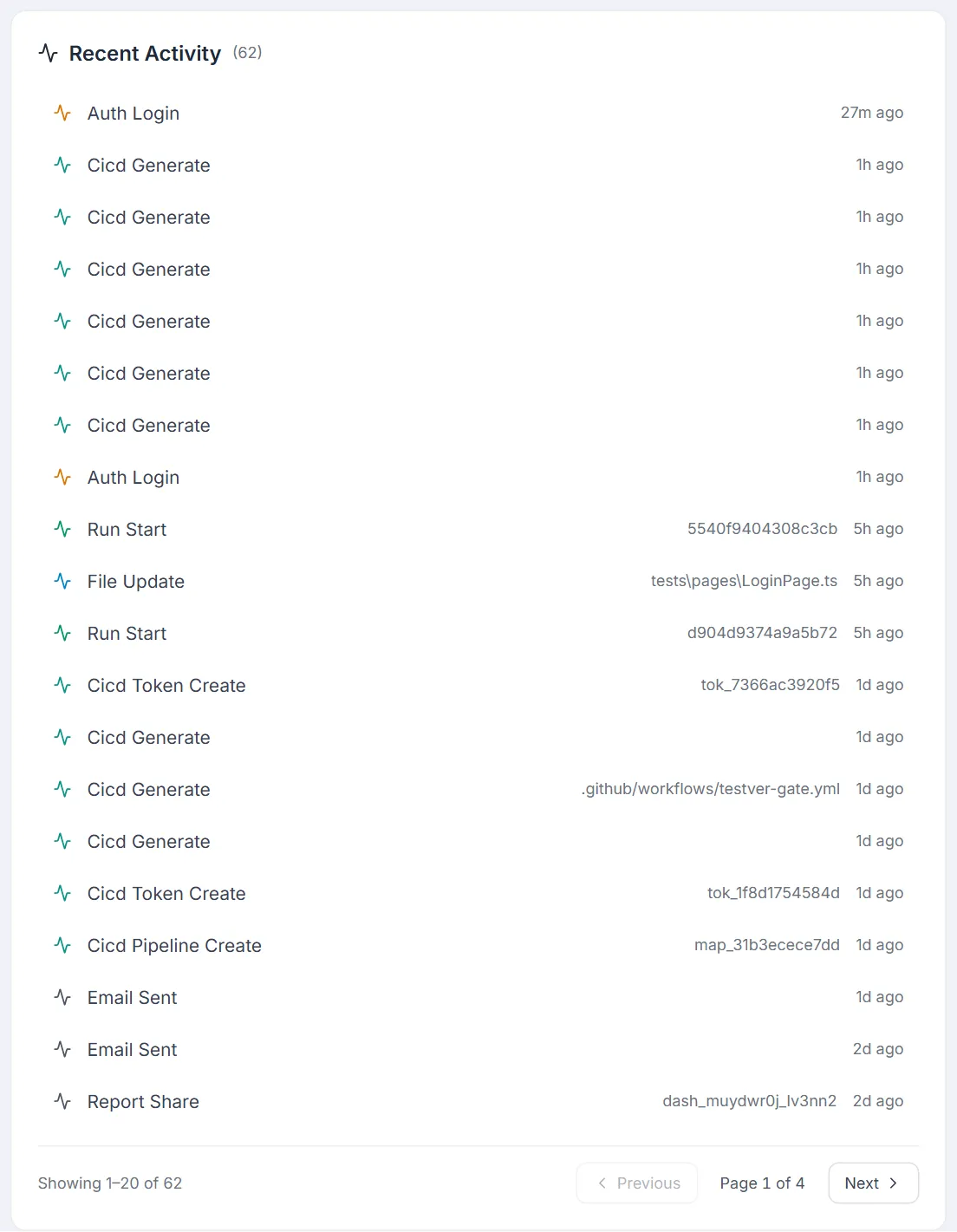
It is built for fast, personal triage:
- Verifying “did I really delete that case?” before blaming the system.
- Spotting unauthorised access — if an action appears that you do not remember performing, that is a red flag worth investigating alongside Active Sessions.
Preferences
Section titled “Preferences”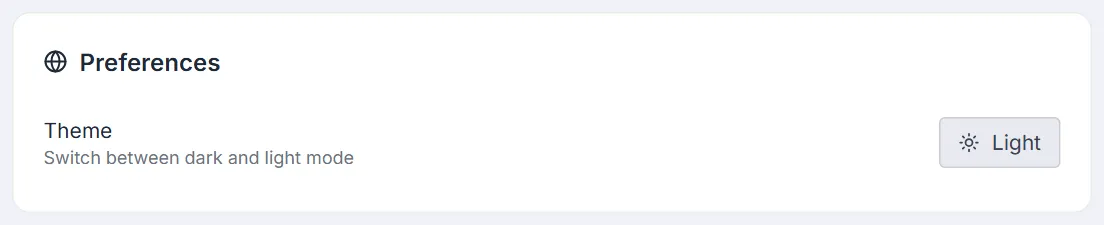
The Theme row (Switch between dark and light mode) has a button showing the current theme — Light or Dark; click it to switch. The same toggle is mirrored in the top-right header (moon / sun icon), so you can switch from anywhere. Your choice is remembered by this browser; another browser or device keeps its own.
Common workflows
Section titled “Common workflows”First-day account setup
Section titled “First-day account setup”- Open Profile from the header user menu.
- Set a friendly display name so teammates recognise you.
- Use Change Password to replace the initial password your admin gave you.
- Pick your theme (per browser).
- Glance at Active Sessions to confirm only your own device is listed.
”I think my account was accessed”
Section titled “”I think my account was accessed””- Open Active Sessions and look for any device, browser, or IP you do not recognise.
- Click the Revoke session (trash-can) button on anything suspicious — or use Revoke All Others to be safe.
- Use Change Password to set a new password.
- Turn on Two-factor authentication if it is off, and remove any Trusted browsers you do not recognise.
- Scan Recent Activity for actions you did not perform, and report them to an admin.
An email titled Wrong sign-in codes on your Testver account means someone entered your correct password but failed the code — change your password right away.
Switching machines cleanly
Section titled “Switching machines cleanly”- Sign in on the new machine.
- Open Profile ▸ Active Sessions there.
- Use Revoke All Others to sign out the old machine remotely.
Tips & best practices
Section titled “Tips & best practices”- Revoke All Others is the right reflex when changing your password. There is no confirmation and no undo — any device that was logged in will need to sign in again.
- Recent Activity is the fastest triage for “what happened on my account?” — much quicker than asking an admin to filter the Audit Log for you.
- Keep your display name set and recognisable — it propagates to activity feeds, defect ownership, and Git authorship.
- Review your sessions occasionally, especially after travelling or using a borrowed device.
Troubleshooting
Section titled “Troubleshooting”| Symptom | Likely cause & fix |
|---|---|
| New password is rejected on save | The form says why: All fields are required, New password must be at least 6 characters, or New passwords do not match. Re-enter the fields carefully. |
| ”Current password is incorrect” | The current-password field must hold your existing password, not the new one. Re-type it. |
| A session I do not recognise appears | Revoke it immediately, then change your password and tell an admin. Cross-check Recent Activity for unfamiliar actions. |
| My other devices are still logged in after a password change | Password changes do not auto-revoke sessions. Use Revoke All Others to sign them out. |
| Theme differs on another browser or device | The theme is remembered per browser. Set it once in each browser you use. If one browser keeps resetting, it is probably clearing site data. |
| I cannot change my username | Usernames are immutable by design. Ask an admin to create a new account if a different handle is essential. |
Frequently asked questions
Section titled “Frequently asked questions”Can I change my own role here?
Section titled “Can I change my own role here?”No. Role is read-only on Profile. Only an Admin or the Super admin can change roles, from the Users screen (and only the Super admin can make someone an Admin). The Super admin’s own role can’t be changed.
Will changing my password log me out?
Section titled “Will changing my password log me out?”Not your current session. Future sign-ins use the new password. Use Revoke All Others if you also want to sign out other devices.
Can an admin see what I typed in the AI Assistant from here?
Section titled “Can an admin see what I typed in the AI Assistant from here?”No. Chat and recording content are personal and user-scoped. Neither Profile nor the Audit Log exposes conversation content — only the fact that a call happened.
Why does a session show an unfamiliar IP?
Section titled “Why does a session show an unfamiliar IP?”The IP can reflect your ISP, a proxy in front of Testver, or a VPN exit. If the browser and operating system look right, it is usually benign — but when in doubt, revoke and re-sign-in.
Related
Section titled “Related”- Settings — project-level configuration.
- Audit Log — full audit trail (admin only).
- Local Browser Connector — manage your local-browser tokens.