

First-time setup
Introduction
Section titled “Introduction”What first-time setup does
Section titled “What first-time setup does”First-time setup runs exactly once per Testver instance. It establishes two things the app cannot start without: which kind of testing you do (so Testver shows the right surfaces) and who the super admin is (the first account, which can sign in and manage everyone else). Everything else — AI providers, projects, teammates — can be added afterwards at your own pace.
Who does this
Section titled “Who does this”The person installing Testver — typically a QA lead or whoever stood up the server. You only do this once. After the admin exists, everyone else simply signs in; they never see this wizard.
Before you begin
Section titled “Before you begin”Make sure the Testver UI is actually running and open in your browser. If it is not, follow Install Testver first.
| You need | Detail |
|---|---|
| Testver running | The UI open at http://localhost:3700 (or your team’s hosted URL). |
| A username, display name, email & password in mind | The super admin login you will use every day — all four are required. |
| (Optional) a Testver account | Not part of the wizard — you connect it afterwards to use Testver AI. |
The setup wizard
Section titled “The setup wizard”The wizard has two steps, shown with a small step indicator at the top: Testing focus and Super admin account.
Step 1 — Choose your testing mode
Section titled “Step 1 — Choose your testing mode”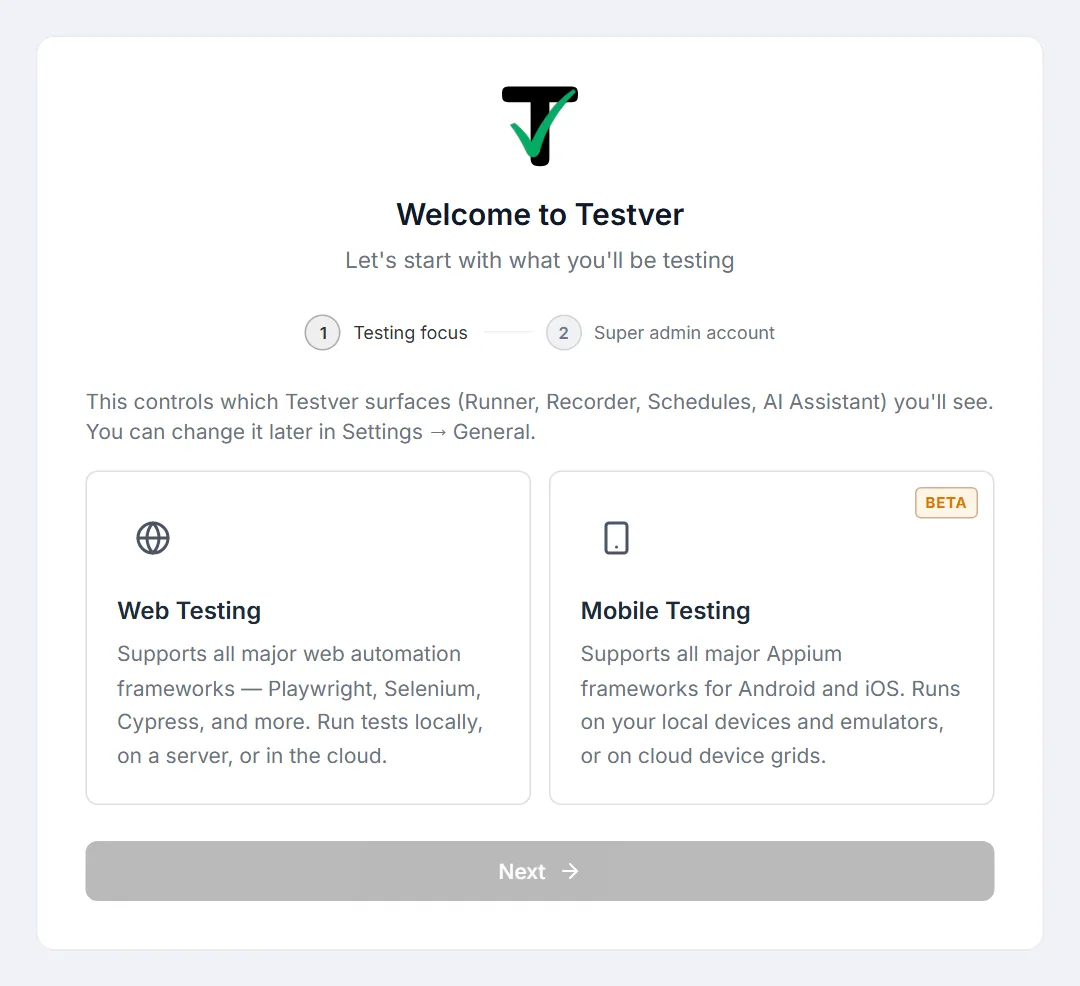
Pick the kind of automation this instance is for. Your choice controls which surfaces (Runner, Recorder, Schedules, AI Assistant) Testver shows you, so the UI isn’t cluttered with tools you don’t need.
| Mode | Best for | Notes |
|---|---|---|
| Web Testing | Browser automation | Supports all major web frameworks — Playwright, Selenium, Cypress, and more. Run tests locally, on a server, or in the cloud. |
| Mobile Testing (Beta) | Android & iOS apps | Supports all major Appium frameworks for Android and iOS. Runs on your local devices and emulators, or on cloud device grids. |
Select a tile and click Next (it stays disabled until a tile is selected).

Later, the App Mode card in Settings → General shows Web and Mobile (Beta) and when the mode was last changed.
Step 2 — Create the super admin account
Section titled “Step 2 — Create the super admin account”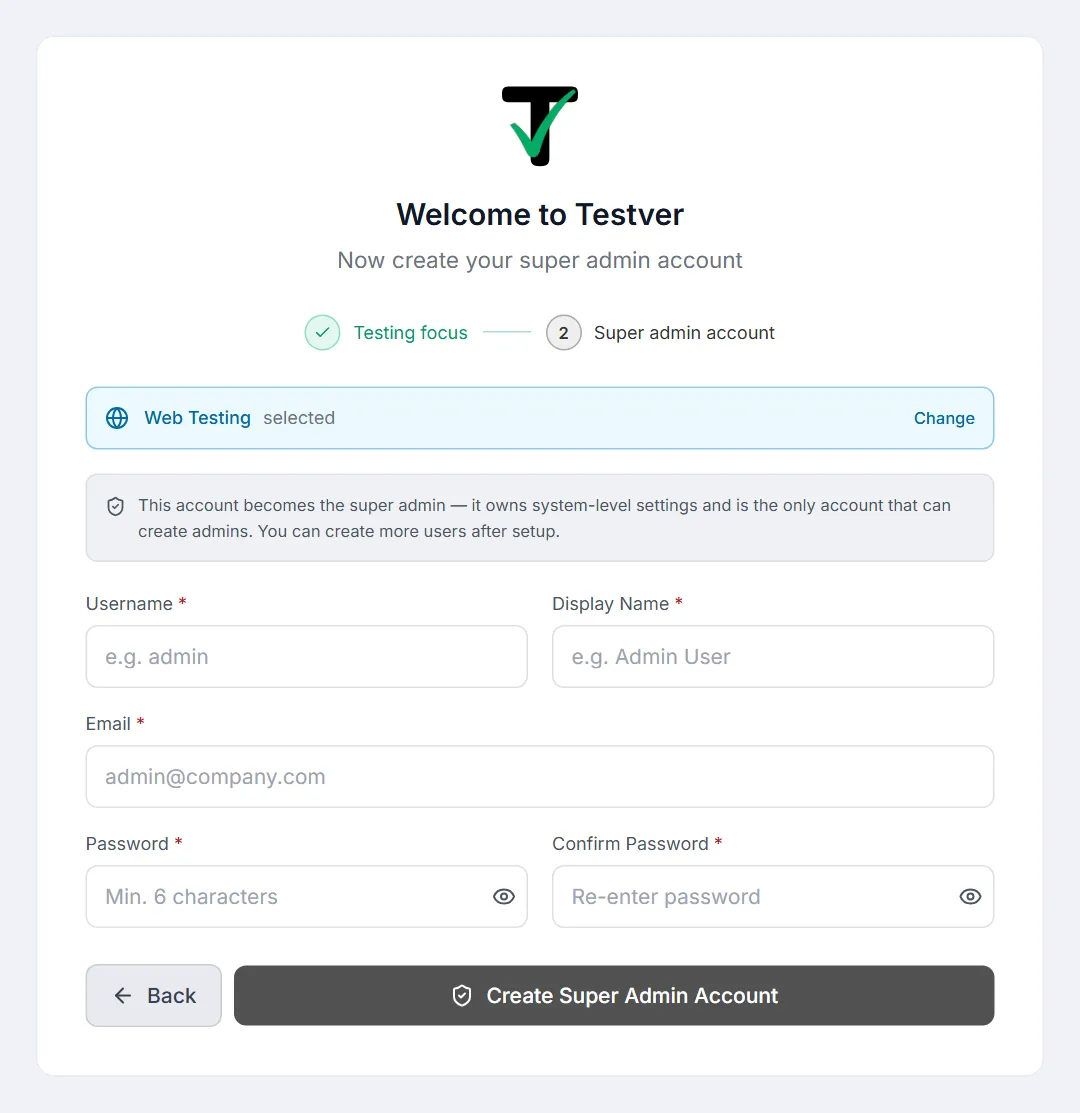
Fill in the super admin account form. A recap chip at the top shows the mode you picked in Step 1 (for example Web Testing selected) with a Change link if you want to go back; Back does the same. A note under it reminds you that this account becomes the super admin — it owns system-level settings and is the only account that can create admins.
| Field | Required? | Guidance |
|---|---|---|
| Username | Required | What you’ll sign in with. Lowercase, no spaces. Cannot be changed later. |
| Display Name | Required | What other users see next to your username (e.g. Admin User). |
| Required | Used for password resets and notifications where configured. | |
| Password | Required | At least 6 characters (the field shows Min. 6 characters). Use something considerably stronger than the minimum — this is the account that can manage every other user. |
| Confirm Password | Required | Must match the password exactly. |
Click Create Super Admin Account. Testver creates the super admin, signs you in, and takes you to the dashboard. Setup is now complete.
After setup: recommended next steps
Section titled “After setup: recommended next steps”These are optional but make Testver far more useful. None of them are part of the wizard — you do them from the dashboard once you’re signed in.
Connect an AI provider
Section titled “Connect an AI provider”Many of Testver’s best features — AI Assistant, AI Test Gen, AI Record — need a Large Language Model. Connect one from Settings → LLM.
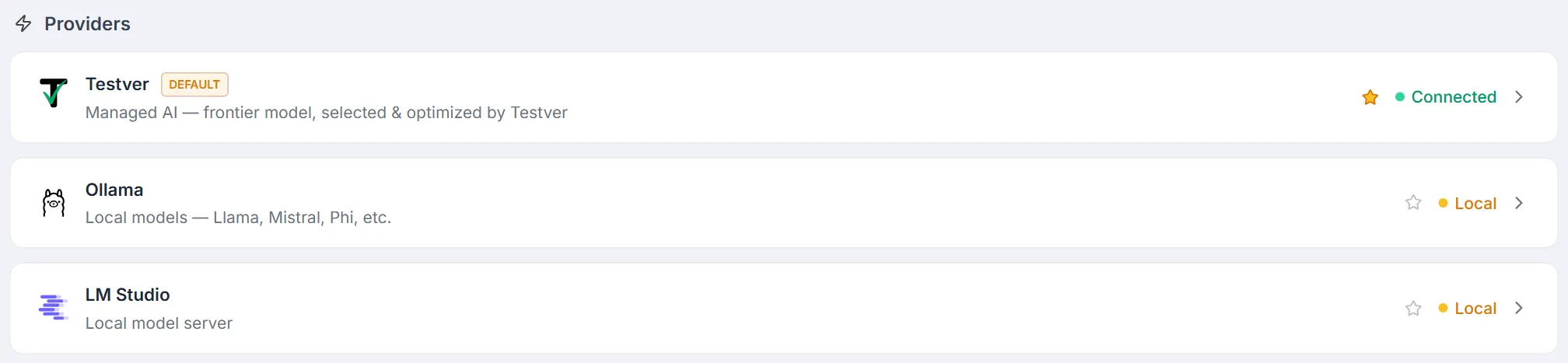
You have two kinds of provider to choose from: Testver for cloud AI, or a local model running on your own machine.
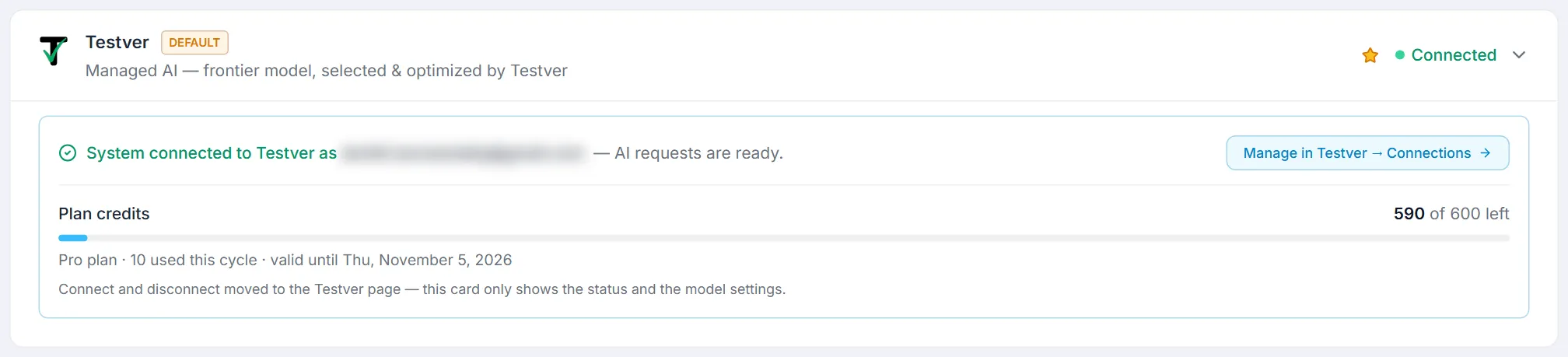
Cloud AI — Testver. Testver is the only cloud provider you connect. There are no third-party model accounts to create, no per-vendor API keys to manage, and no decision to make about which model to use: Testver supplies a frontier model already selected and tuned for test automation work.
To connect it, click Testver at the bottom of the sidebar and connect your account on the Connections tab (the Testver card in Settings → LLM has a Connect in Testver → Connections button that takes you there). Once connected, the Testver card in Settings → LLM shows which account it is connected as and your plan credits, with a Manage in Testver → Connections link — connecting and disconnecting live on the Testver page; the card only shows the status and the model settings.
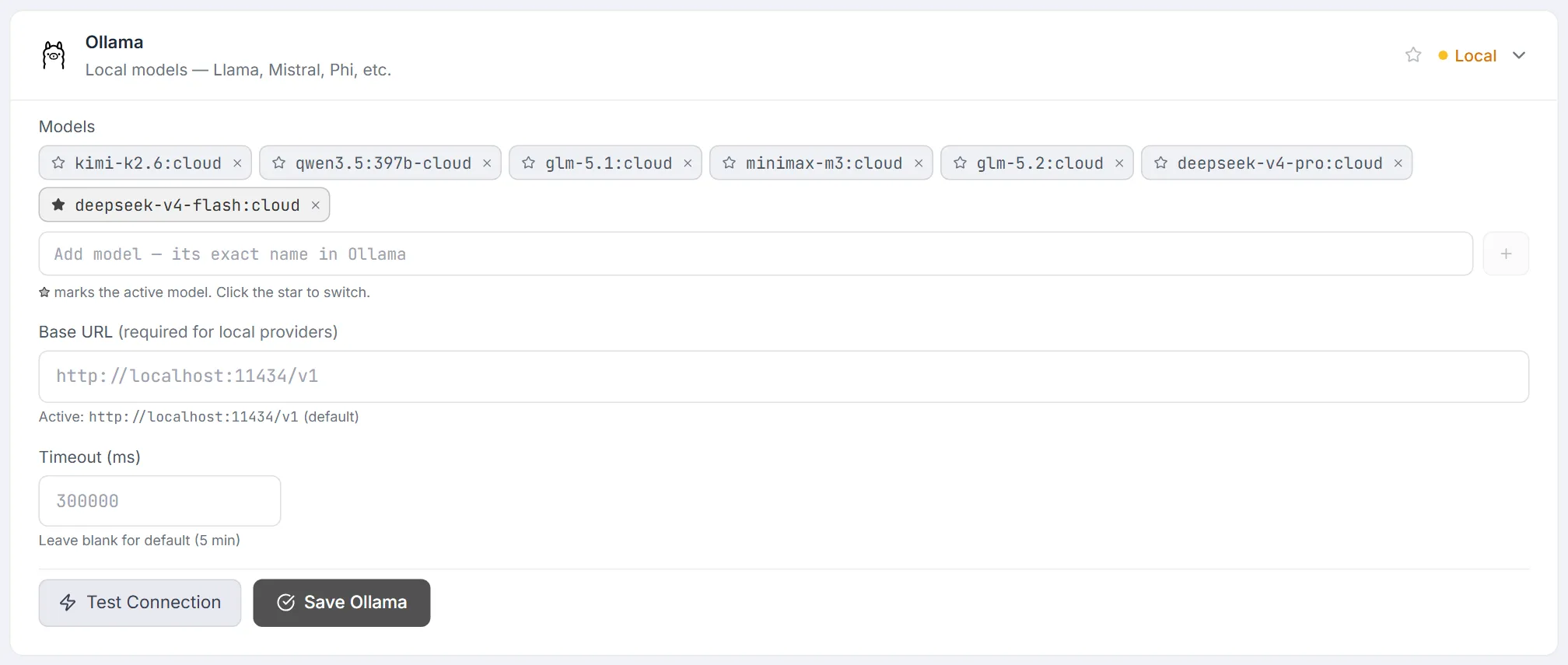
Local providers (free, no key, nothing leaves your machine) — Testver auto-detects these at their default URLs; just add a model and click Test Connection:
- Ollama — install, then run
ollama pull llama3andollama serve. - LM Studio — install, load a model, click Start Server.
Local providers are configured by administrators. If you’re not an admin, Testver is the only provider you’ll see.
After a provider connects, pick it as the default with the star on its card (the default carries a Default badge). You can switch any time from the AI Assistant or Settings.
Your project
Section titled “Your project”Testver works on the folder you started it from: run testver serve inside your test project’s root folder (the one containing package.json or your test files — see Install Testver). There is no Open Project button in the UI.
Testver scans the folder, detects the framework, and lists your tests in the Test Explorer. If you add or move test files, use Rescan project in the header.
Verifying everything works
Section titled “Verifying everything works”A quick checklist to confirm you’re fully set up:
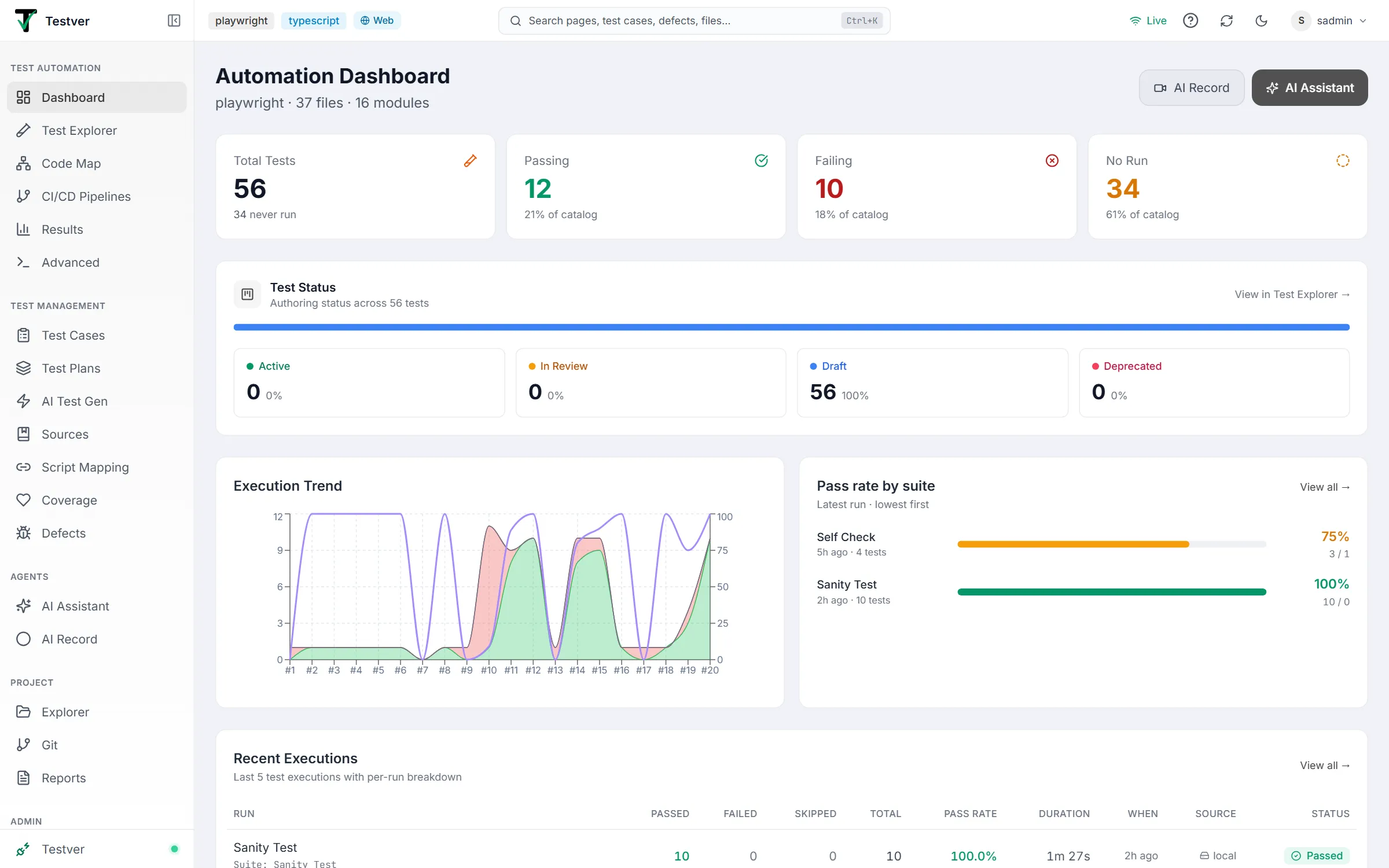
- You can see the dashboard and the left sidebar of screens.
- Your display name / avatar appears top-right.
- If you connected AI: opening the AI Assistant shows it ready (not “no provider configured”).
- If you started Testver in your test project: the Test Explorer lists your test files and the header shows the detected framework.
Inviting your team
Section titled “Inviting your team”Once you’re the super admin, add the rest of your team from Admin → Users:
- Click Add User.
- Set a username, display name, email, an initial password and a role (the dialog starts on Tester). All four fields are required.
- Share the credentials securely; ask them to change the password from Profile → Change password on first sign-in.
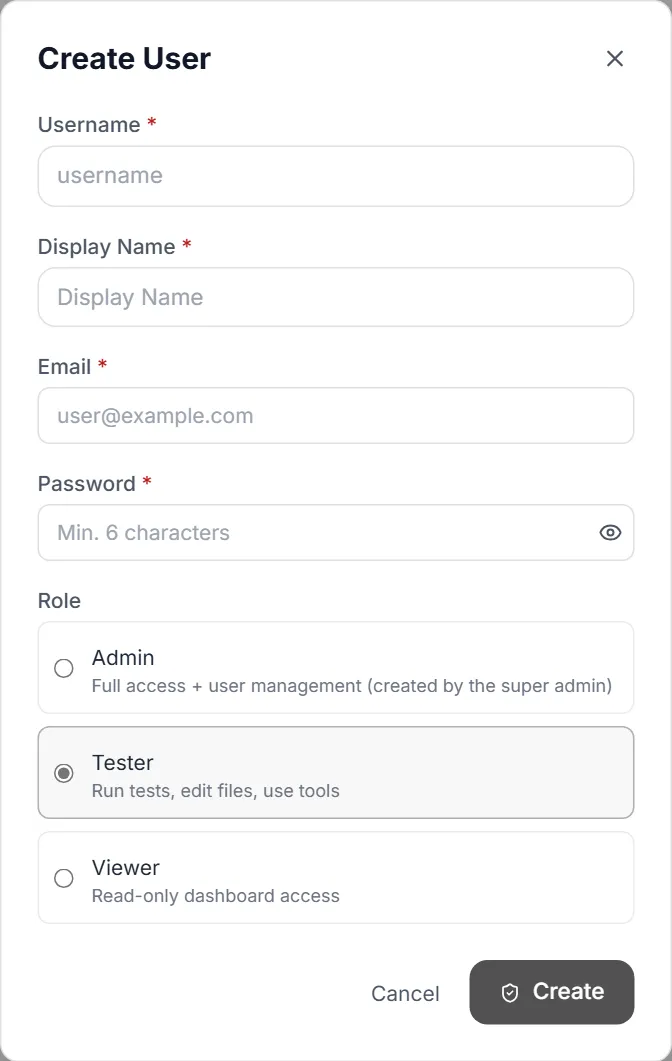
See the Users guide for the full role breakdown (Super admin / Admin / Tester / Viewer).
Tips & best practices
Section titled “Tips & best practices”- Use a real, memorable super admin password — it’s the master key to the instance. Don’t reuse a throwaway.
- Keep the admin group small. Create most teammates as Testers; reserve Admin for one or two people.
- You can change the testing mode later in Settings → General, so don’t overthink Step 1.
- Connect a local LLM (Ollama / LM Studio) for zero-cost AI if you’d rather keep every prompt on your own machine. Admin-only.
Troubleshooting
Section titled “Troubleshooting”| Symptom | Likely cause & fix |
|---|---|
| I see a login screen, not the wizard | An admin already exists. Sign in instead, or have the admin reset your access. |
| Opening Testver keeps sending you to the setup wizard | No super admin was created yet — complete the wizard. If it loops, confirm the server can write its data store. |
| Next is disabled on Step 1 | You haven’t selected a mode tile. Click Web Testing or Mobile Testing first. |
| ”Passwords do not match” | The confirm field differs from the password. Re-type both carefully. |
| AI connection fails | For Testver, confirm your account is connected and has remaining credits (both are shown on the Testver card). For a local provider, make sure Ollama or LM Studio is running first. |
| Project scan finds no tests | Testver was started in the wrong folder. Start testver serve from the project root (where package.json / your specs live), not a parent directory. |
Frequently asked questions
Section titled “Frequently asked questions”Can I change the testing mode after setup?
Section titled “Can I change the testing mode after setup?”Yes — Settings → General. It only controls which surfaces are shown, not your data.
Is the AI provider mandatory?
Section titled “Is the AI provider mandatory?”No. Manual test management works without it. AI-powered features need a provider, which you can connect at any time.
Which AI providers can I choose from?
Section titled “Which AI providers can I choose from?”Two kinds: Testver — the managed cloud provider, and the only cloud option — and local models via Ollama or LM Studio. You don’t bring your own OpenAI, Anthropic, Google, or xAI key; Testver supplies the cloud model itself. Local providers are configured by administrators, so non-admin users will see Testver as their provider.
What if I pick the wrong person as admin?
Section titled “What if I pick the wrong person as admin?”The super admin account can’t be disabled, deleted or given another role from Users, and its username can’t change. Sign in as it and use Edit user to change the display name and email and Reset password to set a new password; the super admin can also create the right person as an Admin.
Does first-time setup run on every machine?
Section titled “Does first-time setup run on every machine?”No — it runs once per Testver instance. Teammates connecting to the same instance just sign in.
Related
Section titled “Related”- Install Testver — get the UI running (do this first).
- Sign in — the daily login flow after setup.
- A 5-minute tour — find your way around the whole UI.
- Users — invite teammates and assign roles.
- Settings — connect the Testver AI provider and configure the instance.