

Reports
Introduction
Section titled “Introduction”What is the Reports screen?
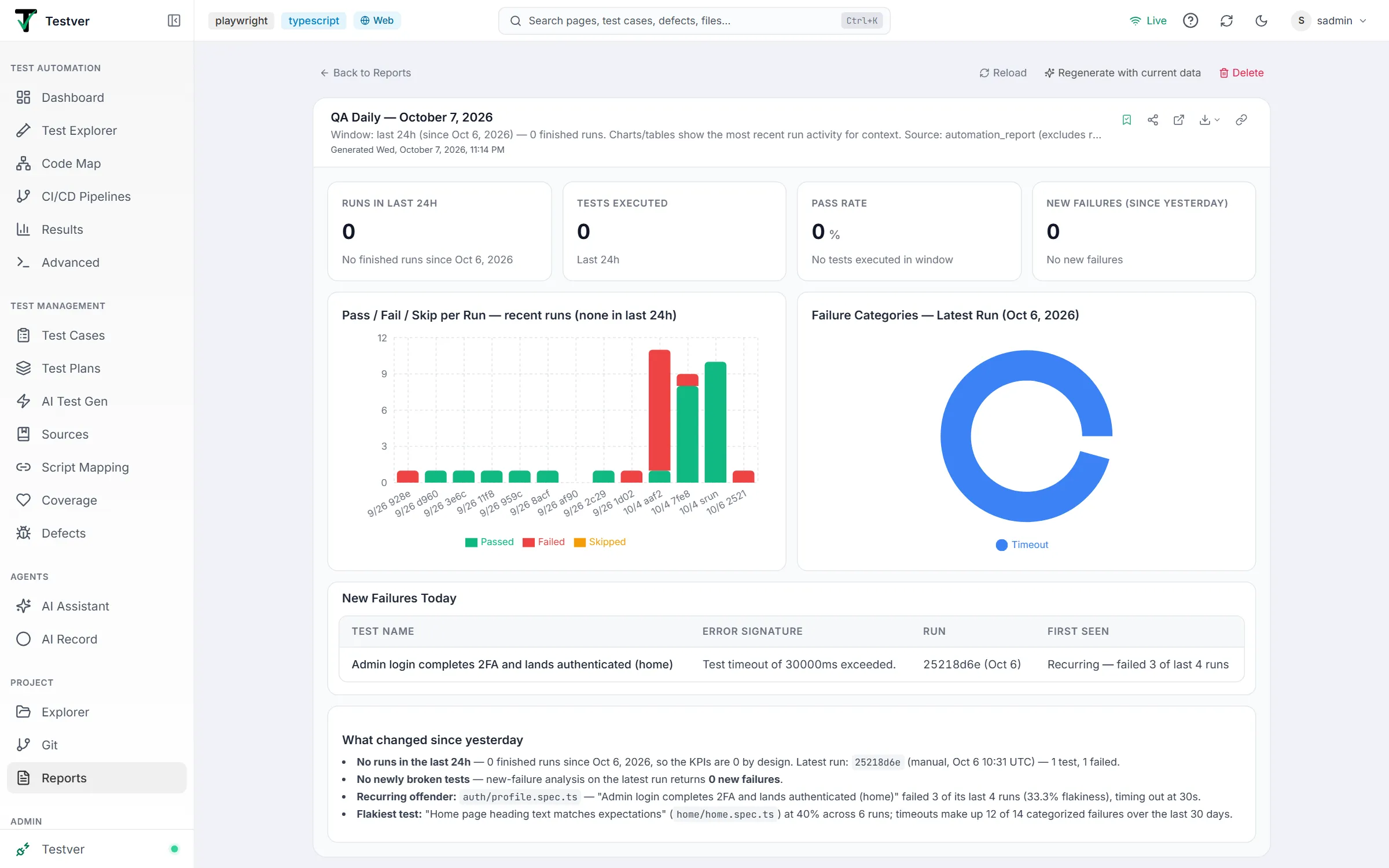
Section titled “What is the Reports screen?”The Reports screen is the home for every dashboard you have generated through Testver’s AI Assistant in Reporting mode. A report is not a flat document — it is an interactive dashboard built on a 12-column grid that combines KPI tiles, charts, data tables, and short narrative notes, all driven by live data from your Testver project (test cases, run history, coverage, and failure analysis).
The screen itself does not generate reports. It is a catalogue and control panel: you build a dashboard elsewhere (in chat, in Reporting mode), then save it, and from here you open it, pin it, download it, email it on a schedule, regenerate it against fresh data, or share it publicly.
Analogy: think of it as the photo library on your phone. The camera (the AI Assistant in Reporting mode) takes the pictures; the library (this screen) is where you organise them, favourite the ones you care about, re-take a shot with today’s lighting (Regenerate), print copies in different formats (HTML, PDF, Word, Excel), set up an automatic monthly print-and-mail (Scheduled), or hand someone a shareable link to view an album without giving them your phone (public share link).
Who this guide is for
Section titled “Who this guide is for”- QA engineers and leads who generate dashboards in Reporting mode and need to find, reopen, and refresh them later.
- Engineering managers who want a recurring email of the latest test status without logging in (via the Scheduled tab).
- Stakeholders and clients who only ever receive a public share link and view the report read-only, with no Testver account.
- Anyone picking a quick-start Template to kick off a new report when they know the topic but not the exact layout.
Key terms
Section titled “Key terms”| Term | What it means |
|---|---|
| Report / Saved report | A persisted dashboard with a stable id, a title, a saved spec (the dashboard definition), and an updatedAt date. Created by saving a dashboard from Reporting mode. |
| Dashboard spec | The spec object that defines the report: a title, optional subtitle, a generatedAt timestamp, and an ordered list of cells laid out on a 12-column grid. |
| Cell | One block in the dashboard grid. Four types exist: KPI (a single headline number), Chart, Table, and Markdown (narrative text). |
| KPI tile | A cell showing one headline metric with an optional unit, delta (change), and up/down/flat direction — e.g. “Pass Rate 94% ▲”. |
| Pinned | A flag (pinned) that marks a report as a favourite; pinned reports show an amber Pin icon. |
| Template | A quick-start preset. Clicking its Run template button opens the AI Assistant in Reporting mode with a pre-filled prompt you can edit before submitting. |
| Schedule | A recurring job (ReportSchedule) that emails the latest version of a saved report to a list of recipients on a cron cadence. |
| Cron | A 5-field expression (minute hour day-of-month month day-of-week) that defines when a schedule fires, e.g. 0 9 * * 1-5 = 9 AM on weekdays. |
| Share token | An opaque token (shareToken) minted when you publish a report. It powers the public URL /reports/share/<token>, and can be set to expire. |
| Regenerate | Re-running the AI workflow that built a report so its numbers reflect the current state of Testver, while preserving the report’s id, share link, and pin state. |
| render.html endpoint | A server route that rebuilds the HTML report fresh from the saved spec on every fetch, guaranteeing working inline charts even for older saved reports. |
How it works
Section titled “How it works”Reports are built from your project’s real data. When a dashboard is generated (or regenerated), the AI queries Testver — test cases, run history, coverage stats, baseline comparisons, flaky-test detection, slowest-tests stats — and emits a spec whose cells hold those numbers. The flow:
-
In Reporting mode the AI calls the
generate_dashboardtool, which checks every cell (a cell it cannot draw is left out, and the AI is told why), writes the dashboard and a standalone HTML snapshot, and shows it in the chat. -
You click the bookmark icon to save the dashboard (or ask the AI to save it); it now appears on this screen under My Reports with a stable id. Saving it again updates it rather than making a copy.
-
Opening a saved report renders the spec through the same ReportCard component used in chat, so the full-view page is pixel-identical to what you saw in chat.
-
Regenerate re-runs that AI workflow server-side and overwrites the spec values with current data — same id, same share link, same pin state.
-
Download builds the file from the saved spec when you click — HTML, PDF, Word or Excel — so it always matches the report and its charts are always drawn. HTML, PDF and Word files use the same layout as the report on screen:
- a header card;
- KPI tiles with their changes;
- charts side by side;
- tables with status pills (a long table continues onto the next page with its header repeated);
- page numbers.
A scheduled email shows the same KPI tiles and the first rows of each table, with the full report attached.
A saved report opened in the full view — KPI tiles, charts, a table and a narrative note on one grid:
Getting Started
Section titled “Getting Started”Opening Reports
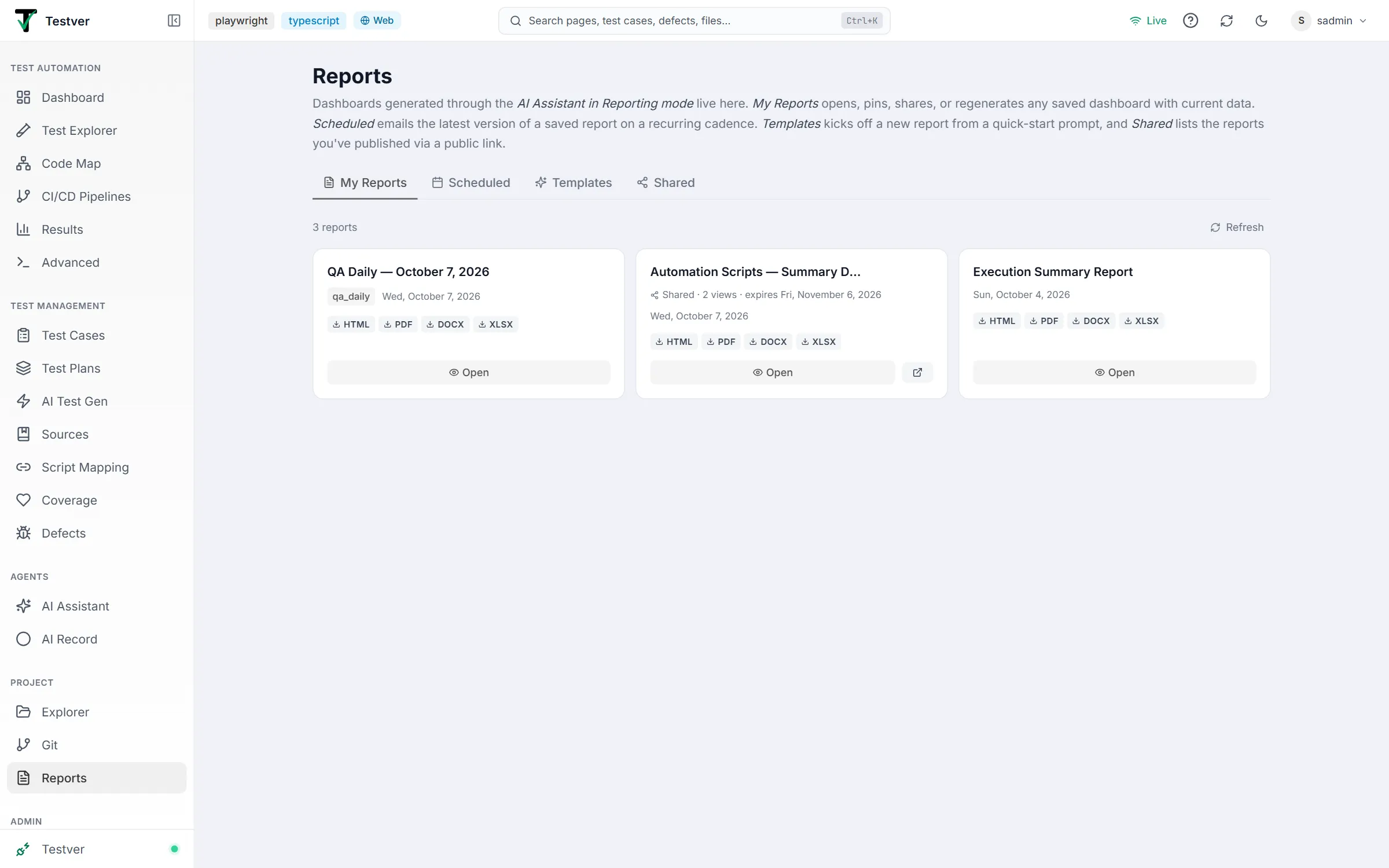
Section titled “Opening Reports”- From the left sidebar, click Reports (the file-text icon). This navigates to
/reports. - The page header Reports appears with a one-paragraph description of the four tabs.
- The My Reports tab is selected by default and begins loading your saved reports (you’ll briefly see “Loading reports…”).
- Use the four tabs — My Reports, Scheduled, Templates, Shared — to move between the sub-sections.
The screen layout
Section titled “The screen layout”| Area | Location | What it does |
|---|---|---|
| Page header | Top | Shows the title Reports and a sentence describing each tab. |
| Tab bar | Below the header | Four tabs: My Reports, Scheduled, Templates, Shared. The active tab is underlined in the brand colour. |
| My Reports tab | Main area (default) | A responsive grid of report cards (1/2/3 columns by screen width), each with actions and download pills (HTML, PDF, DOCX, XLSX). |
| Scheduled tab | Main area | A table of recurring email dispatch jobs, plus a New schedule button and a manual Refresh. |
| Templates tab | Main area | A one-line hint, then a 2-column grid of quick-start preset cards, each with its prompt and a Run template button. |
| Shared tab | Main area | The same card grid as My Reports, filtered to only reports that have an active share token. |
| Toolbar (My Reports, Scheduled, Shared) | Above the grid/table | A count (“N reports” / “N schedules”) on the left and a Refresh button on the right — plus New schedule on the Scheduled tab. The Templates tab has a one-line hint here instead. |
At a glance
Section titled “At a glance”- The page is centred at a maximum width and padded; it is comfortable on both wide and narrow screens.
- My Reports and Shared share one underlying view — Shared simply filters to reports that have a share token.
- Card action icons (Pin, Share, Delete) appear when you hover a card with a mouse; on a touch screen they are always shown.
- Each user sees their own reports. Saving, sharing, scheduling, regenerating and deleting need the Tester role or higher; Viewers can open and download.
- The Scheduled tab auto-refreshes every 20 seconds in the background so last-run status stays current without you clicking Refresh.
- Light and dark themes are both supported throughout.
The four tabs
Section titled “The four tabs”Each tab has its own guide:

| Tab | Guide | What you do there |
|---|---|---|
| My Reports | My Reports tab | Browse, open, regenerate, and download your saved dashboards. |
| Scheduled | Scheduled tab | Email a saved report to recipients on a repeating timetable. |
| Templates | Templates tab | Generate a report from a quick-start preset. |
| Shared | Shared tab | Manage reports that have a public share link. |
Common Tasks (How Do I…?)
Section titled “Common Tasks (How Do I…?)”| I want to… | Do this |
|---|---|
| Find a report I made earlier | Open Reports → My Reports tab. Click Refresh if it’s not shown. |
| Create a new report | Open the Templates tab, pick a preset, click Run template, then submit in the AI Assistant. Or save a dashboard from a Reporting-mode chat. |
| Open a report at full width | Click Open (eye icon) on its card, or Open full view in the chat ReportCard. |
| Mark a report as a favourite | Hover the card and click the Pin icon. Pinned reports show an amber pin marker. |
| Update a report’s numbers to today’s data | Open the report and click Regenerate with current data (takes ~30s–2min). |
| Download a report | Use a format pill on the card (HTML/PDF/DOCX/XLSX) or the Download menu in the full view or in chat. |
| Email a report on a schedule | Open the Scheduled tab → New schedule → enter a title, choose source report, cron, format (PDF, Excel, Word or HTML), and recipients. Or ask for it in a Reporting chat. |
| Run a scheduled report immediately | On the Scheduled tab, click the Play (Run now) icon on that row. |
| Pause / resume a schedule | Click PAUSE / RESUME on the schedule’s row. |
| Share a report publicly | Click the Share icon on the card (the link is copied to your clipboard), or in the full view, where you can also set the link to expire. |
| See everything I’ve shared | Open the Shared tab. |
| Stop sharing a report | Click the Share icon again (toggles off), or click Revoke in the full-view share panel. |
| Delete a report | Click the Delete (trash) icon and confirm. Note: linked schedules are also removed. |
Tips & Best Practices
Section titled “Tips & Best Practices”- Configure an Email connector in Connectors before creating a schedule — recurring delivery needs it.
- Give schedules clear titles (e.g. “Weekly QA Summary”) so the Scheduled table stays readable.
- Revoke share links you no longer need; a forgotten public link is a forgotten data leak.
- Use the Run now action to test a schedule’s recipients and format before trusting the recurring cadence.
Troubleshooting & FAQ
Section titled “Troubleshooting & FAQ”| Symptom | Likely cause / fix |
|---|---|
| ”No saved reports yet” on My Reports | You haven’t saved any dashboards. Build one in Reporting mode and click the bookmark icon, or use a Template. |
| ”No shared reports yet” on Shared | No report has an active share link. Open a saved report and click the Share icon to create one. |
| A downloaded file opens a 401 / “file was not available on site” | Downloads need you to be signed in. Use the in-app download pills/buttons, which carry your session, rather than copying a raw /api/… URL. (Share the public link with people outside Testver.) |
| Public link shows “This share link is no longer valid” | The link expired, was revoked, or the report was deleted. Ask the owner to create a fresh link. |
| A Share / Delete / New schedule button is missing | You have the Viewer role — those actions need Tester or higher. |
| Regenerate is slow | Expected — it re-runs the AI workflow and re-queries Testver, which takes ~30 seconds to a couple of minutes. Both Reload and Regenerate are disabled meanwhile. |
| Can’t click New schedule | It’s disabled until you have at least one saved report. Save a report first, then schedule it. |
| Schedule shows “Source: Missing” | The saved report that fed this schedule was deleted. The schedule can’t dispatch — recreate the report or delete the schedule. |
| Schedule status shows Error | Hover the Error label to see the message. Common causes: no Email connector configured, or an invalid recipient. Fix and use Run now to retest. The schedule’s owner is also emailed when a schedule starts failing. |
| Schedule status shows “Sent · stale data” | The email went out, but refreshing the data failed, so it carried the last saved values. Hover for the reason (often: no AI connection for the schedule’s owner). |
| ”At least one recipient email is required” / “Invalid recipient email” | Enter comma-separated, properly formatted email addresses in the Recipients field. |
| ”Cron expression must have 5 fields” | Use the cron builder’s tabs (Minutes, Hourly, Daily, Weekly, Monthly), or on its Advanced tab fill in five space-separated fields: minute hour day-of-month month day-of-week. |
| ”cron expression never fires” | The day and month fields never meet (for example 31 February). Pick a date that exists. |
Related
Section titled “Related”- AI Assistant → Reporting mode — where reports are built.
- Schedules — run-side equivalent.
- Connectors → Email — email delivery.