

Config tab
The Config tab of the Settings screen (/settings?tab=config) is where you edit the configuration your tests read when they run. The old /environments and /manage URLs redirect to this screen.
What it does
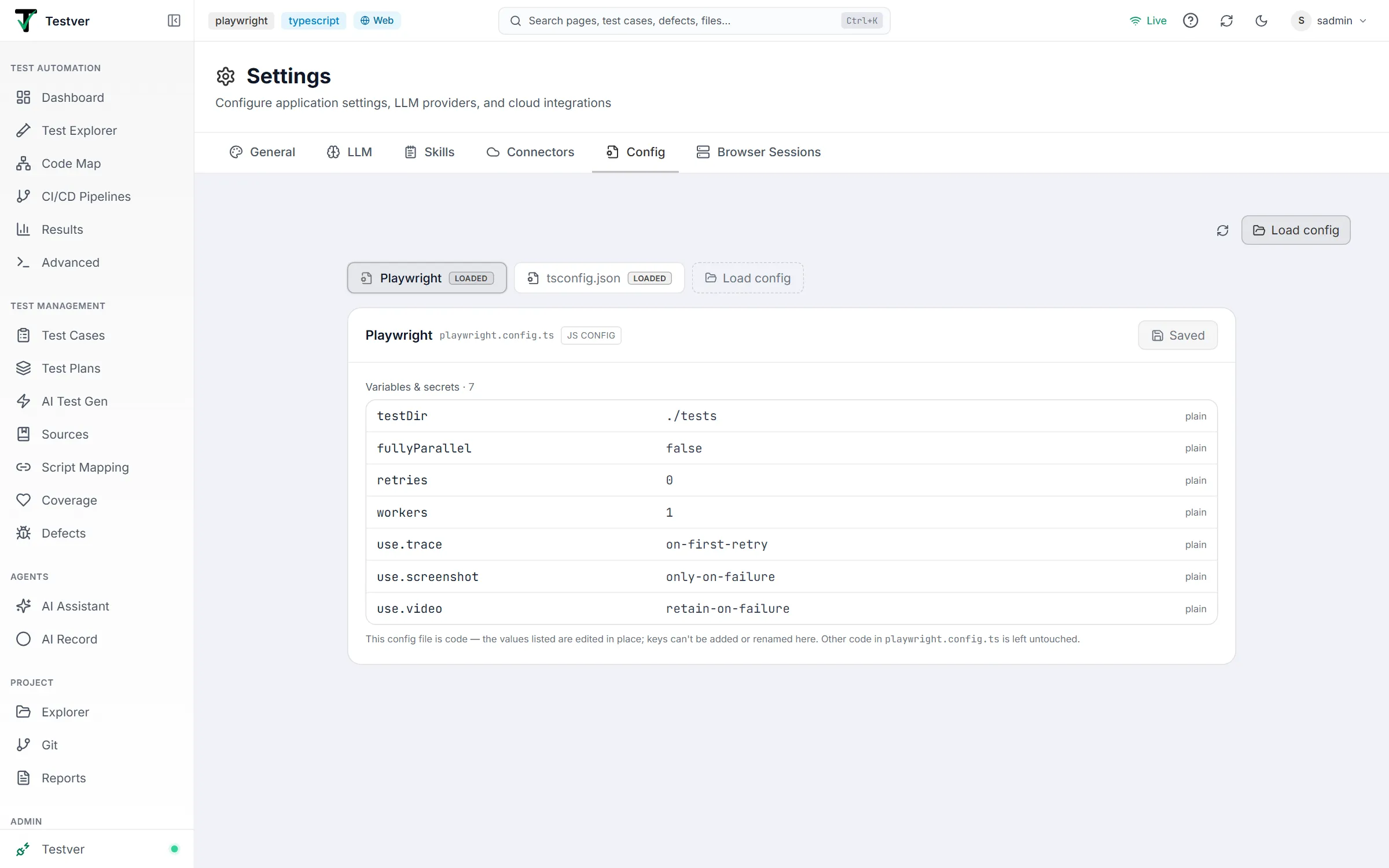
Section titled “What it does”The Config tab finds the configuration files already in your project — .env files, .properties files, JSON/YAML config — and gives you a form-style editor for them. Instead of opening a file in a text editor and risking a typo in a key name, you edit values in a table and save.
This matters most when you have several environments. A suite that reads BASE_URL from a config file can be pointed at QA, staging, or production by changing one value here, with no code change and no redeploy.
The layout
Section titled “The layout”- Across the top — the file chips. One chip per config file Testver discovered or you loaded (for example Default, Production, Playwright, tsconfig.json), plus a dashed Load config chip for adding your own. A file you loaded yourself carries a LOADED badge. The selected chip is highlighted; an amber dot marks a file with unsaved changes. Above the chips, on the right, sit the Rescan icon (circular arrows) and a Load config button.
- Below — the editor. The selected file’s contents. Its header shows the file’s name and path, a format badge (for example
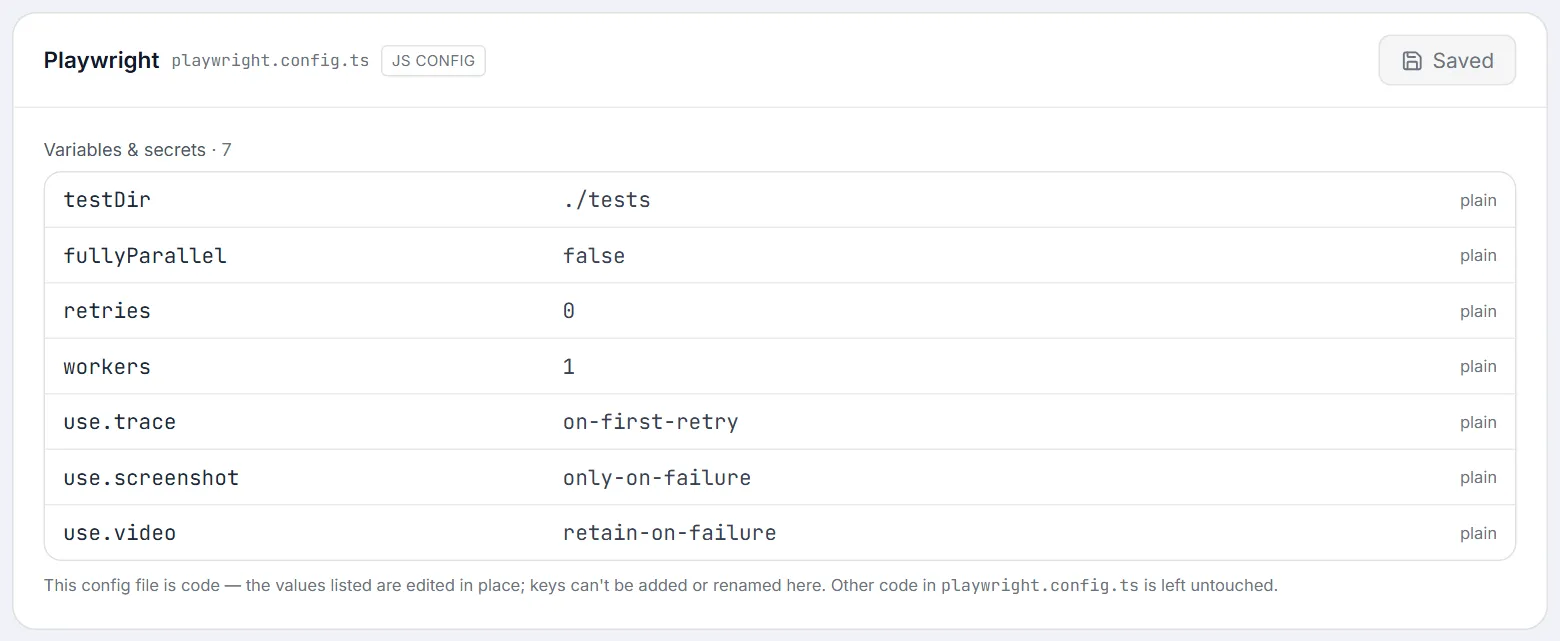
DOTENV,JSONorJS CONFIG), and the save button — Saved when there is nothing to save, Save changes when there is. A setting that holds the base URL is surfaced as its own Base URL field above the Variables & secrets list.
Editing values
Section titled “Editing values”Each row is one setting:
| Control | What it does |
|---|---|
| Key | The variable name, for example BASE_URL. |
| Value | What the variable is set to. |
| Eye icon | Reveals or hides a value that is being masked. |
plain / secret flag | Shown at the end of each row. Testver detects this from the key name — a key that looks like a credential is treated as secret and masked on screen; everything else shows as plain. Click the flag to switch a row between plain and secret. |
| Trash icon | Appears when you hover a row; removes it. |
| Add variable | Above the list, adds an empty row. |
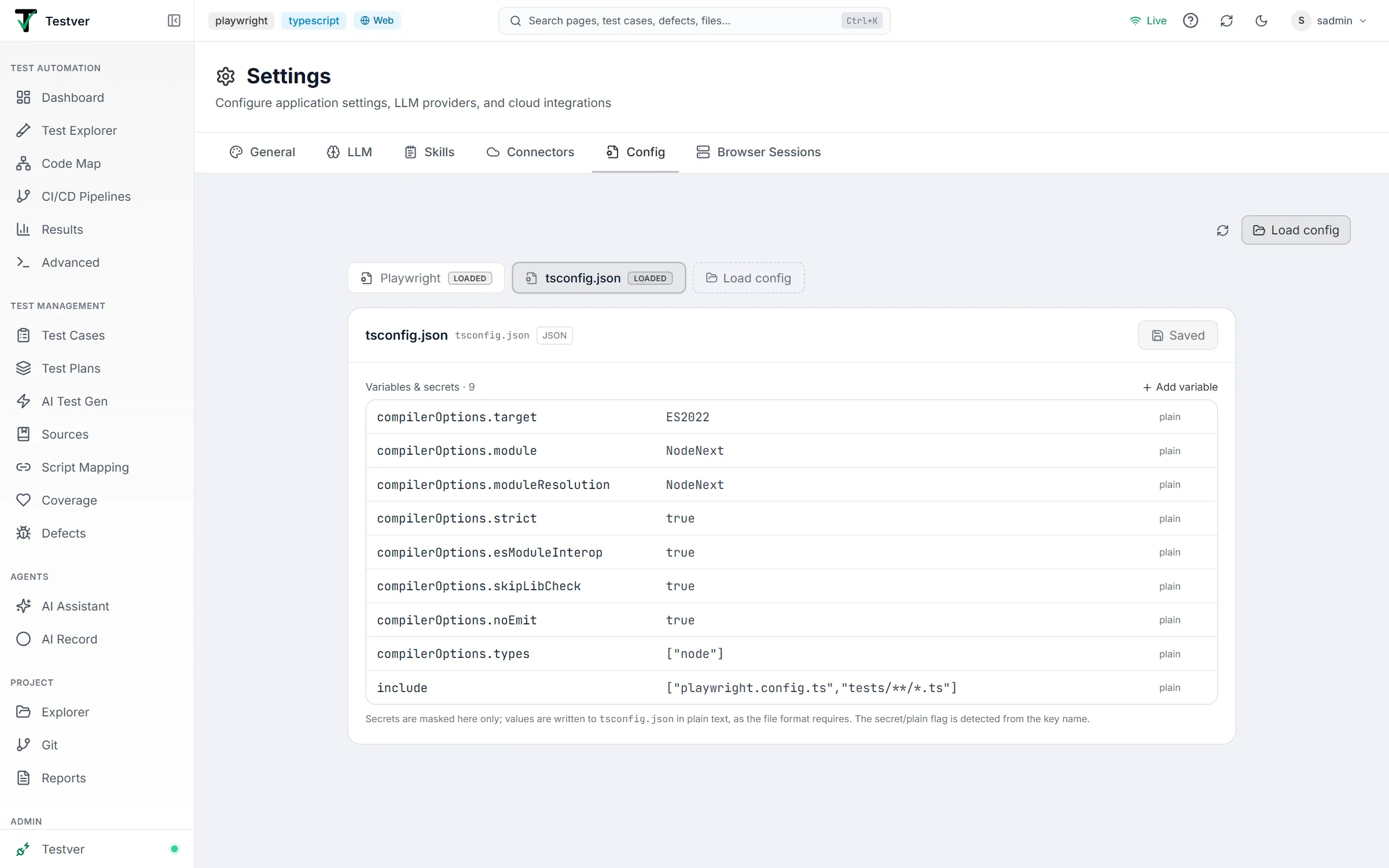
Changes are staged until you save, so an accidental keystroke doesn’t immediately change how your tests run. The amber dot in the file list and a Discard button let you back out of unsaved edits.
Code configs such as playwright.config.ts (badge JS CONFIG) are edited values only: there is no Add variable or trash icon, keys can’t be added or renamed, and the rest of the file’s code is left untouched — the note under the list says so.
Loading an extra config file
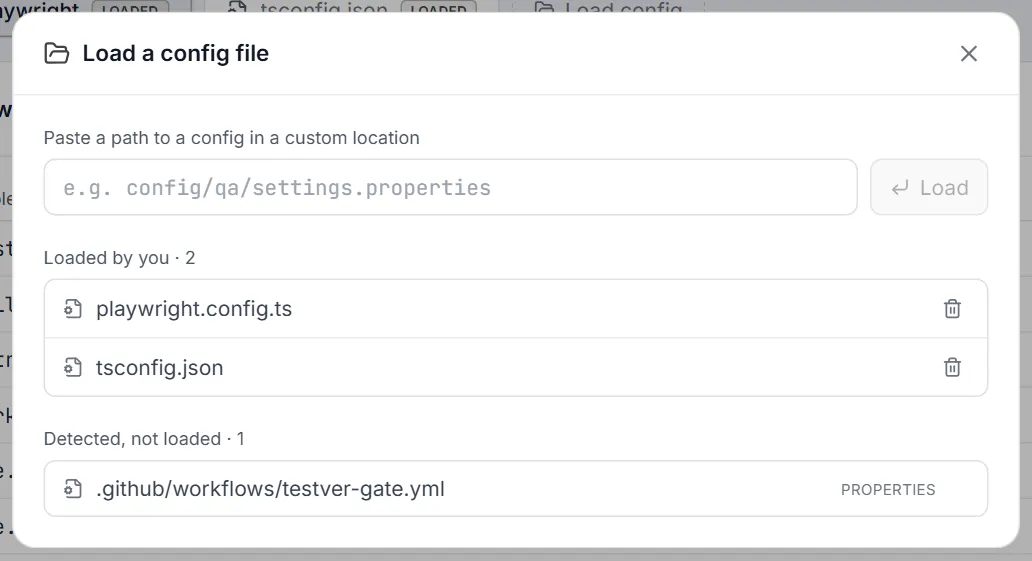
Section titled “Loading an extra config file”If Testver didn’t pick up a file automatically — for example a config nested somewhere unusual — click Load config to open the Load a config file dialog and give it the path relative to the project root (for example config/qa/settings.properties), then Load. The dialog also lists the files Loaded by you — each with an Un-load (trash) button that removes it from the list without deleting anything from disk — and the config files Testver Detected, not loaded, with a filter box; click one to load it.
Use the Rescan icon if you’ve added config files to the project since opening the screen.
Related
Section titled “Related”- Settings — the other tabs on this screen.
- Advanced → Runner — run a suite using the config you just edited.
- CI/CD Pipelines — trigger and gate runs from CI.