

Analyze & Fix Failures
Introduction
Section titled “Introduction”What this guide covers
Section titled “What this guide covers”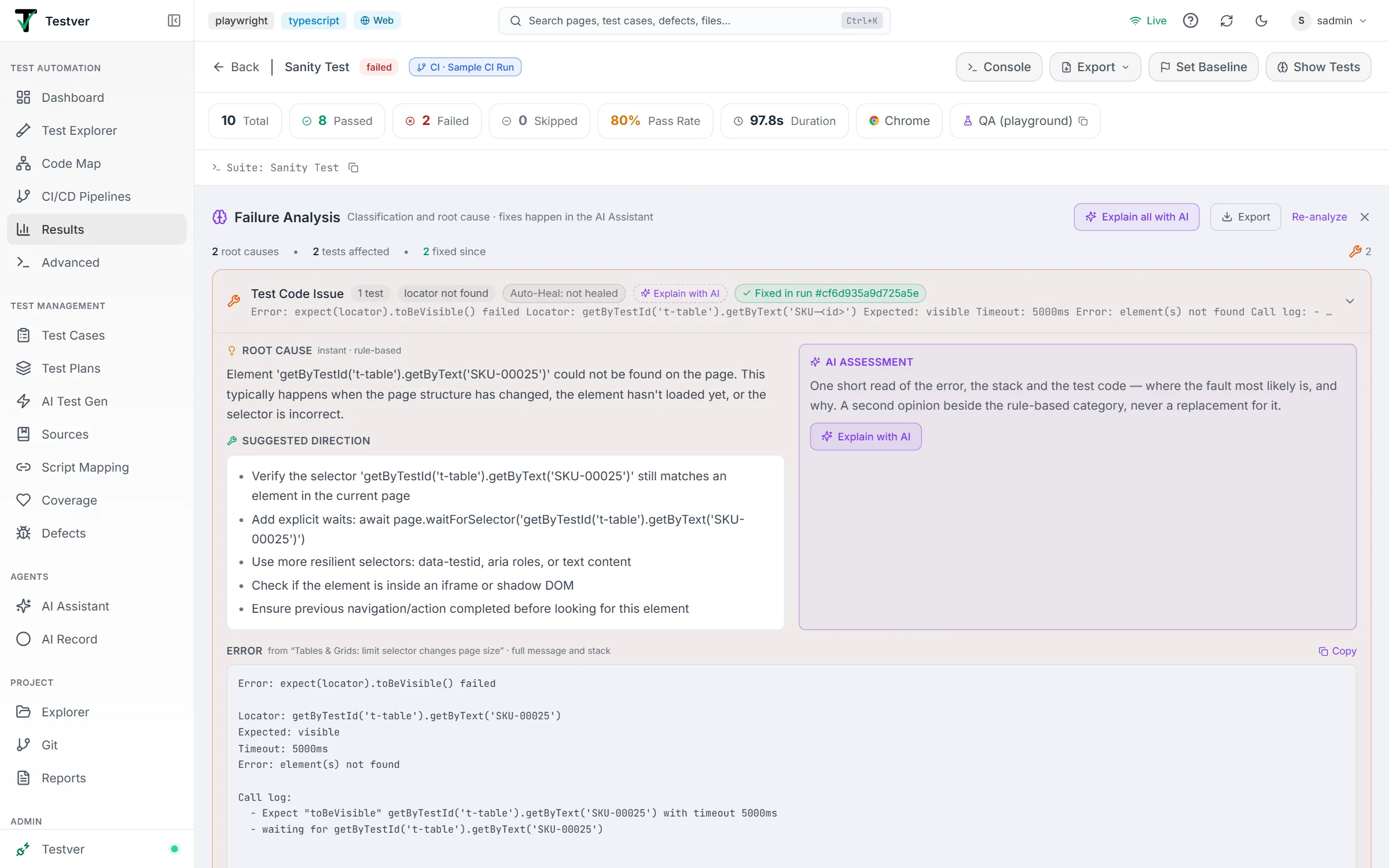
A run finished with failures. Before anyone opens a test file, three questions need answering: how many distinct problems are these, whose fault is each one, and which are already fixed? Testver answers all three on the Results screen, in the Failure Analysis panel, and then hands the actual repair to the AI Assistant, which is built for it.
This guide walks the whole cycle: reading the classification, asking the AI to explain a group, sending it to the Assistant to fix, and seeing the fix confirmed by a later run.
What you get at the end
Section titled “What you get at the end”| Output | Where it lands |
|---|---|
| Failure groups | One per distinct cause, not one per failing test — 20 tests failing on one changed label is one group of 20. |
| A category per group | Application Bug · Test Code Issue · Environment Issue · Timeout · Flaky · Needs Investigation. Deterministic, instant, and the record that Auto-Heal and the trend charts use. |
| An AI assessment (on request) | A short read of the error, the stack and the test code: the likely layer, a confidence, a file:line pointer, and a plain-language summary. |
| A fix | Made by the AI Assistant, in your project, with the affected tests re-run scoped. |
| Proof | Each affected test shows what it did the next time it ran: Fixed · passed in run #N, Still failing, or Not re-run yet. |
| A defect (optional) | Raised into Test Management from the failure, when the fault is the application’s. |
Who this guide is for
Section titled “Who this guide is for”- QA engineers triaging a red run before standup.
- Test leads who need to say “three of these eleven are ours, the rest are the app” without reading eleven stack traces.
- Developers handed a failing test who want the fix started with the evidence already collected.
No coding is required to read the analysis. Fixing happens in the Assistant, which reads and edits the code for you; it helps to be able to read its diff before you accept it.
When not to use it
Section titled “When not to use it”| Situation | Use instead |
|---|---|
| A single test just failed on your machine and you already know why | AI Assistant in Web mode — attach the test with @ and describe the fix. |
| Locator breakage you want repaired without anyone looking | Auto-Heal, which runs after the run and repairs eligible locators on its own. |
| You want to know whether a run is worse than the last one | Run comparison and baselines — regressions, new failures, fixed tests. |
Before you start
Section titled “Before you start”| You need | Why | Where |
|---|---|---|
| A saved run with failures | Analysis is computed as a run is saved. | Results — any run with a red count |
| An AI provider connected | For the AI assessment and for the fix. Classification itself needs no AI. | Settings → LLM |
| Your own Testver connection (shared servers) | On a shared server, every user except the super admin uses their own testver.com connection for AI. | Settings → LLM → Testver → Connect |
| Optional: git ownership | Shows who likely owns each failing area — derived from git automatically. | Settings → General → Test Ownership (hide author names, precise line-level ownership) |
Your first run through
Section titled “Your first run through”1. Open the run
Section titled “1. Open the run”- Open Results and pick a run with failures.
- Click Analyze Failures in the run header. It toggles the Failure Analysis panel in place of the test list; Show Tests takes you back.

The panel opens already populated: runs are classified as they are saved, so there is nothing to wait for. (A run recorded before this behaviour existed shows an Analyze Failures button in the panel instead — click it once.)
2. Read the summary bar
Section titled “2. Read the summary bar”At the top: N root causes · M tests affected, then · K fixed since once any have passed again, and on the right an icon and count per category (hover for the category name). This line is the triage answer — how many distinct problems, and how much of the damage is already repaired by later runs.

3. Read the groups
Section titled “3. Read the groups”Each card is one cause. Collapsed, it shows:

| Element | Meaning |
|---|---|
| Category icon and label | The deterministic classification (table below). |
| N tests | How many failing tests share this cause. |
| A signal — locator not found, strict mode violation or element not interactable | Shown on locator-type failures; the first two are what Auto-Heal acts on. |
| Auto-Heal: ‹state› / Fix expired / Auto-Heal: Stale / Auto-Heal: not healed | What Auto-Heal did for the group — the same verdict as the test’s own Auto-Heal panel. |
| AI: test code · high | Present once the group has been explained (before that, an Explain with AI chip). When the AI disagrees with the category it turns amber and reads e.g. AI: application · high — differs. |
| Fixed in run #1287 / 3 of 5 fixed in run #1287 / still failing | Read from later runs of the same tests — not from anything the AI said. |
| The error signature | The normalised error, in monospace. Values, ids and paths are masked so the signature describes the cause, not the data. |
| Category | Meaning | What it usually means for you |
|---|---|---|
| Application Bug | An assertion failed — the test asked the right question and the app gave the wrong answer. | Raise a defect; the test is probably fine. |
| Test Code Issue | The test or its page objects are wrong or stale — a locator that no longer matches, a detached element, a stale reference. | Fix the test. If it carries a locator signal, Auto-Heal may already have. |
| Environment Issue | Network, navigation, auth, data or the browser itself — nothing in the test file would fix it. | Check the environment before touching code. |
| Timeout | A wait ran out. Too ambiguous to place on its own. | Ask the AI to explain it — timeouts are where the assessment earns its keep. |
| Flaky Test | Intermittent by its own admission — retries, race conditions. | Look at the test’s history before deciding anything. |
| Needs Investigation | Could not be classified with confidence. | Explain with AI, then decide. |
Expand a group to see two columns: Root cause and Suggested direction on the left, produced instantly by the classifier, and the AI assessment on the right.
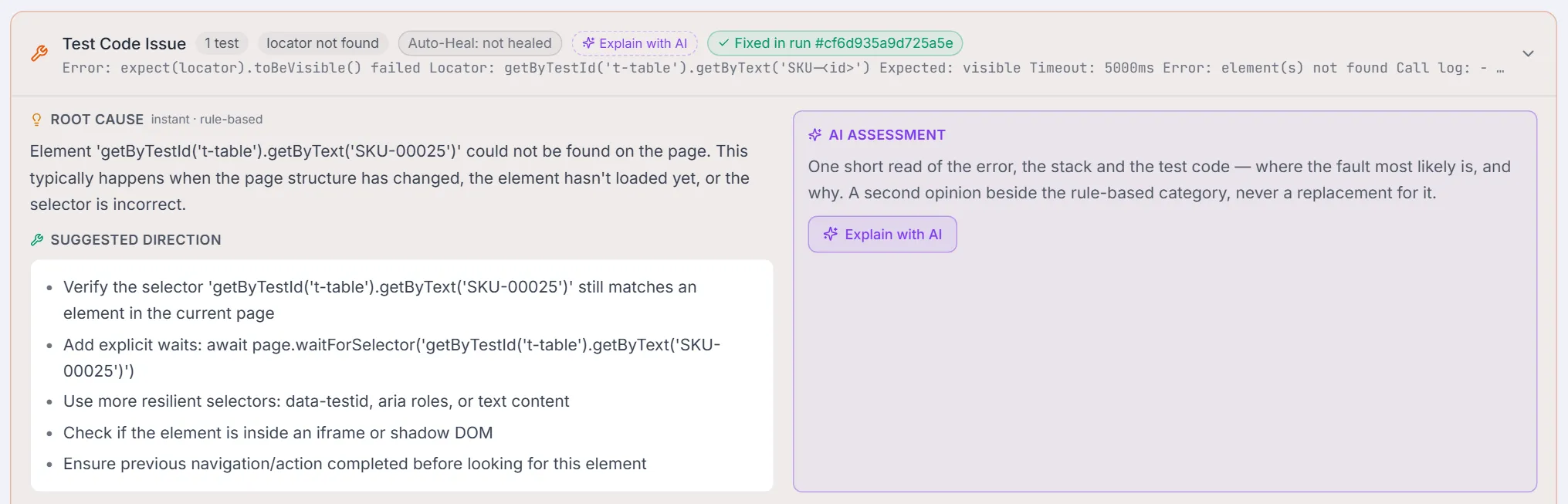
4. Ask the AI to explain a group
Section titled “4. Ask the AI to explain a group”Click Explain with AI on a group, or Explain all with AI in the header for every group that has not been explained yet. Each is one short call: the error, the stack trace, the test file and the page object the stack names are sent together, no tools and no browser, so it takes seconds and costs one completion per group.
You get back:
- a summary in plain language, naming the concrete evidence — the selector, the value, the line;
- a likely layer: Test code, Application or Environment, with the chosen one highlighted;
- a confidence — high, medium or low. Low means the evidence did not decide it, and it will say unclear rather than guess;
- a pointer to the most relevant file and line.
The assessment sits beside the category and never replaces it. When they disagree — the classifier said Test Code Issue, the AI read the network log and says application because one request took thirty seconds — the group is marked differs, both readings are shown, and a note says so. (Timeout, Flaky Test and Needs Investigation groups imply no layer, so they are never marked differs; their AI chip still shows the AI’s layer.) That disagreement is usually the interesting part of the run.
5. Look at the real error
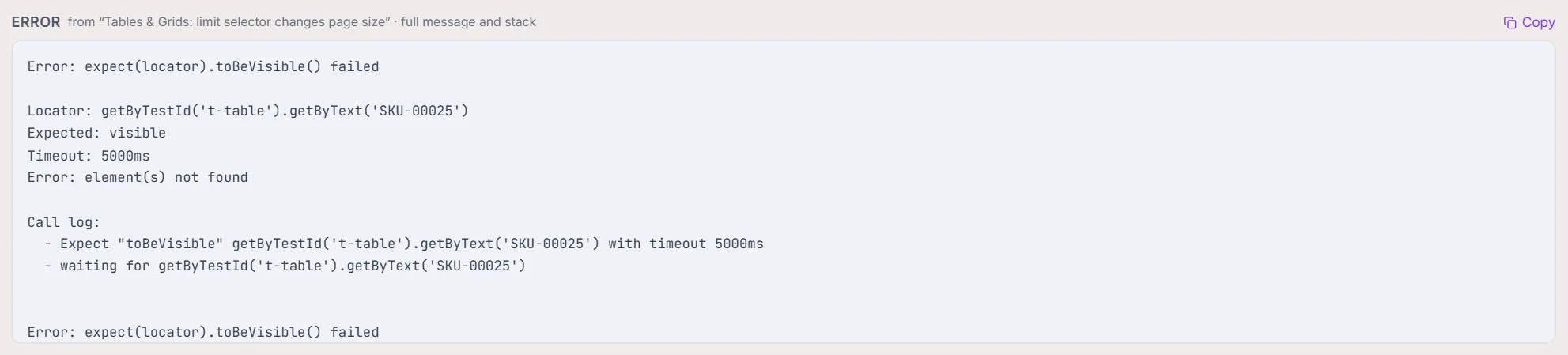
Section titled “5. Look at the real error”Below the two columns, the Error block shows the full error message and stack trace from the first affected test that recorded an error (named in the block’s header) — not the truncated signature — with a Copy button. This is what the Assistant will receive too.
6. See what happened since
Section titled “6. See what happened since”Affected tests lists each test in the group with its status from later runs of the same test:
| Status | Meaning |
|---|---|
| Fixed · passed in run #N | The test passed the next time it ran. |
| Still failing · run #N | It ran again and failed again. |
| Not re-run yet | Nothing to report until it runs again. |
Ownership (who likely owns the file, from git) sits beside each test in a git project, unless Hide author names is on. Every test also has its own small Fix button for handing just that one test to the Assistant.

7. Fix in the AI Assistant
Section titled “7. Fix in the AI Assistant”Click Fix in AI Assistant. The AI Assistant opens in the mode that matches the run’s framework (Playwright → Web, Appium → Mobile, REST Assured → API) with a message already prepared for you:
- the classification and, if you asked for one, the AI assessment;
- the still-failing tests — the heading notes how many already passed in a later run, and those are not listed as work;
- the error (first 25 lines) and stack trace (first 12 lines), plus the rule-based root cause and what Auto-Heal already did or why it didn’t;
- the exact scoped command to verify with, for your framework (
npx playwright test tests/checkout.spec.ts -g "…",pytest … -k "…"), and the instruction never to run the whole suite.
The first still-failing test is attached as an @test chip. Nothing is sent automatically — read the message, edit it if you like, then press Enter. The Assistant reads the files, proposes and applies the fix, and re-runs only the affected tests; its live preview shows the browser if it needs one.
8. Confirm it is fixed
Section titled “8. Confirm it is fixed”Come back to the run after the Assistant’s re-run (or after your next scheduled run). The group header now reads N of M fixed in run #X (or Fixed in run #X when all are), each fixed test shows Fixed · passed in run #X, and the summary bar’s fixed since count has moved. That status comes from the run record, so a fix that only worked in the Assistant’s conversation and not in a real run will not show as fixed.
9. Raise a defect, when it is the app
Section titled “9. Raise a defect, when it is the app”For groups classified as Application Bug, or where the AI’s layer is application, Raise as defect files a defect in Test Management from the failure — the same shape the per-test Create Defect button produces, titled [FAIL] <test name>, so whichever screen raised it, the other recognises it as existing. Once it exists, the group shows Defect exists: ‹id› instead of the button.
Reading the two readings together
Section titled “Reading the two readings together”| Classifier says | AI says | What it usually means |
|---|---|---|
| Test Code Issue | test code · high | Agreement. Fix the test; a locator signal means Auto-Heal may already have tried. |
| Application Bug | application · high | Agreement. Raise the defect; leave the test alone. |
| Timeout | application · medium | The AI found evidence of the app being slow or broken — a long request, a reload mid-flow. Investigate before raising the timeout value. |
| Timeout | test code | The wait was for the wrong thing, or the test raced the page. Fix the test. |
| Environment Issue | test code | Worth a look: a “network” failure can be the test hitting a URL that no longer exists. |
| Any | unclear · low | The evidence did not decide it. Explain the group again after the next run, or read the error yourself. |
The category stays the record in every case. Auto-Heal’s eligibility, the run-complete notification and the trend charts all read it, and it is deterministic — the same failure classifies the same way every time. The assessment is display: a second opinion, stored with the run, exported with it, never used to change the record.
Where the analysis is stored
Section titled “Where the analysis is stored”The groups, categories and assessments are saved on the run record itself (.testver/test-results.json in your project), which is why they survive restarts and appear in exports. Re-running Re-analyze recomputes the grouping from the run’s tests — useful after the classifier improves — and keeps any assessment whose group is unchanged.
Common Tasks (How Do I…?)
Section titled “Common Tasks (How Do I…?)”| I want to… | Do this |
|---|---|
| See why a run failed, fast | Results → the run → Analyze Failures. Read the summary bar and the category labels. |
| Get an explanation of one group | Expand it → Explain with AI. |
| Explain every group at once | Explain all with AI in the panel header. Groups already explained are skipped. |
| Fix a whole group | Expand it → Fix in AI Assistant → review the prepared message → Enter. |
| Fix one test only | The small Fix button beside that test in Affected tests. |
| Fix a test straight from its detail panel | Open the test in the run’s test list → Fix in AI Assistant (in its Auto-Heal or Not healed card when Auto-Heal recorded something). The Not healed card’s View group (N tests) takes you to its Failure Analysis card. |
| Know whether a fix worked | Look at the test’s status in Affected tests after the next run — it reads from run history. |
| Raise a bug for an application failure | Raise as defect on the group (shown for Application Bug groups and AI-application groups). |
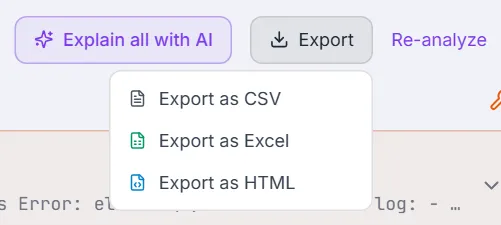
| Share the triage with someone outside Testver | Export → CSV, Excel or HTML. The AI assessment is included for groups that have one. |
| Recompute the groups | Re-analyze. |
| Turn off the AI part entirely | Just don’t click Explain. Classification, grouping and the fix hand-off need no model; only the assessment and the Assistant do. |
Tips & Best Practices
Section titled “Tips & Best Practices”- Read the summary bar before the cards. “4 root causes · 11 tests” already tells you the run is not eleven separate problems.
- Explain the ambiguous groups, not all of them. A locator group with high-confidence classification gains little from an AI read; a timeout gains a lot.
- Trust “fixed” only from the status. It comes from a later run. A convincing conversation with the Assistant is not a passing test.
- Send the group, not the test, when several tests share a cause. One fix in a page object usually clears all of them; the Assistant is told which tests share the failure.
- Edit the prepared message when you know more. “Only fix the selector, do not touch the assertion” belongs in the message before you press Enter.
- Raise defects from the Application Bug groups and leave those tests alone. Rewriting a test to pass against a broken app hides the bug.
- Connect your own Testver account on a shared server. AI features use each user’s own connection; the assessment tells you exactly this if it is missing.
Troubleshooting & FAQ
Section titled “Troubleshooting & FAQ”| Question / Problem | Answer |
|---|---|
| The panel says Not analysed yet. | The run predates automatic classification. Click Analyze Failures in the panel once; newer runs come pre-analysed. |
| Explain with AI says “This Testver server started before the current build…”. | The server process is older than the code it is serving. Restart testver serve, reload, and try again. |
| It says “Connect your Testver account to use AI”. | On a shared server every user except the super admin uses their own testver.com connection. Settings → LLM → Testver → Connect. |
| It says the model did not reply with the expected JSON. | The provider answered in prose. Try again; if it persists, switch the provider’s model under Settings → LLM to one that follows structured-output instructions. |
| The AI read and the category disagree. Which is right? | Neither is authoritative on its own. The category is the deterministic record; the AI read the code. Open Investigate in AI Assistant — the message asks it to settle exactly that first. |
| Two tests with the same bug are in different groups. | Values and ids are masked when grouping, but a different selector is treated as a different cause on purpose. If two groups really share one cause, fix one and the other’s status will tell you. |
| A test shows Not re-run yet after the Assistant fixed it. | The Assistant’s scoped re-run creates a run only when it goes through Testver’s runner. Run the test through Testver (Runner, a suite, or CI) and the status updates. |
| Auto-Heal skipped a group I think it could have fixed. | Auto-Heal acts only when the element could not be found (not when it was found but blocked). Each group header shows its Auto-Heal status — hover not healed for the reason, also shown on the test’s detail panel. The AI assessment can still explain the group, and Fix in AI Assistant still fixes it — the message includes what Auto-Heal tried. |
| I do not see Raise as defect. | It appears for Application Bug groups and for groups the AI placed in the application layer. For other groups, raise the defect from the test’s detail panel. |
| Can I get the old Self-Heal button back? | No — it was a second, weaker copy of the AI Assistant, with its own parser deciding whether a fix “passed”. The Assistant does the same job with a proper session, permissions, live preview and history, and “fixed” is now proven by a run. |
Related
Section titled “Related”- Results — the screen the panel lives on: runs, per-test detail, comparison and baselines.
- AI Assistant — where the fix happens; modes,
@testattachments and the live preview. - Auto-Heal — unattended locator repair after a run, gated on the same classification.
- Defects — where Raise as defect lands.
- Settings → LLM — connecting the provider the assessment and the Assistant use.