

Import / Export
Introduction
Section titled “Introduction”What is the Import & Export screen?
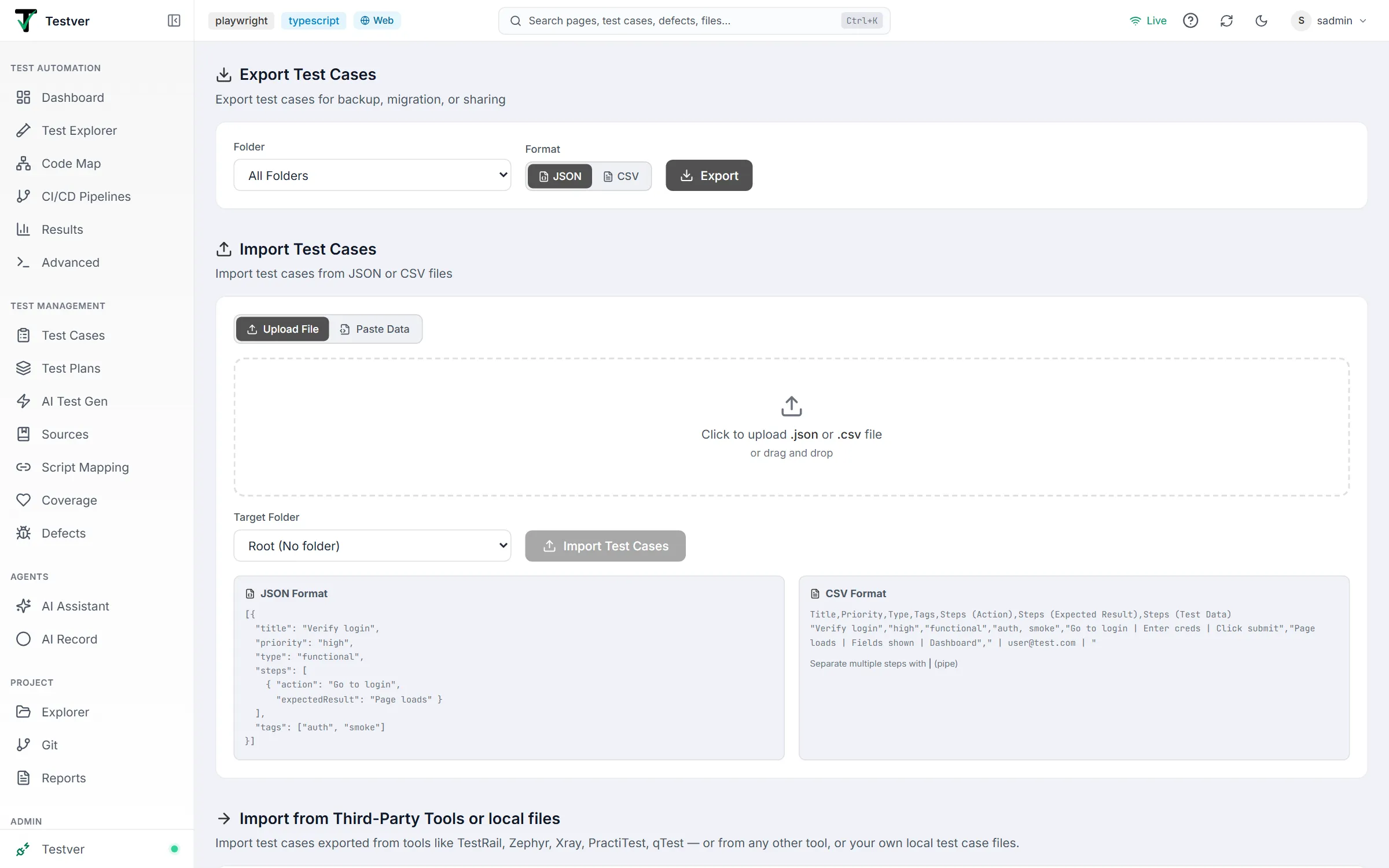
Section titled “What is the Import & Export screen?”The Import & Export screen is where you move test cases in and out of Testver. Open it with the Import / Export button beside New Test Case on the Test Cases screen — it opens in a dialog over the catalogue it acts on. (It is also still reachable directly at /import-export.) It is split into three stacked sections from top to bottom: Export Test Cases, Import Test Cases, and Import from Third-Party Tools or local files. Everything on the page is about test cases — there is no separate flow on this screen for defects or other record types.
Think of it like the File → Export and File → Import menus in a desktop office app. You pick what you want to take out (a folder of test cases, or all of them), choose a file format, preview the result, and download it. To bring data back in, you hand Testver a file or paste some text, point it at a target folder, and it creates the test cases for you.
Who this guide is for
Section titled “Who this guide is for”- QA engineers and testers who want a backup of their test cases or need to move them between projects.
- Teams migrating into Testver from another test-management tool such as TestRail, Zephyr, Xray, PractiTest, or qTest.
- Leads and managers who want to share a snapshot of test coverage with someone who does not have a Testver login, by sending them a
CSVorJSONfile. - Anyone who prefers preparing test cases in a spreadsheet or text editor and loading them in bulk rather than typing each one into the app.
Key terms
Section titled “Key terms”| Term | What it means here |
|---|---|
| Export | Pulling test cases out of Testver into a downloadable file (JSON or CSV). |
| Import | Loading test cases into Testver from a file, pasted text, or another tool’s export. |
| Test case | A single testable scenario with a title, priority, type, optional preconditions, steps, and tags. |
| Step | One action inside a test case, with an action, an expectedResult, and optional testData. |
| Folder | A node in your test-case folder tree. Used to scope an export and to choose where imports land. |
| JSON | A structured text format. Testver exports an array of test-case objects and imports the same shape. |
| CSV | A comma-separated spreadsheet format. One row per test case; multiple steps packed into a cell, separated by a pipe (|). |
| Field mapping | How a source tool’s columns/fields (e.g. Summary, Priority) line up with Testver’s fields (e.g. title, priority). |
| Preview | A read-only look at the data — the export preview pane, or the parsed-test-case table before a third-party import. |
| AI Assistant (API mode) | The chat-driven assistant that can read an uploaded export file, map fields, and create test cases for you. Used for third-party imports on this screen. |
| Third-party tool | An external test-management product (TestRail, Zephyr, Xray, PractiTest, qTest) whose export files Testver can understand. |
How it works
Section titled “How it works”Each of the three sections works independently:
- Export calls Testver’s export service for the chosen folder (or all folders), returns the matching test cases, and renders a live preview. You then convert that preview to
JSONorCSVin the browser and download it. - Import reads your file or pasted text in the browser, auto-detects whether it is
JSONorCSV, parses it into test-case objects, and sends them to the import service to be created under your chosen target folder. - Third-party import is currently delivered through the AI Assistant: clicking the button opens the assistant in API mode with a ready-made prompt, and you upload your export file inside the chat for the AI to parse and create.
Getting Started
Section titled “Getting Started”Opening Import & Export
Section titled “Opening Import & Export”- Open Test Cases and click Import / Export beside New Test Case in the header. A dialog titled Import / Export opens over the catalogue (subtitle: “Move test cases in from a file or another tool, or take this catalogue out.”); close it with the ×. There is no left-sidebar entry — to open the same content as a full page, go to the route
/import-exportdirectly. - The content shows three sections stacked vertically. No data loads automatically — the export preview stays empty until you click Export.
- Scroll down to reach the Import Test Cases and Import from Third-Party Tools or local files sections.
The screen layout
Section titled “The screen layout”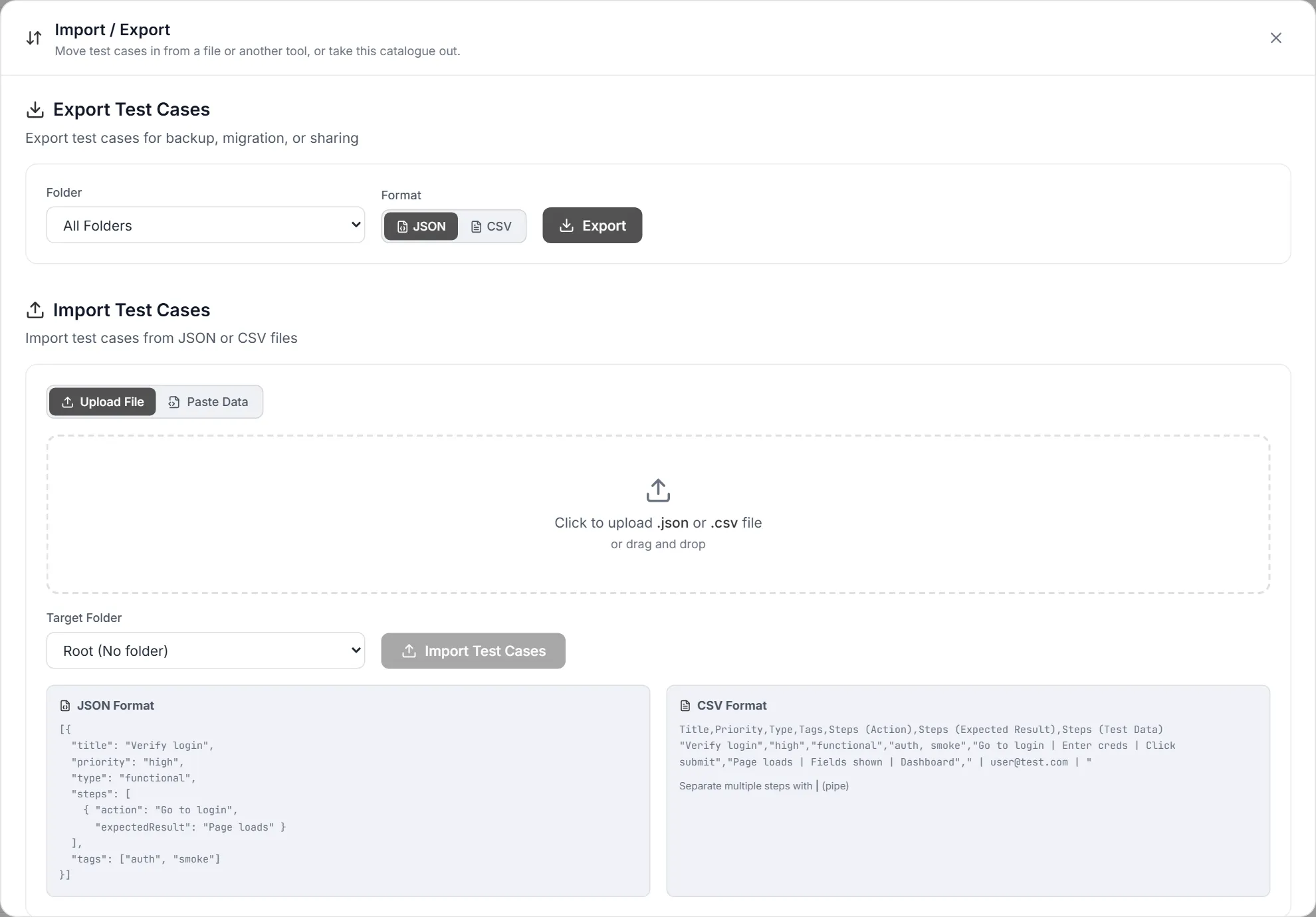
| Area | Where | What it does |
|---|---|---|
| Export Test Cases | Top section | Pick a folder and a format (JSON/CSV), run the export, preview it, then copy or download. |
| Import Test Cases | Middle section | Upload or paste JSON/CSV data, choose a target folder, and create the test cases. |
| Import from Third-Party Tools or local files | Bottom section | Hand an export file from another tool to the AI Assistant, which parses and imports it for you. |
| Success toast | Floating, bottom-right | A green confirmation (e.g. “Export completed”, “N test cases imported”) that appears for about 4 seconds after an action succeeds. |
| Format hint cards | Inside the Import section | Two side-by-side reference cards showing an example JSON shape and an example CSV shape. |
At a glance
Section titled “At a glance”- Folder dropdowns list your whole folder tree, indented to show nesting depth.
- The export preview is capped at the first 5,000 characters and labelled as a truncated preview — the full content is still what gets downloaded.
- The import format toggle (Upload File vs Paste Data) and a small “data loaded” badge tell you whether Testver sees your input as
JSONorCSVand how large it is in KB. - Drag-and-drop is supported on the upload area; the drop zone highlights green while you hover a file over it.
Importing Test Cases
Section titled “Importing Test Cases”The two ways to import
Section titled “The two ways to import”You can import test cases — each with a title, priority, type, optional preconditions, an ordered list of steps, and tags. Two paths exist on this screen:
- The Import Test Cases section accepts
JSONandCSVdirectly in the browser (either uploaded as a file or pasted as text). - The third-party section hands a wider range of files (including
XMLandExcelexports from other tools) to the AI Assistant for parsing.
Supported file formats
Section titled “Supported file formats”| Format | Where it is accepted | Notes |
|---|---|---|
| JSON | Import Test Cases (upload/paste); AI Assistant | An array of test-case objects, or a single object (auto-wrapped into an array). The native importer auto-detects JSON when the input starts with [ or {. |
| CSV | Import Test Cases (upload/paste); AI Assistant | One row per test case. Steps are packed into cells and separated by a pipe (|). Detected when input does not start with [ or {. |
| .txt | Import Test Cases (upload only) | Accepted by the file picker (accept=“.json,.csv,.txt”); its contents are treated as JSON or CSV by the same auto-detection. |
| XML | AI Assistant (and the hidden wizard) | Used by TestRail and Zephyr exports. Not parsed by the native paste/upload importer — route it through the AI Assistant. |
| Excel (.xlsx / .xls) | AI Assistant (and the hidden wizard) | Used by Zephyr and qTest exports. Not handled by the native paste/upload importer — route it through the AI Assistant. |
Uploading a file or pasting data
Section titled “Uploading a file or pasting data”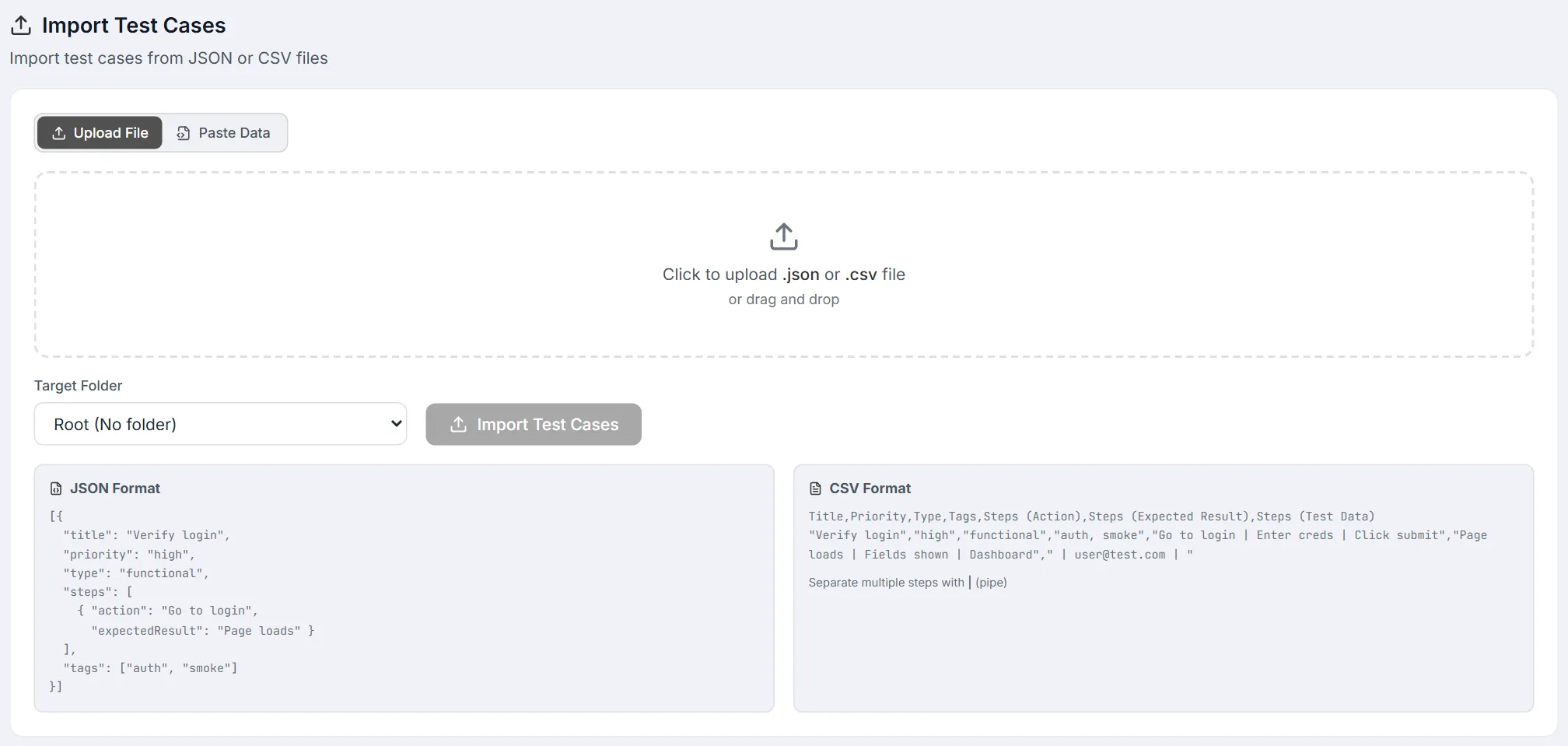
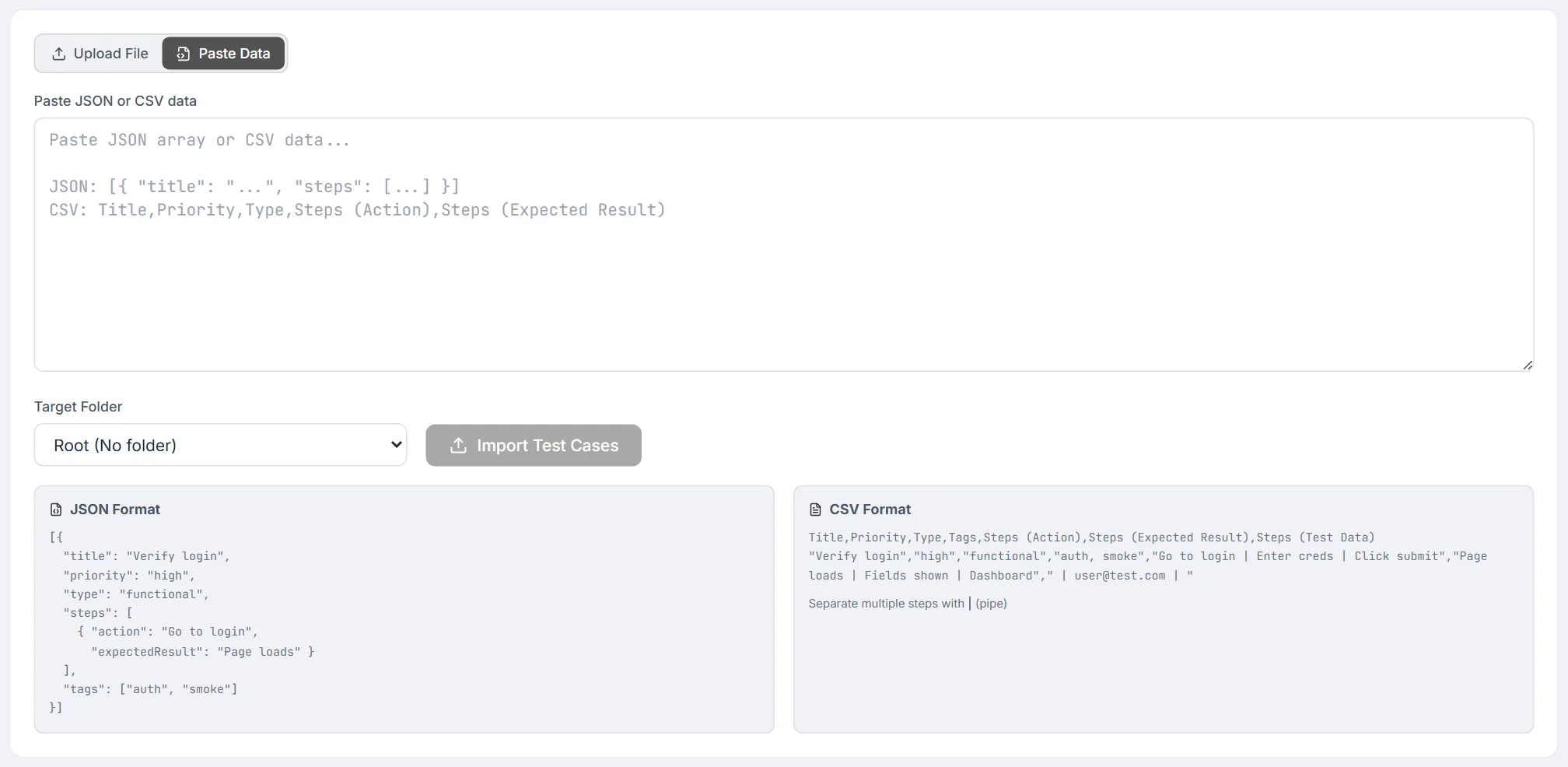
- In the Import Test Cases section, choose an input mode with the toggle: Upload File or Paste Data.
- If you chose Upload File, click the drop zone to pick a
.json,.csv, or.txtfile, or drag the file onto it. The zone turns green and reads Drop file here while a file hovers over it. - If you chose Paste Data, paste a
JSONarray orCSVblock into the text box. The placeholder shows both shapes as a reminder. - Confirm the green JSON data loaded / CSV data loaded badge appears with the detected type and size in KB.
- Pick a Target Folder from the dropdown. Leaving it on Root (No folder) imports into the root.
- Click Import Test Cases. The button shows a spinner while it runs.
- Read the result banner below the controls (see validation), and use Clear to reset the input and result if you want to load something else.
Field mapping (JSON keys and CSV columns)
Section titled “Field mapping (JSON keys and CSV columns)”For the native importer, the field names you provide map directly to Testver’s fields. In JSON, use these keys; in CSV, use these column headers.
| Testver field | JSON key | CSV column header | Default if missing |
|---|---|---|---|
| Title | title | Title (or Name / Test Case) | Row is skipped if there is no title |
| Priority | priority | Priority | medium |
| Type | type | Type | functional |
| Tags | tags (array) | Tags (comma-separated) | empty |
| Preconditions | preconditions | Preconditions | empty |
| Step action | steps[].action | Steps (Action) (pipe-separated) | empty |
| Step expected result | steps[].expectedResult | Steps (Expected Result) (pipe-separated) | empty |
| Step test data | steps[].testData | Steps (Test Data) (pipe-separated) | empty |
In CSV, the three step columns are zipped together position-by-position: the first pipe segment of each becomes step 1, the second becomes step 2, and so on. A step is only created when its action or expected-result segment has content.
[{ "title": "Verify login", "priority": "high", "type": "functional", "steps": [ { "action": "Go to login", "expectedResult": "Page loads" } ], "tags": ["auth", "smoke"]}]Title,Priority,Type,Tags,Steps (Action),Steps (Expected Result),Steps (Test Data)"Verify login","high","functional","auth, smoke","Go to login | Enter creds | Click submit","Page loads | Fields shown | Dashboard"," | user@test.com | "Import results and validation
Section titled “Import results and validation”When you import, the result is shown in a coloured banner directly under the import controls:
| Outcome | What you see |
|---|---|
| Nothing parsed | Red banner reading No valid test cases found in input — usually a JSON/CSV shape problem or rows with no title. |
| Parse error | Red banner with the error message (for example, malformed JSON). |
| Success | Green banner: N test cases imported successfully, plus a success toast bottom-right. |
| Partial success | Green banner with the imported count, followed by a red bulleted list of per-row errors returned by the server. |
Importing from third-party tools
Section titled “Importing from third-party tools”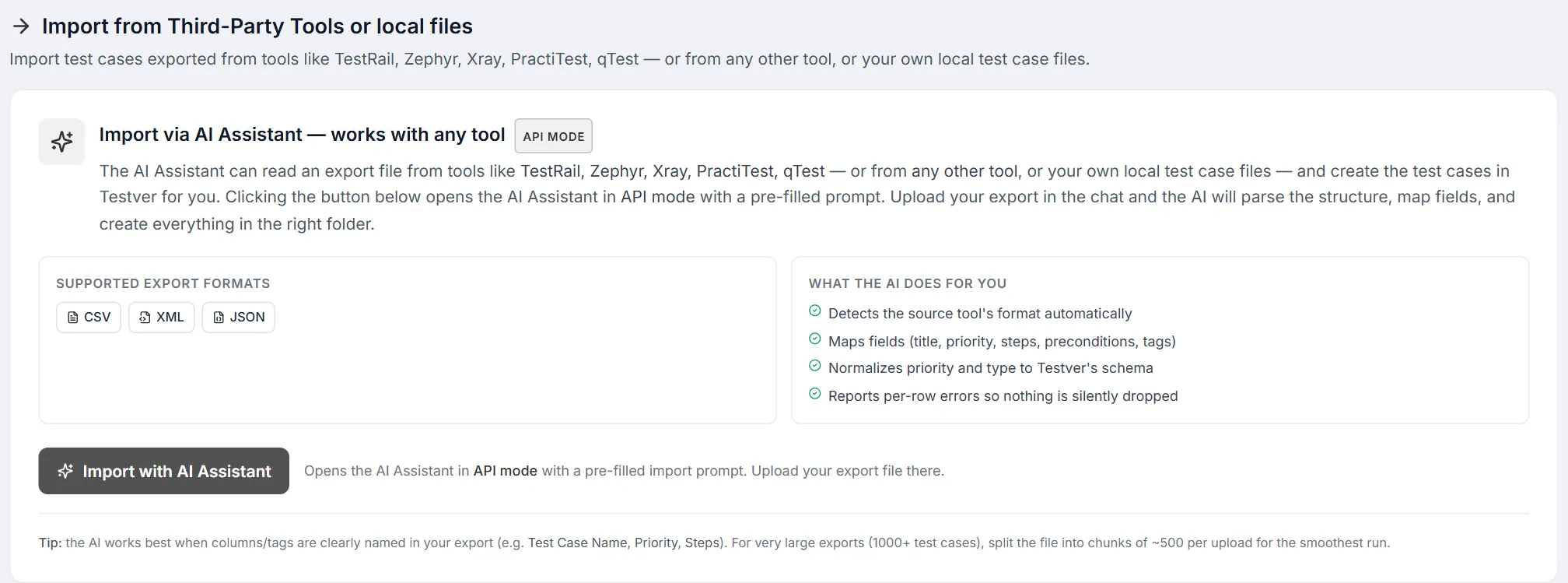
The bottom section, Import from Third-Party Tools or local files, is currently powered by the AI Assistant. It carries an API mode badge and explains that the assistant can read an export file from tools like TestRail, Zephyr, Xray, PractiTest, and qTest — or from any other tool, or your own local test-case files — and create the test cases for you.
- Read the two summary cards: Supported export formats (
CSV,XML,JSON) and What the AI does for you (detects the source format, maps fields, normalizes priority/type, and reports per-row errors). - Click Import with AI Assistant. This opens the AI Assistant in API mode with a pre-filled import prompt and navigates you to the
/aiscreen. - In the chat, upload your export file (
CSV,XML,JSON, orExcel). - Let the assistant parse the file, map fields, normalize values to Testver’s schema, and create the test cases via the test-management tools.
- Review the assistant’s report: it states how many test cases were created and flags any rows that needed manual review.
About the third-party import wizard
Section titled “About the third-party import wizard”| Tool | Formats | Where to export it from |
|---|---|---|
| TestRail | CSV, XML | Test Cases → Export → CSV or XML |
| Zephyr | XML, Excel | Tests → Export → XML or Excel |
| Xray | CSV, JSON | Issues → Export → CSV or JSON (from Jira/Xray) |
| PractiTest | CSV | Tests → Export → CSV |
| qTest | Excel | Test Design → Export → Excel |
The parsers behind these tools normalize incoming values to Testver’s schema: priorities such as P1/blocker/highest become critical, P2/major become high, normal/moderate become medium, and minor/trivial/lowest become low. Section, folder, label, module, and reference fields are folded into tags, and numbered step text is split into individual steps.
Exporting Test Cases
Section titled “Exporting Test Cases”What gets exported
Section titled “What gets exported”You export test cases, either for a single folder you choose or for All Folders. Each exported test case carries its title, priority, type, tags, preconditions, and steps (each step’s action, expected result, and test data).
Export formats
Section titled “Export formats”| Format | Button | Shape |
|---|---|---|
| JSON | JSON | Pretty-printed array of test-case objects (2-space indented). |
| CSV | CSV | Header row plus one row per test case. Columns: Title, Priority, Type, Tags, Preconditions, Steps (Action), Steps (Expected Result), Steps (Test Data). Multiple steps are joined with a pipe (|); all values are quoted and inner quotes are doubled. |
Export options
Section titled “Export options”
| Control | Choices | Effect |
|---|---|---|
| Folder | All Folders or any folder in your tree | Scopes which test cases are exported. |
| Format | JSON / CSV toggle | Switches the preview and the downloaded file type. You can flip it after exporting without re-running. |
| Export button | — | Runs the export and fills the preview. Shows a spinner while running. |
| Copy | — | Copies the current preview text to your clipboard; the link briefly reads Copied!. |
| Download JSON/CSV | — | Saves the full content to a file named test-cases-export-<timestamp>.<ext>. |
Running an export
Section titled “Running an export”- In the Export Test Cases section, choose a Folder (or leave it on All Folders).
- Pick a Format — JSON or CSV.
- Click Export. A success toast confirms Export completed and the preview pane appears.
- Check the summary line above the preview: it shows the test-case count, the approximate size in KB, and the active format.
- Switch the Format toggle if you want the other format — the preview updates instantly without re-exporting.
- Click Copy to grab the text, or Download JSON / Download CSV to save the file.
- The downloaded file is named
test-cases-export-<timestamp>.jsonor.csv.
Common Tasks (How Do I…?)
Section titled “Common Tasks (How Do I…?)”| I want to… | Do this |
|---|---|
| Back up all my test cases | Export section → All Folders → JSON → Export → Download JSON. |
| Export just one folder to a spreadsheet | Export section → pick the folder → CSV → Export → Download CSV. |
| Quickly copy export text to share | Export → Export → Copy (the link reads Copied!). |
| Import test cases from a JSON file | Import section → Upload File → drop the .json → choose Target Folder → Import Test Cases. |
| Import from a spreadsheet I exported as CSV | Import section → Upload File (or Paste Data) → load the CSV → choose folder → Import Test Cases. |
| Paste test cases directly | Import → Paste Data → paste JSON/CSV → choose folder → Import Test Cases. |
| Migrate from TestRail / Zephyr / Xray / qTest | Third-party section → Import with AI Assistant → upload the export in the chat. |
| Import an XML or Excel export | Use the AI Assistant button — the native importer handles only JSON/CSV. |
| Start over after a bad import | Click Clear in the Import section to reset the input and result. |
Tips & Best Practices
Section titled “Tips & Best Practices”- Export before you import. A quick All Folders → JSON → Export → Download gives you a restore point in case an import goes wrong.
- Match the headers exactly for
CSVimports —Title,Priority,Type,Tags,Steps (Action),Steps (Expected Result),Steps (Test Data). The importer also acceptsNameorTest Casefor the title column. - Use the pipe (
\|) to separate multiple steps inside a singleCSVcell; the three step columns are zipped together by position. - Give every row a title. Rows without a title are silently dropped during native import.
- Round-trip with the same format. A
CSVyou export from Testver re-imports cleanly because the column names and the pipe convention match. - Send
XML/Exceland unusual exports to the AI Assistant rather than fighting the nativeJSON/CSVimporter. - Name your source columns clearly (e.g. Priority, Steps) so the AI Assistant maps fields accurately, and split very large exports into ~500-case chunks.
Troubleshooting & FAQ
Section titled “Troubleshooting & FAQ”| Symptom | Likely cause / fix |
|---|---|
| No valid test cases found in input | The parsed result was empty — rows had no title, or the CSV headers do not match. Check the title column and headers. |
| A red parse-error banner | Malformed JSON (e.g. a trailing comma) or a CSV that does not split cleanly. Validate the file and try again. |
| My JSON imported as CSV (or vice-versa) | Detection is based on the first character. Make sure JSON input starts with [ or {; otherwise it is treated as CSV. |
| Steps did not come through on a CSV import | Use the exact Steps (Action) / Steps (Expected Result) / Steps (Test Data) headers and separate steps with |. |
| Some rows imported, others errored | The green banner shows the count and lists per-row errors underneath — fix those rows and re-import just them. |
| My XML / Excel file will not upload in the Import section | The native importer only accepts JSON/CSV/.txt. Use Import with AI Assistant for XML and Excel. |
| The download is missing rows compared to the preview | It is not — the on-screen preview is capped at 5,000 characters, but the downloaded file is complete. |
| I don’t see the five-tool import wizard | It is intentionally disabled by a feature flag in this build; the AI Assistant card replaces it. Behaviour is expected, not a bug. |
| Where did the test cases land? | In the Target Folder you selected (or the root if you left it on Root (No folder)). |
Related
Section titled “Related”- Test Cases — where imported cases land.