

AI Record
Introduction
Section titled “Introduction”What is AI Record?
Section titled “What is AI Record?”The AI Record screen lets you build a test by doing instead of coding. You start a live session — either a real Chromium browser (Web mode) or a mobile device running your app, local or cloud (Mobile mode) — and simply interact with it: click links, fill forms, tap buttons, type text. Testver watches every interaction and records it as an ordered list of actions. When you are done, the AI reads your recorded actions together with your existing project, then writes a real test file that matches the framework, language, and conventions you already use.
Think of it like a dashcam for your app. You drive the route once — log in, search, add to cart, check out — and the recorder captures the whole journey frame by frame. Afterwards, instead of you writing down directions from memory, an assistant watches the footage and writes a clean, repeatable route description that anyone (or any CI pipeline) can follow again.
Who this guide is for
Section titled “Who this guide is for”This guide is written for the person sitting in front of the screen who wants a test without writing it line by line. You do not need to know Playwright, WebdriverIO, or Appium to use it.
- QA engineers and testers who want to capture a flow quickly and hand the heavy lifting to AI.
- Developers who want a starting-point test that already matches the project’s page objects and helpers.
- Product and support staff who can reproduce a bug or flow by clicking through it, and want that turned into a regression test.
- Anyone validating that a flow still works — on Mobile you can replay your recorded steps before generating code.
Key terms
Section titled “Key terms”| Term | What it means here |
|---|---|
| Recording | A single capture session — from the moment you click Start Recording until you click stop. It holds the ordered list of actions, a duration, and (after generation) the AI conversation. Recordings are saved to Recording History. |
| Action | One captured interaction — a click, a fill, a hover, a key press, a navigate, etc. Each action becomes a numbered step in the timeline with an icon, a description, and (for clicks) a screenshot thumbnail. |
| Assertion | A check you add on purpose — e.g. ‘this element is visible’ or ‘this text equals X’. You enter Assert mode, click the element you want to verify, and the recorder adds an assert step instead of clicking it. |
| Locator | How a step finds its element again later (a CSS selector, accessibility role, text, etc.). Each recorded action carries a selector; you can refresh it with Re-inspect Element if the page changed. |
| Codegen | Code generation — the step where AI (or, on mobile, a static template) converts your recorded actions into an actual test file in your project, written to match your existing style. |
| Custom step | A step that is not an action in the app — “log in with our existing helper”, “read the reset email and keep its link”, “wait until the order ships”. You write what it does; the AI writes the code for it at that position, reusing your project’s code. See Custom Steps. |
| Session reuse | Keeping the same live browser/device session alive so a later run can attach to it instead of cold-starting. If a browser is already running when you start, the recorder reuses that session rather than launching a fresh one. |
How it works
Section titled “How it works”- You open the screen and pick a mode — Web (a browser) or Mobile (a device + app, on a local phone/emulator or a cloud grid).
- You start the session. In Web mode a Chromium browser launches (or your already-open one is reused); in Mobile mode an Appium session boots on the device and app you chose — a phone or emulator connected to this machine, or a device on a cloud grid.
- You interact with the live view. Each click, type, tap, or key press is captured and streamed into the action timeline on the left, complete with thumbnails.
- Optionally you add assertions (checks), annotations (notes) and custom steps (parts of the test that aren’t clicks — reuse your login helper, read an email, load test data), edit step descriptions, re-order steps by dragging, or delete steps.
- You stop the recording. The captured steps remain editable, and on Mobile you can Playback them to confirm they replay correctly.
- You choose a target (a brand-new test, or merge into an existing test), pick an AI model, and click Generate. The AI first analyzes your project and proposes a plan; you confirm, and it writes the code, runs the test, and fixes failures.
- The finished recording — steps plus the full AI conversation and any file diffs — is saved to Recording History so you can reopen it later.
Getting Started
Section titled “Getting Started”Opening AI Record
Section titled “Opening AI Record”- In the left navigation, open AI Record under the Agents group (route
/ai-record). - The screen opens in the mode that matches your workspace. A web-only workspace lands on the Web recorder; a mobile-only workspace lands on the Mobile recorder.
- If your workspace supports both kinds (or the kind is unknown), a small Web | Mobile toggle appears in the header so you can switch. It is disabled while a recording or a generation is running — finish or stop it first.
- If you have an unfinished recording from before, an Unsaved Draft Found banner appears at the top with Resume Draft and a discard (trash) button.
The screen layout
Section titled “The screen layout”The screen is split: the recorder (timeline, controls, generation panel) sits on the left, and the live view (browser or device) sits on the right once a session is active. A draggable divider lets you resize the split between 25% and 75%.
| Area | Where | What it does |
|---|---|---|
| Header bar | Top of the recorder | Shows the current phase (Browser Recorder / Recording with a live red dot + timer + action count / Recording Stopped / Generating Code… / Code Generated) and the buttons for it — while recording Assert, Annotate, Custom step, Pause and Stop; after stopping Custom Step, Add More Steps and New Recording. Hover any button for a tooltip saying what it does. When the recorder is narrow (the live view open beside it), the buttons after stopping show as icons only — the tooltip names each. |
| History button | Far left of the header | Toggles the Recording History sidebar. |
| Action timeline | Left, main area | The numbered list of captured steps with icons, descriptions, and screenshot thumbnails. Also where AI text, tool calls, and file diffs appear during generation. |
| Live view | Right side | The live browser canvas (Web) or live device mirror (Mobile). Resizable, and in Web mode can pop out as a floating Picture-in-Picture window. |
| Generation panel | Bottom (when stopped) | Test name / target-test picker, model selector, Playback (Mobile), and Generate Test Code (or Merge & Generate). |
| Follow-up bar | Bottom (when generating/done) | A chat box to confirm the AI’s plan or request changes to the generated code. |
At a glance
Section titled “At a glance”- Two modes share one screen: Web (browser, red accent) and Mobile (device, indigo accent).
- Every interaction in the live view becomes a numbered, editable step.
- Assert mode adds checks; Annotate mode adds notes; Pause lets you click around without recording.
- Custom steps cover what isn’t a click in the app — reusing a helper your project has, reading an email, test data, an API call — and the AI writes the code for them.
- Playback replays your steps on the device so you can verify them before generating (Mobile).
- Generation is AI-driven, runs an analyze-then-confirm flow, and saves the full transcript to history.
- Recordings can be renamed, tagged, searched, and reopened from Recording History.
Choosing a Mode
Section titled “Choosing a Mode”Web vs Mobile
Section titled “Web vs Mobile”Pick the mode that matches what you are testing. If a Web | Mobile toggle is shown in the header, click it to switch. Web records interactions in a Chromium browser; Mobile records taps and input on a device running your installed app build — either connected locally or provisioned on a cloud grid.
Setting up a Web session
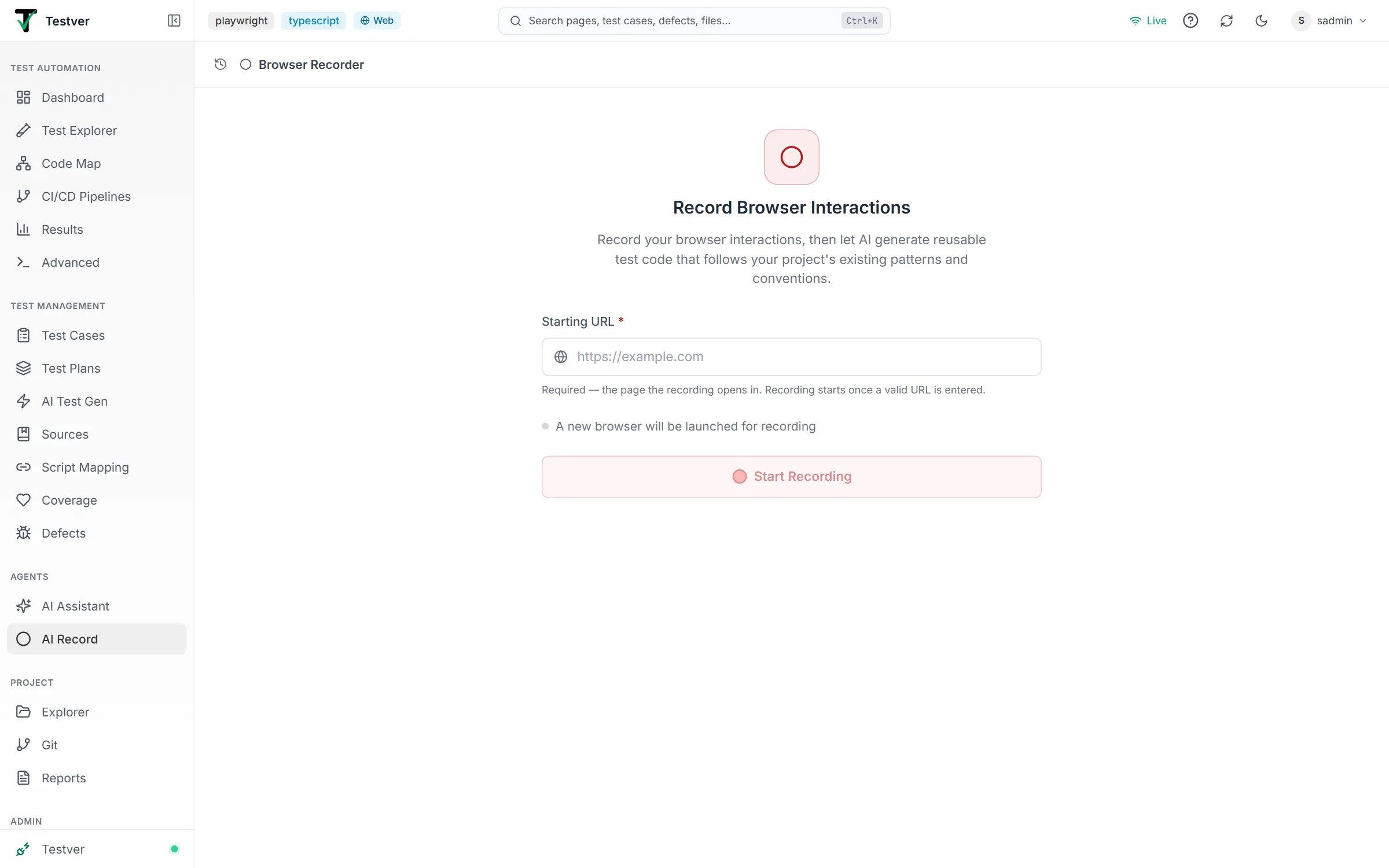
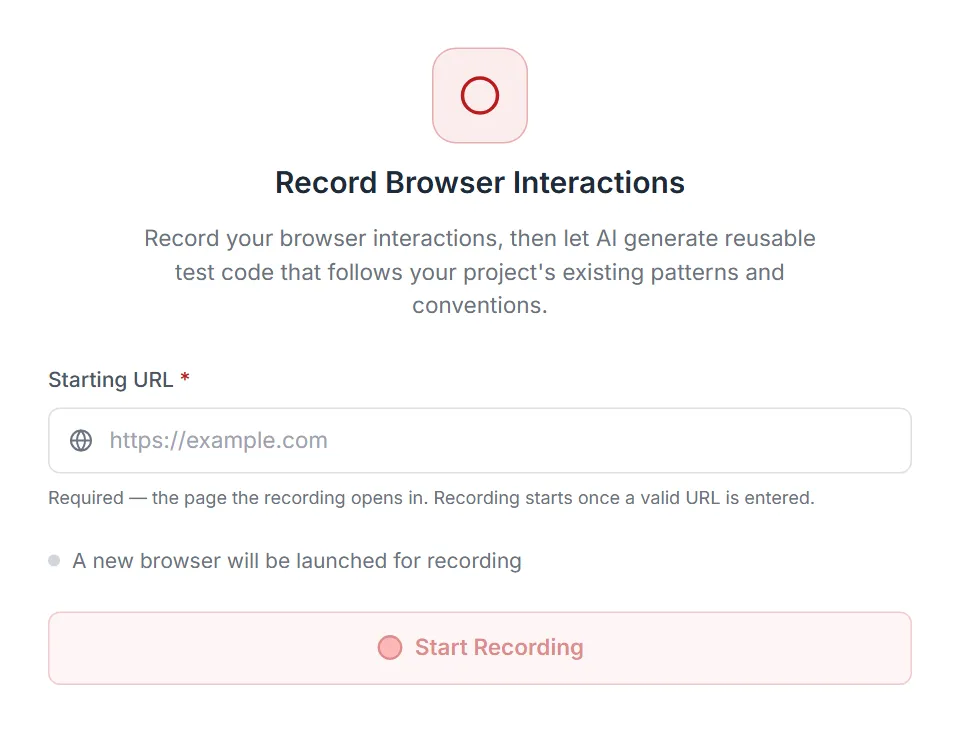
Section titled “Setting up a Web session”- On the setup screen you’ll see the heading Record Browser Interactions and a single field, Starting URL (required).
- Type the address the recording opens (for example
https://example.comorhttp://localhost:3000). Onlyhttp://andhttps://addresses can be recorded. - Check the browser status line: a green dot means a browser is already running and the recording will reuse that session; a grey dot means a new browser will be launched.
- Click Start Recording (or press Enter in the URL field). A Chromium window opens and the live view appears on the right.
Setting up a Mobile session
Section titled “Setting up a Mobile session”- On the setup screen (Record Mobile App Interactions) choose a Provider (e.g. BrowserStack, or a local device provider). A warning appears if that provider has no credentials — add them under Connectors first.
- Pick a Device from the searchable list. Real devices are sorted to the top; the list defaults to a sensible choice (an iPhone or Pixel where available).
- Pick an App, or click Upload to add a new
.apkor.ipabuild. Upload shows a progress bar. - Check the session status line: a green dot means an existing session will be reused; grey means a new session will be launched.
- Click Start Recording. Booting a fresh cloud session can take 30–60 seconds on first launch; a local device usually starts faster. Once ready, the device mirror appears on the right.
The live session view
Section titled “The live session view”Once recording, the right-hand panel streams the live session. In Web mode this is an interactive browser canvas; in Mobile mode it is a mirror of the device screen. You interact with it directly, and every interaction is captured.
- Web — tabs & URL bar: switch tabs, type a URL to navigate, and use back / forward / reload buttons.
- Web — you are in control: the live view is always interactive while recording (the status bar says Interactive Mode) — your clicks, typing, scrolling, and double-clicks go to the page and are recorded. There is no AI / User switch to flip first.
- Web — viewport presets: switch the page size between Mobile (375×812), Tablet (768×1024), Desktop (1280×720), and Full HD (1920×1080).
- Web — element highlight: the crosshair toggle highlights the element under your cursor with its tag, id, and class.
- Web — DevTools panel: a toggle opens a resizable Network/Console panel below the canvas.
- Web — Picture-in-Picture: pop the live view into a floating, draggable, resizable window (with maximize).
- Web — status bar: shows Live/Offline, current FPS, and viewport dimensions; you can Disconnect / Connect the stream or Close the browser session.
- Mobile — device mirror: click directly on the mirrored screen to record taps; use the composer below the timeline to type text or send hardware keys. Typed text goes to the field that has focus on the device.
Recording on the device itself
Section titled “Recording on the device itself”You are not limited to clicking the mirror. You can also pick up the phone (or use the emulator directly) and tap through your app by hand — Testver captures those interactions too, including the element thumbnail for each step. This is often faster and more natural than clicking a mirrored image, especially for gestures and multi-step flows.
Both routes produce the same recorded timeline, and both save their step thumbnails to history, so you can review what you touched later.
Native, web, and hybrid apps
Section titled “Native, web, and hybrid apps”Testver records all three kinds of mobile app, and switches technique automatically — you don’t configure anything:
| App type | What it is | How Testver records it |
|---|---|---|
| Native | Built with the platform’s own UI toolkit. | Captures native element attributes — resource id, accessibility id, text, XPath. |
| Web | A site running in a mobile browser. | Captures web locators the same way the Web recorder does. |
| Hybrid | A native shell with web content inside a webview — for example a React Native, Ionic, or Cordova app, or a native app with an embedded checkout page. | Detects the webview, reads the HTML inside it, and records CSS locators for the elements in that web content — while still recording native locators for the surrounding native chrome. |
When the recorder is inside a webview, a WEBVIEW chip appears in the device bar so you can see which context you’re capturing in. Generated tests are written context-aware: steps that touch web content include the context switch, so the test drives the webview correctly on playback instead of failing to find a native element that was never there.
Recording Your Test
Section titled “Recording Your Test”While you record, the header shows a red Recording dot, the elapsed time and the number of captured actions. On the right are icon buttons — Add an assertion, Annotate a step, Add custom step, Pause recording and Stop recording; hover one for a tooltip saying what it does. While paused the header reads Paused and the assertion and annotate buttons are hidden until you resume.
The step timeline
Section titled “The step timeline”As you interact, steps appear in the timeline — each numbered, with an action icon, a plain-English description, and (for clicks) a screenshot thumbnail you can click to enlarge. The header keeps a running action count and an elapsed timer.
| Action type | Triggered by | Example description |
|---|---|---|
| click / dblclick | Clicking / double-clicking an element | Click ‘Sign in’ button |
| fill / type | Typing into a text field | Enter ‘user@test.com’ into Email |
| press | Pressing a key (e.g. Enter, Tab) | Press Enter |
| navigate | Loading a new URL | Navigate to https://example.com |
| select | Choosing from a dropdown | Select ‘United States’ |
| check / uncheck | Toggling a checkbox | Check ‘Remember me’ |
| hover | Hovering over an element | Hover over Account menu |
| upload | Choosing a file in a file field | Upload ‘avatar.png’ |
| drag | Dragging an element onto another | Drag ‘Card 3’ onto ‘Done’ |
| dialog | A browser alert / confirm / prompt the page opened (it is accepted) | Accept confirm ‘Delete this item?‘ |
| assert | Assert mode — clicking an element to verify it | Assert ‘Welcome’ is visible |
| annotate | Annotate mode — attaching a note | Note: cart should show 2 items |
Keys are recorded when they matter: Enter, Escape, Tab, arrow keys in menus and lists, Backspace / Delete, function keys and shortcuts such as Control+S. Steps inside iframes (nested ones too), shadow DOM components and new tabs are recorded with where they happened, and the generated code switches into that frame, component or tab.
Passwords
Section titled “Passwords”A password you type while recording — into a password field in the browser, or a password field of the app — never appears in the recording. The step shows ••••••••, and the value is kept only on this machine, in the git-ignored file .testver/recorded-secrets.json, under an environment-variable name such as TEST_PASSWORD (a second account’s password becomes TEST_PASSWORD_2).
- The generated test reads that variable (
process.env.TEST_PASSWORD,os.environ["TEST_PASSWORD"], …) instead of containing the password. - When Testver runs the test — the AI’s run while generating, or the Runner — it sets the variable for you. A value you set yourself always wins.
- On CI or another machine, set the variable there.
- A password typed on the phone itself can’t be read back (the field shows only dots): the test still reads
TEST_PASSWORD, and you set its value.
Adding assertions
Section titled “Adding assertions”- While recording (and not paused), click the shield (Assert) button in the header. It turns green and shows ON. On Web the keyboard goes to the live browser — no need to click into the page first.
- Click (or, on Mobile, tap) the element you want to verify in the live view — on Web you can also move to it with the arrow keys (↑ the element around it, ↓ the first element inside it, ← / → the elements beside it) and press Enter. The element isn’t clicked for real.
- A list of checks opens for that element — for example is visible / is not visible, contains the text, has the value, attribute, placeholder, is enabled / disabled, is checked, page title contains, element count. Pick one and it is recorded as an
assertstep. - Assert mode turns off once the assertion is captured. Press Esc to leave it without adding one.
- Assert and Annotate are mutually exclusive — turning one on turns the other off.
Annotating steps
Section titled “Annotating steps”- Click the scan (Annotate) button in the header; it turns purple and shows ON. On Web the keyboard goes to the live browser.
- Web: click an element — or move with the arrow keys (↑ selects the larger area around it) and press Enter — then describe, in the box that opens, the action or check you want there. It can be a complex one: “the total must equal the sum of the rows”, “sort by price and check the first item is the cheapest”. Esc leaves annotate mode.
- Mobile: a note input appears below the timeline — describe the action or check you want next and send it.
- The note is stored as an
annotatestep (purple accent). The AI reads it when it generates the test and writes the code for it at that point.
Editing steps
Section titled “Editing steps”- Step actions: hover a step to show its Re-inspect Element (scan) and Remove (trash) buttons.
- Re-inspect Element: re-picks the element on the live page to refresh its locators, description and the page structure the AI generates from — useful if the page changed or the original selector is fragile. (Not available on
annotatesteps.) - Remove: deletes the step so generation uses the updated list. If the change can’t be saved, the step is put back and a message says so.
- Reorder: when the recording is stopped, drag any step up or down — a blue line shows exactly where it will land, and the dropped step briefly glows. From the keyboard, focus a step (Tab) and press Alt+↑ / Alt+↓.
- Edit description (Mobile): tap a step to rename its description inline, then save.
- Add more steps: after stopping, click Add More Steps to resume the same recording and capture additional interactions. Edits you made (removed, re-ordered or re-inspected steps) stay. The button is disabled for a recording opened from History or whose browser was closed — start a new recording instead.
- Screenshots: click a step’s thumbnail to open a full-size preview with the target element highlighted.
Custom Steps
Section titled “Custom Steps”Some parts of a test aren’t clicks in the app: logging in with the helper your project already has, reading an email, calling an API to create data, waiting for a background job. A custom step describes such a part in plain words, and the AI writes the code for it at that position when it generates the test.
Adding a custom step
Section titled “Adding a custom step”- While recording: click the Custom step button in the header (Web — next to Pause) or Add custom step below the steps (Mobile). It is added at the end, so the actions you record next follow it.
- After stopping: hover between two steps — a + Custom step line appears — and click it to insert the step exactly there. The Custom Step button in the header (Web) or Add custom step below the list (Mobile) adds one at the end.
- In the dialog, write what the step does. The quick picks fill in a starting sentence:
| Quick pick | Use it for | Example |
|---|---|---|
| Use existing step | Reusing a page object, helper or test your project has | Log in as Admin using @LoginPage.loginAs |
| Test data | Reading values from a data file | Read the user from @data/users.csv |
| Email / code | Reading an email or a verification code (fill in the subject, who it was sent to, and whether to keep the link, the code or the text) | Read the latest email with subject containing “Reset password” and keep the link in it |
| API / setup | Preparing data or state without the UI | Create an order through the API and keep its id |
| Wait for | Waiting for something that takes time | Wait until the order status shows “Shipped” (up to 60 s) |
| Custom | Anything else | Clear the app’s cache |
With Email / code, three fields — Subject contains, Sent to and Keep (the link, the verification code or its text) — write the sentence for you and name the value it saves (emailLink, emailCode). You can still edit the text.
Press Ctrl + Enter (Mac: Cmd + Enter) or Add step to save; Esc closes the dialog.
Custom steps have an indigo accent and a CUSTOM label, and show what they point to and the values they save. Hover one to edit it (pencil) or remove it; drag it like any other step. Playback skips custom steps — the generated test does them.
Pointing at your project’s code (@)
Section titled “Pointing at your project’s code (@)”Type @ in the step text to search your project: page-object methods, helpers and BDD steps (from the Code Map), existing tests, and test-data files. Pick one with the arrow keys and Enter (or Tab, or a click); Esc closes the list. The name goes into the text (@loginAs), and a chip below shows what it points to — for example loginAs(page, role) with its file and line; the chip’s × removes it. The AI opens that file and calls the code instead of writing the steps again.
The list opens below the box, or above it when the box is near the bottom of the screen (as Before the test is).
Values between steps
Section titled “Values between steps”A custom step can save values for later steps — type their names, such as resetLink or otpCode (letters, digits and _). A recorded step can then use a value instead of what you typed while recording: hover a typing, select or navigate step (on Mobile, a typing step), click the button and pick the value. The value recorded (as typed) switches back.
- The list offers values saved by custom steps before that step, and the columns of the test data file (
data.username). - The step shows
uses {resetLink}, and the generated test passes the value along instead of hard-coding it — a one-time link or code can’t be recorded ahead of time.
Replacing recorded steps
Section titled “Replacing recorded steps”When the steps you recorded should be done differently — five clicks through a login form that your project already does with one helper — select them (the checkbox on the left of each step, after stopping) and click Replace with custom step.
- The custom step takes the place of the first selected step. The replaced steps stay on it as reference (replaces 3 steps); the AI uses them to understand what the step must achieve, but doesn’t write them as steps.
- Put the replaced steps back (the undo arrow on the custom step) removes it and returns each step to where it was.
Test data
Section titled “Test data”Under Test data in the generation panel, click Read the data from a file and pick a data file (CSV, JSON, Excel, …) from your project. Its columns appear as values (data.username, data.role).
- Use the data for N recorded values matches what you typed while recording to the first row of the file, and switches those steps to the matching column.
- Run the test once per row makes the generated test data-driven, in the style your framework uses for that.
- Values in columns that look sensitive (passwords, tokens) are not shown, and no values from the file are sent to the AI — only the file name and its columns.
Before the test
Section titled “Before the test”Open Before the test to describe what must be done, or be true, before the first step — for example Start logged in as a Manager using @loginAs. Type @ to point at code here too. The AI puts it where your project keeps setup (a hook, fixture or Background).
What the AI does with them
Section titled “What the AI does with them”In its plan, the AI lists every custom step, the test data and the setup, and says how it will do each — which helper it reuses, or what it will write. Review that in the plan before you approve. Passwords and keys a custom step needs are read from environment variables, never written into the test.
Generating the Test
Section titled “Generating the Test”Choosing where the test goes
Section titled “Choosing where the test goes”Stop the recording to reveal the generation panel at the bottom. First choose where the test should go:
- New Test — creates a brand-new test file. A Test Name field is required (e.g.
login-flow-test). On Web it may be pre-filled from the site’s hostname. The name becomes the test’s title, which is how Testver runs it, so it is kept to plain words: quotes and characters such as? * ( ) &are left out, and a note under the field shows the name the test will get (typingLogin "admin" user?givesLogin admin user). - Add to Existing Test — merges your recorded steps into a test you already have. Pick the Target Test from the hierarchical suite → test picker (the same project-wide test list used elsewhere in Testver).
When merging, choose an Insert Position: Guide AI (the default — the AI decides placement based on your guidance) or Append At End. With Guide AI you must fill the Guide AI box; type
@there to reference the target test’s existing steps (and, on Mobile, your recorded steps too) so you can write instructions like ‘insert after @[Given I am on the homepage]’.
Framework and language detection
Section titled “Framework and language detection”The generated test matches your project automatically — the AI infers the framework and language from your existing tests, dependencies, and conventions rather than asking you to pick. You do choose which AI model writes it.
| Option | Where | Behaviour |
|---|---|---|
| AI model / provider | Model selector in the bottom bar | Pick Testver (once your account is connected) or a model you added to a local provider in Settings → LLM — no models are pre-filled, and a provider with none is left out. Defaults to your configured default provider/model. With Testver selected, the credits ring sits beside it. |
| Framework & language | Inferred automatically | The AI reads your project (sample tests, package.json, etc.) and writes code in the same framework, language, and style — Playwright (TypeScript, JavaScript, Python, Java, .NET), Cypress, Selenium (with TestNG, JUnit, pytest or NUnit), WebdriverIO, Puppeteer and Cucumber. There is no manual framework dropdown in the AI flow. |
| Mobile formatter (static) | Mobile only | The Mobile recorder also defaults to a wdio-appium-ts style formatter for its template path; the primary AI path still infers language from your project. |
| Healing manifest | Mobile, automatic | Mobile generation also writes a healing manifest so brittle locators can self-recover on later runs. |
| Element descriptions | Web + Mobile, automatic | Every locator the generated code adds gets a one-line comment describing the element (// "Save" button), with alternative locators on their own // Alt: / // fallbacks: note. Auto-Heal reads both to repair the locator when the app changes. |
Generating the code
Section titled “Generating the code”- Click Generate Test Code (new test) or Merge & Generate (existing test). The button is disabled until the required fields are filled (test name, or target test + guidance).
- The header switches to Generating Code… and the AI first runs an analyze-only pass: it reads your project and recorded actions and explains its plan in the timeline. No files are written yet.
- When the plan is ready the header changes to Waiting for your input and the bottom chat bar prompts you to review.
- Press Enter (empty) to approve and proceed, or type feedback to adjust the approach before the AI writes code.
- The AI then writes the test, runs it, and fixes failures — streaming its text into the timeline. Its tool calls are gathered into one row per run of calls: while it works the row says what is happening (Editing tests/login.spec.ts, Running npx playwright test), and when done it sums it up (Read 4 files, created login.spec.ts, ran the tests) with lines added/removed, failures and time. Click the row to see each call, and a file change to see its diff.
- If the AI requests a sensitive action, a permission card appears above the chat bar with Allow, Always allow, or Deny. Respond to continue.
- You can click the Stop button at any time to abort the current generation.
- Long recordings are fine: the first 150 steps go to the AI (the summary says so if there were more).
Reviewing the result
Section titled “Reviewing the result”- When generation finishes the header shows Code Generated — <test name> (or Generation Failed / Stopped). The new or modified test file is written into your project.
- A Changed N files card lists every file the run created, modified or deleted — including files changed by a command it ran, tagged by a command (found by comparing the git repository before and after). Review opens all the diffs in a large dialog, file by file; Open in Git (shown when the project is a git repository) takes you to the Git screen to commit them. Each follow-up message that changes files gets its own card.
- The whole recording — steps, AI conversation, tool calls, and diffs — is saved to Recording History automatically, tagged with its outcome.
- Because the test is now a real file in your project, it appears in the Test Explorer and can be run from the Runner like any other test.
- Follow-up edits: use the bottom chat bar after generation to request changes (‘rename the test’, ‘add a check for the total’). The AI keeps full context of the previous generation, and a new generation starts a fresh conversation.
- Adding to an existing test edits that test file in place — it keeps the test’s name, imports and style, and adds new locators to the page object the test already uses. Reusing the session in the Runner: the live session you recorded in (the browser, or the cloud device) stays running. If you go to run the new test right after generating, the run can attach to that still-open session instead of cold-starting a new one — which is why a green status dot at setup reads ‘recording will reuse it’. The window for that reuse is short (roughly a couple of minutes of session life), so run the generated test promptly if you want to ride the same warm session.
Recording History
Section titled “Recording History”Click the History (clock) button in the header to slide open the Recording History sidebar. It lists your past recordings — drafts are hidden — grouped by Today, Yesterday, This Week, and Earlier.
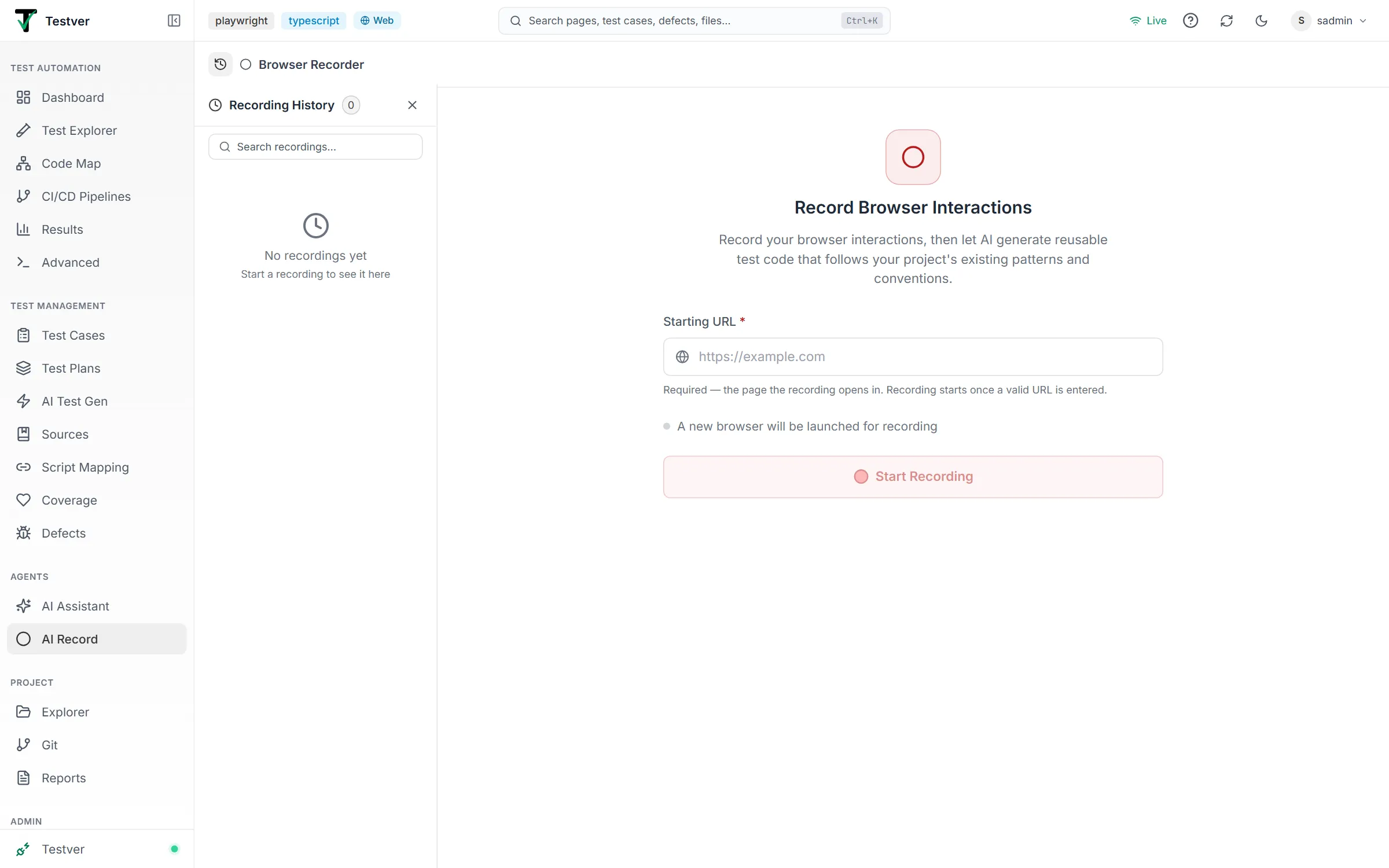
- Status / outcome badge: each row shows an icon — Generated (green check), Failed (red), Stopped (grey square), Recorded, or Draft.
- Open a recording: click a row (or focus it and press Enter) to reload it. Completed runs reopen in the done state with the full timeline and code; un-generated ones reopen in the stopped state where you can edit and generate — Generate and step edits then work on that recording. A recording can’t be opened while another is being recorded or generated.
- Your recordings only: on a shared server, each person sees their own recordings (web and mobile).
- Name: after a generation the row is named after the test.
- Search: filter recordings by name or URL.
- Tags: add labels (presets include
login,checkout,search,smoke,regression,e2e,navigation,form, plus your own custom tags) and filter the list by tag. - Rename: double-click a name, or use the ⋮ → Rename.
- Delete: ⋮ → Delete (with a confirmation dialog) permanently removes the recorded actions, generated-code history, and conversation.
Common Tasks (How Do I…?)
Section titled “Common Tasks (How Do I…?)”| I want to… | Do this |
|---|---|
| Record a web flow | Pick Web, optionally enter a URL, click Start Recording, interact with the browser. |
| Record a mobile flow | Pick Mobile, choose provider + device + app, click Start Recording, tap on the device mirror. |
| Add a verification/check | Click Assert (shield), then click the element to verify — or move to it with the arrow keys and press Enter — and pick the check. |
| Describe an action or check for the AI to write | Click Annotate, select the element (or the area around it with ↑), and describe it. |
| Click around without recording | Click Pause; click Resume when ready to record again. |
| Continue a stopped recording | Click Add More Steps. |
| Re-check that steps work | Mobile: stop, then click Playback (it asks whether to restart the app first). |
| Remove or fix a step | Hover the step → Remove (trash) or Re-inspect Element (scan). |
| Re-order steps | After stopping, drag steps up/down, or focus a step and press Alt+↑ / Alt+↓. |
| Reuse a helper, read an email or call an API in the flow | Add a custom step where it belongs and describe it — type @ to point at your code. |
| Replace recorded clicks with an existing helper | After stopping, select the steps → Replace with custom step. |
| Run the test for every row of a data file | Stop → Test data → Read the data from a file → tick Run the test once per row. |
| Keep a password out of the test | Just type it — it is masked and read from TEST_PASSWORD (see Passwords). |
| Make a brand-new test | Stop → New Test → fill Test Name → Generate Test Code. |
| Add steps to an existing test | Stop → Add to Existing Test → pick the target test → guide the AI → Merge & Generate. |
| Change which AI model is used | Open the model selector in the bottom bar and pick a provider/model. |
| Tweak the generated code | Type a request in the bottom chat bar after generation. |
| Find or reopen a past recording | Open History, search or filter by tag, click the row. |
| Free the live session | Click Close in the Web live view, or end the mobile session. |
Tips & Best Practices
Section titled “Tips & Best Practices”- Start from a clean state. Enter a starting URL (Web) or rely on a fresh app launch (Mobile) so the recording always begins from a known point.
- Add assertions where it matters. A flow that only clicks doesn’t prove anything — drop an
asserton the key outcome (a success message, a cart total) so the generated test actually verifies behaviour. - Annotate tricky steps. A short note about why a step exists gives the AI better context and produces clearer code.
- Reuse what your project already has. If the project already logs in, reads emails or seeds data with a helper, add a custom step that points at it with
@instead of recording those clicks — or record them and Replace with custom step. The test stays short and uses the same code as your other tests. - Use Pause to set up. Navigate, log in, or dismiss popups while paused so only the meaningful steps are captured.
- Playback before you generate (Mobile). Replaying confirms your steps are solid and saves a wasted generation cycle.
- Review the analysis plan. When the header says Waiting for your input, read the AI’s plan before approving — it’s cheaper to redirect now than to fix code later.
- Tag and name recordings. Meaningful names plus tags like
smokeorcheckoutmake History easy to navigate as it grows. - Run the new test promptly if you want to reuse the warm live session — it doesn’t stay open indefinitely.
Mobile Cloud Sessions
Section titled “Mobile Cloud Sessions”Cloud devices are billed by the minute, so an unattended session is closed for you:
- Idle for 10 minutes — no taps, typing or other actions on the device — closes the session. Watching the live view does not count as activity. About a minute before, a banner on the device view counts down with Keep session open.
- Maximum duration — a cloud session closes after 3 hours (set
TESTVER_MOBILE_SESSION_MAX_MINUTESon the server to change it), with the same warning first. - Closing the tab closes its session a couple of minutes later (a reload in the meantime keeps it) and saves an unfinished recording to History.
- A session a test run is driving is never closed under it. Local devices cost nothing and are not affected by these limits.
Troubleshooting & FAQ
Section titled “Troubleshooting & FAQ”| Symptom / Question | Answer |
|---|---|
| My clicks aren’t being recorded (Web) | Check that recording isn’t Paused — a paused header shows an amber ‘Paused’ label. |
| The browser closed and recording stopped | An external close is detected and the recording is stopped automatically with a ‘Browser closed — recording stopped’ note. Start a new recording to continue. |
| Mobile session is taking forever to start | First-time cloud sessions can take 30–60 seconds. The header shows Starting session…. If it errors, check cloud provider credentials under Connectors — or, for a local device, that the phone/emulator is connected and Local Devices is enabled. |
| The provider says ‘(no credentials)‘ | Add that provider’s credentials in Connectors before selecting it; the device list stays empty until then. |
| The Generate button is greyed out | You need at least one action plus the required fields: a Test Name for a new test, or a Target Test (and guidance, in Guide AI mode) for a merge. |
| Generation says it failed | Open the timeline to see the error or fail marker, then use the follow-up chat to ask the AI to fix it, or click New Recording and try again. Note a single failed tool call alone is not a failure. |
| A permission card appeared | The AI wants to run a sensitive action. Click Allow (once), Always allow (for the rest of the session), or Deny. |
| I reloaded the page while recording | The recording carries on — the steps and timer come back. If the server restarted, look for the Unsaved Draft Found banner (drafts auto-save every 10 seconds) and click Resume Draft. |
| I closed the tab while recording | The recording is saved to Recording History — open it from there. |
| ”Recording through the Local Browser Connector isn’t supported yet” | Start the recording without the connector (in the browser Testver launches). |
| The Add More Steps button is disabled | The recording was opened from History, or its browser was closed — start a new recording to add steps. |
| The generated test can’t log in | It reads the password from TEST_PASSWORD (or the name shown in the step). Testver sets it for its own runs; on CI set it yourself — and for a password typed on the phone itself, always. |
| My cloud device session closed by itself | It was idle for 10 minutes (watching doesn’t count) or reached its maximum duration — see Mobile Cloud Sessions. |
| Where did my generated test go? | Into your project as a real file — it is listed on the Changed N files card at the end of the run. It also appears in the Test Explorer and can be run from the Runner. |
| Can I edit steps after stopping? | Yes — until you generate, you can re-order (drag), delete, re-inspect, and (on Mobile) rename step descriptions. You can also add custom steps between steps and replace steps with one. |
| Playback skipped a step | Custom steps aren’t actions in the app, so playback skips them; the generated test does them. |
@ finds nothing | The list comes from the Code Map and the project’s data files — check the file is in the project and not excluded from the Code Map. |
| A step’s screenshot highlights the wrong place | Recordings saved before this was fixed may have lost the element’s crop — their screenshots now open without a highlight rather than a misplaced one. New recordings keep it. |
| The selector for a step looks fragile | Hover the step and click Re-inspect Element (scan) to re-pick it and refresh the locator. |
| The arrow keys don’t move between elements in Assert / Annotate (Web) | The keyboard goes to the live browser when you turn the mode on. If you clicked elsewhere in Testver meanwhile, click the live view’s status bar (not the page — a click there picks an element) to give it the keyboard back. |
| The header buttons show only icons | The recorder is narrow because the live view is open beside it. Hover a button for its name, or drag the divider to widen the recorder. |
| How do I switch between Web and Mobile? | Use the Web | Mobile toggle in the header — it appears when your workspace supports both kinds. |
Related
Section titled “Related”- AI Assistant — refine generated tests in chat.
- Test Explorer — run the saved test.
- Local Browser Connector — drive a browser on your own machine (not supported for AI Record yet).
- Manage → Browser Sessions — see and close active recording browsers.