

Schedules tab
Introduction
Section titled “Introduction”What is the Schedules tab?
Section titled “What is the Schedules tab?”The Schedules tab of the Advanced screen is Testver’s built-in alarm clock for your tests. Instead of remembering to click Run every night, you create a schedule once and Testver fires the test command for you on a repeating timetable — every 15 minutes, every weekday at 9 AM, every Sunday at midnight, or any pattern you can express with a cron expression.
Think of it like the timer on a coffee machine. You decide what to brew (the test command) and when it should start (the schedule), set it once, and walk away. Every time the clock ticks past your chosen time, the machine starts on its own — whether or not anyone is watching.
Who this guide is for
Section titled “Who this guide is for”- QA engineers who want a nightly regression suite to run unattended and have fresh results waiting each morning.
- Developers who want a smoke test to run every few minutes against a staging build.
- Team leads who want recurring health checks on a cloud device farm or a real phone plugged in at the desk.
- Anyone who has been running tests manually and is tired of doing it by hand on a fixed cadence. No prior knowledge of cron syntax is required. The screen includes a visual Schedule builder that writes the cron expression for you, and shows the next three run times so you can confirm the timing before saving.
Key terms
Section titled “Key terms”| Term | Plain explanation |
|---|---|
| Schedule | A saved record that pairs a test command with a recurring time pattern. It has a name, a command, a cron expression, an optional run target, and an enabled/paused state. It appears as one row in the Schedules list. |
| Cron / cron expression | A short five-part text pattern that describes when something should repeat. The five parts, left to right, are minute, hour, day-of-month, month, and day-of-week. For example, 0 8 * * * means “at minute 0 of hour 8, every day” — i.e. 8:00 AM daily. The * symbol means “every”, */5 means “every 5th”, 1,3,5 means “these specific values”, and 1-5 means “this range”. You rarely type this by hand because the visual builder generates it. |
| Cron tick | The moment, once per minute, when Testver’s scheduler wakes up and checks every enabled schedule to see if the current minute matches its cron expression. If it matches, the run is triggered. |
| Cycle / run | A single execution of a schedule’s command. Each cycle produces a run in the Results page with its own run ID, logs, and pass/fail outcome. |
| Command | The exact shell command Testver executes, for example npx playwright test. It is the same kind of command you would type in the Runner. |
| Run target (Run On) | Where the command executes: Local (your own machine/server), a cloud provider such as BrowserStack or LambdaTest, or Local Devices (a real phone connected over USB) for mobile projects. |
| Build name | On cloud providers, runs are grouped into named builds in the provider dashboard so you can find a specific scheduled run later. Testver derives the build grouping from the schedule so each cycle is traceable back to the schedule that launched it. |
| Next run | The computed timestamp of the very next time this schedule will fire, based on its cron expression and the current time. |
| Last run | The timestamp of the most recent time this schedule fired. |
| Overlap protection | A safety rule that skips a scheduled cycle if the schedule’s previous run is still in progress, so two copies of the same suite never run at once. |
How it works
Section titled “How it works”Understanding the mechanics helps you predict the behavior:
- Cron tick (once a minute). A scheduler on the server wakes up every minute, truncates the current time to the minute, and compares it against the cron expression of every enabled schedule. Disabled (paused) schedules are skipped entirely.
- Fire-and-forget. When a schedule is due, Testver launches the run and immediately moves on — it does not block waiting for the test suite to finish. The run executes in the background and reports its outcome to the Results page when done.
- Reuses the Runner. A scheduled run is not a separate engine. The scheduler hands the command to the exact same run path the Runner screen uses, so a scheduled run behaves identically to one you start by hand — same output streaming, same results parsing, same cloud and mobile handling.
- Server-side execution. Runs execute on the server, not in your browser. You can close the Schedules tab (or the whole browser) and scheduled runs continue to fire. Results appear in the Results page whenever you next open it.
Getting Started
Section titled “Getting Started”Opening Schedules
Section titled “Opening Schedules”- Open Testver in your browser.
- In the left navigation, click Advanced (terminal
>_icon, under Test Automation), then select the Schedules tab (calendar icon). - The tab loads at
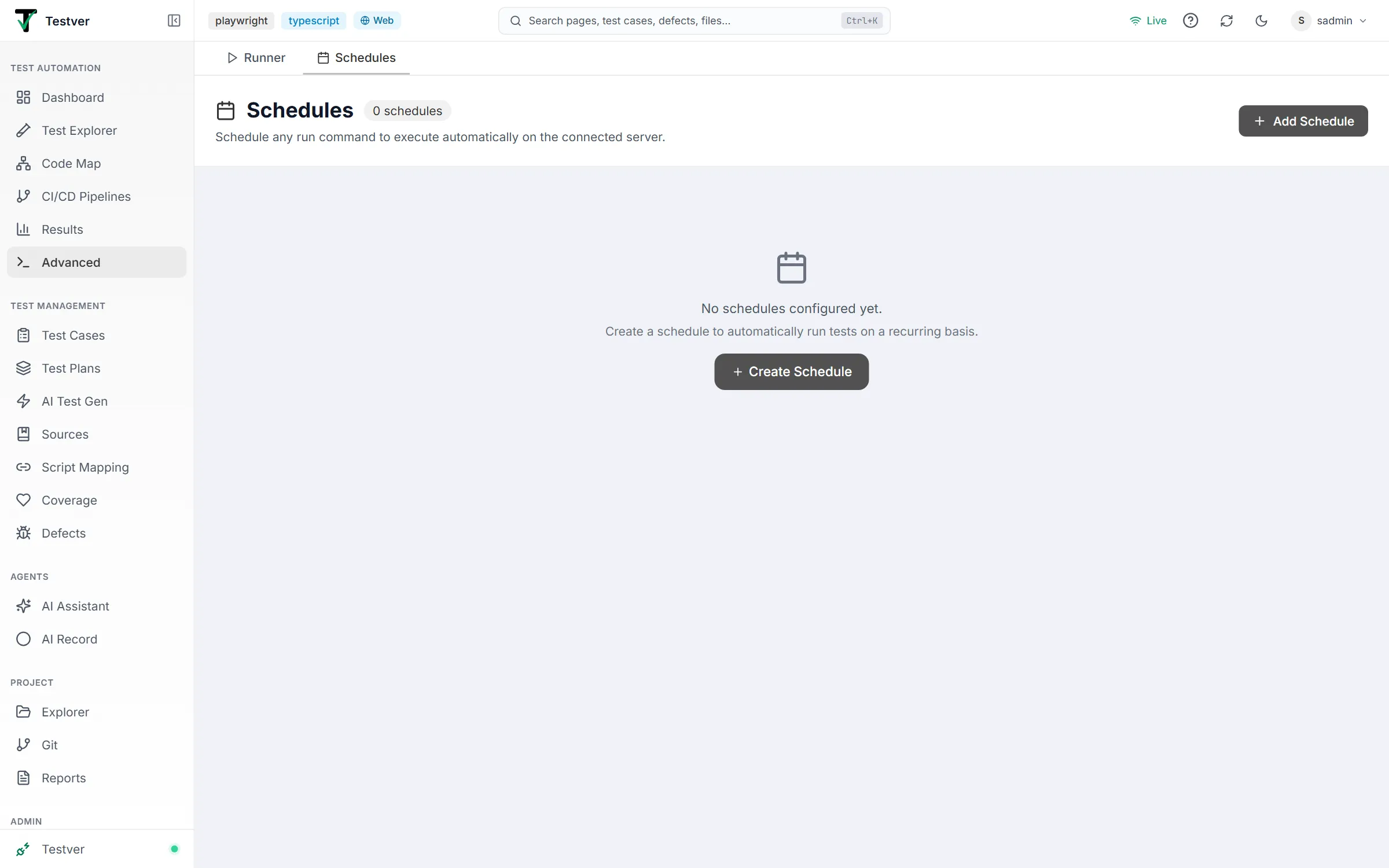
/advanced?tab=schedules(the old/schedulesURL redirects here) and fetches your existing schedules, the list of enabled cloud providers, and (for mobile projects) whether Local Devices is enabled. - If you have no schedules yet, you see an empty state with a Create Schedule button. Otherwise you see your schedules listed as rows.
The screen layout
Section titled “The screen layout”| Area | Location | What it contains |
|---|---|---|
| Header title | Top left | A calendar icon, the word Schedules, and a pill counter showing how many schedules exist (for example, 3 schedules). |
| Header description | Below the title | “Schedule any run command to execute automatically on the connected server.” |
| Add Schedule button | Top right | A + Add Schedule button that opens the New Schedule dialog. |
| Schedules list | Main body | One card per schedule, stacked vertically. Each card shows the schedule’s name, status, target, command, timing, and action buttons. |
| Empty state | Main body (when no schedules) | A large calendar icon, an explanatory message, and a Create Schedule button. |
| Schedule dialog | Centered overlay | The create/edit form, opened by Add Schedule or the Edit button on a row. |
| Delete confirmation | Centered overlay | A small dialog asking you to confirm before a schedule is removed. |
At a glance
Section titled “At a glance”- Every schedule is one card; paused schedules appear dimmed.
- The card’s badges tell you at a glance whether the schedule is Active or Paused and whether it runs Local or on a named cloud provider.
- Each card has four action buttons on the right: Run, pause/enable, Edit, and Delete.
- The visual cron builder inside the dialog shows a human-readable summary and the next three run times, so you never have to guess what a pattern does.
The Schedules List
Section titled “The Schedules List”Each schedule is rendered as a card. Here is what every element on a card means:
| Element | Meaning |
|---|---|
| Name | The label you gave the schedule (for example, Nightly Regression). Long names are truncated with an ellipsis. |
| Status badge | Active (green, with a check icon) when the schedule is enabled and will fire on its cron; Paused (gray, with a pause icon) when it is disabled. Paused cards are also shown at reduced opacity. |
| Target badge | Local (gray, monitor icon) when no cloud provider is set, or the provider name (blue, cloud icon) such as BrowserStack, LambdaTest, Sauce Labs, or Local Devices when a target is set. |
| Command | The exact command that will run, shown in a monospace font and truncated if long — for example npx playwright test. |
| Cron / next run | A clock icon followed by a plain-English summary of the schedule (for example Daily 08:00) with the raw cron expression in parentheses, plus a Next: timestamp showing the upcoming fire time (active schedules only). |
| Last run | A Last: timestamp showing when the cron most recently fired this schedule. Absent until it has fired at least once (a manual Run does not set it). |
| Run button | Triggers the schedule immediately, independent of its cron. Shows a spinner while the trigger request is in flight. |
| Pause / Enable button | Toggles the schedule between Active and Paused without opening the form. A pause icon when active, a play icon when paused. |
| Edit button | Opens the schedule in the form so you can change any field. |
| Delete button (red) | Opens a confirmation dialog to remove the schedule permanently. |
Creating & Editing a Schedule
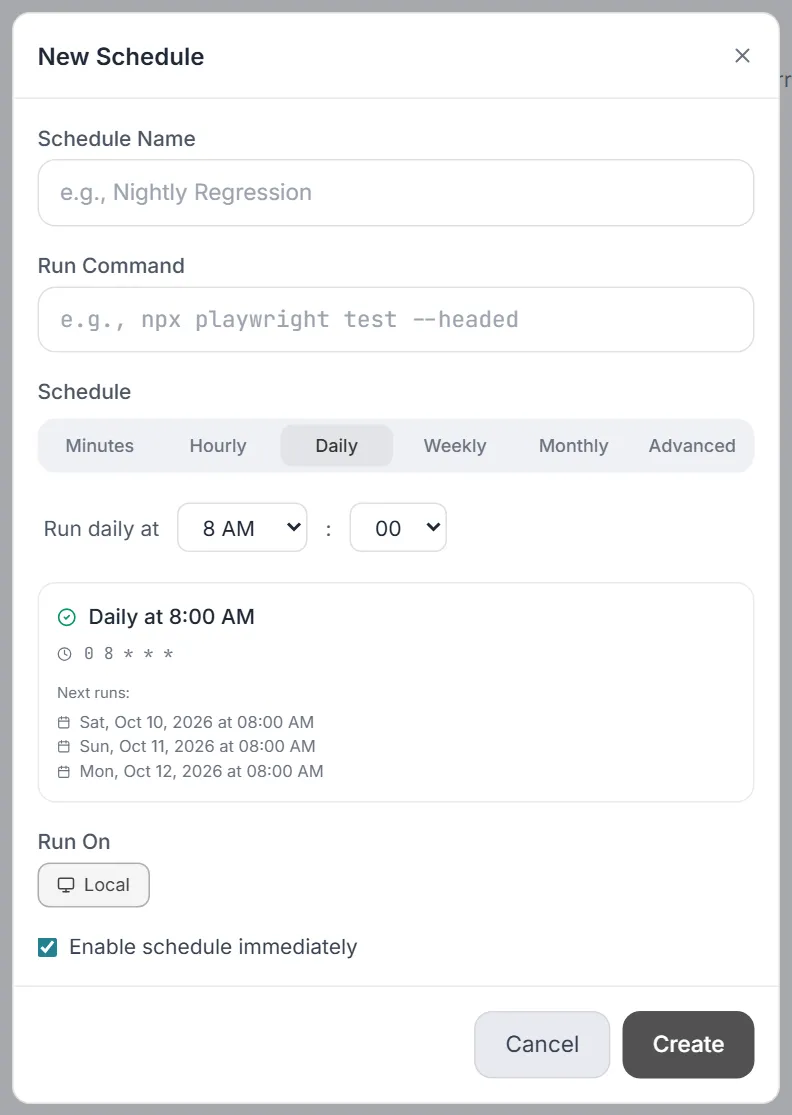
Section titled “Creating & Editing a Schedule”Click + Add Schedule (or the Edit button on an existing row) to open the dialog. The dialog title reads New Schedule when creating and Edit Schedule when editing. The form contains the fields below.
The schedule fields
Section titled “The schedule fields”| Field | What to enter |
|---|---|
| Schedule Name | A short, recognizable label, for example Nightly Regression. Required — saving fails with an error toast if left blank. |
| Run Command | The exact command to execute, for example npx playwright test —headed. Monospace input. Required — saving fails if blank. Includes the same command picker as the Runner — click the field to choose a saved command or the Run All preset instead of typing. |
| Schedule | The recurring timetable, set with the visual cron builder (see The Schedule field). Required. |
| Run On | Where the run executes: Local (default) or one of your enabled cloud providers (including Testver Grid once connected). In workspaces that include mobile, Local Devices may also appear. |
| Mobile device / app | Only shown in workspaces that include mobile, when any target other than Local is selected. Pick the target device and the app (.apk / .ipa) to install (see Mobile device & app picker). |
| Enable schedule immediately | A checkbox, checked by default. When checked, the schedule is Active and starts firing on its cron as soon as it is saved. Uncheck to create it Paused. |
Schedule Name
Section titled “Schedule Name”Schedule Name is purely a human label — it appears on the card, in toasts, and in the delete confirmation. Give it a name that tells you what the schedule does at a glance.
Run Command is the command line Testver executes each cycle. It is rendered in a monospace font because spacing and flags matter. Examples:
npx playwright testnpx playwright test --headednpx playwright test tests/checkout.spec.tsnpm run test:e2eThe Schedule field
Section titled “The Schedule field”The Schedule field is a tabbed visual builder so you do not have to memorize cron syntax. Pick a tab, set the options, and the builder writes the cron expression for you. The tabs are:
| Tab | What you set | Example result |
|---|---|---|
| Minutes | ”Run every N minutes” — choose 1, 2, 3, 5, 10, 15, 20, or 30. | Every 5 minutes → */5 * * * * |
| Hourly | ”Run every N hour(s) at minute M” — N is 1, 2, 3, 4, 6, 8, or 12; M is 0, 5, 10, 15, 20, 30, or 45. | Every 2 hours at :00 → 0 */2 * * * |
| Daily | ”Run daily at HH:MM” — pick any hour (12-hour AM/PM) and any minute. | Daily at 8:00 AM → 0 8 * * * |
| Weekly | Toggle which weekdays (Sun–Sat) to run on, plus a time. | Weekdays at 9:00 AM → 0 9 * * 1,2,3,4,5 |
| Monthly | ”Run on day D at HH:MM” — D is 1–31, plus a time. | Day 1 at 12:00 AM → 0 0 1 * * |
| Advanced | Type the five cron fields directly (Minute, Hour, Day, Month, Weekday). Field ranges and helper notes are shown beneath the inputs. | Any custom pattern |
Beneath the tabs, a live preview panel shows three things:
- A human-readable summary (for example, Daily at 8:00 AM), with a green check when the expression is valid or a red alert with Invalid expression when it is not.
- The raw cron expression itself, in monospace, so you can copy or verify it.
- Next runs: the next three computed fire times, each shown as a weekday, date, and time — so you can confirm the timing before saving.
Run On
Section titled “Run On”The Run On row is a set of buttons that decide where the scheduled run executes:
| Option | When it appears | Effect |
|---|---|---|
| Local | Always (it is the default). | The command runs on your own machine/server. No cloud cost. Shown with a monitor icon; this is the no-cost fallback. |
| Cloud provider | One button per provider you have enabled under Settings → Connectors (BrowserStack, LambdaTest, Sauce Labs, Testver Grid). | The run is dispatched to that provider’s grid. Selected provider is highlighted in blue. |
| Local Devices | Only in workspaces that include mobile, and only when you have enabled Local Devices under Settings → Connectors → Local Devices. | The run targets a real phone connected over USB, routed through the mobile bridge. Highlighted with a neutral outline. |
Mobile device & app picker
Section titled “Mobile device & app picker”When your workspace includes mobile and you have selected any target other than Local in Run On, an additional row with a device picker and an app picker appears. It lets the scheduled run install and drive a specific app on a specific device, so a scheduled mobile run reproduces the exact target you picked at creation time.
| Sub-field | What to enter |
|---|---|
| Device | Pick the target device from the searchable list (for example, Google Pixel 8 — Android 14). For cloud providers, the run is routed by the device’s friendly name; for Local Devices, by the device’s serial/udid. |
| App | Pick an app from the shared library (the same library used by AI Assistant and AI Record), or upload an .apk / .ipa. |
| Platform / version | Derived automatically from the device you pick (Android or iOS, plus the OS version) — you do not set these by hand. |
Saving the schedule
Section titled “Saving the schedule”- Fill in Schedule Name, Run Command, and set the Schedule so the preview shows a valid (green) expression.
- Choose a Run On target (Local is fine to start).
- For a mobile run, pick the Device and App.
- Leave Enable schedule immediately checked to start it now, or uncheck to create it Paused.
- Click Create (or Update when editing). A success toast confirms the save and the list refreshes.
Cron expression examples
Section titled “Cron expression examples”| Expression | Runs |
|---|---|
| */5 * * * * | Every 5 minutes |
| */15 * * * * | Every 15 minutes |
| */30 * * * * | Every 30 minutes |
| 0 * * * * | Every hour, on the hour |
| 0 */2 * * * | Every 2 hours |
| 0 8 * * * | Daily at 8:00 AM |
| 0 22 * * * | Daily at 10:00 PM |
| 0 9 * * 1-5 | Weekdays at 9:00 AM (the Weekly tab writes the same days as 1,2,3,4,5 — both read Weekdays) |
| 0 0 * * 0 | Every Sunday at midnight |
| 0 0 1 * * | The 1st of every month at midnight |
Running, Enabling, Deleting
Section titled “Running, Enabling, Deleting”Running a schedule now
Section titled “Running a schedule now”The Run button on a card triggers the schedule’s command immediately, regardless of its cron timetable. This is handy for testing a new schedule or forcing an ad-hoc cycle.
- Click Run on the schedule’s card.
- The button shows a spinner while the trigger request is sent.
- On success, a toast confirms the trigger and shows the new run’s short ID (for example, ‘Nightly Regression’ triggered (run: a1b2c3d4…)).
- If the run could not start, a message toast or an error toast explains why.
- The list refreshes. (Last run reflects only cron-fired cycles.)
Pausing and enabling
Section titled “Pausing and enabling”The pause/enable button toggles whether the scheduler will fire this schedule. Pausing does not delete anything — it simply tells the cron tick to skip this schedule until you re-enable it.
- Active → Paused: click the pause icon. The card dims and the badge changes to Paused. No further automatic cycles fire.
- Paused → Active: click the play icon. The card brightens, the badge returns to Active, and the schedule resumes firing on its cron.
- You can also toggle the enabled state from inside the Edit form via the Enable schedule immediately checkbox.
Deleting a schedule
Section titled “Deleting a schedule”- Click the red Delete (trash) button on the card.
- A confirmation dialog appears titled Delete Schedule, warning that the action cannot be undone and that all scheduled runs for this schedule will be cancelled. (A run that is already in progress is not stopped.)
- Click Cancel to back out, or Delete to confirm.
- On confirm, an info toast reports the schedule was deleted and the list refreshes.
The Next run time
Section titled “The Next run time”Each active schedule’s card shows the upcoming fire time as a Next: timestamp, in your local date/time format. It is recomputed from the cron expression, so it stays accurate even after you edit the schedule. Once the cron has fired a schedule at least once, a Last: timestamp appears before it showing the most recent fire.
Overlap Protection
Section titled “Overlap Protection”Testver guards against running two copies of the same schedule at the same time. This matters when a suite takes longer to run than the gap between cron ticks — for example, an hourly schedule whose suite sometimes takes more than an hour.
How overlap is detected
Section titled “How overlap is detected”On every cron tick, before launching a schedule that is due, the scheduler checks whether that schedule’s previous run is still in progress. If it is, the new cycle is skipped rather than started — so a second concurrent copy of the same suite never launches.
- Without this guard, a short cron interval paired with a long-running suite would stack N overlapping runs, exhausting local resources or blowing past cloud concurrency and cost limits.
- The skipped tick does not change the schedule’s Last run pointer — the guard keeps pointing at the still-active run, and the next matching tick re-evaluates cleanly once that run finishes.
- The next normal cron occurrence is evaluated again as usual; a skip only affects the one tick where an overlap would have occurred.
How skipped cycles are recorded
Section titled “How skipped cycles are recorded”When a cycle is skipped for overlap, Testver records it so the behavior is never silent:
- A server log warns that the schedule was skipped — previous run still in progress, naming the schedule and the run ID that is still active.
- A live event (a schedule-skipped notification) is broadcast to the UI carrying the schedule’s name, the still-running run ID, and the reason previous-run-active; the app shows it as a toast — ‹name› skipped — its previous run is still in progress.
- Your notification connectors are told once per blocking run.
Common Tasks (How Do I…?)
Section titled “Common Tasks (How Do I…?)”| I want to… | Do this |
|---|---|
| Create a nightly run at 8 AM | Click Add Schedule, name it, enter your command, open the Daily tab and set 8:00 AM, leave Run On as Local, then Create. |
| Run every 15 minutes | In the Schedule builder, choose the Minutes tab and select 15 — or use the Advanced tab with */15 * * * *. |
| Run only on weekdays | Use the Weekly tab and toggle Mon–Fri, then set the time. The result is … 1,2,3,4,5 in the weekday field, shown as Weekdays (opening a schedule saved as 1-5 keeps it as 1-5). |
| Run a schedule on a cloud device farm | In Run On, click your provider (BrowserStack / LambdaTest / Sauce Labs). For mobile, also pick the device and app in the picker row. |
| Run on a real phone at my desk | Enable Local Devices under Settings → Connectors first, then pick Local Devices in Run On (workspaces that include mobile). |
| Test a schedule right now | Click the Run button on its card; the run starts immediately and appears in Results. |
| Temporarily stop a schedule | Click the pause icon to set it Paused; click play to resume — no data is lost. |
| Change a schedule’s time or command | Click Edit, adjust the fields, and click Update. |
| Remove a schedule permanently | Click the red trash button and confirm in the dialog. |
| See the results of scheduled runs | Open the Results page; each cycle appears there with its own run ID and outcome. |
| Confirm exactly when a schedule will fire | Open it in the form and read the Next runs list in the builder preview, or read the Next: time on its card. |
Tips & Best Practices
Section titled “Tips & Best Practices”- Name schedules descriptively. Nightly Regression beats Schedule 1 when you have a dozen of them.
- Use the builder, verify with the preview. Always glance at the Next runs list before saving — it catches timezone and AM/PM mistakes instantly.
- Match the interval to the suite length. If a suite takes 40 minutes, don’t schedule it every 15 — overlap protection will skip cycles. Give each run room to finish.
- Start Paused when unsure. Uncheck Enable schedule immediately, verify the schedule with a manual Run, then enable it.
- Reserve cloud targets for what needs them. Local is the no-cost fallback; use cloud providers or Local Devices only when the test genuinely requires that environment.
- Pin mobile targets explicitly. For cloud mobile runs, choosing a specific device and app makes results reproducible across cycles.
- Remember runs are server-side. You can close the browser; scheduled cycles keep firing. Check the Results page later for outcomes.
- The minimum granularity is one minute. Design schedules around minute-level ticks; there is no sub-minute option.
Troubleshooting & FAQ
Section titled “Troubleshooting & FAQ”My schedule is not firing
Section titled “My schedule is not firing”- Check the status badge — a Paused schedule never fires. Click play to enable it.
- Confirm the Next: time on the card is in the future and matches what you expect; if the cron pattern is wrong, edit it and watch the preview.
- Verify the Run Command is correct — the same command must work when run by hand in the Runner.
A cycle was skipped
Section titled “A cycle was skipped”That is overlap protection working as designed: a cycle was due while the prior run was still executing, so Testver skipped it to avoid two concurrent copies. Lengthen the interval or shorten the suite so each cycle finishes before the next tick. See Overlap Protection.
Saving is blocked
Section titled “Saving is blocked”- Name and Run Command are both required — a blank or whitespace-only field blocks saving. An Invalid expression in the preview does not block saving; the schedule keeps the last valid expression, so fix it first.
- If you get a Save failed toast, the dialog stays open — correct the issue and click Create / Update again.
My cloud provider is missing
Section titled “My cloud provider is missing”Only providers you have enabled appear. Enable the provider under Settings → Connectors, then reopen the schedule dialog.
The mobile panel does not appear
Section titled “The mobile panel does not appear”The device & app picker appears only in workspaces that include mobile and only after you select a target other than Local in Run On. For web workspaces or Local runs it is intentionally hidden. The Local Devices target additionally requires enabling it under Settings → Connectors → Local Devices.
Where do scheduled runs appear?
Section titled “Where do scheduled runs appear?”Into the Results page. Each cycle is a normal run with its own run ID, logs, and pass/fail outcome — identical to a run you start manually, because schedules reuse the same Runner path.
Does deleting remove past runs?
Section titled “Does deleting remove past runs?”No. Deleting removes the schedule and cancels its future cycles. Runs that already executed remain in the Results page.
Can I run more often than every minute?
Section titled “Can I run more often than every minute?”No. The scheduler ticks once per minute, so one minute is the finest possible interval.
Related
Section titled “Related”- Runner — manual runs use the same engine.
- Results — where scheduled runs land.
- Connectors → Cloud test grids — providers schedules can route to.