

Defects
Introduction
Section titled “Introduction”What is the Defects screen?
Section titled “What is the Defects screen?”The Defects screen is Testver’s integrated defect (bug) tracker. Whenever a test reveals that the product behaves differently from what was expected, you record that problem here as a defect. Each defect captures what went wrong, how serious it is, who should fix it, and how far along the fix has progressed.
Think of it like a hospital intake-and-triage board. A patient (the bug) arrives, gets a severity assessment (how badly is it hurt?), a priority for treatment order, an assigned doctor (assignee), and then moves through wards — admitted, under treatment, recovered, discharged — until it either heals or is sent home as a false alarm. The Defects board lets you see every patient and which ward they are in at a glance.
Defects do not have to be created by hand. From the Results screen, when a test has failed you can open its detail panel and click Create Defect, and Testver pre-fills a new defect titled [FAIL] <test name> using the failure’s suite, file, browser, duration, retry count, error message, and failed-step details. That defect then appears on this Defects screen exactly like a manually created one, with its reporter set to the user who clicked the button (or Automation).
Who this guide is for
Section titled “Who this guide is for”- QA engineers and testers who find bugs during manual or automated test runs and need to log them with full reproduction detail.
- Developers who are assigned defects and need to read steps to reproduce, view attachments, change status as they work, and leave comments.
- Test leads and managers who triage incoming defects, set priority and severity, balance assignment across the team, and watch the Open / In Progress / Blockers / Overdue counters.
- Anyone bridging Testver and JIRA who needs a Testver defect mirrored into an external issue tracker.
Key terms
Section titled “Key terms”| Term | What it means in Testver |
|---|---|
| Defect | A single recorded bug or problem. Has a title, description, severity, priority, status, assignee, reporter, and optional attachments, links, and a linked test case. Shown on the board, the list and the detail panel with a short ID such as D-2. |
| Severity | How damaging the bug is to the product, independent of scheduling. One of Blocker, Critical, Major, Minor, or Trivial. |
| Priority | How urgently the bug should be worked, i.e. scheduling order. One of P1-Critical, P2-High, P3-Medium, or P4-Low. Board cards, list rows and the detail panel show the short form P1–P4 (hover for the full label); the create / edit form shows the full label. A priority recorded as a word — critical, high, medium, or low, for example by an import or an automated run — is read as P1, P2, P3, or P4 respectively. New defects default to P3-Medium. |
| Status | Where the defect sits in its lifecycle: Open, In Progress, Resolved, Closed, or Rejected. Drives the board columns and the workflow bar. |
| Status workflow | The expected forward path Open → In Progress → Resolved → Closed, with Rejected as a separate side exit for invalid / won’t-fix defects. |
| Assignee | The person responsible for fixing the defect (the Assigned To field). Shown on cards and rows; blank shows as Unassigned. |
| Reporter | The person who raised the defect. Defaults to the current logged-in user’s display name when you open the create form. |
| Blocker | A severity level (the most severe) and also a top-row counter showing how many blocker-severity defects are still active (not closed or rejected). |
| Overdue | A defect whose Due Date is in the past while it is still not Closed or Rejected. Counted on the Overdue card, flagged with a red overdue badge on its board card, and its due date turns red in the list. |
| Age | How many days old the defect is, computed from its creation date — e.g. 5d. The age chip is green under 3 days, amber from 3 to 7 days, and red after 7 days. |
How it works
Section titled “How it works”- Results → Defects: A failed test in the Results screen can be turned into a defect with one click. Testver copies the failure context (error message, failed steps, environment-style metadata) into the new defect so you do not retype it.
- Test Cases → Defects: A defect can be linked to a specific test case via the Linked Test Case field, giving traceability from “this manual test” to “the bug it exposed.” The linked id (and title, when known) appears in the defect’s detail panel.
- Defects → JIRA: A defect can be pushed outward to JIRA as an issue, after which its external key and live JIRA status are shown alongside the Testver status.
Getting Started
Section titled “Getting Started”Opening Defects
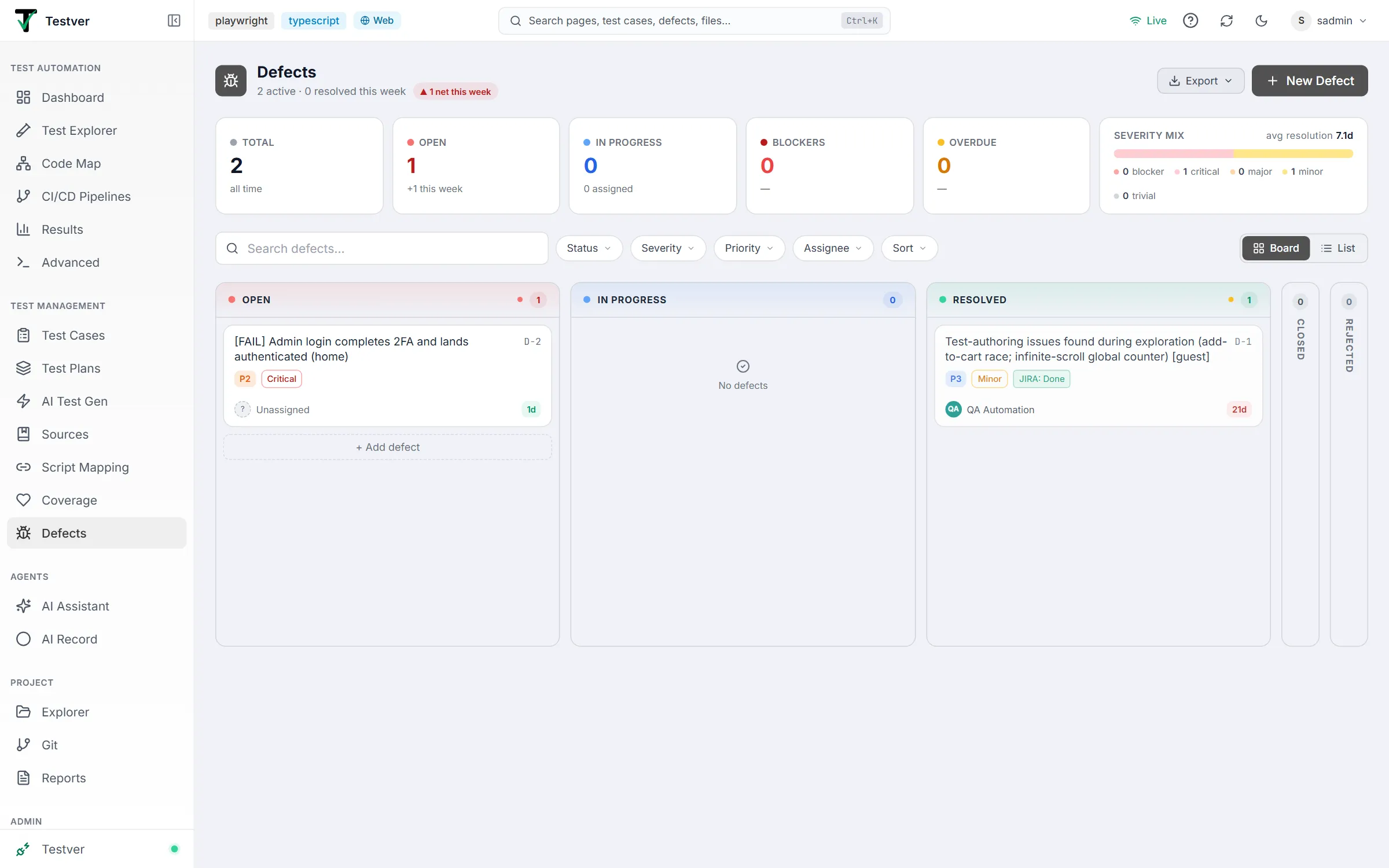
Section titled “Opening Defects”- From the Testver navigation, open the route
/defects(the Defects entry). - The screen loads with a header (how many defects are active, how many were resolved this week, and a net-change badge for the week), the stats cards, a toolbar row, and the defect board or list below.
- While defects load you will briefly see Loading defects… with a spinner.
- If there are no defects yet (or none match your filters), you’ll see an empty state reading No defects found with the hint “Create a defect or adjust your filters.”
The screen layout
Section titled “The screen layout”
| Area | Location | What it does |
|---|---|---|
| Header | Top, left | The Defects title with a summary line — N active · N resolved this week — and a badge showing the net change this week (▲ more created than resolved, ▼ fewer). |
| Export button | Header, right | Opens a menu to export a defect report as Word Document (.docx), Excel Spreadsheet (.xlsx), or CSV File (.csv). |
| New Defect | Header, far right | Opens the create-defect modal. |
| Stats row | Below the header | Five clickable counter cards — Total, Open, In Progress, Blockers, Overdue — plus a wider Severity mix card. |
| Search box | Toolbar, left | Free-text search across defects (Search defects…). |
| Filter chips | Toolbar | Status, Severity, Priority, Assignee, and Sort chips, plus a Clear all link while any filter is active. |
| View toggle | Toolbar, right | Switch between Board (Kanban) and List (table) views. |
| Board / List body | Center | The defects themselves, either as Kanban columns or as a table grouped by severity. |
| Detail panel | Slides in from right | Opens when you click a defect; shows full info, activity, and comments. |
| Create / Edit modal | Centered overlay | Full form for creating or editing a defect. |
| Success toast | Bottom-right, transient | Green confirmation after save/transition/delete; auto-dismisses after about 4 seconds. |
At a glance
Section titled “At a glance”
The cards always count every defect in the project — they do not shrink when you filter. Each counter card also works as a quick filter: click it to filter the board or list (the card is outlined and tagged filtering), and click it again to clear.
| Card | Counts | Click to |
|---|---|---|
| Total | Every defect, all time. | Clear all quick filters. |
| Open | Defects with status Open; the line below shows how many were opened this week. | Filter to Open. |
| In Progress | Defects with status In Progress; the line below shows how many of them are assigned. | Filter to In Progress. |
| Blockers | Blocker-severity defects that are still active (not Closed and not Rejected); the line below reads needs triage when any of them is unassigned. | Filter to Blocker severity. |
| Overdue | Defects past their Due Date that are still active (not Closed and not Rejected); the line below shows the age of the oldest one. | Show only overdue defects. |
| Severity mix | A bar and legend with the count of each severity (blocker, critical, major, minor, trivial), plus the average resolution time in days. | — (not clickable) |
The Defects List
Section titled “The Defects List”List view
Section titled “List view”
Switch to List view using the toggle. Rows are grouped by severity — a group header such as Critical — 1 starts each group, from Blocker down to Trivial. Each row is clickable and opens the detail panel; the checkbox and Actions cells are excluded from that click.
| Column | Shows |
|---|---|
| (checkbox) | Select the row for bulk actions. The header checkbox selects every visible defect. |
| ID | The defect’s short ID, e.g. D-2, in monospace. |
| Title | The defect title, with the linked test case’s title and the environment on a second line when they are set. |
| Priority | A short colored chip: P1, P2, P3, or P4 (hover for the full label). |
| Status | A colored status pill, plus a live JIRA: <status> badge if the defect has a JIRA key and JIRA is connected. |
| Assignee | The assigned person with an initials avatar, or Unassigned. |
| Linked TC | The linked test case’s ID, or — if none. |
| Due | The due date, shown in red when the defect is overdue, otherwise —. |
| Age | Days since creation, e.g. 5d, in a green / amber / red chip. |
| Actions | Edit (pencil) and Delete (trash) icons. |
When one or more rows are ticked, a bulk bar appears above the table showing the selected count with Assign…, Set status…, and Set priority… dropdowns, a Delete action (asks for confirmation), and Clear to deselect.
Board view
Section titled “Board view”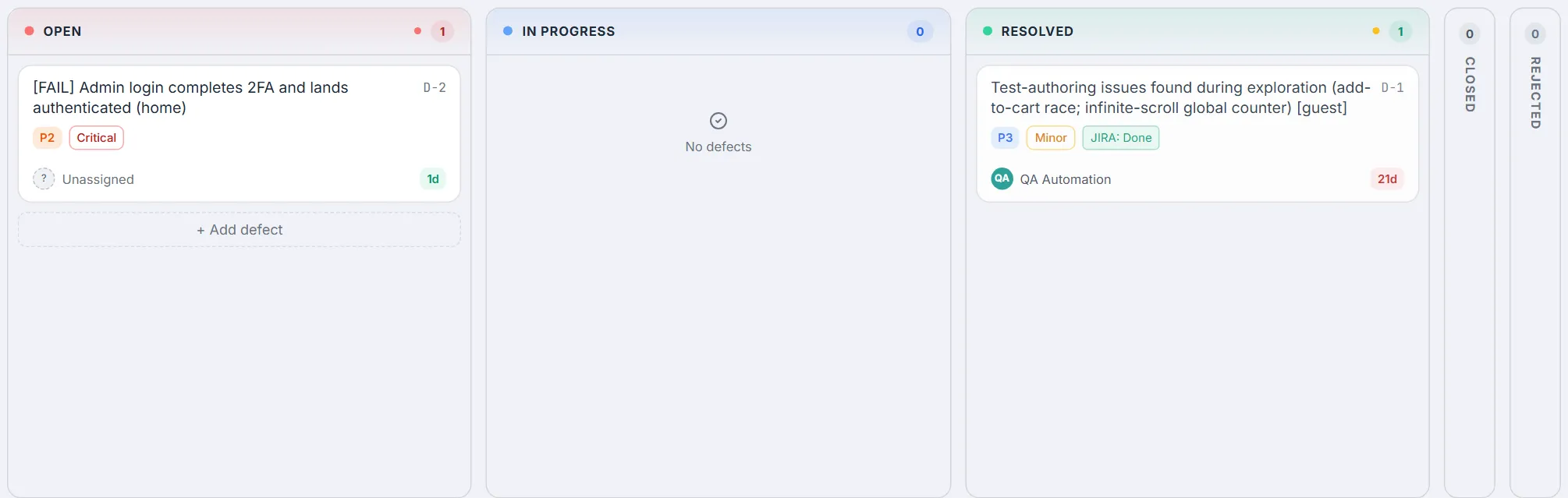
The default view is Board. Defects are grouped into columns by status. Open, In Progress, and Resolved are full columns, each with a colored header, dots for the severities present, a count badge, and an empty-state message (“No defects”) when nothing is in that column. Closed and Rejected start collapsed as slim side rails showing only their count — click a rail to expand it into a full column, and use the chevron in its header to collapse it again.
- Each card shows the title, the defect ID (monospace, top-right), a priority chip (P1–P4), an outlined severity badge, the linked test case ID when there is one, an optional JIRA status badge, an overdue badge when the due date has passed, the assignee (or
Unassigned), and the defect’s age in days. - Hover a card for quick actions: Assign (pick a person or Unassigned from a small menu), Move to the next status (arrow), and Open.
- Clicking a card opens the detail panel.
- Drag a card onto another column (including a collapsed rail) to move the defect to that status; the target column highlights with a “Drop to move to …” hint.
- The + Add defect button at the bottom of the Open column opens the create-defect modal.
- Columns scroll independently when they contain many cards.
Filters & search
Section titled “Filters & search”
| Control | Behavior |
|---|---|
| Search defects… | Free-text search; the term is sent to the server as a filter. Clearing the box removes the filter. |
| Status chip | Filters to a single status (Open / In Progress / Resolved / Closed / Rejected). |
| Severity chip | Filters to a single severity (Blocker / Critical / Major / Minor / Trivial). |
| Priority chip | Filters to a single priority (P1-Critical / P2-High / P3-Medium / P4-Low). |
| Assignee chip | Filters to one person, or to Unassigned defects. |
| Sort chip | Orders the defects: Oldest first (the default), Newest first, Priority, Severity, or Due date. |
| Clear all | Appears while any filter is active; resets search and every filter at once. |
Each chip opens a dropdown; choosing All clears it. An active chip turns dark, shows its value (for example Status: Open), and gets its own × to clear it.
Status colors & meaning
Section titled “Status colors & meaning”| Status | Color cue | Meaning |
|---|---|---|
| Open | Red | Newly logged, not yet being worked. |
| In Progress | Blue | Someone is actively fixing it. |
| Resolved | Emerald / green | A fix has been made and is awaiting verification. |
| Closed | Gray | Verified and finished. |
| Rejected | Slate | Invalid, duplicate, or won’t-fix — closed without a fix. |
Creating & Editing a Defect
Section titled “Creating & Editing a Defect”Click New Defect (or + Add defect at the bottom of the board’s Open column) to open the create modal, or the Edit (pencil) icon on a list row or Edit in the detail panel header to edit. The form is the same in both cases; the header reads New Defect or Edit Defect accordingly.
The defect form fields
Section titled “The defect form fields”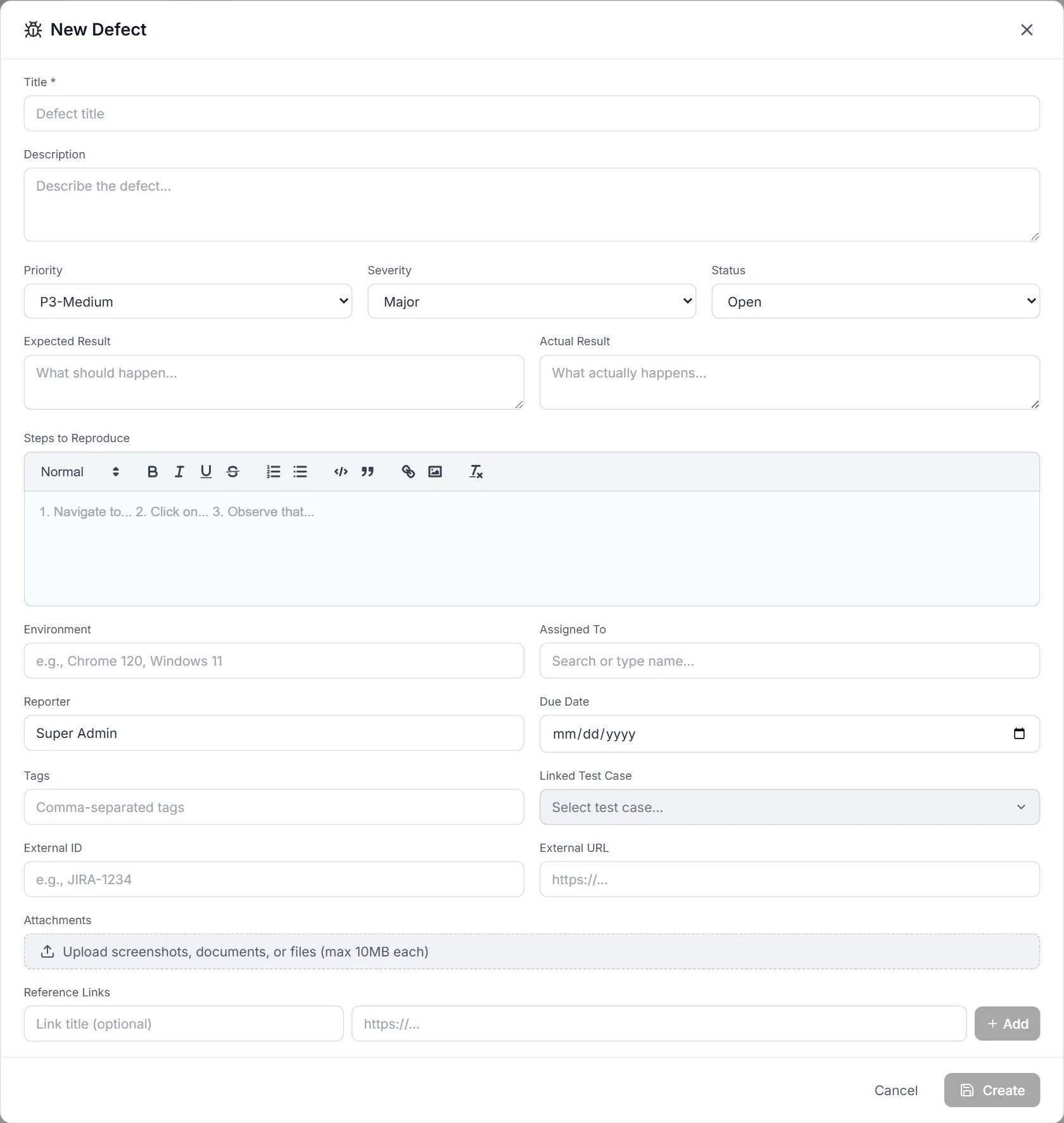
| Field | Type | Notes |
|---|---|---|
| Title * | Text | Required. The Create / Update button stays disabled until a non-empty title is entered. |
| Description | Multi-line text | Free-form summary of the defect. |
| Priority | Dropdown | P1-Critical / P2-High / P3-Medium / P4-Low. Defaults to P3-Medium for a new defect; when editing, shows the defect’s stored priority. |
| Severity | Dropdown | Blocker / Critical / Major / Minor / Trivial. Defaults to Major. |
| Status | Dropdown | Open / In Progress / Resolved / Closed / Rejected. Defaults to Open. |
| Expected Result | Multi-line text | What should have happened (“What should happen…”). |
| Actual Result | Multi-line text | What actually happened (“What actually happens…”). |
| Steps to Reproduce | Rich-text editor | A full formatting toolbar (headings, bold/italic/underline/strike, ordered & bullet lists, code block, blockquote, link, image). Falls back to a plain text area while the editor loads. |
| Environment | Text | Where it occurred, e.g. Chrome 120, Windows 11. |
| Assigned To | Searchable user picker | Type to search team members by display name, username, or email, or type a free-form name. |
| Reporter | Text | Pre-filled with the current user’s display name; editable. |
| Due Date | Date picker | Optional target date. A past date while still active marks the defect overdue. |
| Tags | Text | Comma-separated tags; shown as individual chips in the detail panel. |
| Linked Test Case | Searchable picker | Pick a test case to link (search by title or id), or choose None. |
| External ID | Text | An external tracker key, e.g. JIRA-1234. Drives the JIRA status badge when it matches a JIRA key pattern. |
| External URL | Text | Link to the external issue, e.g. https://… |
| Attachments | File upload | Upload screenshots, documents, or files — max 10MB each. Accepts images, .pdf, .doc, .docx, .txt, .log, .har, .json, .xml, .csv. Each upload shows a thumbnail (for images) or a file icon, name, and size, with a remove (×) button. |
| Reference Links | Title + URL list | Add named links (title optional — defaults to the URL). Press Enter in the URL box or click Add; each is listed with a remove button. |
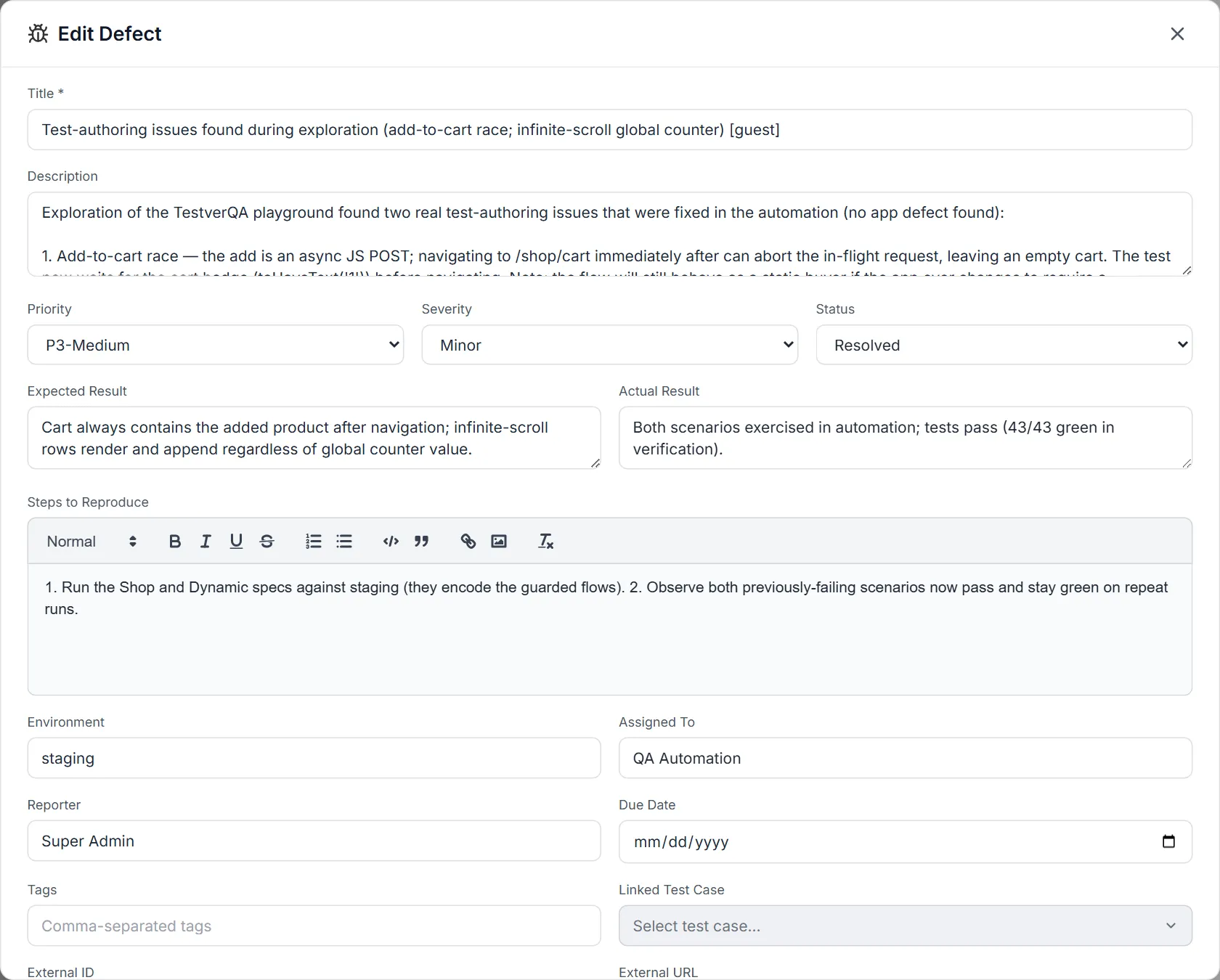
When you edit, every field opens pre-filled with the defect’s current values — including its stored priority, so saving without touching the Priority dropdown keeps it unchanged.
Click Create (new) or Update (edit) to save; Cancel or the × closes the modal without saving. A green toast confirms “Defect created successfully” or “Defect updated successfully.”
The status workflow
Section titled “The status workflow”
Open a defect to reveal the status workflow bar in the detail panel header. It shows the forward path as numbered steps joined by lines, with a Reject link and a primary Mark <next status> button on the right.
- The forward steps are Open → In Progress → Resolved → Closed.
- The current step is highlighted in blue; earlier (past) steps turn green with a check mark.
- Click Mark <next status> (for example Mark In Progress) to advance one step. Once a defect is Closed, a green Closed label replaces the button.
- Click any step other than the current one to transition the defect directly to that status — you are not forced to move one step at a time, and clicking an earlier step moves it back.
- Click Reject to mark the defect invalid / won’t-fix; this is a side exit outside the main forward path. A rejected defect shows a grey Rejected label instead of the button.
- Each transition records who performed it and shows a toast like “Defect transitioned to In Progress.”
- On the board you can also drag a card to another column, or use the card’s Move to quick action.
| From | Typical next step | Why |
|---|---|---|
| Open | In Progress | Work has begun on the fix. |
| In Progress | Resolved | A fix is in place and ready for verification. |
| Resolved | Closed | The fix was verified. |
| Any active state | Rejected | The defect is invalid, a duplicate, or won’t be fixed. |
| Resolved / Closed | Open or In Progress | Reopen if the fix failed verification (transitions are not one-directional). |
The detail panel
Section titled “The detail panel”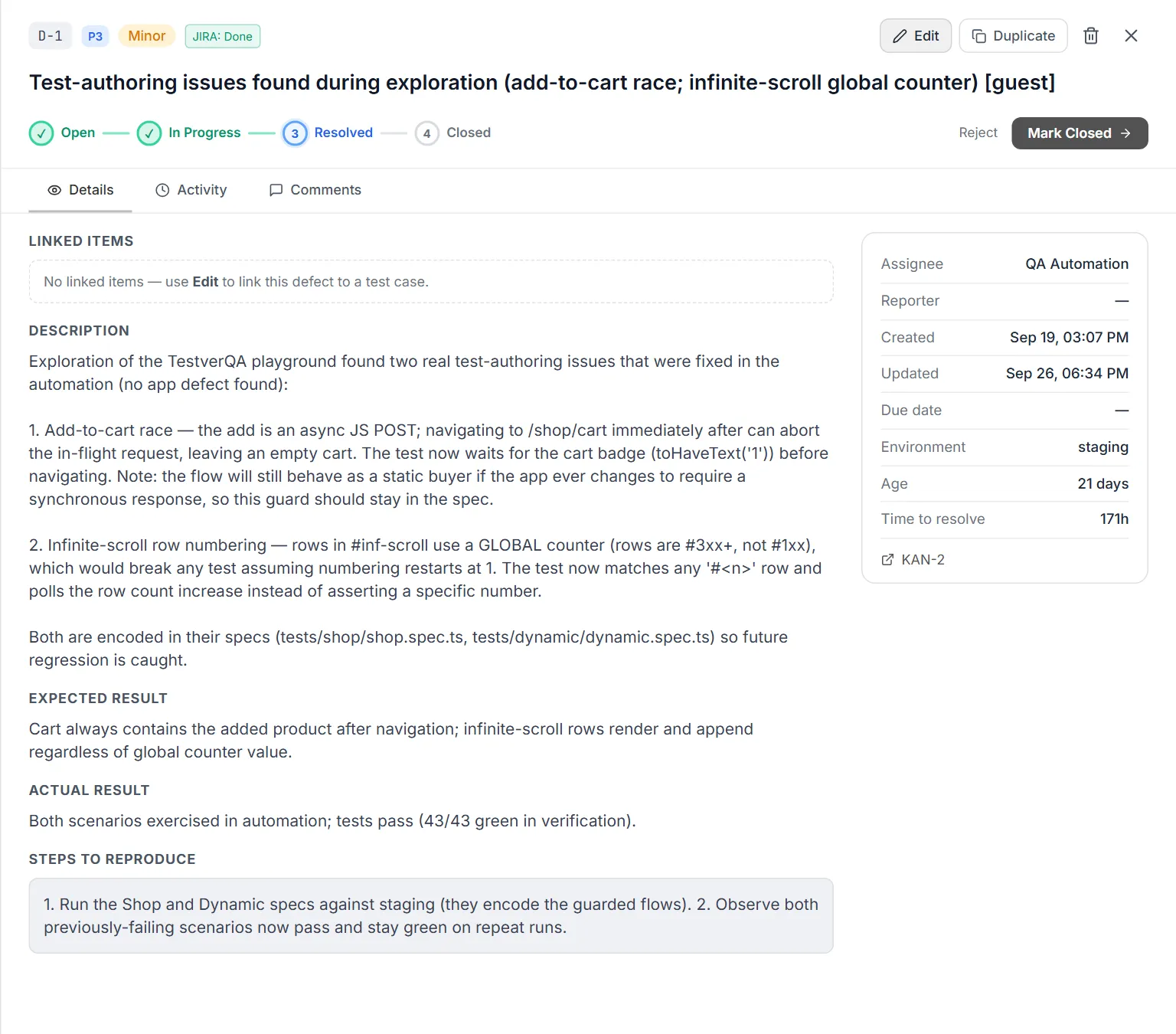
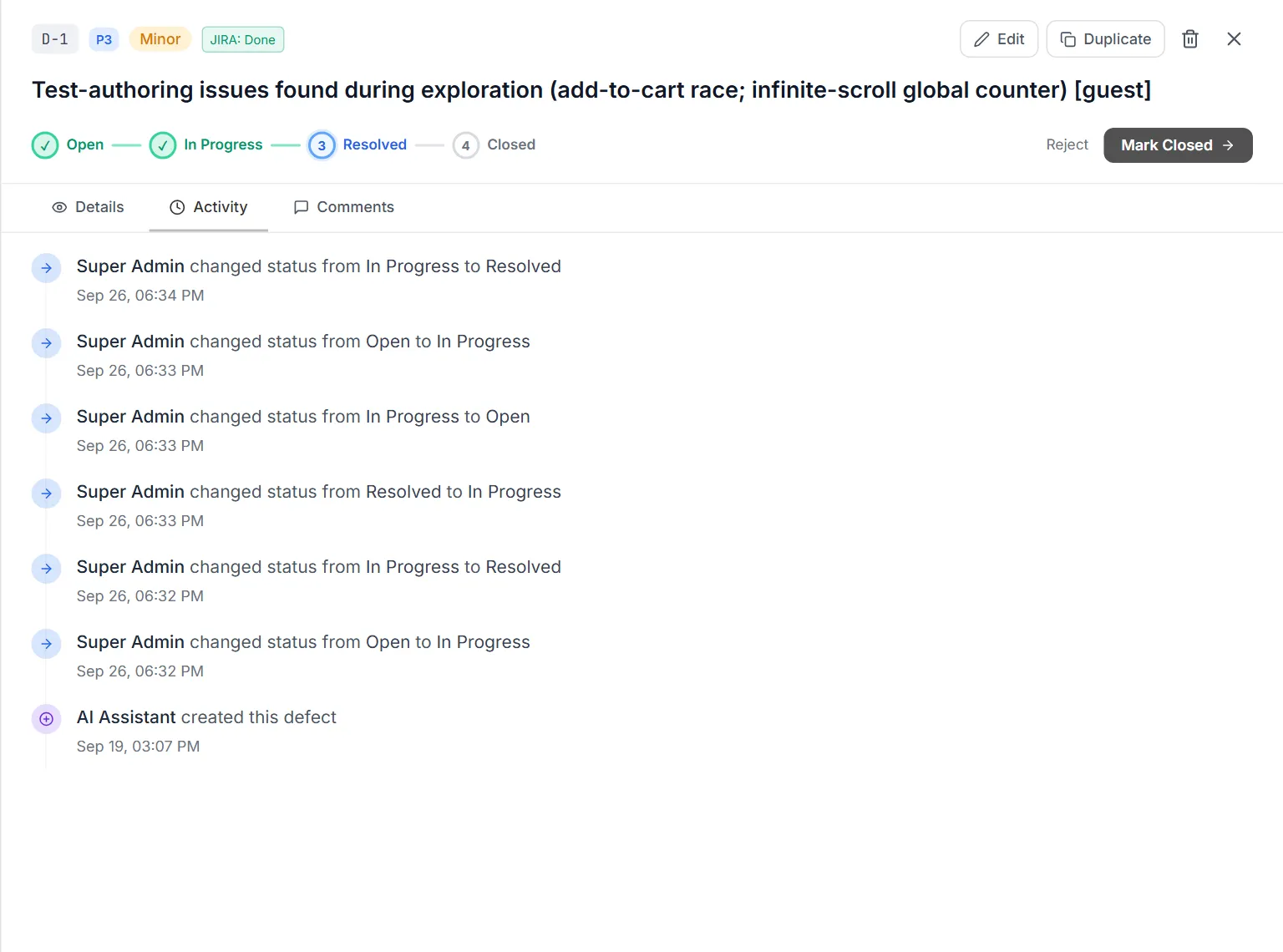
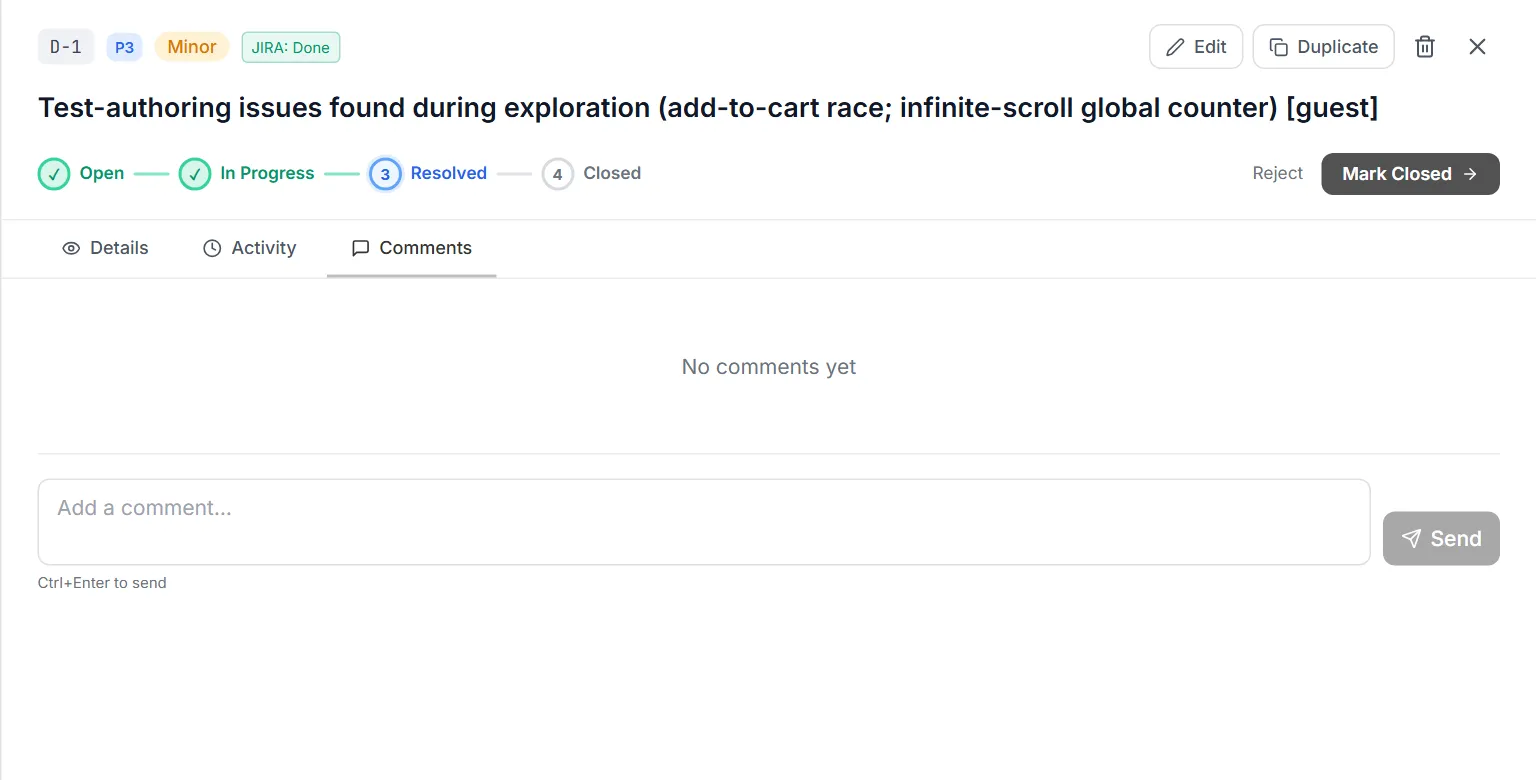
Clicking any defect slides out a detail panel from the right. It has a header (ID, priority chip, severity, JIRA status badge when linked, and the title), the status workflow bar, and three tabs. The Details tab adds a facts card on the right.
- Header actions: Edit (pencil), Duplicate — creates a copy titled “Copy of <title>” with the same details but without the JIRA link — Delete (trash), and Close (×).
- Facts card: Assignee, Reporter, Created, Updated, Due date, Environment, Age, and Time to resolve (hours from creation to resolution, once resolved), followed by the external link (or a Push to JIRA button when no external link exists yet).
- Details tab: Linked Items first — the linked test case with an Open in Test Cases ↗ link, and the cycle execution the defect was found in, or a hint to use Edit to link a test case when there is none. Then Description, Expected Result, Actual Result, Steps to Reproduce (rendered rich text), Tags, Attachments (with View for images and Download), and Reference Links. Images can be opened full-size in a preview overlay with a Download button.
- Activity tab: A chronological timeline of events — created, status changes (showing old → new value), comments added, comments deleted, and field updates — each with who did it and when.
- Comments tab: A list of comments (author, timestamp, text), each deletable after a confirmation. Add a comment in the box at the bottom and click Send, or press Ctrl+Enter.
Deleting a defect — from the panel or a list row — asks for confirmation first (“This action cannot be undone”).
Integrations
Section titled “Integrations”When a JIRA connector is configured, the Defects screen integrates with JIRA in two ways: showing live JIRA status on Testver defects, and pushing Testver defects out as new JIRA issues.
Live JIRA status
Section titled “Live JIRA status”If a defect’s External ID looks like a JIRA key (for example PROJ-123) and a JIRA connector is connected, Testver fetches and displays that issue’s current JIRA status as a small JIRA: <status> badge. The badge appears on list rows, board cards, and in the detail panel header, color-coded by JIRA status category (To Do / In Progress / Done).
Push to JIRA
Section titled “Push to JIRA”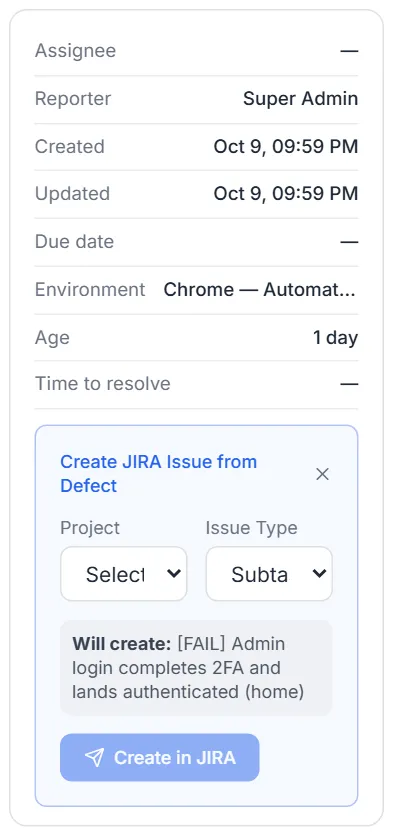
In a defect’s detail panel, when the defect has no external link yet and JIRA is configured, a Push to JIRA button appears. Use it to create a matching JIRA issue from the defect.
- Open the defect and click Push to JIRA.
- Choose a Project from the dropdown of available JIRA projects.
- Choose an Issue Type. The list is filtered to Bug/Task/Story/Sub-task/Defect-like types from your JIRA site. Bug is preselected when your site has a Bug type; if it does not, the dropdown shows the first available type, so pick the type you want explicitly.
- Review the “Will create: <title>” summary, then click Create in JIRA.
- On success, Testver writes the new JIRA key into the defect’s External ID and the issue URL into External URL, after which the live JIRA badge takes over.
| Testver field | Mapped into the JIRA issue |
|---|---|
| Title | JIRA summary. |
| Description, Steps, Expected, Actual, Environment | Combined into the JIRA description (HTML stripped from steps). |
| Priority (P1–P4) | Mapped to Highest / High / Medium / Low. |
| Severity | Added as a JIRA label, alongside a testver label. |
| Defect id | Recorded in the description as the source reference. |
Common Tasks (How Do I…?)
Section titled “Common Tasks (How Do I…?)”| I want to… | Do this |
|---|---|
| Log a brand-new bug | Click New Defect, fill in at least a Title, set severity/priority, then Create. |
| Log a bug from a failed test | Go to Results, open the failed test’s panel, and click Create Defect — it pre-fills from the failure. |
| Find a specific defect | Type into Search defects… or use the Status / Severity / Priority / Assignee chips. |
| See defects grouped by stage | Use the Board view toggle (Kanban columns by status). |
| See defects as a table | Use the List view toggle (rows grouped by severity); use the Sort chip to change the order. |
| Move a defect forward | Open it and click Mark <next status> in the workflow bar, or drag its card to the next column on the board. |
| Reject an invalid bug | Open it and click Reject in the workflow bar. |
| Assign a defect to someone | Hover its board card and use Assign, or edit it and pick a person in Assigned To (searchable by name/username/email). |
| Update several defects at once | In List view, tick their checkboxes and use Assign…, Set status…, Set priority…, or Delete in the bulk bar. |
| Copy an existing defect | Open it and click Duplicate (the copy has no JIRA link). |
| Attach a screenshot or log | Edit the defect and use Attachments (max 10MB per file). |
| Link a defect to a test case | Edit it and choose a case in Linked Test Case. |
| Discuss a defect with the team | Open it, go to the Comments tab, type, and Send (or Ctrl+Enter). |
| See the full history of a defect | Open it and view the Activity tab. |
| Mirror a defect into JIRA | Open it and click Push to JIRA (requires a JIRA connector). |
| Export the defect list | Click Export and choose Word (.docx), Excel (.xlsx), or CSV. |
| Delete a defect | Click the trash icon on the list row or in the detail panel and confirm. |
Tips & Best Practices
Section titled “Tips & Best Practices”- Separate severity from priority. Severity is how broken it is; priority is how soon to fix it. A Trivial typo on the home page can still be P1 if it embarrasses the brand.
- Write reproducible steps. Use the Steps to Reproduce rich-text editor with numbered steps and a code block for stack traces or commands — it renders cleanly in the detail panel.
- Attach evidence. A screenshot,
.har, or.logfile removes ambiguity. Keep each file under 10MB. - Fill the Due Date for anything time-sensitive so it surfaces in the Overdue counter and gets a red overdue flag once it slips.
- Keep status honest. Move a defect to In Progress when you actually start, and to Resolved only when the fix is ready for verification — the Activity timeline is only as useful as the transitions you record.
- Link the test case so future testers can trace the bug back to the scenario that found it.
- Prefer creating defects from Results for automation failures — the auto-filled context is more accurate than retyping the error.
- Use Reject, not Delete, for false alarms when you want to keep a record; Delete is permanent.
Troubleshooting & FAQ
Section titled “Troubleshooting & FAQ”| Symptom | Likely cause / fix |
|---|---|
| Create / Update button is greyed out | The Title field is empty. A non-empty title is required to save. |
| My attachment didn’t appear | The file exceeded the 10MB per-file limit and was skipped. Compress it or split it. |
| No defects show even though I created some | An active filter chip, a clicked stats card, or a search term is excluding them. Click Clear all (or the Total card) and clear the search box. |
| I can’t find my Closed or Rejected defects on the board | Those columns start collapsed as slim rails on the right. Click a rail to expand it. |
| I don’t see a JIRA badge or Push to JIRA button | No JIRA connector is configured, or the External ID isn’t a valid JIRA key. Configure the connector / set a key like PROJ-123. |
| JIRA push failed | An error is shown inline in the push form (e.g. permission or required-field issue in JIRA). The Testver defect is unchanged — fix the cause in JIRA and retry. |
| Blocker / Overdue counts look low | Closed and Rejected defects are intentionally excluded from those counters. |
| Reporter is blank on an auto-created defect | Defects auto-created from Results set the reporter to the user who clicked Create Defect, falling back to Automation if no user is known. |
| Resolution Time shows a dash | It only appears once the defect has been resolved; it is the hours between creation and resolution. |
| My comment didn’t send | An empty comment can’t be sent. Type text, then click Send or press Ctrl+Enter. |
Related
Section titled “Related”- Test Plans → Executions — file defects from failed steps.
- Results — file defects from automated failures.
- Test Cases — what defects link to.
- Connectors → JIRA — wire JIRA in.