

Git
Introduction
Section titled “Introduction”What is the Git screen?
Section titled “What is the Git screen?”The Git screen (reached at the /git route, labelled Git Integration at the top of the page) is a complete, visual Git client built directly into Testver. It reads the Git repository that contains your test project and lets you do everyday version-control work — see what you have changed, choose which changes to record, write a commit, switch branches, and exchange commits with a remote server — all through buttons, panels, and dialogs instead of typed git commands.
Think of it as the dashboard of a car. Underneath, the engine is the same git program that developers run in a terminal. The Git screen is the dashboard on top of that engine: gauges that show your current branch and how far ahead or behind the remote you are, and clearly labelled controls — Fetch, Pull, Push, Stash, Commit — that operate the engine safely. You never have to remember the exact incantation; you read the gauge and press the button.
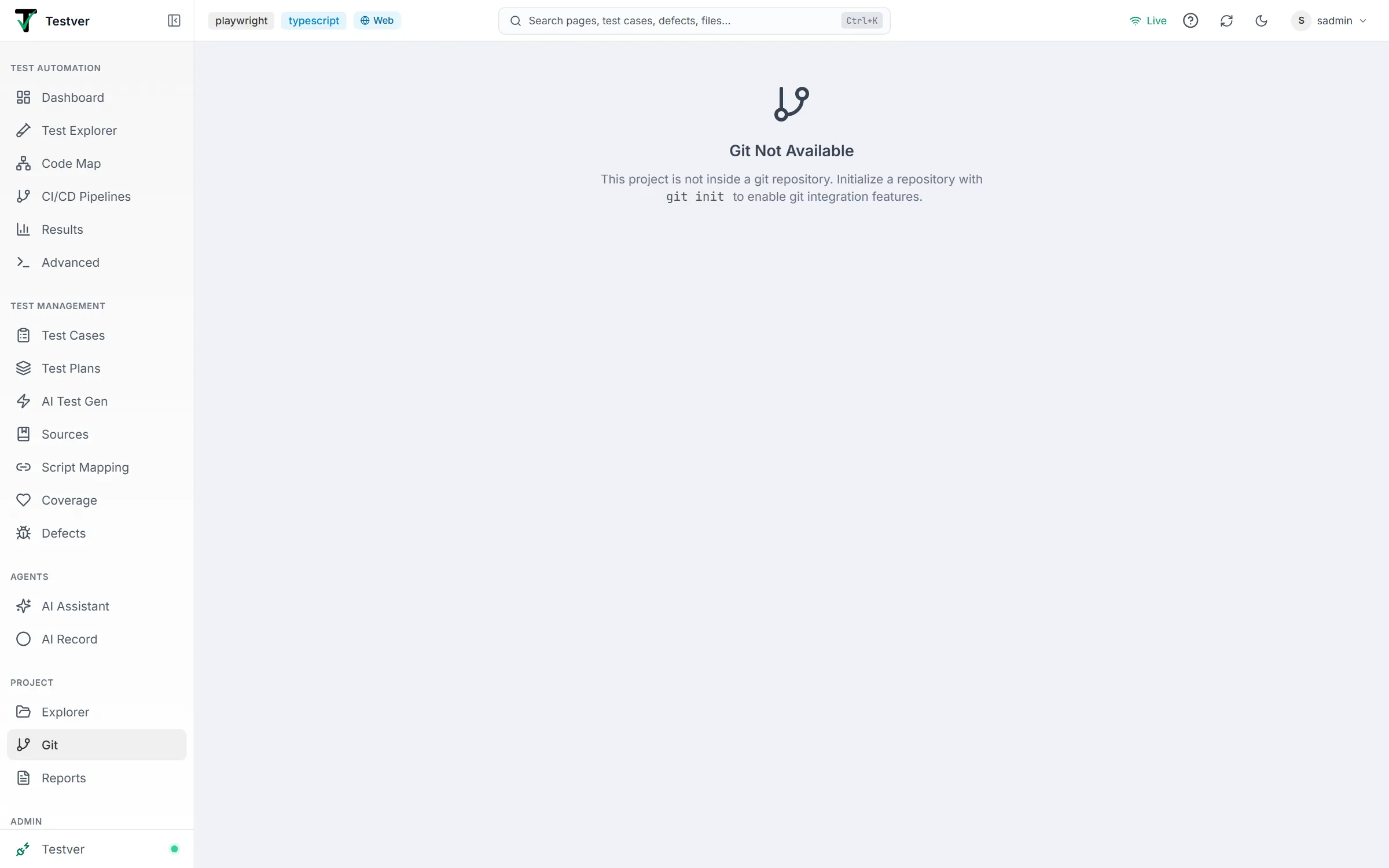
Everything on this screen requires that your project lives inside a Git repository. If it does not, the screen shows a single message — Git Not Available — explaining that the project is not inside a git repository and inviting you to create one. Until a repository exists, none of the panels described in this guide appear.
Who this guide is for
Section titled “Who this guide is for”This guide is written for Testver users who build and maintain automated tests and want a record of how those tests change over time. You do not need to be a Git expert. If you have never used version control at all, read the glossary in section 1.3 first — it explains every term in plain language before you meet it on screen.
- New to version control — you want to save snapshots of your tests and undo mistakes. Read sections 1, 2, 3, and 4; that is enough to commit your work.
- Comfortable with the basics — you already commit and want to collaborate. Add sections 5 (branches and remotes) and 6 (history and conflicts).
- Returning to a shared project — someone else has pushed changes. You will spend most of your time in the operations toolbar (Fetch / Pull / Push) and the conflict resolver.
Key terms
Section titled “Key terms”These are the words you will see across the Git screen. Keep this table handy until they feel natural.
| Term | Plain-language meaning |
|---|---|
| commit | A saved snapshot of your project at one moment, with a short message describing what changed. Like saving a named version of a document — you can always return to it. |
| branch | A separate line of work. You can experiment on one branch without disturbing the main one, then combine them later. The current branch is shown in the Branch gauge. |
| stage | Choosing which changes go into the next commit. Staging is like putting selected papers into an envelope before you seal (commit) it — changes you do not stage are left out. |
| working tree | The actual files on your disk right now, including edits you have not committed yet. The ‘uncommitted changes’ the screen lists are differences between the working tree and the last commit. |
| diff | A side-by-side or line-by-line comparison showing exactly which lines were added (green, +) or removed (red, -) in a file. |
| fetch | Download the latest commits from the remote server into your local copy without changing your files. A safe ‘what’s new?’ check. |
| pull | Fetch and then merge the remote’s new commits into your current branch, updating your files. Used to catch up with teammates. |
| push | Send your local commits up to the remote server so others can see them. The opposite direction of pull. |
| merge | Combine the changes from two branches (or from the remote and your local branch) into one. Usually automatic; occasionally needs your help (a conflict). |
| remote | The shared copy of the repository on a server such as GitHub or GitLab. ‘origin’ is the conventional name for the default remote. |
| conflict | When the same lines were changed in two different places (your branch and the remote), Git cannot decide which to keep and asks you to choose. Resolved in the conflict editor. |
| stash | A temporary shelf for uncommitted changes. Stash to clean your working tree without committing, then pop the stash to bring the changes back later. |
| amend | Replace the most recent commit instead of adding a new one — used to fix a typo in the message or add a forgotten file. |
How it works
Section titled “How it works”The Git screen runs as a thin layer over the same Git that a developer would use in a terminal. When you press a button, Testver runs the matching Git operation on the server where your project lives and shows you the result.
- Live status — the Repository Status card reads
git status. It refreshes after each action on this screen, when you come back to the browser tab, and every 30 seconds; a file saved in the project also clears Testver’s cached copy. Changes made elsewhere — in an editor, the AI Assistant, or a terminal — therefore show up within about half a minute, and a commit made in a terminal appears in Recent Commits the next time the list loads. - Read-only by default — opening the screen only reads your repository. Nothing is changed until you click an action such as Stage, Commit, Pull, or Push.
- Guided next steps — a blue Next step banner appears to tell you what to do after a state change (resolve conflicts, commit the merge, publish a new branch, or push your commits). It is dismissible per situation and returns when the situation changes.
- Persistent errors — when a remote operation fails, the full error message stays on screen in a red banner until you dismiss it, so you can read it and retry rather than missing a brief popup.
- Credential prompts — if Git needs a password, token, or SSH passphrase to reach the remote, a secure Git credentials dialog pops up. Your input goes only to the local git process and, if you choose, is held in memory for the session.
Getting Started
Section titled “Getting Started”Opening Git
Section titled “Opening Git”- Make sure your test project is inside a Git repository. If you are not sure, just open the screen — it will tell you.
- Navigate to the Git screen (the
/gitroute), titled Git Integration. - If the project is not a repository, you will see the Git Not Available message. To enable the screen, initialise a repository with
git initin your project folder, then reopen the screen. - Once a repository is detected, the Repository Status card and the operations toolbar load automatically, with Recent Commits below.
When the project is not a repository, the screen shows this message instead:
The screen layout
Section titled “The screen layout”From top to bottom, the Git screen is made of these regions. Some appear only when relevant (for example, the conflict banner appears only during a conflicted pull).
| Region | Appears when | What it is for |
|---|---|---|
| Git Integration header | Always | Page title and one-line description. |
| Next step banner (blue) | After a state change needing action | Tells you the single next thing to do: resolve conflicts, commit the merge, publish the branch, or push. |
| Error banner (red) | A fetch / pull / push failed | Shows the full failure message until dismissed; lets you read and retry. |
| Operations toolbar | Repository available | Buttons for Fetch, Pull, Push (or Publish), Stash, the branch selector, New branch, and Clear saved credentials. |
| Merge-conflict banner (red) | Git reports unmerged files — after a pull, a merge run in a terminal, or a stash pop | Lists each conflicted file as a clickable link that opens the resolver. It stays while the conflicts exist, including after a page reload. |
| Repository Status card | Repository available | Branch, clean/changed status, ahead/behind sync, last commit, and the uncommitted-changes list with Show Diffs. |
| Commit panel | There are staged files or a merge to finish | Message box, Amend toggle, and the Commit button. |
| Recent Commits list | Always | Expandable history of past commits, each showing its diff and any linked test-run result. |
At a glance
Section titled “At a glance”The Repository Status card is your dashboard. It shows four gauges in a row.
| Gauge | Reads | Meaning |
|---|---|---|
| Branch | The current branch name, or detached | Which line of work you are on. detached means you are viewing a specific commit, not a branch. |
| Status | Clean (green) or ‘N changes’ (amber) | Whether you have uncommitted edits in the working tree. |
| Sync | Up arrow + count, down arrow + count, ‘Up to date’, ‘Not published’, or ‘No remote’ | How many commits you are ahead of (green up) or behind (red down) the remote. Not published means the branch has never been pushed; the up arrow then counts the commits the remote doesn’t have yet. No remote means the repository has no remote configured. |
| Last Commit | Short SHA, author and age, or a dash | A fingerprint of the most recent commit, who made it, and how long ago. Hover the age for the exact date and time. |
When the working tree is not clean, an Uncommitted Changes (N) section appears below the gauges with a coloured dot per file (amber = modified, green = added/untracked, red = deleted) and a Show Diffs / Hide Diffs toggle to reveal the line-by-line changes. The first 20 files are listed; beyond that a +N more link opens Show Diffs, which lists them all.
Status & Changes
Section titled “Status & Changes”This is where you decide what goes into your next commit. Click Show Diffs in the Uncommitted Changes section of the Repository Status card to open the change viewer.
Staged and unstaged changes
Section titled “Staged and unstaged changes”The viewer splits your changes into two labelled groups so you always know what will and will not be committed.
- Staged (green check) — changes you have selected for the next commit. The number of staged files drives the Commit button.
- Unstaged (amber circle) — changes that exist in your working tree but are not yet part of the next commit. Commit them and they are left untouched; stage them first to include them.
Each file row shows a status icon, the file path in
monospace, a green+additionsand red-deletionscount, and a coloured status pill:untracked,added,modified,deleted, orrenamed. A header above each group shows the count and a bulk action (Stage All or Unstage All). An Expand All / Collapse All control sits at the top.
Viewing a file’s changes
Section titled “Viewing a file’s changes”- Click anywhere on a file row (the chevron flips from right to down) to expand it.
- Read the diff: lines beginning with
+are additions (green), lines with-are removals (red),@@lines mark the position of each change, and+++/---are the file headers. - Long diffs are capped at the first 200 lines per file in this viewer to keep the page responsive. A new (untracked) file previews its first 64 KB — the diff says so when it is cut — and a binary file shows no text.
- Click the row again to collapse it, or use Collapse All to close every file at once.
File actions
Section titled “File actions”Each file row carries the actions that apply to it. The action you see depends on whether the file is already staged.
| Action | Shown on | What it does |
|---|---|---|
| Stage (green, plus icon) | An unstaged file | Adds that file’s changes to the next commit. A success toast confirms ‘Staged <path>’. |
| Unstage (grey, minus icon) | A staged file | Removes that file from the next commit; the changes stay in your working tree. |
| Stage All | Header of the Unstaged group | Stages every currently unstaged file in one click. |
| Unstage All | Header of the Staged group | Moves every staged file back to unstaged. |
| Discard (red, trash icon) | An unstaged file only | Throws away that file’s uncommitted changes. Always asks for confirmation first. |
Committing
Section titled “Committing”The Commit panel appears whenever there is something to record — either staged files, or a merge that needs finishing. It is where you write the message and seal your snapshot.
Writing and making a commit
Section titled “Writing and making a commit”- Stage at least one file (see the previous section). A green N staged chip appears in the Commit panel header.
- Type a short, clear message in the message box describing what you changed.
- Click Commit (green, with the commit icon), or press Ctrl+Enter (Cmd+Enter on Mac) in the message box.
- A success toast confirms the commit, for example ‘Committed <sha> on <branch>’. The message box clears and the staged count resets.
Who a commit is made as
Section titled “Who a commit is made as”Under the message box, the panel says who the commit will be attributed to — for example Committing as Tess Ter <tess@example.com> — from your Testver profile.
| You are | The commit’s author | The commit’s committer |
|---|---|---|
| The Super admin | The repository’s git identity (git config user.name / user.email), as for a commit made in a terminal | The same |
| Any other user with an e-mail on your profile | You — your Testver name and e-mail | The repository’s git identity |
| A user without an e-mail on your profile | The repository’s git identity | The same |
If the repository has no git identity configured, your Testver name and e-mail are used for both, so the commit still works; if your profile has no e-mail either, the panel shows a warning and git may refuse the commit. Nothing is written to the repository’s git configuration. The Audit Log records who each commit was made as.
Amending the last commit
Section titled “Amending the last commit”Amend mode replaces the most recent commit instead of creating a new one — the classic ‘oops, I forgot a file’ or ‘I made a typo in the message’ fix.
- Tick the Amend last commit checkbox at the top-right of the panel. An amber Amending last commit chip appears, the button turns amber and reads Amend, and the message box fills with the last commit’s message (unless you had already typed something).
- Edit the message and/or stage any forgotten files.
- Click Amend (or press Ctrl+Enter). Amend is allowed even with nothing newly staged, so you can change just the message.
- The previous commit is rewritten and a toast confirms ‘Amended <sha> on <branch>’. An amend keeps the original commit’s author.
Finishing a merge commit
Section titled “Finishing a merge commit”After you resolve a merge conflict, the Commit panel shows an orange Finishing merge chip and pre-fills a suggested message such as ‘Merge into <branch>’. In this case the Commit button is enabled even when nothing appears staged, because the commit’s job is to seal the two parent branches together. Just click Commit to complete the pull.
Branches & Remote
Section titled “Branches & Remote”The operations toolbar across the top of the screen is the control panel for branches, stashes, and exchanging commits with the remote. Buttons disable themselves while any operation is running, so you cannot accidentally fire two at once.
Switching branches
Section titled “Switching branches”- Use the branch selector dropdown (next to the branch icon) to switch branches. It is grouped into Local branches and Remote tracking branches; the current branch is marked ‘(current)’.
- Pick a different branch to switch to it. Picking a remote branch like
origin/feature-xswitches to your localfeature-x: the first time, Testver creates it, set to trackorigin/feature-x(the toast says ‘Created feature-x, tracking origin/feature-x’); if you already have one, it switches to it and the toast reminds you to Pull to bring in the remote’s newest commits. - To create a new branch, click + Branch, type a name, and press Create (or Enter). The new branch is created and checked out in one step, confirmed by a toast. Names are checked by git itself: spaces,
..,~ ^ : ? * [ \, a trailing/or.lock, and names that already exist are refused with a message saying why. - To merge another branch into your current one, switch your branch selector so the branch you want to merge into is current, then use Pull (for a remote branch) or your team’s workflow. Conflicts, if any, are handled by the conflict resolver (section 6).
Stashing changes
Section titled “Stashing changes”A stash is a temporary shelf for uncommitted changes.
| Control | Effect |
|---|---|
| Stash | Saves all uncommitted changes (including untracked files) to a new stash. You may type an optional message first. Disabled when the tree is clean. |
| Pop | Re-applies the most recent stash to your working tree and removes it from the stash list. Appears only when at least one stash exists. |
| Stash list (expandable) | A count badge shows how many stashes exist. Expand it to see each stash (stash@{0}, stash@{1}…) with its message. |
| Drop (trash icon per stash) | Permanently deletes that one stash after a confirmation. The contents cannot be recovered from Git afterwards. |
Pushing and pulling
Section titled “Pushing and pulling”| Button | Direction | What happens |
|---|---|---|
| Fetch | Remote → local (no merge) | Downloads the latest remote commits without touching your files. A safe way to see what is new. Disabled when the repository has no remote. |
| Pull | Remote → local (with merge) | Fetches and merges the remote’s commits into your branch. A behind-count badge shows how many commits you are behind. If the merge conflicts, a red banner lists the affected files instead of a false ‘success’. Disabled on a branch that is not published yet — there is nothing to pull. |
| Push | Local → remote | Sends your local commits to the remote. Disabled when you are not ahead (its tooltip then reads ‘Nothing to push’); otherwise shows an ahead-count badge. |
| Publish | Local → remote (first push) | Shown in place of Push on a branch that has never been pushed. Pushes it to origin (or the only remote) and sets it to track the remote branch, so Push and Pull work normally afterwards. The toast reads ‘Published <branch> to origin/<branch>’. |
Testver only pushes existing local branches to configured remotes, and never force-pushes.
Git credentials
Section titled “Git credentials”When Git needs to authenticate with the remote — an HTTPS username and password/token, or an SSH key passphrase — a Git credentials dialog pops up automatically. It appears no matter which screen you are on when the operation runs.
- Read the exact prompt Git issued, shown in the orange callout (for example ‘Username for https://github.com:’ or ‘Enter passphrase for key …’).
- The dialog adapts its title and placeholder to the request: Git username, Git password, SSH passphrase, or Git credentials. Everything except a username or a yes/no question is masked — a PIN, a token or a one-time code included; the eye icon shows what you typed.
- Type the requested value. For HTTPS, modern hosts expect a personal access token in place of a password.
- Optionally tick Remember for this session to avoid re-typing on the next operation.
- Click Submit (or press Enter). Press Escape or Cancel to abort the operation.
When one or more credentials are remembered, a Clear saved credentials button (with a count badge) appears in the toolbar. Clicking it, then confirming, forgets every remembered credential for the session — the next operation that needs authentication will prompt you again.
History & Conflicts
Section titled “History & Conflicts”Recent commits
Section titled “Recent commits”The Recent Commits list at the bottom of the screen is your project’s timeline. Each row shows the short SHA, the commit message, the author, and a relative time (for example ‘3h’, ‘2d’) — hover it for the exact date and time.
- Click any commit row to expand it. The chevron flips and a detail panel slides open beneath it.
- The detail panel shows the author, the time, the number of files changed, and a per-file diff with
+/-line counts. The repository’s very first commit shows every file it added. - Long diffs show the first 50 lines with a Show all N lines (M hidden) link to reveal the rest; Collapse hides them again.
- Scroll to the bottom and click Load 30 more commits to page further back through history. The button disappears once you reach the start of the repository.
Resolving merge conflicts
Section titled “Resolving merge conflicts”When a Pull (or a merge run in a terminal, or a stash pop) cannot combine changes automatically, a red Merge conflict banner lists every file that needs your decision. The blue Next step banner also guides you through the rest of the process.
- In the red banner, click a file name. The side-by-side Resolve conflict editor opens for that file.
- Each disagreement is shown as a numbered Conflict # block with two panes: Ours (current branch) on the left and Theirs (incoming) on the right, each with the branch name git gave it. If your repository uses
merge.conflictStyle = diff3, a Common ancestor section shows the lines as they were before either change. - Every conflict starts Not decided — Testver never picks a side for you. Choose Use ours, Use theirs, Both (keep both sides), or Edit to hand-edit the result in a text box.
- To decide every conflict in the file at once, use the bulk buttons at the top: Use ours, Use theirs, or Keep both. Toggle Show full preview to see the assembled result; undecided conflicts still show their markers there.
- When every conflict has a decision, click Mark resolved & stage — until then the footer counts how many are decided and the button stays disabled. Testver writes the resolved file and
git adds it automatically. - Repeat for each conflicted file. A toast tells you how many conflicts remain after each one.
- Once all files are resolved, the Commit panel shows Finishing merge — click Commit to seal the merge and complete the pull. Then Push if you are ahead.
Common Tasks (How Do I…?)
Section titled “Common Tasks (How Do I…?)”| I want to… | Do this |
|---|---|
| Save my current work as a snapshot | Show Diffs → Stage the files → write a message → Commit. |
| Include only some of my edits in a commit | Stage just the files you want; leave the rest unstaged, then Commit. |
| Undo a change to a file before committing | Discard the unstaged file (confirm the warning) — restores it to the last commit. |
| Fix the message of my last commit | Tick Amend last commit — the message box fills with the current message — edit it, click Amend (only if not yet pushed). |
| Add a forgotten file to my last commit | Stage the file, tick Amend last commit, click Amend (only if not yet pushed). |
| Catch up with my teammates’ work | Click Pull. Resolve any conflicts in the editor, then commit the merge. |
| Publish my commits | Click Push (enabled when you are ahead of the remote). |
| Push a branch I created for the first time | Click Publish — it pushes the branch and sets it to track the remote one. |
| Work on a teammate’s remote branch | Pick origin/<branch> in the branch selector — Testver creates a local branch that tracks it. |
| Delete a file in a delete/modify conflict | Open it from the Merge conflict banner and click Delete the file. |
| See what’s new on the remote without changing my files | Click Fetch. |
| Start a new line of work | Click + Branch, name it, click Create. |
| Switch to a different branch | Choose it from the branch selector dropdown. |
| Set aside unfinished work temporarily | Click Stash (optionally with a message); bring it back later with Pop. |
| See exactly what changed in an old commit | Expand the commit in Recent Commits and read its per-file diff. |
| Stop Testver from remembering my git password | Click Clear saved credentials in the toolbar and confirm. |
Tips & Best Practices
Section titled “Tips & Best Practices”- Commit small and often. Frequent, focused commits with clear messages make history easy to read and mistakes easy to undo.
- Read the Sync gauge before you push or pull. Up arrow = you have local commits to push; down arrow = the remote has commits you should pull first.
- Pull before you start a big change so you are working on top of the latest shared state and avoid conflicts later.
- Stage deliberately. Use the Staged/Unstaged split to keep unrelated changes out of a commit, rather than committing everything at once.
- Stash instead of discard when you might want the work back — discard is permanent.
- Follow the blue Next step banner. It always names the single correct next action after a state change.
- Prefer personal access tokens over passwords for HTTPS remotes, and tick Remember for this session to avoid repeated prompts during a work session.
- Use Show full preview in the conflict editor to sanity-check the assembled file before you mark it resolved.
Troubleshooting & FAQ
Section titled “Troubleshooting & FAQ”| Symptom | Cause & fix |
|---|---|
| The screen shows Git Not Available | Your project is not inside a Git repository. Run git init in the project folder, then reopen the screen. |
| Push is greyed out | You have no local commits ahead of the remote (hover it: the tooltip reads ‘Nothing to push’). Commit something first. On a branch that has never been pushed, the button reads Publish instead and is enabled. |
| Pull is greyed out | The branch isn’t published yet, so it has no remote branch to pull from — click Publish first. If Fetch is greyed out too, the repository has no remote configured. |
| My commit shows the wrong name | The line under the message box says who a commit is made as. Add or fix the e-mail on your profile; the Super admin always commits as the repository’s git identity. |
| Amend asks me to confirm | The last commit is already on the remote. Amending it means your next Push will be refused — make a new commit instead unless you are sure. |
| A switch to a remote branch didn’t bring in new commits | You already had a local branch with that name, so Testver switched to it. Click Pull to update it. |
| A red error banner appears after Pull/Push/Fetch | The remote operation failed; the full message is shown. Read it (often authentication or network), fix the cause, and click the action again — the banner stays until you dismiss it. |
| A Git credentials dialog keeps appearing | Git needs authentication for every operation. Tick Remember for this session, and for HTTPS use a personal access token rather than a password. |
| Pull stopped with a red Merge conflict banner | The same lines changed on both sides. Click each file in the banner, resolve it in the editor, then commit the merge to finish the pull. |
| The Commit button is disabled | You have nothing staged and no message, or are not amending/finishing a merge. Stage a file and type a message. |
| After resolving every conflict, the file still seems unmerged | Commit the merge — the Finishing merge state needs a commit to seal both parents even when nothing looks staged. |
| I switched branches and lost my edits | Switching with uncommitted changes can discard them; the warning dialog told you. Recover from a stash if you stashed first; otherwise the edits are gone. |
| I dropped a stash by mistake | Dropped stashes cannot be recovered from Git. Only the stashes still listed can be popped. |
| The diff looks cut off | Diffs are capped (200 lines in the change viewer, 100 in file history, 50 in commit details with a ‘Show all’ link). Use the Show all N lines link where offered. A new file previews its first 64 KB. |
Related
Section titled “Related”- Project Explorer — edit files.
- CI/CD Pipelines — pipeline configuration files committed via this screen.