

Coverage
Introduction
Section titled “Introduction”What is the Coverage screen?
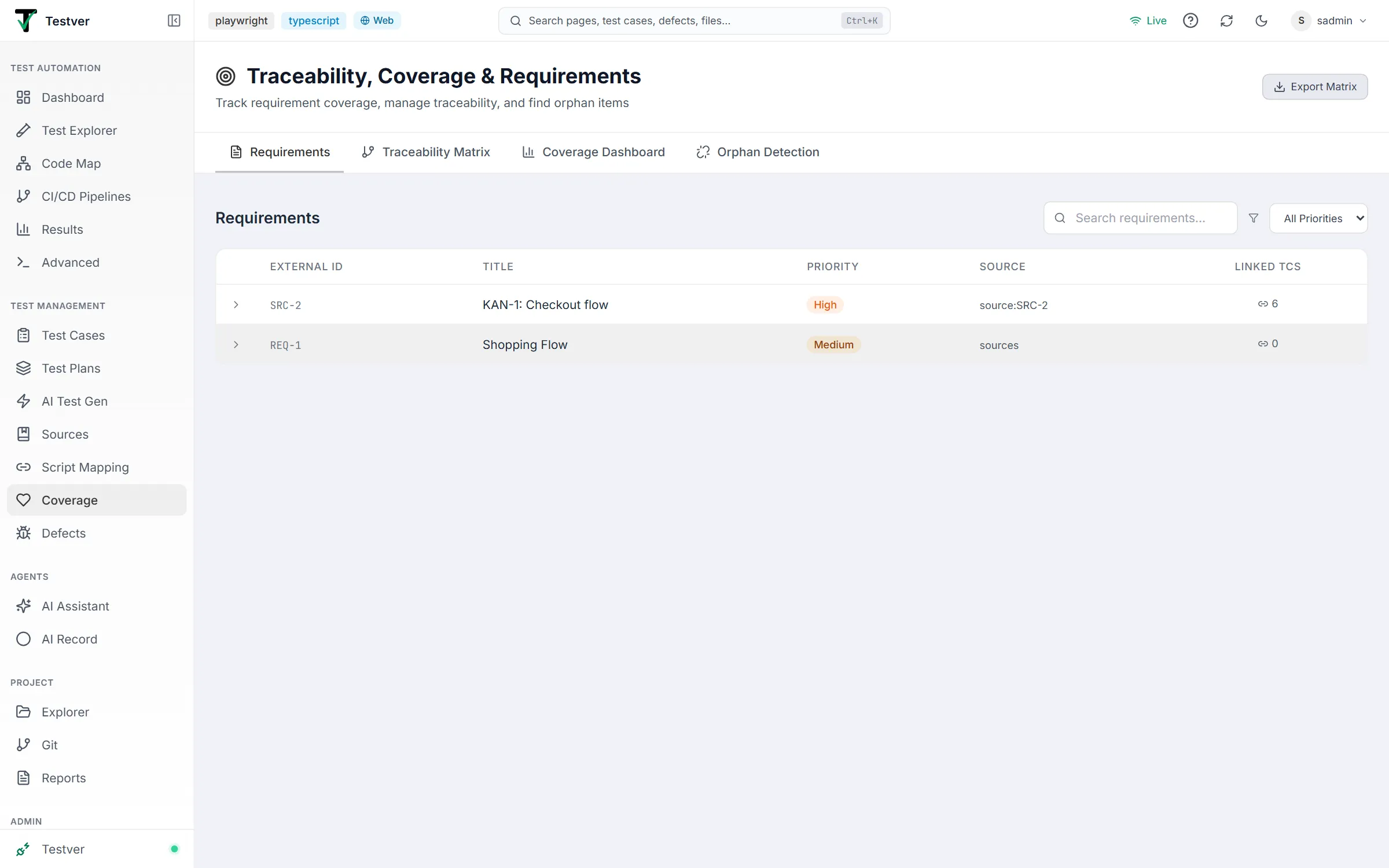
Section titled “What is the Coverage screen?”The Coverage screen — titled Traceability, Coverage & Requirements in the page header — answers one question: how well do my test cases cover my requirements, and how much of that is automated? It is not a single number on a single chart. It is a workspace with four tabs that follow the chain from a requirement (a thing the product must do, usually pulled out of a source document) down to the test cases that verify it, and further down to the test scripts (real files on disk) that automate it.
Critically, this screen measures coverage at three distinct levels, so read each metric carefully:
- Requirements coverage — are your requirements linked to at least one test case? (the Traceability and Orphan tabs)
- Automation coverage — of the test cases that exist, how many are actually automated by a script? (the Coverage Dashboard’s headline number)
- Source coverage — of your source documents, how many have produced test cases at all? (the Coverage Dashboard) Analogy. Think of a building inspector’s checklist. The requirements are the items the inspector must check (fire exits, wiring, plumbing). The test cases are the inspections written up for each item. The test scripts are the inspectors who actually walk the site. This screen is the inspector’s clipboard: it shows which checklist items have an inspection assigned (traceability), which inspections actually have someone walking the site (automation), and which checklist items nobody is looking at (orphans/gaps).
Who this guide is for
Section titled “Who this guide is for”- QA leads and test managers who need to prove the test suite covers the spec, and to find requirements with no tests before a release sign-off.
- Automation engineers who want to see which test cases still run manually and which
test scriptson disk are not yet tied to a test case. - Product owners / BAs who want assurance that every requirement extracted from a PRD or Jira ticket has been turned into verifiable tests.
- Anyone auditing the project who needs an exportable traceability matrix for a compliance or release record. No coding is required to read this screen. Generating the underlying requirements and test cases is done elsewhere (in AI Test Gen, from Sources); this screen reports on the result.
Key terms
Section titled “Key terms”| Term | What it means here |
|---|---|
| Requirement | A single thing the product must do. Requirements flow in automatically from Sources via the AI extraction pipeline; they are read-only on this screen (you cannot type a new one here). Each carries an External ID (e.g. REQ-001), title, priority, and source. |
| Test case | A documented test that verifies one or more requirements. A test case can be linked to a requirement on the Requirements tab, or generated against it from a source. |
| Test script | An actual automation file on disk (e.g. a Playwright or Cypress spec). A test case is considered automated when it is mapped to a script. |
| Source | A document the requirements/tests were derived from (PRD, Jira ticket, NLP prompt, uploaded file). Shown with a type icon: Requirement, NLP, JIRA, or Document. |
| Linked / Unlinked | Linked = a relationship exists (requirement<->test case, or test case<->script). Unlinked items are the ones this screen flags as gaps. |
| Orphan | An item with nothing on the other side of its expected link: a test case with no requirement, a script with no test case, or a source that produced no test cases. |
| Strategy | A test-design technique a generated test belongs to (happy-path, negative, boundary, equivalence, error-handling, security, performance, accessibility, compatibility, integration, data-validation). Drives the heatmap columns in the Traceability Matrix’s Detailed View. |
| Persona | A user role a generated test was written for. Optional; only appears when the source’s tests carry persona metadata. |
| Coverage level | Per-requirement verdict in the List view: Fully Covered (green — every linked test case is automated), Partially Covered (amber — some linked test cases are still manual), or Not Covered (red — no test cases linked). |
| Requirement coverage | The share of requirements that have at least one linked test case, shown as the Requirement Coverage card on the Traceability Matrix tab. It says nothing about pass rate or automation. |
How it works
Section titled “How it works”Every number on this screen is computed by the backend from data you create elsewhere. Nothing here is hand-entered.
- Requirements are extracted from Sources by the AI pipeline and arrive as
activeby default. The Requirements tab is read-only at the requirement level — there is intentionally no ”+ New Requirement” button. - Test cases come from AI Test Gen (generated against a source) or are linked manually on the Requirements tab.
- Scripts are discovered by scanning the project directory each time the Orphan Detection tab loads; the Unmapped Test Scripts list shows JavaScript/TypeScript test files (
*.spec.*,*.test.*,*.e2e.*) on disk that no mapping uses, with each file’s framework read from its imports (Playwright, Cypress, WebdriverIO, Vitest or Jest), or the project’s detected framework when the file imports a shared fixtures file instead. - The Coverage Dashboard pulls a single coverage-stats object (automation %, source %, per-priority automation, per-type counts) and an orphans object.
- The Detailed View heatmap is fetched per-source and is built from saved test cases that persisted
requirement_id+strategymetadata at generation time. Older tests without that metadata are counted as legacy uncategorized.
Getting Started
Section titled “Getting Started”Opening Coverage
Section titled “Opening Coverage”- From the left navigation, open Coverage under Test Management (route
/coverage). The page header reads Traceability, Coverage & Requirements. - The page opens on the Requirements tab by default.
- Switch tabs using the four tab buttons under the header: Requirements, Traceability Matrix, Coverage Dashboard, Orphan Detection.
- The active tab is remembered in the URL (the
tabquery parameter:requirements,traceability,coverageororphans), so you can bookmark or share a link straight to, say, the Coverage Dashboard (/coverage?tab=coverage).
The screen layout
Section titled “The screen layout”| Area | Where | What it does |
|---|---|---|
| Page title | Top-left, with a target icon | Reads Traceability, Coverage & Requirements with the subtitle “Track requirement coverage, manage traceability, and find orphan items”. |
| Export Matrix button | Top-right of the header | Exports the coverage matrix to XLSX (see the Export section). |
| Tab bar | Below the header | Four tabs: Requirements, Traceability Matrix, Coverage Dashboard, Orphan Detection. Active tab has a colored underline. |
| Tab content | Main body | Changes with the selected tab — table, matrix, metric cards, or orphan lists. |
At a glance
Section titled “At a glance”If you only have thirty seconds, do this:
- Open Coverage Dashboard -> read the Automation Coverage % (green). That is your headline.
- Glance at the three orphan counters (Orphan Test Cases, Orphan Test Scripts, Orphan Sources). Any non-zero number is a loose end colored amber/orange/purple.
- Open Orphan Detection to see exactly which items those counters point to.

The tabs
Section titled “The tabs”Each tab has its own guide:
| Tab | Guide |
|---|---|
| Requirements Tab | Requirements Tab |
| Traceability Matrix Tab | Traceability Matrix Tab |
| Coverage Dashboard Tab | Coverage Dashboard Tab |
| Orphan Detection Tab | Orphan Detection Tab |
The active tab is kept in the URL (for example ?tab=traceability), so it survives a refresh and can be bookmarked.
Filters & Grouping
Section titled “Filters & Grouping”| Where | Control | Effect |
|---|---|---|
| Requirements tab | Search box + Priority dropdown | Filter the requirement list by text or priority. |
| Requirements tab | Row chevron | Expand to see / link / unlink test cases. |
| Traceability tab | Detailed / List toggle | Switch between per-source heatmap and per-requirement table (stored in subtab). |
| Traceability — Detailed | Source card chevron | Expand a source to load its Requirement x Strategy heatmap. |
| Heatmap | Search / Sort / Uncovered only / Priority & Persona chips / Per-persona columns | Narrow and reorder the requirement rows; surface gaps. |
| Heatmap | Row chevron | Inline-expand a requirement to list its test cases grouped by strategy, each linking to the test case. |
| Coverage Dashboard | (none) | Read-only metrics; click into Orphan Detection for the underlying items. |
Exporting
Section titled “Exporting”There are two independent export paths:
- Export Matrix (header button, all tabs) — produces an XLSX of the coverage matrix via the backend document generator (type
coverage-matrix). - Export CSV (inside an expanded source’s heatmap) — a client-side CSV built in the browser, no backend needed. Columns: Requirement ID, Title, Source Quote, Total Tests, Last Generated, one count column per strategy, one count column per persona, and a flat list of test case IDs grouped by strategy. The file is named
coverage-matrix_<source-title>.csv.
Common Tasks (How Do I…?)
Section titled “Common Tasks (How Do I…?)”| I want to… | Do this |
|---|---|
| See my overall automation level | Coverage Dashboard -> read Automation Coverage (green %). |
| Find requirements with no tests | Traceability Matrix -> List view -> look for red-tinted rows / Not Covered badges. |
| Add a test to a requirement | Requirements tab -> expand the requirement -> Link Test Cases -> check tests -> Link Selected. |
| Remove a wrong link | Requirements tab -> expand requirement -> click the unlink (broken-chain) icon. |
| See which strategies a requirement is missing | Traceability -> Detailed -> expand the source -> find dim hollow-circle cells, or tick Uncovered only. |
| List every test for a requirement | In the heatmap, click the requirement’s row to expand it; tests are grouped by strategy. |
| Find test scripts on disk with no test case | Orphan Detection -> Unmapped Test Scripts (amber Not Mapped rows). |
| Find sources that produced nothing | Orphan Detection -> Orphan Sources, or the dashboard’s Orphan Sources card. |
| Export for an audit | Header -> Export Matrix (XLSX); or per-source Export CSV in the heatmap. |
| Jump from a matrix cell to the test case | Expand the row, then click any test in the strategy card (opens /test-cases?tcId=…). |
Tips & Best Practices
Section titled “Tips & Best Practices”- Chase the orphans first. The three orphan counters are your fastest signal of disorganization; aim to get them to gray zeros before a release.
- Read Requirement Coverage for what it is. It counts requirements with at least one linked test; judge automation from the List view’s Coverage badges and results from its Result column.
- Automation % is not a quality score. It tells you how much is scripted, not how much passed — check the List view’s Result column for that.
- Re-generate legacy tests. If you see “legacy uncategorized,” re-run AI Test Gen so tests carry
requirement_id/strategymetadata and light up the heatmap. - Use Uncovered only + sort by Least covered first to triage the weakest requirements quickly.
- Keep scripts mapped. An Orphaned (red) script means a test case was deleted out from under a mapping — clean those up to keep automation counts honest.
- Bookmark a tab/subtab. The
tabandsubtabURL params let you deep-link teammates straight to, e.g., the List view.
Troubleshooting & FAQ
Section titled “Troubleshooting & FAQ”| Symptom | Likely cause / fix |
|---|---|
| ”No requirements found” | No requirements have been extracted yet. Add a Source and run AI Test Gen — requirements cannot be typed in here. |
| A source shows 0% coverage but has tests | Its tests may be manually-linked or legacy (no strategy metadata). Expand the source; check for the amber Manually Linked row or a legacy note, and re-generate to populate the heatmap. |
| Heatmap is empty for a source | Either no saved tests, or only legacy tests without requirement_id/strategy. Use the Open AI Test Gen link to re-generate. |
| Requirement Coverage is 100% but tests are failing | Expected — Requirement Coverage only checks that tests are linked. Use the List view’s Result column for pass/fail. |
| Automation Coverage stuck at 0% | No test cases are mapped to scripts yet. Map scripts to test cases (or generate automated tests) to raise it. |
| Orphan Test Scripts count is non-zero | A mapped script’s test case was deleted, leaving a broken link. Find it under Orphan Detection -> Unmapped Test Scripts (red Orphaned rows) and re-map or remove it. |
| A real test file isn’t listed anywhere | If it’s mapped it won’t appear as orphan. If unmapped, it appears under Unmapped Test Scripts only when it is a JavaScript/TypeScript *.spec.*, *.test.* or *.e2e.* file outside ignored folders such as node_modules; the directory is re-scanned each time you open the tab. |
| Persona chips/columns don’t appear | The source’s tests carry no persona metadata; the persona controls only render when persona data exists. |
| Export Matrix does nothing | The XLSX path needs the backend document generator; if it fails, use the per-source client-side Export CSV instead, which has no backend dependency. |
| Counts differ between Dashboard and Orphan tab | They shouldn’t — both read the same orphans source. Refresh; the dashboard cards mirror the Orphan Detection lists by design. |
Related
Section titled “Related”- Sources — where requirements come from.
- Test Cases — what’s covering them.
- AI Test Gen — generate cases for uncovered requirements.