

Connectors tab
Introduction
Section titled “Introduction”What is the Connectors tab?
Section titled “What is the Connectors tab?”The Connectors tab of the Settings screen (/settings?tab=connectors — the old /connectors URL redirects here) is the single place where you wire Testver into the outside world. On its own, Testver can author and run tests; connectors are what let it run those tests somewhere else (a cloud grid, a real phone on your desk, a browser on your own laptop) and tell someone about the results (Slack, email) or file the bugs it finds (JIRA).
Think of it like the back of a TV or an AV receiver. The TV works by itself, but the row of sockets on the back — HDMI, antenna, speakers, network — is what turns it into the centre of your living room. The Connectors tab is that row of sockets. Each card is one socket: plug a cable in (enter credentials), test that it carries a signal (Test Connection), and from then on that capability lights up everywhere else in Testver.
Who this guide is for
Section titled “Who this guide is for”This guide is written for the person setting Testver up for a team, and for any tester who needs to add a new integration. No prior knowledge of Appium, ADB, webhooks, or SMTP is assumed — every field is explained in plain language, and where a step happens outside Testver (for example creating a Slack webhook) the on-screen instructions are reproduced here.
- QA leads / admins configuring shared cloud grids and notification channels for the whole team.
- Testers plugging in a personal phone, running on their own browser, or connecting a JIRA project.
- Anyone troubleshooting a connector that shows an Error badge or won’t pass its connection test.
Key terms
Section titled “Key terms”These terms appear throughout the screen and this guide. Skim them once and the rest reads easily.
| Term | What it means in Testver |
|---|---|
| Connector | Any single integration card on this page — a cloud grid, a tracker, a notification channel, your local browser, or your local devices. |
| Cloud grid (cloud testing provider) | A hosted farm of real browsers and devices you rent by the minute — BrowserStack, LambdaTest, or Sauce Labs. Testver sends your test to the provider’s grid instead of running it locally. |
| Username / Access key | The two-part credential a cloud grid gives you: a username (or account name) plus a secret Access Key (sometimes called an API token). Together they let Testver authenticate to the grid. |
| Hub / hub URL | The grid’s connection endpoint that a test framework points at to reach the cloud. Testver derives this for you once a provider is saved. |
| Local device | A physical Android or iOS phone/tablet plugged into your machine over USB, driven through your own Appium server — no cloud minutes used. |
| Appium | The open-source server that lets automation tools control real mobile devices. Testver’s Local Devices section checks that Appium and its drivers are installed and reachable. |
| ADB (Android Debug Bridge) | The Android command-line tool Testver uses to see a connected Android phone. It must be on your system PATH or inside your Android SDK. |
| ANDROID_HOME / ANDROID_SDK_ROOT | Environment variables that point Appium at your installed Android SDK so it can actually drive the device, not just see it. |
| Local Browser connector | A mode where the AI Assistance browser runs on your machine via a one-time token + CLI command, instead of on the Testver server. |
| Connection token | A single-use secret (valid 24 hours) issued by the Local Browser card. You paste it into a CLI command on your machine to register your browser with the server. |
| Webhook URL | A secret address a chat tool (Slack) gives you. Posting a message to that URL makes it appear in a channel — that is how Testver sends notifications. |
| SMTP | The standard protocol for sending email. The Email connector uses an SMTP host, port, and account to send reports and alerts. |
| Issue tracker (JIRA) | Atlassian JIRA — connected for defect sync, issue tracking, and importing stories. Authenticated with an Atlassian email + API token. |
| Notify On events | The set of triggers (test run complete, test failure, cycle complete, CI gate verdict, Auto-Heal outcome, schedule skipped, defect created, defect status changed) that decide when a notification connector fires. |
How it works
Section titled “How it works”A connector is not just a saved password — switching one on changes what you can do elsewhere in Testver. Configuring something here makes new options appear on other screens.
| When you enable… | …this unlocks elsewhere |
|---|---|
| A cloud grid (BrowserStack / LambdaTest / Sauce Labs / Testver Grid) | That provider becomes a selectable execution target in the Runner and in Schedules — you can choose to run a test on the cloud grid instead of locally. |
| Local Devices (Appium) | Your connected phones appear in the device picker in the Runner and Schedules alongside cloud devices, so you can run mobile tests on real hardware on your desk. |
| Local Browser | AI Assistance browser actions run on your machine — letting you test localhost / intranet / SSO-protected sites the server can’t reach. |
| A notification connector (Email / Slack) | Test results and alerts are delivered to that channel based on the Notify On events you ticked. |
| JIRA | Defect sync, issue tracking, and story import become available using your default project key. |
Getting Started
Section titled “Getting Started”Opening Connectors
Section titled “Opening Connectors”- Open Testver in your browser.
- In the left navigation, open Settings (under Agents; under Admin if you are an administrator), then select the Connectors tab. The URL becomes
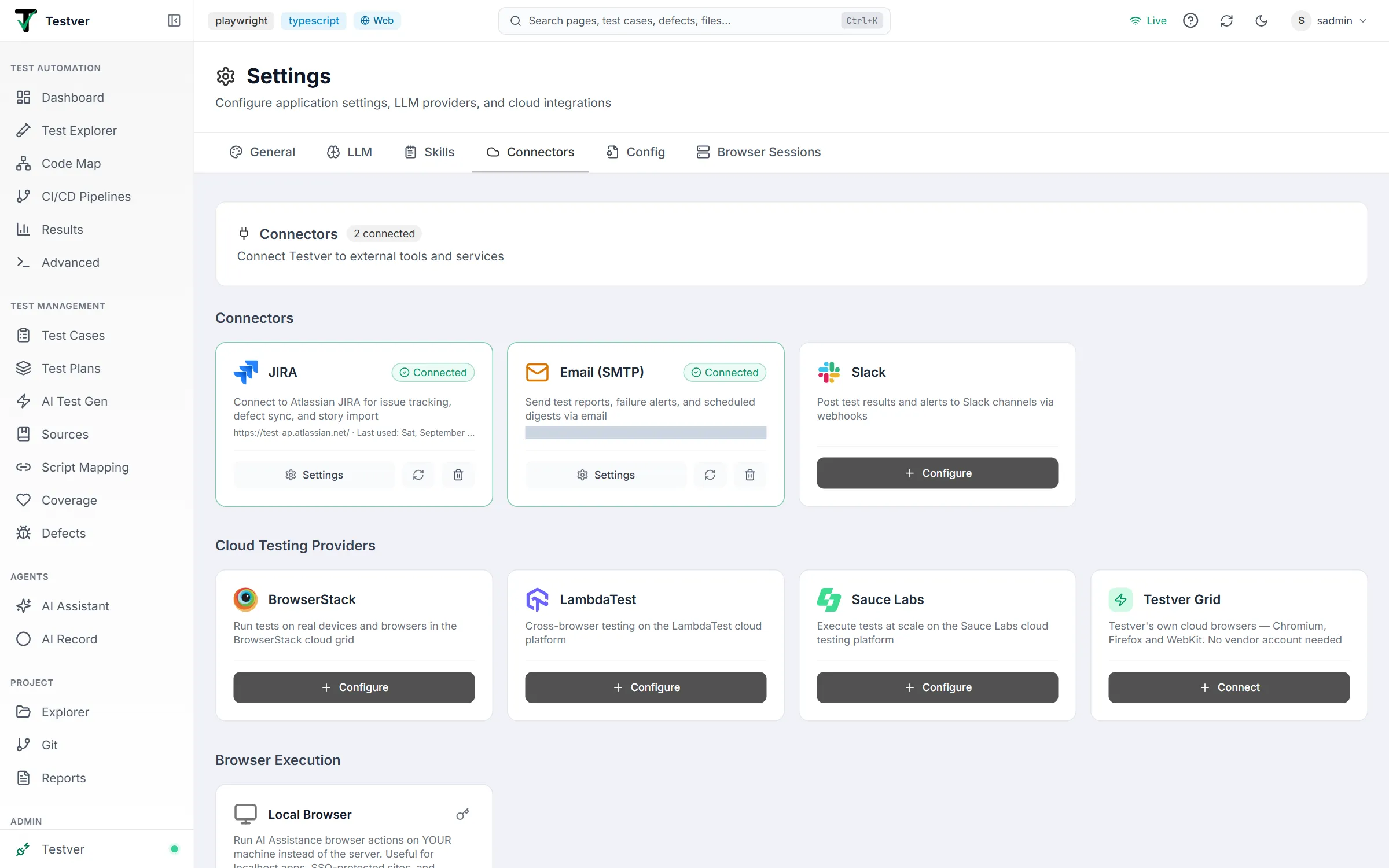
/settings?tab=connectors. - The page header reads Connectors with a plug icon and a N connected pill, plus the subtitle “Connect Testver to external tools and services”.
- Below the header, the page is organised into labelled sections — scroll to find the connector you want.
The connector tabs
Section titled “The connector tabs”The page is one long scroll divided into clearly-titled bands. There are no tabs to click — everything is visible by scrolling. Here is the running order from top to bottom.
| Section heading | What it holds | Cards |
|---|---|---|
| Connectors | Notification + issue-tracker integrations | JIRA, Email (SMTP), Slack |
| Cloud Testing Providers | Cloud device/browser grids | BrowserStack, LambdaTest, Sauce Labs, Testver Grid |
| Browser Execution | Run the browser on your own machine — shown only when App Mode is Web | Local Browser |
| Local Mobile Devices | USB-connected Android & iOS via Appium — shown only when App Mode is Mobile | Local Devices (Appium) |
At a glance
Section titled “At a glance”Every card shares a visual grammar so you can read its state without clicking:
- Icon + name at the top-left identify the connector.
- A green Connected pill (check icon) means it’s configured and live. A red Error pill (X icon) means it’s configured but its last test failed. No pill means it’s not set up yet.
- A short description line explains what the connector does.
- Configured cards show a context line — e.g. the email address, JIRA base URL, Slack channel, or cloud username — and (for notification connectors) a Last used date.
- The footer holds the action buttons. An unconfigured card shows a single Configure button (Connect on Testver Grid). A configured JIRA, Email or Slack card shows Settings, a Test (refresh icon) button and a Remove (trash) button; a configured cloud provider shows Edit and Remove.

Cloud Testing Providers (BrowserStack, LambdaTest, Sauce Labs)
Section titled “Cloud Testing Providers (BrowserStack, LambdaTest, Sauce Labs)”What it does
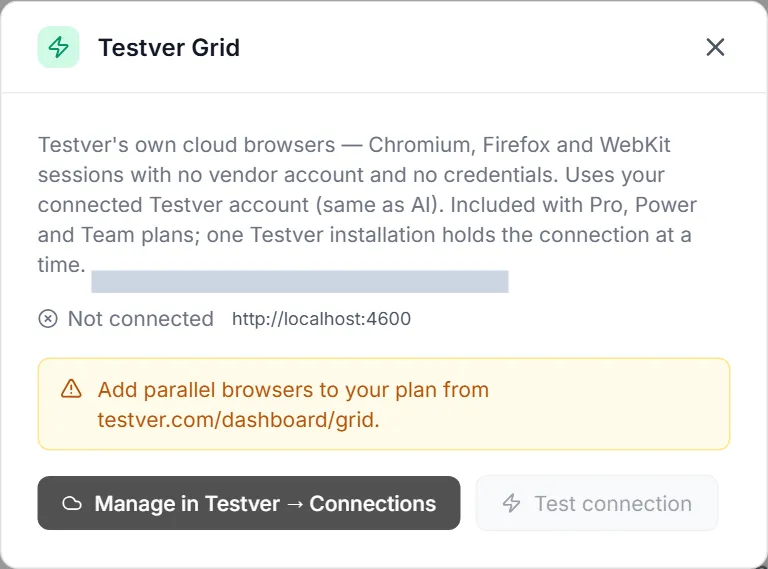
Section titled “What it does”The Cloud Testing Providers section connects Testver to a hosted grid of real browsers and devices. Instead of running a test on the Testver server or your laptop, Testver sends it to the provider’s cloud, where it executes on their hardware and streams results and artifacts back. Three third-party providers are supported, each with its own card, plus Testver Grid — Testver’s own cloud browsers, which need no credentials at all. The Testver Grid card is connected from Testver → Connections; here it shows the status, a test button and the live session wall (see Testver Grid).
| Provider | What it offers |
|---|---|
| BrowserStack | Run tests on real devices and browsers in the BrowserStack cloud grid. |
| LambdaTest | Cross-browser testing on the LambdaTest cloud platform. |
| Sauce Labs | Execute tests at scale on the Sauce Labs cloud testing platform. (Adds a Region choice.) |

The Testver Grid card opens a panel instead of a credentials form:
Opening the provider modal
Section titled “Opening the provider modal”Click Configure (or Edit on an already-saved card) to open the provider modal. The fields are the same for all three, with Sauce Labs adding a Region selector.
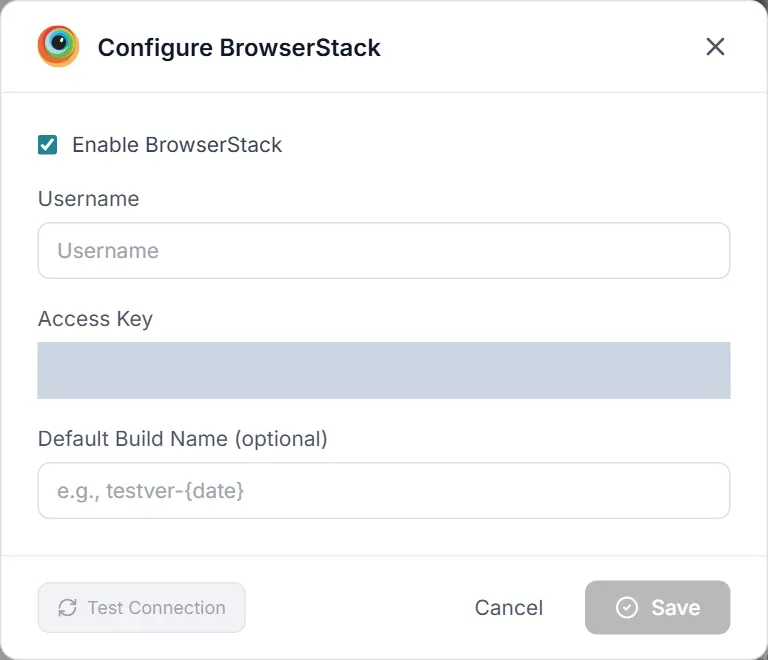
| Field | What to enter |
|---|---|
| Enable [Provider] (checkbox) | Tick to turn the connector on. Unticking saves the credentials but keeps the provider switched off, so it won’t appear as a run target. |
| Username | Your account username for the grid (BrowserStack username, LambdaTest username, or Sauce Labs username). Required. |
| Access Key | Your secret access key / API token from the provider. Required. Click the eye icon to reveal what you typed. On a saved card the field shows a •••••••• placeholder — you only re-enter it if you want to change it. |
| Region (Sauce Labs only) | Choose the data centre nearest you: US West (us-west-1) or EU Central (eu-central-1). |
| Default Build Name (optional) | A label that groups your runs in the provider’s dashboard, e.g. testver-{date}. Leave blank to skip. |
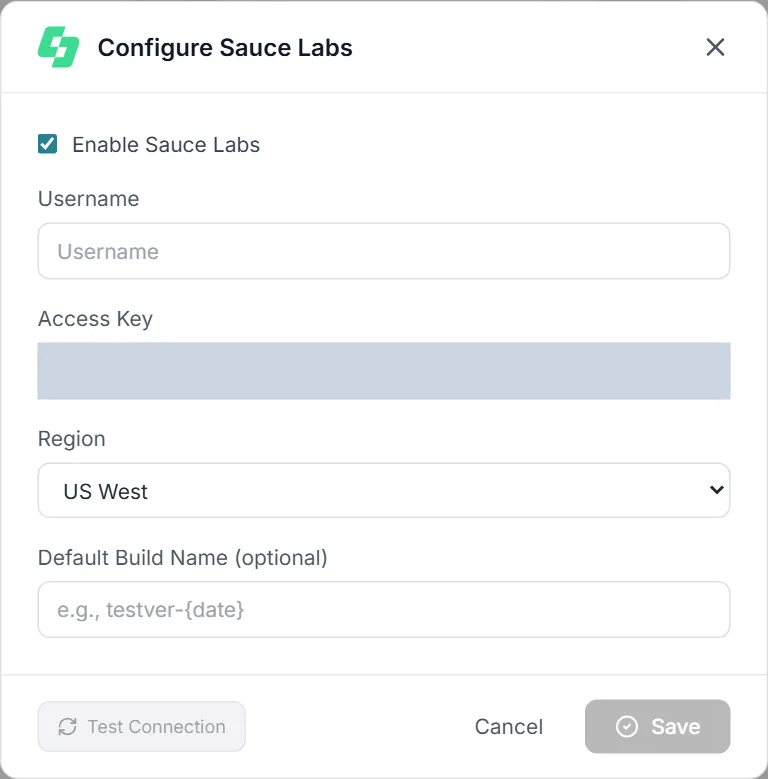
Fields
Section titled “Fields”- Enter the Username and Access Key (and Region for Sauce Labs).
- Click Test Connection at the bottom-left of the modal.
- Wait for the spinner. A green banner with a check icon confirms success (and may add details); a red banner with an X icon shows the failure message.
- The Test Connection button is disabled until you’ve entered a username and an access key (or the provider is already configured), so you can’t test an empty form.
Save and verify
Section titled “Save and verify”- After a successful test, click Save. A toast confirms e.g. “BrowserStack saved” and the card gains a green Connected pill plus a
User: <username>line. - To change anything later, click Edit on the card, adjust the fields, and Save again.
- To switch a provider off without deleting it, open it and untick Enable [Provider], then Save — the credentials stay but it stops counting as connected and won’t be offered as a run target.
- To delete it entirely, click the trash icon on the card. A Remove Cloud Provider confirmation warns that saved credentials will be deleted; click Remove to confirm.
Enable: where it appears
Section titled “Enable: where it appears”Once a cloud provider is saved and enabled, it becomes a selectable execution target in the Runner and Schedules screens. You can then choose to run a test on that grid’s real browsers/devices instead of locally. Testver derives the provider’s hub URL automatically so the framework knows where to connect.
Local Browser
Section titled “Local Browser”What it does
Section titled “What it does”The Local Browser card (under Browser Execution) lets AI Assistance browser actions run on your machine instead of on the Testver server. You generate a one-time token, run a CLI command on your computer, and that command opens a Playwright browser locally and tunnels AI commands to it. This is useful for:
- Testing localhost / intranet apps the server can’t reach.
- Working with SSO-protected sites where you’re already logged in on your own machine.
- Keeping browsing on your machine for privacy, and avoiding server-side resource cost.
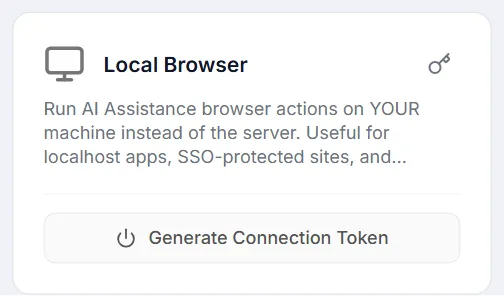
Generate a connection token
Section titled “Generate a connection token”- On the Local Browser card, click Generate Connection Token.
- The card reveals a CLI command under “Run this on your machine:”. Click the copy icon to copy it.
- Paste and run that command in a terminal on your own computer. It launches a local Playwright browser and registers it with the server.
- The card polls status every 5 seconds. Once your machine registers, the card flips to a green Connected pill and shows your Machine, OS, and the time you Connected.
- If nothing changes, click Refresh status to re-check immediately.
Disconnect
Section titled “Disconnect”When connected, the card shows a red Disconnect button. Click it to detach your local browser from the server; the card returns to its un-connected state and you can generate a fresh token whenever you need to reconnect.
Manage Local Browser tokens
Section titled “Manage Local Browser tokens”The key icon at the top-right of the Local Browser card opens the Local Browser Tokens modal. A small numeric badge on the icon shows how many tokens you currently have outstanding. Use this modal to audit and clean up tokens across all your machines.
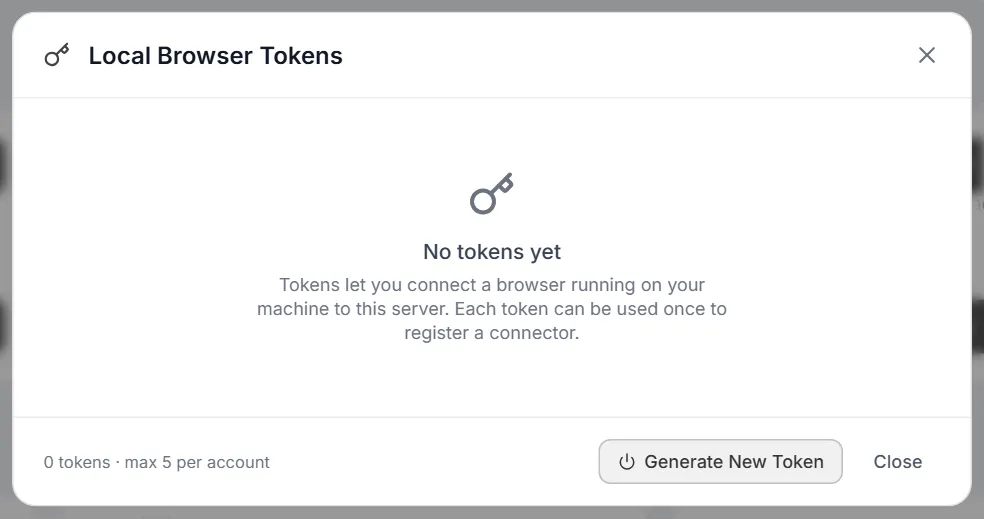
Inside the modal each token is listed with a status, a masked prefix (e.g. a1b2c3…), when it was issued, and when it expires:
| Token status | Meaning |
|---|---|
| active | A connector is currently connected using this token (shows “Connected from <machine>” when known). Green highlight. |
| pending | Issued but not yet used — the command hasn’t been run anywhere yet. |
| used | Was used, but the connector has since disconnected. |
| expired | Past its 24-hour lifetime and no longer usable. Dimmed red. |
- Generate New Token (footer) issues another token without closing the modal — handy for adding a second machine. A banner shows the new command; copy it immediately because it won’t be shown again.
- Revoke next to any token, then Confirm revoke, removes it. If a connector is actively using that token it disconnects immediately.
- Close the modal with Close, the X, or the Esc key.
Local Devices (Appium)
Section titled “Local Devices (Appium)”What it does
Section titled “What it does”The Local Devices (Appium) section runs tests against USB-connected Android and iOS devices using your own Appium server. It uses no cloud minutes and gives the fastest feedback loop for active development. Rather than a form, it presents a live, self-checking readiness checklist: Testver detects what’s installed on your machine, shows a green / amber / red status for each requirement, and offers copy-ready install commands for anything missing.
The whole connector sits inside one collapsible shell headed Local Devices (Appium), with a status pill (Ready or Setup needed), a count of connected devices, an Enable toggle, and a Refresh button. Click the header to expand the checklist. The page auto-polls /api/mobile/local/status every 4 seconds, so plugging in a phone or starting Appium updates the display without a manual refresh.
Enable the connector
Section titled “Enable the connector”- The Enable toggle (top-right of the shell) turns the Local Devices connector on or off. A toast confirms “Local Devices enabled” / “disabled”.
- The Refresh button (circular-arrow) forces an immediate re-detection — useful right after you install a tool or plug in a device.
The prerequisites checklist
Section titled “The prerequisites checklist”Expanding the shell reveals a checklist of cards. Each shows a coloured status icon, the detected version (when present) or the reason it failed, and — when something is missing — a labelled command you can copy with one click. The checks are:
| Checklist item | What it verifies | If it fails |
|---|---|---|
| Appium server | That an Appium server is reachable (default http://127.0.0.1:4723) and which drivers it has. Green hint shows version + drivers. | Offers a copy-ready “Install + start Appium” command (npm install -g appium, install the uiautomator2 + xcuitest drivers, then appium). |
| Android | Two gates: (1) ADB is on PATH so Testver can see the device, and (2) ANDROID_HOME / ANDROID_SDK_ROOT points at a real SDK so Appium can drive it. | Offers an “Install platform-tools (ADB)” command for your OS, and — if the SDK is missing/invalid — steps to install Android Studio and set ANDROID_HOME on Windows / macOS / Linux. |
| iOS (macOS only) | That Xcode and libimobiledevice are installed. On non-Mac hosts this section explains iOS local testing isn’t available. | Offers “Install Xcode” and “Install libimobiledevice + ios-deploy” commands; reminds you real-device iOS also needs a signed WebDriverAgent (with a link to the setup guide). |
Connected devices
Section titled “Connected devices”Inside the Android (and on Mac, iOS) group, once that platform is ready, Testver lists every device it can see over USB. Each row shows the device name, platform version, its serial, and a state badge:
| Device badge | Meaning |
|---|---|
| Ready | Connected and authorised — usable for test runs. |
| Unauthorized | Detected but not trusted yet. Accept the RSA fingerprint prompt on the Android device (or tap Trust on iOS). |
| Other state (e.g. offline) | The raw ADB/device state, shown verbatim, when the device isn’t fully connected. |
If no device is plugged in, the list shows a hint: for Android, “Plug a device in via USB and enable USB debugging”; for iOS, “Plug a device in via USB and tap Trust on the prompt”.
App launch mode
Section titled “App launch mode”The App launch mode card controls how the app starts at the beginning of each run on a connected device:
| Mode | Behaviour |
|---|---|
| Fresh start (clear data) | Wipes app data before every run — starts from onboarding / logged-out, default settings. |
| Keep data | Preserves app data between runs — stays logged in, keeps settings. The app is still relaunched. |
Advanced — override tool paths
Section titled “Advanced — override tool paths”An Advanced — override tool paths expander lets you pin non-default locations when auto-detection isn’t enough. Each field has its own Save button (enabled only when you’ve changed the value), and saving triggers a fresh detection.
| Path field | When to set it |
|---|---|
| Appium URL | Override if you run Appium on a non-default port or host (default http://127.0.0.1:4723). |
| ADB path (Android) | Set when multiple Android SDKs are installed and you want to pin a specific ADB. Otherwise auto-detected from PATH + $ANDROID_HOME. |
| iOS tools path (macOS only) | Set when libimobiledevice / ios-deploy live outside PATH. |
Enable: where it appears
Section titled “Enable: where it appears”With Local Devices enabled and at least one device Ready, your physical phones appear in the device picker on the Runner and Schedules screens, alongside cloud devices — so you can target real hardware on your desk for mobile test runs.
What it does
Section titled “What it does”The JIRA card (under Connectors) connects Testver to Atlassian JIRA Cloud for issue tracking, defect sync, and story import. Click Configure to open the connector modal.
Fields
Section titled “Fields”| Field | What to enter |
|---|---|
| Connection Name | A friendly label for this connection (defaults to “JIRA Connection”). |
| JIRA Cloud URL | Your Atlassian site base URL, e.g. https://yourcompany.atlassian.net. |
| Email (Atlassian Account) | The email of the Atlassian account whose API token you’ll use, e.g. user@company.com. |
| API Token | An Atlassian API token (looks like ATATT3xFf…). Use the Generate link beside the label to create one at id.atlassian.com. Click the eye icon to reveal it. |
| Default Project Key | The project key new issues land in by default, e.g. PROJ. |
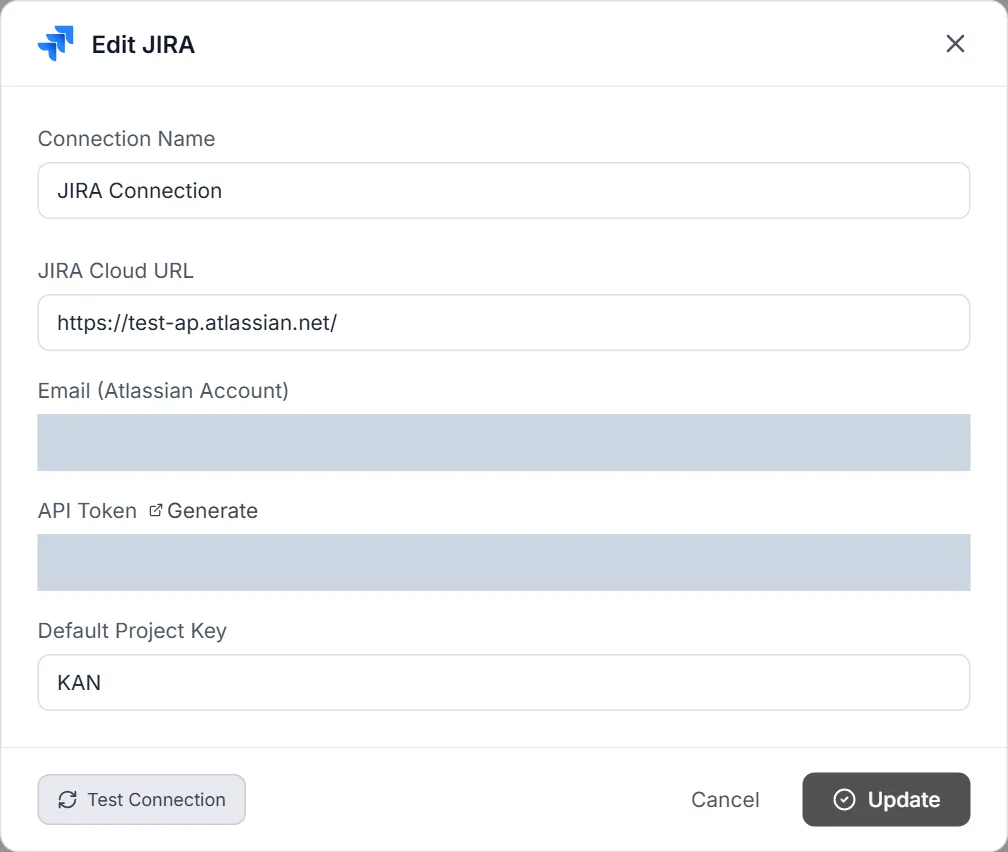
- Fill in the fields and click Save (you must give it a Connection Name). When you reopen a saved connector with Settings, the dialog is titled Edit JIRA and the button reads Update.
- Once saved, the modal’s Test Connection button becomes available — click it to verify the credentials. A green banner reads “Connection successful” (with the resolved user when available); a red banner shows the failure.
- Back on the page, a saved JIRA card shows its base URL, a green Connected pill (or red Error if the last test failed), Settings, a Test (refresh) button, and a Remove (trash) button.
Email (SMTP)
Section titled “Email (SMTP)”What it does
Section titled “What it does”The Email (SMTP) card sends test reports, failure alerts, and scheduled digests via email. Click Configure to open the modal.
Fields
Section titled “Fields”| Field | What to enter |
|---|---|
| Connection Name | A label for this email connection (defaults to “Email (SMTP) Connection”). |
| Provider | Pick a preset — Gmail, Outlook / Office 365, Yahoo, Custom SMTP, or Testver mail — included with your plan (see below). Choosing an SMTP preset auto-fills the host and port. |
| SMTP Host | The mail server hostname. Auto-filled by the preset (e.g. smtp.gmail.com, smtp.office365.com, smtp.mail.yahoo.com); type your own for Custom SMTP. |
| Port | The SMTP port (preset default 587). |
| Email Address | The account used to send, e.g. user@gmail.com. |
| Password / App Password | The account password — or, for Gmail, a Gmail App Password (a note in amber reminds you). Click the eye icon to reveal it. |
| From Name | The display name recipients see (e.g. “Testver Notifications”). |
| Notify these addresses | Optional team inbox(es), comma-separated. Run, cycle, CI gate, auto-heal, schedule and defect broadcasts go here; leave it empty to send them to the sender address (or the Replies go to address for Testver mail). Personal emails — welcome, password, assigned defects — always go to the user concerned. |
Testver mail
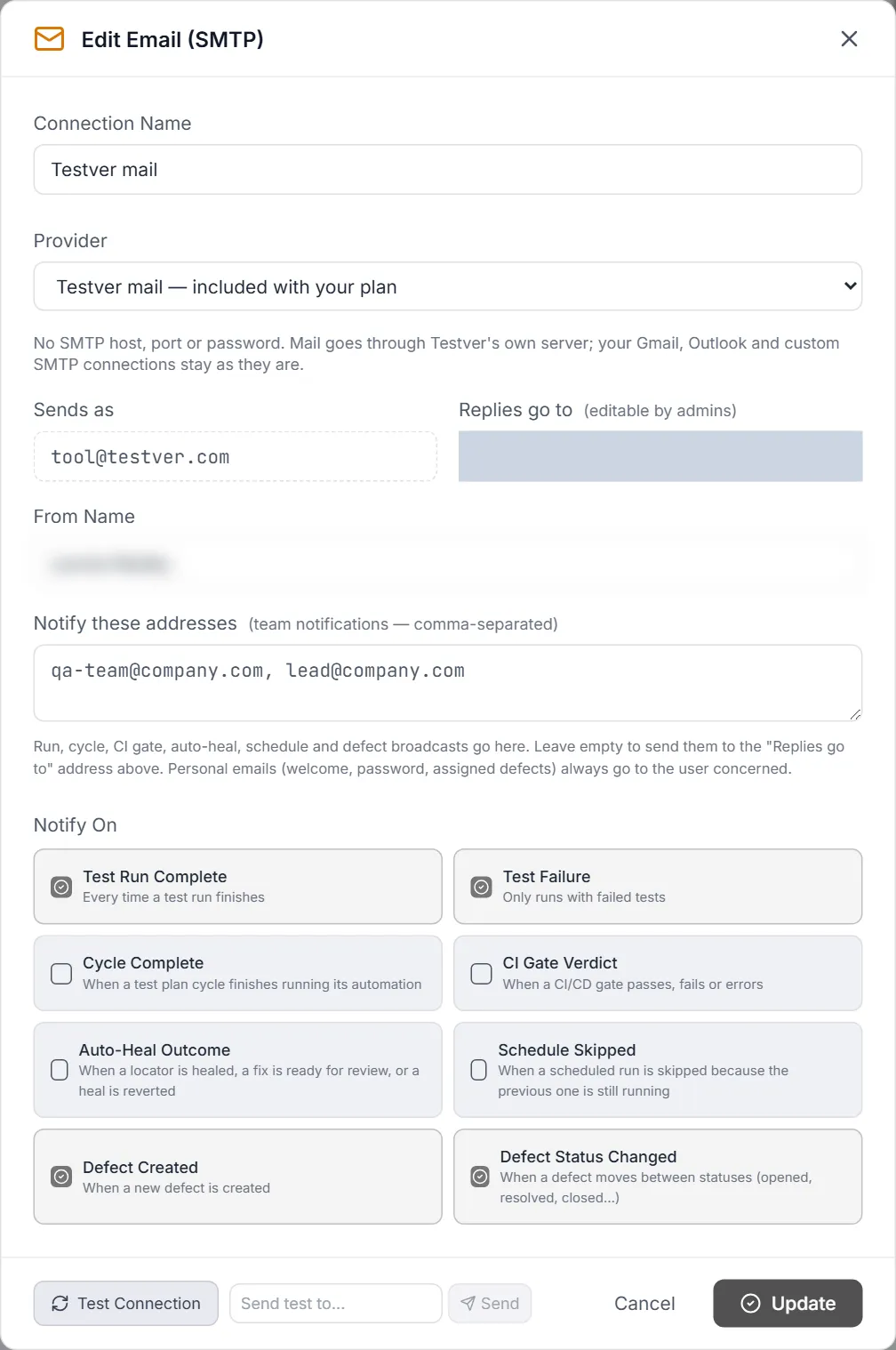
Section titled “Testver mail”Paid plans include Testver Mail: Testver sends reports and notifications through its own mail server, so there is no host, port or password to enter. Once your account is connected on Testver → Connections, a connector called Testver mail appears here already connected and becomes the default sender — the Notify On events from your other email connectors move to it (move them back at any time). Its fields:
| Field | What it is |
|---|---|
| Sends as | Always tool@testver.com. Read-only. |
| Replies go to | Your Testver account’s email by default. Admins and the super admin can change it to another address, for example a team inbox. |
| From Name | Shown as "<name> via Testver". Testver keeps the “via Testver” suffix so recipients always see whose server the mail came through. |
If the provider is greyed out, the account is not connected, the plan does not include Mail, or you are a team member: only the team owner or the platform manager enables Mail for a team. The message under the field says which, and links to Testver → Connections.
Notify On
Section titled “Notify On”Below the credentials, the Notify On grid decides when this connector fires. Tick any combination (Test Run Complete and Test Failure are on by default for a new connector):
| Event | Fires when… |
|---|---|
| Test Run Complete | Every time a test run finishes. |
| Test Failure | Only runs with failed tests. |
| Cycle Complete | A test plan cycle finishes running its automation. |
| CI Gate Verdict | A CI/CD gate passes, fails or errors. |
| Auto-Heal Outcome | A locator is healed, a fix is ready for review, or a heal is reverted. |
| Schedule Skipped | A scheduled run is skipped because the previous one is still running. |
| Defect Created | A new defect is created. |
| Defect Status Changed | A defect moves between statuses (opened, resolved, closed…). |
- Click Save (Update when editing) to store the connector.
- Reopen it with Settings and click Test Connection to verify the login.
- To prove end-to-end delivery, type an address into the Send test to… box and click Send — Testver dispatches a sample email and reports “Test notification sent successfully!” or the error.
What it does
Section titled “What it does”The Slack card posts test results and alerts to a Slack channel via an incoming webhook. The modal includes a built-in how-to panel for creating the webhook.
- Go to
api.slack.com/apps→ Create New App. - Enable Incoming Webhooks.
- Add it to your channel → copy the webhook URL.
Fields
Section titled “Fields”| Field | What to enter |
|---|---|
| Connection Name | A label for this Slack connection. |
| Webhook URL | The incoming-webhook URL from Slack, e.g. https://hooks.slack.com/services/T…/B…/xxx. This is the secret that carries messages. |
| Channel (display only) | The channel name to show in Testver’s UI, e.g. #qa-alerts. Cosmetic — the webhook already determines the real destination. |
| Bot Name | The name messages are posted under (defaults to “Testver”). |
| Notify On events | The same eight events as Email — tick which events should post to Slack. |
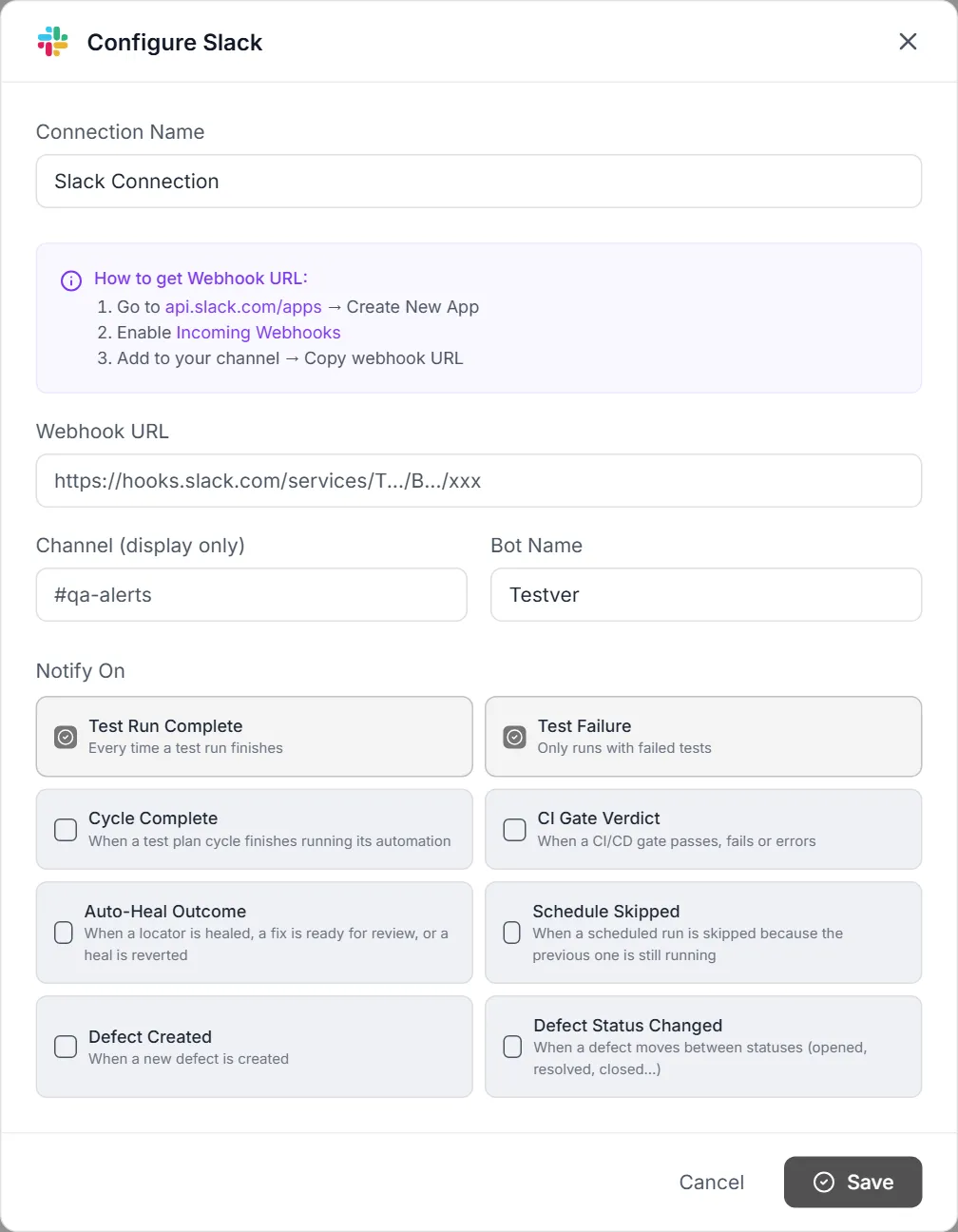
- Click Save. Then reopen the card with Settings and click Test Connection to validate the webhook.
- Click Send Test Message to post a sample message into the channel and confirm it arrives.
Managing configured connectors
Section titled “Managing configured connectors”JIRA, Email and Slack cards share the same lifecycle controls once configured:
| Control | Where | What it does |
|---|---|---|
| Settings | Card footer | Reopens the config modal (titled Edit …) to edit fields; save with Update. |
| Test (refresh icon) | Card footer | Runs a connection test in place and shows a toast (“Connection successful!” or the error). Updates the card’s Connected/Error pill. |
| Remove (trash icon) | Card footer | Opens a Delete Connector confirmation warning that notifications will no longer be sent; click Delete to confirm. |
| Test Connection | Inside modal (after first save) | Validates credentials; shows a green/red result banner. |
| Send / Send Test Message | Inside modal | Sends a real sample notification — Email: type an address in Send test to… and click Send; Slack: Send Test Message. |
Common Tasks (How Do I…?)
Section titled “Common Tasks (How Do I…?)”| I want to… | Do this |
|---|---|
| Run my tests on real cloud devices | Under Cloud Testing Providers, Configure a provider, enter username + access key, Test Connection, tick Enable, Save. It then appears as a run target in Runner/Schedules. |
| Run tests on a phone on my desk | Expand Local Devices (Appium), follow the checklist (install Appium + ADB/SDK), plug in the device via USB, toggle Enable. The device shows Ready and appears in the device picker. |
| Test a localhost / intranet site | On the Local Browser card click Generate Connection Token, run the copied command on your machine; once Connected, AI browser actions run locally. |
| Send test results to Slack | Configure the Slack card with an incoming-webhook URL, tick the Notify On events, Save, then Send Test Message to confirm. |
| Email a report on every failure | Configure Email (SMTP), tick Test Failure (and others) under Notify On, Save, then Send a test to your address. |
| File bugs into JIRA | Configure the JIRA card with your Cloud URL, Atlassian email, API token, and default project key; Save and Test Connection. |
| Switch a cloud grid off without deleting it | Edit the provider, untick Enable [Provider], Save — credentials are kept but it stops being a run target. |
| Connect a second machine’s browser | Open the key-icon Tokens modal, click Generate New Token, copy the command, run it on the other machine. |
| Revoke a leaked or stale token | Open the Tokens modal, click Revoke next to it, then Confirm revoke — any connector using it disconnects immediately. |
| Re-detect my mobile tools after installing one | Click the Refresh button in the Local Devices header (or just wait — it auto-polls every 4 seconds). |
| See how many connectors are live | Read the N connected pill next to the Connectors title — it counts active notification/tracker connectors plus enabled cloud providers. |
Tips & Best Practices
Section titled “Tips & Best Practices”- Test before you trust. Run Test Connection before saving a cloud grid, and straight after saving a JIRA, Email or Slack connector (reopen it with Settings) — a green result now saves a failed run later.
- Use app passwords, not real passwords, for Email (especially Gmail). Generate a dedicated app password so revoking it later doesn’t lock you out of your account.
- Disable instead of delete when you only need a temporary pause — untick Enable on a cloud provider to keep its credentials for later.
- Keep your token count tidy. You can hold at most 5 Local Browser tokens; revoke
pending/expiredones so you never get blocked from generating a new one. - Set ANDROID_HOME once, then restart terminals. Most Android setup failures are stale environment variables in a still-running Appium process — open a fresh terminal after changing env vars.
- Pick the right launch mode. Use Fresh start (clear data) for clean, repeatable Android runs; use Keep data when your test relies on being already logged in.
- Name your connections clearly (Connection Name) when you run several of the same type — it makes them easy to tell apart later.
- Use a Default Build Name like
testver-{date}on cloud providers so your runs group neatly in the provider’s dashboard.
Troubleshooting & FAQ
Section titled “Troubleshooting & FAQ”| Symptom | Likely cause / fix |
|---|---|
| Cloud provider Test Connection fails | Re-check the username and access key (re-enter the key — it’s masked as •••••••• on saved cards). For Sauce Labs make sure the Region matches your account’s data centre. |
| A connector shows a red Error badge | Its last test failed. Open Settings, fix the credentials, and click Test again until it goes green. |
| Local Browser never turns Connected | The command must run on your own machine and the token must be unexpired/unused (24-hour, single-use). Generate a fresh token and re-run; click Refresh status. |
| ”Generate New Token” is greyed out | You’ve hit the 5-token-per-account limit. Revoke an existing token in the Tokens modal to free a slot. |
| Android device not listed / shows Unauthorized | Enable USB debugging, and accept the RSA fingerprint prompt on the phone. If still missing, install platform-tools (ADB) via the checklist command. |
| Android “Setup needed” even though ADB works | ANDROID_HOME / ANDROID_SDK_ROOT isn’t set or points at a non-SDK folder. Use the checklist commands to set it, then close and reopen every terminal (including Appium’s). |
| Appium shows not reachable | Start Appium with the checklist’s “Install + start Appium” command; confirm it’s listening at http://127.0.0.1:4723 (override in Advanced if you use a different host/port). |
| iOS section says Requires macOS | iOS local testing needs a Mac to sign WebDriverAgent. On Windows/Linux, use a cloud provider for iOS coverage instead. |
| Slack Send Test Message doesn’t appear | The webhook URL is wrong or the channel webhook was deleted. Recreate the incoming webhook and paste the new URL. |
| Email test bounces or won’t authenticate | Use an App Password (Gmail/Outlook), verify the host/port match the provider, and confirm the sending address is correct. |
| Testver mail says “not included in your plan” | Mail comes with paid plans and, on a team, is enabled by the owner or platform manager. Check the Testver Mail card on Testver → Connections. |
Related
Section titled “Related”- Defects → JIRA sync — how the JIRA connector is used.
- Sources → JIRA — pull issues as sources.
- Schedules — recurring runs that fire connector notifications.
- Settings → Browser Sessions — see and close live browser sessions, including local connectors.