

Sign in
Introduction
Section titled “Introduction”What the sign-in screen is
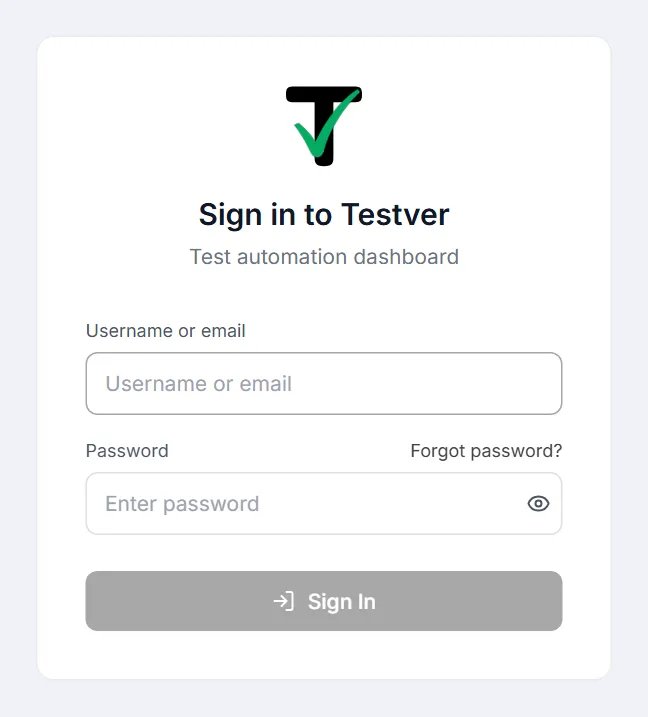
Section titled “What the sign-in screen is”The sign-in screen is the front door to Testver. It appears whenever you open the app without a valid session — on a fresh browser, after signing out, or after a session expires. It is intentionally minimal: Sign in to Testver, a Username or email field, a Password field (with an eye icon to show what you typed), a Sign In button, and a Forgot password? link.
Who can sign in
Section titled “Who can sign in”Anyone with an account an admin has created. Each account has a single role — Super admin, Admin, Tester, or Viewer — which determines what you can do once inside, but everyone uses the same login screen.
Daily sign-in
Section titled “Daily sign-in”- Open Testver in your browser (e.g.
http://localhost:3700, or your team’s hosted URL). - Enter your username or email and password. Either identifies the same account; email matching ignores case.
- Click Sign In.
You land on the dashboard. Testver keeps you signed in until you sign out or your session expires.
Two-factor authentication
Section titled “Two-factor authentication”If you turned on two-factor authentication in Profile, or your administrator requires it, signing in has a second step after the password:
- Open your authenticator app (Google Authenticator, Microsoft Authenticator, Authy, 1Password, Bitwarden…) and find the Testver entry.
- Type its 6-digit code. It is checked as soon as the sixth digit is in; a phone can usually fill it for you.
- Optionally tick Trust this browser for 30 days — only on a computer you alone use. That browser then skips the code until the time runs out (your administrator decides whether this is allowed and for how long). You can remove trusted browsers in Profile.
No phone? Choose Use a recovery code and type one of the codes you saved when you set it up. Each works once. If you have none left, an administrator can reset your two-factor authentication from Users.
Required by your administrator but not set up yet? After your password, the screen walks you through it: scan the QR code with your app (or type the key shown under it), enter the first code, save your recovery codes, then continue into Testver. The same screen appears straight away if the rule is switched on while you are signed in.
Codes change every 30 seconds, and each one signs in once. The code just before the current one is still accepted for about 30 seconds, so a small clock difference between your phone and the server — or typing a code as it changes — does not fail you; that is standard for authenticator apps. If the screen says a code “is right for a time … minutes ago”, the clock on your phone or on the server is wrong — set both to update the time automatically.
Staying signed in
Section titled “Staying signed in”A successful login creates a session — a server-side token tied to your account and device. You stay signed in across page reloads and browser restarts until one of these happens:
- You click Sign Out.
- There is no activity for 1 day — clicking, typing or scrolling in Testver keeps the session going; a tab left open on its own does not.
- The session reaches its 7-day limit — however active you are, you sign in again once a week.
- An admin (or you, from Profile) revokes the session.
Both limits are the defaults; an admin can change them in Settings → General → Sign-in sessions.
You are warned first. Five minutes before a session ends, a notice counts down with a Stay signed in button (or, at the 7-day limit, Sign in again now). Tests and AI tasks keep running on the server either way — signing out never stops them. After a forced sign-out, the sign-in screen says why: no activity, the 7-day limit, or the session being ended elsewhere.
Each device or browser you sign in from gets its own session. You can review and revoke them all from Profile → Active Sessions.
Signing out / switching user
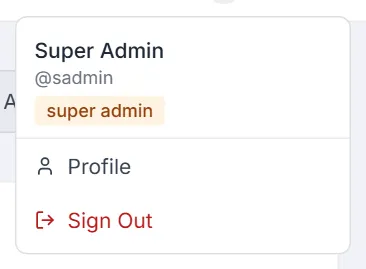
Section titled “Signing out / switching user”In the top-right of every screen, click your avatar → Sign Out. This ends your current session and returns you to the login screen. To switch user, sign out and sign back in as someone else.
Forgot your password
Section titled “Forgot your password”Self-service reset by email
Section titled “Self-service reset by email”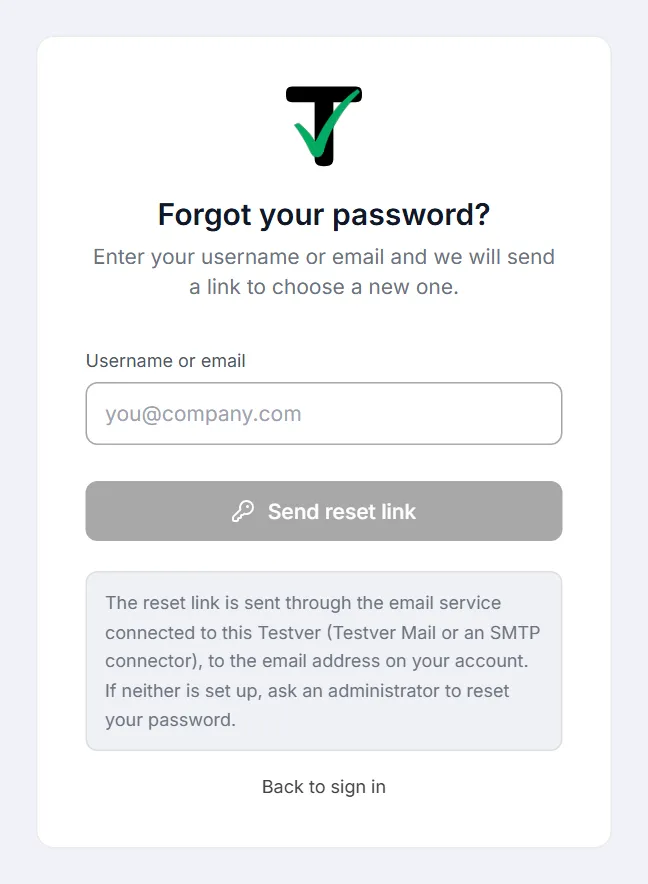
- On the sign-in screen click Forgot password? (next to the Password label).
- On Forgot your password?, enter your username or email and press Send reset link. A note under the button explains that the link goes through the email service connected to this Testver, and Back to sign in returns you to the sign-in screen. The screen always says the link is on its way — it never reveals whether an account exists.
- Open the email Reset your Testver password and use the button. The link works once and expires after 60 minutes; requesting a new link voids the old one.
- Choose a new password (at least 6 characters). Every other session on your account is signed out, so sign in again with the new password.
Whenever your password changes — by you from Profile, through a reset link, or by an administrator — Testver emails the address on your account with what happened and when. If you did not make the change, use Forgot password? immediately or contact an administrator.
For this to work the account needs an email address on file (shown on your Profile; an admin can add it from Users), and the Testver installation needs a connected Email connector. Testver Mail is used when the account is connected on Testver → Connections; otherwise the first connected SMTP connector sends the mail. Without any connector the screen says so and points you to an administrator.
Admin reset (always available)
Section titled “Admin reset (always available)”- The admin opens Admin → Users.
- Finds your row → Reset password.
- Sets a temporary password and shares it with you securely.
- You sign in with it, then immediately set your own from Profile → Change password.
What the screen is telling you
Section titled “What the screen is telling you”The login area shows different states. Here’s what each means and what to do.
| What you see | What it means | What to do |
|---|---|---|
| The setup wizard (Welcome to Testver) instead of the sign-in form | No super admin account exists yet — Testver sends you to setup | Whoever installed Testver should complete First-time setup. |
| ”Invalid username/email or password” | The credentials didn’t match — or the account has been disabled (a disabled account gets the same message) | Re-check for typos and caps-lock. Use Forgot password? if your account has an email, or ask an admin to reset it or check that your account is active. |
| ”Too many reset requests” | Five reset requests within 15 minutes for the same account from your address | Wait 15 minutes; the earlier link, if one was sent, still works until it expires. |
| ”Too many sign-in attempts — try again in …” | Five wrong passwords or codes in a row pause sign-in for that account for a minute; more pause it longer (up to an hour) | Wait, then try again carefully. If you forgot the password, use Forgot password?. A completed sign-in resets the count. |
| ”Enter the code from your authenticator app” | Two-factor authentication is on for your account | Type the 6-digit code, or choose Use a recovery code. |
| ”Too many wrong codes — enter your password again” | Five wrong codes for one sign-in | Start again from the password. Check you are reading the Testver entry in your app. |
| ”Set up two-factor authentication” | Your administrator requires it and it is not set up on your account yet | Follow the steps on the screen — it takes a minute. |
| ”This Testver server cannot read your authenticator setup” | The server’s two-factor key is missing or was replaced (for example after moving Testver to another machine) | Sign in with a recovery code, or ask an administrator to reset your two-factor authentication, then set it up again. |
| ”You were signed out after 1 day without activity” | No clicks or typing in Testver for the idle limit | Sign in again — your saved data is safe, and runs kept going. Anything unsaved must be re-entered. |
| ”Your sign-in reached its 7-day limit” | The absolute session limit | Sign in again. The countdown notice warns five minutes ahead. |
| ”Your session was ended” | It was revoked — you signed out elsewhere, or an admin signed you out | Sign in again; if you didn’t expect it, ask your admin. |
Using multiple tabs
Section titled “Using multiple tabs”You can use Testver in several browser tabs at once — they share the same session and stay in sync. Take notes in one tab while authoring in another, or watch a run in one while browsing results in another.
Tips & best practices
Section titled “Tips & best practices”- Change a temporary password immediately after an admin resets it for you, from Profile → Change password.
- Review your Active Sessions occasionally, especially after using a borrowed device — revoke anything you don’t recognise.
- If you suspect your account was accessed, change your password and use Revoke All Others under Profile → Active Sessions.
- Don’t share accounts. Each teammate should have their own login so the Audit Log stays meaningful.
Troubleshooting
Section titled “Troubleshooting”| Symptom | Likely cause & fix |
|---|---|
| The page won’t load at all | Testver isn’t running, or the URL is wrong. Confirm the server is up and the address/port are correct (default :3700). |
| Credentials rejected though they look right | Caps-lock, a trailing space, or a since-changed password. Have an admin reset it. |
| Signed out unexpectedly | The sign-in screen says why: no activity for the idle limit, the 7-day limit, or a revoked session. A problem with another service (a Grid or AI connection being rejected) shows as an error message instead and never signs you out. |
| You land on the setup wizard instead of sign-in | No super admin exists yet — run First-time setup. |
| Signed in fine yesterday, now “Invalid username/email or password” | Besides a changed password, an admin may have disabled your account — ask them to check it on Users. |
| I’m the only admin and locked out | Password recovery must be done at the server/host level — contact whoever administers the machine running Testver. |
Frequently asked questions
Section titled “Frequently asked questions”How long do sessions last?
Section titled “How long do sessions last?”As long as you keep using Testver, up to 7 days. A session ends after 1 day with no activity (clicks, typing, scrolling — not a tab left open), or 7 days after you signed in, whichever comes first. You get a five-minute warning with Stay signed in before either. Admins can change both limits in Settings → General → Sign-in sessions.
Can I be signed in on my laptop and phone at once?
Section titled “Can I be signed in on my laptop and phone at once?”Yes. Each device gets its own session; manage them all from Profile → Active Sessions.
I forgot my password and there’s no email — am I stuck?
Section titled “I forgot my password and there’s no email — am I stuck?”No. Forgot password? needs an email on your account, so without one any admin can reset it from Users and add your email while there. If you are the sole admin, recovery happens at the host level.
My authenticator already shows a new code, but the previous one still worked — is that right?
Section titled “My authenticator already shows a new code, but the previous one still worked — is that right?”Yes. Testver accepts the code just before the current one for about 30 seconds, to allow for clock differences — every authenticator-based sign-in works this way. Each code still signs in only once, and a code from minutes ago is refused.
Is there a “remember me” option?
Section titled “Is there a “remember me” option?”No. Sessions already persist across page reloads and browser restarts, and renew while you work, so a separate “remember me” isn’t offered.
Related
Section titled “Related”- First-time setup — create the super admin account before anyone can sign in.
- Profile — change your password and manage active sessions.
- Users — where admins reset passwords and manage accounts.
- A 5-minute tour — what to explore once you’re in.