

Test AutomationTest ExplorerSuites tab
Suites tab
What the Suites tab is
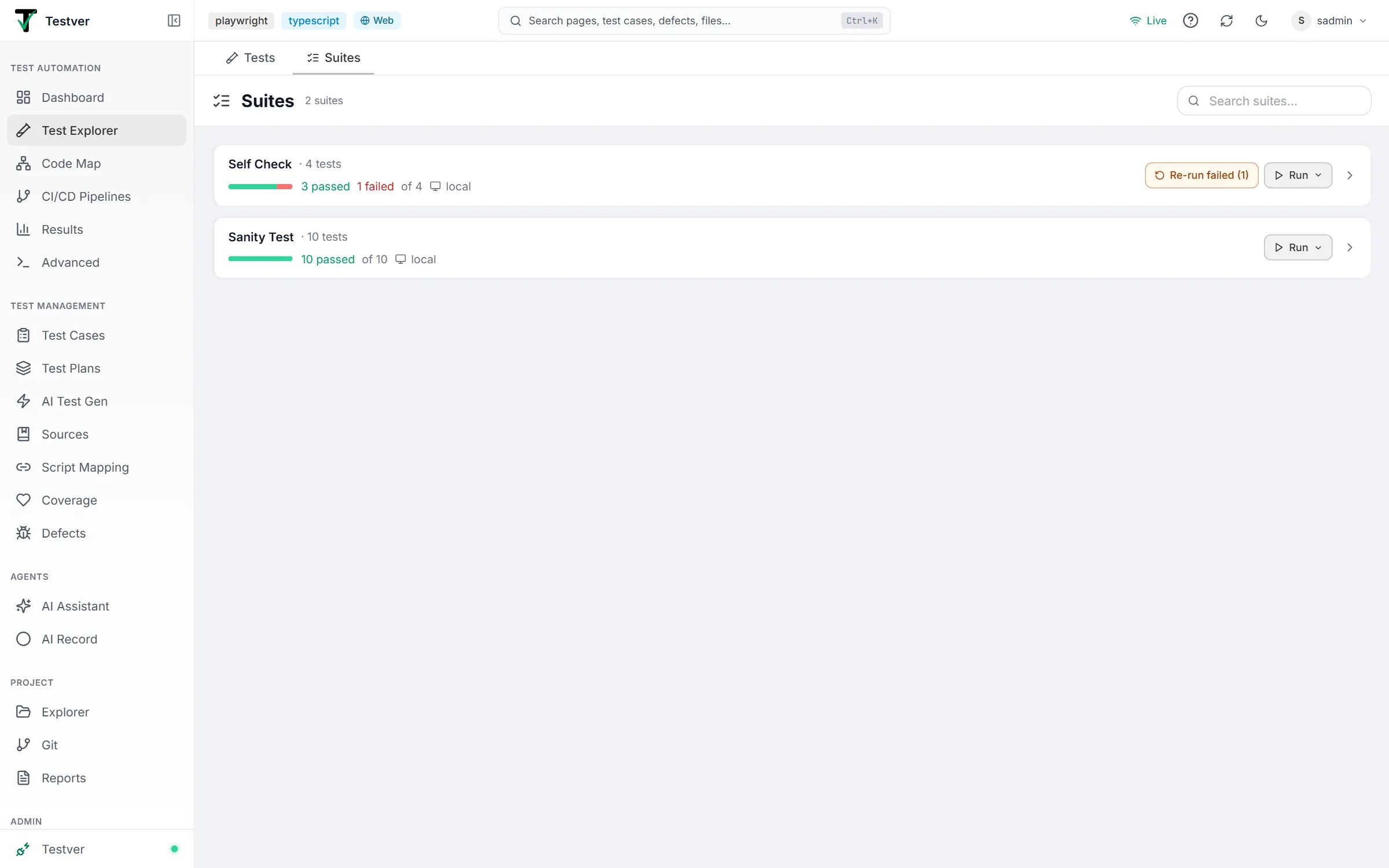
Section titled “What the Suites tab is”The Suites tab of the Test Explorer (/tests?view=suites) lets you build your own groupings of tests and treat each grouping as a single runnable unit.
This is different from the Tests tab. There, a “suite” means whatever your framework already groups together — a spec file, a describe block, a feature file. Here, a suite is something you define: a named set of tests pulled from anywhere in the project, with its own run options, its own schedule, and its own notification rules.
Why you’d use it
Section titled “Why you’d use it”- A smoke pack. Twelve tests from eight different files that together prove the app is alive. Run them before every deploy.
- A regression pack per release. Pull the tests that cover what changed, run them as one unit, and re-run only the failures.
- A nightly job that owns its own settings. A suite carries its own browser/device, extra arguments, setup and teardown — so scheduling it doesn’t depend on someone remembering the right command.
The suite list
Section titled “The suite list”The tab opens on the list of suites you’ve created, with the total count next to the Suites title (and how many are running, while any are). Each row shows the suite’s name, how many tests it holds, its description if it has one, a pass bar with its last result (for example 3 passed 1 failed of 4 · local, or Not run yet), and — when a schedule is enabled — a Scheduled badge with a clock icon. A row’s left edge is tinted by its last result.
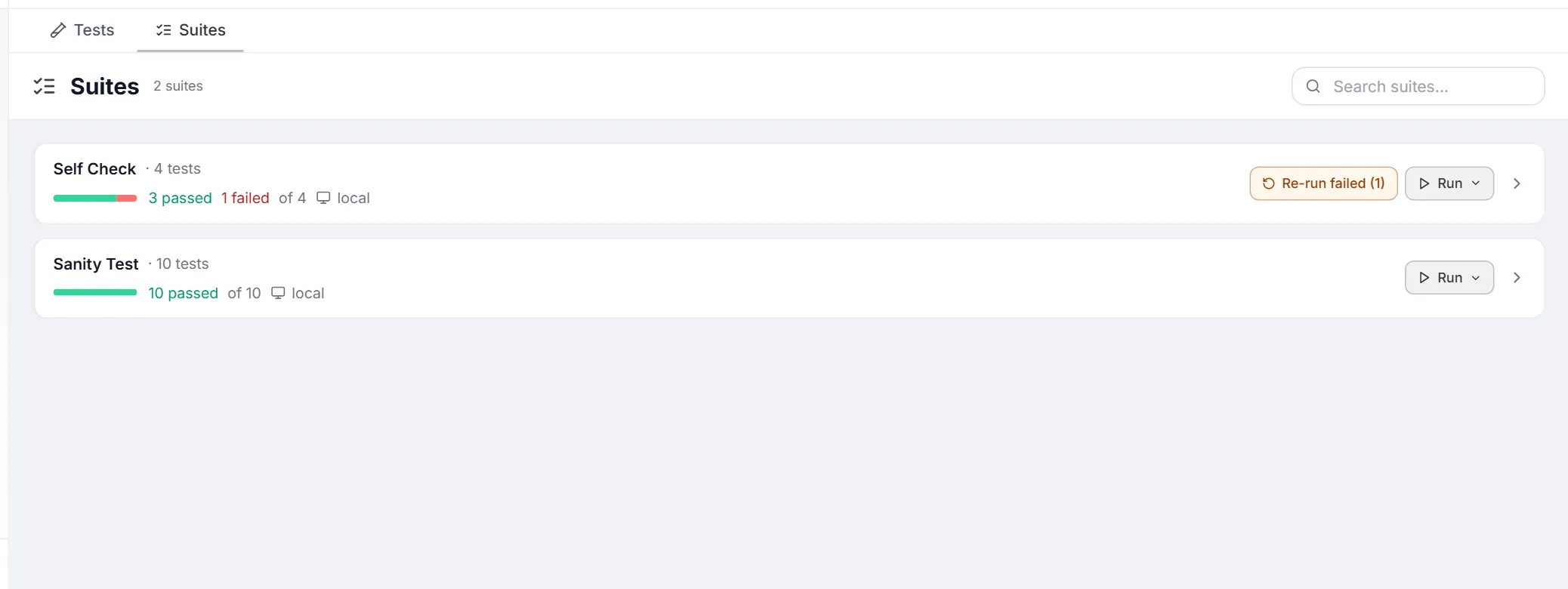
The Search suites… box at the top right filters the list by suite name.
Each row carries two run actions:
| Action | What it does |
|---|---|
| Re-run failed (N) | Shown when the last run had failures. Re-runs just those N tests with the suite’s default run options (tooltip: “Re-run only the failed tests”). |
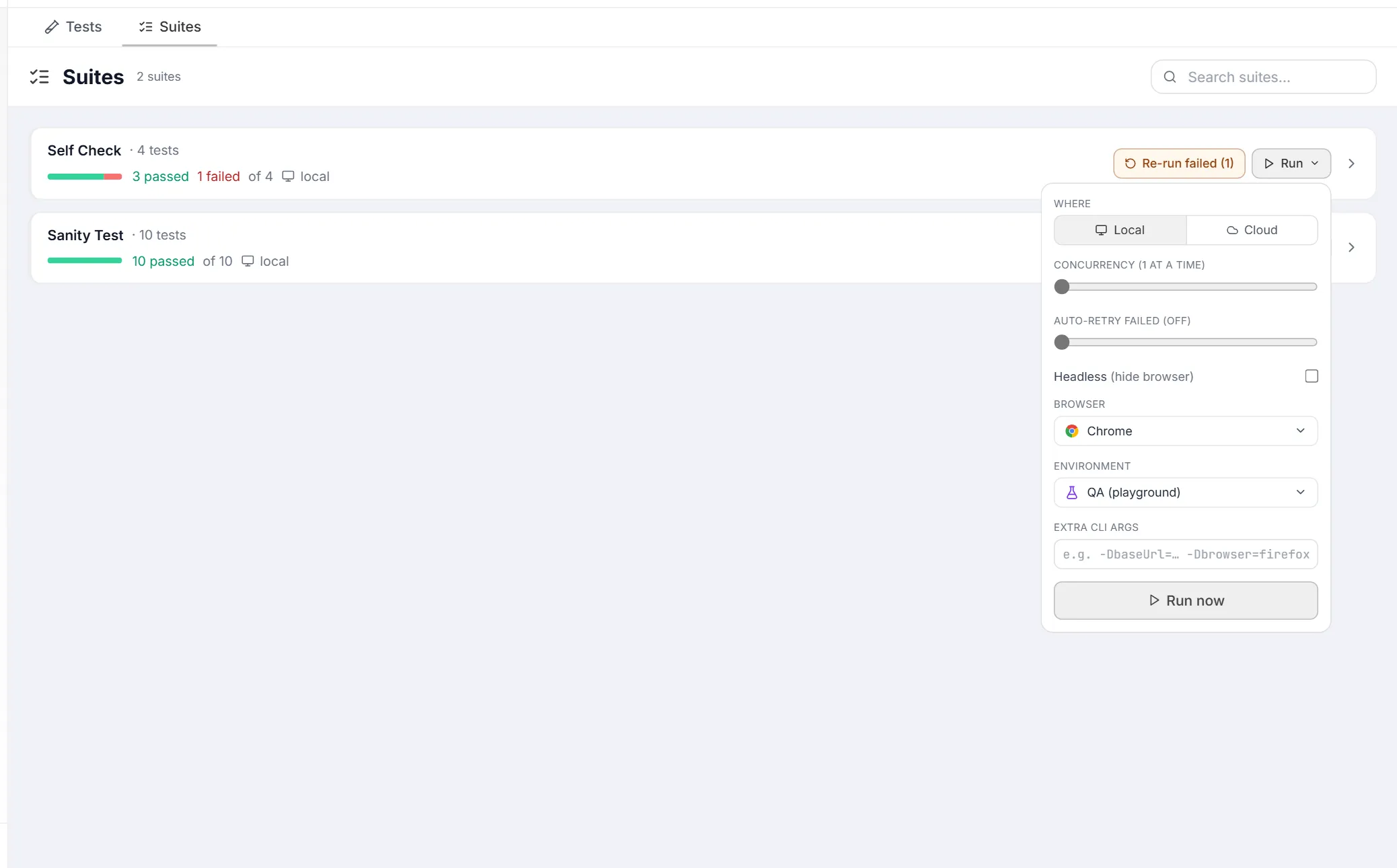
| Run ▾ | Opens the run-options popover, pre-filled with the suite’s default run options. Nothing starts until you press Run now. |
The run-options popover holds the same choices as the suite’s default run options, for this run only:
| Option | What it does |
|---|---|
| Where | Local or Cloud. With Cloud you pick one of the cloud providers enabled in Connectors (or see “No cloud providers configured. Add one in Settings → Connectors.”) and can name a device or browser. |
| Concurrency | How many tests run at once, from 1 to 8. On BrowserStack, and on Sauce Labs (Playwright, Cypress) or LambdaTest (Cypress), tests run one at a time: they share one vendor config file in the project folder. Tests that compile into or report from the project’s shared build and report folders (Maven, Gradle and .NET tests, for example) also take turns, so they never delete or read each other’s results. |
| Auto-retry failed | Off, or retry a failed test up to 3 times. |
| Headless | Hide the browser window (local web runs only). |
| Browser / Environment | Shown when Browsers or Environments are configured under Settings → Run Configuration. |
| Extra CLI args | Arguments appended to every test’s command. |
| Run now | Starts the run. |
In a mobile workspace the popover shows a device and app picker instead of Where, Headless, Browser and Environment.
On a cloud provider, each test of the suite gets its own build on the provider’s dashboard: the build name plus a short run id. A suite run triggered with no target named — from a CI pipeline mapping, say — runs where the suite is set to run, with its saved provider, device and app. If that provider is turned off or removed, the run is refused with a message instead of running locally.
Clicking anywhere else on a row opens the suite. If you have no suites yet, the tab reads “No suites yet” and points you to the Tests tab, where you select tests and click + Suite.
Inside a suite
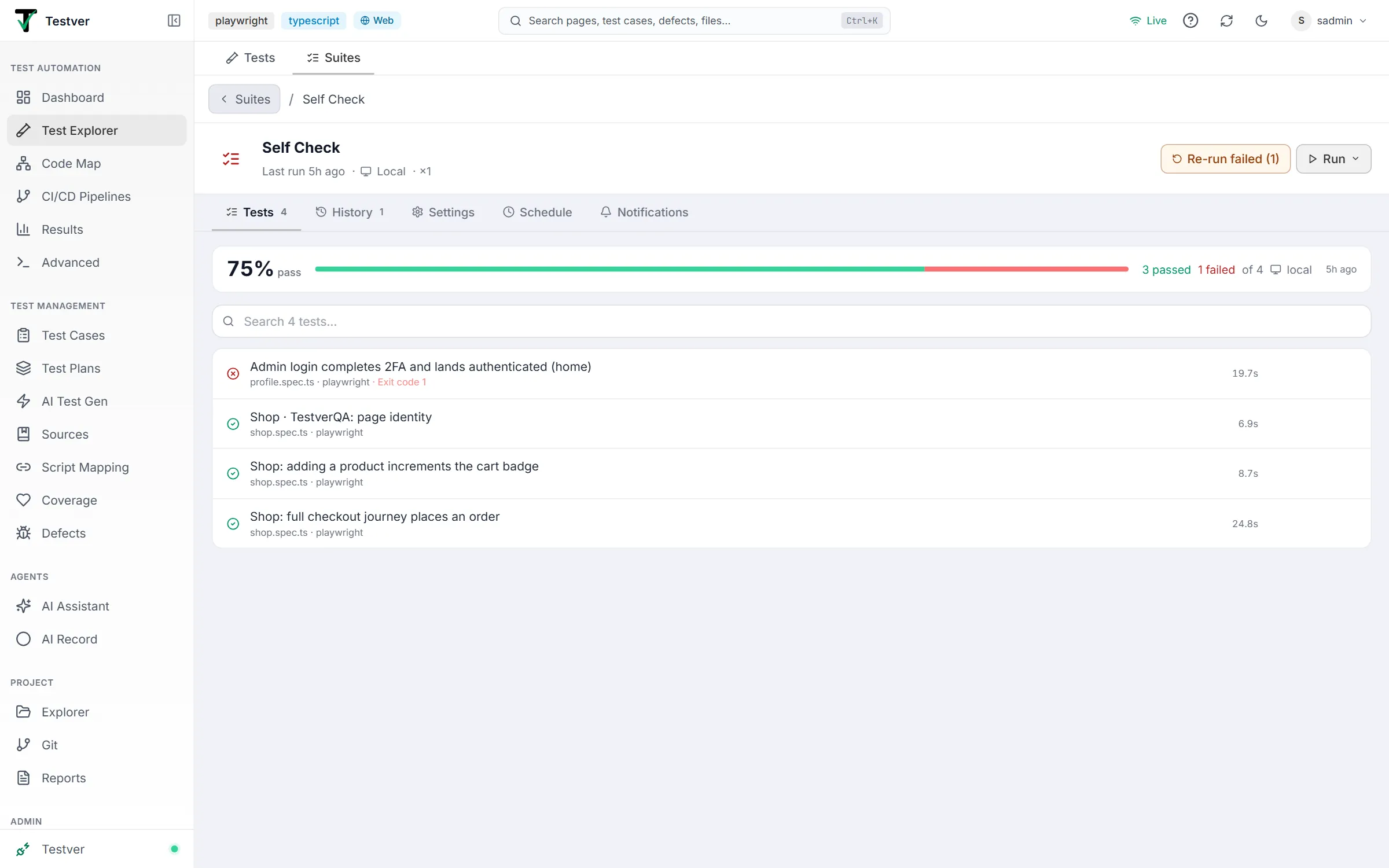
Section titled “Inside a suite”Opening a suite shows a Suites / name breadcrumb (the Suites button returns to the list), a header, and five tabs. The header shows the suite’s name, its Scheduled badge and description when set, and either Last run … · Local (or Cloud · provider) · ×N or N tests · never run. Re-run failed (N) and Run ▾ sit on the right and work exactly as on the list.
| Tab | What it shows |
|---|---|
| Tests | The suite’s tests with their results from the latest run. Opens first. |
| History | Every past run of the suite. |
| Settings | Name, description, default run options, setup & teardown, Auto-Heal, and Delete suite. |
| Schedule | Run the suite automatically on a recurring schedule. |
| Notifications | When to send a run summary, and to which channels. |
The open suite and tab are kept in the URL, so you can bookmark or share them.
The Tests tab
Section titled “The Tests tab”Once the suite has run, a summary bar at the top shows the latest run’s pass rate, a pass bar, the passed / failed counts, where it ran, and how long ago. Below it, a Search N tests… box filters the rows by test name or file.
Every test in the suite appears as a row with its status, name (shown in readable form), its file and framework, and its duration. A failed test also shows its failure message (for example Exit code 1). Rows reveal extra actions on hover:
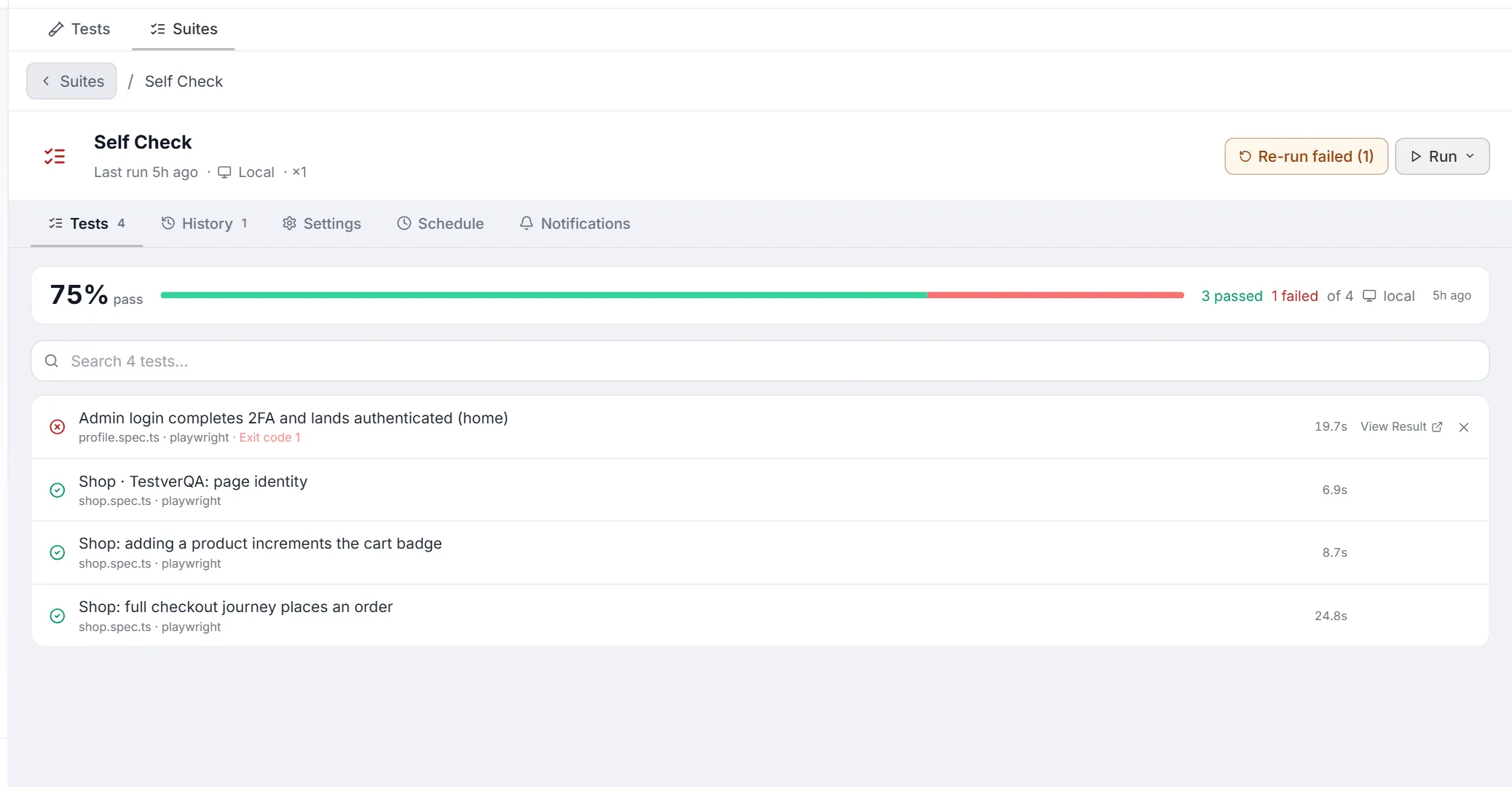
| Element | What it does |
|---|---|
| Status + name | The test’s outcome in this suite’s latest run, and the test itself. Setup and teardown tests appear as extra rows marked lifecycle hook. |
| Retry chip | When a test needed retries, a chip shows the retry count — expand it to see each attempt, each with its own View Result. |
| View Result | Opens that test’s run in Results, with its logs, screenshots, and trace. |
| Remove (X) | Takes the test out of this suite after you confirm in Remove test from suite. It does not delete the test from your project. |
Running a suite
Section titled “Running a suite”| Action | What it does |
|---|---|
| Run ▾ → Run now | Executes every test in the suite with the options in the popover (pre-filled from the suite’s default run options). |
| Re-run failed (N) | Re-runs just the failures from the last execution — the fastest way to confirm a fix without paying for the whole suite again. |
While a suite runs, its Run button becomes Stop, which cancels the run.
On Testver Grid the running test’s row shows its browser live, as a thumbnail you can enlarge — the same live execution view the Runner, the test’s Output tab and Results use. Because a suite runs its tests one after another, you watch one browser at a time; a suite with parallel workers shows one thumbnail per running test. A suite’s concurrency is capped to your plan’s Grid pool (a ×2 suite on a one-browser plan runs one test at a time), and a test the pool still refuses shows the reason in plain words rather than an exit code.
The History tab
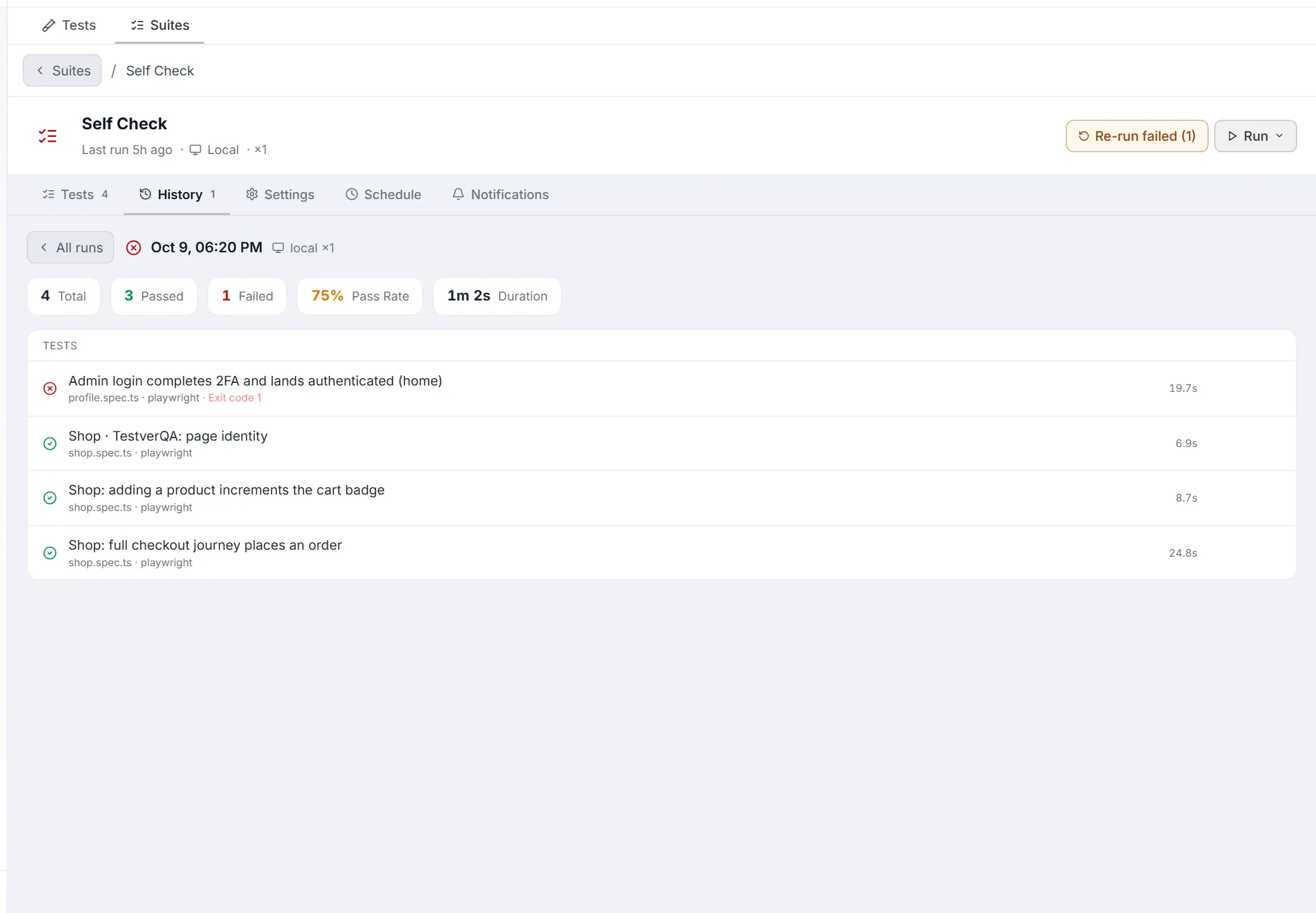
Section titled “The History tab”The History tab opens with four summary figures across all past runs — Total Runs, Avg Pass Rate, Failed Runs, and Avg Duration. With two or more runs, a Latest vs previous line shows how many tests newly failed, how many were fixed, and how many are still failing. Below that, one row per run shows when it started, a pass bar with passed / failed / total counts, where it ran (local or cloud, ×concurrency), and its duration.
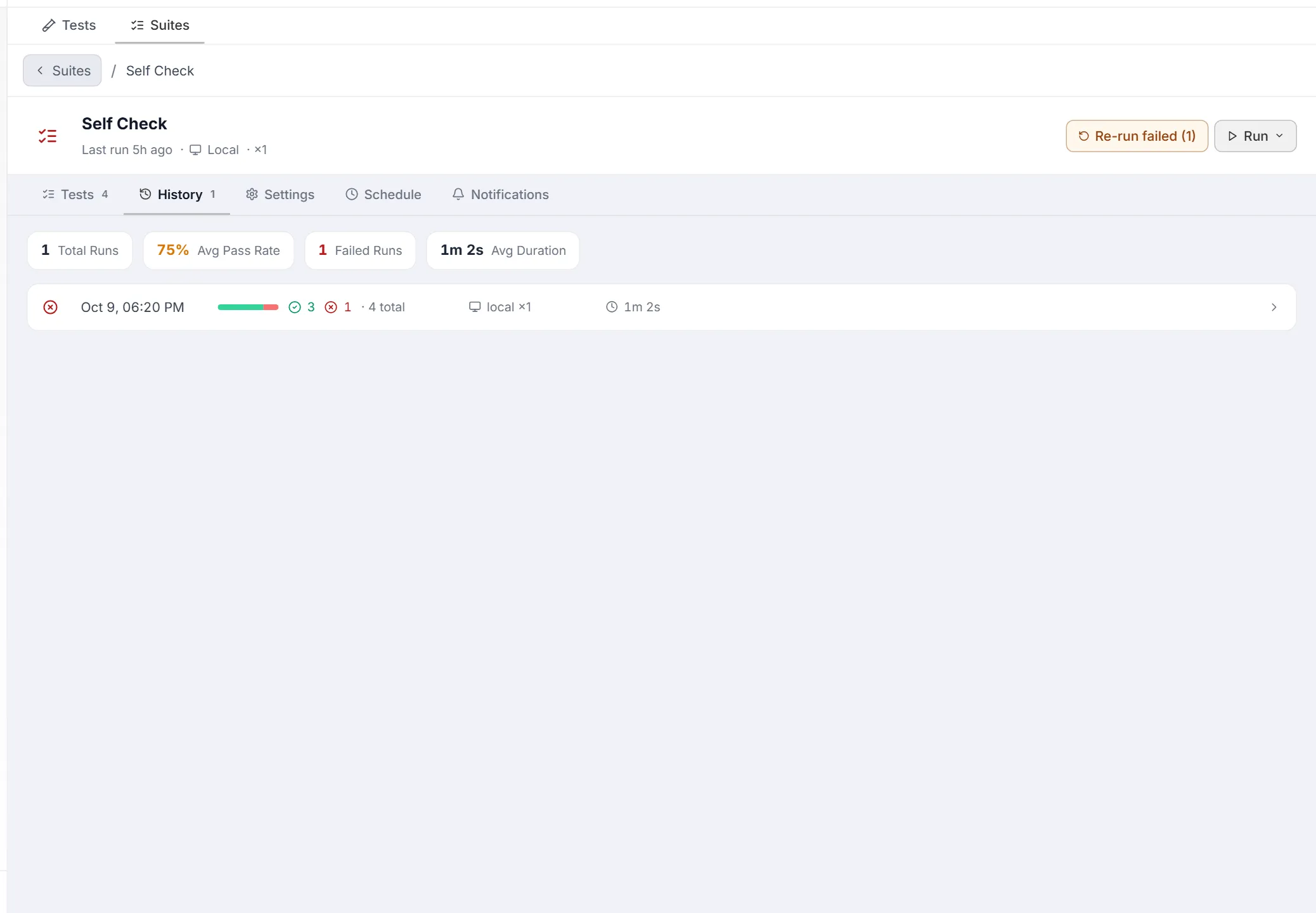
Click a run to open it: an All runs button takes you back, and the run shows its Total, Passed, Failed, Pass Rate and Duration with each test’s result.
Suite settings
Section titled “Suite settings”The Settings tab groups the suite’s configuration into cards. Changes apply when you click Save changes at the bottom.
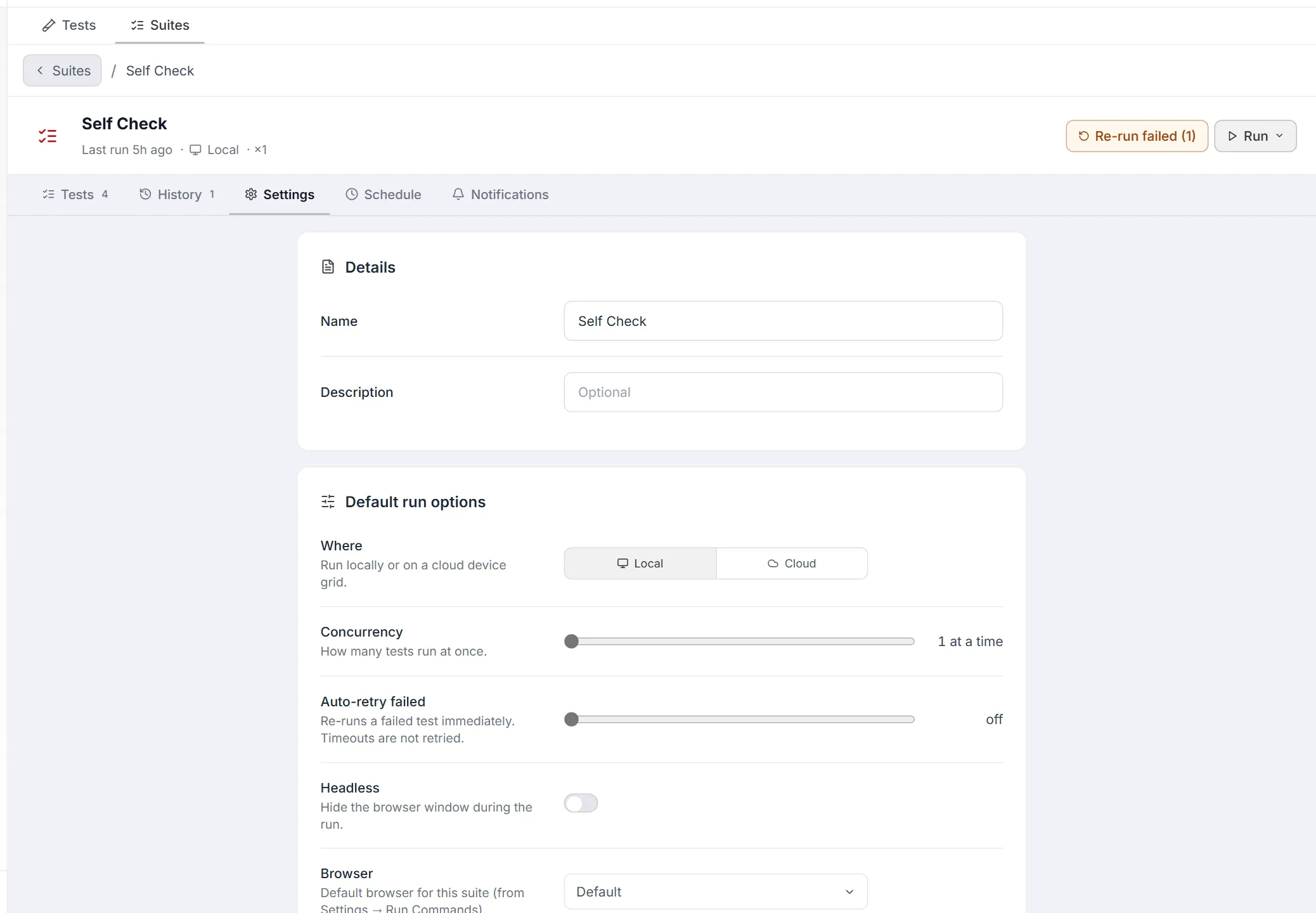
| Card | What you set |
|---|---|
| Details | The suite’s name and an optional description. |
| Default run options | Where (Local or Cloud, with a provider for Cloud), Concurrency, Auto-retry failed (timeouts are not retried), Headless, Browser, Environment, and Extra CLI args appended to every test’s command (for example -DbaseUrl=https://staging.example.com -Dbrowser=firefox). Browser and environment names come from Settings → Run Configuration, where entries your code won’t accept are flagged in red. In a mobile workspace, a Device & App picker replaces Where, Headless, Browser and Environment. |
| Setup & teardown | Before run — one test (or a typed command) that runs once before the suite; After run — one that runs last, even if tests fail. Type a command or click + test to pick a project test. Abort on setup failure skips the tests when the before-run test fails. |
| Auto-Heal | Locator repair for this suite: Inherit (follows the workspace setting, shown in brackets), Off, Suggest, or Auto. A suite can enable healing even when the workspace default is off. |
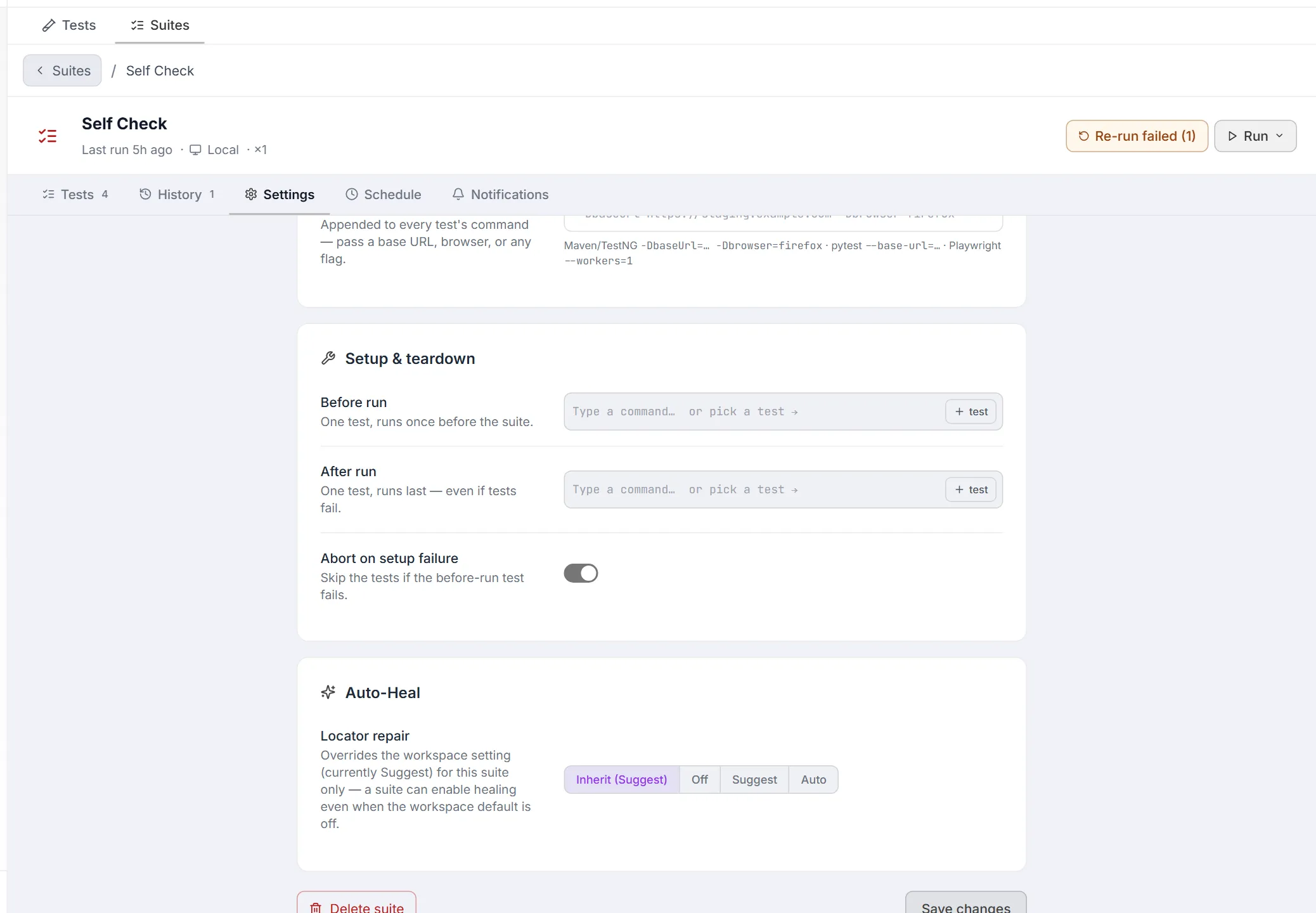
Delete suite (bottom left) asks for confirmation, then removes the suite and its run history. The tests themselves are not affected.
Schedule
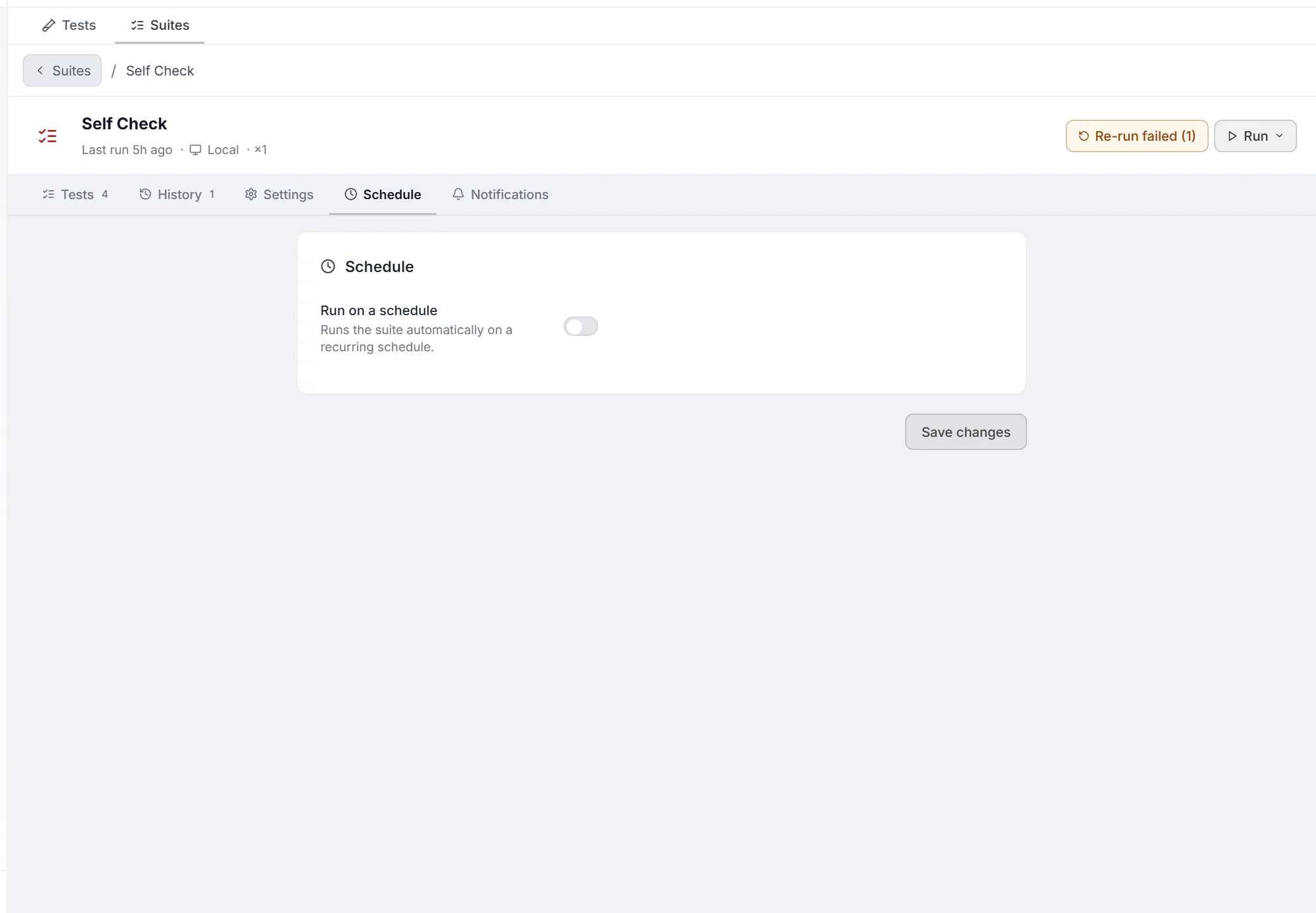
Section titled “Schedule”The Schedule tab has one switch, Run on a schedule. Turn it on to choose when the suite runs with the same cron builder the Schedules tab uses; a scheduled run uses the suite’s saved default run options. Click Save changes to apply.
Notifications
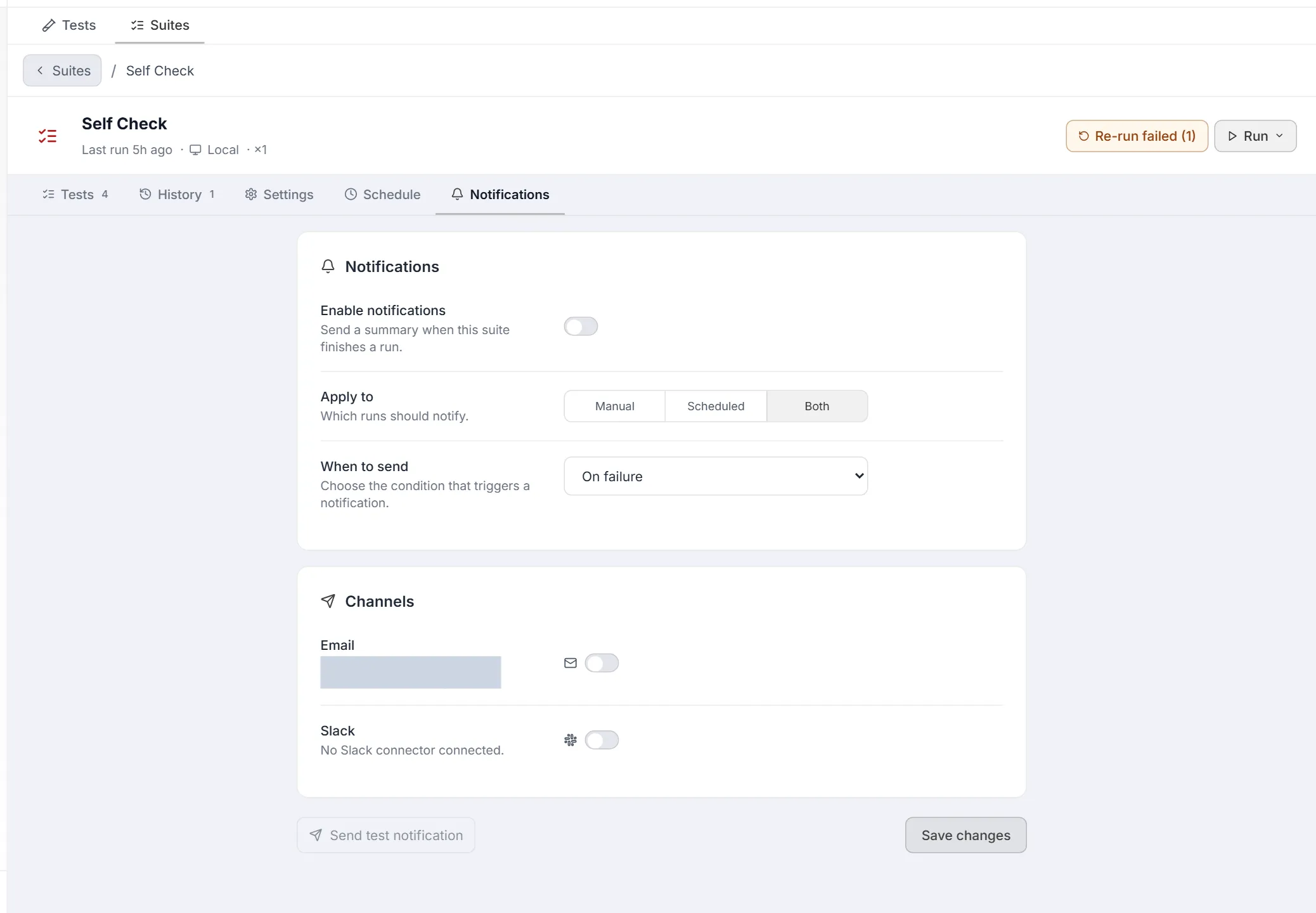
Section titled “Notifications”The Notifications tab has two cards:
| Card | What you set |
|---|---|
| Notifications | Enable notifications (send a summary when the suite finishes a run); Apply to — Manual, Scheduled, or Both kinds of run; and When to send — On failure, On every completion, On status change (pass ↔ fail), or When pass-rate drops below… a percentage you enter. |
| Channels | Email and Slack switches. Each shows which connector is connected, or that none is. With Email on, you add recipient addresses (press Enter after each). Set up the connectors themselves under Connectors. |
If no email or Slack connector is connected, a banner says so; you can still configure and save your preferences. Send test notification sends a sample through the enabled channels, and Save changes applies your settings.
Common Tasks (How Do I…?)
Section titled “Common Tasks (How Do I…?)”How do I create a suite?
Section titled “How do I create a suite?”On the Tests tab, tick the tests you want, click + Suite (N), choose Create new, give it a Suite name (it starts as Suite (N tests)), and click Create suite. The Explorer switches to the Suites tab with your new suite.
How do I add tests from several different files?
Section titled “How do I add tests from several different files?”That’s the point of a suite — select them anywhere on the Tests tab, click + Suite (N), and use Add to existing to add them to a suite you already have. The suite holds references to the tests, so the files themselves stay untouched.
How do I re-run just what failed?
Section titled “How do I re-run just what failed?”Click Re-run failed (N) on the suite’s row or in its header. Nothing that passed is executed again.
How do I make a suite run every night?
Section titled “How do I make a suite run every night?”Open the suite’s Schedule tab, turn on Run on a schedule, pick the time in the cron builder, and click Save changes. The suite runs with its saved default run options — no command to type.
How do I get told when it fails?
Section titled “How do I get told when it fails?”On the suite’s Notifications tab, turn on Enable notifications, set Apply to to Scheduled (or Both), keep When to send on On failure, switch on Email or Slack, and click Save changes. Configure the destinations themselves under Connectors.
Where do the results go?
Section titled “Where do the results go?”To Results, like every other run. A suite run appears as one master entry; open it to reach each test’s own console output and artifacts. The suite’s own History tab keeps a summary of every run.
Tips & Best Practices
Section titled “Tips & Best Practices”- Keep smoke suites small. A smoke pack that takes 20 minutes stops being a smoke pack. Aim for the shortest set that would catch a broken deploy.
- Put the environment in the suite, not in people’s heads. Default run options travel with the suite, so a scheduled run can’t drift from what you tested manually.
- Use Re-run failed during triage, then run the whole suite once at the end to confirm nothing regressed.
- Removing a test from a suite is safe — it only unlinks it. The test stays in your project and in the Tests tab.
Related
Section titled “Related”- Test Explorer overview — the screen and its two tabs.
- Tests tab — browse and run individual tests.
- Results — reading suite runs and their per-test detail.
- Schedules tab — scheduling an arbitrary run command instead.
- Connectors — configuring notification channels.