

Explore & Automate
Introduction
Section titled “Introduction”What this guide covers
Section titled “What this guide covers”Explore & Automate is an Agent Skill that does the whole cycle in one conversation: it walks your web application like a user would, records what it finds, writes an automated test for every journey it explored, runs them until they pass, and files a matching test case for each one in Test Management.
You start it with a single prompt. From there it asks you a short set of questions, waits for you to approve the plan, and then works.
What you get at the end
Section titled “What you get at the end”| Output | Where it lands |
|---|---|
| Automated tests | Written into your project in your existing framework and style, run until green. |
| Test cases | One in Test Management per automated journey, already linked to its script, so traceability is in place from the start. |
| Findings | Real defects it hit while exploring — console errors, broken pages, failed requests, unrendered placeholders — deduplicated and ranked. |
| An access matrix | When you gave it more than one role: which pages each role reached, and which it was blocked from. |
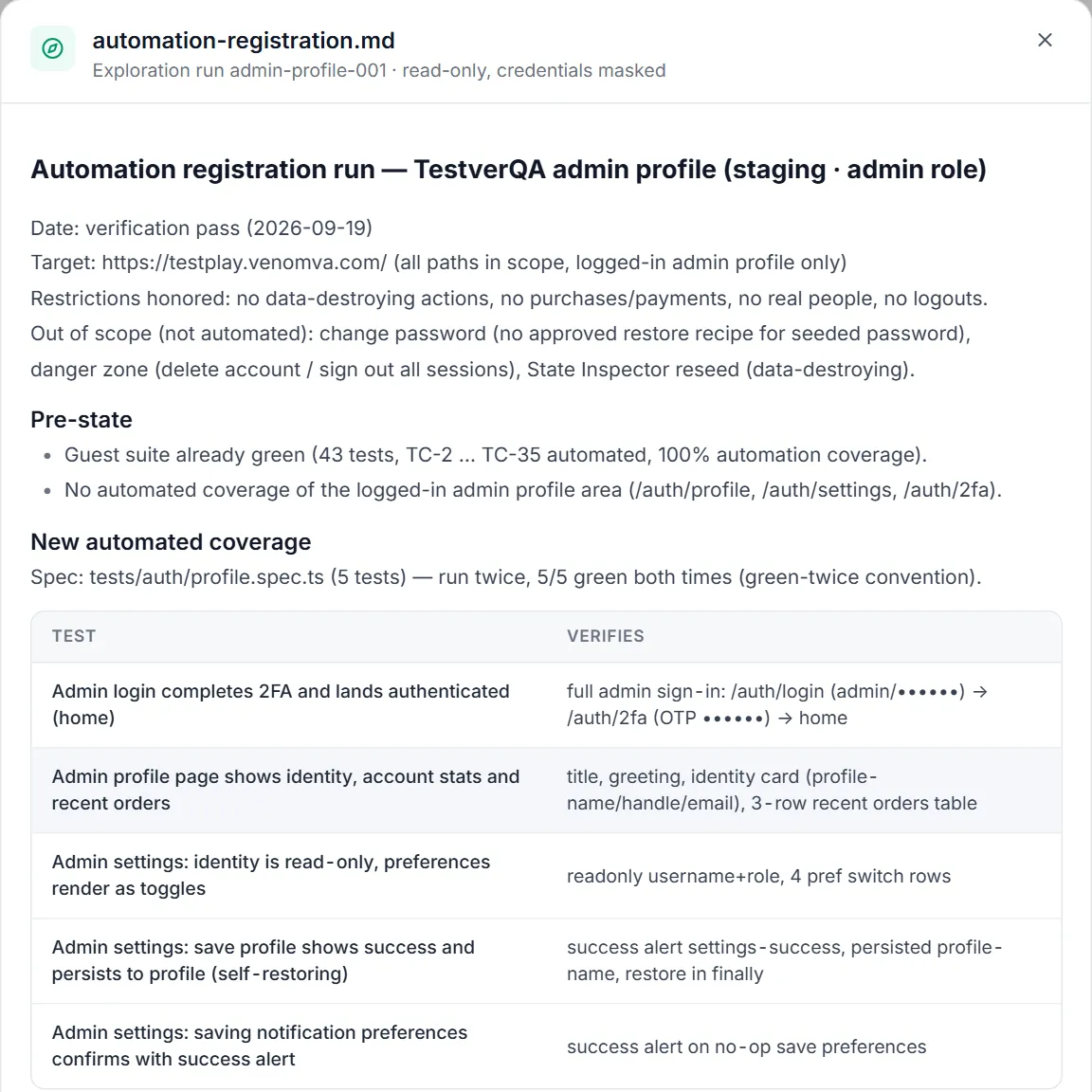
| A run report | Tables of automated tests, findings and coverage, plus a plain statement of what it did not do and why. Written to report.md in the run folder. |
| Recorded app knowledge | Everything it observed becomes available to Ask mode and to AI Test Generation. |
Who this guide is for
Section titled “Who this guide is for”- QA engineers who want a suite for an application that has none, without writing the first fifty tests by hand.
- Test leads who want to know what an unfamiliar application actually does, and where it is broken, before planning coverage.
- Developers who want a smoke suite over a feature they just shipped.
- Anyone onboarding onto an application nobody has documented.
No coding is required to run it. It helps to be able to read a test afterwards, but the skill writes, runs and fixes them itself.
When not to use it
Section titled “When not to use it”| Situation | Use instead |
|---|---|
| You already know the exact journey you want automated | AI Assistant in Web mode — describe the journey directly. |
| You have requirements and want cases traced to them | AI Test Generation, which uses what this skill recorded for navigation. |
| You only want to understand the app, not change anything | Ask mode — read-only, and answers from what previous runs recorded. |
| The application is mobile | Not yet. Explore & Automate is web-only at present. |
Before you start
Section titled “Before you start”| You need | Why | Where |
|---|---|---|
| An AI provider configured | The skill is an AI agent; without a model it cannot run. | Settings → LLM |
| A running application URL | It drives a real browser against a real application. | Your test or staging environment |
| A project with a test framework | Generated tests are written in the framework and style your project already uses. | Your repository |
| A browser execution target | Browser actions run on the Testver server by default, or on your own machine via a Local Browser connector. | The badge beside the mode picker |
| Optional: roles and a way to sign in | To explore anything behind a login. | You sign in yourself — see Roles and signing in |
| Optional: documents | PRDs, flows or requirements let it compare what the app does against what it is supposed to do. | Sources, or a file path in the project |
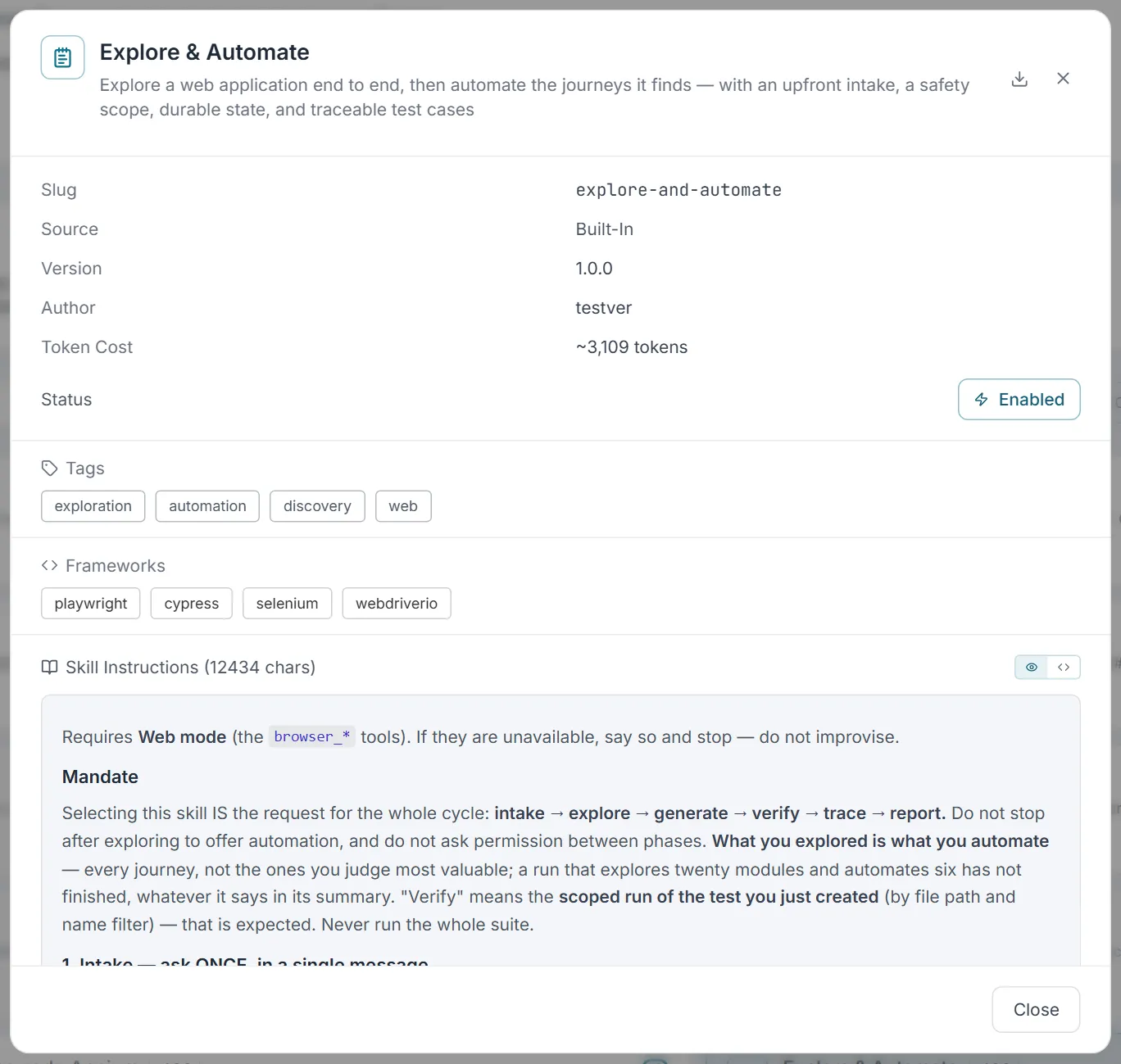
Your first run
Section titled “Your first run”1. Start the skill
Section titled “1. Start the skill”- Open the AI Assistant (
/ai) and make sure you are in Web mode — the skill needs the browser tools and will stop and tell you if they are unavailable. - Type
/at the start of the message box to open the skill picker. - Choose Explore & Automate. It shows as a chip above the message box. (If it is not in the list, it is not enabled — an administrator turns it on in Settings → Skills.)
- Type your request and send.
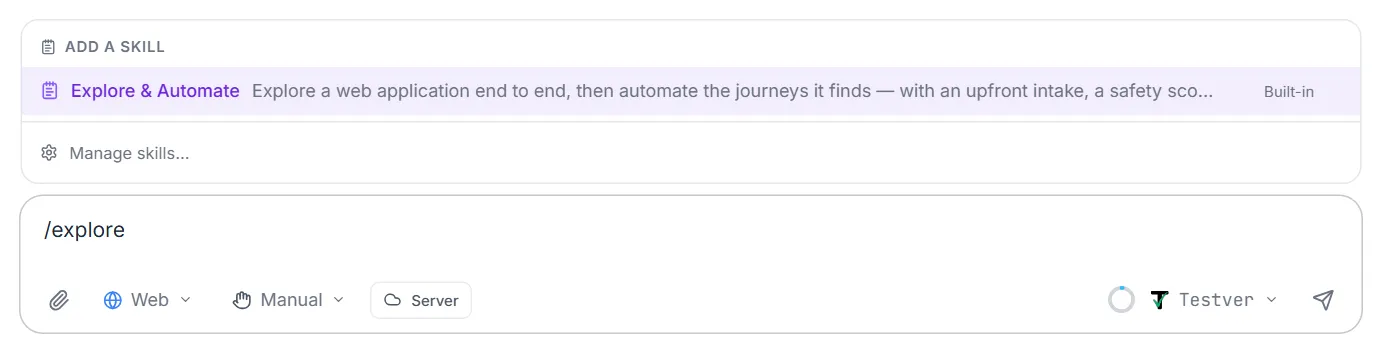
A first message can be as short as this:
Explore and automate https://staging.example.com
Everything it still needs, it will ask for.

2. Answer the intake questions
Section titled “2. Answer the intake questions”It asks once, as a single numbered list, and only for what you have not already told it:
| It asks | What to answer | If you skip it |
|---|---|---|
| URL — and is it staging or production? | The entry address. Be honest about the environment; it changes what the skill will allow itself to do. | It cannot start. |
| Scope — which origins and path prefixes are in bounds | For example “only /app and /admin on this host”. External links are always out of bounds. | It treats the entry host as the scope. |
| Restrictions — anything off-limits | ”Don’t delete anything”, “stay in the demo tenant”, “don’t send invitations”. | Only its own built-in safety rules apply. |
| Roles and credentials | Which roles to cover. Optional — it never asks for a password in chat. | It explores as a guest, which is a legitimate run, and says so. |
| Documents (optional) | Upload a PRD or give a path to one in the project. | It explores without a spec to compare against. |
It then echoes the plan back as one block and waits for your yes. No browser opens before you approve.
3. Watch it explore
Section titled “3. Watch it explore”Once you say yes, the live preview panel opens on the right and you can watch it work. Per page it arrives, reads the page, checks for errors, records what it found, and queues the in-scope links it can see.
Two things it does deliberately, which are worth knowing:
- It clicks, it does not type URLs. Only the entry address is typed. Every other page is reached by clicking a link from where it already is — because typing a URL skips whatever that page depends on (a redirect, a selected account, a filled cart, an earlier wizard step), and a page that only works when you arrive through the app would look fine while its bugs stayed hidden.
- It records the path, not just the page. The ordered clicks that reached each page are stored, because that path is the test it will generate later.
It also declines cookie banners (essential only), takes a screenshot per page, and treats a page it cannot get out of as a finding.
4. Sign in, if you asked for roles
Section titled “4. Sign in, if you asked for roles”You never type a password into the chat. When it needs a role it does not already hold:
- It navigates to the login page and pauses.
- A sign in, then click Continue prompt appears in the conversation.
- You sign in yourself in the live panel — including any two-factor step.
- You click Continue. It captures the session and carries on as that role.
If the login did not actually take — you are still on a login URL, or no session cookies were set — it refuses to save it and tells you what it sees on the page, rather than carrying on pretending to be signed in.
5. Let it automate
Section titled “5. Let it automate”When the frontier is finished it moves to automation without asking again. Selecting the skill is the request for the whole cycle.
It automates every journey it explored, not a shortlist. Before writing a single test it queues each journey it found and marks them critical or normal. That ordering decides what it works on first — never what gets a test at all — so it will not stop after the high-value modules and ask whether you want the rest. If a run is interrupted or hits its working limit, the queue is on disk: say continue and it picks up at the first journey still pending.
Per journey it writes the test in your project’s framework, runs it scoped to just that test, fixes what fails, and re-runs. A test is only kept if it passes twice. One that will not go green twice is quarantined with its failure attached rather than shipped to you as if it worked.
It goes depth-first — a real flow end to end — rather than producing one shallow test per page.
6. Read the report
Section titled “6. Read the report”The run ends with tables, not prose:
| Table | What it shows |
|---|---|
| Automated tests | Scenario, the TC- id created for it, the spec file and test name, how many runs passed, and its status. |
| Findings | Deduplicated, worst first: what, where, how severe, how many times it occurred. |
| Coverage | Pages explored, pages reachable, journeys automated — per role. |
Any journey still queued but not yet automated appears under Pending automation, with the count against the whole queue. That section means the run is unfinished, not that there is a decision waiting on you — say continue and it works through the rest.
If a generated spec opens a page by its URL more than once, a Navigation to re-check section lists it. That is read back from the spec file itself, not self-reported: a test that deep-links instead of clicking its way through can pass while the journey it claims to cover is broken. A deliberate deep-link test is the one case where it is expected.
Below the tables it adds the one thing the tables cannot show: what it did not do and why — pages skipped, journeys left unautomated, anything a restriction blocked.
The same report is written to report.md in the run folder.
Writing a good first prompt
Section titled “Writing a good first prompt”All four of these work. The more you say up front, the fewer questions you answer afterwards.
Minimal — it asks for the rest:
Explore and automate https://staging.example.com
Scoped — the most common shape:
Explore and automate https://staging.example.com. Staging. Stay inside /app and /account. Don’t delete anything and don’t send invitations. Explore as a guest.
With roles:
Explore and automate https://staging.example.com as admin and as viewer. Staging, scope is the whole host. I’ll sign in for each role when you ask. Don’t remove users.
With a document:
Explore and automate https://staging.example.com using the checkout PRD I uploaded to Sources. Staging, only /shop and /checkout, use the sandbox card only.
Roles and signing in
Section titled “Roles and signing in”Guest is a real run
Section titled “Guest is a real run”If you give it no roles it explores as a guest — and treats whatever is reachable without logging in as a finding in its own right. That is often the most interesting first run you can do on an application you are unsure about.
Saved sessions
Section titled “Saved sessions”Once you have signed in for a role, the session is saved so you are not asked again:
- Encrypted on disk, inside the project.
- Tied to the site it was captured on — a session captured for one origin is never replayed against another.
- Expires after seven days.
- The skill checks for an existing session before asking you to sign in, so it will not interrupt you for a role it already holds.
Credentials in generated tests
Section titled “Credentials in generated tests”The tests it writes never contain a password. When a generated test needs to sign in, it reads the credentials from environment variable names you supply, so the secret lives in your environment or config file and the test file stays safe to commit.
Restrictions and safety
Section titled “Restrictions and safety”The skill’s safety rules are not advisory, and your restrictions sit on top of them.
| Rule | What it means |
|---|---|
| Your restrictions are the rule | Applied literally, and re-read from the saved plan rather than from memory as the run goes on. |
| Stay in scope | It never follows an external link. |
| Irreversible actions need a decision | Anything that destroys data, spends money, contacts a real person, or would end its own session. If your restrictions do not already cover it, it asks you once, records your answer, and follows it for the rest of the run. Silence is never taken as yes. |
| Synthetic data only | Addresses like testver+explore@example.com, names like Test User. Never real-looking personal data, never a real card number. |
| Production means no writes | If you told it the environment is production, it explores read-only and says so in the report. |
| It will not log itself out | Doing so would end the session you gave it and silently turn the rest of the run into a guest run under the wrong label. |
Findings: what it reports, and what it does not
Section titled “Findings: what it reports, and what it does not”Findings come from four places, and all of them are things it actually observed:
| Source | Examples |
|---|---|
| The page’s text | Rendered undefined, NaN, [object Object], unrendered {{placeholders}}, lorem ipsum, raw error strings. |
| The page structure | Controls with no accessible name, error pages, broken links, dead ends. |
| The browser | Console errors, uncaught exceptions, failed requests, 4xx/5xx responses, mixed content. |
| Your documents | Where the application disagrees with a PRD or requirement you gave it. |
Two rules shape what you get:
- Deduplicated by signature. The same console error on forty pages is one finding with a count of forty, not forty findings.
- Never filed automatically. It does not create defects. You promote the findings you accept.
A disagreement with a document is recorded as possible spec drift — its own category. It is never auto-filed as a defect, and it is never a reason to “correct” your document.
Exploring more than one role
Section titled “Exploring more than one role”Give it two or more roles and it does something specific: it finishes the frontier as the first role, then for each remaining role re-walks the same frontier — same pages, same order — rather than exploring afresh. That is what makes the runs comparable.
The result is an access matrix: every page against every role, marked reachable, blocked or errored. From it, the report derives privilege inversions — a page a lower-privileged role can reach that a higher-privileged one cannot. That comparison is arithmetic over what was observed, not an opinion.
After the run
Section titled “After the run”| Next step | Why |
|---|---|
| Read the “what I did not do” note | It is the honest edge of the run: what was skipped, and what a restriction blocked. |
| Run the suite yourself | Every kept test passed twice in isolation. Running the suite confirms they behave together. |
| Promote the findings you accept | Raise them as defects. Nothing is filed for you. |
| Ask questions about the app | Everything it observed is now available to Ask mode, with citations. |
| Generate more cases from requirements | AI Test Generation now uses the recorded navigation, so its steps use real page and control names instead of plausible guesses. |
| Explore again later | A second run over a changed application updates what is recorded. The newest run wins per page. |
Where the run is stored
Section titled “Where the run is stored”Everything is written under .testver/explore/<runId>/ in your project, appended as it goes so an interruption costs at most one page:
| File | What it holds |
|---|---|
plan.json | The approved plan: URL, environment, scope, restrictions, roles, documents, current phase. |
frontier.json | Which pages have been visited and which are queued. |
pages/ | One record per page: title, template, controls, forms, and the click path that reached it. |
evidence/ | A screenshot per page. |
findings.json | Deduplicated findings. |
tests.json | Every automated test with its run results and status. |
coverage.json | Pages explored, pages reachable, journeys automated. |
report.md | The final report. |
Common Tasks (How Do I…?)
Section titled “Common Tasks (How Do I…?)”| I want to… | Do this |
|---|---|
| Run it at all | AI Assistant → Web mode → / → Explore & Automate → give it a URL. |
| Keep it out of part of the app | Say so in the scope or restrictions at intake: “only /app and /account”. |
| Explore behind a login | Name the role at intake; sign in yourself when it pauses and click Continue. |
| Explore without any login | Say nothing about roles. It runs as a guest and reports what is reachable that way. |
| Compare what two roles can reach | Name both roles at intake and read the access matrix in the report. |
| Check the app against a spec | Upload the document to Sources first, then mention it at intake. |
| Stop it | Press Stop in the composer. Its state is on disk, so you can resume later. |
| Resume an interrupted run | Say continue in the same conversation. |
| Find the tests it wrote | The report’s first table lists the spec path and test name for each one. |
| Find the test cases it filed | Test Management → Test Cases; each is linked to its script. |
| Raise a bug it found | Promote the finding yourself on the Defects page. |
Tips & Best Practices
Section titled “Tips & Best Practices”- Give it scope and restrictions at intake. It is the cheapest control you have, and it is applied literally.
- Start with a guest run on an application you do not know. What is reachable without logging in is frequently the most valuable finding of the day.
- One environment per run. Mixing staging and production in the same conversation is how a safety rule gets applied to the wrong URL.
- Upload the PRD if you have one. Without a spec it can only tell you what the app does; with one it can also tell you where the app and the document disagree.
- Let it finish. The automation phase is where the run pays for itself — stopping after exploration gives you knowledge but no tests.
- Re-run after a release. Exploration data ages; the newest run wins per page, and everything downstream (Ask, grounded generation) improves with it.
- Read the quarantined tests. A test that would not go green twice is usually pointing at something real — flakiness in the app, or a journey that genuinely does not work.
Troubleshooting & FAQ
Section titled “Troubleshooting & FAQ”| Question / Problem | Answer |
|---|---|
| It says the browser tools are unavailable and stops. | The skill requires Web mode. Switch the mode picker to Web and send again. |
| It asked me the same question twice. | It should not — it asks once, in one list. If you answered in a later message than it expected, restate everything in a single message and say go. |
| It opened a browser before I approved anything. | It should not. Nothing opens before your yes on the echoed plan. If this happens, stop the run and check you are on a current Testver build. |
| It refused to save my login. | The sign-in did not take — you are still on a login URL, or no session cookies were set. It tells you what it sees; fix the sign-in and click Continue again. |
| It explored as a guest even though I gave a role. | Read the launch line in the conversation: it states whether a saved session was restored or it fell back to guest. A session older than seven days has expired. |
| It stopped partway with “explored N of ~M”. | That is a checkpoint, not a failure. Say continue. |
| I closed the tab and came back to find the run stopped. | Expected. It keeps running without you, but it stops rather than guess at the first prompt it cannot show you. Say continue in a new Explore & Automate conversation and it resumes from what is on disk. |
| Can I close my laptop and let it finish? | No. Leave the tab open for an unattended run — the assistant needs you present for permission prompts and the manual-login handshake. |
| A test it wrote is missing from the report. | Quarantined tests are listed with their failure rather than shipped as passing. Only tests that went green twice are kept. |
| It found a problem but did not raise a defect. | By design. It records findings; you decide which become defects. |
| It said something disagrees with my PRD. | That is possible spec drift — a disagreement, not a verdict. It will not change your document or file a bug on its own. |
| I gave it a production URL by mistake. | It explores read-only and writes nothing, and says so in the report. Stop the run anyway and point it at staging. |
| Can it explore a mobile app? | Not yet. Web applications only at present. |
Related
Section titled “Related”- AI Assistant — the screen the skill runs in, and its modes.
- Skills — how skills work, and how to enable them.
- Ask mode — question what a run recorded.
- AI Test Generation — requirement-driven cases, grounded in what this skill observed.
- Test Cases — where the cases it files land.
- Defects — where you promote the findings you accept.