

Test ManagementScript Mapping
Script Mapping
Introduction
Section titled “Introduction”What is Script Mapping?
Section titled “What is Script Mapping?”The Script Mapping & Sync screen is where you connect the two halves of your testing world. On one side you have manual test cases — the human-written entries in your test catalog that describe what should be verified. On the other side you have automated scripts — the real test functions discovered in your codebase (Playwright, Cypress, Jest, pytest, and many more). This screen lets you draw a line between a manual case and the automated test that actually exercises it, and then keeps watch over whether that line is still trustworthy.
Think of it like a library card catalog cross-referenced against the shelves. The catalog (manual test cases) tells you a book should exist; the shelf (automated scripts) is where the book physically lives. A mapping is the call number that ties the two together. And just as books get reshelved, edited, or go missing, this screen flags when a script changes on disk, when a case is edited, or when a script file vanishes entirely — so the cross-reference never silently goes stale.
Why does mapping matter? Without it, automation runs in a vacuum — you have green test results but no way to say which requirements those greens actually cover. Mapping gives you automation coverage (what percentage of your manual catalog is backed by real scripts), traceability (from a requirement, to a manual case, to the exact line of code that verifies it), and drift detection (an early warning when a script and its case fall out of step). It turns a pile of passing tests into evidence you can stand behind in an audit or release sign-off.
Who this guide is for
Section titled “Who this guide is for”- QA leads and test managers who need to report automation coverage and prove that critical manual cases are backed by real automation.
- Automation engineers who write the scripts and want to attach them to the manual cases they fulfil.
- Manual testers who author test cases and want to know which of their cases are already automated (so they can stop running them by hand).
- Release managers and auditors who need an end-to-end traceability trail from requirement to executable test. No coding is required to create mappings — the screen does it for you through point-and-click. You only need to be able to read the names of your test cases and recognise the script files they belong to.
Key terms
Section titled “Key terms”| Term | What it means on this screen |
|---|---|
| Manual test case | An entry from your test catalog — has an ID, title, priority (critical/high/medium/low), and type (functional, regression, smoke, etc.). Listed on the left side of the Map Test Cases tab. |
| Automated script | A real test function discovered in your codebase. Belongs to a suite (a script file) and has a test name and a framework. Listed on the right side of the Map Test Cases tab. |
| Mapping | The link between one manual test case and one automated script test. Stored as testCaseId + scriptPath + testName + suite + framework. Each test case has at most one mapping, but one script test can cover several test cases (see Map Also). |
| Automation coverage | The share of your manual catalog that has at least one mapping. Shown on the Dashboard as the Mapped percentage (mapped ÷ total test cases). |
| Sync status | Per-mapping health: synced, script_updated, script_missing, or case_updated. Tells you whether the link can still be trusted. |
| Sync Health | A single headline percentage = synced mappings ÷ total mappings. Your at-a-glance confidence score for the whole map. |
| Suite | A single script file in the Available Scripts panel. Expands to reveal the individual test functions it contains. |
How it works
Section titled “How it works”The screen is organised into three tabs that flow left to right through a natural workflow: Dashboard (see where you stand), Mapped Test Cases (manage what is already linked), and Map Test Cases (create new links). The active tab is remembered in the URL (?tab=dashboard|mapped|map), so you can bookmark or share a specific view.
- You create a mapping by selecting a manual case on the left and clicking Map next to a script on the right.
- You review mappings in a table that shows the case, the script path, the test name, the framework, and the live sync status.
- You remove a mapping with the Unlink action (singly or in bulk).
- Testver tracks each link: editing a mapped test case flags its mapping Case Updated straight away, and a sync check flags scripts that were edited (Script Updated) or deleted (Script Missing), so the sync status changes colour to warn you.
- You run Check Sync Status to re-scan all mappings and refresh those statuses on demand.
Getting Started
Section titled “Getting Started”Opening Script Mapping
Section titled “Opening Script Mapping”- In the left navigation, open Script Mapping under the Test Management group (route
/script-mapping). The header reads Script Mapping & Sync. - The screen opens on the Dashboard tab by default.
- Use the three tabs under the header — Dashboard, Mapped Test Cases, Map Test Cases — to move between views.
- If you arrived via a shared link with
?tab=map(ormapped), that tab opens directly.
The screen layout
Section titled “The screen layout”| Region | What lives there |
|---|---|
| Header bar | Title Script Mapping & Sync with a left-right arrows icon, plus the subtitle “Link test cases to automation scripts and monitor sync health”. |
| Tab strip | Three tabs: Dashboard (chart icon), Mapped Test Cases (link icon), Map Test Cases (left-right arrows icon). The active tab is underlined. |
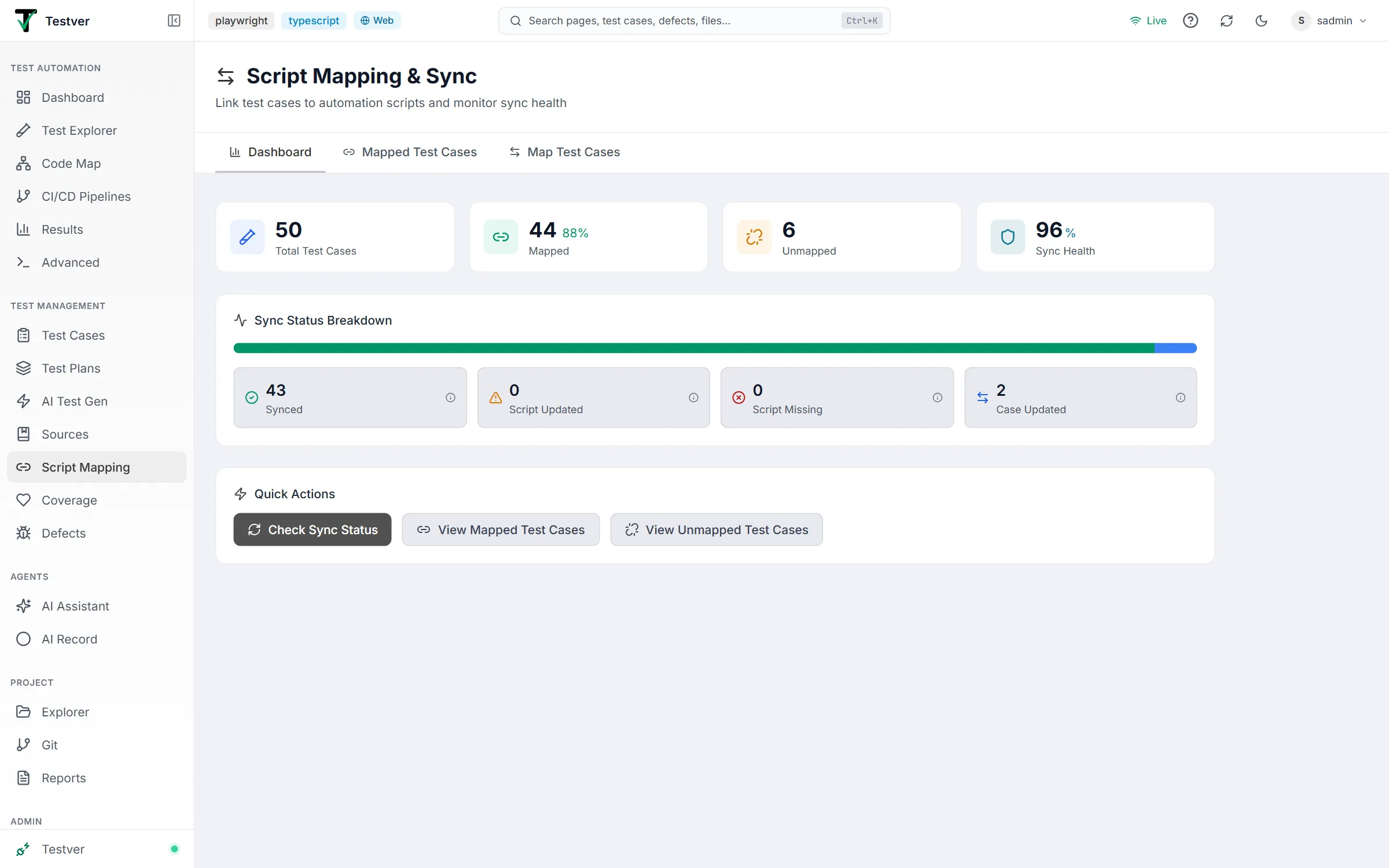
| Dashboard tab | Four stat cards, a sync-status breakdown bar with drill-down cards, and a Quick Actions row. |
| Mapped Test Cases tab | Search box, sync-status filter, a bulk-action bar (when rows are selected), and a wide table of every mapping. |
| Map Test Cases tab | An info banner with an unmapped counter, then a two-panel layout — unmapped cases (left) and discovered scripts (right). |
| Success toast | A small confirmation that appears at the bottom-right after any action (map, unlink, mark synced, sync check), auto-dismissing after a few seconds. |
| View Script | An action on each mapped row that opens the linked test in the Test Explorer in a new browser tab, so you can read the code, its run history, and its results together. |
At a glance
Section titled “At a glance”The Dashboard tab is your starting point and answers four questions instantly through its top stat cards: how many test cases exist in total, how many are Mapped (with a coverage percentage), how many are still Unmapped, and your overall Sync Health percentage. From here the Quick Actions row lets you jump straight to mapping work or trigger a fresh sync check.

The three tabs
Section titled “The three tabs”The screen flows left to right through a natural workflow. Each tab has its own guide:
| Tab | Guide | What you do there |
|---|---|---|
| Dashboard | Dashboard tab | See where you stand — coverage and sync health. |
| Mapped Test Cases | Mapped Test Cases tab | Manage what is already linked. |
| Map Test Cases | Map Test Cases tab | Create new links. |
The active tab is kept in the URL (?tab=dashboard|mapped|map), so it survives a refresh and can be bookmarked.
Common Tasks (How Do I…?)
Section titled “Common Tasks (How Do I…?)”| I want to… | Do this |
|---|---|
| Link a manual case to a script | Map Test Cases tab → select the case (left) → expand the suite (right) → click Map on the test. |
| Link a case to a test that already covers another case | Map Test Cases tab → select the case → turn on Show mapped → click Map Also on the test. |
| Remove a single mapping | Mapped Test Cases tab → row → Unlink icon → confirm. |
| Remove many mappings at once | Mapped Test Cases tab → check the rows → Unlink Selected → confirm. |
| Clear stale drift warnings | Select the reviewed rows → Mark Synced (or the per-row Re-sync icon). |
| See which cases aren’t automated | Dashboard → Unmapped card, or the Map Test Cases tab’s left panel. |
| Check overall automation coverage | Dashboard → Mapped stat card (shows count and %). |
| Find mappings whose script vanished | Mapped Test Cases tab → sync-status filter → Script Missing. |
| Read the actual script code | Mapped Test Cases tab → row → View Script (new tab) icon — opens the test in the Test Explorer in a new tab. |
| Re-validate all statuses | Dashboard → Quick Actions → Check Sync Status. |
Tips & Best Practices
Section titled “Tips & Best Practices”- Discover scripts first. The Available Scripts panel is fed by the Test Explorer. Run your framework or scan before you start mapping, or the right panel will be empty.
- Map by priority. Tackle critical and high priority cases first — the priority badges on the left panel make it easy to spot them.
- Keep the Show mapped toggle off while mapping so the right panel stays focused on tests that still need linking.
- Run Check Sync Status after refactors. Renaming or moving files is the most common cause of
Script Missing— a sync check surfaces these immediately. - Use the status filter as a worklist. Filter the Mapped tab to
Script UpdatedorCase Updatedto see exactly which links need a human review. - Mark Synced only after you’ve reviewed. It silences the warning but doesn’t change the underlying files — confirm the case and script really do match before clearing the flag.
- Watch your coverage percentage over time — it’s the single most useful metric to report on automation progress to stakeholders.
Troubleshooting & FAQ
Section titled “Troubleshooting & FAQ”No scripts appear in the Available Scripts panel
Section titled “No scripts appear in the Available Scripts panel”No test suites have been discovered yet. The panel itself advises: run your test framework first so Testver can discover test suites, or use the Test Explorer to scan. Once suites appear, refresh the tab.
The Map button is not available
Section titled “The Map button is not available”You haven’t selected a manual case yet. Each script row reads “Select a test case first” until you pick a case in the left panel. Select one and the Map buttons appear.
A mapping shows Script Missing
Section titled “A mapping shows Script Missing”The script file was deleted, renamed, or moved after the mapping was made. Either restore the file at its original path, or unlink the case and re-map it to the file’s new location.
What do Script Updated and Case Updated mean?
Section titled “What do Script Updated and Case Updated mean?”Amber means the script file changed on disk; blue means the manual case was edited. Neither breaks the link — they are review prompts. Confirm the case and script still describe the same behaviour, fix whichever is out of date, then Mark Synced (or use the row’s Re-sync icon) to clear the flag.
My coverage numbers look out of date
Section titled “My coverage numbers look out of date”Statuses don’t auto-recompute on every visit. Open the Dashboard and click Check Sync Status to re-scan all mappings and refresh the figures. Existing Case Updated and Script Updated warnings stay until you re-sync those mappings.
Can one test case map to more than one script?
Section titled “Can one test case map to more than one script?”No. Each test case has one mapping, and once it is mapped it leaves the unmapped list. The reverse is possible: one automated test can cover several test cases. Select an unmapped case, turn on Show mapped, and use Map Also on a test that is already mapped to another case.
I unlinked a mapping by mistake
Section titled “I unlinked a mapping by mistake”There’s no undo button; the unlink takes effect after the confirmation prompt. Simply re-create the mapping from the Map Test Cases tab — the case will be back in the unmapped list, ready to link again.
A case is mapped but I never mapped it
Section titled “A case is mapped but I never mapped it”It was mapped by an earlier discovery / reverse-engineering pass. Toggle Show mapped on to inspect those links; if one is wrong, unlink it from the Mapped Test Cases tab.
Related
Section titled “Related”- Test Cases — what’s mapped.
- Project Explorer — opens scripts.
- AI Test Gen → Reverse Engineer — bulk-create mappings from scripts.
- Runner — runs the mapped scripts.