

GuidesWeb App Automation with AI
Web App Automation with AI
Introduction
Section titled “Introduction”What this guide covers
Section titled “What this guide covers”The AI Assistant has a Web mode. In it, you describe what you want in plain English — “open the shop, add a backpack to the cart, and write a test that checks the cart total” — and the assistant opens a real browser, clicks through your application while you watch, writes the test in your project’s own framework and style, runs it, and fixes it until it passes.
This guide is a tutorial. It starts with opening one page and builds up, one lesson at a time, to signing in, writing and fixing tests, impact analysis, requirements, data-driven tests, whole frameworks and full exploration runs. Every lesson has prompts you can copy, what happens when you send them, and what to look for. At the end there is a catalogue of every kind of web test you can ask for, with a ready-made prompt for each.
What you can do — at a glance
Section titled “What you can do — at a glance”| Area | What it means | Lesson |
|---|---|---|
| Live browser | The assistant opens a page, reads it, and tells you what is there — and what is broken (console errors, failed requests). | 1 |
| Driving the page | Click, type, pick from dropdowns, hover, press keys, upload files, follow new tabs, work inside iframes. | 2 |
| Watching and taking over | Pause the AI, take the mouse yourself, inspect elements, change the screen size, open DevTools, pop the view out. | 3 |
| Signing in | You sign in yourself in the live browser; the session is saved so you are not asked again. Passwords never go in the chat. | 4 |
| Writing tests | A test in your framework, with your page objects and conventions — run until it passes. | 5 |
| Finding and running tests | ”Which tests cover checkout?”, “run the login test on Firefox against Staging”, @ to attach a test. | 6 |
| Fixing failing tests | Diagnose against the live page, fix, re-run — from the chat or from Fix in AI Assistant on a failed run. | 7 |
| Impact and coverage | Which tests a change to a page object breaks; which tests are flaky, failing or not linked to a test case. | 8 |
| Requirements to tests | Attach a requirement or story; get test cases in Test Management and automated tests linked to them. | 9 |
| Data-driven tests | One test, many rows of data from a CSV or spreadsheet. | 10 |
| Skills | Build a new framework from scratch, or explore a whole app and automate every journey it finds. | 11 |
| Where it runs | The browser on the Testver machine, on your own machine, or on Testver Grid; tests on cloud providers. | 12 |
Who this guide is for
Section titled “Who this guide is for”- Manual testers who want automated tests without writing code — you describe the journey in words.
- Automation engineers who want tests, page objects and fixes written in their own framework, and failing tests repaired against the real page.
- Developers who want to check a feature in a real browser and leave a regression test behind.
- Test leads who need to know what web automation with AI can cover, and what to ask for.
You do not need to know how to code. It helps to have the address of a test environment of your application, and a project folder with your tests in it (or an empty one — Lesson 11 builds a framework from nothing).
Key terms
Section titled “Key terms”| Term | Meaning |
|---|---|
| Live browser | A real browser the assistant drives. You watch it in the live preview panel on the right of the chat. |
| Snapshot | The assistant’s reading of the page: buttons, links, inputs, headings, tables, pop-ups. Each control gets a short reference such as e3, which the assistant uses to click it. |
| Locator | How a test finds an element again, e.g. getByTestId('login-button') or By.id("email"). |
| Page object | A class that holds one page’s locators and actions (LoginPage.signIn()), so tests do not repeat them. |
| Spec / test file | The file that holds the tests themselves, e.g. tests/checkout.spec.ts. |
| Framework | The test tool your project uses — Playwright, Cypress, Selenium, WebdriverIO, Cucumber, pytest, Robot Framework… |
| Scoped run | Running only the test or tests the assistant wrote or changed — never the whole suite. |
| Skill | Written instructions the assistant follows when you pick it with / — a framework’s conventions, or a whole procedure such as Explore & Automate. |
| Saved session | A signed-in browser state, captured after you log in once, so later runs start already logged in. |
| Tool call | One action the assistant takes — open a page, click, read a file, run a test. Shown in the conversation as it happens. |
How Web mode works
Section titled “How Web mode works”- You type what you want, in words.
- The assistant picks the right tools — open the browser, click, read your project, write a file, run a test — and shows each one as a tool call in the conversation.
- Anything that drives the browser, changes your project or runs a command first asks for your permission (unless you switched the chat to Auto — see below).
- When it opens a browser, the live preview splits in on the right, so you can watch every click — and take over at any time.
- When it writes a test, it runs it, reads the result, and fixes it until it passes. What it changed is listed at the end, file by file.
Web mode has no API-testing or mobile tools. API work lives in API mode, mobile apps in Mobile mode.
Before you start
Section titled “Before you start”Open Web mode
Section titled “Open Web mode”- Open the AI Assistant (Agents → AI Assistant).
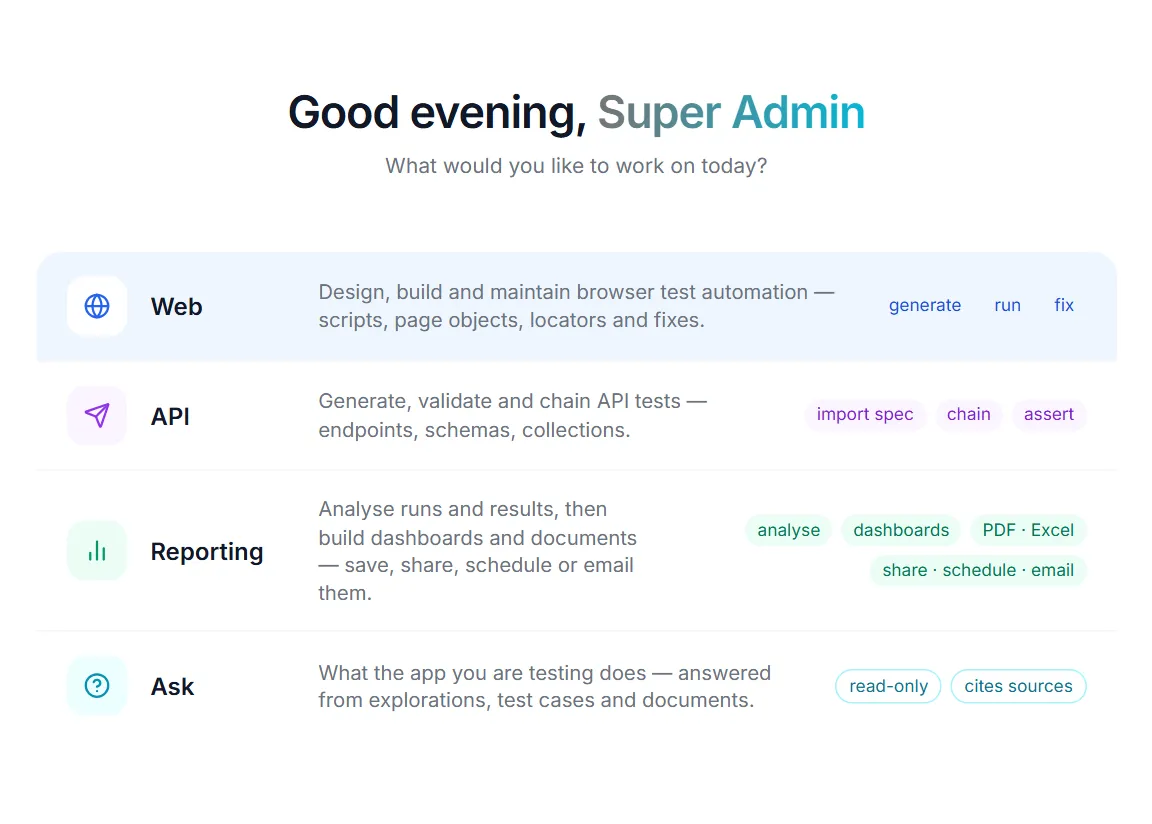
- In the mode picker next to the message box, choose Web — or, on the welcome screen, click the Web row.
- Type your request and press Enter.
Manual or Auto permissions
Section titled “Manual or Auto permissions”Next to the mode picker is the Manual / Auto permission picker. It belongs to the chat:
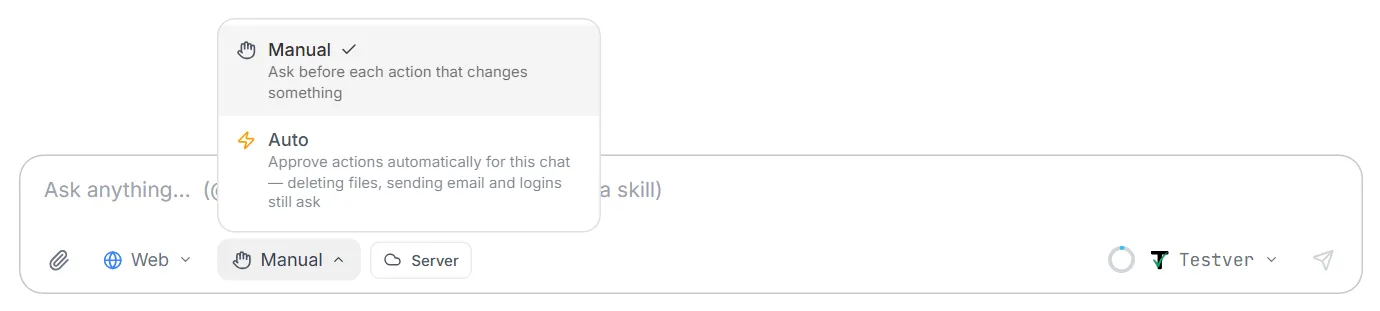
- Manual (the default) — the assistant asks before each action that drives the browser, changes your project or runs something. You see what it wants to do and click Allow, Always allow (that tool, for the rest of this chat) or Deny.
- Auto — those actions run without asking. Choose it when you trust the target environment and want the assistant to work through a long task uninterrupted.
| What the action does | Examples | Asks in Manual mode? |
|---|---|---|
| Reads only | Read a file, search the project, look up your tests, read the page’s text, URL or title, take a snapshot of the page, inspect an element, take a screenshot, list tabs and frames, list the page’s console errors and failed requests, impact analysis, check for a saved login | No |
| Drives the browser | Open the browser, go to a page, click, type, select, hover, press a key, upload a file, switch tab or frame | Yes |
| Changes your project | Write or edit a file, create a folder, save a login, save browsers and environments to Run Configuration, create a test case | Yes |
| Runs something | Run a test, run a command | Yes |
| Always waits for you, even in Auto | Delete a file, hand the browser to you to sign in, delete a saved login | Yes |
A permission card that nobody answers is denied after two minutes. The sign-in pause (Lesson 4) waits up to 15 minutes.
What to have ready
Section titled “What to have ready”- The address of a test environment, e.g.
https://qa.example.com. Never start with production. - Your project — Testver started in the folder with your tests. The assistant reads it to learn your framework, folders, page objects and naming before it writes anything.
- Optional: a way to sign in — a test account you can log in with yourself in the live browser (Lesson 4).
- Optional: documents — a requirement, a user story, a CSV of test data. Attach them with the paperclip, or pick saved ones from Sources.
Lesson 1: Your first browser session
Section titled “Lesson 1: Your first browser session”The simplest thing you can do is open a page and ask what is on it.
Try it:
Open https://shop.example.com and tell me what’s on the home page.
What happens: the assistant asks to open the browser (Manual mode), launches it, and goes to the page. The live preview splits in on the right, so you see the page too. Then it reads the page and tells you:
- the page title and main headings;
- the links, buttons and inputs it can see, grouped by area;
- any pop-ups or overlays in the way (a cookie banner, a modal);
- tables on the page, row by row.
Ask what is broken
Section titled “Ask what is broken”A page can look fine and still be failing underneath. Ask for its problems:
Open https://shop.example.com/cart and list any console errors, JavaScript exceptions, failed requests or 4xx / 5xx responses.
You get one line per problem, with repeats collapsed into one entry with a count — [HTTP 500] (×3) GET /api/cart/summary. An empty answer means the page reported nothing, which is useful to know too.
Example prompts
Section titled “Example prompts”Open https://qa.example.com/login and describe the sign-in form — every field, button and link.
Go to https://shop.example.com, search for “backpack”, and tell me how many results come back and what the first three cost.
Open https://qa.example.com/reports and check the page for console errors and failed network requests.
Open https://shop.example.com in Firefox and take a full-page screenshot of the home page.
Lesson 2: Driving the page
Section titled “Lesson 2: Driving the page”Describe what to do in words — the assistant finds the control and acts on it. After every action it reads the page again, so it knows whether the app really responded (a click that “worked” but changed nothing is reported as such).
Try it:
On https://shop.example.com, search for “backpack”, open the first result, choose size M, add it to the cart, and tell me what the cart shows.
What you can ask for
Section titled “What you can ask for”| You want | Say |
|---|---|
| Click | ”Click Add to cart” — double-click works too: “double-click the file name” |
| Type | ”Type ann@example.com into the email field” |
| Pick from a dropdown | ”Choose Germany in the Country dropdown” |
| Hover | ”Hover over the Account menu and list what appears” |
| Press a key | ”Press Enter” / “Press Escape to close the dialog” / “Tab to the next field” |
| Go back or forward | ”Go back to the previous page” |
| Wait | ”Wait until the spinner is gone, then read the total” |
| Read something | ”What does the order confirmation say?” / “What is the current URL?” |
| Upload a file | ”Upload C:\test-data\invoice.pdf to the Attachments field” |
| A new tab | ”Click Open report — it opens a new tab — and read the report’s title” |
| An iframe | ”The payment form is in an iframe — fill in the test card there” |
| A screenshot | ”Take a screenshot of the checkout page” |
Tricky pages
Section titled “Tricky pages”| Situation | What the assistant does |
|---|---|
| A pop-up or overlay is in the way | The snapshot flags it, and the assistant dismisses it before the action you asked for. |
A control that is a styled div or span, not a real button | It is listed with the clickable elements and clicked like a button. |
| A new tab opens | The assistant switches to it automatically and tells you. It can switch back, list tabs, or close one. |
| An iframe | Listed in the snapshot. The assistant enters it, works inside, and returns to the main page. |
| Shadow DOM (web components) | Open shadow roots are read automatically. |
| A very long page | Long lists are shortened in the snapshot; the assistant searches the page for the row or control it needs instead of guessing it is absent. |
| A file input | Files are set on the input directly — the operating system’s file dialog is never opened. |
Example prompts
Section titled “Example prompts”On https://qa.example.com, open Settings → Notifications, switch off “Weekly digest”, save, reload the page and tell me whether the switch stayed off.
Fill the contact form at https://qa.example.com/contact with name Test User, email test.user@example.com and message “Hello”, submit it, and tell me what the confirmation says.
On https://shop.example.com/products, sort by price, low to high, and check the first five prices are in ascending order.
Click “Download invoice” on order 1042 — it opens in a new tab — read the invoice number there, then switch back to the first tab.
Lesson 3: Watching and taking over
Section titled “Lesson 3: Watching and taking over”The live preview is a live view of the browser the assistant is driving. Its toolbar gives you control:
| Control | What it does |
|---|---|
| Tabs | Every open tab, across the top. Click one to switch to it. |
| Back / Forward / Reload and the URL bar | Move through the page history, refresh, or type an address and press Enter. |
| AI / User | AI (the default) — the assistant drives. User — you drive: your clicks, typing, scrolling and right-clicks go into the page. |
| Pause / Resume | Shown while the AI is acting. Pause stops the assistant before its next browser action; an AI Paused overlay stays until you Resume. |
| Watch mode (eye) | Marks each AI action on the page as it happens. On by default. |
| Element highlight (crosshair) | Hover the page to outline elements and see their tag, id and class — handy for understanding locators. |
| Viewport presets (monitor) | Resize the browser: Mobile 375 × 812, Tablet 768 × 1024, Desktop 1280 × 720, Full HD 1920 × 1080. |
| DevTools | A panel with the live page’s network and console activity. |
| PiP | Pops the live view out into a floating window you can move and resize. |
| Close | Ends the browser session. |
A status bar along the bottom shows the connection, the frame rate, the screen size, and whether the AI is working, paused, or you are in control. Disconnect stops the stream without closing the browser; Connect starts it again.
Try it:
Open https://qa.example.com/signup and stop before submitting — I want to fill in the captcha myself.
Then switch to User, do your part, switch back to AI, and say “carry on from here”.
Example prompts
Section titled “Example prompts”Open https://shop.example.com and wait — I’ll switch the view to Mobile size. Then tell me whether the menu turns into a hamburger button.
Pause after you reach the payment page so I can check the order summary myself.
I’ve just logged in myself in the browser panel. Continue from the dashboard and open the Reports page.
Lesson 4: Signing in without sharing passwords
Section titled “Lesson 4: Signing in without sharing passwords”Most applications are behind a login. Never type a password into the chat. You sign in yourself, in the live browser, and the assistant keeps the session.
Try it:
Open https://qa.example.com and sign in as admin — I’ll log in myself.
What happens:
- The assistant first checks whether it already has a saved session for that site and role. If it does, it starts the browser already signed in and does not ask you.
- If not, it goes to the login page and pauses. A card asks you to sign in to the app in the browser panel as “admin”, then click Continue — the assistant will not touch the page while you do.
- You sign in in the live preview — including any two-factor step — and click Continue.
- The assistant checks the login really took. If you are still on a login page, or no session cookies were set, it saves nothing and tells you what it sees instead of carrying on as a guest.
- The session is saved for that role. Next time — in this chat or a later one — it starts already signed in.
Saved sessions
Section titled “Saved sessions”| Property | Detail |
|---|---|
| Per site and role | Saved for the site’s address (origin) and a role name such as admin or viewer. A session is never replayed against another site. |
| Encrypted | Stored encrypted in your project with the project’s own key (.testver/secret-store.key), and never shown to the assistant or to you. |
| Expires | After 7 days. Then you are asked to sign in again. |
| Start-up only | A saved session is loaded when the browser starts. To switch role, the assistant starts a new browser as that role. |
| Manage it | ”Which logins are saved?”, “Delete the saved admin login for qa.example.com”. Saving one asks in Manual mode; deleting one always asks, even in Auto. |
Credentials in the tests it writes
Section titled “Credentials in the tests it writes”Tests need to sign in too — every time they run, with nobody there to type. The assistant writes them to read the user name and password from environment variables or your project’s config file (for example TEST_USER and TEST_PASSWORD in a git-ignored .env, with a committed .env.example listing the keys). The test file never contains a password and stays safe to commit.
Write a test that signs in as admin and opens the Users page. Read the credentials from TEST_USER and TEST_PASSWORD — I’ll put them in .env.
Example prompts
Section titled “Example prompts”Check whether you have a saved login for https://qa.example.com as manager. If not, take me to the login page and I’ll sign in.
Start the browser as viewer on https://qa.example.com and tell me which items in the main menu a viewer can see.
Sign in as admin (I’ll do it), then open Users → Invite user and describe the form — don’t send an invite.
List the saved logins for this project.
Lesson 5: Writing a test in your framework
Section titled “Lesson 5: Writing a test in your framework”This is what Web mode is for: a real, passing test in your repository.
Try it:
On https://shop.example.com, write a test that adds a backpack to the cart and checks the cart shows 1 item and the right price.
What happens:
- It reads your project first — your framework, folders, existing tests, page objects, helpers and config — so the new test looks like the ones you already have.
- It walks the journey in the live browser, reading each page, so locators come from the real page, not guesses.
- It writes the test in your framework and language — adding to an existing page object where one exists, rather than starting a new one.
- It runs only that test, by its name, reads the result, and fixes what fails — then runs it again — until it passes.
- It ends with a summary and a Changed N files card. Click Review to see every change as a diff, or Open in Git to commit.

How it writes tests
Section titled “How it writes tests”| Rule | What it means for you |
|---|---|
| Your framework and style | Playwright, Cypress, Selenium, WebdriverIO, Cucumber / behave, pytest, Robot Framework… in the language your project uses. |
| Stable locators first | data-testid / data-test / data-cy → role and accessible name → label or placeholder → visible text → a stable id or name → CSS → XPath only as a last resort. In Playwright it uses getByTestId, getByRole, getByLabel… |
| A description on every new locator | One comment line above each new locator saying what the element is — // "Remember me" checkbox on the sign-in form. Auto-Heal uses it to find the element again after the app changes. |
| What it handled, the test handles | If it had to close a cookie banner, wait for a spinner or switch to an iframe while exploring, the test does too — so it runs unattended from a fresh start. |
| Clicks, not shortcuts | If it reached a page by clicking through the app, the test does the same, rather than jumping straight to the page’s URL. A deep-linked test can pass while the real journey is broken. |
| Real waits | Waits for a condition (an element visible, a spinner gone), never a fixed sleep. |
| Shared files with care | Adding a new method to a page object is preferred over changing an existing one. If it must change something other tests use, it checks which tests depend on it and runs a sample of them (Lesson 8). |
| Plain test names | Names without quotes or special characters, so Testver can run the test by its name: Cart: add backpack shows one item. |
| Passing means passing | A run in which zero tests executed is treated as a failure, not a pass. |
Example prompts
Section titled “Example prompts”Write a Playwright test for https://qa.example.com/login: valid login reaches the dashboard, a wrong password shows “Invalid credentials”, and an empty form shows both required-field errors.
Add a test to tests/checkout.spec.ts that applies the coupon SAVE10 and checks the total drops by 10%. Use the existing CheckoutPage.
Create a page object for the Orders page at https://qa.example.com/orders — filters, the results table, and pagination — following the style of our other page objects.
Write a Selenium Java test for the password reset flow, using our BasePage helpers and the existing DriverFactory.
Write a Cucumber scenario “Guest checkout” with step definitions, reusing the steps we already have where they match.
Lesson 6: Finding and running your tests
Section titled “Lesson 6: Finding and running your tests”The assistant knows your automation library — the tests Test Explorer lists — without searching spec files for them.
Try it:
Which tests cover checkout, and which of them failed last time?
Ask about tests
Section titled “Ask about tests”| You want | Say |
|---|---|
| Tests for a feature | ”Which tests cover password reset?” |
| What is failing | ”What is failing right now?” / “Which tests are flaky?” |
| Tests by tag or state | ”List the @smoke tests” / “Which tests have never run?” / “Which tests are skipped in code?” |
| One test explained | ”What does the admin login test check?” — its steps, the page-object methods it calls, its linked test case, its run history |
| A test’s history | ”When did the checkout test start failing? Is it only on Firefox?” |
Attach a test with @
Section titled “Attach a test with @”Type @ in the message box and pick a test. It shows as a chip above the box, and the assistant works on that test only — with its file, recent results and run command already in front of it.
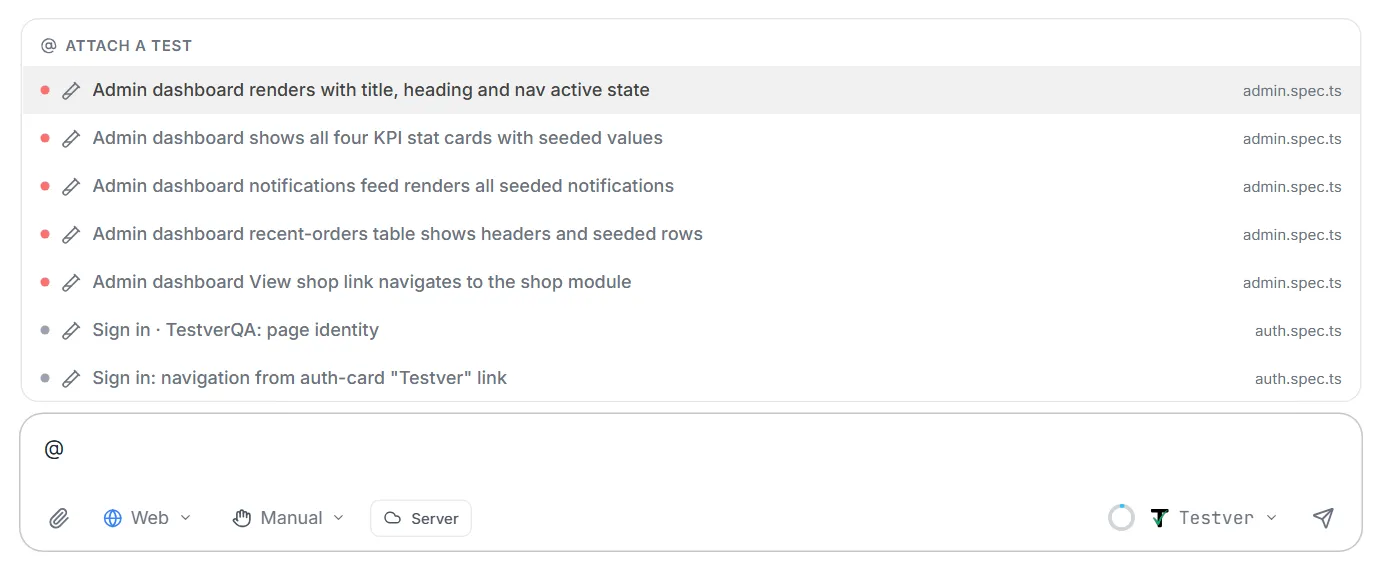
(With the admin dashboard test attached) Why is this failing? Check it against the live page and fix it.
Run tests
Section titled “Run tests”Run the admin login test.
The assistant runs a test by its name, with the exact command Test Explorer’s Run button uses — your Run Commands template included. It reads the output and tells you what passed and failed, and why.
| You want | Say |
|---|---|
| Run one test | ”Run the guest checkout test” |
| Another browser or environment | ”Run the login test on Firefox against Staging” — names from Settings → Run Configuration |
| Set up browsers and environments | ”Set up browsers and environments for this project” — see Browsers & environments |
| On a cloud provider | ”Run the login test on BrowserStack” — see Lesson 12 |
Example prompts
Section titled “Example prompts”Which tests use the LoginPage, and which of them are failing?
Run the “Cart: add backpack shows one item” test on Chromium and Firefox against QA and compare the results.
Which @regression tests haven’t run in the last week?
(With the profile test attached) Is this flaky? Show its last runs and tell me what pattern you see.
Lesson 7: Fixing failing tests
Section titled “Lesson 7: Fixing failing tests”A failing test is either the test’s fault (a changed locator, a missing wait) or the application’s (a real bug). The assistant tells you which — by checking against the live page, not just the error message.
Try it:
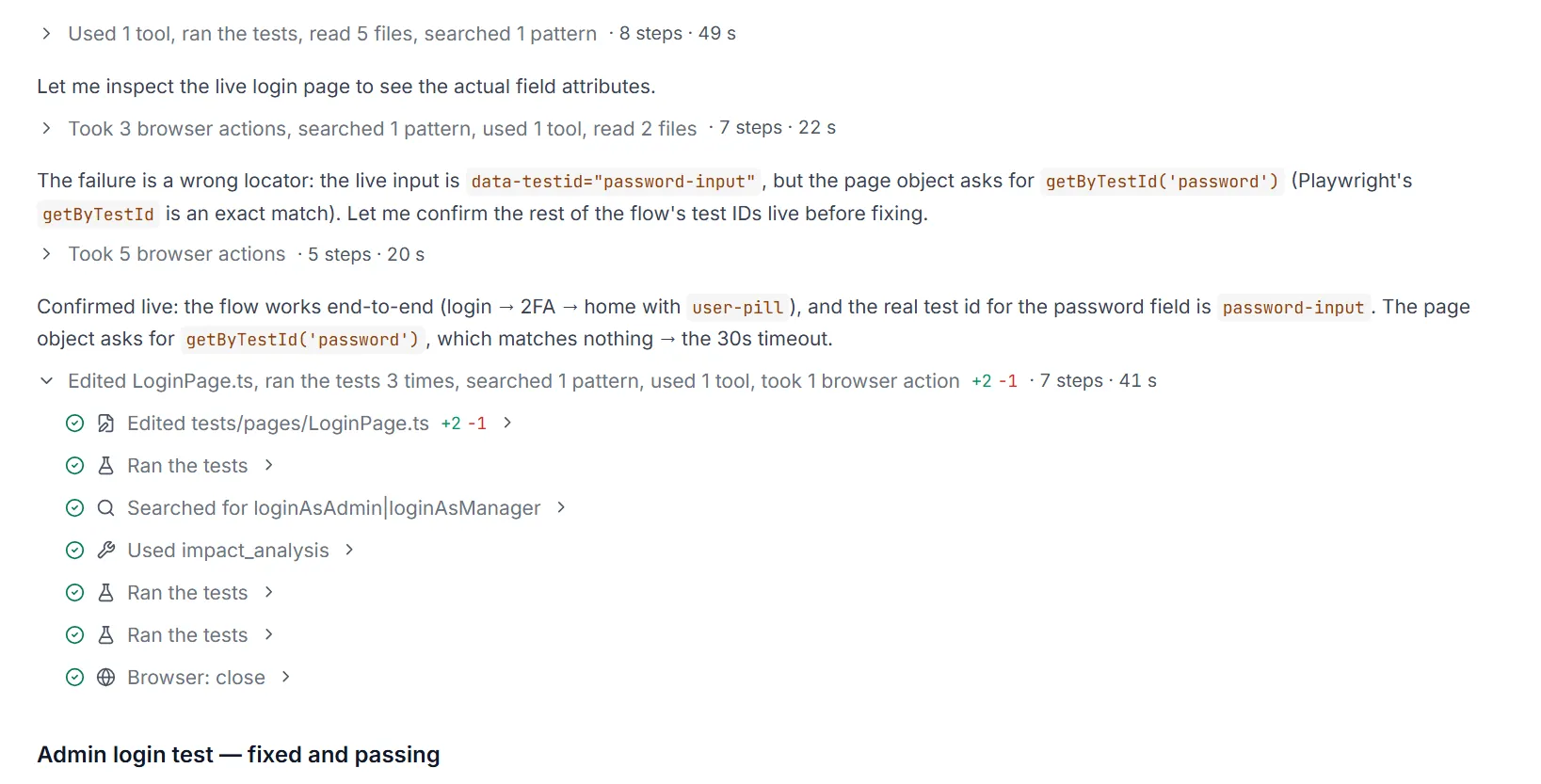
The admin login test fails with a timeout. Find out why and fix it.
What happens: it reads the test and the error, runs it, opens the page in the live browser to see what is really there, finds the cause (“the page object asks for getByTestId('password'), but the live input is password-input”), fixes it, and re-runs the test until it passes.
From a failed run: Fix in AI Assistant
Section titled “From a failed run: Fix in AI Assistant”On the Results screen, the Analyze & Fix Failures panel groups failures and explains them. Each group has a Fix in AI Assistant button:

- Click Fix in AI Assistant. The AI Assistant opens in the mode that matches the run’s framework — Web for a Playwright run.
- The message is already written: the failure category, the still-failing tests, the error and stack trace, what Auto-Heal tried, and the exact scoped command to verify with. The first failing test is attached as an @ chip.
- Nothing is sent automatically. Read it, edit it if you like, press Enter.
- The assistant fixes the tests and re-runs only those. The next real run shows them as Fixed on the Results screen.
If it is the application, not the test
Section titled “If it is the application, not the test”The assistant does not “fix” a test to pass over a real bug. If the page is genuinely broken — a server error, a button that does nothing — it says so. Ask it to raise a defect:
This looks like an application bug. Create a defect for it with the steps to reproduce and what you saw.
Example prompts
Section titled “Example prompts”(With the checkout test attached) This started failing after yesterday’s release. Compare the test with the live page at https://qa.example.com/checkout and fix it.
The search tests are flaky. Look at their last runs, find the timing problem, and replace any fixed sleeps with proper waits.
Our locators in pages/ProductPage.ts use long CSS paths. Replace them with data-testid or role locators from the live page, then run the product tests that use them.
Fix the failing profile test, then check which other tests use the method you changed and run two of them.
Lesson 8: Impact analysis and coverage
Section titled “Lesson 8: Impact analysis and coverage”Before changing something shared — a page object, a helper, a step definition — find out what depends on it. The assistant uses the Code Map: the real call graph, not a text search.
Try it:
Which tests would break if I change LoginPage.signIn?
You get the page object or method, and every test that uses it, however it reaches it.
When the assistant changes a shared file
Section titled “When the assistant changes a shared file”When it modifies (not just adds to) a shared file while fixing or writing a test, it does an impact check after the test passes:
- Finds the tests that depend on the changed file.
- Runs a small sample of them (two or three) to be sure they still pass.
- Ends with an Impact section: which shared files changed, how many tests depend on them, which it verified, and which you should still run.
If it only added things — a new method, a new locator — it says “Impact: additive-only — no existing behavior modified.”
Coverage questions
Section titled “Coverage questions”| You want | Say |
|---|---|
| Tests a change affects | ”What depends on pages/CartPage.ts?” |
| Tests with no test case | ”Which tests aren’t linked to a test case?” |
| Untested areas | ”Is there a test for changing the delivery address?” |
| Requirement coverage | ”Which requirements have no automated test?” |
| Health of an area | ”Which checkout tests are failing or flaky?” |
Example prompts
Section titled “Example prompts”I’m about to rename the
submitOrdermethod in CheckoutPage. Which tests use it, directly or through other helpers?
Which of our tests aren’t linked to a test case? Link the login tests to their test cases in Test Management.
Is there any test that covers deleting a saved address? If not, write one.
Lesson 9: From requirements to test cases and tests
Section titled “Lesson 9: From requirements to test cases and tests”Give the assistant what the application should do, and it turns it into test cases and automated tests — linked, so coverage is counted.
Try it: type # in the message box and pick a requirement from Sources (or use the paperclip → Add from Sources), then:
Write test cases for this requirement in Test Management, then automate the two most important ones against https://qa.example.com.
What happens: it reads the requirement, writes test cases with steps and expected results, then automates the ones you asked for — and links each automated test to its test case, and each test case to the source it came from. Creating test cases asks for permission in Manual mode.
Ways to give it requirements
Section titled “Ways to give it requirements”| You have | How |
|---|---|
| A document in Sources (Requirements, Notes, JIRA, Other Sources) | Type # or use the paperclip → Add from Sources. Up to 5 per message. |
| A file on your computer | Paperclip → Upload from computer, or drag it onto the message area. |
| A manual test case | Open it in Test Cases → Automate with AI on its Steps tab. The assistant opens in Web mode with the case’s steps written into the message. |
| A story in your head | Type it: “As a shopper, I can save items to a wishlist and see them after signing in again”. |
What files you can attach in Web mode
Section titled “What files you can attach in Web mode”The text of each file is read into the conversation.
| Accepted | Extensions |
|---|---|
| Documents | .pdf, .docx |
| Spreadsheets | .xlsx, .csv (every sheet becomes CSV) |
| Text & data | .txt, .md, .html, .htm, .xml, .json, .yaml, .yml, .toml, .ini, .cfg, .properties, .env.example |
| API descriptions | .har, .proto, .graphql, .gql, .wsdl, .xsd |
| Code & tests | .js, .mjs, .cjs, .ts, .jsx, .tsx, .py, .java, .kt, .cs, .rb, .go, .rs, .feature, .gherkin, .robot, .sh, .bat, .css, .scss |
Not accepted: images (describe what the image shows instead), PowerPoint (export to PDF), legacy .doc / .xls (save as .docx / .xlsx), archives (upload the files inside), executables. See Attaching files.
Example prompts
Section titled “Example prompts”(With the Checkout PRD attached via #) List every rule in this document as a test case in Test Management, then write Playwright tests for the payment rules.
(With JIRA story SHOP-214 attached) Write test cases for the acceptance criteria — positive and negative — and link them to the story.
(With wishlist-spec.docx attached) Which of these requirements do we already have tests for? Automate the ones we don’t.
Automate test case TC-42 against https://qa.example.com, and link the test to it.
Lesson 10: Data-driven tests
Section titled “Lesson 10: Data-driven tests”One test, many rows of data — valid and invalid inputs, several users, several locales.
Try it: attach signup-data.csv with the paperclip —
email,password,expected_messageann@example.com,Str0ng!pass,Welcomenot-an-email,Str0ng!pass,Enter a valid emailbob@example.com,short,Password must be at least 8 characters,Str0ng!pass,Email is requiredSave this data in our test data folder and write one data-driven sign-up test at https://qa.example.com/signup that runs once per row and checks the message.
What happens: the CSV’s text comes in with your message. The assistant saves it as a data file where your project keeps test data, and writes the test the way your framework does it — a loop over rows in Playwright, @pytest.mark.parametrize in pytest, a data provider in TestNG, a Scenario Outline with Examples in Cucumber — then runs it.
| Use it for | Example rows |
|---|---|
| Boundary values | lengths 0, 1, max, max + 1; amounts 0, 0.01, -1 |
| Invalid input | wrong formats, missing fields |
| Several users or roles | one row per role, with what each should see |
| Locales | language, currency and date format per row |
Example prompts
Section titled “Example prompts”Turn the login test into a data-driven test using data/users.csv — one run per row, checking each user lands on the right home page.
Create data/coupons.json with valid, expired and unknown coupon codes and the message each should show, and write a parametrized pytest test for the coupon field.
(With locales.xlsx attached) Write a Scenario Outline that opens the product page in each language in the sheet and checks the price format.
Lesson 11: Skills for new frameworks and Explore & Automate
Section titled “Lesson 11: Skills for new frameworks and Explore & Automate”Skills are instructions the assistant follows for one message. Type / in the message box to pick them; each shows as a chip.
Build a framework from scratch
Section titled “Build a framework from scratch”No tests yet? Pick Framework Architecture and your tool’s skill — Framework: Playwright, Cypress, Selenium, WebdriverIO, Cucumber or PyTest — and ask:

Create a Playwright framework in TypeScript for https://staging.shop.example.com. First scenario: log in with a valid user and see the dashboard.
It asks for anything it still needs, then builds a layered framework — tests, page objects, test data, config, native reports — writes one smoke test, runs it and fixes it until it passes. See Create a Framework with AI for every framework, step by step.
Explore a whole app and automate it
Section titled “Explore a whole app and automate it”Pick Explore & Automate and give it a URL:

Explore and automate https://staging.example.com. Staging. Stay inside /app and /account. Don’t delete anything. Explore as a guest.
It asks a short set of questions (URL, scope, restrictions, roles, documents), shows you its plan and waits for your yes. Then it walks the app by clicking, records every page and the path to it, writes and runs a test for every journey it found — keeping only tests that pass twice — files a test case for each, lists the real defects it tripped over, and ends with a report. See Explore & Automate.
Your own skills
Section titled “Your own skills”Your team’s conventions — “use our BasePage wrapper”, “tag every test with its JIRA key” — can be written once as a custom skill in Settings → Skills and picked with / whenever you need them.
Example prompts
Section titled “Example prompts”(Framework Architecture + Framework: Cypress) Create a Cypress framework in TypeScript for https://qa.example.com with a login smoke test. Credentials come from TEST_USER and TEST_PASSWORD.
(Framework Architecture + Framework: Selenium) Add a Staging environment and a Firefox option to our Selenium Java framework, and prove it with the smoke test.
(Explore & Automate) Explore and automate https://staging.example.com as admin and as viewer. I’ll sign in for each role when you ask. Don’t remove users.
(Explore & Automate) continue
Lesson 12: Where the browser and the tests run
Section titled “Lesson 12: Where the browser and the tests run”The assistant’s live browser
Section titled “The assistant’s live browser”A badge next to the mode picker shows where browser actions run. Click it to open the Connectors page.
| Where | Badge | When | Good for |
|---|---|---|---|
| The machine Testver runs on | Server | The default. | Most work. Chromium, unless you ask for Firefox or WebKit. |
| Your own computer | Local | When a Local Browser Connector is running for your user. | Sites only your laptop can reach — VPN, SSO, corporate network — when Testver itself runs somewhere else. |
| Testver Grid (paid add-on) | — | When you ask for it (“use a Grid browser”), or when AI Assistance browsers run on the grid by default is ticked in the Testver Grid panel under Settings → Connectors. | A cloud browser, without using your machine. Tick AI grid browsers can reach your local apps to test a site on localhost through a tunnel that closes with the browser. |
On the Local Browser Connector, two things are not available: the list of console errors and failed requests (Lesson 1), and saving a login (Lesson 4).
Running tests on a cloud provider
Section titled “Running tests on a cloud provider”Tests the assistant runs go through Testver’s runner, so they can run on a cloud provider you have set up in Settings → Connectors — BrowserStack, LambdaTest, Sauce Labs, or Testver Grid:
Run the login test on LambdaTest.
The answer includes whether the run really executed on the cloud — not just whether the test passed. When Testver can’t check with the provider (for example its API refused the key), the answer says the run is not verified rather than claiming it ran locally. A provider that is turned off or has no access key is refused instead of running the test on your machine.
If your project is not yet set up to run on that provider, the Runner’s Not connected yet dialog offers Fix with AI Assistant: the assistant makes the one-time change to your driver setup, runs one verification test on the provider, and either shows it verified or reverts every change. See Cloud Grid Execution.
Example prompts
Section titled “Example prompts”Open https://intranet.example.local/app in a Grid browser and tell me whether it loads.
Run the checkout test on BrowserStack against Staging and tell me whether it really ran on the cloud.
Which browsers and environments can a run of this project choose?
The catalogue: every kind of web test, with a prompt
Section titled “The catalogue: every kind of web test, with a prompt”Use these as starting points — swap in your own pages.
Functional journeys
Section titled “Functional journeys”| Test | Prompt |
|---|---|
| Smoke | ”Write a smoke test that opens https://qa.example.com, signs in and checks the dashboard loads” |
| Sign in / sign out | ”Test valid sign-in, wrong password, locked account and sign-out” |
| Search | ”Search for ‘backpack’ and check every result’s title contains it” |
| Filters & sorting | ”Filter products by Bags and sort by price; check only bags show, in ascending price” |
| Cart & checkout | ”Add two items, change one’s quantity to 3, and check the subtotal” |
| Create → edit → delete | ”Create an address, edit its city, delete it, and check it’s gone” |
| Multi-step wizard | ”Complete the 4-step onboarding wizard and check the summary on the last step” |
| Pagination | ”Check page 2 of Orders shows different orders from page 1” |
| Navigation | ”Click through every item of the main menu and check each page’s heading” |
| File upload | ”Upload C:\test-data\avatar.png on the profile page and check the new picture shows” |
| New tab / window | ”Click Terms — it opens a new tab — and check its heading” |
| Iframe content | ”Fill the test card inside the payment iframe and check the payment succeeds” |
Forms and validation
Section titled “Forms and validation”| Test | Prompt |
|---|---|
| Required fields | ”Submit the sign-up form empty and check every required-field message” |
| Formats | ”Try five invalid emails from data/bad-emails.csv; each must show the email error” |
| Boundaries | ”Try names of 0, 1, 50 and 51 characters — only 1 and 50 are accepted” |
| Dropdown dependencies | ”Choose Germany and check the State field is replaced by a Postcode field” |
| Data-driven | ”Run the sign-up test once per row of data/signup.csv” |
Roles and access
Section titled “Roles and access”| Test | Prompt |
|---|---|
| What a role sees | ”Start as viewer and list the menu items; then as admin and compare” |
| Blocked pages | ”As viewer, check the Users page shows ‘Not authorised‘“ |
| Role per test | ”Write the user-management tests to run as admin, reading credentials from env vars” |
Page health
Section titled “Page health”| Test | Prompt |
|---|---|
| Console errors | ”Open each page in the main menu and list console errors and failed requests” |
| Broken pages | ”Click every link in the footer and report any that end on an error page” |
| Layout at phone size | ”Open the home page — I’ll switch to Mobile size — and describe the header” |
Maintenance
Section titled “Maintenance”| Test | Prompt |
|---|---|
| Fix a failing test | ”(@ the test) Fix this against the live page and re-run it” |
| Better locators | ”Replace the CSS locators in pages/CartPage.ts with test-id or role locators” |
| Remove sleeps | ”Replace every fixed wait in tests/search with condition-based waits” |
| Refactor to page objects | ”Move the raw locators in tests/profile.spec.ts into a ProfilePage page object” |
| Impact before change | ”What breaks if I change CheckoutPage.submitOrder?” |
| New browser or environment | ”Let a run choose the environment, keeping today’s default” |
Test management
Section titled “Test management”| Test | Prompt |
|---|---|
| Cases from a requirement | ”(# the requirement) Write test cases for this, positive and negative” |
| Automate a case | ”Automate test case TC-42 and link the test to it” |
| Link existing tests | ”Which tests aren’t linked to a test case? Create and link cases for the checkout ones” |
| Raise a defect | ”This failure is an app bug — create a defect with the steps and what you saw” |
Writing good prompts
Section titled “Writing good prompts”- Name the environment and say it is safe — “on QA, test data only”.
- Say what “correct” means — the text, the count, the price — not just “test the cart”.
- Name the framework file or page object when you have one — “add it to tests/checkout.spec.ts using CheckoutPage”.
- Attach the test with @ when you are working on an existing one.
- Say how to sign in — “as admin, I’ll log in myself” — never paste a password.
- Ask for negatives — “include a wrong password and an empty form”.
- One journey per request for long work, then “now do the same for guest checkout”.
- Stop early — press Stop the moment it heads the wrong way, then say what you meant.
Where things are stored
Section titled “Where things are stored”| What | Where |
|---|---|
| Tests, page objects, data files, config | Your project’s own folders, following its conventions |
| Chat history | .testver/chat-history.json in your project |
| Saved logins | .testver/explore/auth/ (encrypted) |
| Explore & Automate runs | .testver/explore/<runId>/ |
| Screenshots the assistant takes | Your project folder, unless you name a path |
| Test cases, defects | Test Management |
| Browsers and environments | Settings → Run Configuration |
Limits
Section titled “Limits”| Item | Limit |
|---|---|
| Attachments | 20 MB per file, 10 files at a time |
| Text read from one attachment | About 15,000 characters |
| Sources per message | 5 |
| Saved logins | Expire after 7 days |
| Permission card | Denied if unanswered for 2 minutes |
| Sign-in pause | Waits up to 15 minutes |
| Chat history | The 50 most recent chats in a project, and the last 100 messages of each |
| Test runs | Scoped to named tests — never the whole suite |
Not available in Web mode: drag-and-drop and right-click as actions of the assistant (you can right-click yourself in User mode), reading the contents of images or screenshots, API-testing tools (use API mode), and mobile apps (use Mobile mode). Explore & Automate is web-only.
Troubleshooting & FAQ
Section titled “Troubleshooting & FAQ”No live preview appeared. It appears only once the assistant actually opens a browser. Ask it to open a page.
I can’t type in the live browser. Control is set to AI. Click User in the preview’s toolbar, then switch back to AI when you are done.
It keeps asking for permission. Manual mode asks before every browser action and every change. Click Always allow for the actions you trust in this chat, or switch the chat to Auto.
It asked me to sign in again. No saved session exists for that site and role, or it is older than 7 days, or the browser runs through the Local Browser Connector, where sessions are not saved.
It says the login does not look complete. After you clicked Continue, the page was still a login page or had no session cookies. Sign in fully — including two-factor — before clicking Continue.
It won’t run the whole suite. By design: it runs only the tests it wrote or changed, or the ones you name. Run the full suite from Test Explorer or the Runner.
“Zero tests executed”. The test name or file matched nothing. The assistant treats that as a failure and corrects the run — it never reports it as a pass.
My attached screenshot was refused. Images cannot be read by the assistant yet. Describe what the image shows, or paste the text.
The browser closed unexpectedly. The assistant may have closed it, or it timed out. Ask it to open the page again. Browser Sessions in Settings lists every browser Testver is tracking.
The Grid browser didn’t start. Check the Testver Grid card on Testver → Connections shows this device as connected and that your plan has the Grid add-on.
Can it test production? Only if you explicitly tell it to — and in Manual mode it asks before every action. We recommend read-only checks at most.
What’s the difference from AI Record? In AI Record you click through the app and the AI writes the test from your recording. In Web mode you describe the journey and the assistant does the clicking.
Related
Section titled “Related”- AI Assistant — the chat, modes, permissions, attachments and live preview
- Explore & Automate — explore a whole app and automate every journey
- Create a Framework with AI — a new framework from a prompt
- Analyze & Fix Failures — from a failed run to Fix in AI Assistant
- Local Browser Connector — drive a browser on your own machine
- Testver Grid — cloud browsers (paid add-on)
- API Testing with AI — the same tutorial for API mode