

Test AutomationAdvanced
Advanced
Introduction
Section titled “Introduction”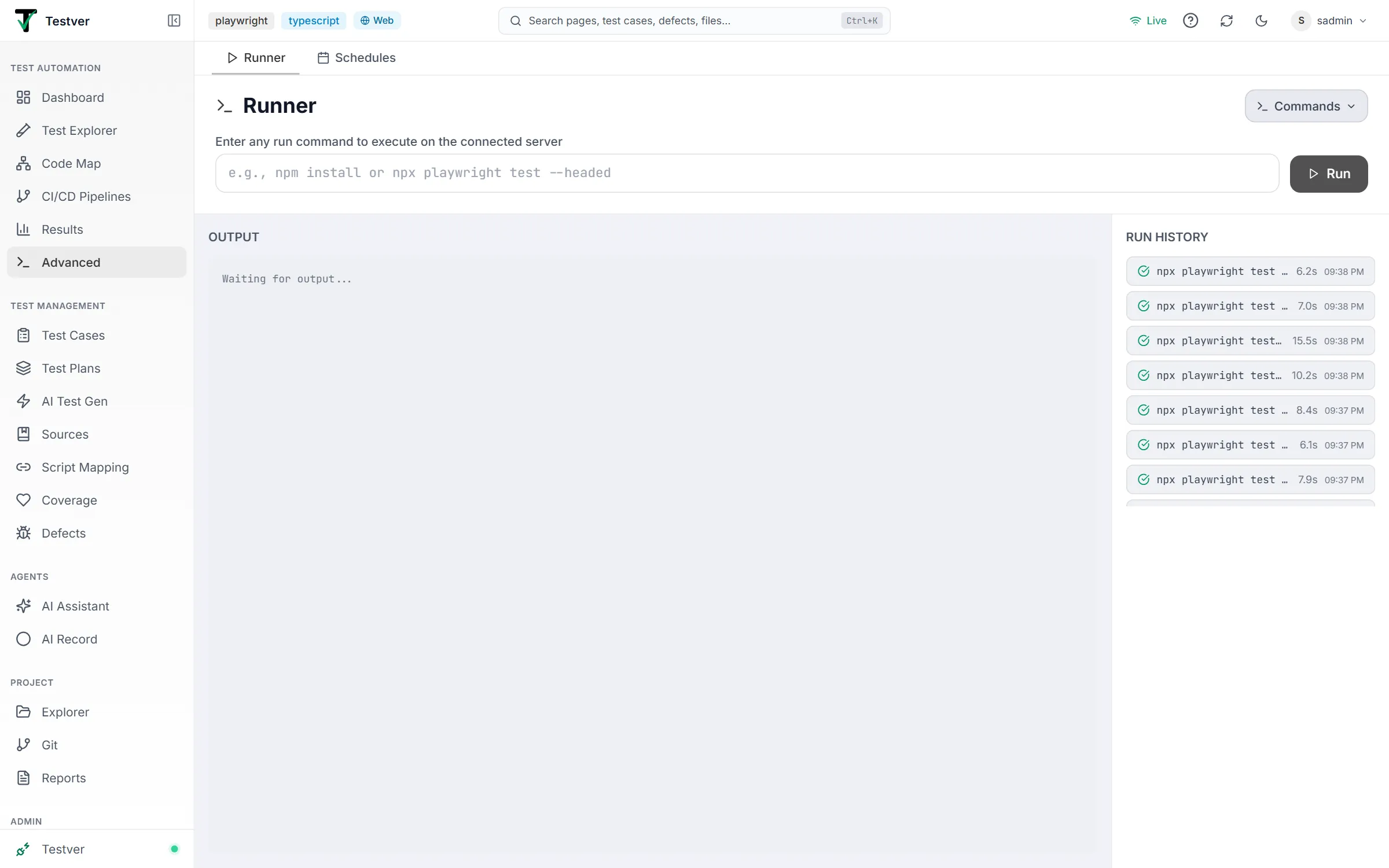
What is the Advanced screen?
Section titled “What is the Advanced screen?”Advanced (at /advanced) is where you execute run commands against the connected server. It gathers the two execution surfaces that used to be separate screens into one place, as tabs:
| Tab | What it does |
|---|---|
| Runner | Type a command, press Run, and watch the output stream live. Execution starts immediately and once. |
| Schedules | Save a command with a cron expression so the server runs it on a repeating timetable, unattended. |
The distinction is simply when the command runs: Runner is now, Schedules is later and repeatedly. Everything else — the command you type, where it executes, and where the results land — works the same way in both tabs.
Who this guide is for
Section titled “Who this guide is for”- QA engineers who want to launch a suite and watch it run without keeping a terminal open.
- Anyone who needs a suite to run overnight, hourly, or every weekday morning without a CI pipeline.
- Mobile testers running Appium-family suites against local devices or a cloud device grid.
Where to find it
Section titled “Where to find it”Look for Advanced in the left navigation under Test Automation, marked with a terminal (>_) icon. When a run is in progress the icon carries a pulsing dot, so you can tell at a glance that something is executing even from another screen.
Getting Started
Section titled “Getting Started”Switching tabs
Section titled “Switching tabs”The two tabs sit in a bar across the top of the screen, in the same style as the Tests / Suites tabs on Test Explorer. Click either one to switch.
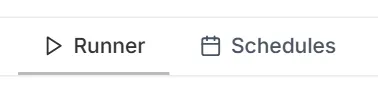
The active tab is remembered in the address bar, so:
/advanced?tab=runneropens straight to the Runner/advanced?tab=schedulesopens straight to Schedules
That means you can bookmark or share a link to a specific tab, and a browser refresh keeps you where you were.
Which tab do I want?
Section titled “Which tab do I want?”| You want to… | Use |
|---|---|
| Run the suite right now and watch it | Runner |
| Re-run the last command you used | Runner (Commands menu → Recent) |
| Run a smoke suite every morning at 8 | Schedules |
| Run a regression pack nightly and check results in the morning | Schedules |
| Try a command once before scheduling it | Runner first, then save it as a schedule |
At a glance
Section titled “At a glance”- Both tabs accept any run command — they are not limited to a particular framework.
- Both execute on the connected server, not in your browser.
- Both write their results to the Results screen, so history is in one place regardless of how the run was triggered.
- Cloud grids and mobile devices are available from both tabs when the matching connector is enabled.
The Runner tab
Section titled “The Runner tab”The Runner takes the command you’d normally type in a terminal, runs it, and streams the output back with live progress and a pass/fail summary.
Highlights:
- Command box — type any run command; autocomplete offers your saved commands and the framework’s Run All preset.
- Run on — choose Local, a connected device, or a cloud grid.
- Live output — colorized console output, a progress bar, and counters that tick up as tests finish.
- Run history — your recent runs (status, command, duration, start time) listed beside the output; open a finished run’s full details from the Run Complete card’s View Details.
- Live device preview — for mobile runs, a picture of the device the test is driving.
See the Runner tab guide for the full walkthrough.
The Schedules tab
Section titled “The Schedules tab”Schedules stores commands with a cron expression and runs them on the server at the specified times, whether or not anyone is signed in.
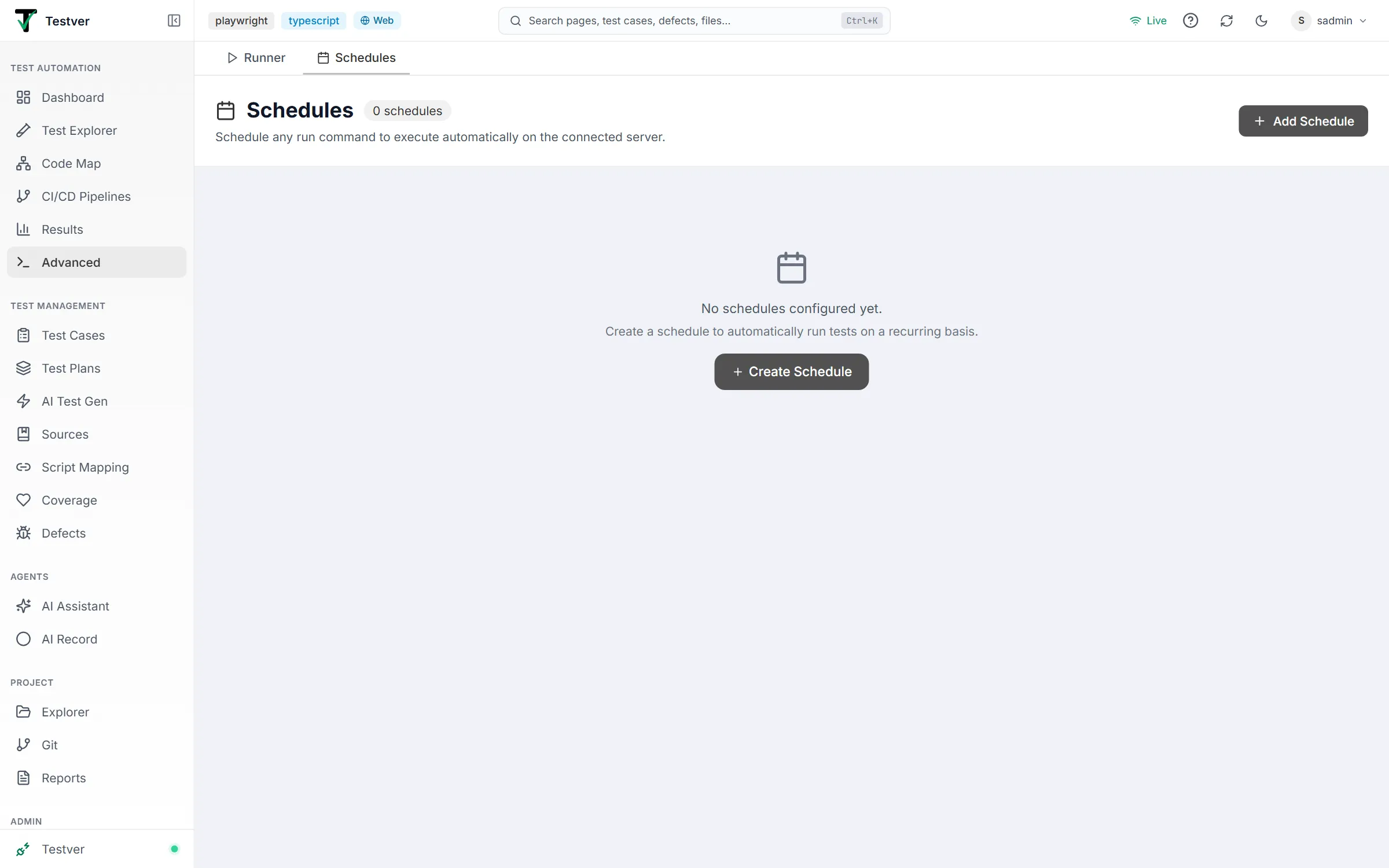
Highlights:
- Cron builder — pick a frequency tab (Minutes, Hourly, Daily, Weekly, Monthly) or type a custom expression on the Advanced tab.
- Next runs preview — see the next few fire times before you save, so you can confirm the schedule means what you think.
- Run now — trigger a scheduled command immediately without waiting for its next slot.
- Pause / resume — temporarily stop a schedule without deleting it.
- Cloud and device targets — schedule runs against a cloud grid or local devices, same as the Runner.
See the Schedules tab guide for the full walkthrough.
Common Tasks (How Do I…?)
Section titled “Common Tasks (How Do I…?)”How do I run a command right now?
Section titled “How do I run a command right now?”- Open Advanced → Runner.
- Type your command (or pick one from the Commands menu).
- Choose a target under Run on if you don’t want the default.
- Press Run.
How do I turn a working command into a nightly run?
Section titled “How do I turn a working command into a nightly run?”- Run it once in the Runner tab and confirm it passes.
- Copy the command text.
- Switch to the Schedules tab → Add Schedule.
- Give it a name, paste the command, open the Daily tab and set 10 PM : 00, then click Create.
How do I check what a scheduled run produced?
Section titled “How do I check what a scheduled run produced?”Scheduled runs write to the same place as manual ones. Open Results and look for the run by time — there’s no separate “scheduled results” screen to hunt through.
How do I link straight to one tab?
Section titled “How do I link straight to one tab?”Use /advanced?tab=runner or /advanced?tab=schedules. Both are safe to bookmark and share.
Tips & Best Practices
Section titled “Tips & Best Practices”- Prove it in Runner, then schedule it. A scheduled command that fails at 2 AM is much harder to debug than the same command failing in front of you.
- Keep an eye on the sidebar dot. The pulsing indicator on the Advanced entry tells you a run is active without switching screens.
- Don’t schedule everything. Frequent schedules against a cloud grid consume paid minutes; start with a daily or weekday cadence and tighten only if you need it.
- Name your saved commands clearly. Smoke — headed is easier to pick from the Commands menu six weeks later than a bare command string.
Troubleshooting & FAQ
Section titled “Troubleshooting & FAQ”The Advanced entry isn’t in my sidebar.
Make sure you’re looking under the Test Automation group; it sits directly below Results with a >_ terminal icon.
My old /runner bookmark went somewhere else.
It redirected to /advanced?tab=runner, which is the same screen it always was — just now presented as a tab. Nothing was removed.
Do the two tabs share state? No. Typing a command in the Runner does not create a schedule, and editing a schedule does not affect what’s in the Runner’s command box. They’re independent surfaces that happen to live on one screen.
Can I run two things at once? The Runner panel follows one run at a time; other active runs — scheduled ones, for example — fire on their own timetable and appear under Current Runs in the Runner’s side column, in the sidebar indicator and on the Results screen.
Related
Section titled “Related”- Runner tab — full guide to running a command now.
- Schedules tab — full guide to cron-based recurring runs.
- Results — where every run, manual or scheduled, is recorded.
- Manage — project config, CI/CD, and browser sessions.
- Test Explorer — run an individual test instead of a whole command.