

SettingsLLM tab
LLM tab
What the LLM tab is
Section titled “What the LLM tab is”The LLM tab of the Settings screen (/settings?tab=llm) is where you connect the AI that powers Testver’s assistant, test generation, recording, and failure analysis. Without a provider connected, the rest of Testver still works for manual test management — only the AI-powered features stay unavailable.
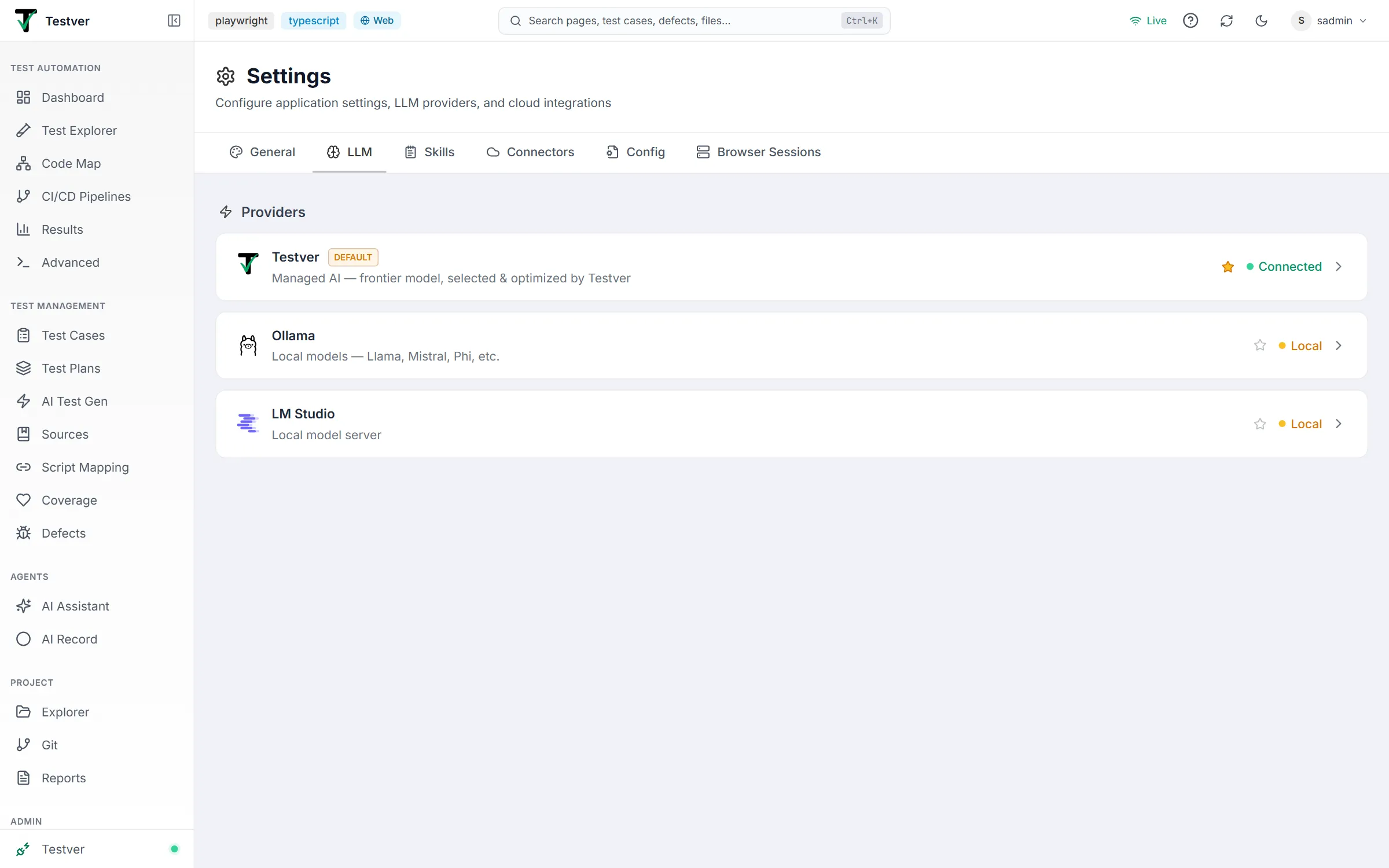
Each provider appears as an expandable card showing its name, a short description, a status indicator, and (for administrators) a star marking the default provider. Click a card header to expand it — the Testver card expands to its connection status and credits, the local providers to their configuration form.
| Provider | Kind | Models / role | Needs a key? |
|---|---|---|---|
| Testver | Cloud | Managed AI — a frontier model managed by Testver | Connect your Testver account on Testver → Connections; the card shows the status |
| Ollama | Local | Local models — Llama, Mistral, Phi, etc. | No |
| LM Studio | Local | Local model server | No |
Testver is the only cloud provider. You do not bring your own OpenAI, Anthropic, Google, or xAI key — Testver supplies the cloud model itself, already selected and tuned for test automation work. That means no third-party model account to create, no per-vendor keys to rotate, and no decision about which model to pick.
The two local providers are unchanged: they run entirely on your own machine, cost nothing per token, and send no data anywhere.
Who sees which providers
Section titled “Who sees which providers”| Role | Providers shown |
|---|---|
| Any user | Testver |
| Administrator | Testver, plus the local providers (Ollama, LM Studio) |
So if you’re not an admin and the LLM tab shows only the Testver card, that’s expected — local providers are an administrator-level configuration.
The Testver card
Section titled “The Testver card”Expand the Testver card to see the connection status and your credits — the same figures as your testver.com dashboard. Connecting and disconnecting happen in one place, Testver → Connections (the pinned entry at the bottom of the sidebar); the card links there. One connection there switches on every Testver service your plan includes: AI credits, Testver Grid and Testver Mail.
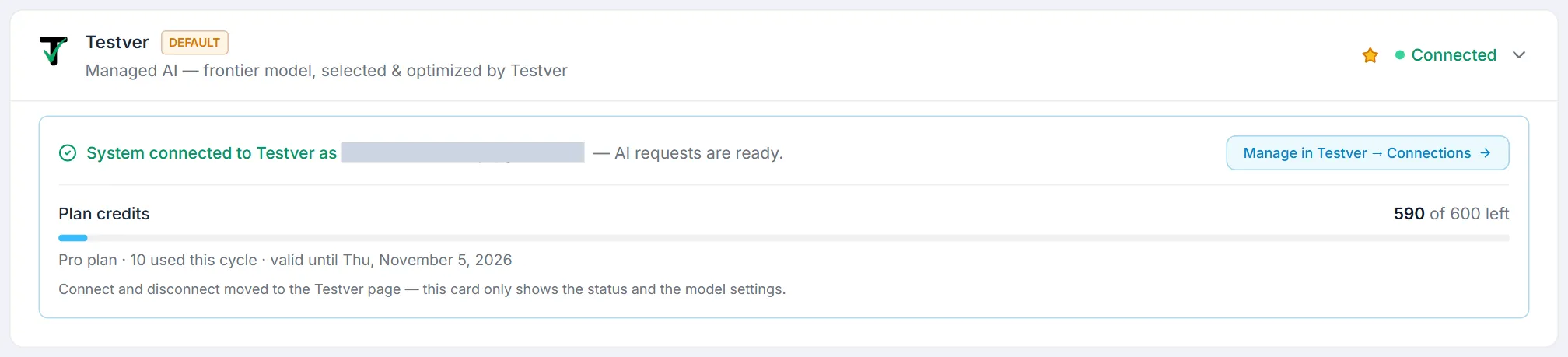
Credits show as two bars, one for each kind:
| Bar | What it shows |
|---|---|
| Plan credits | This cycle’s allowance — for example 3,160 of 5,000 left — and under it the plan, the credits used this cycle and valid until (or ended) with the date. It turns amber at 75% used and red at 90%. Plan credits end with the term: after the plan expires they show as 0 left, marked Expired. |
| Extra usage reserve | Credits from extra usage packs — for example 2,500 of 3,000 left since your last top-up. They never expire and are spent only after your plan credits run out; an In use now badge shows while they are. Shown only once you have bought a pack. |
Below the bars the card says when something needs you — plan credits used up, the plan expired but still running on the reserve, AI paused — with a Top up or Renew at testver.com link. On an Enterprise plan arranged by the Testver team, renewing is arranged with that team rather than bought online. On a team whose new term has fewer seats than people, a member without a seat sees Seat paused: AI requests are off until the team owner gives them a seat back, and there is nothing to buy. The figures refresh every 30 seconds and whenever you open the tab. Testver → Connections shows the same two bars.
Provider status — the colored dot and label on each collapsed card tell you how the provider is configured:
| Status | Meaning |
|---|---|
| Connected (green) | The Testver card: your Testver account is connected. |
| Not Connected (gray) | The Testver card: no account is connected yet. The card’s description adds Try it for free — click Connect to link your testver.com account. |
| Local (amber) | A local provider (Ollama / LM Studio) that runs models on your own machine. |
| Not Configured (gray) | A local provider whose settings could not be loaded. |
Default provider — the star icon on each card header sets that provider as the workspace default. The current default shows a filled amber star and a DEFAULT badge. Clicking the star on another provider switches the default immediately. Only administrators see the star.
Configuring a provider
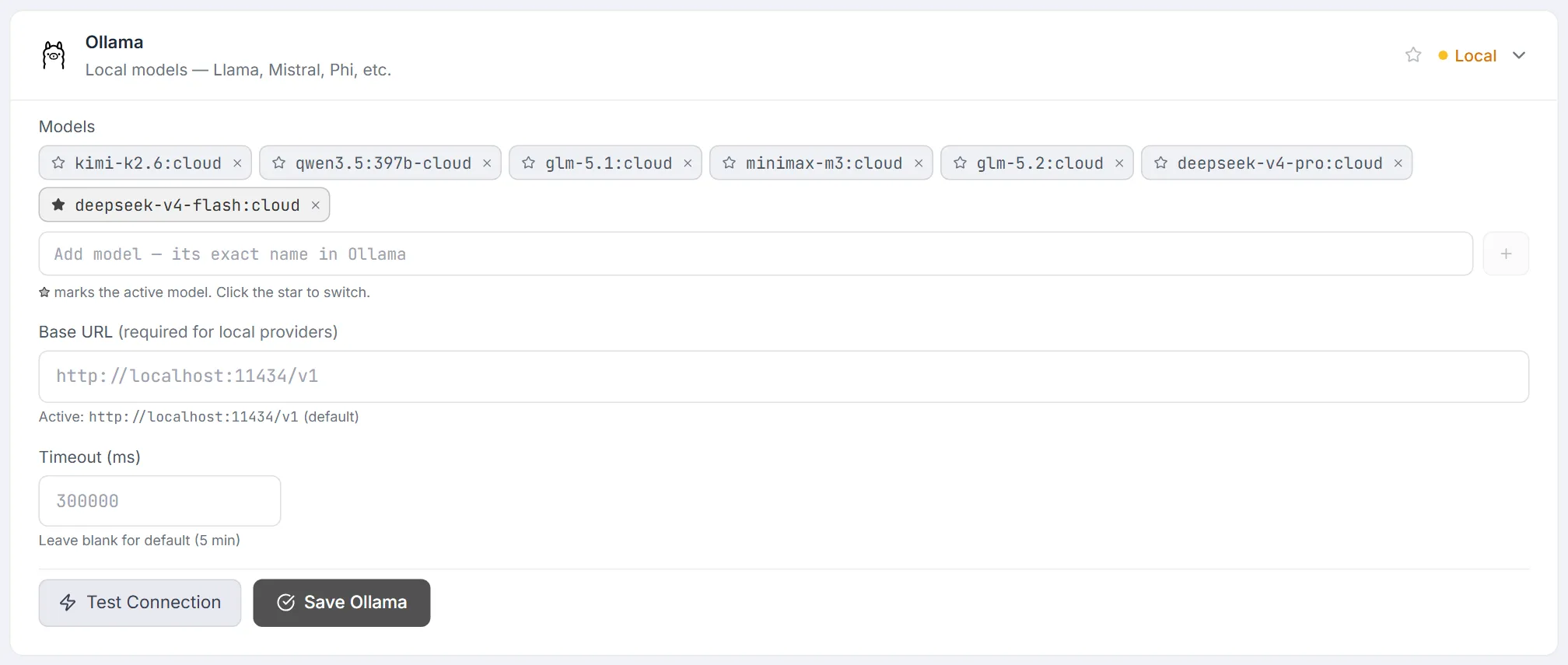
Section titled “Configuring a provider”The Testver card has no form — the model, key and endpoint are managed for you. Expanding Ollama or LM Studio reveals the form below.
| Field | What it does |
|---|---|
| Models | The models you added, shown as chips — nothing is pre-filled, so a provider you have not set up says No models yet. Click the star on a chip to make it the active model; click the X to remove one, the last one included. A provider with no models is left out of the model pickers in the AI Assistant and AI Record until you add one. |
| Add model input | Type the model’s exact name — for Ollama, as ollama list shows it — and press Enter or click + to add it. |
| Base URL | The local server’s endpoint — http://localhost:11434/v1 for Ollama and http://localhost:1234/v1 for LM Studio by default (shown as the placeholder). The active URL is shown beneath, marked (default) when you haven’t changed it. |
| Timeout (ms) | How long to wait for a response, in milliseconds. Leave blank for the default of 5 min. |
| Test Connection | Pings the provider with the current URL and model and reports success or failure along with the response latency in milliseconds. |
| Save <provider> | Save Ollama / Save LM Studio persists this provider’s model library, active model, base URL and timeout. |
Related
Section titled “Related”- Settings overview — the other tabs on this screen.
- First-time setup — connecting a provider during your first run.
- AI Assistant — the main consumer of whichever provider you connect.
- Skills — extend what the AI knows and can do.