

Test ManagementScript MappingMapped Test Cases tab
Mapped Test Cases tab
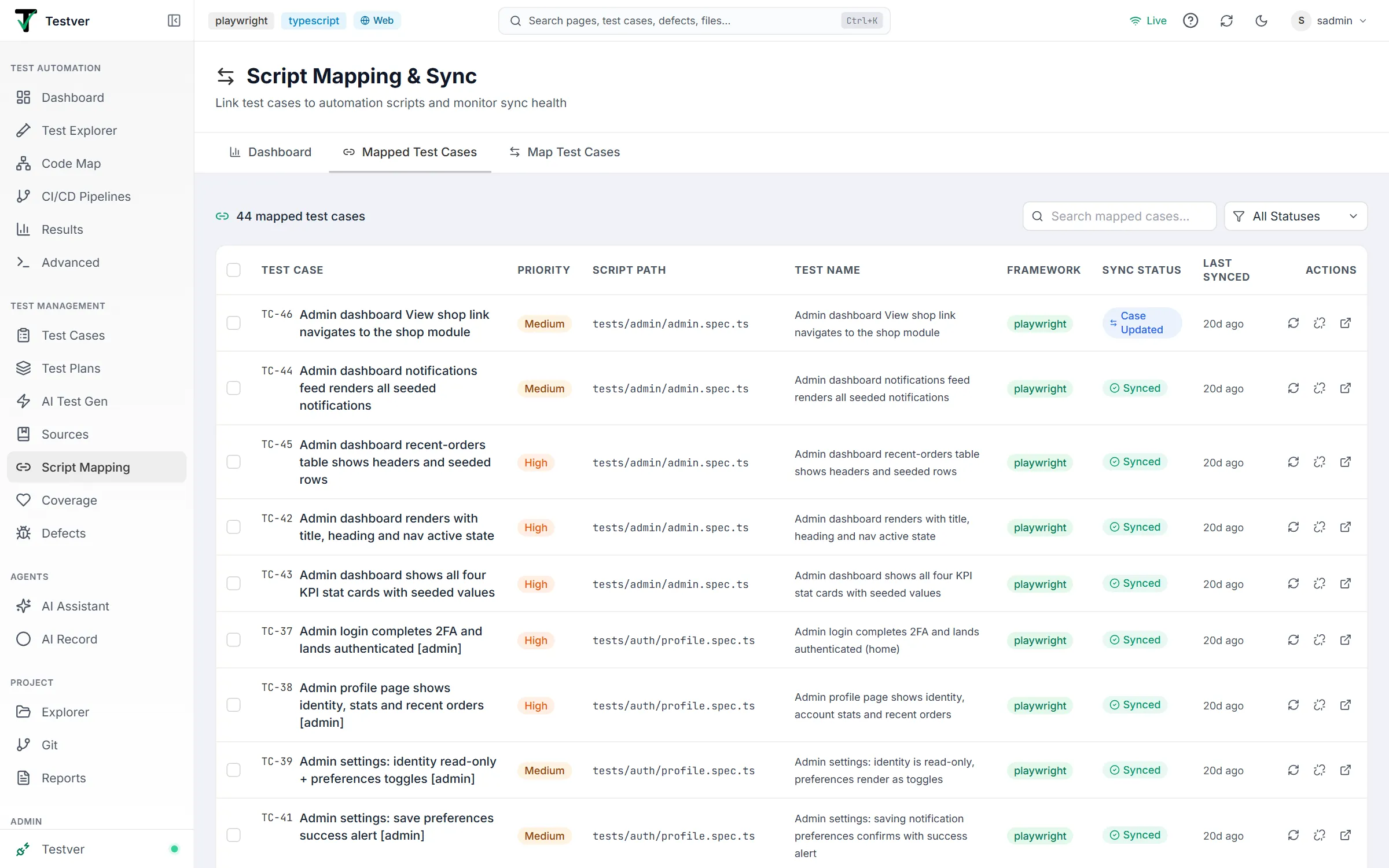
The Mapped Test Cases tab of the Script Mapping screen (/script-mapping?tab=mapped) lists every manual test case that already has automation linked to it, and lets you manage those links.
A header line counts the mapped test cases. Each row shows the test case (ID and title), its priority, the script path it maps to (hover for the full path), the test name, the framework, the mapping’s sync status and when it was last synced. Row actions let you mark the mapping synced again (Re-sync), unlink it, or open the automation (View Script (new tab)).
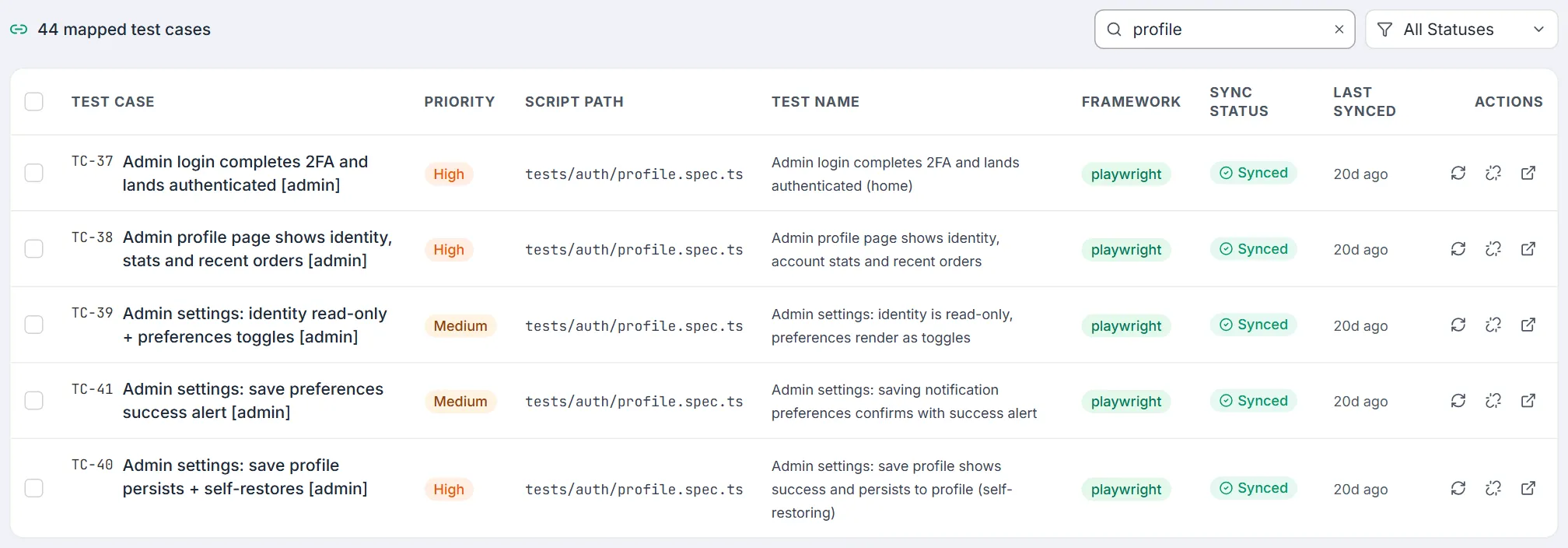
Type in Search mapped cases… to narrow the table by case title, script path or test name:
The All Statuses dropdown narrows the table to one sync status: Synced, Script Updated, Script Missing or Case Updated. The status column, this filter and the Dashboard counts all read the same status, so filtering by Case Updated lists exactly the mappings the Dashboard counts as Case Updated:

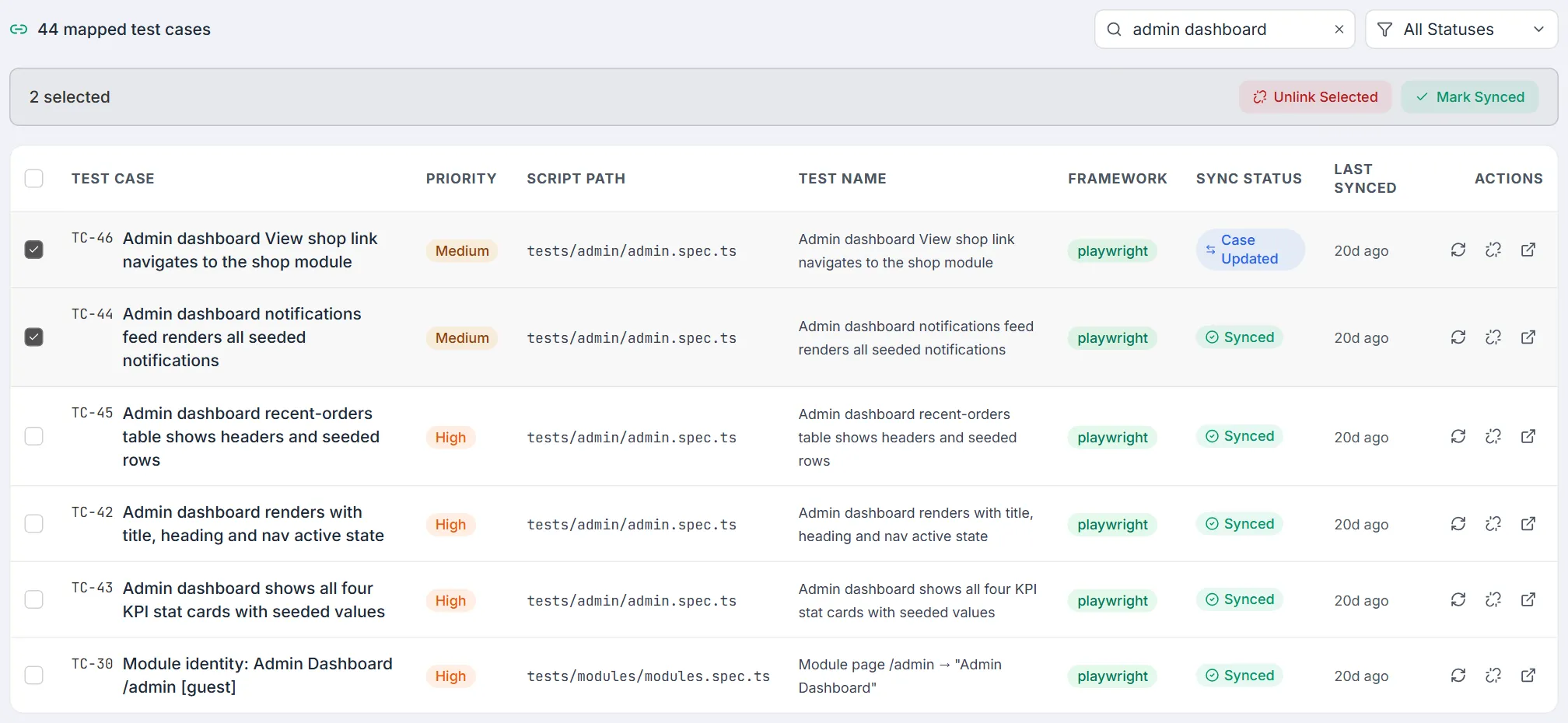
Tick rows (or the header box) to bring up the bulk action bar with Unlink Selected and Mark Synced:
Tracing a case to its automation
Section titled “Tracing a case to its automation”Once mapped, every manual case carries a precise pointer to the code that verifies it: the script path, the test name, and the framework. On the Mapped Test Cases tab, the View Script (new tab) action opens that test in the Test Explorer in a new browser tab — where you get the source, its run history, its results, and the option to run it, rather than just a read-only snippet. Your place in Script Mapping is kept in the original tab.

Sync statuses explained
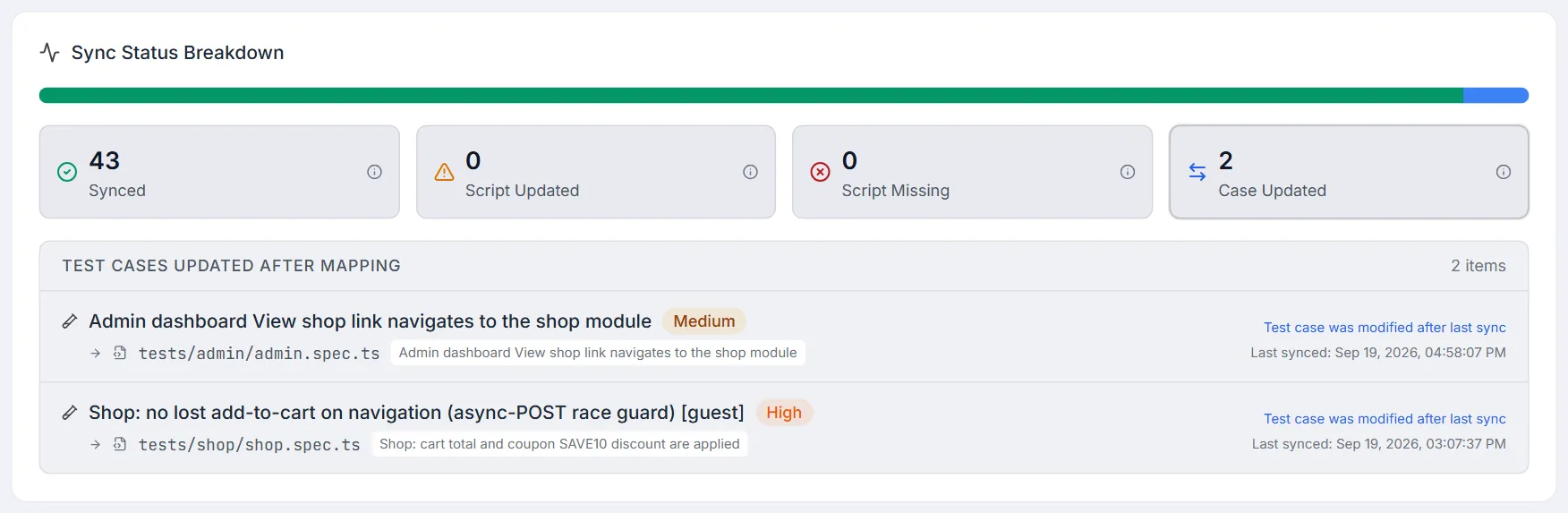
Section titled “Sync statuses explained”Each mapping reports one of four sync statuses. Testver rolls these up into the Sync Health headline and a stacked breakdown bar on the Dashboard, so a single glance tells you how much of your automation map is currently trustworthy.
| Sync status | Colour | Meaning / action |
|---|---|---|
| Synced | Green | Test case and script file are in step. No action needed. |
| Script Updated | Amber | The script file was modified on disk after mapping. Review the case to confirm it still matches the script. |
| Script Missing | Red | The mapped script file was deleted or moved. Re-map the case to a valid file. |
| Case Updated | Blue | The manual case was edited after mapping. The script may need updating to reflect the change. |
From the Dashboard you can click any of the four status breakdown cards to drill into the exact list of mappings in that state — each row showing the case title, priority, script path, test name, last-synced timestamp, and a short reason (e.g. “Script file changed on disk”).
Related
Section titled “Related”- Script Mapping overview — the screen and its tabs.
- Map Test Cases tab — create new links.
- Dashboard tab — coverage and sync-health numbers.
- Test Explorer — where View Script (new tab) takes you.