

Settings
Introduction
Section titled “Introduction”What is the Settings screen?
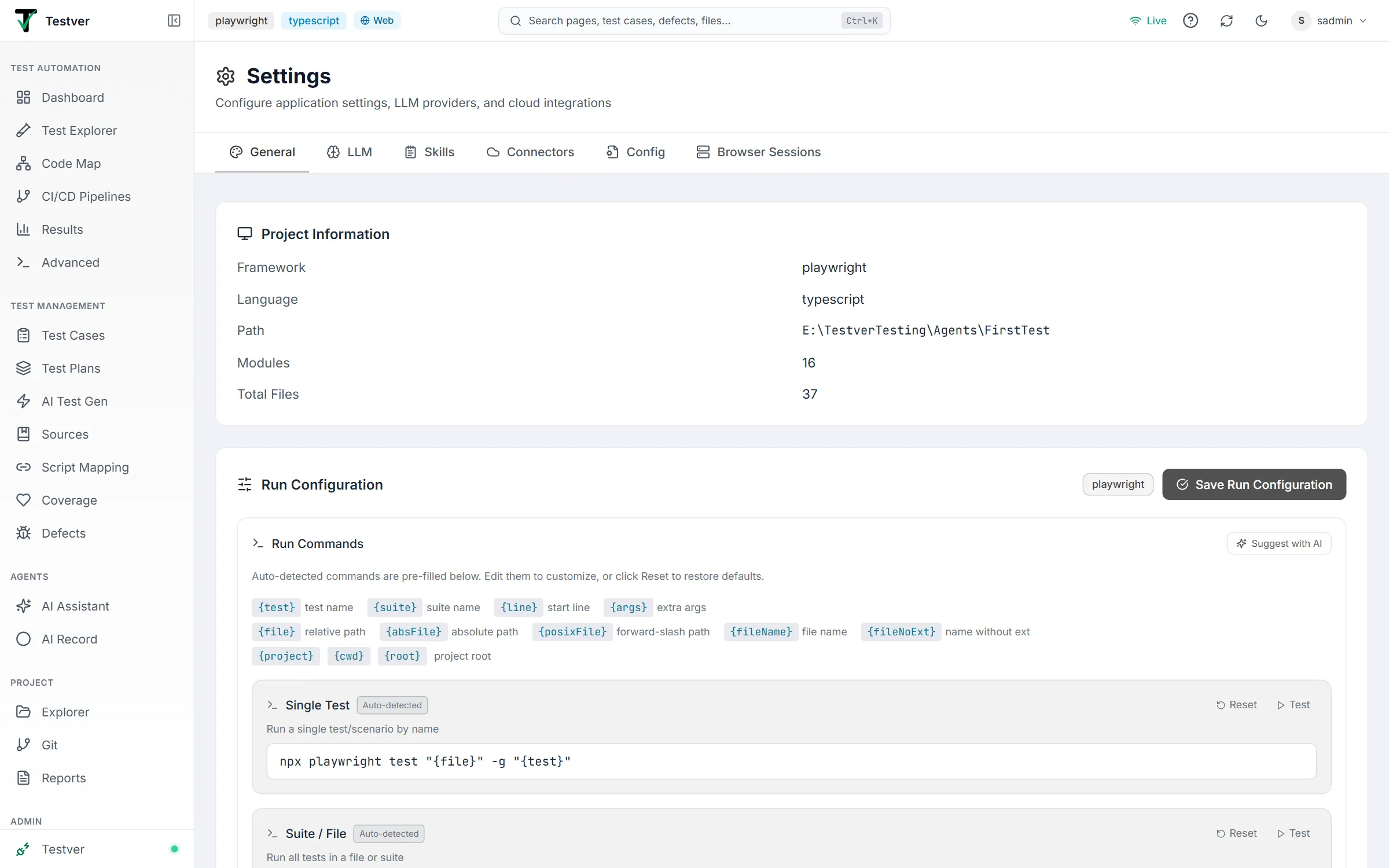
Section titled “What is the Settings screen?”The Settings screen (route /settings) is Testver’s central control panel. From a single page you configure how the application looks, which testing surfaces are visible, exactly how your tests are launched on the command line, which AI provider powers Testver’s intelligent features, and which skills and external connectors are available. Everything here is scoped to your project and persists between sessions.
Who this guide is for
Section titled “Who this guide is for”- QA engineers and testers who need Testver to launch their existing test suite correctly (single test, whole file, full run).
- Developers wiring up AI features who need to connect the Testver provider or point Testver at a local model.
- Team leads / workspace admins who set the App Mode (Web vs Mobile) and configure local AI providers and connectors.
- Anyone who wants to switch between the light and dark theme or check basic project information.
Key terms
Section titled “Key terms”| Term | Meaning |
|---|---|
| Provider | An AI service that supplies language models — Testver (the managed cloud provider) or a local server like Ollama / LM Studio. Configured on the LLM tab. |
| Model | A specific named AI model offered by a provider. With Testver the model is chosen for you; a local provider holds the models you added (none are pre-filled), one of which is marked active. |
| Testver account | The connection that authorizes cloud AI. Linked on Testver → Connections (the LLM tab shows its status); it also surfaces your plan and remaining credits. Local providers need no credential at all. |
| App mode | A workspace-wide setting (Web or Mobile) that controls which Testver surfaces — Runner, Recorder, Schedules, AI Assistant — are shown. Set on the General tab. |
| Run command | The exact shell command Testver uses to execute your tests. There are three: Single Test, Suite / File, and Full Run. Defined on the General tab under Run Configuration → Run Commands. |
| Env var (environment variable) | A KEY=value pair injected into the environment when your tests run. Used for things like credentials or flags; managed under Run Configuration → Advanced Settings. |
How settings take effect
Section titled “How settings take effect”- Most settings are saved per project on the Testver server and survive restarts.
- Run Commands are only stored as an override when you change them away from the auto-detected default — otherwise Testver keeps using its detected command, so future framework changes are still picked up automatically.
- LLM settings for the local providers (model library, active model, base URL, timeout) are saved per provider when you click Save. The default provider can also come from an environment variable instead of being typed in.
- App Mode is workspace-wide: changing it reloads Runner, Recorder, Schedules, and AI Assistant for every user in the workspace.
- Theme (light/dark) is switched from the top bar, applied instantly and remembered locally in your browser.
Getting Started
Section titled “Getting Started”Opening Settings
Section titled “Opening Settings”- Open Testver and make sure a project is loaded.
- Click the Settings entry (gear icon) in the navigation, or browse directly to
/settings. - The page opens on the General tab by default. The current tab is reflected in the URL via the
tabquery parameter (for example/settings?tab=llm), so you can bookmark or share a direct link to a specific tab.
The Settings tabs
Section titled “The Settings tabs”Six tabs run across the top of the Settings screen: General, LLM, Skills, Connectors, Config and Browser Sessions. Click any tab to switch; the active tab is underlined in the brand color. The active tab is stored in the address bar (for example /settings?tab=connectors), so you can bookmark or share a link to a specific tab.

| Tab | Icon | What it covers |
|---|---|---|
| General | Palette | Project info & appearance — Project Information, Run Configuration, API & Network Traces, Auto-Heal, Sign-in sessions, Two-factor authentication and App Mode. |
| LLM | Brain | AI provider configuration — the Testver connection and credits, the default provider, and the local providers’ models, base URLs and timeouts. |
| Skills | Notepad | Agent Skills — reusable AI behaviors the AI Assistant can draw on. See Skills. |
| Connectors | Cloud | JIRA, Slack, Email, cloud device grids, and webhooks. See Connectors. |
| Config | FileCog | The environment / config-file editor for this project. See Config. |
| Browser Sessions | Server | Live browser processes, with close actions. See Browser Sessions. |
Where to find it
Section titled “Where to find it”Settings sits under the Admin group in the left navigation for administrators, and under Agents for everyone else. Non-admin users see every tab, but General, Skills and Connectors are view-only (General shows a View only — these project settings are managed by your admin notice), and the LLM tab shows only their own Testver connection. Config and Browser Sessions work for every role.
At a glance
Section titled “At a glance”- Start on General to confirm your project details and make sure your test run commands are correct.
- Move to LLM to plug in at least one AI provider if you want Testver’s AI-powered features (such as Suggest with AI for run commands).
- Use Connectors to link cloud device grids (BrowserStack, LambdaTest, Sauce Labs, Testver Grid), local Appium devices (Mobile mode), JIRA, Slack, and email.
- Use Skills to extend what the AI Assistant knows and can do.
- Use the theme toggle (moon / sun icon) in the top bar any time to switch between light and dark mode.
Project Information
Section titled “Project Information”The Project Information card is read-only. It summarizes what Testver has detected about your project so you can confirm it loaded the right codebase.
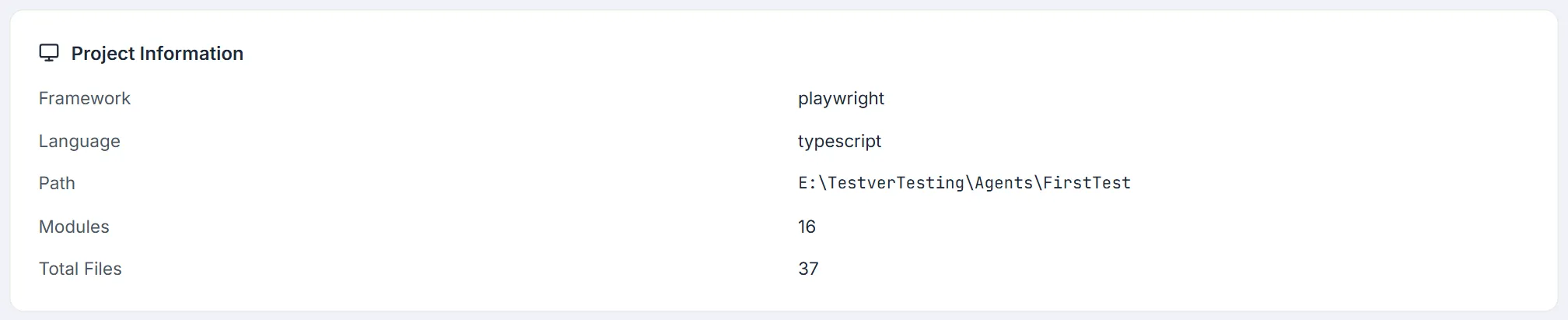
| Field | What it shows |
|---|---|
| Framework | The detected test framework, or Auto-detected if not explicitly set. |
| Language | The project’s primary language, or Multiple when several are present. |
| Path | The absolute root path of the project on disk (shown in monospace). |
| Modules | The total number of modules Testver found. |
| Total Files | The total number of files scanned in the project. |
Run Configuration
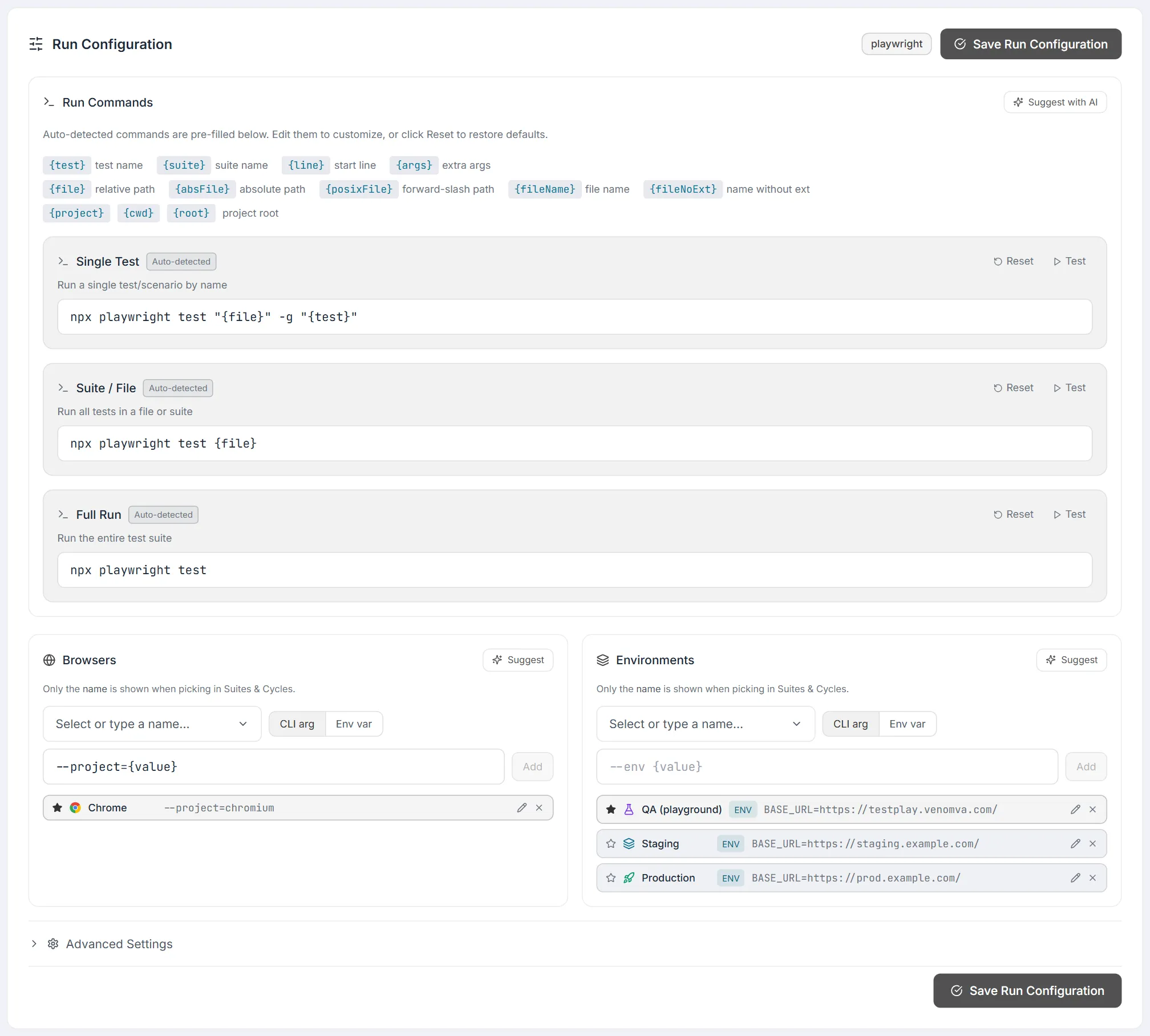
Section titled “Run Configuration”The Run Configuration card holds everything that decides how a run is launched: the three Run Commands, the Browsers and Environments lists (and App Builds for mobile), and Advanced Settings. It is one card with one save: Save Run Configuration sits at the top right of the card and again at the bottom, and either one saves all of it.
Run Commands
Section titled “Run Commands”The Run Commands box defines exactly how Testver launches your tests. Testver auto-detects sensible commands for your framework (shown as a badge next to the heading) and pre-fills them. You can edit any of the three commands, test them, reset them to the detected default, or have AI suggest them.
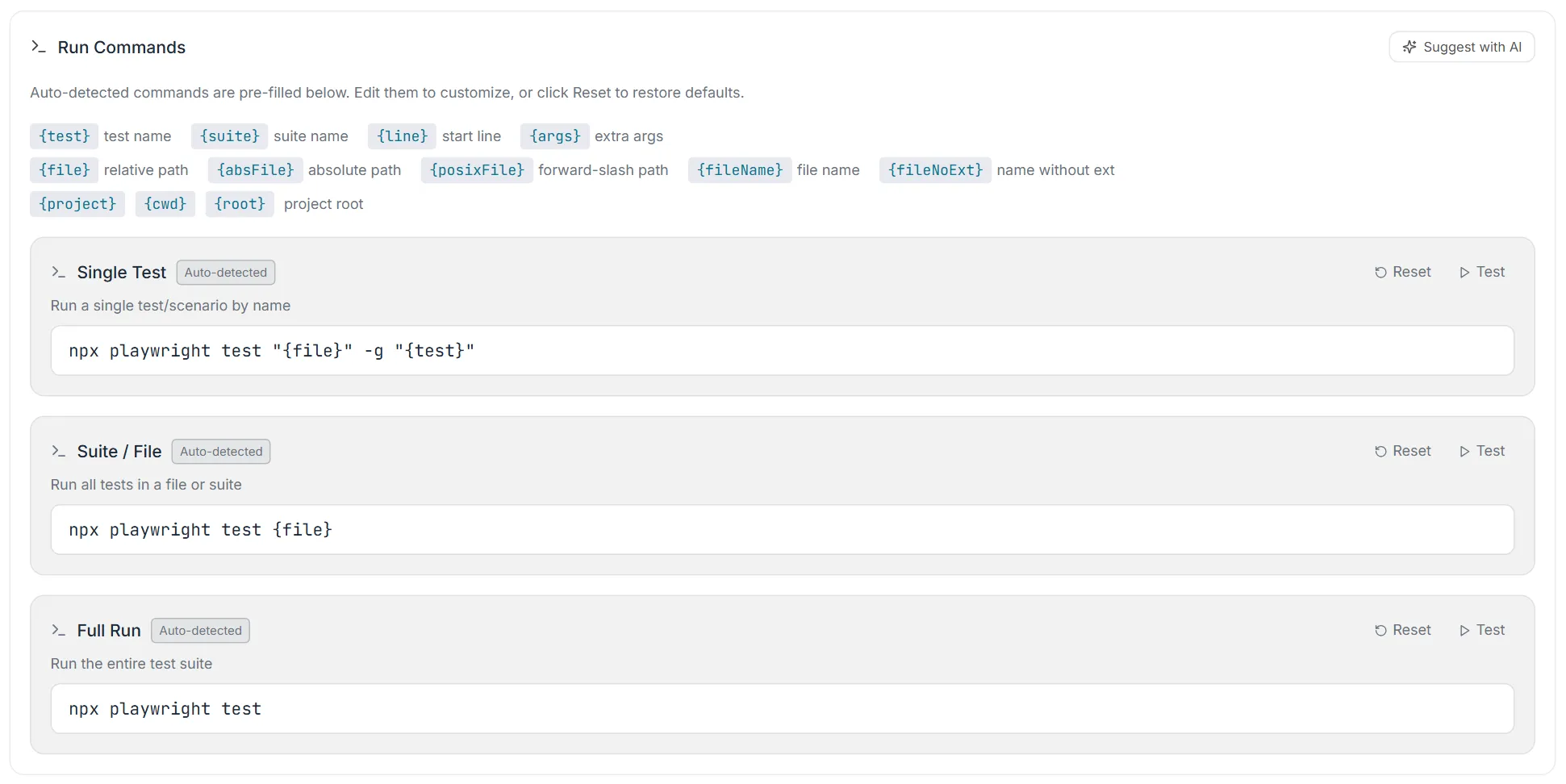
There are three command fields, each in its own panel with Reset and Test buttons and an Auto-detected / Custom badge:
| Command field | What it does |
|---|---|
| Single Test | Runs a single test/scenario by name. |
| Suite / File | Runs all tests in one file or suite. |
| Full Run | Runs the entire test suite. |
Each field’s controls:
| Control | What it does |
|---|---|
| Custom / Auto-detected badge | Shows whether the current value differs from the detected default (Custom) or matches it (Auto-detected). |
| Reset | Restores the field to Testver’s auto-detected default command. |
| Test | Dry-runs the command (placeholder tokens are substituted with harmless dummy values) and reports Command is valid or Command failed, with a snippet of the output. |
| Command input | The editable shell command, shown in monospace. The placeholder text is the auto-detected default. |
Placeholder tokens — commands may include tokens that Testver replaces at runtime with the real test name, file path, and so on. Each token chip on the card is click-to-copy. The available tokens:
| Token | Replaced with |
|---|---|
| {test} | Test name |
| {suite} | Suite name |
| {line} | Start line number |
| {args} | Extra arguments |
| {file} | Relative file path |
| {absFile} | Absolute file path |
| {posixFile} | Forward-slash path (useful for WebdriverIO —spec on Windows) |
| {fileName} | File name |
| {fileNoExt} | File name without extension |
| {project} / {cwd} / {root} | Project root directory |
Suggest with AI — the button in the Run Commands box heading lets AI inspect your project and propose all three commands.
| Element | What it does |
|---|---|
| Suggest with AI button | Sends your project to the AI, which analyzes it and returns proposed Single Test, Suite/File, and Full Run commands. Shows Analyzing project… while it works. |
| Suggestion cards | Each proposed command shows a confidence percentage, a validation badge (checking / resolves / unverified), the command in monospace, and a short rationale. |
| package.json script badge | Appears when the suggestion reused an existing npm script from your project. |
| Apply (per card) | Fills that one field with the suggested command (review and Save to persist). |
| Apply all | Fills all three fields with the suggestions at once. |
| Discuss in AI Assistant | Hands off to the full AI Assistant with a context-rich seed prompt for complex cases (does not auto-submit). |
| Dismiss (X) | Closes the suggestion panel without applying anything. |
Browsers and Environments
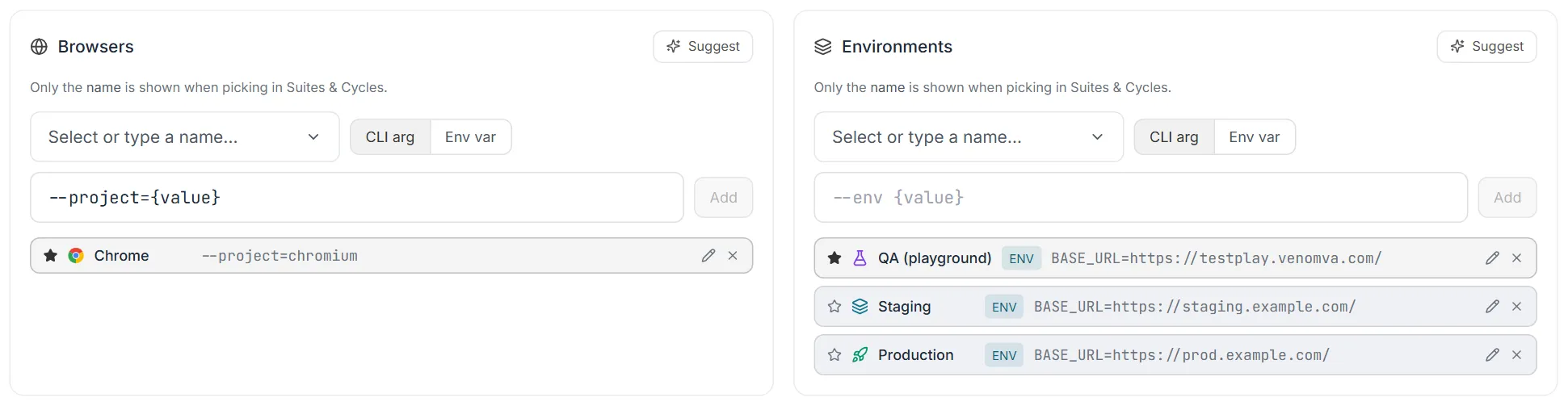
Section titled “Browsers and Environments”Below the commands, two lists define the named targets you pick in Suites, Cycles and Schedules. Each entry is a name plus what that name means when a run starts: a CLI arg added to the command (--project=chromium, -DbaseUrl=https://qa.example.com) or an Env var set for the run (BROWSER=firefox, BASE_URL=https://qa.example.com). Browsers are usually a CLI arg; use Env var only when your project picks the browser from an environment variable. Only the name is shown when picking.
| Action | How |
|---|---|
| Add | Pick or type a name, enter the argument or value, click Add (or press Enter). |
| Edit | Click the pencil on the entry. Change the name, the value and — for environments — CLI arg / Env var, then Save (Enter) or Cancel (Esc). |
| Set the default | Click the star. |
| Remove | Click the × and confirm. |
| Get the right entries for your project | Suggest — review each suggestion, then Apply or Apply all. |
Suggest reads your project’s code: the switch that picks the browser (a Playwright project, a -Dbrowser switch in your driver factory, a pytest --browser option…) and the values it accepts, and how your project sets its base URL or environment. It only asks the AI when the code says nothing, and then shows it that code. Every suggestion says where it came from:
- Found in your project — read straight from the code (the note names the file and line).
- AI suggestion, confirmed in your code — the AI proposed it and the code reads it.
- Not confirmed — check it — the code doesn’t show whether it’s read (for example, environment variables read by a computed name).
Suggestions the code would reject or ignore are left out, with a note saying why. If your project picks the browser from an environment variable instead of a flag (System.getenv("BROWSER"), process.env.BROWSER…), Suggest proposes Env var entries such as BROWSER=firefox, using the browser names your code actually handles. If dotenv is loaded with override: true and .env sets the same variable, the entry is marked Not confirmed — .env would replace the value Testver sets.
When Suggest finds nothing, it says what it looked at and offers two ways forward — handy for frameworks written before Testver set this up:
- Find them with the AI Assistant — the Assistant scans your project itself (config, driver factory, fixtures), shows you what exists, and saves the right entries once you confirm.
- Add support to my framework — the Assistant changes your framework so a run can choose the browser (one command-line switch) or the environment (one base-URL setting). It explains the change and waits for your OK, keeps today’s default so runs without the switch behave exactly as before, runs an existing test to prove nothing broke, then registers the options here.
The second link also sits under suggestions (Support more browsers / environments in my framework), for when your framework supports only one browser today.
Saved entries are checked too. An entry your code doesn’t accept gets a red warning with the reason — a Playwright project that doesn’t exist, or a -D key nothing reads. Picking it would run the default instead of what the name says. An amber mark means it couldn’t be confirmed.
Set up by the AI Assistant. When the Assistant scaffolds a framework, it registers the browsers and environments here itself, checked the same way. A tester’s chat can add new entries but not change existing ones; a change it proposes to an existing entry appears at the top of this card for an admin to Apply (then Save) or Dismiss. Every change the Assistant saves is recorded in the Audit Log under your name.
Suites, cycles and schedules store only the name and look up its value when they run, so editing an argument or value takes effect everywhere on the next run. Renaming is different: anything that picked the old name keeps it and falls back to the default until you re-pick the new one — the edit form says so when you change a name. Like everything on this card, edits are saved with Save Run Configuration.
Advanced Settings
Section titled “Advanced Settings”Clicking Advanced Settings expands extra options below the three command fields.

| Option | What it does |
|---|---|
| Environment Variables | Add any number of KEY / value pairs that are injected into the environment when your tests run. Use Add Variable to add a row and the X button to remove one. Empty rows are ignored on save. |
| Before Command | A shell command run before your tests (for example npm run build). |
| After Command | A shell command run after your tests (for example npm run cleanup). |
Click Save Run Configuration — at the top right or the bottom of the card — to persist everything. Testver only stores a command as a custom override when it differs from the auto-detected default; the before/after commands and non-empty env vars are saved as entered.
API & Network Traces
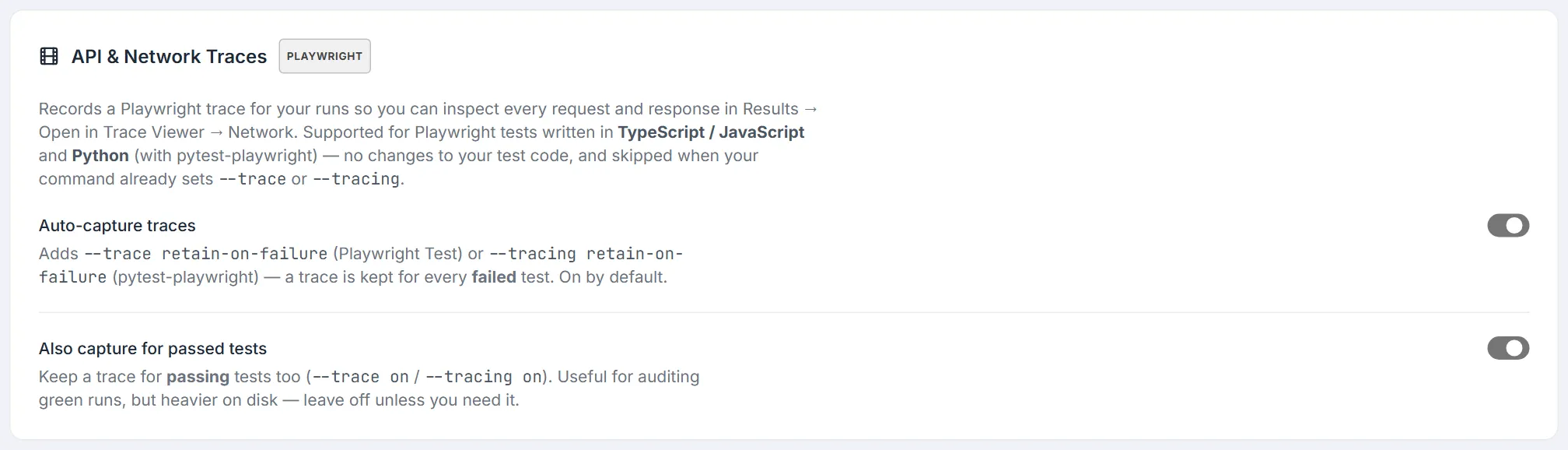
Section titled “API & Network Traces”The API & Network Traces card on the General tab records a Playwright trace for your runs, so you can inspect every step, request and response of a failed test from Results → Trace Viewer (its Network tab lists each call). Your test code doesn’t change. Only admins can change the card.
| Setting | Default | What it does |
|---|---|---|
| Auto-capture traces | On | Keeps a trace for every failed test. |
| Also capture for passed tests | Off | Keeps a trace for passing tests too — useful for auditing green runs, heavier on disk. |
The settings apply to Playwright tests written in TypeScript / JavaScript and Python (with pytest-playwright). For a project that uses Playwright only in Java or .NET, the card says the settings don’t apply and how its traces get linked instead:
| Playwright in | How the trace is made | What Testver does |
|---|---|---|
| TypeScript / JavaScript (Playwright Test) | Recorded automatically | Adds --trace retain-on-failure (or --trace on) to playwright test runs. |
| Python with pytest-playwright | Recorded automatically | Adds --tracing retain-on-failure (or --tracing on) to pytest runs. Traces land in test-results/<test>/trace.zip. |
| Java, .NET, or Python without pytest-playwright | Your test code saves it | Playwright has no command-line switch for these, so the two settings don’t change their runs. Results links each trace your code saves while a run is going to its test — name the file after the test, for example reports/traces/LoginTest.loginWithValidCredentials.zip. Frameworks created with the AI Assistant save one for every failed test. |
A trace switch is added only when the command itself runs Playwright Test or pytest — never because a folder or script name mentions “playwright” — and never when your command already sets --trace or --tracing. An npm test or npm run … script is left alone too, because npm would not pass the switch on; put the trace option in your Playwright config or the script instead. Runs on the Testver Grid always keep traces for passed tests too, because the trace is the only record of a remote browser.
Auto-Heal
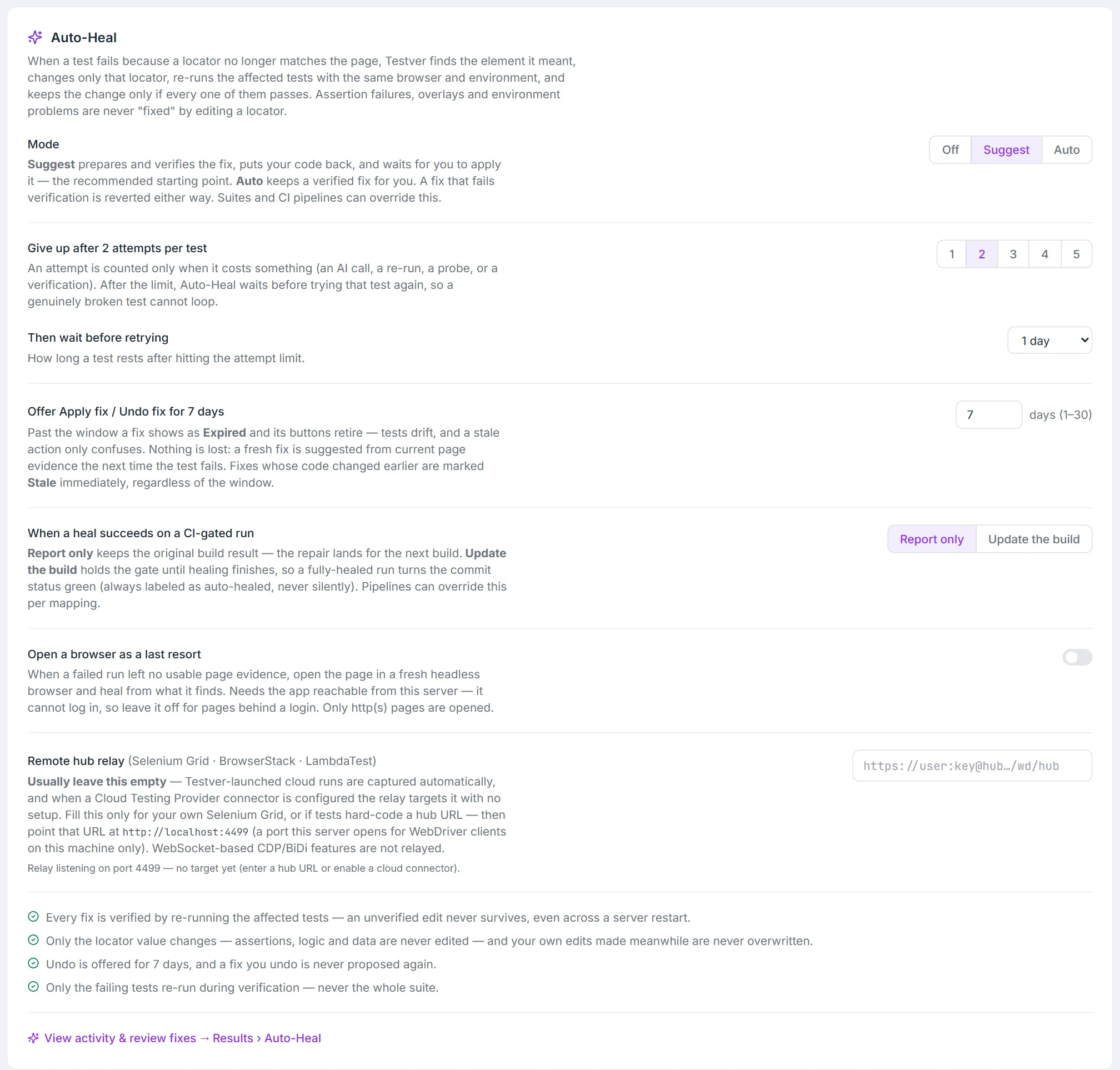
Section titled “Auto-Heal”The Auto-Heal card on the General tab controls how Testver repairs tests that fail because a locator no longer matches the page. Testver finds the element the test meant, changes only that locator, re-runs the affected tests with the same browser and environment, and keeps the change only if every one of them passes. Assertion failures, overlays and environment problems are never “fixed” by editing a locator. Each change saves as soon as you make it.
| Setting | Default | What it does |
|---|---|---|
| Mode | Off | Off, Suggest (prepare and verify the fix, put your code back, and wait for you to apply it — the recommended starting point) or Auto (keep a verified fix). A fix that fails verification is reverted either way. Suites and CI pipelines can override this. |
| Give up after N attempts per test | 2 | 1–5. An attempt counts only when it costs something (an AI call, a re-run, a probe or a verification). |
| Then wait before retrying | 1 day | How long a test rests after hitting the attempt limit — 6 hours to 1 week. |
| Offer Apply fix / Undo fix for | 7 days | 1–30 days. After that a fix shows as Expired; fixes whose code changed earlier are marked Stale straight away. |
| When a heal succeeds on a CI-gated run | Report only | Report only keeps the original build result; Update the build holds the gate until healing finishes. Pipelines can override this per mapping. |
| Open a browser as a last resort | Off | When a failed run left no usable page evidence, open the page in a fresh headless browser. It cannot log in, so leave it off for pages behind a login. |
| Remote hub relay | Empty | Only for your own Selenium Grid, or tests that hard-code a hub URL — point that URL at http://localhost:4499. Testver-launched cloud runs and configured cloud connectors need nothing here. |
The View activity & review fixes → Results › Auto-Heal link at the bottom of the card opens the review screen. See Auto-Heal for the full workflow.
Test Ownership
Section titled “Test Ownership”When the project is a git repository, a Test Ownership card appears after Auto-Heal. Hide author names hides the git owner / last-modified-by names across Test Explorer and Results. Precise (line-level) ownership computes each test’s owner from its own lines with a one-time background scan (Run scan / Re-scan), so the Owner filter is instant on large projects. Projects outside git don’t show this card.
Sign-in sessions
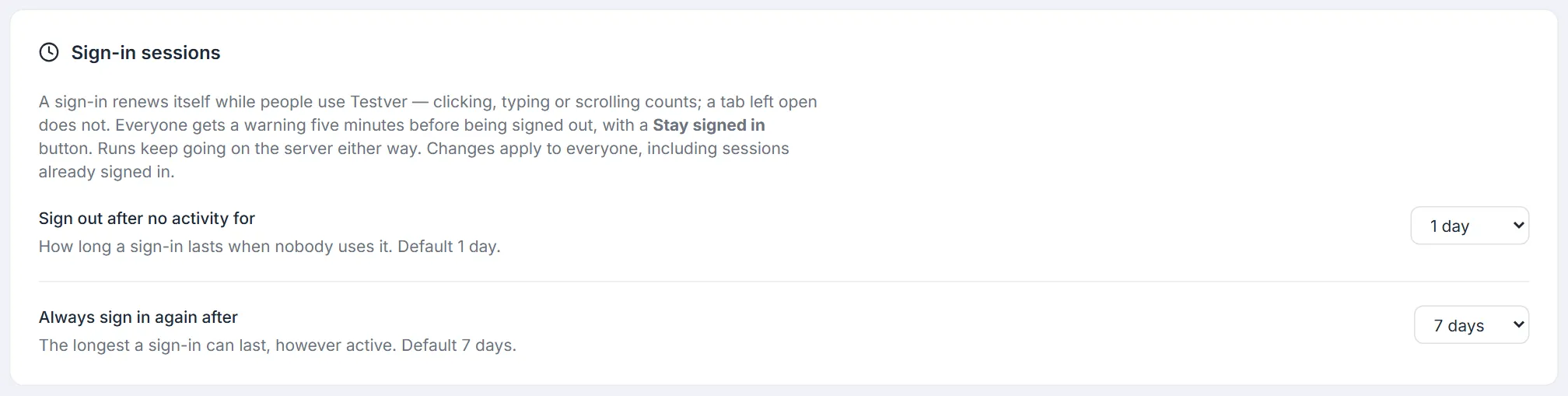
Section titled “Sign-in sessions”The Sign-in sessions card on the General tab sets how long a sign-in lasts, for everyone. Only admins can change it.
| Setting | Default | What it does |
|---|---|---|
| Sign out after no activity for | 1 day | A session ends when nobody has clicked, typed or scrolled in Testver for this long. A tab left open on its own does not count as activity. |
| Always sign in again after | 7 days | The longest a sign-in can last, however active. |
Everyone gets a five-minute warning before being signed out, with Stay signed in. Tests and AI tasks keep running on the server regardless. Changes apply to sessions already signed in, and are recorded in the Audit Log. See Sign in → Staying signed in.
Two-factor authentication
Section titled “Two-factor authentication”The Two-factor authentication card on the General tab (admins only) decides who must sign in with a code from an authenticator app. Anyone can turn it on for themselves in Profile.
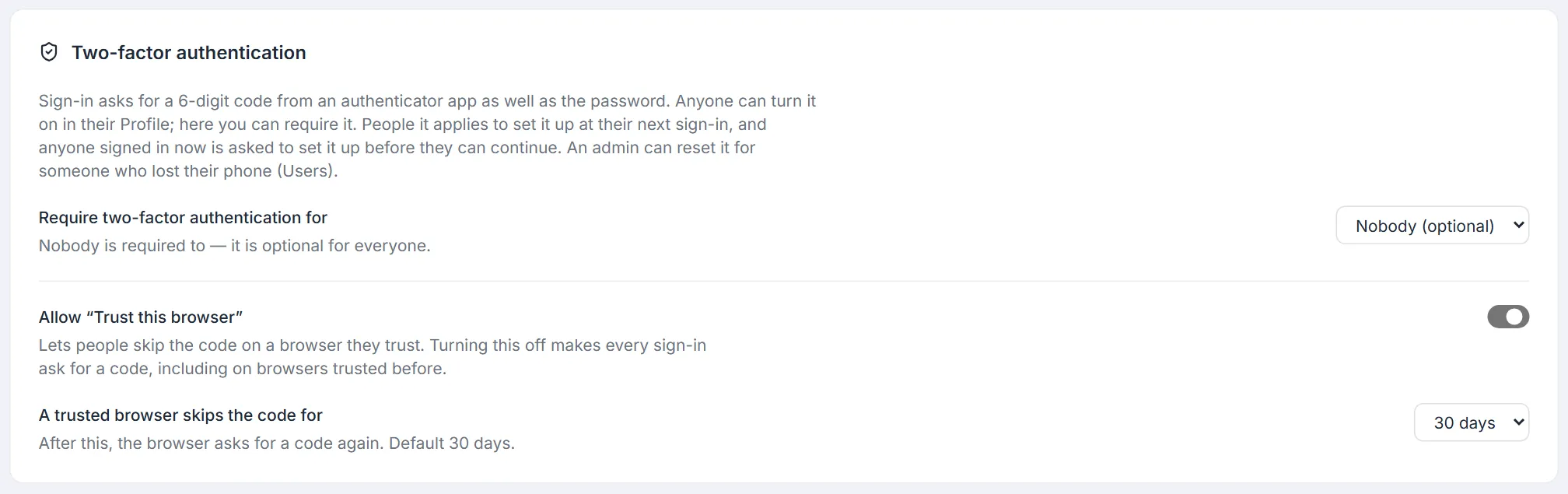
| Setting | Default | What it does |
|---|---|---|
| Require two-factor authentication for | Nobody (optional) | Admins only covers admins and the super admin; Everyone covers every account. People it applies to set it up at their next sign-in, and anyone signed in when you change it is asked to set it up before they can continue. While required, it cannot be turned off from Profile. |
| Allow “Trust this browser” | On | Lets people skip the code on a browser they trust. Turning it off makes every sign-in ask for a code, including on browsers trusted before. |
| A trusted browser skips the code for | 30 days | How long a trusted browser skips the code (7–90 days). Shortening it applies to browsers trusted earlier too. |
Changes are recorded in the Audit Log. Someone who lost their phone and their recovery codes is reset from Users.
Sign-in attempts are limited. Five wrong passwords or codes in a row pause sign-in for that account for a minute; ten for five minutes; fifteen for fifteen; after twenty, an hour after each further failure. A completed sign-in resets the count. When wrong codes pause an account, its owner gets an email — the password was right, so someone may know it.
Where the secrets live. Authenticator secrets are stored encrypted in the project’s .testver/users.db, with a key kept outside the project. Recovery codes are stored hashed. Where the key comes from depends on how Testver runs:
| How Testver runs | The key | What you do |
|---|---|---|
testver serve / PM2 on a machine | ~/.testver/2fa.key of the account running Testver, created the first time someone turns 2FA on | Nothing — it stays across restarts and upgrades. Moving to another machine: copy the file along with the project. |
testver deploy docker / production | TESTVER_2FA_KEY in .testver-deploy/.env, written automatically by the deploy (and by testver deploy update for older deployments) | Back up .testver-deploy/.env, never change the value. The file is git-ignored. |
| Testver Cloud workspace | TESTVER_2FA_KEY, installed by Testver Cloud on every server the workspace runs on | Nothing. |
| Your own container or host | Set TESTVER_2FA_KEY yourself (any value, 16+ characters) | Keep it with the deployment’s other secrets; never change it. |
If the key is lost or changed, nobody is locked out for good: people sign in with a recovery code and set 2FA up again, or an admin resets them. Moving from the key file to TESTVER_2FA_KEY is safe: while the old file is still there, Testver reads secrets made with it and moves each one to the new key the next time it is used.
Sign-in files and git. Testver keeps a .testver/.gitignore that lists users.db and auth-secret.key, so they stay out of commits while the rest of .testver can be shared. If they were already committed, the card shows a warning with the command to stop tracking them (git rm --cached …). If that repository was ever pushed or shared, also delete .testver/auth-secret.key and restart Testver so everyone signs in again with a new key.
General Tab: App Mode
Section titled “General Tab: App Mode”The App Mode card is the last card on the General tab. App Mode controls which Testver surfaces are visible across the entire workspace — the Runner, Recorder, Schedules, and AI Assistant pickers all adapt to this setting. The card shows when the mode was last changed.

| Option | What it does |
|---|---|
| Web tile | Sets the workspace to web testing only — shows just the web testing UI. Accented in sky blue. |
| Mobile tile | Sets the workspace to mobile testing only — shows just the mobile testing UI. Carries a Beta badge and an indigo accent. |
| Confirmation dialog | Clicking a different tile does not switch immediately. A Change App Mode? dialog appears explaining the impact before you confirm with Switch to <mode> (or Cancel). |
| Last changed date | Displayed at the top-right of the card when the mode has been set before, showing the date of the most recent change. |
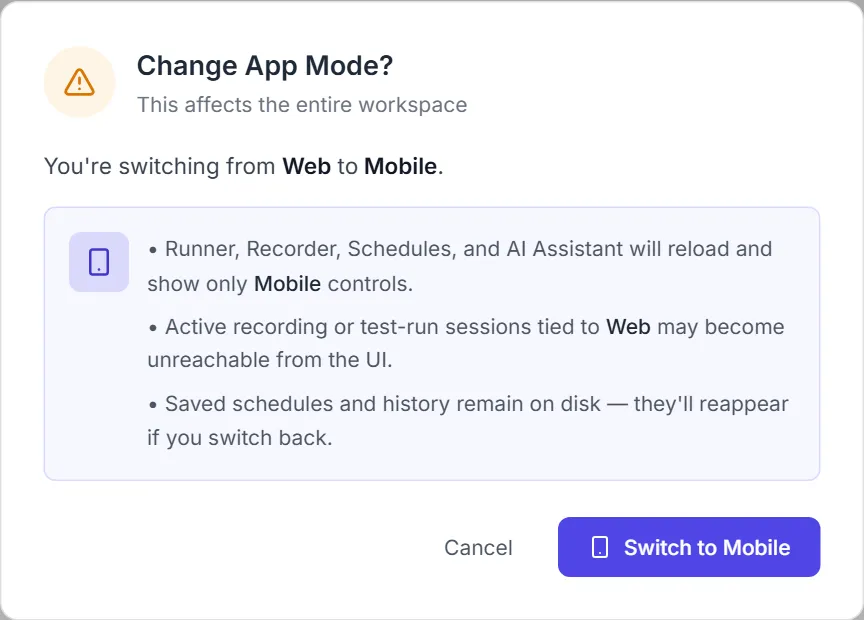
Appearance & Theme
Section titled “Appearance & Theme”Testver supports a light and a dark theme. The theme toggle flips between them, and your choice is remembered locally in the browser and applied instantly across the app — no save button required. The current theme is read on load so Settings always reflects what you last picked.
The toggle is the moon / sun icon in the top bar, next to Rescan and your user menu:

LLM Providers & Models
Section titled “LLM Providers & Models”The LLM tab is where you connect the AI behind Testver’s assistant, test generation, recording, and failure analysis.
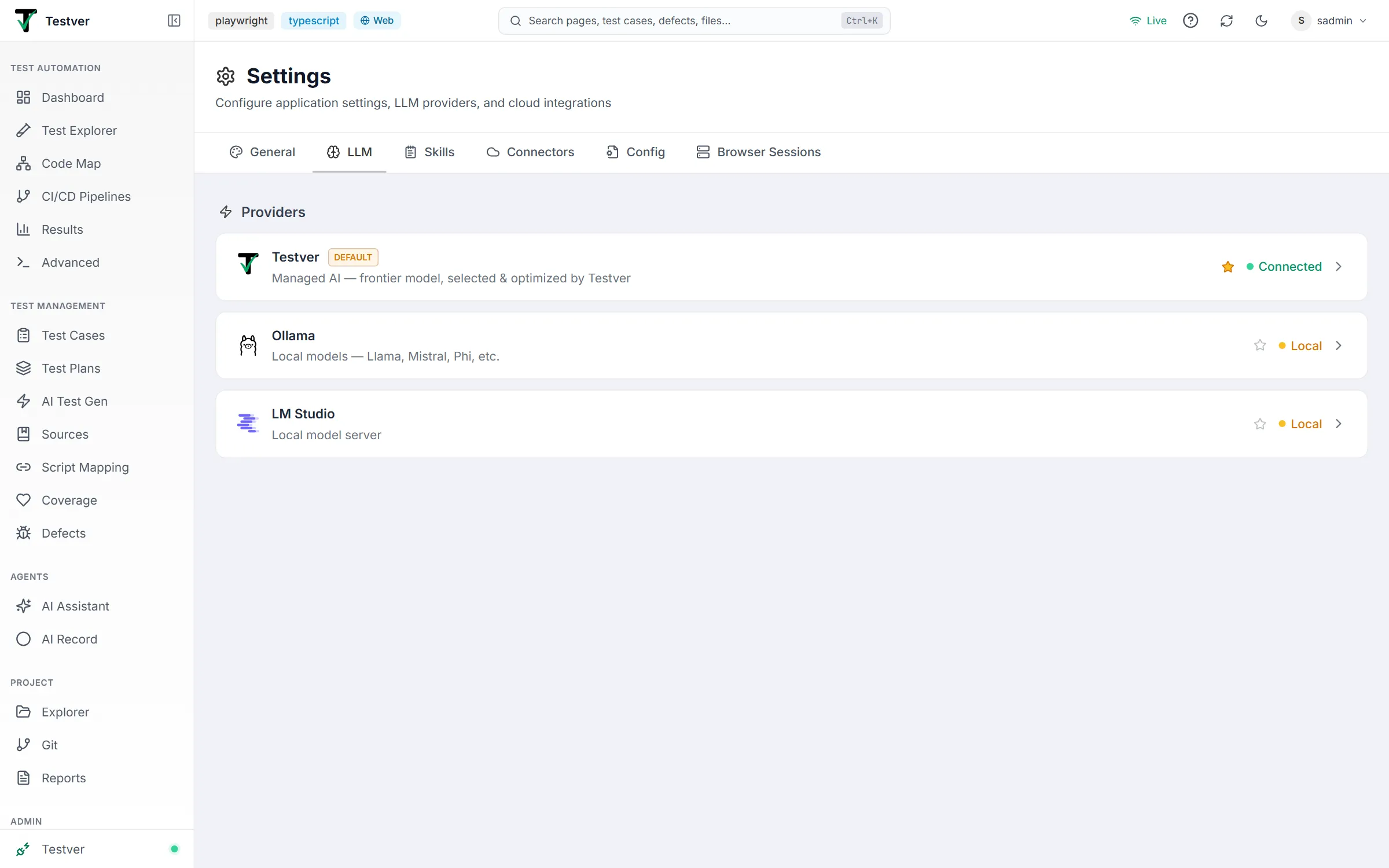
There are two kinds of provider, and only three cards in total:
| Provider | Kind | Needs a key? |
|---|---|---|
| Testver | Cloud — the only cloud option | Connect your Testver account |
| Ollama | Local (your machine) | No |
| LM Studio | Local (your machine) | No |
You don’t bring your own model-vendor key. Testver supplies the cloud model itself, already selected and tuned for test automation. Non-admin users see the Testver card only; administrators additionally see the two local providers.
See the LLM tab guide for provider status meanings, setting the default, model libraries, base URLs, timeouts, and testing a local provider.
Skills & Connectors
Section titled “Skills & Connectors”Two of the Settings tabs are documented on their own pages because each is a substantial topic:
| Tab | Guide | What you’ll do there |
|---|---|---|
| Skills | Skills | Add, edit, and enable reusable AI behaviors for the AI Assistant. |
| Connectors | Connectors | Link cloud device grids, local Appium devices, JIRA, Slack and email. |
Config & Browser Sessions
Section titled “Config & Browser Sessions”Two more tabs have their own guides:
| Tab | Guide | What you’ll do there |
|---|---|---|
| Config | Config | Edit the environment and config files your tests read at runtime. |
| Browser Sessions | Browser Sessions | See and close live browser processes — server-side, local-connector, test runs, the browsers they open, and orphaned leftovers. |
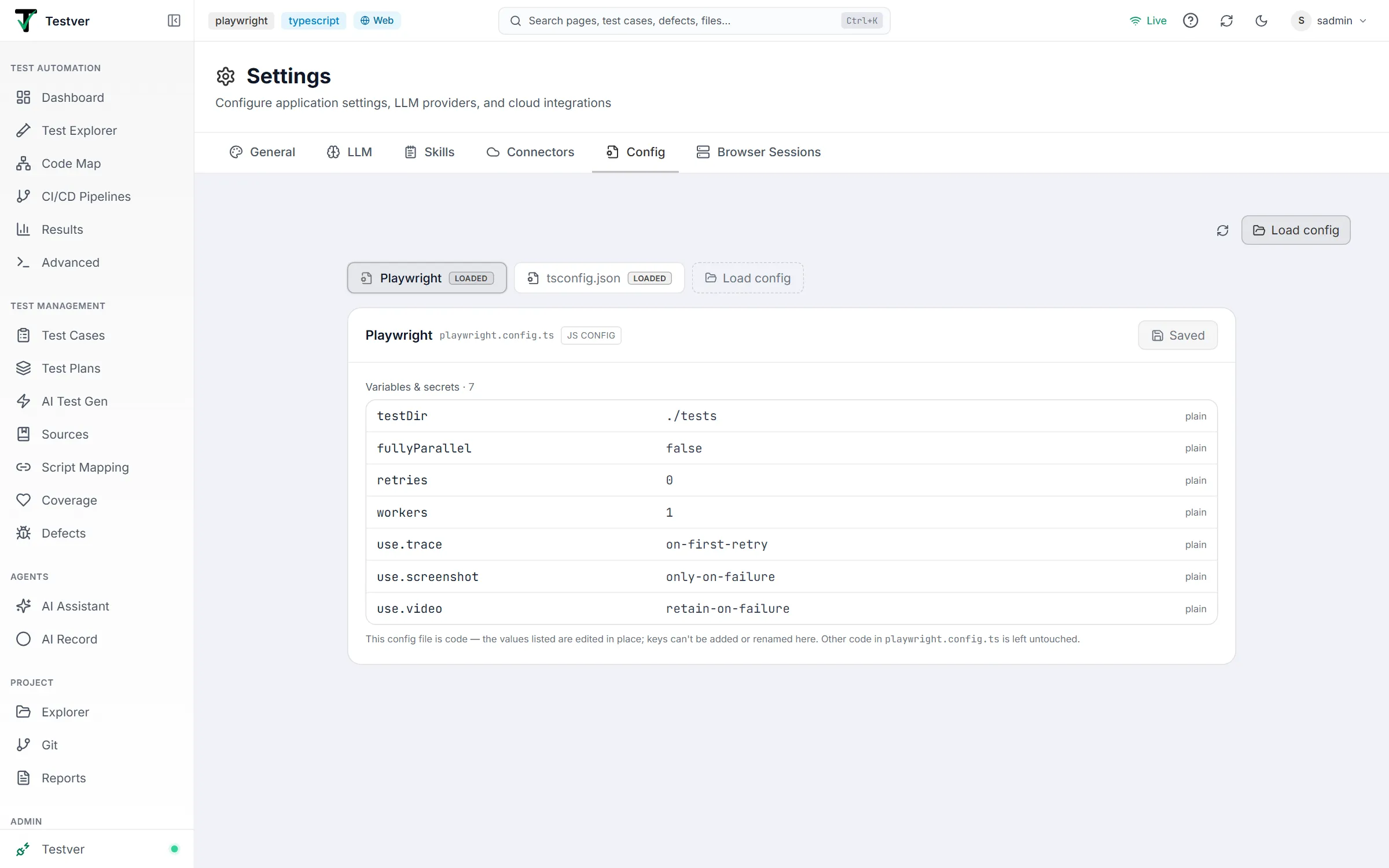
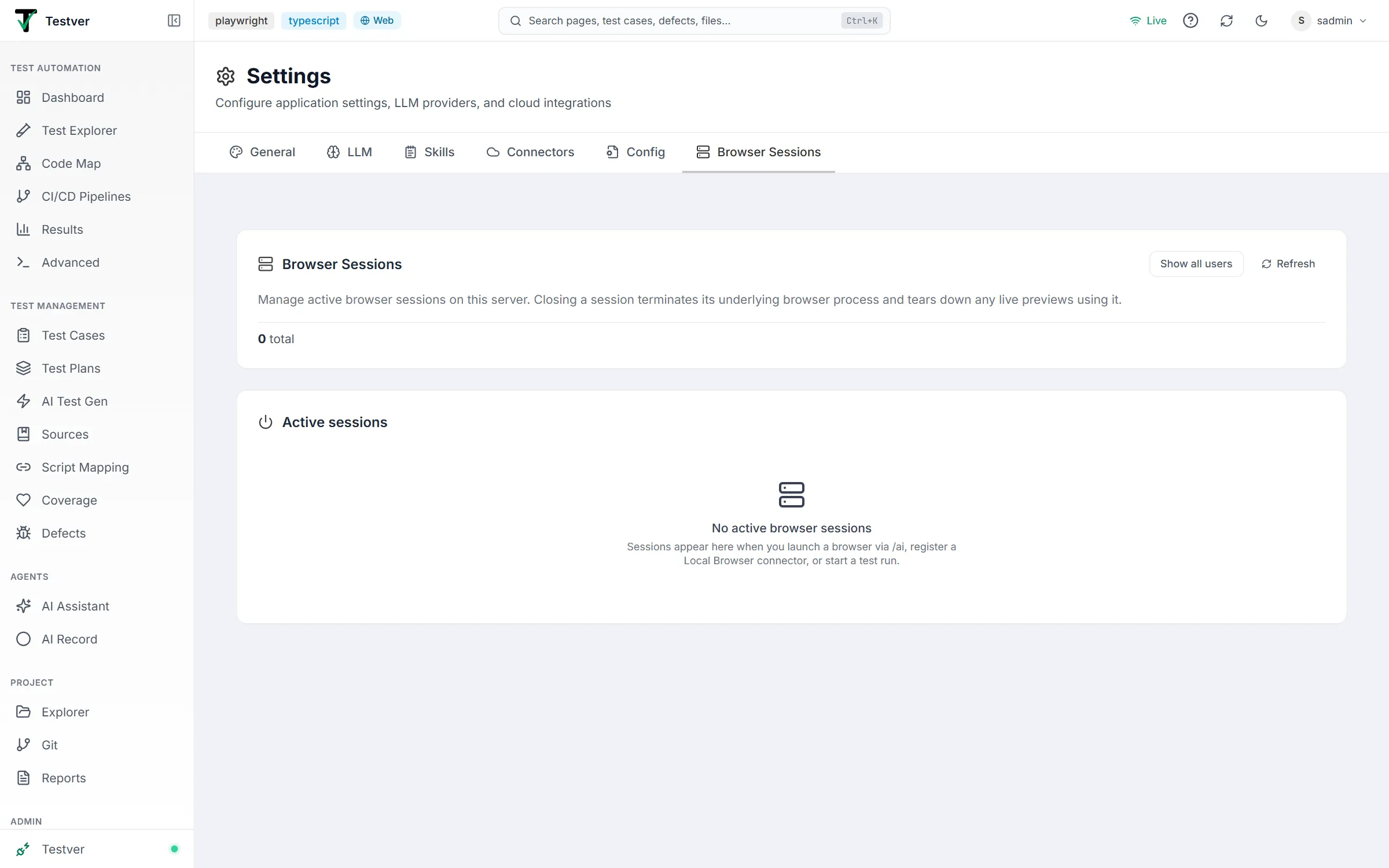
Both are usable by every role, not just administrators — unchanged from when they lived on the Manage screen.
Common Tasks (How Do I…?)
Section titled “Common Tasks (How Do I…?)”| I want to… | Do this |
|---|---|
| Fix how a single test runs | General → Run Configuration → Run Commands → Single Test, edit the command (use placeholder tokens), click Test, then Save Run Configuration. |
| Let AI figure out my run commands | General → Run Configuration → Run Commands → Suggest with AI, review each suggestion, click Apply or Apply all, then Save Run Configuration. |
| Get the right browsers and environments for my project | General → Run Configuration → Browsers / Environments → Suggest (reads your code), Apply, then Save Run Configuration. Red warnings on saved entries mark ones your code won’t accept. |
| Add environment variables for test runs | General → Run Configuration → Advanced Settings → Environment Variables → Add Variable, fill KEY and value, then Save Run Configuration. |
| Run a build step before tests | General → Run Configuration → Advanced Settings → Before Command, enter the command, then Save Run Configuration. |
| Connect Testver AI | Testver → Connections, click Connect to Testver and approve on testver.com. The LLM tab then shows the connection and your credits. |
| Add a model to a provider | LLM, expand the provider, type the model’s exact name in the add-model box, press Enter, star it to make it active, then Save. |
| Remove a model | LLM, expand the provider, click the X on its chip, then Save. Removing the last one is fine — the provider just drops out of the model pickers until you add another. |
| Choose the default AI provider | LLM, click the star on the provider card you want as default — it switches immediately. |
| Use a local model (Ollama / LM Studio) | LLM, expand Ollama or LM Studio, set the Base URL if it isn’t the default, add the model name, then Save — no key needed. |
| Switch between Web and Mobile | General → App Mode, click the other tile, and confirm in the dialog. |
| Switch light/dark theme | Click the moon / sun icon in the top bar — it applies instantly. |
| See which browsers Testver is running | Browser Sessions — the list auto-refreshes; click Refresh to update now. |
| Close a stuck browser | Browser Sessions, click Close on the row and confirm; or use Bulk close → My sessions. |
| Keep a Playwright trace for every failed test | General → API & Network Traces → Auto-capture traces (on by default). For Java or .NET, save the trace from your test code, named after the test. |
Tips & Best Practices
Section titled “Tips & Best Practices”- Use the Test button on each run command and Test Connection on each local provider before relying on them — it catches typos and wrong URLs early.
- Prefer placeholder tokens (
{file},{test},{posixFile}) over hard-coded paths so commands stay portable across machines. - On Windows with WebdriverIO, use
{posixFile}for the--specargument to avoid backslash issues. - Let Suggest with AI do the first draft of your run commands, then refine — it can reuse existing
package.jsonscripts. - Keep a small, focused model library per provider and star the one you actually use as the active model.
- For admins: prefer Idle > 30m over All sessions to reclaim resources without disrupting active users.
- Confirm Project Information matches the codebase you intend to test before configuring anything else.
Troubleshooting & FAQ
Section titled “Troubleshooting & FAQ”| Problem | Likely cause & fix |
|---|---|
| A run command fails the Test | The binary or script can’t be resolved. Check the command, install missing dependencies, or Reset to the auto-detected default and re-test. |
| My edited command keeps reverting to the default | It only saves as a custom override if it differs from the auto-detected value. Make sure your edit is actually different, then click Save Run Configuration. |
| Suggest with AI shows an error | AI couldn’t analyze the project. Use the Try in the AI Assistant instead link, or open Discuss in AI Assistant to work it out interactively. |
| Test Connection fails for a local provider | Wrong Base URL, a model name the server doesn’t have, or the local server isn’t running. Confirm the URL and model name, and make sure Ollama / LM Studio is running. |
| App Mode change hid a surface I needed | App Mode is workspace-wide. Switch back via General → App Mode; saved schedules and history remain on disk and reappear. |
| A browser won’t appear in Browser Sessions | Sessions only show when you launch a browser via /ai, register a Local Browser connector, or start a test run. Click Refresh. |
| I closed a session but it’s still listed | Bulk close is graceful and waits up to 5s for in-flight actions. Wait for the auto-refresh or click Refresh. |
| The theme didn’t change | The theme is stored locally in your browser; clearing site data resets it. Toggle it again from the top bar. |
| A failed test has no Trace in Results | For TypeScript / JavaScript or pytest-playwright, check that Auto-capture traces is on and the test ran with playwright test or pytest (not through an npm script). For Java, .NET or Python without pytest-playwright, your test code must save the trace while the run is going, with the test’s name in the file name. |
| API & Network Traces says my project has no Playwright | Testver looks for Playwright in the dependency files (package.json, requirements / pyproject, pom.xml / build.gradle, .csproj) at the project root and up to two folders down. |
Related
Section titled “Related”- Local Browser Connector — token-based local browser routing.
- Connectors — external integrations.
- Admin → Users — user-level security.