

Users
Introduction
Section titled “Introduction”What is the Users screen?
Section titled “What is the Users screen?”The Users screen (titled User Management) is the control room for who can get into your Testver instance and what they are allowed to do once inside. From a single table you can add new users, change roles, reset passwords, enable or disable accounts, sign people out of every device, and delete accounts entirely.
It is the practical front end to Testver’s role-based access control. Every other screen quietly checks a user’s role before showing buttons or accepting changes; this is where those roles are assigned.
Who this guide is for
Section titled “Who this guide is for”- Admins responsible for onboarding teammates, assigning roles, and offboarding people who leave.
- Team leads deciding who should be a Tester versus a read-only Viewer.
- Anyone doing incident response who needs to disable an account or revoke sessions quickly.
Key terms
Section titled “Key terms”| Term | What it means |
|---|---|
| User | An account that can sign in to Testver, identified by a unique username. Users can also sign in with the email on their account. |
| Role | The permission level attached to a user — Super admin, Admin, Tester, or Viewer. Determines what the user can see and do. |
| Status | Whether an account is Active (can sign in) or Disabled (blocked from signing in). |
| Session | One active login on one device. An account can have several. Revoking sessions forces re-authentication. |
| Display name | Friendly name shown alongside the username throughout the app. Required when you create a user. |
| Initial password | The first password set when an account is created. The user can change it later from their own Profile. |
How access control works
Section titled “How access control works”Testver ships with four built-in roles arranged from most to least privileged: Super admin, Admin, Tester, Viewer. A user has exactly one role. Super admin is not assignable — it belongs to the account created at first-time setup. The role is checked server-side on every sensitive action, so it is a real security boundary, not just a UI hint.
Getting Started
Section titled “Getting Started”Opening the Users screen
Section titled “Opening the Users screen”- Sign in as an Admin or the Super admin.
- In the Admin group of the sidebar, choose Users (or press Ctrl + K and type
users). - The roster loads as a single table under the page header.
The screen layout
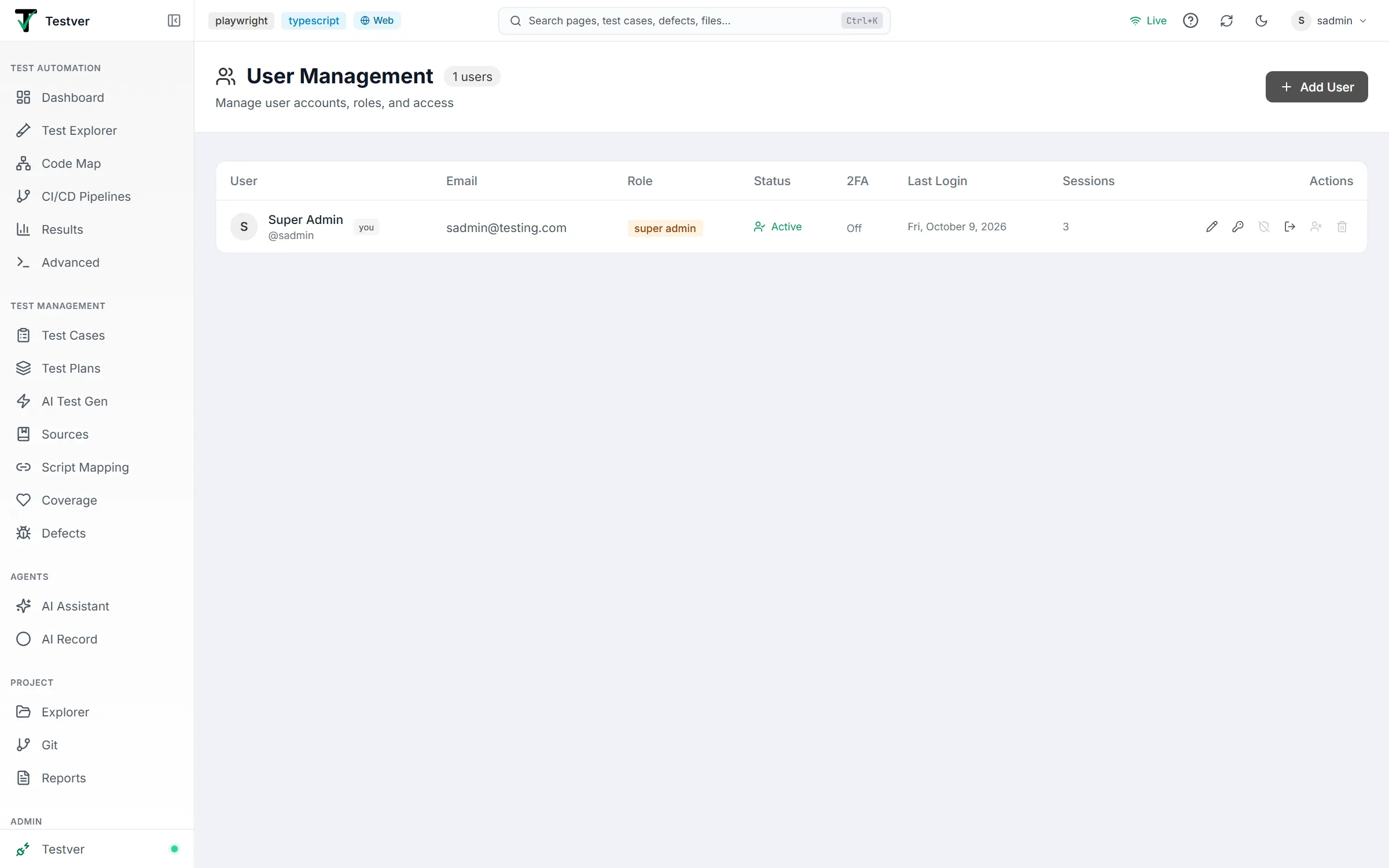
Section titled “The screen layout”Users is a single-screen table view. The header shows User Management with a count badge (e.g. 1 users), the subtitle Manage user accounts, roles, and access, and the Add User button on the right; every other operation happens against a row in the table itself.
Roles in depth
Section titled “Roles in depth”Choosing the right role for each teammate is the most important decision on this screen. Here is exactly what each role can and cannot do.
Testver has four roles:
| Role | Badge | Who has it |
|---|---|---|
| Super admin | Yellow | The single account created during first-time setup. Cannot be assigned to anyone else. |
| Admin | Brand | Anyone a super admin promotes. Full access to user management, the audit log, and settings. |
| Tester | Green | The working role — authors and runs tests. |
| Viewer | Grey | Read-only. |
Super admin
Section titled “Super admin”The super admin is the account created when Testver was first set up. It is displayed as super admin with a yellow badge, and it is deliberately protected:
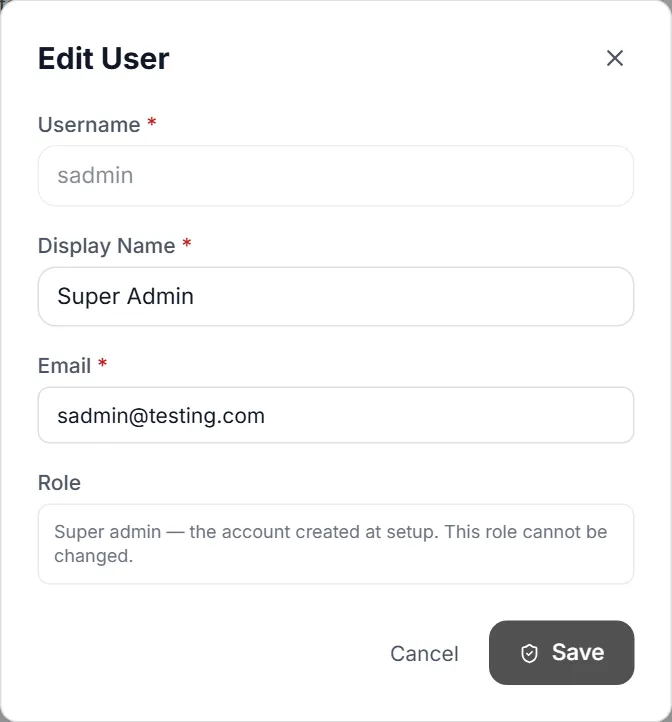
- Its role cannot be changed. Opening it for edit shows the message “Super admin — the account created at setup. This role cannot be changed.” instead of a role picker.
- It cannot be disabled or deleted by anyone, including itself. There is always at least one account that can administer the instance.
- Only a super admin can manage other Admins. A regular Admin can manage Testers and Viewers, but cannot edit, disable, or change the role of another Admin — and cannot promote anyone to Admin. That option is hidden from the role picker unless you are the super admin.
Full access. An Admin can do everything a Tester can, plus:
- User management — this screen.
- Audit Log — read the full, all-users audit trail.
- All-user Browser Sessions — view and close any browser session, including those owned by test runs.
- Settings (write) — LLM providers, org-level connector configuration, Run Configuration, and other instance settings — including applying or dismissing changes the AI Assistant suggested to existing Browsers & Environments entries.
Tester
Section titled “Tester”The day-to-day testing role — the right default for most teammates. A Tester can:
-
Read everything in the project.
-
Create, edit, and run test cases, plans, and executions.
-
Use AI Assistant, AI Record, and AI Test Gen.
-
Edit project files in Project Explorer and commit via Git.
-
Run tests via the Runner and Schedules.
-
File and edit Defects.
-
Build Reports.
-
Use the Code Map AI assists, curate Test Data (add or ignore files), and reveal masked secret values in a Test Data preview — every reveal is recorded in the Audit Log.
-
Have the AI Assistant add Browsers & Environments to Run Configuration. New names are saved; a change to an existing entry waits in Settings for an Admin.
-
Manage their own Profile and Local Browser Connector tokens. A Tester cannot:
-
Manage users.
-
Read the Audit Log.
-
Change org-level Settings.
Viewer
Section titled “Viewer”Read-only access, ideal for stakeholders who want visibility without the ability to change anything. A Viewer can:
- View test cases, plans, results, defects, and dashboards. A Viewer cannot run, edit, create, or use any AI feature that consumes tokens — including the Code Map AI assists. Viewers also cannot curate Test Data or reveal masked secret values (they see them masked).
The user table
Section titled “The user table”Each row in the table represents one account and shows:

- User — an avatar initial, the display name and the @username; your own row carries a you tag.
- Email — the address on the account (a dash when there is none).
- Role — a badge: super admin, admin, tester, or viewer.
- Status — Active or Disabled.
- 2FA — On when the account signs in with an authenticator code; Not set up (amber) when the workspace requires it and the person has not set it up yet (they do at their next sign-in); Off otherwise.
- Last Login — the date of the last sign-in, or Never.
- Sessions — how many sessions the account has open right now.
- Actions — the row’s action icons (see Per-row actions).
Creating a user
Section titled “Creating a user”Click Add User in the page header to open the Create User dialog.
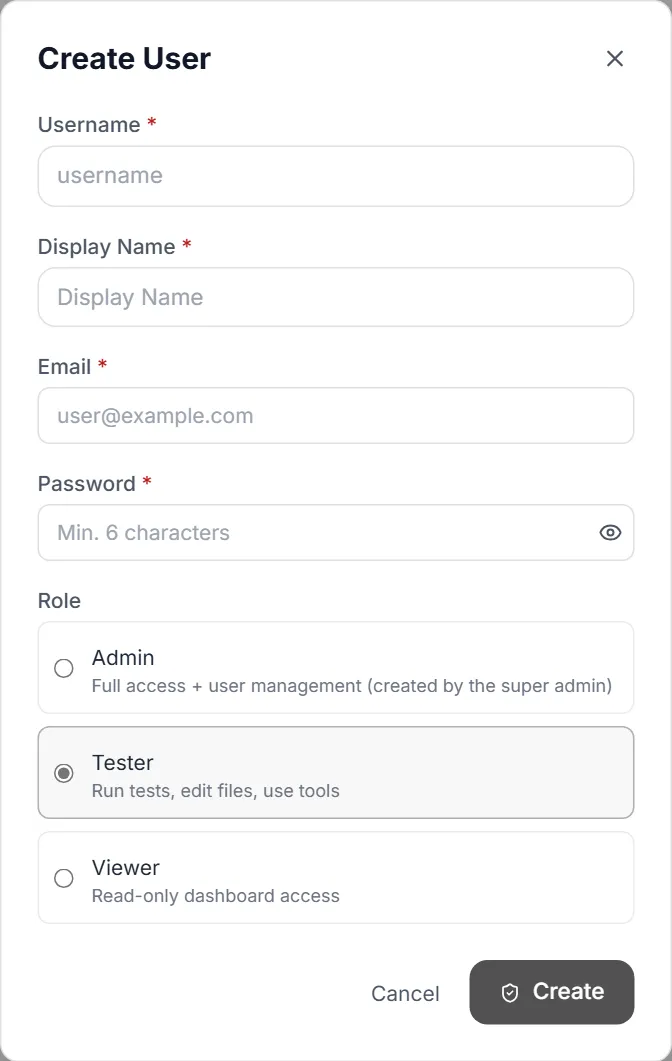
| Field | Required? | Notes |
|---|---|---|
| Username | Required | Must be unique. This becomes the login handle and cannot be changed later. |
| Display Name | Required | Friendly name shown next to the username. |
| Required | Used for password-reset links, sign-in by email, and any configured notifications. Must not belong to another account. | |
| Password | Required | The initial password (Min. 6 characters). Share it securely; the user can change it from their Profile. |
| Role | Required | A single pick — Admin (Full access + user management; only offered to the super admin), Tester (Run tests, edit files, use tools; selected by default), or Viewer (Read-only dashboard access). |
- Fill in the fields above.
- Pick the appropriate role (default to Tester unless there is a reason not to).
- Click Create — the new user appears in the table immediately and can sign in right away. Cancel or the ✕ closes the dialog without creating anyone.
Per-row actions
Section titled “Per-row actions”Each row ends with a set of icon buttons — hover one to see its name. A button is greyed out when it doesn’t apply (for example, Disable user and Delete user are always greyed out on the super admin’s row).
| Action (icon) | What it does |
|---|---|
| Edit user (pencil) | Open the Edit User dialog to change display name, email and role, then Save. The username is shown greyed out — it cannot be edited. For the super admin the role picker is replaced by a note that the role cannot be changed. |
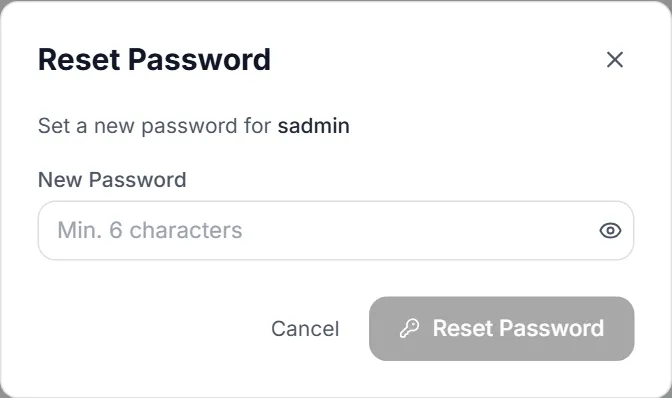
| Reset password (key) | Opens the Reset Password dialog — one New Password field and a Reset Password button. Sets a new password for the user — useful when someone is locked out, or has no email on file for the self-service Forgot password? link on the sign-in page. If the user has an email, they receive a notice that an administrator changed their password. |
| Reset two-factor authentication (crossed-out shield) | After a confirmation, turn off the user’s two-factor authentication when they lost their phone and their recovery codes. Their authenticator entry, recovery codes and trusted browsers stop working; if the workspace requires 2FA they set it up again at their next sign-in, otherwise they sign in with just the password. They are told by email when email is set up. The same rules as Reset password apply: only the super admin resets an admin’s, and nobody resets their own here (use Profile) or the super admin’s (see below). |
| Revoke sessions (sign-out arrow) | Sign the user out of every device immediately — no confirmation. Their next request requires a fresh sign-in. Greyed out when the user has no sessions. |
| Disable user / Enable user (person icon) | After a Disable User / Enable User confirmation, disable or re-enable the account. A disabled account cannot sign in, and disabling also revokes all of its active sessions. Not available for the super admin. |
| Delete user (trash can) | After a Delete User confirmation (This action cannot be undone), permanently remove the account along with all its sessions. Not available for yourself or the super admin. |
If the super admin loses their second factor
Section titled “If the super admin loses their second factor”The super admin’s two-factor authentication cannot be reset from the Users screen — that would let any admin take over the top account. The super admin signs in with a recovery code instead. If those are gone too, whoever runs the Testver server can reset it there, from the project folder Testver serves:
testver users reset-2fa <username>testver users list shows every account and whether 2FA is on. Both accept --project <path>; the reset is recorded in the Audit Log.
Common workflows
Section titled “Common workflows”Onboarding a new teammate
Section titled “Onboarding a new teammate”- Click Add User.
- Enter a username, display name and email.
- Set an initial password.
- Keep Tester (the default) and click Create.
- Share the credentials securely and ask them to change the password on first sign-in.
Offboarding someone who left
Section titled “Offboarding someone who left”- Find their row.
- Click Disable user and confirm — they are signed out everywhere instantly and cannot sign back in.
- Keep the account disabled (don’t delete) if there’s any chance they return; delete only once you’re certain.
Promoting a Tester to Admin
Section titled “Promoting a Tester to Admin”- Sign in as the super admin — only the super admin can make someone an Admin.
- Open the user’s Edit user dialog.
- Change Role to Admin.
- Click Save. Keep the admin group small — one or two people is plenty for most teams.
Tips & best practices
Section titled “Tips & best practices”- Default to the Tester role for most teammates. Reserve Admin for one or two trusted people, and use Viewer for stakeholders who only need to look.
- Disable when offboarding. Disabling signs the user out instantly and stops them coming back. It is reversible; deletion is not, so prefer disabling unless you are certain.
- Review the roster periodically — remove or disable accounts that are no longer needed to keep your attack surface small.
- Cross-check changes in the Audit Log. Every user-management action is recorded there, which is invaluable during security reviews.
Troubleshooting
Section titled “Troubleshooting”| Symptom | Likely cause & fix |
|---|---|
| I can’t see the Users screen | Your account is not an Admin. Ask the super admin (or an Admin) to change your role. |
| ”Username already exists” on create | Usernames must be unique. Pick a different handle — usernames cannot be reused while the account exists. |
| ”Email already in use by @…” | Each email belongs to one account. Use a different address, or change it on the other account first. |
| The Admin role isn’t offered, or an Admin’s row is greyed out | Only the super admin can create, edit or manage Admins. |
| I can’t change a username | Usernames are immutable. Create a new account if a different handle is essential, then disable the old one. |
| I deleted a user by mistake | Deletion is irreversible. Recreate the account; its prior personal data (sessions, chat) does not come back. |
| A new user can’t sign in | Confirm the account is Active and that you shared the exact initial password. Reset password if in doubt. |
Frequently asked questions
Section titled “Frequently asked questions”Can a user have more than one role?
Section titled “Can a user have more than one role?”No. Each account has exactly one role. Change it in the Edit User dialog when responsibilities change.
Can admins read other users’ AI chats or recordings?
Section titled “Can admins read other users’ AI chats or recordings?”No. Those are personal and user-scoped. Admins manage accounts, roles, and sessions — not personal content.
What happens to a user’s data when I delete them?
Section titled “What happens to a user’s data when I delete them?”The account and its sessions are removed. Deletion is irreversible, so prefer disabling unless you are certain the account is gone for good.
Is every change here logged?
Section titled “Is every change here logged?”Yes. User creation, role changes, and enable/disable/delete actions are recorded in the Audit Log for later review.
Related
Section titled “Related”- Audit Log — what users did.
- Profile — per-user view.
- Local Browser Connector — per-user token management.