

AI Test Gen
Introduction
Section titled “Introduction”What is AI Test Generation?
Section titled “What is AI Test Generation?”The AI Test Generation screen (titled AI-Powered Test Case Generation at the top of the page) is where Testver uses an AI model to write test cases for you. Instead of authoring every test case by hand, you point the AI at material you already have — a requirement document, a note, a JIRA ticket, or even your existing automation scripts — and it produces a list of structured test cases (title, priority, type, preconditions, and numbered steps with expected results) that you can review, refine, and save into your catalog.
Think of it like handing a thorough QA analyst a stack of requirements and saying “draft me the test cases.” They read each requirement, think through the happy path, the negative cases, the boundaries, and the error handling, then hand you a tidy stack of draft test cases. You stay in control: you read each one, keep the good ones, drop the rest, and file them where they belong. The AI does the typing; you do the judging.
Who this guide is for
Section titled “Who this guide is for”This guide is for anyone who wants to produce test cases faster:
- QA engineers and testers who want a strong first draft of test cases from a requirement instead of starting at a blank page.
- Business analysts and product owners who have written requirements, notes, or JIRA tickets and want to see what coverage they imply.
- Automation engineers who already have test scripts and want matching manual test cases extracted from them (the Reverse Engineer mode).
- Test leads who want to spot coverage gaps — the traceability matrix shows which requirements are covered by which test strategies. No coding is required to use this screen. You do need source material already loaded into Testver (for the From Sources mode) or discovered automation scripts (for the Reverse Engineer mode).
Key terms
Section titled “Key terms”| Term | What it means on this screen |
|---|---|
| Source | A piece of input material already stored in Testver — a Requirement, a Note, a JIRA ticket, or a Document. You manage these on the Sources page. The AI reads the selected source to write test cases. |
| Mode | Which generation flow you are using. Two modes exist: From Sources (generate from requirements/notes/documents) and Reverse Engineer (extract test cases from automation scripts). |
| Generated test case | A draft test case produced by the AI. It typically has a title, priority, type, optional description, tags, preconditions, and a list of numbered steps (each with an action, an expected result, and optional test data). These are not saved until you choose to save them. |
| Streaming | Generation is live. Each test case appears in the list the moment the AI finishes writing it, rather than waiting for the whole batch. A progress banner shows elapsed time and how far along the pipeline is. |
| Requirement (extracted) | When generating from sources, the AI first reads the source and breaks it into individual requirements (each gets an ID like REQ-1). Test cases are then generated per requirement. |
| Strategy | The testing angle a test case takes — for example happy-path, negative, boundary, equivalence, error-handling, security, performance, accessibility, compatibility, integration, or data-validation. Each generated test is tagged with one strategy (shown as a cyan chip). |
| Persona | A user role a test applies to (shown as a violet chip when present). Used as a filter dimension. |
| Priority | How important the test is: critical, high, medium, or low (shown as a colored chip). |
| Type | The test category: functional, regression, smoke, integration, e2e, api, performance, or security (shown as a colored chip). |
| Auto Save | An option that, when ticked, saves the generated test cases automatically as soon as generation finishes — no manual Save click needed. |
| Incremental mode | An option that tells the AI to skip requirements that already have matching test cases (matched by a source-quote fingerprint). Useful when you edited a source and only want tests for what changed. |
| Target Folder | The catalog folder the saved test cases will land in. Defaults to root (no folder). |
| Traceability matrix | A grid shown after generation that maps each extracted requirement against each test strategy, so you can see coverage and spot gaps at a glance. |
| Mapped (Reverse Engineer) | An automation test that is already linked to a test case. Mapped tests are dimmed and cannot be re-selected for reverse engineering, to avoid duplicating work. |
How it works
Section titled “How it works”At a high level, the screen takes one kind of input and produces one kind of output, depending on the mode you pick:
| Mode | What you give it (input) | What it produces (output) |
|---|---|---|
| From Sources | One selected source (a Requirement, Note, JIRA ticket, or Document) already stored in Testver. | A set of draft test cases grouped by the requirements the AI extracted from that source, each tagged with a strategy and priority, plus a traceability matrix. |
| Reverse Engineer | One or more automation script files (or individual tests within them), selected from the discovered test suites. | Draft manual test cases reverse-engineered from those scripts, each tagged with the source script it came from. |
In both modes the flow is the same: choose your input, set options (target folder, auto-save, and for sources, incremental mode), click the generate button, watch results stream in live, review and filter them, then save the ones you want into your catalog.
Getting Started
Section titled “Getting Started”Opening AI Test Generation
Section titled “Opening AI Test Generation”- From the Testver navigation, go to the AI Test Generation area (route
/ai-test-gen). - The page header reads AI-Powered Test Case Generation with the subtitle “Generate, review, and optimize test cases with artificial intelligence.”
- Below the header you land directly on the single Generate flow — there is no tab bar to navigate.
- Pick a mode at the top: From Sources or Reverse Engineer. From Sources is selected by default.
The screen layout
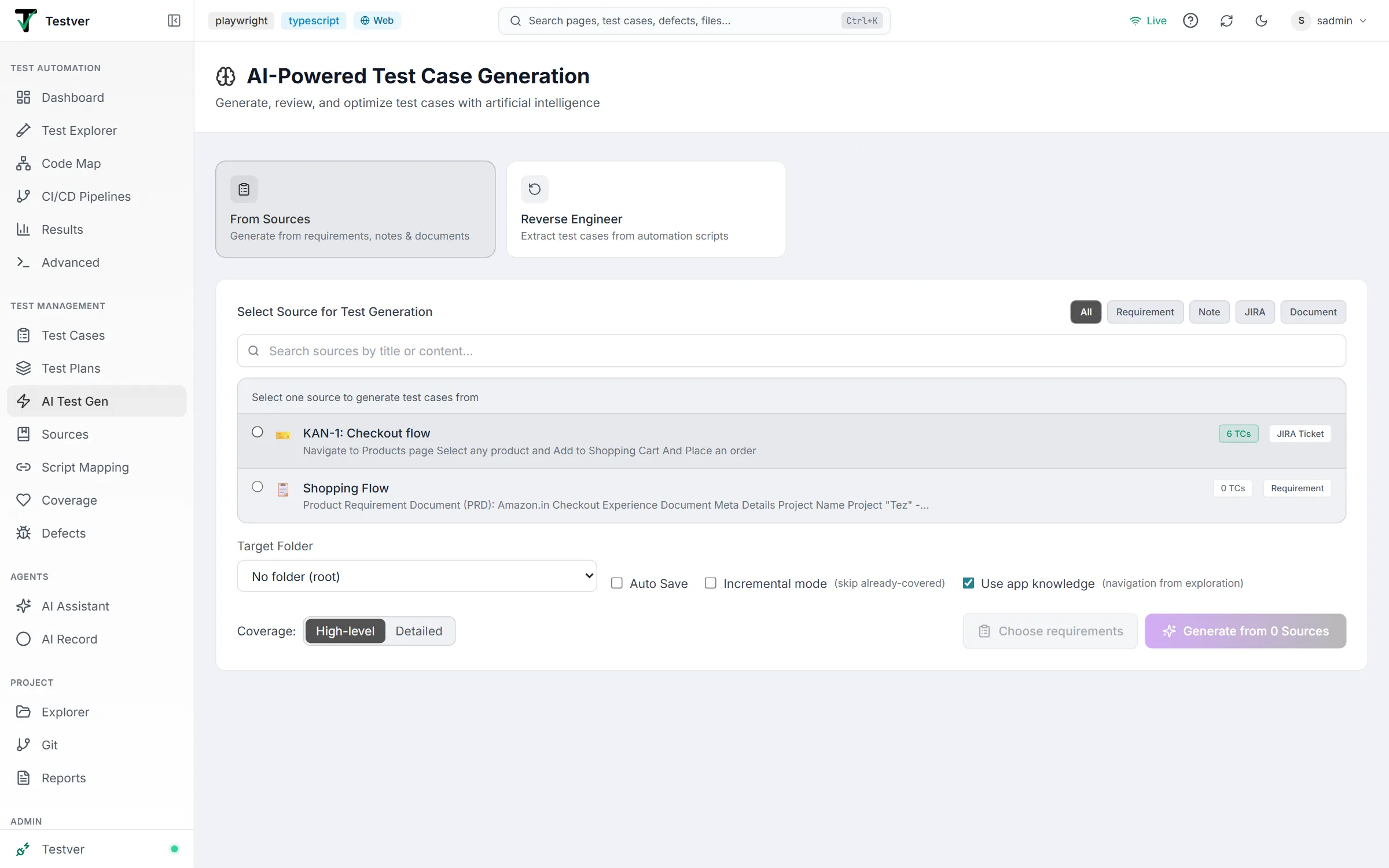
Section titled “The screen layout”
| Area | Location | What it does |
|---|---|---|
| Page header | Top, full width | Shows the brain icon, the title AI-Powered Test Case Generation, and a one-line description. |
| Mode selector | Top of content area | Two cards: From Sources (clipboard icon) and Reverse Engineer (rotate icon). Click one to switch the form below. |
| Mode form | Center panel | The input form for the active mode — a source picker for From Sources, or a script/test list for Reverse Engineer. Includes the options row and the generate button. |
| Options row | Bottom of the form | Target Folder dropdown plus the Auto Save checkbox; in From Sources mode also the Incremental mode and Use app knowledge checkboxes. |
| Coverage toggle | Bottom-left of the From Sources form | High-level (the default) or Detailed — how deep each requirement is covered. |
| Generate button | Bottom-right of the form | The purple gradient button that starts generation. Its label reflects the mode and selection count. In From Sources mode a Choose requirements button sits next to it. |
| Success / error banners | Below the form | Green success banner (with an X to dismiss) or red error banner appear here after actions. |
| Streaming progress banner | Above and below the results | While generating, shows a spinner, elapsed time, current phase/requirement, and a Cancel button. |
| Requirement list | Below the form | Appears after Choose requirements — the extracted requirements with a Grounding column, to pick which ones to generate from. |
| Generated results | Below the form | The list of draft test cases, the filter bar, the summary/save bar, detected-domain cards, skipped-requirements list, and the traceability matrix. |
| Accepted view | Below the form | Replaces the results after you save — the created cases with their TC- ids, requirement links, grounding and automation verdicts, and the hand-off to automation. |
| Regeneration warning modal | Centered overlay | Pops up when you generate from a source that already has test cases while Incremental mode is off. |
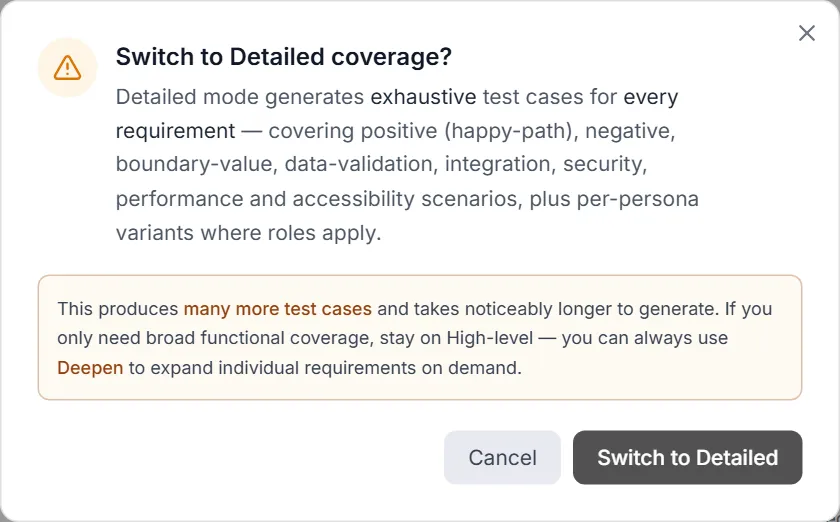
| Confirmation dialogs | Centered overlay | Switch to Detailed coverage? when you pick Detailed, and Cancel test generation? when you cancel a running generation. |
At a glance
Section titled “At a glance”- Two modes, one button: pick From Sources or Reverse Engineer, select your input, click generate.
- Results stream in live — you do not have to wait for the whole batch before reviewing.
- Nothing is saved until you click Save Selected or Save All (unless Auto Save is ticked).
- You can cancel mid-generation (after a confirmation) and keep whatever has already streamed in.
- After generation you can search, filter by strategy/priority/persona, and group results before saving.
Choosing Your Input (Generation Modes)
Section titled “Choosing Your Input (Generation Modes)”What you provide depends on the mode. Below are all the input fields and options for each mode exactly as they appear on the screen.
From Sources mode
Section titled “From Sources mode”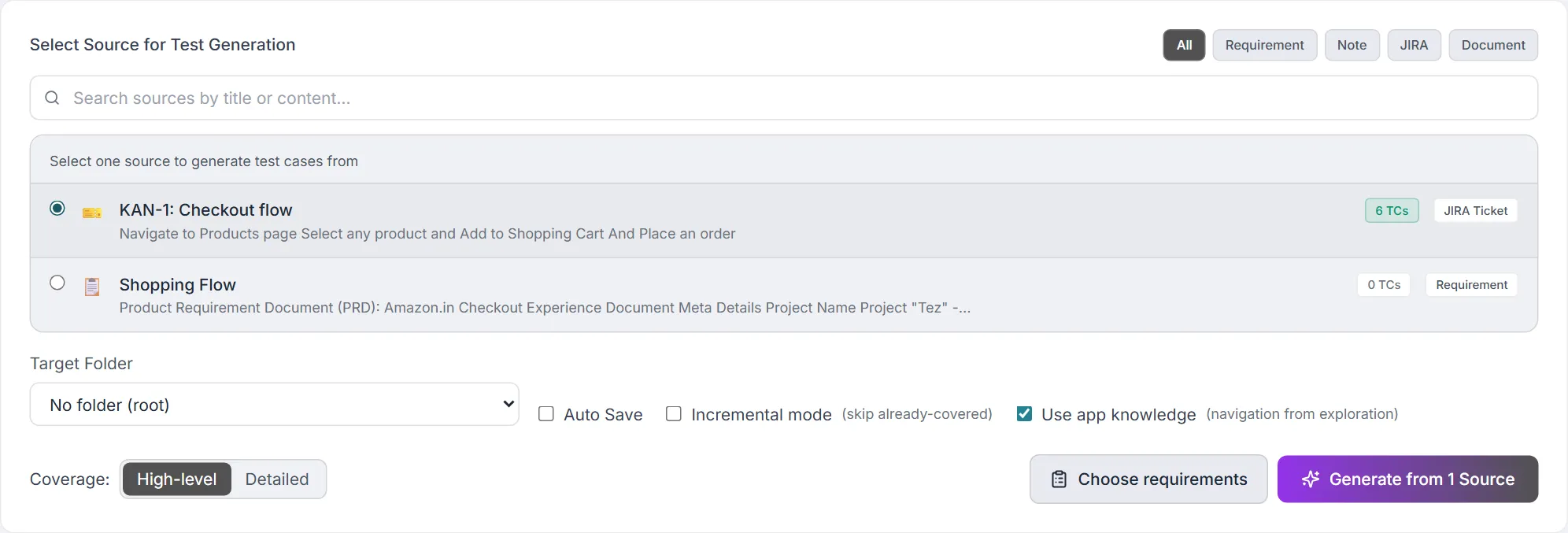

In From Sources mode you select exactly one source to generate from. The list shows your active sources and is filterable by type and searchable by text.
| Field / control | Type | What it does |
|---|---|---|
| Type filter chips | Buttons: All, Requirement, Note, JIRA, Document | Filter the source list to one source type, or All to show every type. Each source shows an emoji by type (Requirement, Note, JIRA Ticket, Document). |
| Search sources box | Text input | Search sources by title or content. Case-insensitive substring match against the source title and body. An X button clears the search. |
| Source list | Single-select radio list | Pick one source. Selecting a source replaces any previous selection. Each row shows the type icon, the title, a content preview (first 120 characters), a TC count badge, and the type label (Requirement, Note, JIRA Ticket, or Document). |
| TC count badge | Read-only badge per source | Shows how many test cases were already generated for that source. Emerald badge means it already has tests; grey means none yet. Used to warn you about re-generating. |
| Target Folder | Dropdown | Which catalog folder the saved tests go into. Options are No folder (root) plus your folder tree (indented by depth). Defaults to root. |
| Auto Save | Checkbox | When ticked, generated test cases are saved automatically as soon as generation finishes. When unticked, you save manually afterward. |
| Incremental mode | Checkbox (labeled “skip already-covered”) | When ticked, the AI skips requirements whose source quote already matches an existing test case. Useful after editing a source so you don’t re-pay for covered requirements. |
| Generate from N Sources | Button | Starts generation. Disabled until a source is selected or while a generation is in progress. The label reflects the selection count. |
| Use app knowledge | Checkbox (its hint shows what has been explored, or nothing explored yet) | Grounds the generated steps in what an exploration run actually observed — real page names, real control labels, which role can reach what. On by default when exploration data exists. See Grounding below. |
| Coverage | Toggle: High-level / Detailed | High-level (the default) asks for fewer, broader functional tests per requirement. Detailed asks for exhaustive coverage — happy-path, negative, boundary, data-validation, integration, security, performance and accessibility scenarios, plus per-persona variants. Clicking Detailed first opens a Switch to Detailed coverage? confirmation; Cancel keeps High-level. |
| Choose requirements | Button | Extracts the requirements first and shows them in a list, so you can pick which ones to generate from and see how much of each would be guesswork. See Choosing requirements first. |
Reverse Engineer mode
Section titled “Reverse Engineer mode”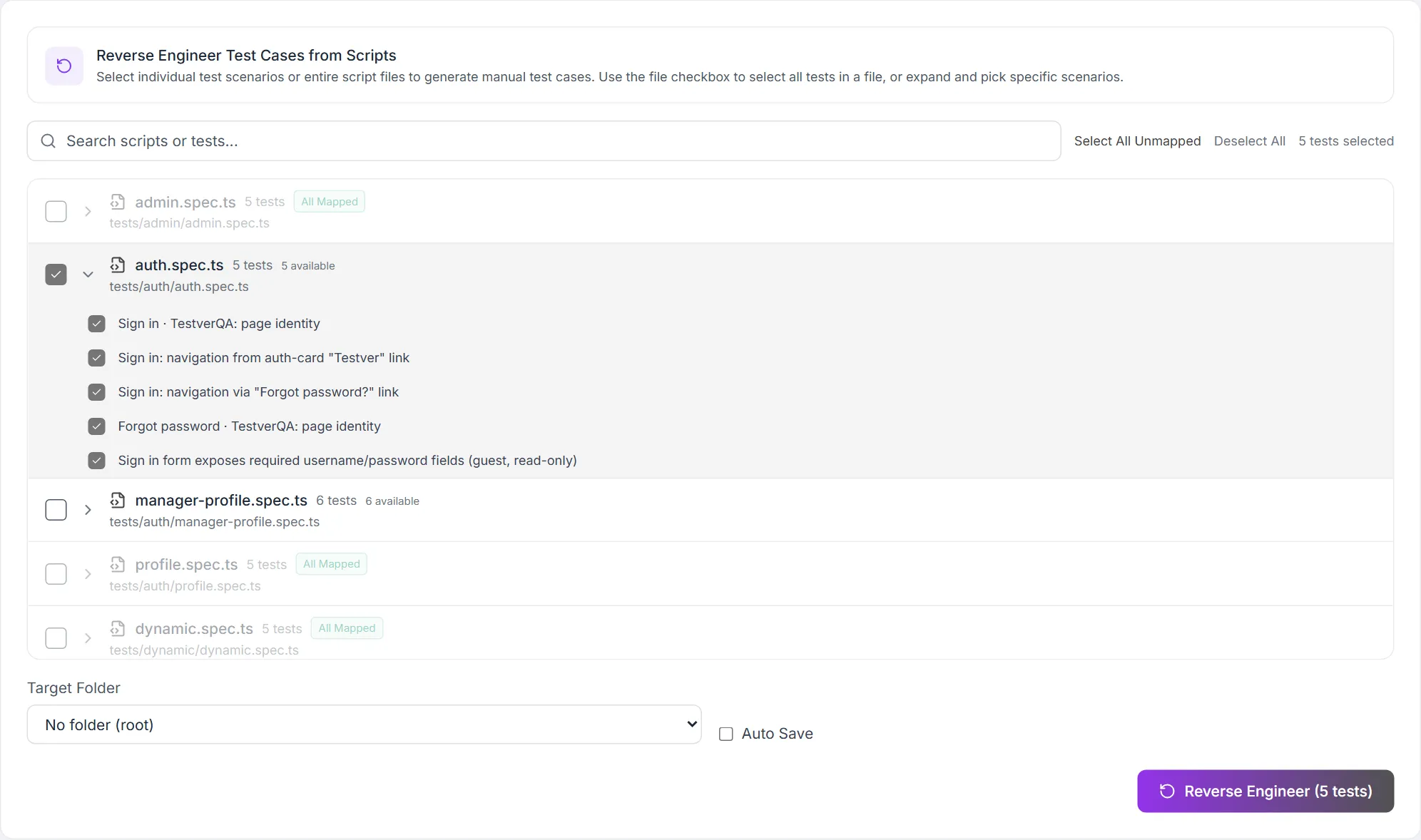
In Reverse Engineer mode you select existing automation tests (or whole script files), and the AI writes matching manual test cases from them. Tests that are already mapped to a test case are dimmed and cannot be selected.
| Field / control | Type | What it does |
|---|---|---|
| Info header | Static panel | Explains the mode: select individual scenarios or whole files to generate manual test cases. |
| Search scripts or tests | Text input | Filter the suite list by file path or test name (case-insensitive substring). |
| Select All Unmapped | Button | Selects every unmapped test across all visible suites. |
| Deselect All | Button | Clears the entire selection. |
| Selected count | Read-only text | Shows how many tests are currently selected. |
| File-level checkbox | Checkbox per script file | Selects or deselects all unmapped tests in that file. Shows a partial state when only some tests in the file are selected. Disabled for fully-mapped files. |
| Expand toggle | Chevron per file | Expands a file to show its individual tests so you can pick specific scenarios. |
| Individual test checkbox | Checkbox per test | Selects a single test scenario. Disabled (and the row dimmed) if that test is already mapped. |
| Mapping badges | Read-only badges | All Mapped (whole file already mapped, dimmed), N/M Mapped (partially mapped, amber), or “N available” (count of unmapped tests). |
| Target Folder | Dropdown | Same as From Sources — the folder saved tests go into. |
| Auto Save | Checkbox | Same as From Sources — auto-save on completion. (Incremental mode is not shown in this mode’s options row.) |
| Reverse Engineer (N tests) | Button | Starts generation from the selected tests. Disabled until at least one test is selected, or while generating. |
Generating Test Cases
Section titled “Generating Test Cases”Starting a generation
Section titled “Starting a generation”- Pick your mode and provide the input (a source, or one or more scripts/tests).
- Set the Target Folder, pick the Coverage depth, and tick Auto Save, Incremental mode and Use app knowledge as you want them (Coverage, Incremental mode and Use app knowledge are in From Sources mode only).
- Click the purple generate button (Generate from N Sources or Reverse Engineer (N tests)).
- If you are generating from a source that already has test cases while Incremental mode is off, a warning modal appears first — see section 4.2.
- A progress banner appears and test cases begin streaming into the list below as each one is finished.
The regeneration warning
Section titled “The regeneration warning”If you generate from a source that already has linked test cases and Incremental mode is off, Testver opens a warning modal titled This source already has generated test cases. It lists the affected source(s) with their test-case counts and recommends Incremental mode. You get three choices:
| Button | What happens |
|---|---|
| Cancel | Closes the modal and does nothing. No generation runs. |
| Generate Anyway | Runs a full regeneration of everything. This may produce duplicate test cases for requirements that are already covered. |
| Use Incremental Mode | Turns on Incremental mode and generates, skipping requirements that already have matching test cases. This is the recommended choice for re-runs. |
Watching progress (and cancelling)
Section titled “Watching progress (and cancelling)”While generation is running, the progress banner shows a Cancel button. Clicking it opens a Cancel test generation? confirmation: Keep generating closes it, Yes, cancel stops the run. The test cases that already streamed in are kept on screen so your effort isn’t wasted — you can still review and save them — but the remaining requirements are not generated and the run cannot be resumed.
Reviewing the results
Section titled “Reviewing the results”Once test cases start arriving, the results area shows a summary/save bar and the list of test cases. Each test case appears as a collapsible card:
- A checkbox to select the test for saving.
- A chevron to expand or collapse the card details.
- The title of the test case.
- Chips on the right: the strategy (cyan, mono), the priority (colored), the type (colored), the persona (violet, if present), the grounding and automation verdicts (see Grounding), and — for reverse-engineered tests — the source script name (purple, with a code icon).
- When expanded: an optional description, tags, preconditions, and the numbered steps. Each step shows its action, an “Expected:” line, and an optional “Data:” line. Above the cards (after streaming finishes) is a filter bar for slicing the results:
| Filter control | What it does |
|---|---|
| Search box | Full-text search over test titles, preconditions, tags, and step bodies (action, expected result, test data). |
| Group by | Dropdown to group cards by Requirement, Strategy, Priority, or Flat (no grouping). Defaults to Requirement. |
| Expand all / Collapse all | Expand or collapse all groups at once (shown when not in Flat mode). |
| Strategy chips | Multi-select chips (cyan) to show only tests of selected strategies. Only strategies that actually appear are shown. |
| Priority chips | Multi-select chips (amber) for critical/high/medium/low. |
| Persona chips | Multi-select chips (violet) for personas, when present. |
| Quality chips | grounded, automatable, needs a look. Shown only once the results carry those labels — a project with no exploration data does not see grounding filters for a dimension none of its cases have. |
| Showing X of Y | A live counter of how many tests match the current filters out of the total, with a Clear filters link when any filter is active. |
Below the list, two more panels may appear after generation: a Detected Application Domain panel (one card per source, showing the detected domain, a description, and key concerns), and a N requirements skipped (already covered) panel when Incremental mode skipped any requirements. Finally, the traceability matrix renders requirement-by-strategy coverage so you can spot gaps.
The matrix grades against what the depth you chose was actually trying to cover. Detailed generation is asked for at least one test per applicable strategy and then runs a gap-filling pass, so an empty cell there is a genuine miss and is marked ✕, with a “N req with gaps” banner. High-level is asked for the opposite — one to three focused tests, explicitly not one per strategy — so an untested strategy is what you asked for, not a failure: those cells read as a plain dot and no gap warning appears. Use Deepen on a requirement to fill it in properly.
Selecting and filtering test cases
Section titled “Selecting and filtering test cases”This screen does not provide inline text editing of generated test cases before saving. Your review controls are selection (which tests to keep) and filtering/grouping (which to look at). To accept a subset, simply tick only the cards you want and save those. To refine wording or steps, save the tests first, then edit them in the Test Cases catalog. To get different results, adjust your input or options and regenerate.
Saving test cases
Section titled “Saving test cases”The summary/save bar appears at both the top and the bottom of the results list (so you can save without scrolling back up). It offers:
| Control | What it does |
|---|---|
| Select All / Deselect All | Selects or deselects all generated tests. When filters are active, the label changes to Select Visible (N) / Deselect Visible and only affects the currently visible tests. |
| Save Selected (N) | Saves only the ticked test cases into the Target Folder. Disabled when nothing is selected. |
| Save All | Saves every generated test case into the Target Folder, regardless of selection. |
- Review the generated cards and tick the ones you want to keep.
- Confirm the Target Folder is correct (set it in the form before generating, or it defaults to root).
- Click Save Selected (N) to save just your picks, or Save All to save everything.
- A green banner confirms “Saved N test cases!” and the draft cards are replaced by the accepted view (see After Saving).
- The saved test cases now live in your catalog (in the chosen folder) and are linked to the source(s) they came from.
After Saving
Section titled “After Saving”Every successful save — Save Selected, Save All, or Auto Save — ends on the accepted view, titled N cases added to Test Management:
| Part | What it shows |
|---|---|
| Case table | Each created case with its TC- id, title, the requirement it verifies (Req), and its Grounding and Automation verdicts. |
| N of M can be automated | The automatable cases, with Automate N in Web mode to hand them to the AI Assistant, which writes each test, runs it until it is green twice, and maps the script back onto the case. |
| N held back | Cases that need setup or a person, each with its recorded reason. They stay in Test Management as manual cases. |
| N expected to fail | Cases where the requirement and what exploration observed disagree (spec drift). |
| Coverage strip | Requirement coverage (requirements linked to a case), Automated coverage (requirements whose cases are all automatable), and, when any, the requirements Still unexplored. |
Click Done to close the accepted view and return to the form.
This screen does not keep a browsable history of past generations. Once you click Done (or leave the page) the view is gone, and there is no “previous runs” list on the page.
What persists instead is the outcome of saving: the test cases you saved live permanently in the Test Cases catalog, and each source carries a TC count badge showing how many test cases have already been generated for it. That badge is your durable record of what’s already been produced from a given source — it’s also what powers the regeneration warning. To re-examine or change generated tests, open them in the Test Cases catalog.
Grounding: where the steps come from
Section titled “Grounding: where the steps come from”Left to itself, a generator gets the assertions right — they come from your requirement — and invents everything else: the page names, the button labels, which role can reach a screen, sometimes whether the path exists at all. The assertions are what you asked for; the navigation is plausible fiction.
App knowledge fixes the second half. When an exploration run has walked your application, generation uses what it recorded for navigation and vocabulary.
The rule
Section titled “The rule”This is worth stating exactly, because the whole feature depends on it:
| Input | What it decides | What it never decides |
|---|---|---|
| Your requirement or document | Every assertion — what the test expects and what counts as a pass | How to get there |
| App knowledge (exploration) | Navigation, page identity, control names, which role can reach what | What the test asserts |
| Your existing test cases | House style — step granularity, tags, how your team writes test data | Either of the above |
The source document is final. If exploration and the requirement disagree — the document says a password needs eight characters, the signup field accepts four — the generated case asserts the requirement, is flagged as expected to fail, and the disagreement is reported as spec drift.
What you see on each generated case
Section titled “What you see on each generated case”| Marker | Meaning |
|---|---|
| grounded | Every step maps to a control an exploration run actually observed. |
| partly grounded | Some steps were never observed — those are the lines to read first. |
| navigation invented | No explored page backs these steps. The assertions still come from your requirement. |
| observed / not observed (per step) | Whether that individual step was backed by something recorded, shown with the page it was matched against. |
| Grounded by | The files behind the grounded steps, named so you can open them rather than take our word for it. |
| Possible spec drift | The requirement and the observed behaviour disagree. Shows both sides and states that the case asserts the requirement. |
Can this be automated?
Section titled “Can this be automated?”Every generated case also carries an automation verdict, so you know what can go straight to Web mode and what needs a person:
| Verdict | Meaning |
|---|---|
| automatable | A run can execute it unattended. |
| needs setup | Automatable once something exists first — two concurrent sessions, or data of a particular age that has to be seeded. |
| manual | A step needs something no automated run can do: a real emailed link, a one-time code, a CAPTCHA, a bank page, physical hardware, someone else’s approval, or an expected result that is a human judgment (“looks professional”). |
Ordinary test automation is not a blocker: signing in, filling forms, using a sandbox payment card, walking a multi-page checkout, and relying on seeded catalogue data are all automatable. Every verdict comes with a one-sentence reason, and you can override any of them from the card.
Choosing requirements first
Section titled “Choosing requirements first”The Generate from N Sources button does everything in one pass. Choose requirements splits it, so you can see what you are about to pay for:
- Choose sources. Pick your source as usual, then click Choose requirements instead of Generate. Testver extracts the requirements and stops.
- Pick what to generate from. Every requirement appears with a Grounding column — 9 pages explored, or not explored. A Grounding panel on the right summarises what exploration has recorded. Hover a grounded chip to see which pages. A requirement that previously produced a case recording spec drift is called out too. Tick the ones you want; everything is ticked by default. Back to sources returns to the form.
- Review. Click Generate N case sets; generation runs for exactly the requirements you picked. The results carry the grounding and automation markers described above, plus three extra filters — grounded, automatable, needs a look — and a header count reading, for example, 11 generated · 8 grounded · 6 automatable.
- Accept and automate. Saving shows the accepted view: a table of the created cases with their
TC-ids, requirement links, grounding and automation verdicts. From there, Automate N in Web mode hands the automatable ones to the AI Assistant, which writes each test, runs it until it passes, and maps the script back onto the case.
The grounding column does not block anything. It tells you, before you spend anything, how much of the result will be guesswork.
Common Tasks (How Do I…?)
Section titled “Common Tasks (How Do I…?)”| I want to… | Do this |
|---|---|
| Generate tests from a requirement document | Stay in From Sources mode, select the source, click Generate from 1 Source. |
| Generate tests from my automation scripts | Switch to Reverse Engineer mode, pick the scripts/tests, click Reverse Engineer. |
| Save the tests automatically | Tick Auto Save before clicking generate. |
| Put tests in a specific folder | Choose it in the Target Folder dropdown before generating. |
| Re-run after editing a source without duplicates | Tick Incremental mode (or choose Use Incremental Mode in the warning modal). |
| Save only some of the generated tests | Tick just those cards, then click Save Selected (N). |
| Save everything at once | Click Save All. |
| Find a specific generated test | Use the search box and the strategy/priority/persona filter chips. |
| See coverage gaps | Read the traceability matrix at the bottom; empty cells for required strategies are flagged. |
| Stop a long generation early | Click Cancel in the progress banner, then Yes, cancel — partial results are kept. |
| Select every test in a script file | Click the file-level checkbox in Reverse Engineer mode. |
| Skip tests already linked to a test case | Reverse Engineer mode auto-dims mapped tests; pick from the unmapped ones (or use Select All Unmapped). |
Tips & Best Practices
Section titled “Tips & Best Practices”- Generate from one well-scoped source at a time. The source picker enforces single selection on purpose — cleaner input yields cleaner, more focused test cases.
- Set the Target Folder before you generate so saved tests land in the right place without a second step.
- Don’t blindly Save All. Skim the cards, drop the weak ones, and save the rest — the filters and group-by make this quick.
- Use Group by → Requirement plus the traceability matrix to confirm every important requirement has coverage before saving.
- Watch the TC count badge: an emerald badge means that source already produced tests — switch to Incremental mode to avoid duplicates on a re-run.
- Leave Auto Save off while you’re still experimenting, so you can review before anything is persisted.
- If generation is taking long, the elapsed timer and phase labels tell you it’s still working — you can cancel and keep partial results at any time.
Troubleshooting & FAQ
Section titled “Troubleshooting & FAQ”| Symptom / Question | Cause / Answer |
|---|---|
| ”Generation failed: …” red banner | The AI provider rejected or couldn’t complete the request — most often a missing or invalid AI provider key, or a transient model error. Confirm an AI provider is configured, then retry. |
| The generate button is greyed out | You haven’t selected an input yet (no source, or no scripts/tests), or a generation is already running. Make a selection or wait for the current run to finish. |
| ”No sources available” | There are no sources in Testver. Add requirements, notes, or documents on the Sources page first. |
| ”No test scripts discovered yet” | Testver hasn’t discovered any automation suites. Run your test framework so the suites can be discovered, then return to Reverse Engineer mode. |
| A test in Reverse Engineer mode is greyed out and can’t be selected | It’s already mapped to a test case. Mapped tests are excluded to avoid duplicate work; pick from the unmapped ones. |
| ”No test cases were generated. Try refining your input.” | The AI returned an empty result for your input. Try a richer or clearer source, or a different selection. |
| A warning says the source has extractable-text problems | A non-fatal “parse-error” — e.g. a selected source had no extractable text (such as a scanned PDF). That input was skipped; provide a text-based source instead. |
| I got duplicate test cases after re-running | You ran a full regeneration on a source that already had tests. Use Incremental mode (or Use Incremental Mode in the warning modal) on re-runs. |
| ”Save completed but no test cases were created.” | The save round-trip succeeded but the backend created nothing. Check the server logs; this is a backend-side issue, not your input. |
| Where did my generated tests go after saving? | Into the Test Cases catalog, in the Target Folder you chose, linked to the originating source(s). The accepted view lists them with their TC- ids until you click Done. |
| Can I edit a generated test before saving? | Not inline on this screen. Save the ones you want, then edit them in the Test Cases catalog. |
| Can I see my past generation runs? | No run history is kept on this screen. Saved tests persist in the catalog, and each source’s TC count badge reflects what’s already been generated. |
| I cancelled — did I lose everything? | No. Cancelling keeps every test case that had already streamed in, so you can still review and save them. The rest of that run cannot be resumed — generate again to cover it. |
| I clicked Detailed but the toggle stayed on High-level | Detailed needs confirming. Click Switch to Detailed in the dialog that opens. |
Related
Section titled “Related”- Test Cases — where saved cases land.
- Sources — what From-Sources mode reads.
- Script Mapping — case ↔ script links.
- Settings → LLM — pick the AI provider.