

Search & Command Palette
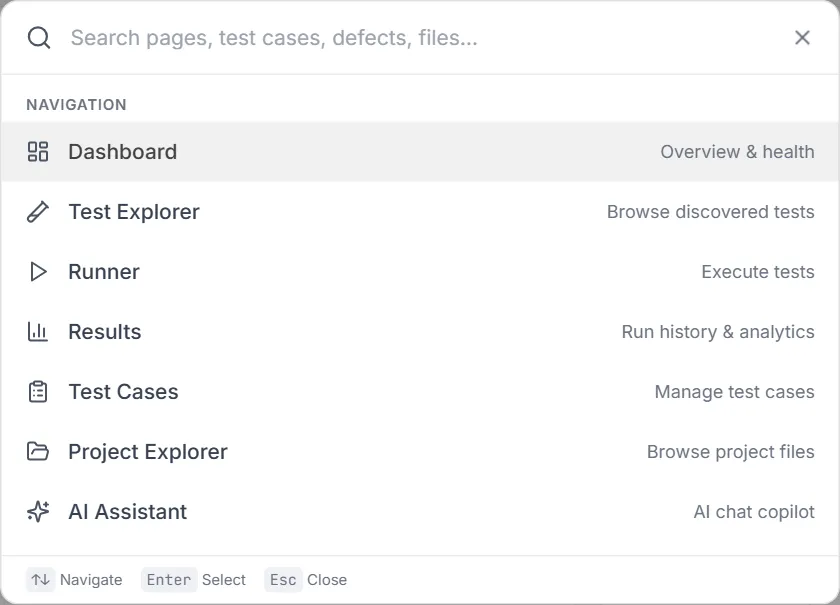
Testver’s Global Search is a single box that lets you jump to any screen and find your work — test cases, test plans, defects, sources, discovered tests, schedules, connectors, and even text inside your project files — without clicking through the sidebar. It opens from the Search field in the middle of the header (Search pages, test cases, defects, files…) or with the keyboard shortcut Ctrl + K (⌘ + K on macOS).
This page explains every part of it, step by step, assuming zero prior knowledge.
Introduction
Section titled “Introduction”What is Global Search?
Section titled “What is Global Search?”Global Search is a command palette — a small dialog that floats over whatever screen you’re on. You type, and it instantly shows matching results grouped by what they are (pages, test cases, defects, files, and so on). Pressing Enter (or clicking a result) takes you straight there.
Think of it as the “go to anything” bar: instead of remembering which sidebar group holds a screen, or scrolling a long list to find test case TC‑142, you press Ctrl + K, type a few letters, and go.
Who this guide is for
Section titled “Who this guide is for”- New users who don’t yet know where every screen lives in the sidebar.
- Power users who’d rather keep their hands on the keyboard than click around.
- QA engineers and leads who need to open a specific test case, defect, plan, or test quickly by name or ID.
- Anyone who remembers a snippet of code or a file name and wants to jump to it.
Key terms
Section titled “Key terms”| Term | What it means |
|---|---|
| Command palette | The floating search dialog itself, opened with Ctrl/Cmd + K or the header Search field. |
| Navigation result | A match that is a Testver screen (Dashboard, Runner, Settings…). Selecting it navigates to that page. |
| Entity result | A match that is a piece of your data — a test case, test plan, defect, source, schedule, or connector. |
| Deep link | The exact URL a result opens, including parameters that focus the specific item (e.g. open test case TC‑12’s detail panel). |
| Fuzzy match | Matching that tolerates gaps and partial words, so “tstexp” still finds “Test Explorer”. |
| Debounce | A short pause (0.2 s) after you stop typing before the server is queried — keeps search smooth while you type fast. |
| ID fast‑path | Typing an entity ID such as TC‑12, D‑3, TP‑2, or SRC‑5 jumps straight to that item. |
How it works
Section titled “How it works”When you type, two things happen in parallel:
- Navigation is matched instantly in your browser against the full list of Testver screens (and helpful keywords, so “jenkins” finds CI/CD Pipelines).
- Everything else is fetched from the server in one request that searches your Test Management store (test cases, plans, defects, sources), your schedules and connectors, your discovered tests, and the text inside your project source files.
Results come back grouped by type and each one already knows the precise page to open, so selecting it navigates immediately — you never have to find the item again on the destination screen.
Getting Started
Section titled “Getting Started”Opening search
Section titled “Opening search”You can open the palette two ways:
- Header field — click the Search field in the top bar (it shows a magnifier icon, Search pages, test cases, defects, files… and a
Ctrl+Khint). - Keyboard — press Ctrl + K (Windows/Linux) or ⌘ + K (macOS) from anywhere in the app.
Pressing the same shortcut again, clicking the dark backdrop, or pressing Esc closes it.

The search dialog layout
Section titled “The search dialog layout”| Area | Where | What it does |
|---|---|---|
| Search input | Top | Where you type. A magnifier sits on the left; a spinner appears on the right while the server is being queried; an ✕ closes the dialog. |
| Results list | Middle | Matching results, grouped under headings (Navigation, Test Cases, Tests, …). Scrolls when long. |
| Footer hints | Bottom | Reminders of the keys: ↑↓ Navigate, Enter Select, Esc Close. |
At a glance
Section titled “At a glance”- Opening the palette clears the previous query and focuses the input, so you can start typing immediately.
- With the box empty, it shows a short list of primary destinations (Dashboard, Test Explorer, Runner, Results, Test Cases, Project Explorer, AI Assistant, Settings) so you can jump with zero typing.
- The currently highlighted result is tinted; hovering a row highlights it too.
- Light and dark themes are both supported.
What you can search
Section titled “What you can search”Global Search spans nine kinds of result. Each appears under its own heading, in this order:
| Group | What it finds | Opens |
|---|---|---|
| Navigation | Any Testver screen (and keyword aliases). | That page. |
| Test Cases | Test cases by title — or jump by ID (TC‑12). | Test Cases, with the case’s detail panel focused. |
| Tests | Discovered automated tests, by test name or file. | Test Explorer, focused on that test. |
| Test Plans | Plans by name — or by ID (TP‑2). | Test Plans, with the plan focused. |
| Defects | Defects by title/description — or by ID (D‑3). | Defects, with the defect’s detail panel focused. |
| Sources | Sources (requirements, documents, JIRA…) by title — or by ID (SRC‑5). | Sources, on the matching tab. |
| Schedules | Saved run schedules by name. | Schedules. |
| Connectors | Configured connectors by name or type. | Connectors. |
| Files | Text inside your project source files (a grep). | Project Explorer, opened at the matching file and line. |
Searching step by step
Section titled “Searching step by step”Jump to a page
Section titled “Jump to a page”- Press Ctrl + K.
- Type part of the screen’s name — e.g.
runner,defects,code map, or even an alias likepipeline(→ CI/CD) orbugs(→ Defects). - The match appears under Navigation. Press Enter to open the top result, or use ↑ / ↓ to pick another.
Find a test case, defect, plan, or source
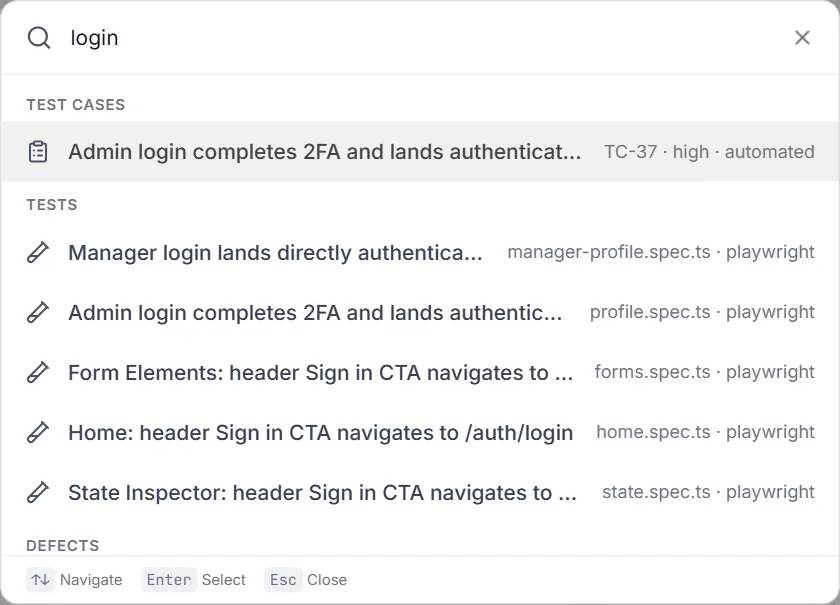
Section titled “Find a test case, defect, plan, or source”- Open the palette and type a few letters of the item’s title — e.g.
loginto find login‑related test cases. - Results appear under their group heading (Test Cases, Defects, etc.), each with its ID and a short descriptor.
- Select one — it opens the right screen and focuses that exact item (the detail panel opens automatically).
Jump straight by ID
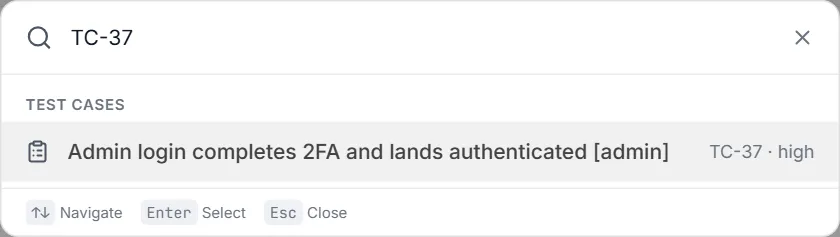
Section titled “Jump straight by ID”If you already know the ID, just type it:
| Type this | Goes to |
|---|---|
TC‑12 (or tc12) | Test case TC‑12 |
D‑3 (or d3) | Defect D‑3 |
TP‑2 | Test plan TP‑2 |
SRC‑5 | Source SRC‑5 |
The ID fast‑path is case‑insensitive and the hyphen is optional — tc12 and TC‑12 both work.
Find a test by name or file
Section titled “Find a test by name or file”- Type 3+ characters of a test’s name or its file name — e.g.
checkoutorlogin.spec. - Matches appear under Tests, each showing the file name and framework.
- Select one to open it in the Test Explorer, focused on that test.
Search inside file contents
Section titled “Search inside file contents”- Type 3+ characters of the text you’re looking for in your code — e.g. a function name, a selector, or a string.
- Matches appear under Files, each showing the file name and the matching line.
- Select one to open it in the Project Explorer at that file and line.
Keyboard navigation
Section titled “Keyboard navigation”| Key | Action |
|---|---|
| Ctrl + K / ⌘ + K | Open (or close) the palette. |
| ↑ / ↓ | Move the highlight up/down across all results, regardless of group. |
| Enter | Open the highlighted result. |
| Esc | Close the palette. |
How matching works
Section titled “How matching works”Fuzzy matching for pages
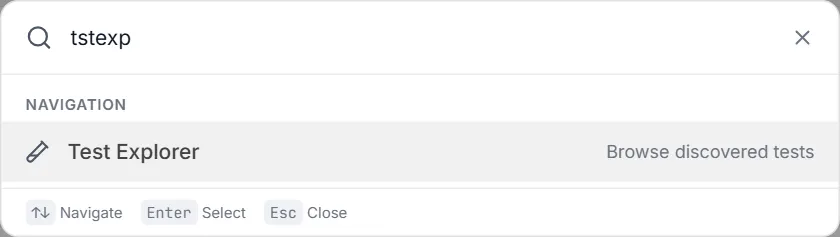
Section titled “Fuzzy matching for pages”Navigation uses a fuzzy scorer, so you don’t need an exact name:
- A name that starts with your text ranks highest (
das→ Dashboard). - A name that contains your text ranks next (
plan→ Test Plans). - A subsequence still matches (
tstexp→ Test Explorer). - Each screen also carries keywords — e.g.
pipeline,gate,jenkinsall surface CI/CD Pipelines;bugs,kanbansurface Defects;grid,mail,creditssurface Testver: Connections.
Smooth, stable results
Section titled “Smooth, stable results”- Debounce — after you stop typing, Testver waits ~0.2 seconds before querying the server. Typing quickly doesn’t fire a request per keystroke.
- Cancellation — if you keep typing, the previous request is cancelled, so older results can never “flicker” in over newer ones.
- Loading indicator — a small spinner in the input shows while the server search is running.
Result limits
Section titled “Result limits”Each group returns up to a handful of top matches (about five per type) to keep the list readable. If you don’t see what you want, type more of the title or ID to narrow it down.
Common tasks (How do I…?)
Section titled “Common tasks (How do I…?)”| I want to… | Do this |
|---|---|
| Jump to a screen fast | Ctrl/Cmd + K, type the screen name, Enter. |
| Open a specific test case | Ctrl/Cmd + K, type its title or its ID (e.g. TC‑42), select it. |
| Open a defect by ID | Ctrl/Cmd + K, type D‑3, Enter. |
| Find a test by file name | Ctrl/Cmd + K, type 3+ letters of the file (e.g. login.spec). |
| Find where a function/string lives in code | Ctrl/Cmd + K, type 3+ letters of it, look under Files. |
| Reach a page I can’t find in the sidebar | Ctrl/Cmd + K and search its name — screens left out of the sidebar such as Analytics, API Testing and Import / Export are searchable. (Output and Workflows are not — type their URL.) |
| Close the search without choosing | Press Esc (or click outside the box). |
Tips & best practices
Section titled “Tips & best practices”- Searches of your data (test cases, defects…) start at 2 characters; Tests and Files start at 3 — type a little more if a group seems empty.
- Results are capped per group for readability; refine the query rather than scrolling.
Troubleshooting & FAQ
Section titled “Troubleshooting & FAQ”| Symptom | Likely cause / fix |
|---|---|
| Nothing happens when I press Ctrl/Cmd + K | Make sure you’re signed in and the app window is focused. The shortcut is disabled on the login/setup screens. |
| I see pages but no test cases / defects | Entity search needs 2+ characters. Also confirm a project is open and that the items exist in Test Management. |
| No Tests or Files results | Those start at 3 characters — type a bit more. File search only covers source files in the open project. |
| A result opens the right screen but doesn’t focus my item | Confirm the item still exists (it may have been deleted). Sources open on the matching tab rather than a single‑item panel. |
| Typing code symbols used to error | Fixed — the file search now treats invalid patterns as literal text, so symbols like (, [, *, \ never cause an error. |
| Results seem to lag behind my typing | There’s a deliberate ~0.2 s debounce; results settle a moment after you stop typing. The spinner shows while it’s working. |
| I can’t find a screen by an obvious word | Try a synonym — many screens have keyword aliases (e.g. jenkins → CI/CD Pipelines, bugs → Defects, grid → Testver: Connections). |
Related
Section titled “Related”- Keyboard shortcuts — the full list of in‑app shortcuts.
- A 5‑minute tour — find your way around the whole UI.
- Test Cases, Defects, Test Plans & Cycles, Sources — the entities search can jump you to.
- Test Explorer and Project Explorer — where Tests and Files results open.