

Runner tab
Introduction
Section titled “Introduction”What is the Runner?
Section titled “What is the Runner?”The Runner is the Runner tab of the Advanced screen (/advanced?tab=runner), and it’s the launch pad for executing your tests. You type the command you’d normally run in a terminal — for example npx playwright test --headed — pick where it should run, press Run, and Testver streams the live output, a progress bar, and a final summary straight into the page. No need to keep a terminal open or hunt through scrollback.
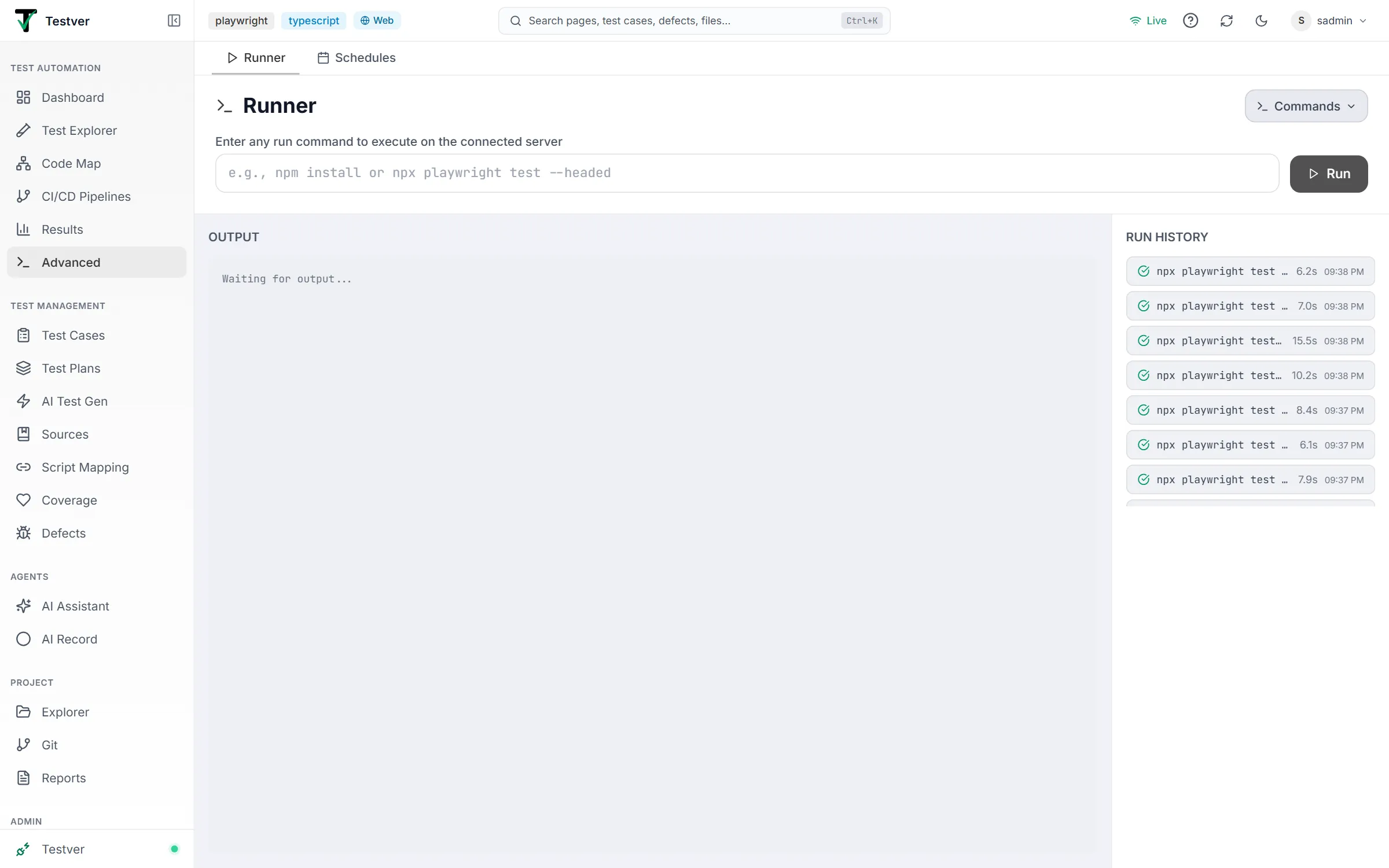
Think of it as a smart ‘play button’ wrapped around your existing test command. The command you type is exactly the one you’d run by hand; Testver just adds the conveniences around it — colorized live output, pass/fail counters that tick up in real time, a saved run history, one-click cloud execution, and (for mobile projects) a live picture of the phone the test is driving.
Who this guide is for
Section titled “Who this guide is for”- QA engineers and testers who want to run suites and watch results without living in a terminal.
- Developers verifying a change against the test suite before pushing.
- Mobile testers running Appium-family suites against real or cloud devices and watching the device live.
- Anyone who needs to run the same suite on a cloud grid (BrowserStack, LambdaTest, Sauce Labs) without hand-editing config files — most stacks run zero-touch, and the rest get a one-time AI Assistant fix. No prior Testver experience is assumed. If you can run your tests from a command line, you can use the Runner.
Key terms (glossary)
Section titled “Key terms (glossary)”| Term | What it means here |
|---|---|
| Run command | The exact shell command that launches your tests, e.g. npx playwright test. You type it into the Run Command field. |
| Commands menu | The Commands button (terminal icon) at the top-right of the Runner. Opens a searchable library of your saved commands, a framework Run All preset, and recent commands — so you can pick a command instead of retyping it. |
| Saved command | A named run command you stored (e.g. Smoke — headed). Saved per-project in .testver/runner-commands.json, so it is committed to git and shared with your team. |
| Run All preset | A single built-in preset whose command comes from Settings → Run Commands → Full Run (falling back to the auto-detected full-run command). |
| App mode | Your workspace’s app mode (web, mobile or both — set during setup / in Settings → General). Together with the enabled connectors it decides which extra controls appear. |
| Headed / headless | Headed means the browser/app window is visible while tests run; headless means it runs invisibly. This is controlled by your command (e.g. adding —headed), not by a toggle on this screen. |
| Local (this machine) | Runs the tests on the computer Testver is running on. The default for web projects. |
| Cloud grid / cloud provider | A hosted fleet of browsers and devices (BrowserStack, LambdaTest, Sauce Labs) you can run tests on instead of your own machine. |
| Local Devices | Real phones or emulators physically connected to this machine, driven through local Appium. Appears only in workspaces that include mobile, when enabled in Connectors. |
| Build name | A label attached to a cloud run so you can find it later in the provider’s dashboard. Optional — leave blank for auto. |
| Appium | The automation engine for mobile apps. In a workspace that includes mobile, picking Local Devices or a cloud device grid unlocks the device + app picker and the live device preview. |
| Cloud-bridge (mobile) | Testver’s path that uploads your app, injects the cloud device capabilities, and mirrors the device — without changing your test code. |
| Session reuse | Attaching a test to an already-open recording session on the cloud device instead of booting a fresh one, saving ~30–60 seconds. Surfaced as a green badge when available. |
| Cloud readiness / AI Assistant fix | A fast code scan decides whether the project can connect to the chosen cloud grid. If not (and no zero-touch path covers it), a dialog offers a one-time Fix with AI Assistant — see Cloud Grid Execution. |
| Run ID | A unique identifier for one execution, used to link the run to its detailed results on the Results screen. |
How the screen adapts (web vs mobile)
Section titled “How the screen adapts (web vs mobile)”The Runner reshapes itself based on your project’s app mode (set during setup / in Settings → General) and which connectors you’ve enabled. You won’t see controls that don’t apply to your project.
| Project / state | What you see |
|---|---|
| Web-only project | Run Command field, Run button, and — if any cloud provider is enabled — a Run on: row with Local plus each cloud provider. No device/app picker. |
| Web + cloud provider selected | A Build: field appears, and a cloud-readiness check runs before launch. |
| Mobile workspace | The Run on: row drops the web Local button and offers Local Devices and/or cloud grids. Selecting either reveals the device + app picker. |
| ‘Both’ workspace | Keeps the web Local button and offers Local Devices / cloud. Selecting Local Devices or a cloud device grid (anything except Local and Testver Grid) switches the Runner to a mobile run: it needs a device and an app and skips the web cloud-readiness check. |
| Mobile run in flight | The layout splits horizontally: command + output on the left, a full-height Live Device mirror on the right (replacing the Run History column). |
| Testver Grid run in flight | The same split, with the run’s live grid browsers on the right. |
| Mobile project, nothing connected | An amber notice tells you to connect a device or enable a cloud grid in Connectors; Run stays disabled. |
Getting Started
Section titled “Getting Started”Opening the Runner
Section titled “Opening the Runner”- Open Testver and select (or confirm) the project you want to run tests for.
- In the left navigation, click Advanced (terminal
>_icon, under Test Automation), then select the Runner tab. You can also browse straight to/advanced?tab=runner. - The header reads Runner (with a terminal icon), and below it sits the command field labelled Enter any run command to execute on the connected server.
- Check the status line under the controls — it confirms the current git branch, and the run target, so you know what you are about to run against.
Screen layout
Section titled “Screen layout”| Area | Location | Purpose |
|---|---|---|
| Run Command field | Top, left | Type the test command to execute. |
| Run / Stop button | Top, right of the command field | Launches the run; turns into a red Stop button while running. |
| Run on: row | Below the command (when providers exist) | Choose target: Local, a cloud provider, or Local Devices. |
| Build: field | Right of the provider row (cloud only) | Optional cloud build label. |
| Device & app picker | Below the provider row (mobile runs) | Pick the device and app for a mobile run on Local Devices or a cloud grid. |
| Status line | Below all controls | Git branch, selected target/cloud, and last-run status. |
| Live Progress card | Body, left (during a run) | Progress bar + live pass/fail counters and a streaming test list. |
| Run Complete summary card | Body, left (after a run) | Totals, pass rate, and Analyze / View Details actions. |
| Output panel | Body, left (always) | Raw, colorized stdout/stderr stream. |
| Current Runs / Run History column | Body, right (idle mode) | Active runs anywhere in the app, plus a list of past runs. |
| Live Device preview | Body, right (mobile run in flight) | Full-height read-only mirror of the phone under test. |
At a glance
Section titled “At a glance”- Type a command → press Run → watch output and progress → read the summary. That’s the whole loop.
- Press Enter in the command field to launch (same as clicking Run), as long as no run is already active.
- Everything you launch is listed in Run History on the right; the Run Complete card’s View Details opens a finished run on the Results screen.
- While a run is active the command field and provider buttons are locked — stop the run to change them. (The Commands menu still opens for picking or editing commands, but its Run now refuses with A run is already in progress — stop it first.)
Setting Up a Run
Section titled “Setting Up a Run”The Run Command field
Section titled “The Run Command field”The Run Command field is the single most important control on the screen. Whatever you type here is the command Testver executes. It’s rendered in a monospace font and shows a placeholder example until you type:
e.g., npm install or npx playwright test --headed
- Type the full command exactly as you would in a terminal — including flags such as
--headed,--grep,--project, a spec path, etc. - Press Enter to launch immediately (equivalent to clicking Run). Enter does nothing while a run is already in progress.
- The field is disabled while a run is active — it greys out so you can’t edit a command mid-run.
Saved commands & the Commands menu
Section titled “Saved commands & the Commands menu”Rather than retyping the same command every time, the Runner lets you build a library of commands and pick from it.
- Commands button (top-right). Click Commands (terminal icon) in the header to open the library. Below a search box it has up to four parts — Saved and Recent appear only when they have entries:
- + Add Command — add a brand-new named command by entering a name and the command (independent of what’s in the Run Command box).
- Saved — your saved commands, pinned ones first, then alphabetical. Each row lets you fill the box (click), Run now (▶), pin (★), edit (both name and command), or delete (with a confirmation dialog).
- Presets — the single Run All preset, pulled live from Settings → Run Commands → Full Run. Change it in Settings and it updates here. A + copies it into your saved commands.
- Recent — the last 10 commands you actually ran (kept in this browser only, not shared), each runnable or promotable to a saved command.
- The search box at the top filters across all of these.

- Autocomplete in the Run Command box. Click into the field (or start typing) and a dropdown suggests your saved commands plus the Run All preset (tagged preset). Clicking the empty field shows the whole list (about five visible, scroll for more); typing filters it; clicking a suggestion fills the box.
The status line
Section titled “The status line”Just below the controls, a muted status line keeps you oriented. It can show, left to right:
| Element | Meaning |
|---|---|
| Branch chip (git icon) | The current git branch, in sky-blue, so you know which code you’re testing. |
| Target: ‹name› | Shown in grey when Local Devices is selected — a local phone or emulator, not a cloud grid. |
| Cloud: ‹provider› | Shown in blue when a hosted cloud grid is selected and no run is active — confirms where the run will go. |
| Running: ‹command› | A pulsing amber line during an active run, echoing the command in flight. |
| Last run: ‹status› (‹seconds›s) | After a run finishes — green for completed, red otherwise, with the duration. |
The Run-on targets
Section titled “The Run-on targets”When at least one provider is configured, a Run on: row appears so you can choose where the tests execute. Each option is a pill button; the selected one is highlighted. The exact set depends on your project and connectors.
| Option | Icon | Meaning |
|---|---|---|
| Local | Monitor | Run on this machine (web tests). The default. Hidden in a pure mobile workspace. Highlighted in the brand color when selected. |
| BrowserStack / LambdaTest / Sauce Labs | Cloud | Run on that hosted cloud grid. Shown for each enabled cloud provider. Highlighted in blue when selected; selecting one reveals the Build: field (and, for mobile projects, the device/app picker). |
| Testver Grid | Cloud | Run on Testver’s own cloud browsers — Chromium, Firefox or WebKit, whichever your framework is configured for. While the run is going, the right side of the Runner becomes a live execution view: one tile per browser the run holds, streamed from the grid; click a tile to enlarge it. A Local tunnel checkbox lets the grid browsers reach your localhost or private apps through an outbound tunnel that closes when the run ends. |
| Local Devices | Smartphone | Run on a real phone/emulator connected to this machine via local Appium. Appears only in workspaces that include mobile, with Local Devices enabled in Connectors. Highlighted with a neutral outline when selected. |
In a pure mobile workspace the web Local option is omitted; Testver auto-selects a real target for you — preferring Local Devices, otherwise the first enabled cloud grid — so the device picker isn’t left empty.
The Build field (cloud only)
Section titled “The Build field (cloud only)”When a cloud grid is selected (but not for Local or Local Devices), a Build: input appears next to the provider pills.
- Type any label — e.g.
nightly-regressionorpr-482— to group this run under that build name in the provider’s dashboard. - Leave it blank to use the placeholder default auto, and Testver lets the provider name the build.
- Like the command field, it’s disabled while a run is active.
The mobile Device & App picker
Section titled “The mobile Device & App picker”In a workspace that includes mobile, selecting Local Devices or a cloud device grid adds a single row below the provider row: a phone icon, a device picker and an app picker.
Picking a device
Section titled “Picking a device”- Click the searchable device picker (Select a device…) and type to filter (e.g. Pixel, iPhone 15).
- Select a device; Testver records its name, platform (Android/iOS), and OS version.
- Cloud devices are addressed by their friendly name; Local Devices are addressed by their adb serial / iOS udid so the live mirror works.
- If the catalog fails to load, an error is shown inline in the picker.
Picking or uploading an app
Section titled “Picking or uploading an app”The app picker (Pick app or upload…) is a dropdown sharing the same app library used by AI Assistant and AI Record — anything you uploaded there appears here, and vice versa.
- Click the app picker to open the library list. Each entry shows its label/filename plus file kind and size (e.g. apk · 24.3 MB).
- Click an app to select it (a check mark marks the current choice).
- To add a new build, click Upload .apk / .ipa at the bottom of the dropdown and choose a file; a percentage shows during upload, then the new app is auto-selected.
- To remove your choice, open the dropdown and click Clear selection (shown while a library app is selected).
Session reuse badge
Section titled “Session reuse badge”If you recently stopped a recording session (in AI Record), Testver may have issued a short-lived (~120s) reuse ticket. While it’s valid, a green badge appears under the picker:
- It reads “Reusing live recording session” with a sparkle icon, and on the right “saves ~45s · expires in Ns” counting down.
- When present and unclaimed, the run attaches to that already-warm device session instead of booting a fresh one — saving roughly 30–60 seconds.
- No action is needed; if the ticket is missing or expired, the run just opens a new session normally.
The “Not connected yet” dialog
Section titled “The “Not connected yet” dialog”When you launch a web cloud run, Testver first analyzes whether your project can talk to that grid. Zero-touch stacks and already cloud-aware projects skip straight to the run. Otherwise the Not connected to [provider] yet dialog appears. If the analysis itself fails, a Cloud analysis failed toast appears and the run starts anyway with the cloud environment variables. This step never applies to local runs or mobile runs (the mobile overlay connects without touching your code).
The dialog shows a Detection Summary — detected framework, language, and the driver file a code scan points at (labeled a guess; the AI verifies before editing) — and explains the options:
| Button | What it does |
|---|---|
| Fix with AI Assistant | Opens the AI Assistance screen with a complete, pre-filled work order: the AI makes the smallest change that connects your framework, runs one test to verify, confirms real cloud execution from the run’s ground-truth verdict, and reverts everything if it can’t succeed. One-time per project. |
| Run Anyway | Runs as-is with cloud env vars injected — works if your code already reads them; otherwise the run lands locally and its result carries an “executed locally” warning. |
| Cancel / X (or a click outside) | Closes the dialog; nothing runs, nothing changes. |
Full detail (env contracts, verification, the verdict system) is on the Cloud Grid Execution page.
Launching & Watching a Run
Section titled “Launching & Watching a Run”Starting and stopping
Section titled “Starting and stopping”- Enter your command, choose a target, and (for mobile) pick a device + app.
- Click Run (Play icon) or press Enter in the command field.
- For a web cloud run, the button briefly reads Checking… with a pulsing cloud icon while readiness is analyzed; respond to the dialog if it appears.
- Once running, the button becomes a red Stop button (Square icon). A toast confirms where it started, e.g. “Test run started locally” or “Test run started on BrowserStack”.
- Click Stop at any time to cancel the active run.
Live Progress
Section titled “Live Progress”Once tests begin reporting, a Live Progress card appears at the top of the body (it shows as soon as the first test is counted).
- A two-tone progress bar fills green for passed and red for failed, proportional to results so far, with elapsed seconds on the right.
- A counter row shows the current Test #, a green check with the passed count, a red X with the failed count, and — with a spinner — the name of the test currently running.
- A scrolling live test list shows the most recent ~30 tests, each with a pass (green check) or fail (red X) icon; failed names are tinted red.
The Output panel
Section titled “The Output panel”The Output panel below shows the raw process output, combined into proper lines and rendered in a monospace, terminal-style block on a dark background.
- ANSI colors are preserved — your framework’s colorized output looks the same as in a terminal.
- stderr lines are tinted red so errors stand out from normal stdout.
- The panel auto-scrolls to the newest line as output streams in.
- Before anything is printed it shows “Waiting for output…”.
Answering prompts (input to the command)
Section titled “Answering prompts (input to the command)”Some commands ask a question before they run — the everyday case is npx <tool> on a machine where the tool is not installed yet: “Need to install the following packages… Ok to proceed? (y)”. The Runner has no terminal attached, so such a command used to wait for ever with the run showing as running.
While a run is active, an input line sits under the Output panel. It works like a terminal, line by line:
| You do | The command receives |
|---|---|
Type y and press Enter (or click Enter) | y followed by a newline — the same as pressing Enter in a shell. |
| Press Enter with the line empty | Just the newline — how you accept a prompt’s default, e.g. Project name (my-app):. |
| Click Send EOF | The command’s input is closed (Ctrl-D) — for programs that read until input ends. |
| Click Stop | The command is terminated (Ctrl-C). |
When the last line of output looks like a question and nothing follows it for a moment, the Runner says “The command looks like it is waiting for an answer” above the line and focuses it. That is a nudge, never a gate — you can type at any time, and a program that answered its own question is not flagged.
What you type is echoed into the log (in cyan, prefixed ›) so the transcript reads as the session it stands in for — which means a password typed here is visible in the run’s console output.
The Runner also sets npm_config_yes=true for every run, so npx’s install confirmation is answered before it is asked.
The Run Complete summary card
Section titled “The Run Complete summary card”When a run finishes, a compact Run Complete card replaces the live progress card. It leads with a status icon (green check if nothing failed, red X otherwise), the duration, and inline stats: total, passed, failed, skipped, and a color-coded pass rate percentage (green ≥90%, amber ≥70%, red below).
| Button | When it shows | What it does |
|---|---|---|
| Analyze (brain icon) | Only when there were failures | Opens this run on the Results screen (/results?runId=…), where Analyze Failures opens Failure Analysis. |
| View Details (external-link icon) | Always | Opens the full results for this run on the Results screen. |
Current Runs & Run History side panel
Section titled “Current Runs & Run History side panel”In idle (non-mobile-preview) mode, the right column hosts two stacked sections.
Current Runs
Section titled “Current Runs”- Lists runs active anywhere in the app (including scheduled ones), excluding the one you’re already watching here.
- Each card shows a pulsing dot, the command, an optional Cloud provider badge, a Scheduled badge (calendar icon) if it came from the scheduler, live passed/failed counts, and elapsed seconds.
- Click a card to attach to that run and stream its output into the main panel. (The input line appears there too, but only runs started from this tab accept input.)
- Click the small Stop (square) icon on a card to cancel that run without attaching.
Run History
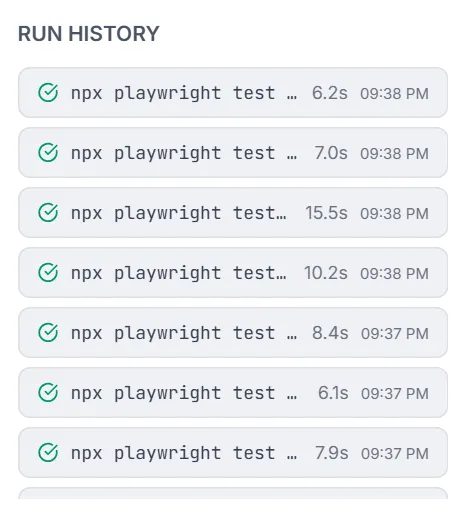
Section titled “Run History”- Lists previous runs, newest at the top, each with a status icon — completed (green check), failed (red X), running (amber clock), or cancelled (grey ban).
- Shows the command, duration, and the start time (HH:MM). Entries are not clickable — the list is a log of recent runs (the last 50, kept by the server until it restarts) and refreshes every few seconds.
- If there are none, it reads “No previous runs”.
Mobile Live Device Preview
Section titled “Mobile Live Device Preview”During a mobile run (Local Devices or a cloud grid), the layout switches to a horizontal split: the command and Output stay on the left, and a full-height Live Device mirror takes the right column (replacing Run History so the tall phone screen gets maximum vertical space).
- The header shows a phone icon, Live Device — Execution view, the device name, a ~few sec behind badge for cloud frames, and a Live on provider link to open the provider’s session page in a new tab.
- The screen is a read-only mirror, refreshed about twice a second during the run from the same screenshot stream AI Assistant uses (a live image, not an embedded iframe).
- While the test drives the session, the image is slightly muted to show it is watch-only, so you don’t tap and conflict with the test.
- Clicks aren’t blocked, so you can still right-click → save the image to capture device state mid-run.
- Before the first frame arrives it shows “Waiting for the test’s device session…” with a spinner; the first frame typically appears within a few seconds of session creation.
Common Tasks (How Do I…?)
Section titled “Common Tasks (How Do I…?)”| I want to… | Do this |
|---|---|
| Run my whole suite locally | Type the command, leave the target on Local, click Run. |
| Run just one spec or test | Add your framework’s filter to the command (e.g. a spec path or —grep), then Run. |
| See the browser while it runs | Add the headed flag to your command (e.g. —headed) — there is no separate toggle. |
| Run on a cloud grid | Pick the provider in Run on:, optionally set a Build: name, then Run; respond to the cloud-config dialog if it appears. |
| Make my project cloud-ready | Launch a cloud run; in the dialog, click Fix with AI Assistant (one-time — see Cloud Grid Execution). |
| Run on a real connected phone | Enable Local Devices in Connectors, pick Local Devices, choose the device + app, then Run. |
| Run a mobile app on a cloud device | Pick a cloud provider, choose a device, pick or upload the app (.apk/.ipa), then Run. |
| Stop a run | Click the red Stop button (or the Stop icon on a Current Runs card). |
| Watch a run started elsewhere | Click its card under Current Runs to attach and stream its output. |
| Re-open a finished run’s details | Click View Details on the summary card, or use Analyze if it had failures. |
| Find an earlier run | Scan the Run History list on the right (status, command, time). |
| Speed up repeated mobile runs | Keep the green session-reuse badge in mind — run again while it’s valid to attach to the warm session. |
| Save a command for reuse | Click Commands → + Add Command, enter a name and the command, then Add. |
| Reuse a saved command | Click into the Run Command box (or open Commands) and pick one from the list. |
Tips & Best Practices
Section titled “Tips & Best Practices”- Use the placeholder as a template.
npm install or npx playwright test --headedshows the shape —npx playwright test --headedis a good starting point — adapt it to your framework and flags. - Press Enter to launch. Once your command is typed, Enter is faster than reaching for the button.
- Name your cloud builds. A meaningful Build: label (e.g.
pr-482) makes runs easy to find in the provider dashboard later. - Review the AI fix before applying it broadly. The AI Assistant shows every edit and the verification run live; check the diff there before moving on.
- Re-use uploads. Mobile app uploads are content-hashed — keep using the same build to skip re-upload time.
- Let session reuse work for you. If you just finished an AI Record session, launching a mobile run promptly attaches to the warm device and saves ~45s.
- Watch the live preview, not the command. During a mobile run the device mirror is your primary signal — don’t try to tap it; the test is in control.
- Use Analyze for failures. When a run has failures, jump straight to AI analysis with the Analyze button instead of digging through raw output.
- Build a command library. Save the commands you run often (Commands → + Add Command); they’re shared with your team via git and available on the Schedules screen too.
Troubleshooting & FAQ
Section titled “Troubleshooting & FAQ”The run is stuck showing “running” and nothing new appears
Section titled “The run is stuck showing “running” and nothing new appears”Look at the last line of the Output panel. If it ends in a question ((y/N), …:), the command is waiting for you — answer it in the input line under the panel. If the run predates the input line (it was started before the server was updated), Stop it and run again.
Where’s the headless toggle?
Section titled “Where’s the headless toggle?”There isn’t one — by design. Headed vs headless is controlled entirely by your Run Command. Add your framework’s headed flag (e.g. --headed for Playwright) to see the browser, or omit it to run headless.
Why is Run disabled / greyed out?
Section titled “Why is Run disabled / greyed out?”- A run is already active — the button is now a red Stop; stop it first.
- A web cloud-readiness check is in progress (the button reads Checking…).
- It’s a mobile project with no device target configured — you’ll see an amber notice pointing you to Connectors.
- It’s a mobile run missing a device and/or app — hover the button; the tooltip says “Select a device and an app first.”
- The command field is empty — clicking shows “Please enter a run command.”
Why don’t I see any cloud / Local Devices options?
Section titled “Why don’t I see any cloud / Local Devices options?”The Run on: row only appears when at least one cloud provider is enabled, or (for mobile) when Local Devices is enabled. Enable them under Settings → Connectors. A plain web project with nothing configured simply runs locally with no picker.
Will running on the cloud change my code?
Section titled “Will running on the cloud change my code?”Only if you let it. Most stacks run zero-touch with no code changes at all. When a change IS needed, the dialog offers Fix with AI Assistant — the edit happens in front of you on the AI Assistance screen, is verified with a real cloud run, and is fully reverted if verification fails; Run Anyway leaves your code untouched and relies on injected env vars. For mobile cloud-bridge runs, no code changes are made at all — the overlay injects the hub URL and capabilities externally.
I changed my app build — will it re-upload?
Section titled “I changed my app build — will it re-upload?”Yes, but only if the file actually changed. Uploads are cached by SHA-256 content hash, so an identical build is recognized and skips re-upload. A genuinely new .apk/.ipa uploads once, then is cached for subsequent runs.
The mobile preview is stuck on “Waiting for the test’s device session…”
Section titled “The mobile preview is stuck on “Waiting for the test’s device session…””The test subprocess is still spinning up its device session. The first frame usually appears within a few seconds of session creation. If it never appears, check the Output panel for connection errors and confirm your device/app selection and provider credentials in Connectors.
Can I tap the live device during a run?
Section titled “Can I tap the live device during a run?”No — the test is the sole authority over the session for the run’s duration, which is why the image is muted while it drives. You can still right-click → save the image to capture state. For interactive control, use AI Assistant outside of a run.
Related
Section titled “Related”- Test Explorer — pick what to run.
- Results — full run artifacts.
- Schedules — recurring runs.
- Browser Sessions — see and close active browser processes.
- Connectors → Cloud test grids.