

Results
Introduction
Section titled “Introduction”What is the Results screen?
Section titled “What is the Results screen?”The Results screen is where Testver stores and presents the outcome of everything it has executed. Every time you run tests — locally on your machine or in a cloud browser grid — Testver records a run: a timestamped snapshot containing each test’s status, duration, steps, errors, screenshots, videos, traces, and console output. The Results screen lets you scroll back through that history, open any run, and drill all the way down to a single failing step.
Think of it as the flight recorder for your test suite. A run is one flight; opening it is reading the black box; the per-test panel is the second-by-second cockpit transcript; and Failure Analysis is the crash investigator who reads the transcript and tells you, in seconds, whether the fault was the plane, the weather or the checklist — and hands the repair to the AI Assistant.
Who this guide is for
Section titled “Who this guide is for”- QA engineers who need to triage failures fast, decide what is a real bug versus a flaky test, and file defects.
- Developers who want to see exactly which step failed, read the stack trace, watch the video, and have AI suggest or apply a fix.
- Test leads / managers who track pass-rate trends, set a known-good baseline, and export HTML / CSV / Excel reports for stakeholders.
- Anyone running cloud runs (BrowserStack, LambdaTest, Sauce Labs) who needs the session video, logs, and build link in one place.
Key terms (glossary)
Section titled “Key terms (glossary)”| Term | What it means in Testver |
|---|---|
| Run | One execution of one or more tests, recorded with a status, summary, duration, and per-test detail. Identified by a runId. |
| Source | Where the run executed: Local (your machine) or Cloud (a remote browser grid such as BrowserStack). |
| Baseline | A run you pin as the known-good reference point. Other runs can be compared against it to surface regressions. Only one baseline exists at a time. |
| Regression | A test that passed in the baseline but fails now — the most important signal when comparing two runs. |
| New failure | A test failing now that did not exist (or was not run) in the comparison run. |
| Fixed | A test that failed before and passes now. |
| Flaky | A test that passes and fails intermittently without code changes — one of the AI failure categories. |
| RCA (Root Cause Analysis) | The panel that pinpoints the failing step, shows the primary error, and previews the failure screenshot for a failed test. |
| Artifact | A file produced by a run: screenshot, video, or Playwright trace. Stored per test and served through Testver’s artifact API. |
| Browser matrix | The set of browsers a run executed against; shown as badges in the run detail strip and per-session in cloud runs. |
| Variant / data set | One parameterized invocation of a data-driven test (pytest params, .NET TestCase args, JUnit indices), rolled up under a single base row in the Variations card. |
| AI assessment | One short AI read of a failure group — the error, the stack and the test code — giving a likely layer (test code / application / environment), a confidence and a file:line pointer. A second opinion beside the category, never a replacement for it. |
| Error signature | A normalised per-failure-pattern string (values, ids and paths masked) that groups failures sharing one cause in Failure Analysis. |
How it works
Section titled “How it works”Testver keeps a server-side run history. The Results list fetches one page of runs at a time (filtered and paginated on the server) so the initial render stays fast even with hundreds of runs. Global counts for the stat pills and filter-chip labels are computed across the whole history, not just the page you are viewing.
Within a run, each test is matched by name (and, for parameterized tests, by an index) so that history, baselines, and comparisons line up the same logical test across runs. The per-test panel additionally pulls live data from other Testver subsystems: the test’s source steps from the Test Explorer, Git blame / file history / churn for the test file, and recent pass/fail history for that test name.
Getting Started
Section titled “Getting Started”Opening the Results screen
Section titled “Opening the Results screen”- From the left navigation, click Results (the bar-chart icon). The route is
/results. - Testver loads the runs list — your run history, newest first, grouped by day.
- If a baseline has been set previously, Testver loads it on mount so the baseline marker appears on the matching run card.
The three levels
Section titled “The three levels”Results is a three-level drill-down. Each level is reflected in the URL so you can deep-link or use the browser Back button.
| Level | What you see | How you got here |
|---|---|---|
| 1. Runs list | The whole run history as cards/rows, with filters, stats, and view modes. | Default view (no runId selected). |
| 2. Run detail | One run’s summary stats, info/git/cloud strips, and the per-test list. | Click a run card (sets runId). |
| 3. Test detail panel | One test’s steps, RCA, artifacts, history, Git, variations, output, and actions. | Click a test row inside a run (sets testId). |
Screen layout
Section titled “Screen layout”| Region | Where | Contents |
|---|---|---|
| Tabs | Very top | Runs (the run history described here) and Auto-Heal (every locator repair across runs — see Auto-Heal). |
| Header toolbar | Top | Title/back, status & source filter chips (list) or run label + action buttons (detail). |
| Stats strip | Below header | Aggregate pills: totals, pass rate, failed count, duration; plus cloud/browser badges in detail. |
| Info / Git strip | Detail only | Run command, cloud build name, Git branch, commit SHA + message. |
| Content area | Center, scrollable | Run cards (list), or test list / comparison / failure analysis (detail). |
| Pagination bar | Bottom (list only) | Rows-per-page selector and page navigation. |
The Runs List
Section titled “The Runs List”This is the default view when no run is selected. It shows your run history with filtering, summary statistics, three view modes, and per-run actions.
Status & source filters
Section titled “Status & source filters”Two groups of filter chips sit in the header row, the source group after a funnel icon. Status chips select by outcome; source chips narrow to Local or Cloud. Filtering is performed server-side across the whole history, then paginated. Each chip shows a global count so you know how many runs match before you click. Selecting any filter resets you to page 1.

| Chip | Group | Filters to | Notes |
|---|---|---|---|
| All | Status | Every run regardless of status | Default. |
| Passed | Status | Completed runs | Green check icon; counts come from the completed status total. |
| Failed | Status | Runs with failures | Red X icon. |
| Running | Status | In-progress runs | Only shown when at least one run is currently running (amber). |
| All | Source | Local + Cloud | Default. |
| Local | Source | Runs on your machine | Play icon. |
| Cloud | Source | Runs dispatched through the device-bridge pipeline | Cloud icon (blue). Includes runs on local devices, which use the same pipeline — see the note below. |
Summary stats strip
Section titled “Summary stats strip”Four pills summarize the whole history within the selected source (Local / Cloud) — not just the current page; the status filter does not change them:

| Pill | Shows | Color logic |
|---|---|---|
| Total Runs | Count of runs in scope | Neutral. |
| Avg Pass Rate | Average pass rate % | Green ≥ 90%, amber ≥ 70%, red below; gray dash when no runs. |
| Failed | Number of failed runs | Red when > 0, gray otherwise. |
| Avg Duration | Average run duration in seconds | Neutral; dash when no data. |
View modes
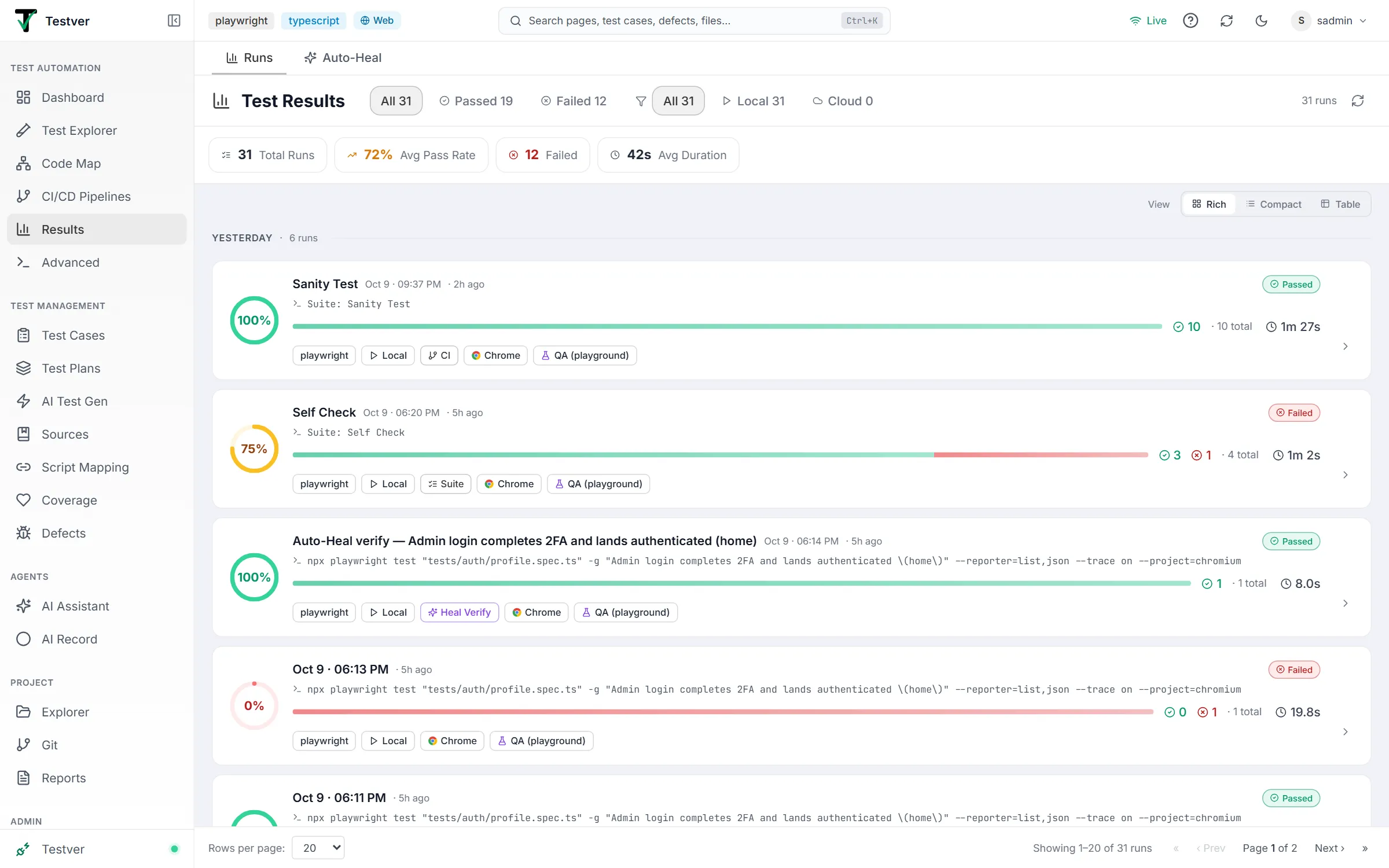
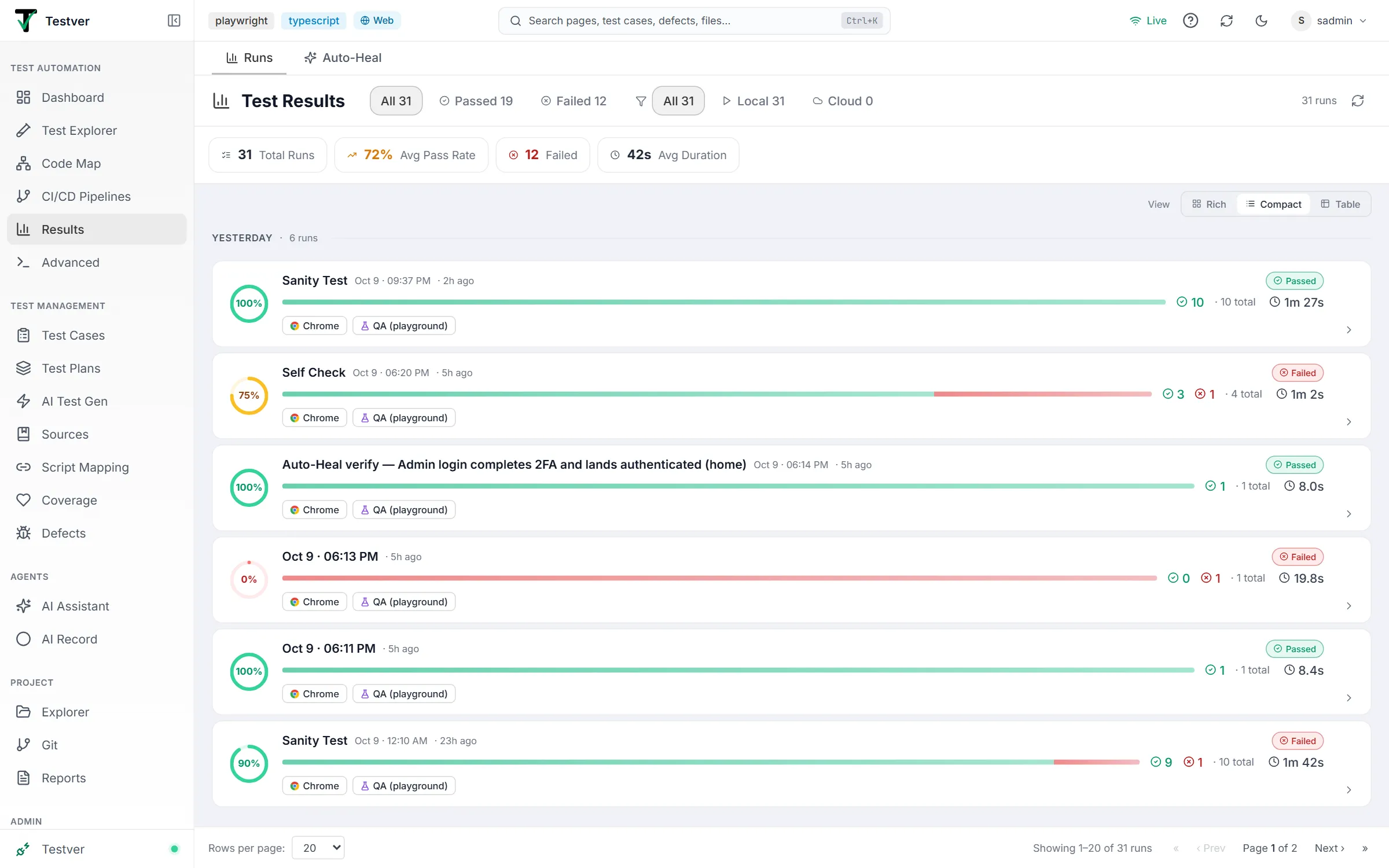
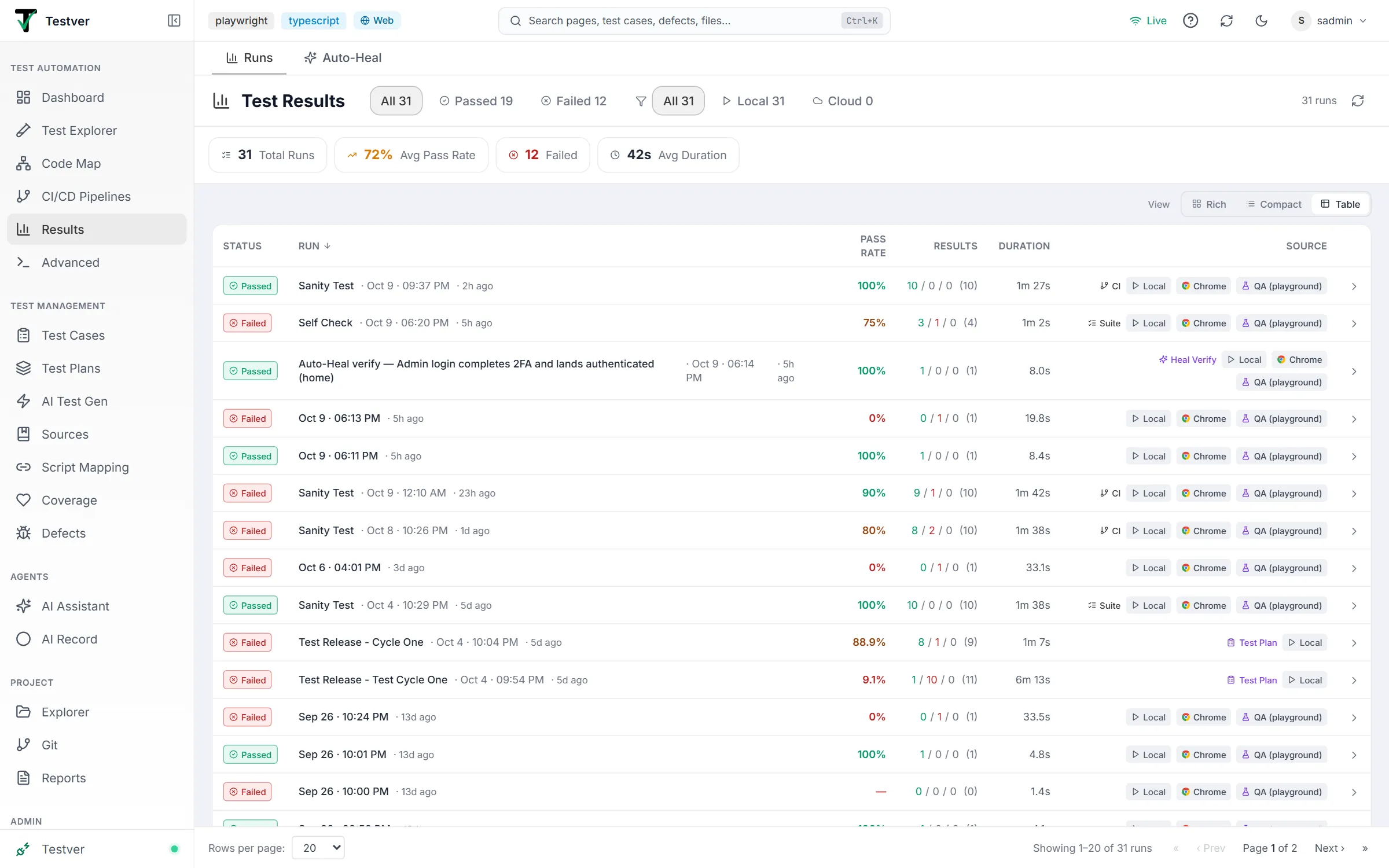
Section titled “View modes”A View selector (in the list header inside the scroll area) toggles how each run is rendered. Your choice is remembered in the browser (localStorage key testver:results:viewMode) so it persists across visits.
| Mode | Density | Best for |
|---|---|---|
| Rich | Full cards with stats and visual emphasis | Default — scanning recent runs at a glance. |
| Compact | Condensed cards | Seeing more runs per screen. |
| Table | Tabular rows | Dense scanning and column-style comparison. |
The run card
Section titled “The run card”Each run is represented by a card (or row). Cards are grouped under sticky day headers. A card carries a pass-rate ring, the run’s label (or start time) with its time and age, a status pill, the command (Rich view, with a copy icon on hover), a pass/fail bar with passed/failed/skipped counts, total and duration, and a row of chips: framework, Local / Local Device / cloud provider, how the run was launched (CI, Suite, Test Plan, Scheduled, AI Verify or Heal Verify), browser, environment, cloud build name, and Analyzed once Failure Analysis has run. Compact view keeps the ring, title, bar, browser and environment. On hover, a select checkbox (top-left), a compare icon and a ⋯ menu appear on the right. Clicking the body of a card opens its run detail (sets runId, clears any testId).

Baseline
Section titled “Baseline”Pin any run as the baseline — your known-good reference. The baseline card is visually marked, and only one baseline exists at a time. Setting a baseline on a run that is already the baseline clears it.
- On a run card, open the ⋯ menu and choose Set as baseline — or open the run and click Set Baseline in its header.
- Testver stores the baseline server-side and marks that card with an amber star; the run header’s button then reads Baseline ✓.
- To remove it, choose Clear baseline in the same menu (or click Baseline ✓ again) — it toggles off.
Selecting & comparing runs
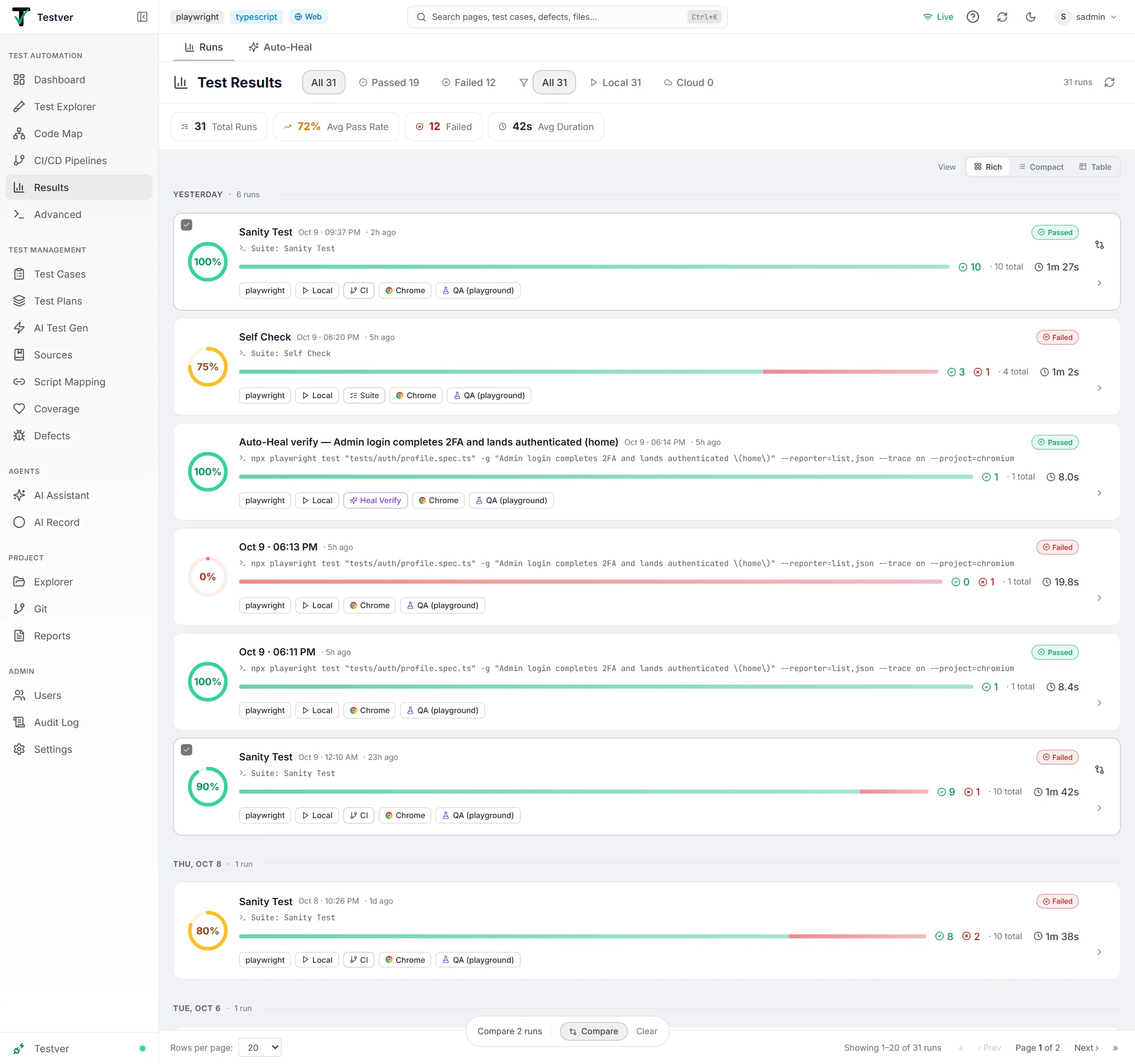
Section titled “Selecting & comparing runs”From the list you can pick two runs to compare: hover a card and click its select checkbox or compare icon (in Table view, rows have no selection). A floating bar reads Select one more run to compare, then Compare 2 runs with Compare and Clear; picking a third run replaces the oldest pick. On Compare, Testver opens the second run as the current run (via the URL runId) and uses the first as the comparison’s baseline side; the run-detail view then renders the Run Comparison panel automatically.
The row ⋯ menu
Section titled “The row ⋯ menu”Each card’s ⋯ menu (shown on hover) offers Set as baseline (or Clear baseline), Copy command when the run has one, and Open detail — without first opening the run.

Pagination
Section titled “Pagination”The bottom bar appears whenever there is at least one run. It is server-side pagination — Testver fetches a single page at a time.
| Control | Behavior |
|---|---|
| Rows per page | Choose 10, 20 (default), 50, 100, or 200. Changing it resets to page 1. |
| Showing X–Y of N | The current slice of the filtered total. |
| « / ‹ Prev / Next › / » | First, previous, next, and last page; disabled at the ends. |
| Page A of B | Current page indicator. |

The Run Detail View
Section titled “The Run Detail View”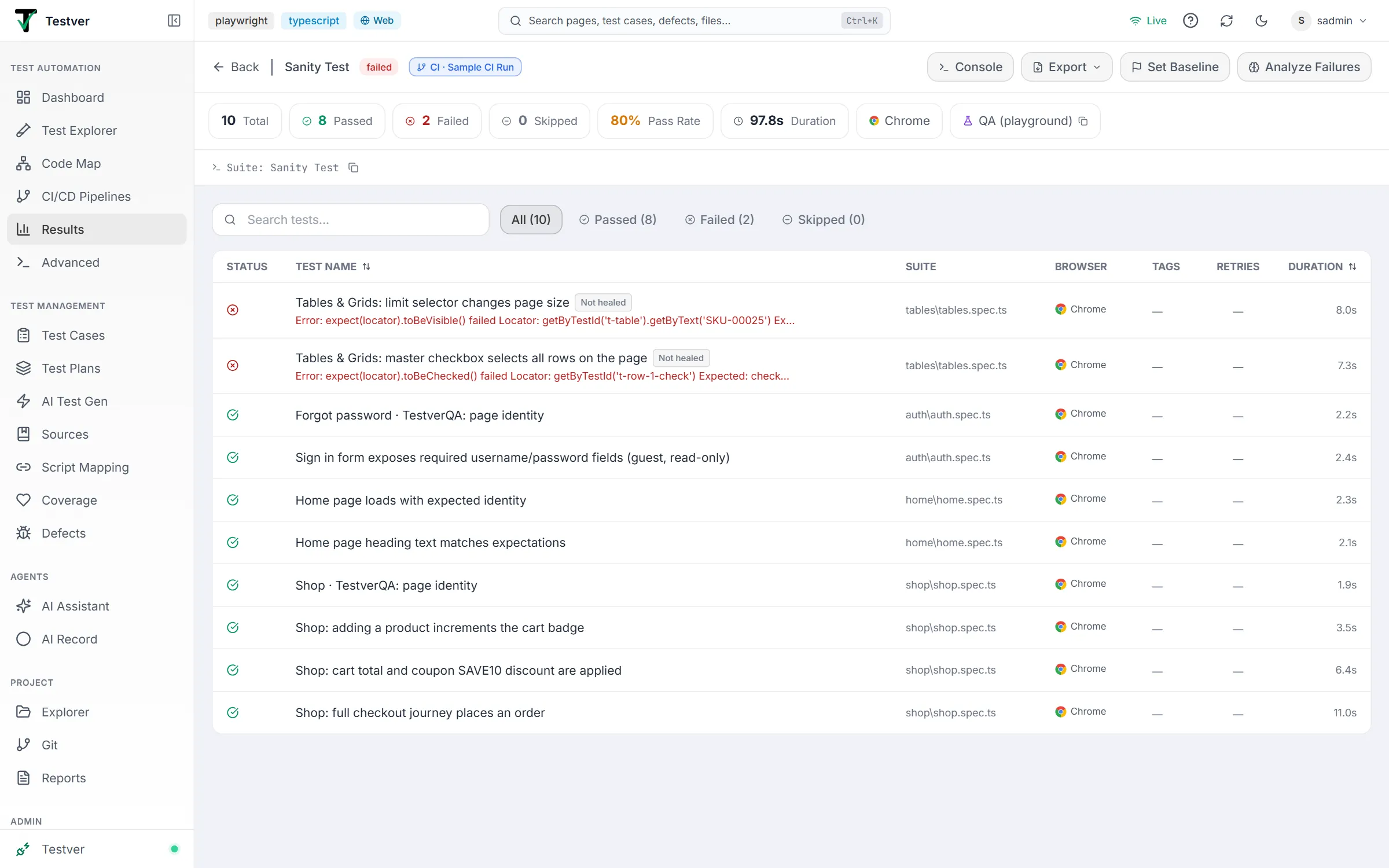
Clicking a run opens its detail view: a header with run-scoped actions, a stats strip, info/git/cloud strips, and the per-test list (or, when toggled, the comparison or failure-analysis panels).
Summary stats strip
Section titled “Summary stats strip”Pills summarize this single run. Total, Passed, Failed, Skipped, Pass Rate, and (when available) Duration. Pass Rate is color-coded the same way as the list (green/amber/red). After these pills, badges appear:

- A Cloud badge (e.g.
BS,LT,SL) when the run executed on a hosted cloud provider. - A Local Device badge (phone icon, neutral styling) when the run executed on a phone or emulator connected to this machine. Local device runs are never labelled “cloud” anywhere in Testver — the distinction is carried through the runs list, results, filters, and status messages.
- A Device badge naming the phone/emulator a mobile run targeted.
- A browser badge with the browser’s icon — the browser the run targeted, or, when none was chosen, one badge per distinct browser the run’s tests used.
- An environment badge when the run targeted an environment.
- For Testver Grid runs, the grid browser and a menu of the same build’s runs on other browsers.
Info / Git / cloud-session strips
Section titled “Info / Git / cloud-session strips”When present, a slim info strip shows the run command (monospace, with a terminal icon and a copy button), the cloud build name, the Git branch, and the commit SHA with its message. Separately, a Git Commit Correlation banner can appear in amber when Testver determines, with medium/high confidence, that new failures were likely introduced by a specific commit — it names the failure count, the short SHA, and the author (unless author names are hidden), with a confidence tag (red for high, amber for medium).
While a Testver Grid run is still running, its detail opens with a live execution view above the test table: one streamed tile per browser the run holds; click a tile to enlarge it, and Hide live view / Show live view toggles it (remembered). For a running suite or cycle, the test table is replaced by a live per-test progress list (“Running… N passed · X of Y done”, with View Result on finished tests), and the executing test shows its browser tile(s) beneath its row. When the run finishes the tiles give way to the recorded video and command log below.
For cloud runs that returned artifacts, a Cloud Session card lists each session with its browser, OS/version, status, and duration, plus a View Build link and per-session Video, Logs, and Session buttons. Videos open in an in-app modal (proxied URLs get the auth token appended; public CDN URLs play directly).
The per-test list
Section titled “The per-test list”The center of the run detail is the test results table — one row per test. It has a Search tests… box (matches test name, suite or tag) and All / Passed / Failed / Skipped chips with counts, and shows the columns below. Clicking a row opens the Test Detail Panel (sets testId).
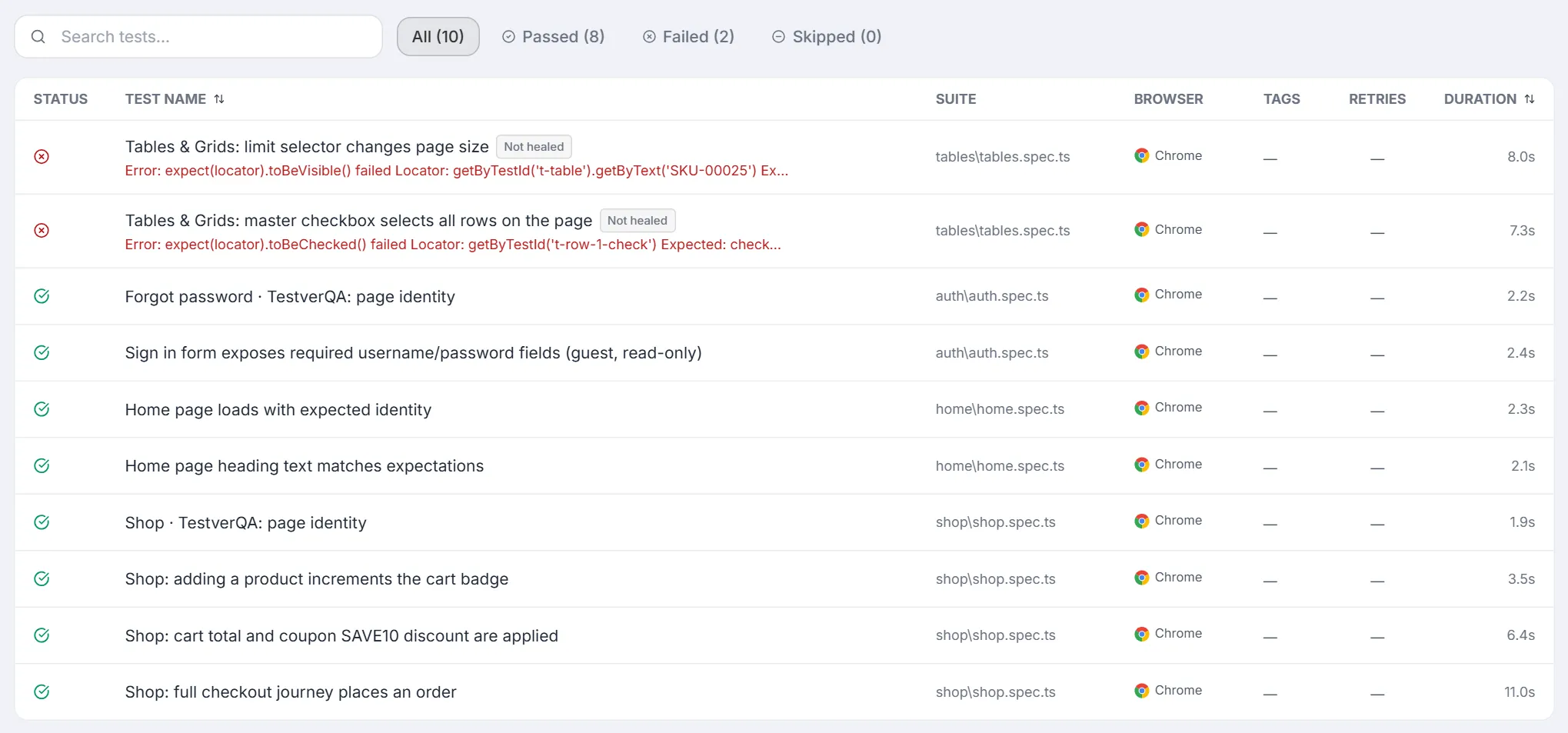
| Column | Shows |
|---|---|
| Status | Passed / Failed / Skipped indicator. |
| Test name | The (formatted) test/scenario name; failed tests show their error on a second line. Sortable. |
| Suite | The suite (often the spec file) the test belongs to. |
| Browser or Device | For web runs, the browser the test ran on with its icon. For mobile runs the column is titled Device and shows the phone/emulator the run targeted, with a phone icon. |
| Tags | Up to three tags, then +N. |
| Retries | Retry count when greater than zero. |
| Duration | How long the test took. Sortable. |
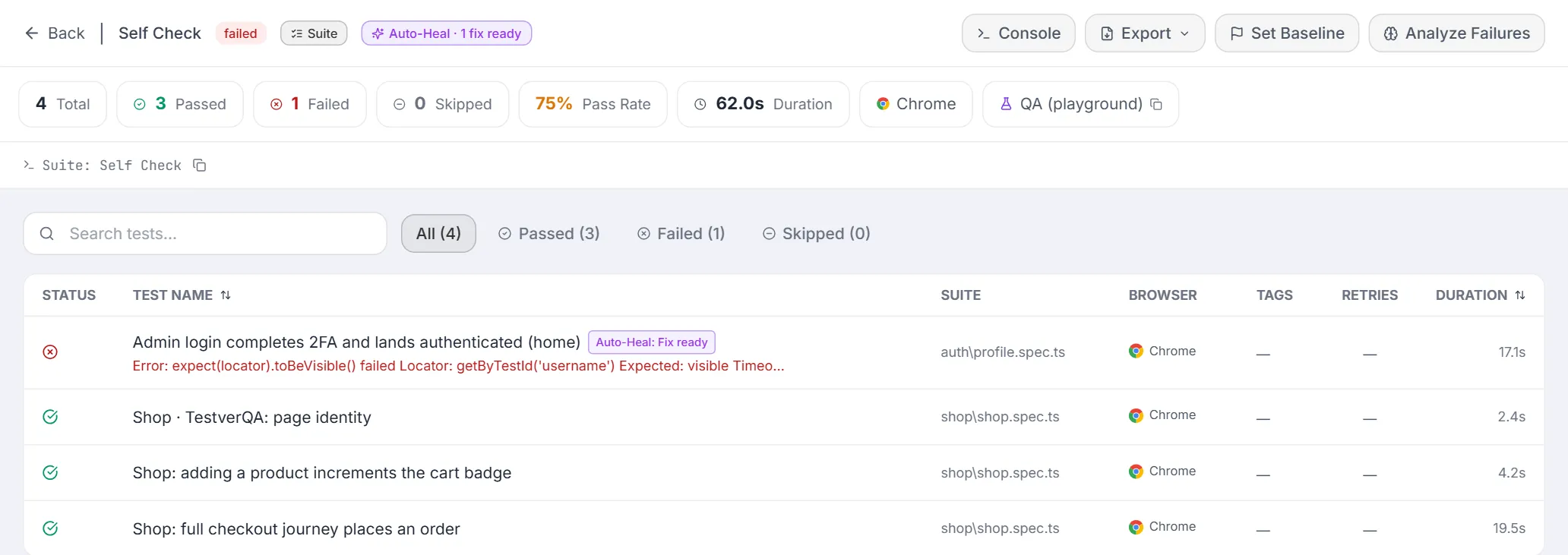
A failed test can also carry an Auto-Heal chip next to its name — Auto-Heal: Healed, Fix ready, Fix ready (partial), Reverted, Undone, Fix expired, or Not healed (hover for the reason). The run header sums them up in one chip, and the Auto-Heal tab of Results reviews every repair across runs. See Auto-Heal.
Suite and cycle runs (parent + per-test results)
Section titled “Suite and cycle runs (parent + per-test results)”When you run a Test Explorer suite or a Test Cycle (“run all automation”), Testver doesn’t execute everything as one opaque command. Each test runs as its own individual run, and those runs are grouped under one master result.
That gives you both levels of detail:
| Level | What you get |
|---|---|
| Master result | The combined pass/fail summary across every test in the suite or cycle. This is the entry you see in the runs list. |
| Per-test results | Each test’s own console output and its own cloud artifacts (video, logs, session link), because each test was a real run of its own. |
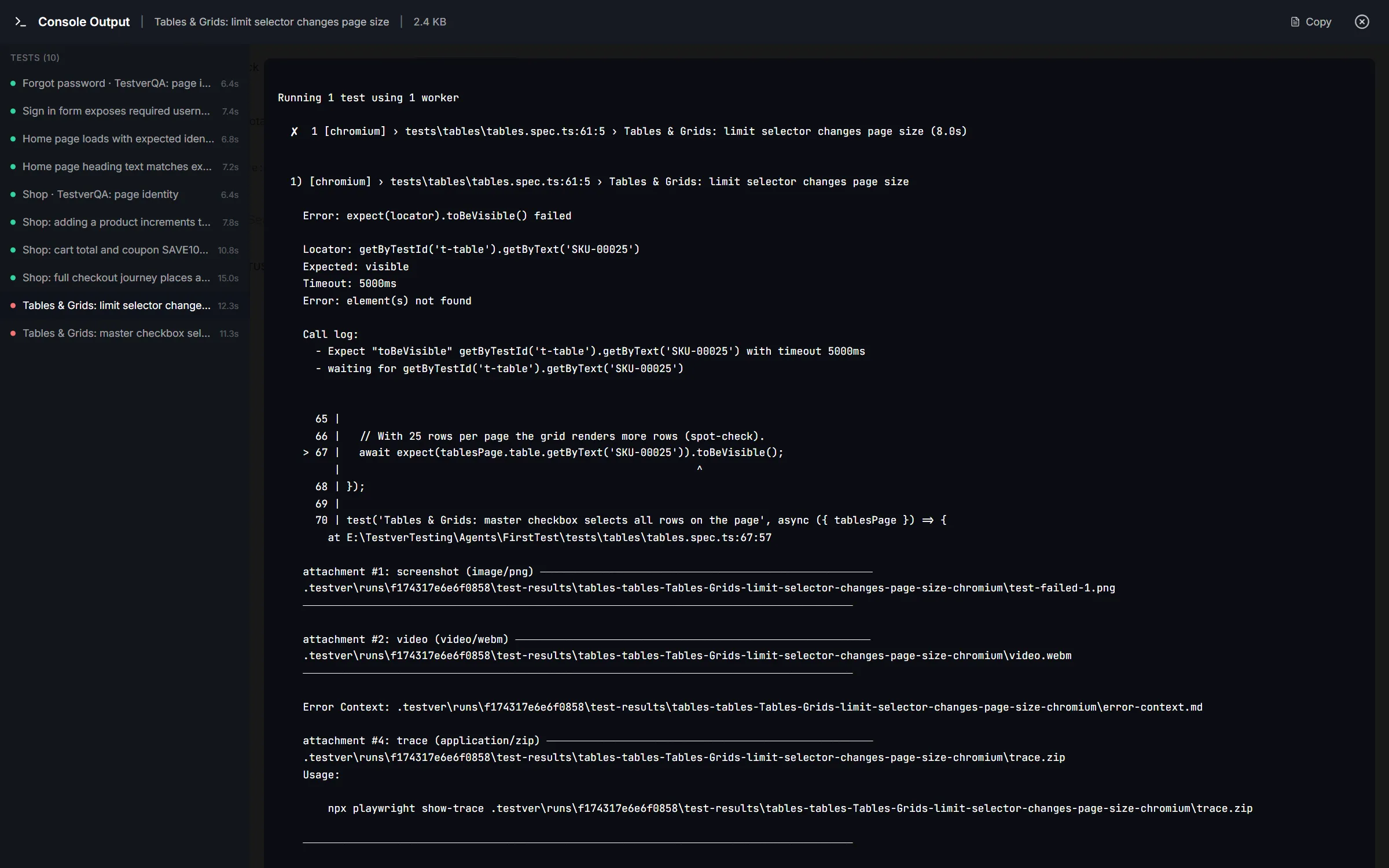
Reading per-test console output. Open the master run and click Console. Because the run has children, the modal grows a per-test sidebar on the left listing every test with a status dot and duration. Click any test to load that test’s console output — not a filtered slice of a combined log, but the actual output that test produced.
Reading per-test cloud artifacts. Open an individual test from the results table. Inside that test’s detail panel you’ll find its own Cloud Artifacts card with the device/browser session, status, duration, and Video, Logs, and Session buttons. Artifacts belong to the test you opened, so there’s no hunting through a combined list to work out which video matches which failure.
Run-detail toolbar actions
Section titled “Run-detail toolbar actions”Next to Back and the run’s name, the header shows the run’s status and, where they apply, a Suite chip, a CI chip (with the pipeline and build number; hover for provider, branch and commit), a CI build link to the CI system, and — when Auto-Heal acted on any of the run’s tests — an Auto-Heal chip such as Auto-Heal · 1 healed, 2 fix ready (a suggestion past its review window counts as expired).

| Action | What it does | When shown |
|---|---|---|
| Console | Opens a full-screen modal with the run’s console output (ANSI-colored, with its size in KB, Copy, and close; for suite and cycle runs a Tests (N) sidebar lists each test). | Always; toast if output is unavailable. |
| Export ▾ | Dropdown to download HTML Report, CSV, or Excel (XLSX) for the run (opens in a new tab). The HTML report is described below. | Always. |
| Set Baseline | Pins this run as baseline, or clears it if it already is (label shows Baseline ✓). | Always; toast confirms. |
| vs Baseline | Opens the Run Comparison panel comparing this run against the current baseline. | Only when a baseline exists and differs from this run. |
| Fetch Artifacts | Pulls videos/logs/screenshots from the cloud provider for this run. | Cloud runs on BrowserStack, LambdaTest or Sauce Labs that have no artifacts yet (not Local Device or Testver Grid runs). For suite/cycle runs, fetch per test from inside that test’s detail panel instead. |
| Analyze Failures | Toggles the Failure Analysis panel (and back to Show Tests). Runs are classified as they are saved, so the panel opens populated. | Only when the run has at least one failed/errored test. |
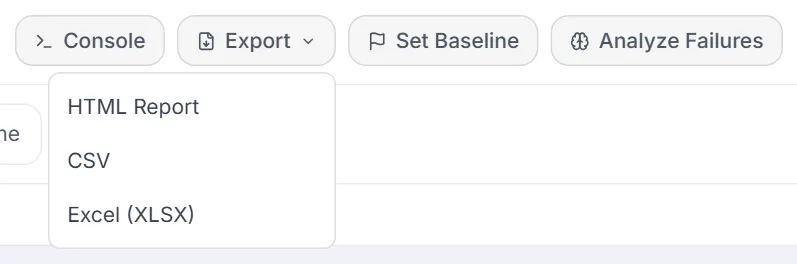
The HTML run report
Section titled “The HTML run report”Export ▾ → HTML Report downloads a single HTML file. It needs no internet connection, so you can email it or attach it to a ticket. The header shows the run name, its status, the framework and browser, when it ran, a pass-rate gauge and the run ID. Below the header are four tabs:
| Tab | What it shows |
|---|---|
| Overview | Totals (tests, passed, failed, skipped, duration); results by spec file; the comparison with the baseline run, when one is set; test durations; and a Needs attention card for each failed test, with View failure and Open in Tests. Coverage, the browser matrix, tags and the slowest tests appear when the run has them. |
| Tests | Every test, with a search box (test name, file or tag), status filters and Expand all. Click a test to see three tabs:
|
| Failures | Each failed test with:
|
| Run details | The run, source and environment details, plus cloud sessions, parallel workers, network, performance and accessibility results when recorded. It also includes the full execution console output, with an All output / Failures only switch. |
The report carries no file paths for attachments. Screenshots are embedded, and video, trace and attachment lines are left out of the console output, because the report is meant to be read on its own. Open those files from the run in Testver. For a suite or Test Cycle run, every test’s Output comes from the child run it actually ran as. When a test recorded only “Failed”, the report shows the error that its output printed. Printing the report prints all four tabs.
The Test Detail Panel
Section titled “The Test Detail Panel”Clicking a test opens a full-width panel with everything Testver knows about that single test. Sections render only when relevant data exists. When a test is data-driven, a Variations card lets you switch the whole panel to a single data set (master-detail).
Header & status
Section titled “Header & status”
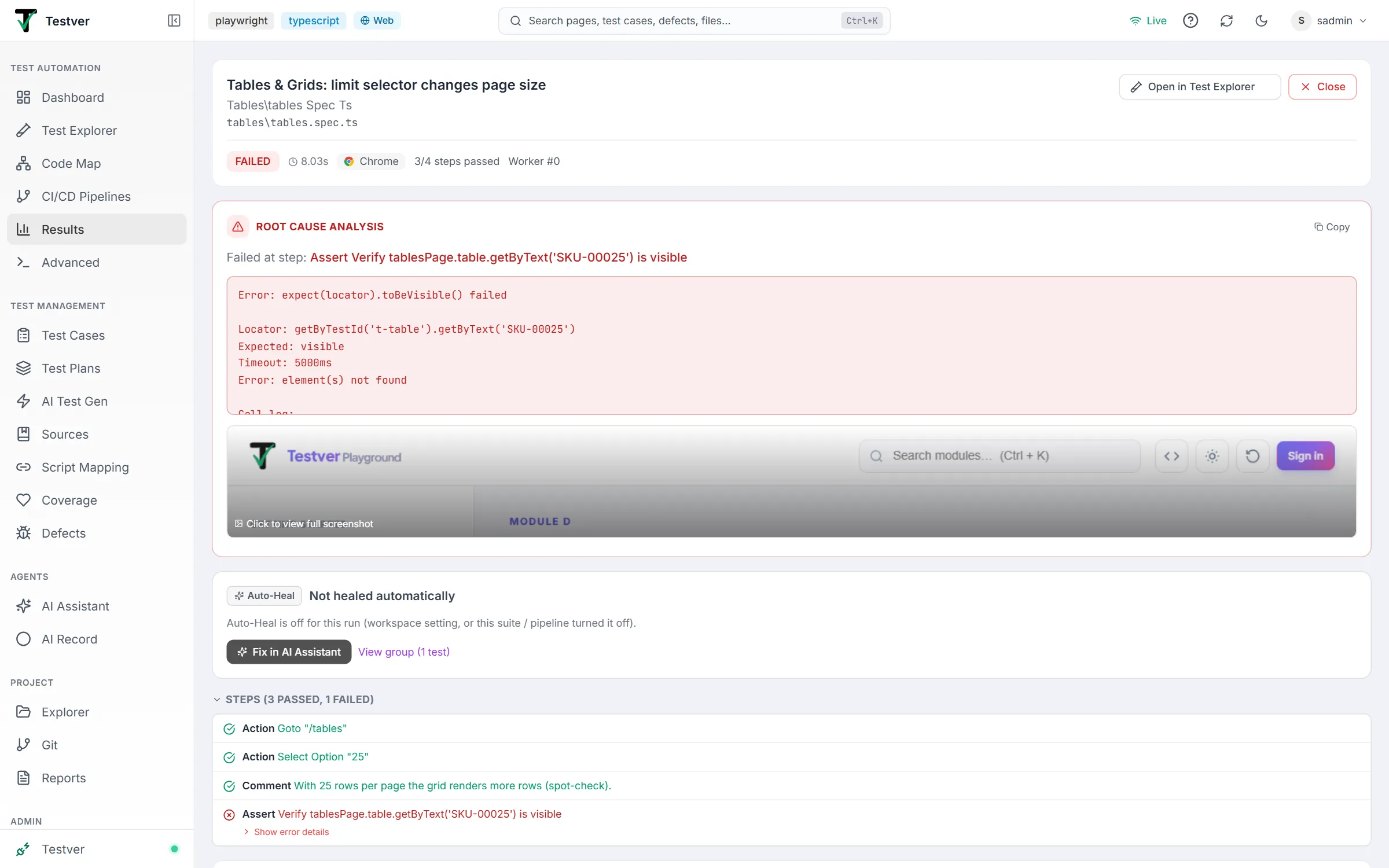
The header card shows the test name, its suite and file path (monospace), and — when Git data is available — who last modified the file, when, and the short commit SHA. Open in Test Explorer opens the test in the Test Explorer in a new tab (disabled when the result has no file), and Close returns you to the run’s test list. Below, a badges row shows the status (PASSED / FAILED / SKIPPED / ERROR), duration, N retries (when > 0), the browser, a passed/total steps passed count, Worker #N, and N assertions where present. Tags, @annotations, and parameters appear as chips (parameters are hidden for rolled-up parameterized tests, since the Variations card shows each data set instead).
A collapsible Steps list shows each step with its keyword, name, optional duration, and a status icon. The header summarizes (N passed, M failed, K skipped). For BDD/Cucumber tests the native steps are used; for code-based tests Testver overlays execution status onto the same human-readable steps the Test Explorer shows — locating the failing step via the stack trace, marking earlier steps passed and later steps skipped. Background steps are tagged [BG], hooks [Hook]. A step’s embedded data table renders inline, and failed steps expose a Show error details toggle.

| Icon | Step status | Meaning |
|---|---|---|
| Green check | passed | Step executed successfully. |
| Red X | failed | Step where the test failed. |
| Gray minus | skipped | Not run (often after a failure). |
| Amber dot | pending | Step pending / not implemented. |
| Gray question | undefined | No matching definition / unknown status. |
RCA & stack trace
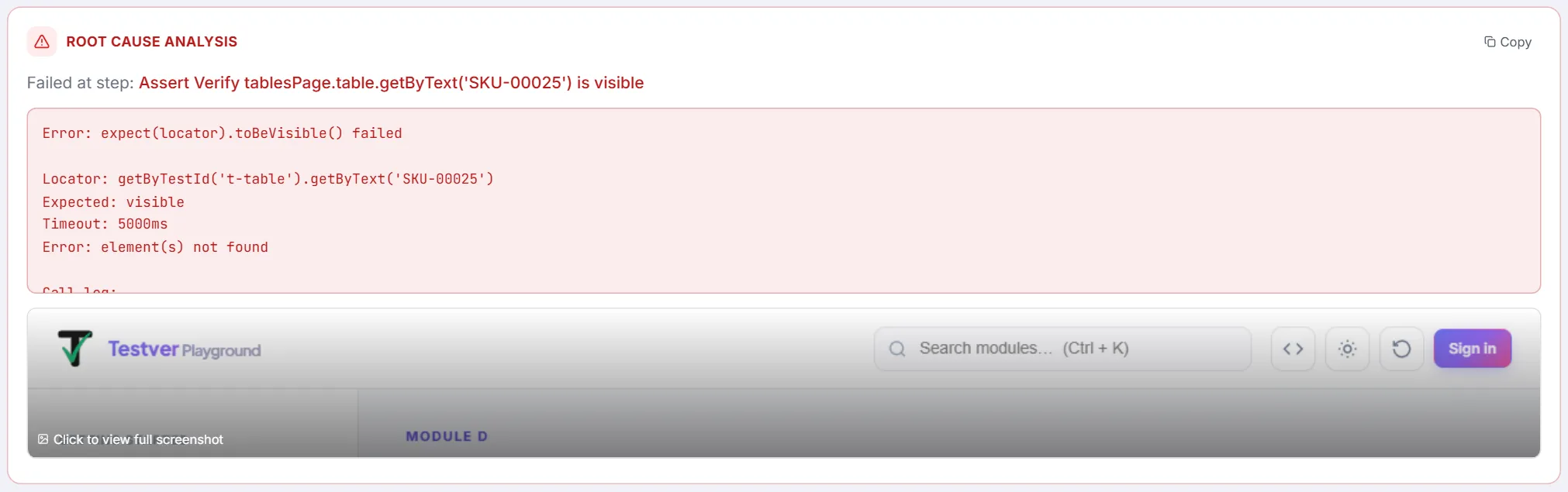
Section titled “RCA & stack trace”For a failed test, a red Root Cause Analysis card names the failing step, notes how many subsequent steps were skipped because of it, and shows the primary error in a scrollable code block. A Copy button copies the error (and stack trace) to the clipboard. If a failure screenshot exists, an inline preview appears — click it to open the full-screen viewer. A separate, collapsible Stack Trace card (open by default) shows the full trace in monospace. A test whose status is not failed (for example error) and has no failing step shows its error in its own Error card instead.
Artifacts (screenshot / video / trace)
Section titled “Artifacts (screenshot / video / trace)”When the test produced artifacts, the Recordings & Screenshots card shows one preview per artifact. Click a preview to open it; the download button on each card saves the file.
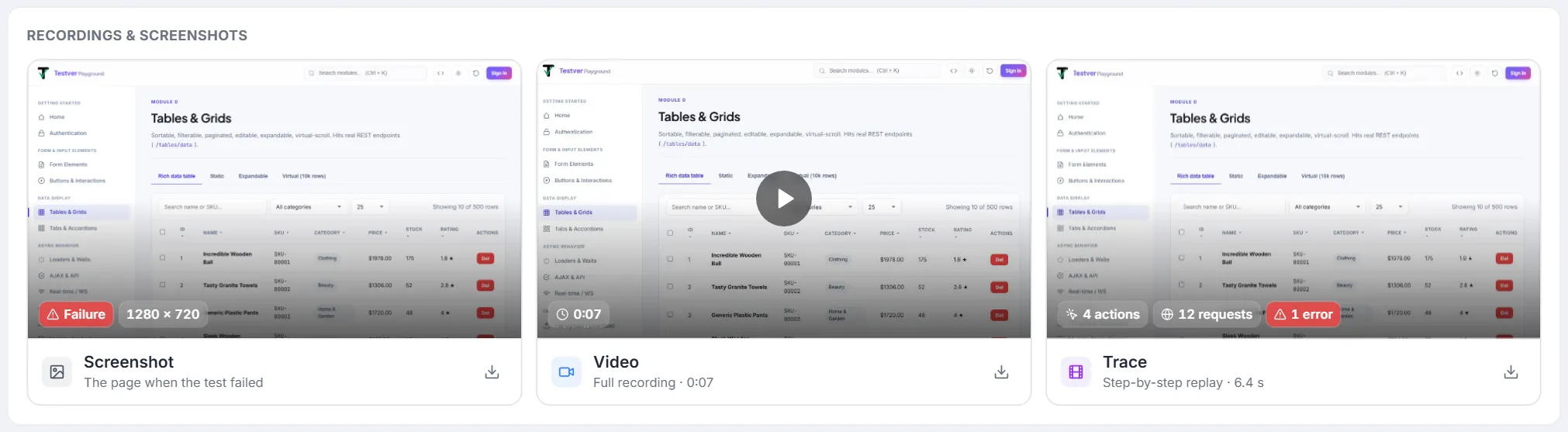
| Card | Preview | On the preview | Opens |
|---|---|---|---|
| Screenshot | The screenshot itself. | Failure (red) for a failed test, and the image size. | The Screenshot Viewer, nearly the size of the window. |
| Video | A frame from the recording. | The recording’s length. | The video player, nearly the size of the window (autoplay, controls). |
| Trace | The page as the test ended — for a failed test, the page at the failure — taken from the trace’s own recording. A trace recorded without screenshots shows a placeholder. | How many browser actions and network requests it holds, and its errors in red. The caption gives how long the actions took. | The Playwright Trace Viewer inside Testver: every step, network request and console message. |
The facts sit on a dark gradient along the bottom of each preview, so they stay readable on a white page and a dark one alike.
In the Screenshot Viewer the image opens fitted to the window:
| To… | Do this |
|---|---|
| Zoom | Scroll the mouse wheel or pinch on a trackpad — it zooms towards the pointer — or use the − / + buttons (10% to 800%). |
| Move around a zoomed image | Drag it. It stops at the image’s edges, so it can’t be lost off screen. |
| Zoom in on a spot, or back out | Double-click. |
| Fit it to the window / see it at actual size | The fit button or 0 / the 1:1 button or 1. Clicking the percentage also fits. |
| Use the keyboard | + / − zoom, arrow keys move, Esc closes. |
| Open the original | The open-in-new-tab button in the header. |
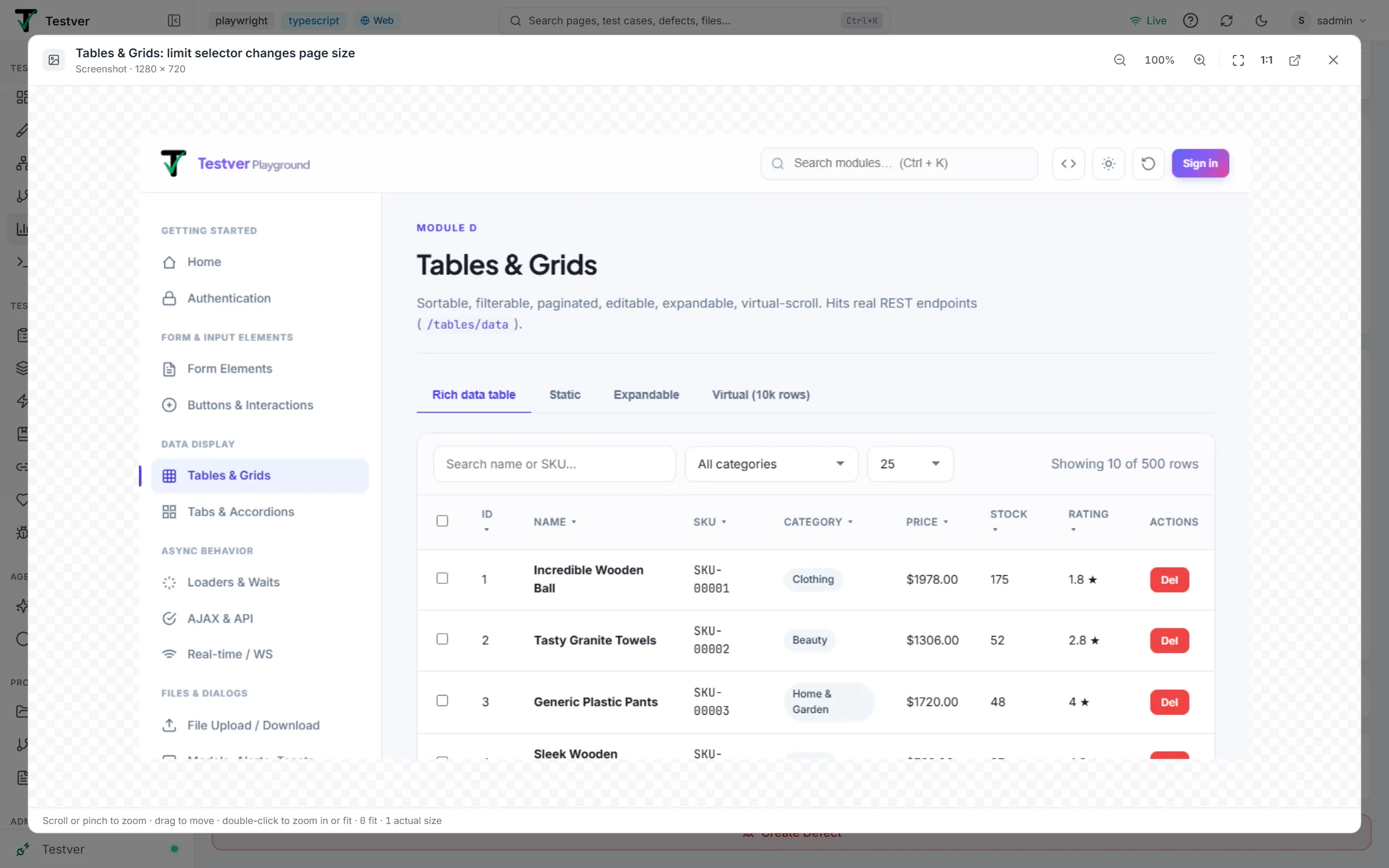
Both viewers close with Esc, the close button, or a click outside them.
The previews sit side by side on a wide screen and stack on a narrow one.
Traces come from Playwright in any language. For TypeScript / JavaScript, Playwright’s report names each test’s trace. For Python, Java and .NET, Testver links the traces a run wrote to its tests by name — pytest-playwright’s test-results/<test>/trace.zip, or a file your code saves named after the test. See Settings → API & Network Traces.
A Trace Viewer opens traces from its own Playwright version and older ones, but not newer ones. So Testver opens each trace with the newest viewer it can find: its own, or the one that came with your project’s Playwright. For Java that is the viewer inside the Playwright driver jar that Maven or Gradle downloaded, unpacked into ~/.testver/trace-viewers the first time it’s needed. A project on a newer Playwright than Testver’s therefore still opens its traces, and upgrading the project’s Playwright takes effect within half a minute, without restarting Testver.
Retry timeline
Section titled “Retry timeline”When a test was retried (more than one attempt), a Retry Timeline shows a row of numbered circles — green for passed attempts, red for failed — connected by arrows, with a hover tooltip giving each attempt’s status, duration, and a snippet of its error. A caption reports the total attempts and the final status. When the attempts ran as runs of their own, a list below gives each attempt’s status or error with a View Result link that opens that attempt’s run in a new tab.
Coverage
Section titled “Coverage”If the run captured coverage for the test, a Coverage card shows four metrics — lines, branches, functions, statements — each as a percentage with a colored bar (green ≥ 80%, amber ≥ 60%, red below).
History
Section titled “History”A History (last N runs) card shows up to the last 20 outcomes for this test name as a strip of small squares — green passed, red failed, gray other — most recent on the right, each with a date tooltip. Useful for spotting flakiness at a glance.

A Git History card lists up to the five most recent commits that touched the test file (short SHA, message, relative time). If the file has high churn (changed many times in a short span), an amber warning notes how many edits over how many days — a heuristic for fragile, frequently-broken tests.
The Variations master-detail (data-driven tests)
Section titled “The Variations master-detail (data-driven tests)”When a test is parameterized, Testver rolls every invocation into one base row and shows a Variations card: a header with the data-set count, pass/fail/skip tallies, a per-variant distribution bar, an overall pass-rate %, and total duration. Each variant row shows a status icon, an index, the data-set label (shown verbatim as a single id — never split), a relative duration bar, and a chevron.
- Open the parameterized test to reveal the Variations card.
- Click any data set row. An indigo Viewing data set banner appears at the top of the panel.
- All detail sections below — Steps, RCA, Stack Trace, Artifacts, Output — now render that specific variant’s execution detail.
- Click Back to summary (in the banner) or click the same row again to return to the rolled-up view.
Output
Section titled “Output”An Output card lets you expand the captured console/stdout. At the summary level it lazily fetches the run console scoped to this test (with a possible note explaining scope), rendered with ANSI colors and a Copy button. With a variant selected, it shows that variant’s systemOutput instead, or a hint to return to summary when none was captured.
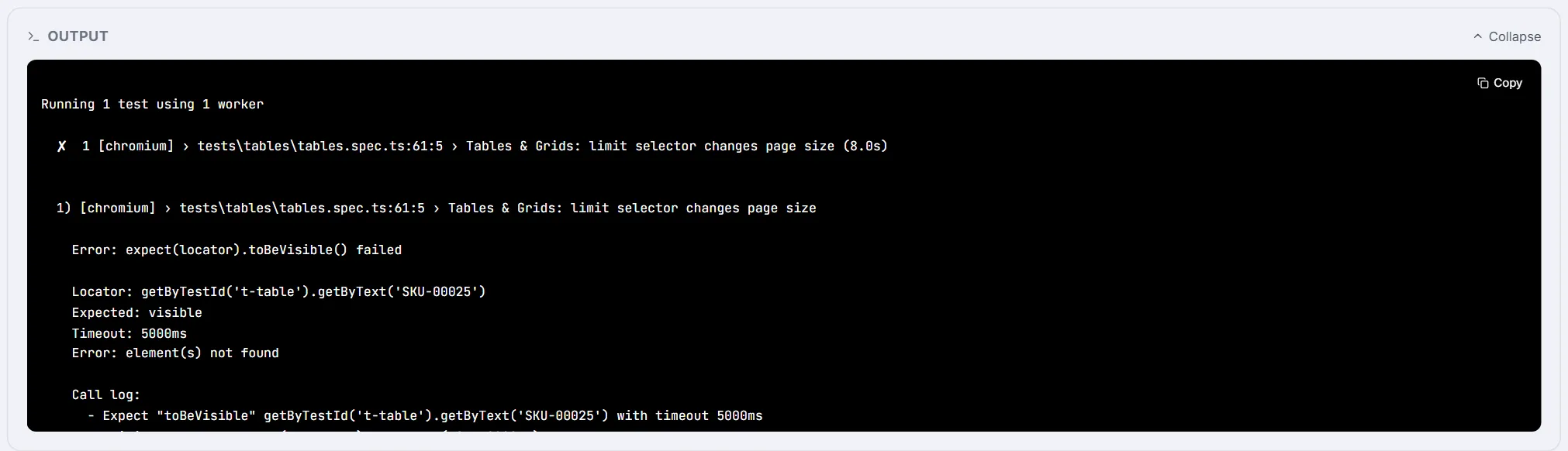
Create Defect / Fix in AI Assistant
Section titled “Create Defect / Fix in AI Assistant”For a failed test, two actions appear at the bottom:
- Create Defect — files a defect in Test Management titled
[FAIL] <test name>, pre-filled with suite, file, browser, duration, retries, the error, a step-by-step reproduction (with pass/fail icons), the error message, and the stack trace. The reporter is the signed-in user. If a defect already exists for this test, the button is replaced by a status chip showing the defect id and its current state (open / in progress / resolved). - Fix in AI Assistant — shown for a failed test that has an error message and no Auto-Heal card; opens the AI Assistant in the mode that matches the run’s framework, with this test attached and its failure group’s classification, error and stack already in the message.
When Auto-Heal has a record for the test, its card above takes over the next step instead — Apply fix for a fix that is ready, Undo this fix for a healed one, or Fix in AI Assistant for a reverted or undone one (the message then says what Auto-Heal already tried, so the Assistant doesn’t repeat it). The card also offers Open verification run when one exists; Undo this fix asks for confirmation first, and a fix that is expired or stale shows why instead of the buttons. A Not healed card gives the reason plus Fix in AI Assistant and, when the test belongs to a failure group, View group (N tests), which opens the Failure Analysis panel on the test’s group.

Comparing Runs & AI Failure Analysis
Section titled “Comparing Runs & AI Failure Analysis”Run Comparison
Section titled “Run Comparison”Opened via vs Baseline (or by selecting two runs in the list), the Run Comparison panel diffs two runs. Its header names the two runs by short run id (# and the first eight characters, e.g. #srun_55f vs #srun_3b6); when opened with vs Baseline, the first reads Baseline. The two sides of the comparison are labelled Baseline and Current. A pass-rate summary shows both runs’ pass rates side by side with a delta and a trend arrow (green up / red down / gray flat).
Four summary cards count the categories. Below them, each category with at least one test has an expandable section listing the affected tests (with the error where there is one); one section is open at a time, Regressions first. A Duration Changes section lists tests whose run time shifted, with before/after and a percent change (red slower, green faster). If nothing meaningful differs, an empty-state message is shown.
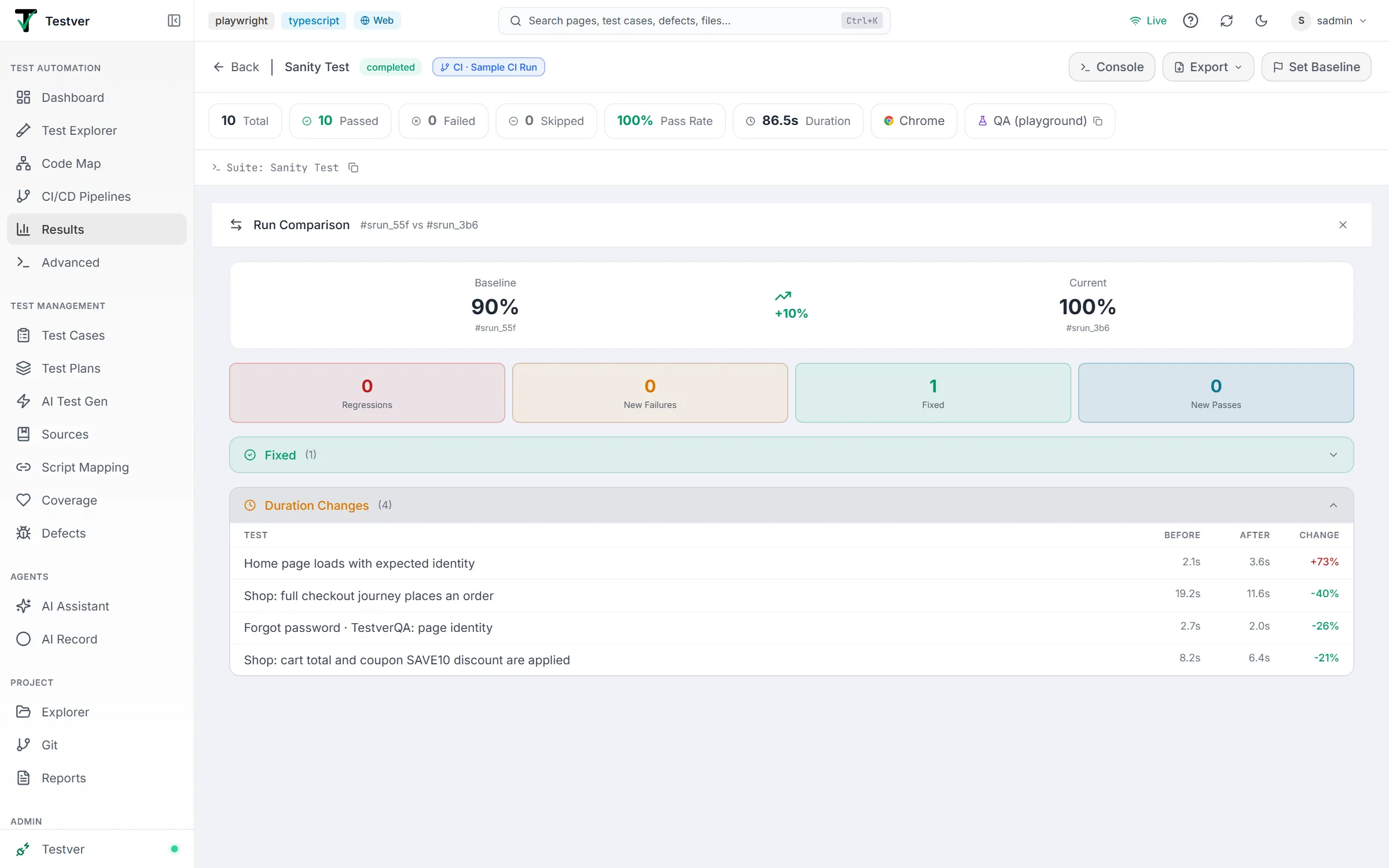
| Category | Definition | Color |
|---|---|---|
| Regressions | Passed in baseline, fails now — the highest-priority signal. | Red |
| New Failures | Failing now, not previously failing/run. | Amber |
| Fixed | Failed before, passes now. | Green |
| New Passes | Newly passing tests. | Cyan |
| Duration Changes | Tests with a notable runtime delta. | Amber section |
Failure Analysis
Section titled “Failure Analysis”Every run is classified as it is saved: its failures are grouped by error pattern and each group gets a category, a count of affected tests, a root cause and a suggested direction. Open Analyze Failures to see them; the first group is expanded by default. Git ownership (who likely owns the failing area) is shown where available. Re-analyze recomputes the grouping — useful after the classifier improves.
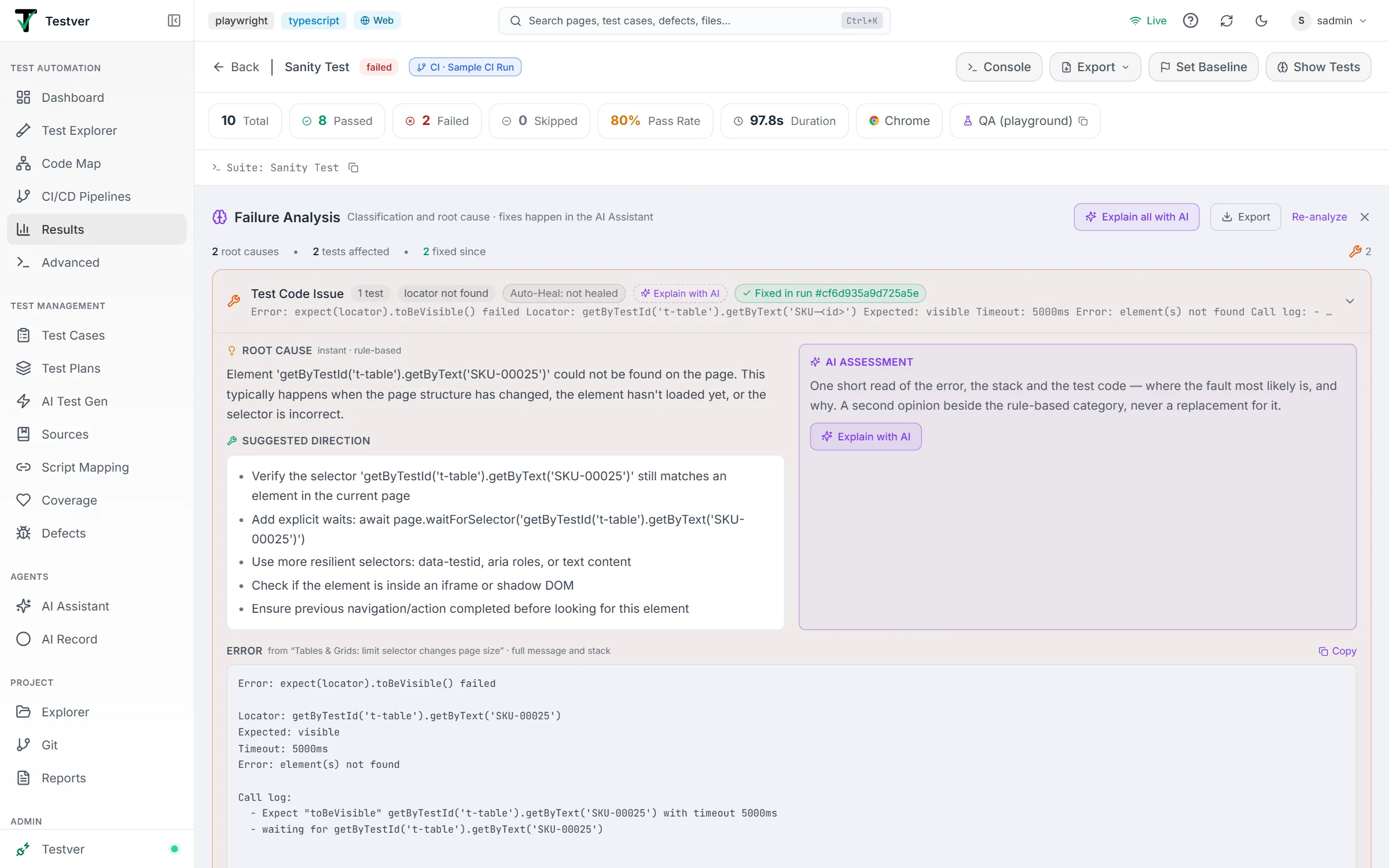
| Category | Label | Meaning |
|---|---|---|
| bug | Application Bug | A genuine product defect — the assertion is right, the app is wrong. |
| environment | Environment Issue | Infrastructure, network, auth, data or the browser — nothing in the test file would fix it. |
| flaky | Flaky Test | Intermittent, non-deterministic. |
| test-issue | Test Code Issue | The test or its page objects are wrong or stale — locators, waits, stale references. |
| timeout | Timeout | Exceeded a wait; too ambiguous to place without reading further. |
| unknown | Needs Investigation | Could not be confidently categorised. |
The category is deterministic and is the record: Auto-Heal gates on it and the trend charts count it.
AI assessment
Section titled “AI assessment”Each group can be explained by the AI — Explain with AI on the group, or Explain all with AI in the header (shown while at least one group has not been explained). It is one short call per group with the error, the stack trace and the test code (plus the page object the stack names) inlined: no tools, no browser, a few seconds. You get a plain-language summary of where the fault most likely lies, a likely layer (test code / application / environment), a confidence, and a file:line pointer.
The assessment sits beside the category, never replaces it. When the two disagree — the classifier says Test Code Issue, the AI says application because a request took thirty seconds — the group is marked differs and both readings are shown (Timeout, Flaky Test and Needs Investigation groups imply no layer, so they are never marked differs). That disagreement is usually the interesting part.
Fixing
Section titled “Fixing”Failure Analysis does not fix tests. Each group has one button, Fix in AI Assistant, which opens the AI Assistant in the mode that matches the run’s framework with a prepared message: the classification and the AI read, the still-failing tests (fixed ones are listed as already done), the full error and stack, and the exact scoped command to verify with. The first still-failing test is attached as @test. Every affected test also has its own Fix shortcut for just that test. When the two readings disagree the button reads Investigate in AI Assistant instead. For Application Bug groups, or when the AI points at the application, Raise as defect files a Test Management defect from the failure (same shape as the test panel’s Create Defect); if one already exists, the group shows Defect exists with its id.
Fixed is read from data, not from the AI: each affected test shows what it did the next time it ran — Fixed · passed in run #N, Still failing · run #N, or Not re-run yet. The group header sums that up (“3 of 5 fixed in run #1287”), and the summary bar counts tests fixed since the run.
Export menu (Failure Analysis)
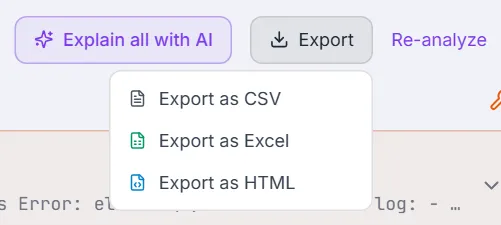
Section titled “Export menu (Failure Analysis)”The Failure Analysis panel has its own export menu to save the analysis as CSV, Excel, or HTML — useful for sharing triage results outside Testver. Each format carries the AI assessment (layer, confidence, summary) for groups that have one; the column is blank otherwise, never filled in with the rule-based text.
Common Tasks (How Do I…?)
Section titled “Common Tasks (How Do I…?)”| I want to… | Do this |
|---|---|
| See only failed runs | Click the Failed status chip in the runs list header. |
| See only cloud runs | Click the Cloud source chip. |
| Open a run | Click its card / row in the list. |
| Open a specific test’s detail | Open the run, then click the test row in the per-test list. |
| Mark a known-good run | Use ⋯ → Set as baseline on the card (or Set Baseline in run detail). |
| See what regressed since the baseline | Open the run and click vs Baseline (or select two runs to compare). |
| Read the failing step and error | Open the test; see the Root Cause Analysis and Steps sections. |
| Watch the failure video | In the test panel Artifacts card, click Video (or use the cloud session Video button). |
| Open a Playwright trace | In Recordings & Screenshots, click the Trace card to open the Trace Viewer (or its download icon to save the .zip). |
| See a data-driven test’s individual cases | Click a row in the Variations card; use Back to summary to exit. |
| File a bug from a failure | In the failed test panel, click Create Defect. |
| Get AI to explain a failure | Open Analyze Failures, then Explain with AI on a group (or Explain all with AI). |
| Let AI fix and re-run the test | In Failure Analysis, click Fix in AI Assistant on the group (or Fix beside one test); the Assistant applies the fix and re-runs only those tests. |
| Export a run report | In run detail, use Export ▾ → HTML / CSV / Excel. |
| See the raw console output | Click Console in run detail, or expand Output in the test panel. |
Tips & Best Practices
Section titled “Tips & Best Practices”- Set a baseline early. Comparisons are only as useful as the reference; pin a green run you trust and update it when your suite legitimately changes.
- Triage by category. In Failure Analysis, fix Application Bug and Test Code Issue groups first; treat Flaky as stabilization work and Environment as infra follow-up.
- Use the History strip in the test panel to tell a one-off failure from a chronically flaky test before you spend time on it.
- Watch for the Git correlation banner — when it points a finger at a commit with high confidence, start your investigation there.
- Review the Assistant’s diffs before accepting; it edits real files. The hand-off message already scopes the run to the affected tests — add your own constraints to it before sending if you want the change narrower.
- Pick the right view mode — Table for dense scanning, Rich for daily monitoring; the choice is remembered.
- Bump Rows per page to 50–100 when bulk-scanning history; remember filters and pages reset together.
Troubleshooting & FAQ
Section titled “Troubleshooting & FAQ”| Symptom | Likely cause / fix |
|---|---|
| The Trace Viewer says the trace “was created by a newer version of Playwright” | No viewer as new as the trace was found. Make sure the project’s Playwright is installed (npm install, the Python virtualenv, a .NET build, or for Java a Maven / Gradle build that downloaded the driver), wait half a minute, then reload the page — the viewer keeps a helper in the browser that a reload replaces. |
| ”Console output not available” toast | That run did not capture console output, or it has been cleaned up. Per-test Output may still be available. |
| No video/logs on a cloud run | Artifacts haven’t been pulled yet — click Fetch Artifacts in the run-detail toolbar (shown for cloud runs without artifacts). |
| Cloud video won’t play in the modal | Use the Open in new tab ↗ escape hatch — the embedded player may hit CORS, an expired signature, or a codec issue. |
| Analyze Failures button is missing | The run has no failed/errored tests, so there is nothing to analyze. |
| Explain with AI reports no usable assessment / ‘configure an LLM provider’ | No LLM provider key is set. Configure a provider under Settings → LLM and retry. |
| A group shows an Auto-Heal: … chip | Auto-Heal already acted on that group — Fix ready means a verified fix is waiting in Results › Auto-Heal. Check it before handing the group to the Assistant. |
| A test shows Not healed | Auto-Heal deliberately left it alone; hover the chip or open the test for the reason (not a locator problem, locator built dynamically, no page evidence…). |
| Steps list is empty / ‘Loading test steps…’ | Testver is resolving the test’s source steps from the Explorer; it appears once they load. Tests with no detectable steps show none. |
| Parameters chips missing on a data-driven test | Intentional — they would show only one variant’s data. Use the Variations card to see each data set. |
| Baseline marker disappeared | Clear baseline in the card menu (or Baseline ✓ in run detail) toggles it off; re-set it on the run you want. |
| Filtered list looks empty | A status + source combination may have zero matches — the list reads “No runs match the current filters”; use Clear filters (or click All in both chip groups). |
| Defect button replaced by a status chip | A defect already exists for this test — the chip shows its id and state instead of letting you create a duplicate. |
Related
Section titled “Related”- Runner — kick off runs.
- CI/CD Pipelines — CI-triggered runs that land here with a CI badge.
- Test Explorer — browse the test catalog the runs executed.
- Output — file-tree view of all run artifacts.
- Defects — file defects from failures.