

Sources
Introduction
Section titled “Introduction”What is the Sources screen?
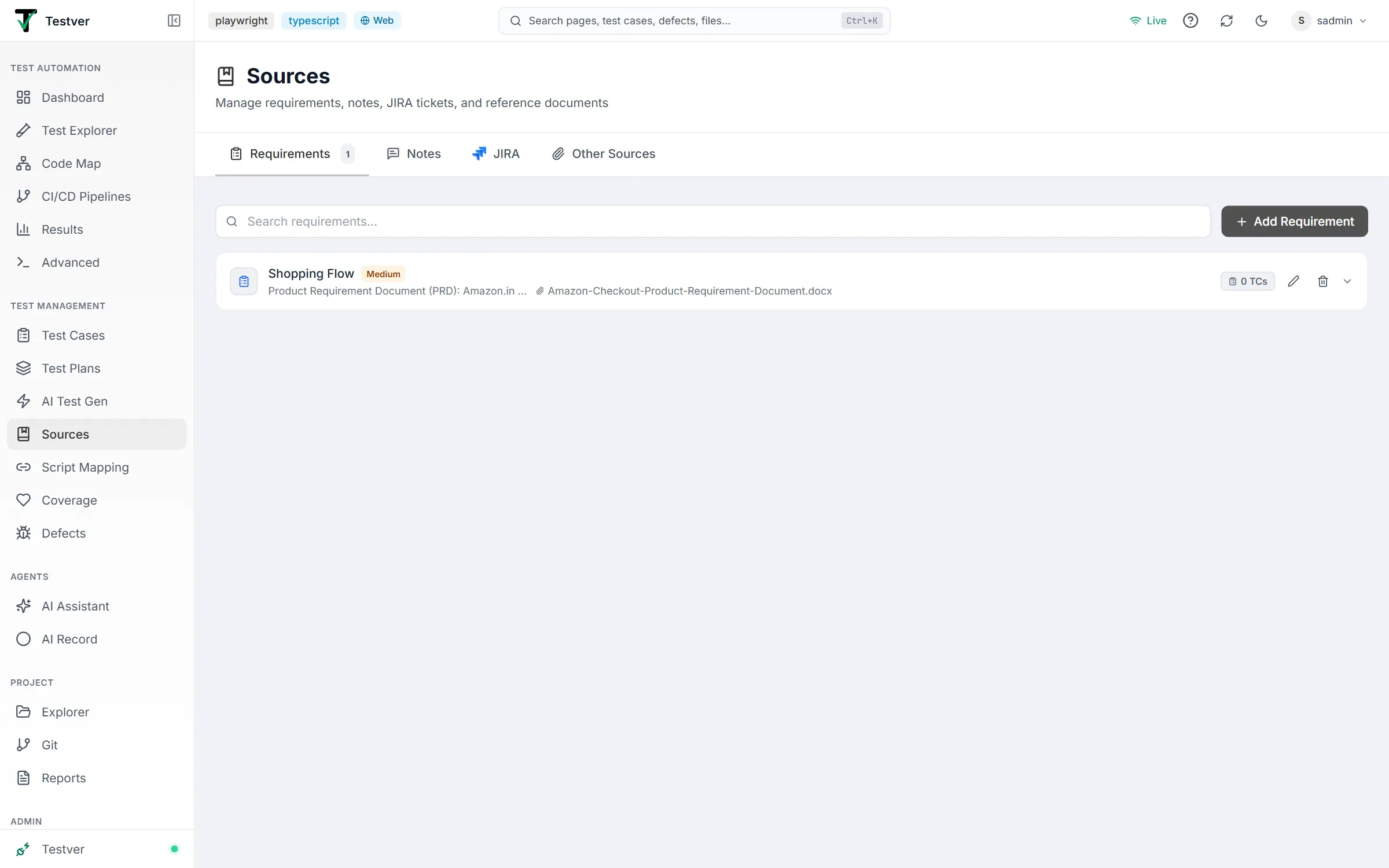
Section titled “What is the Sources screen?”The Sources screen is where you collect and organize every piece of input that describes what your software is supposed to do. Each item you store here is called a source — it might be a written requirement, a quick note, a JIRA story, or an uploaded document such as a specification or screenshot. Once a source exists, you can attach test cases to it, generate test cases from it, and prove that every requirement is covered by at least one test.
Think of the Sources screen as the filing cabinet for your ‘why’. If test cases are the answer to ‘how do we check this?’, sources are the answer to ‘what are we supposed to be checking, and where did that come from?’. Every drawer in the cabinet (the four tabs) holds a different kind of paperwork, but they all serve the same purpose: giving your tests a documented reason to exist.
Who this guide is for
Section titled “Who this guide is for”This guide is written for anyone who needs to capture, organize, or review the requirements behind a test effort, including:
- Business analysts and product owners who write requirements and want them stored where the QA team can act on them.
- QA engineers and testers who need a single place to see every requirement and which test cases cover it.
- Test leads who care about traceability — knowing that nothing slipped through without a test.
- Anyone integrating with JIRA who wants to pull stories and tasks into Testver without re-typing them. No coding is required to use this screen. If you can fill in a form, click a button, and drag a file, you can use everything described here.
Key terms
Section titled “Key terms”| Term | What it means in Testver |
|---|---|
| Source | A single stored item on this screen — a requirement, note, JIRA ticket, or document. Every source has a title and belongs to exactly one of the four tabs (its type). |
| Requirement | A formal statement of what the system must do. On the Requirements tab, each source carries a priority (Critical / High / Medium / Low) and is backed by an uploaded file. |
| Note | Free-form text — a requirement, user story, BDD scenario, edge-case description, or open question written in your own words. Stored under the Notes tab. (Internally this type is still labelled nlp for database compatibility.) |
| JIRA ticket | A story or task pulled in from a connected JIRA instance. Its title is shaped like PROJ-1234: Summary and it links back to the original issue in JIRA. |
| Document / Other Source | An uploaded file — a PDF, Office document, image, or text file — kept for reference under the Other Sources tab. |
| Content | The text body of a source. For Notes and JIRA tickets you type it; for Requirements and Documents it is extracted automatically from the uploaded file’s text. |
| Attachment | The binary file stored with a source (stored as base64). Images are previewed inline; other files show a name, type, and size. |
| Linked test case | A test case that has been associated with a source. The count of these appears on every source row as a TC badge. |
| Traceability | The chain that connects a requirement to the test cases that verify it. Deleting a source breaks this chain (the test cases survive, but the link is lost). |
| Quick Plan | A one-click action that bundles all of a source’s linked test cases into a ready-to-run test plan. |
How it relates to other screens
Section titled “How it relates to other screens”Sources sits at the very front of the testing workflow — most other screens consume what you store here:
- AI Test Generation reads a source’s content and proposes test cases automatically, so the richer your source, the better the generated tests.
- Test Cases link back to sources; the number you see in the
TCbadge on each row reflects those links. - Coverage and traceability views use sources to answer ‘is every requirement tested?’. When a source is deleted, Testver refreshes coverage statistics to reflect the lost link.
- Test Plans / Execution can be created straight from a source using the Create Plan button (Quick Plan), which gathers all linked test cases into a runnable plan.
- Connectors is where you configure the JIRA connection that powers the JIRA tab’s pull feature.
Getting Started
Section titled “Getting Started”Opening Sources
Section titled “Opening Sources”- From anywhere in Testver, navigate to the Sources screen (route
/sources). - The screen opens on the Requirements tab by default. The active tab is also remembered in the URL via a
tabquery parameter, so you can bookmark or share a link to a specific tab. - If you have no sources yet on a tab, you will see an empty state with the tab’s icon and an Add button to create your first item.
The screen layout
Section titled “The screen layout”| Area | Where | What it does |
|---|---|---|
| Header | Top of screen | Shows the Sources title (bookmark icon) and the subtitle ‘Manage requirements, notes, JIRA tickets, and reference documents’. |
| Tab bar | Below the header | Four tabs: Requirements, Notes, JIRA, Other Sources. The active tab is underlined; a count badge shows how many items it holds. |
| Search box | Top of the content area | Filters the current tab’s list. Placeholder reads ‘Search <tab name>…’. |
| Add button | Right of the search box | Opens the add form. Its label changes per tab: Add Requirement, Add Note, Add Ticket, or Add Document. |
| JIRA pull panel | Only on the JIRA tab | A ‘Pull from JIRA’ panel for searching and importing issues (appears above the list). |
| Sources list | Main body | One collapsible card per source. Click a card to expand its details. |
| Empty state | Main body when list is empty | An icon, a ‘No <type> yet’ message, and an Add button. |
At a glance
Section titled “At a glance”- Switching tabs clears the search box, closes any open form, and resets form fields — each tab starts fresh.
- The count badge next to a tab label only appears for the active tab and only when it has at least one item.
- Every source card is collapsible: the header shows a summary, and clicking it reveals full content, attachments, linked test cases, and metadata.
- Actions on each card — Create Plan, open external link, Edit, Delete, and expand — live on the right side of the card header.
The Sources List
Section titled “The Sources List”Each tab shows its sources as a vertical list of cards. The four tabs hold four different source types; the card layout is shared but a few details differ by type.
The four source tabs
Section titled “The four source tabs”
| Tab | Type | Icon | Best for | Requires a file? |
|---|---|---|---|---|
| Requirements | requirement | Clipboard (blue) | Formal requirements with a priority, backed by an uploaded document. | Yes — file is mandatory |
| Notes | nlp | Speech bubble (purple) | Free-form text: requirements, user stories, BDD scenarios, ideas, or open questions in your own words. | No — typed content only |
| JIRA | jira | JIRA logo | Stories and tasks pulled from a connected JIRA instance, with a link back to the original issue. | No — content is the story / acceptance criteria |
| Other Sources | document | Paperclip (amber) | Reference documents and images: specs, API docs, screenshots, mockups. | Yes — file is mandatory |
Anatomy of a source card
Section titled “Anatomy of a source card”
In its collapsed state, each card header displays:
| Element | Description |
|---|---|
| Type icon | A small icon (left) indicating the source type. |
| Title | The source’s title, truncated if long. |
| Priority badge | Only on the Requirements tab — a coloured pill: Critical (red), High (orange), Medium (amber), Low (green). |
| Content preview | The first 80 characters of the content, with an ellipsis if longer. |
| File name | A paperclip icon plus the attached file’s name, when a file is attached. |
| TC badge | A grey pill showing the number of linked test cases, e.g. 3 TCs (or 1 TC, 0 TCs). |
| Create Plan button | Appears only when the source has at least one linked test case (see Section 5). |
| External link | An open-in-new-tab icon, shown when the source has an external URL (typically JIRA tickets). |
| Edit / Delete | A pencil and a trash icon for editing or removing the source. |
| Expand chevron | A downward chevron that rotates when the card is expanded. |
Searching within a tab
Section titled “Searching within a tab”- Pick the tab whose items you want to search.
- Type into the Search box at the top of the list. The placeholder shows which tab you are searching.
- The list filters as you type — searching runs against the current tab’s sources on the server.
- Clear the box (or switch tabs) to see the full list again.
Adding a Source
Section titled “Adding a Source”Click Add (top-right of the list) or the button in the empty state. A form appears inline above the list. The fields shown depend on which tab you are on.
Adding a requirement
Section titled “Adding a requirement”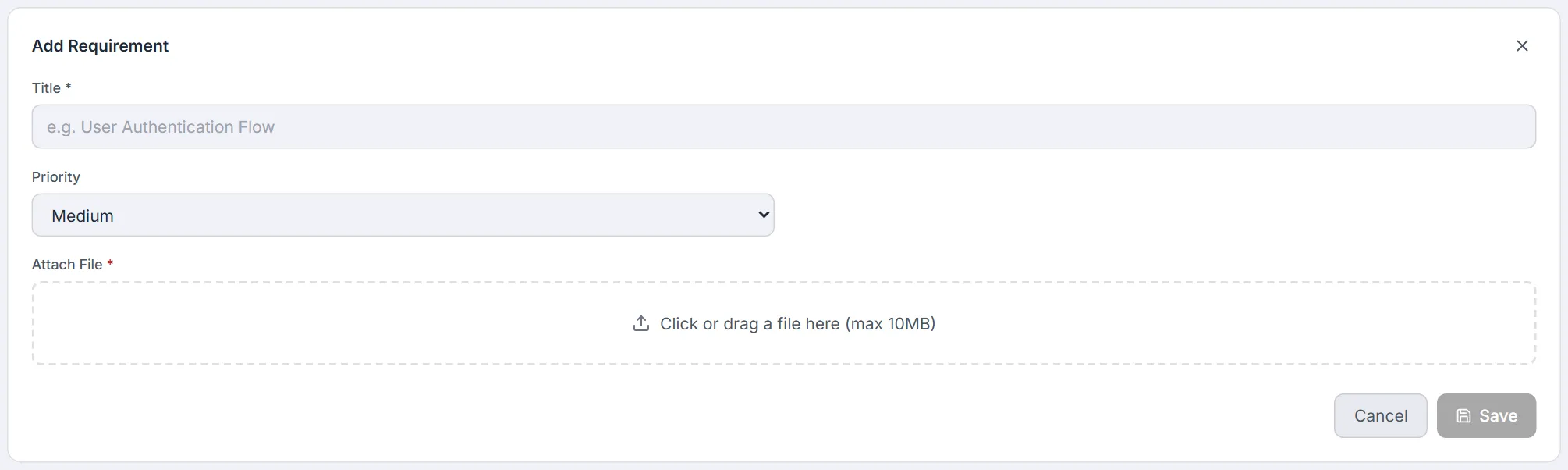
- Open the Requirements tab and click Add Requirement.
- Enter a Title (required), for example
User Authentication Flow. - Choose a Priority: Critical, High, Medium (default), or Low.
- Attach a file — this is required. Click the dropzone or drag a file onto it. The file’s text content is extracted automatically and becomes the requirement’s description.
- Click Save. The button stays disabled until both a title and a file are present (hover shows ‘Attach a file to enable Save’).
Adding a note
Section titled “Adding a note”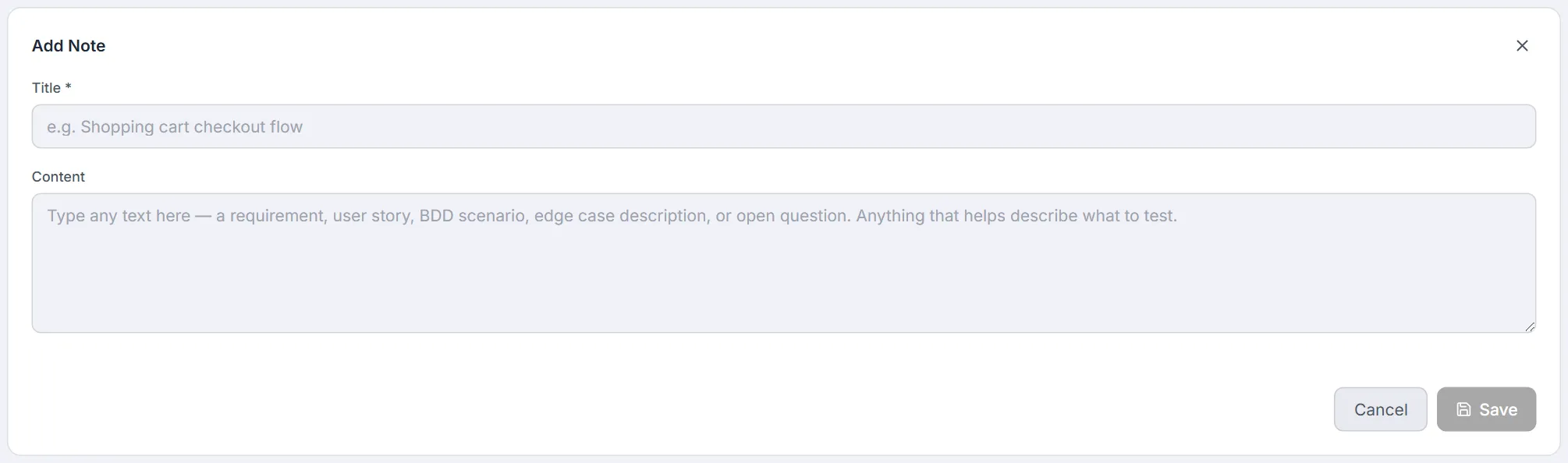
- Open the Notes tab and click Add Note.
- Enter a Title, for example
Shopping cart checkout flow. - Type into the Content box: any free-form text — a requirement, user story, BDD scenario, edge case, or open question.
- Click Save. Notes require only a title (content is optional but recommended).
Adding a JIRA ticket manually
Section titled “Adding a JIRA ticket manually”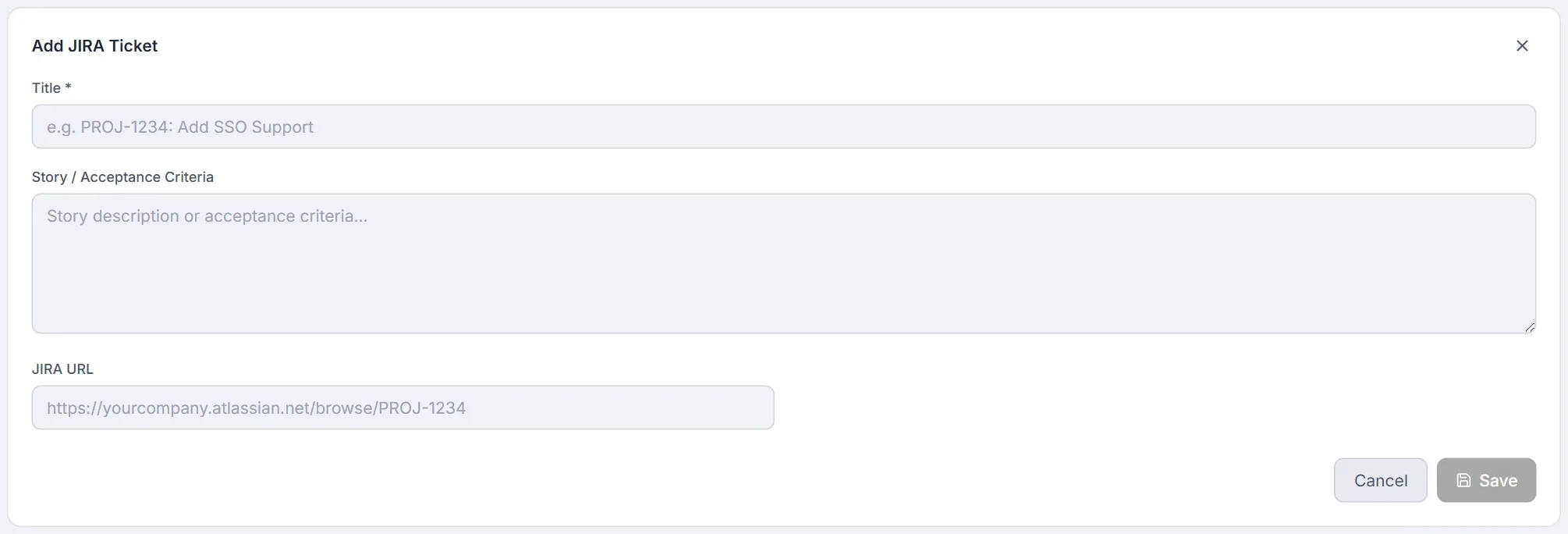
Besides the automated pull (Section 4.6), you can add a JIRA ticket by hand:
- Open the JIRA tab and click Add Ticket.
- Enter a Title, for example
PROJ-1234: Add SSO Support. - Paste the Story / Acceptance Criteria into the content box.
- Optionally fill in the JIRA URL, e.g.
https://yourcompany.atlassian.net/browse/PROJ-1234. This powers the external-link icon on the card. - Click Save.
Adding another source (document)
Section titled “Adding another source (document)”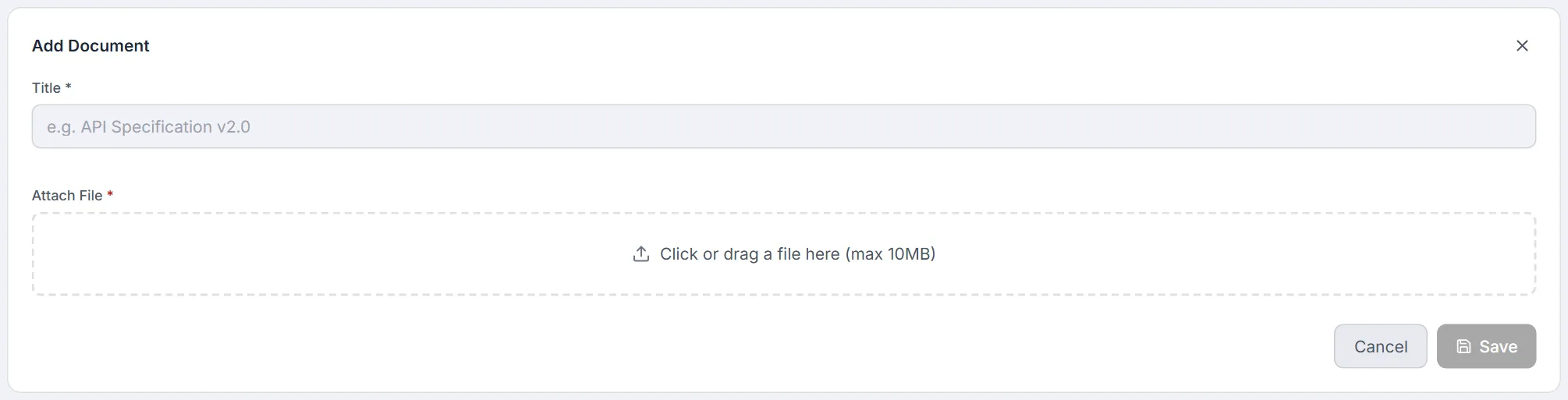
- Open the Other Sources tab and click Add Document.
- Enter a Title, for example
API Specification v2.0. - Attach a file (required) by clicking the dropzone or dragging a file in.
- Click Save.
Supported file formats
Section titled “Supported file formats”The file picker on the Requirements and Other Sources tabs accepts the following formats:
| Category | Extensions / types accepted | Notes |
|---|---|---|
| Images | any image/* (PNG, JPG, GIF, etc.) | Previewed inline as a thumbnail in the form and in the expanded card. |
| Stored as an attachment, and its text is read when you save. A scanned PDF (pages that are only images) has no text to read. | ||
| Office documents | .doc, .docx, .xls, .xlsx | Stored as an attachment. The text of a Word .docx is read when you save; .doc and Excel files are kept as attachments only. |
| Text files | .txt, .csv, .json, .md (plus .xml, .yaml, .yml, .log, .html, .htm) | Text is read and used to auto-fill the description / content when it is still empty. |
- Maximum file size is 10 MB. Files larger than this are silently ignored — nothing is attached.
- Files are stored as base64-encoded data inside the source, so the attachment travels with the record.
- You can attach one file per source. Dropping multiple files uses only the first.
- To remove an attached file before saving, click the small X on the file chip in the form.
How content is extracted
Section titled “How content is extracted”Testver derives the searchable, AI-readable content of a source automatically:
- For text-based files (txt, csv, json, md, xml, yaml, log, html), the file’s text is read and placed into the content field when that field is empty — so the document’s text becomes the requirement description without retyping.
- For PDF and Word (.docx) files, the text is read when you save and added to the content under a File Content (file name) heading, after anything you typed — so search, AI Test Generation and the AI Assistant all see the document itself, not just its name.
- Other binary files (
.doc, Excel, images) are stored as attachments; their name, type, and size are recorded, and images get an inline preview. - For JIRA pulls, the issue’s description is converted from Atlassian Document Format (ADF) into plain text — including lists, tables, blockquotes, code blocks, mentions, and links — and any Acceptance Criteria field is appended under an ‘Acceptance Criteria:’ heading.
Viewing a Source & Its Requirements
Section titled “Viewing a Source & Its Requirements”Click any source card to expand it. The expanded panel reveals everything Testver knows about that source.
The expanded source panel
Section titled “The expanded source panel”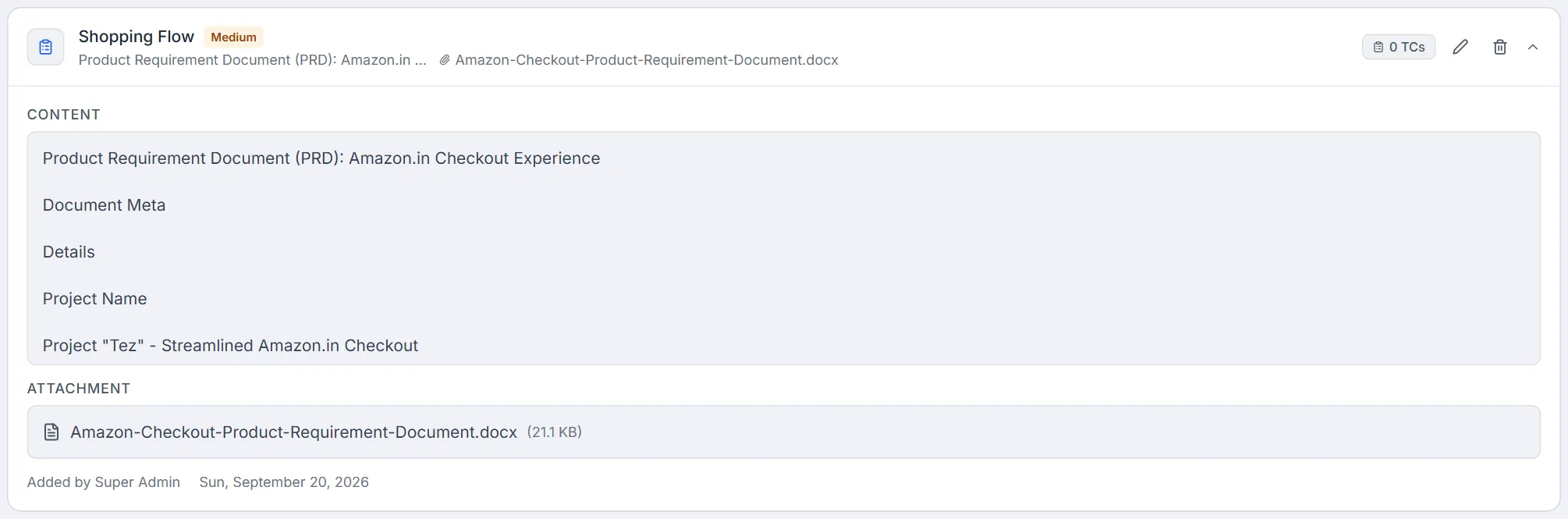
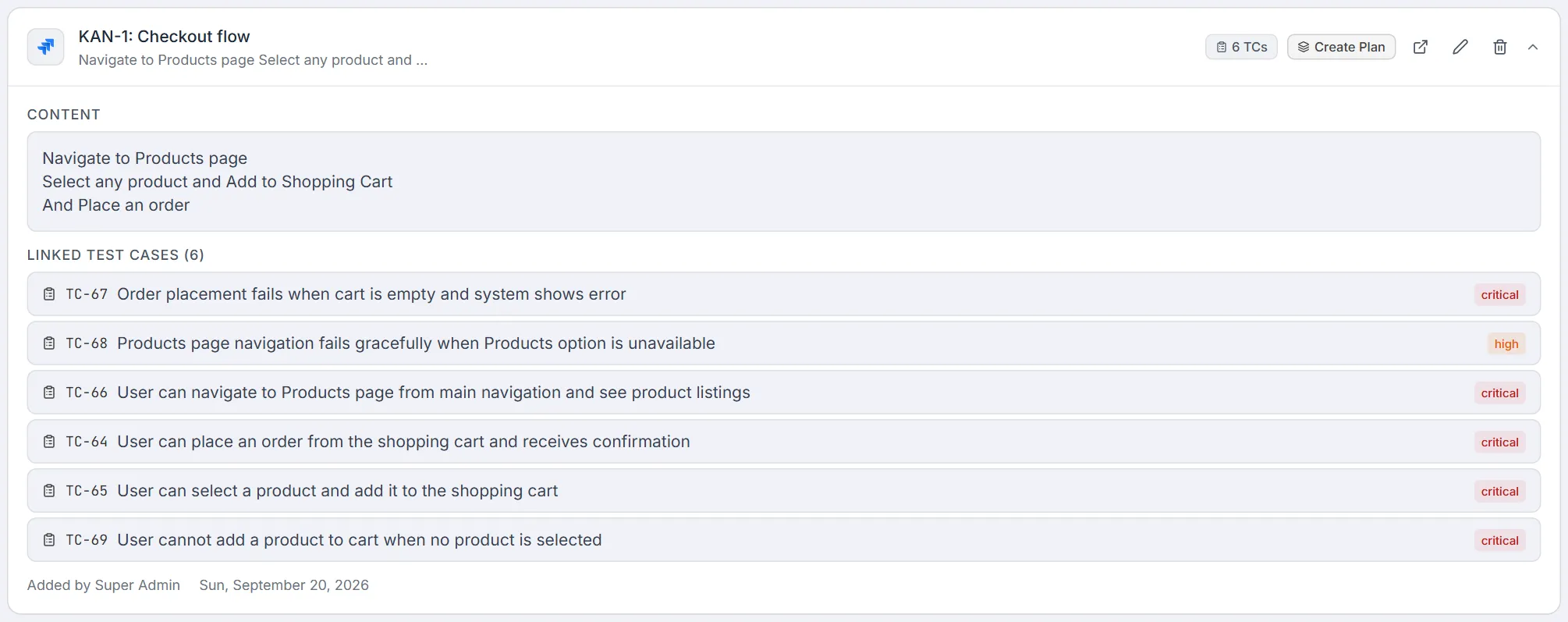
| Section | Shown when | Contents |
|---|---|---|
| Content | The source has text content | The full text body, scrollable, preserving line breaks (up to a fixed height, then scrolls). |
| Attachment | The source has a stored file | An inline image preview for images, or the file name with its size in KB for other files. |
| Linked Test Cases | One or more test cases are linked | A list of each linked test case showing its ID, title, and priority. The heading shows the count. |
| Metadata | Always | Who added the source (‘Added by …’) and the creation date. |
Acting on a source
Section titled “Acting on a source”From a source you can move directly into the rest of the testing workflow:
- See linked test cases — expand the card to view every test case tied to this source, each with its ID, title, and priority.
- Track coverage — the
TCbadge on the card header is your coverage signal;0 TCsmeans the requirement is not yet covered. - Generate tests — feed the source’s content into AI Test Generation to have test cases proposed for you (the cleaner the extracted content, the better the results).
- Create a Test Plan (Quick Plan) — when a source already has linked test cases, a Create Plan button appears on its card.
Creating a test plan from a source
Section titled “Creating a test plan from a source”- On a source that has at least one linked test case, click Create Plan in the card header.
- Testver bundles all of that source’s linked test cases into a new test plan. A spinner shows while the plan is being built.
- On success a ‘Test Plan Created!’ dialog appears, showing the plan name and the number of test cases included, with ‘Cycle ready’.
- Click Go to Execution to jump straight to the Test Plans / Execution screen, or Close to stay on Sources.
- If plan creation fails, a red toast appears in the bottom-right with the error message; dismiss it with its X.
Pulling Issues from JIRA in Bulk
Section titled “Pulling Issues from JIRA in Bulk”
The JIRA tab includes a ‘Pull from JIRA’ panel for importing issues in bulk. It requires a configured JIRA connector.
- Open the JIRA tab. If JIRA is not connected, you’ll see a ‘JIRA Not Connected’ card with a Go to Connectors link — configure the connector there first.
- Once connected, choose a Project from the dropdown (required). Selecting a project auto-fills a default JQL Query like
project = "PROJ" ORDER BY updated DESC. - Optionally refine the JQL Query, then click Search (Search is disabled until a project is picked).
- Review the results list (up to 50 issues). Each row shows the issue key, summary, status, priority, type, and assignee.
- Tick the issues you want, or use Select All / Deselect All. Issues already imported are greyed out, badged ‘Already imported’, and cannot be re-selected.
- Click Import N to Sources. Each selected issue becomes a JIRA source with its description (and any acceptance criteria) extracted into content and a link back to the original issue.
Editing & Deleting Sources
Section titled “Editing & Deleting Sources”Editing a source
Section titled “Editing a source”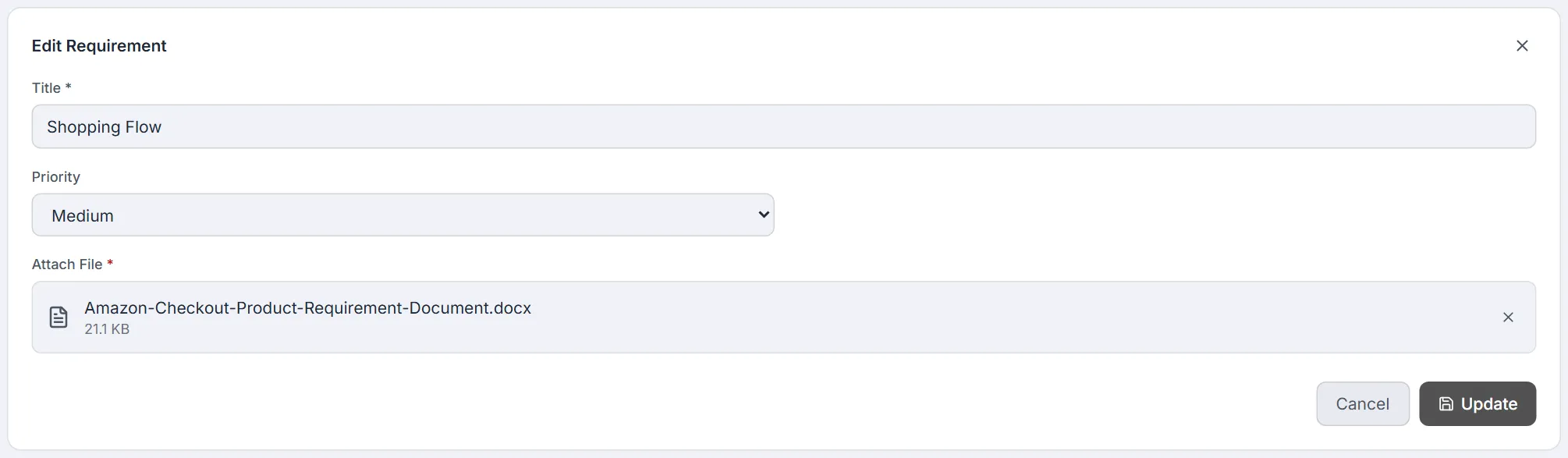
- Click the pencil icon on a source card.
- The form re-opens pre-filled with the source’s current title, content, priority, URL, and attachment.
- Make your changes and click Update. The same Save rules apply (title required; file required on Requirements and Other Sources).
Deleting a source
Section titled “Deleting a source”- Click the trash icon on a source card.
- A confirmation dialog appears, worded to the source type (e.g. ‘Delete this requirement?’).
- If the source has linked test cases, the dialog warns you how many — those test cases are not deleted, but their link to this source is removed and traceability is lost.
- Click Delete to confirm, or Cancel to keep the source.
Common Tasks (How Do I…?)
Section titled “Common Tasks (How Do I…?)”| I want to… | Do this |
|---|---|
| Add a formal requirement | Requirements tab → Add Requirement → set title, priority, attach a file → Save. |
| Jot down an idea or user story | Notes tab → Add Note → title + free-form content → Save. |
| Store a spec or screenshot | Other Sources tab → Add Document → title + attach file → Save. |
| Pull stories from JIRA | JIRA tab → pick a project → Search → select issues → Import to Sources. |
| Find a specific source | Open its tab and type in the Search box (search is per-tab). |
| See which tests cover a requirement | Click the source card to expand it and read the Linked Test Cases list. |
| Turn a source’s tests into a runnable plan | Click Create Plan on the card (only shown when test cases are linked). |
| Open the original JIRA issue | Click the external-link icon on a JIRA source card. |
| Change a requirement’s priority | Click the pencil icon, adjust Priority, click Update. |
| Remove a source | Click the trash icon and confirm in the dialog. |
| Give a source to the AI Assistant | In the AI Assistant (Web, Mobile, API or Ask mode — not Reporting), paperclip → Add from Sources, or type # and its name. Test cases the AI writes from it are linked back here. |
Tips & Best Practices
Section titled “Tips & Best Practices”- Pick the right tab. Formal, prioritized requirements belong on Requirements; quick text belongs on Notes; JIRA work belongs on JIRA; reference files belong on Other Sources.
- Upload text-friendly files when you can. Text-based formats have their content extracted automatically, which makes search and AI test generation dramatically better than opaque binaries.
- Let the title auto-fill. Drop the file first and Testver names the source after it; tidy the title afterwards if needed.
- Use priority deliberately. Critical and High requirements stand out with red and orange badges — reserve them so the colour stays meaningful.
- Import JIRA in batches. Use Select All to queue many issues at once; already-imported tickets are skipped automatically.
- Watch the TC badge. A source sitting at
0 TCsis an untested requirement — treat it as a to-do. - Mind traceability before deleting. If a source has linked test cases, deleting it severs the link even though the tests survive. Re-point those tests first if traceability matters.
Troubleshooting & FAQ
Section titled “Troubleshooting & FAQ”| Symptom | Likely cause | Fix |
|---|---|---|
| The Save button is greyed out | On Requirements / Other Sources, a file isn’t attached, or the title is empty. | Add a title and attach a file. Hovering Save shows ‘Attach a file to enable Save’. |
| I dragged a file and nothing happened | The file is over the 10 MB limit (ignored silently). | Use a file under 10 MB, or split / compress it. |
| My document’s text didn’t fill the content box | Only text files, PDF and Word (.docx) are read. A scanned PDF (images only), a .doc, an Excel file or an image has no text Testver can read. | Type the description manually, save a .doc as .docx, or upload a text version (txt, md, csv, json). |
| The JIRA tab shows ‘JIRA Not Connected’ | No JIRA connector is configured. | Click Go to Connectors and set up the JIRA connector. |
| The Search button on the JIRA panel is disabled | No project is selected. | Pick a project from the dropdown; the default JQL fills in automatically. |
| A JIRA issue is greyed out and can’t be selected | It’s already imported as a source. | It carries an ‘Already imported’ badge — find the existing source on the JIRA tab; duplicates are blocked by design. |
| The Create Plan button isn’t on my source | The source has no linked test cases. | Link or generate test cases first; the button appears once at least one exists. |
| Delete failed with an error alert | The server rejected the delete (e.g. leftover linked rows). | Read the alert message and resolve the stated cause; don’t retry blindly. |
| I can’t find a source I know exists | Search is scoped to the current tab. | Check the other tabs — the source may be under a different type. |
| Linked test cases didn’t show when I expanded a card | They load only on expansion and may lag briefly. | Wait a moment; the list populates after the on-demand fetch completes. |
Related
Section titled “Related”- Test Cases — where generated cases land.
- AI Test Gen — generates cases from sources.
- Coverage — visualizes source ↔ case traceability.
- Connectors → JIRA — wire JIRA in.