

ProjectReportsTemplates tab
Templates tab
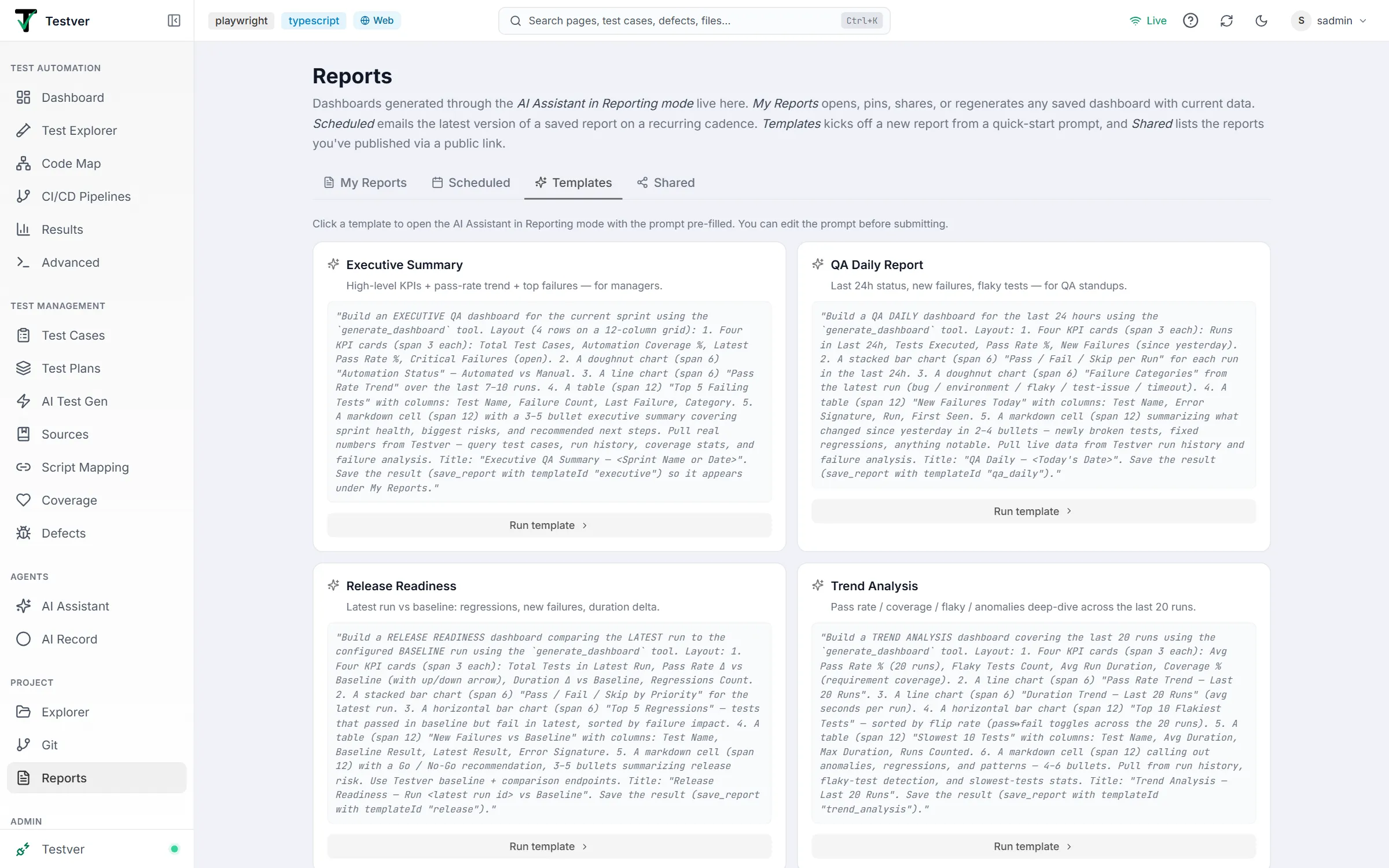
The Templates tab of the Reports screen is the fastest way to produce a report when you don’t want to write a prompt yourself. Under a one-line hint (“Click a template to open the AI Assistant in Reporting mode with the prompt pre-filled. You can edit the prompt before submitting.”) it shows a two-column grid of preset cards, each with a short description, its full prompt and a Run template button.
The presets
Section titled “The presets”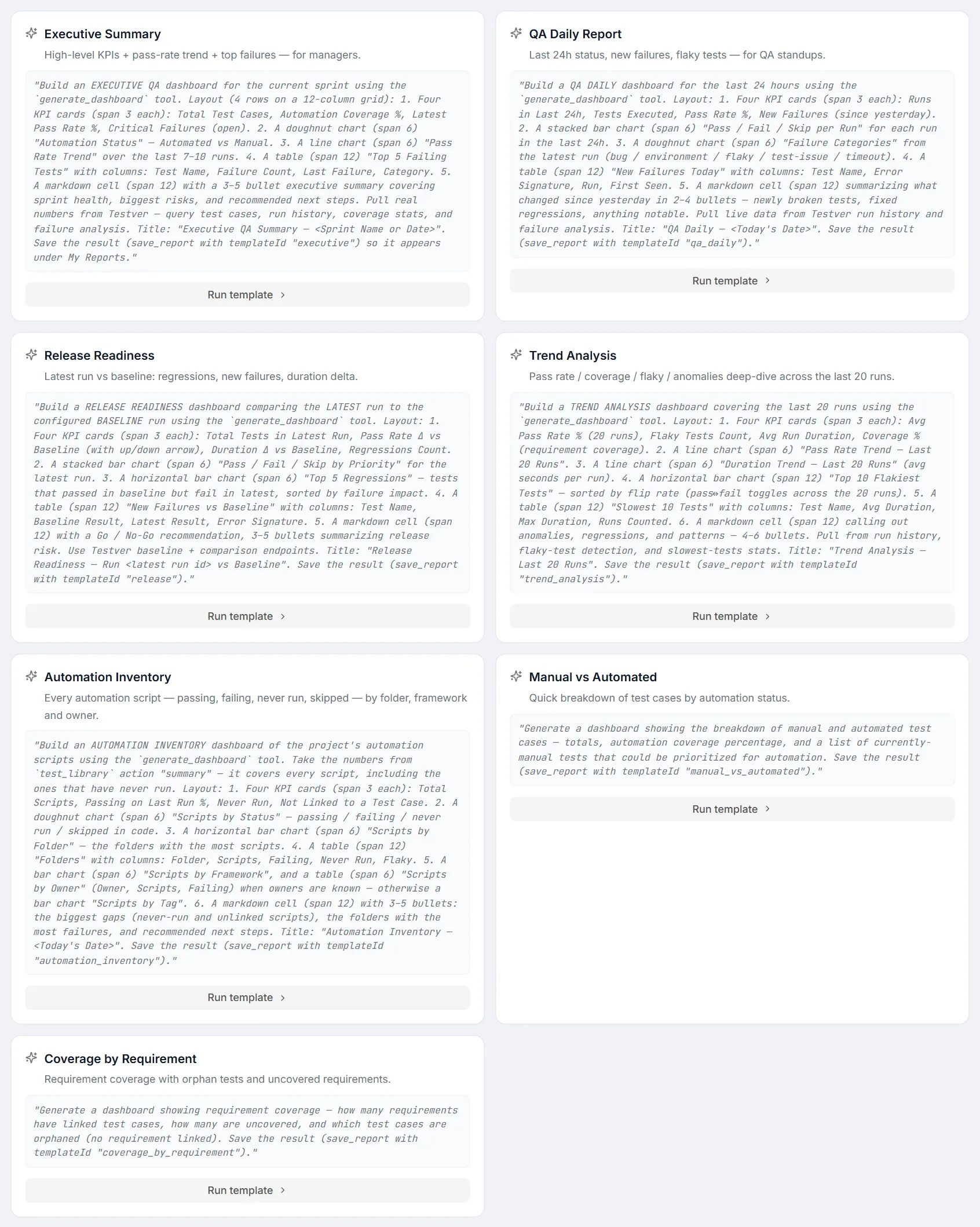
| Template | What it produces |
|---|---|
| Executive Summary | A high-level status read for stakeholders who don’t want detail. |
| QA Daily Report | The day’s testing activity — what ran, what passed, what needs attention. |
| Release Readiness | Whether the current state supports shipping, and what’s outstanding. |
| Trend Analysis | How quality metrics have moved over time. |
| Automation Inventory | Every automation script — passing, failing, never run, skipped — by folder, framework and owner. |
| Manual vs Automated | The split between manual and automated coverage. |
| Coverage by Requirement | Coverage traced back to the requirements it satisfies. |
Running a template
Section titled “Running a template”Reports originate from the AI Assistant. There are two paths in from this screen:
- Open the Templates tab.
- Pick a preset card — for example Executive Summary, QA Daily Report, Release Readiness, Trend Analysis, Automation Inventory, Manual vs Automated, or Coverage by Requirement.
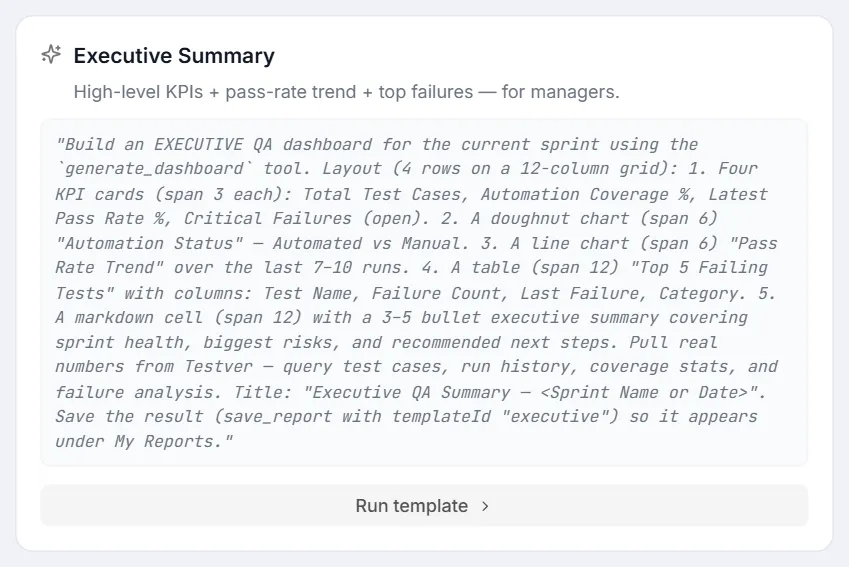
- Read the preview prompt shown in the card (it is fully editable later).
- Click Run template. You are taken to the AI Assistant, forced into Reporting mode, with the prompt pre-filled.
- Edit the prompt if you wish, then submit. The AI builds the dashboard and (per the prompt) saves it so it appears under My Reports. Alternatively, start a chat in Reporting mode yourself, describe the dashboard you want, and click the bookmark icon on the resulting ReportCard to save it here.
| Template | What it produces |
|---|---|
| Executive Summary | High-level KPIs, an automation-status doughnut, a pass-rate trend line, a top-5 failing-tests table, and a 3–5 bullet executive summary — aimed at managers. |
| QA Daily Report | Last-24h KPIs, a pass/fail/skip stacked bar per run, a failure-categories doughnut, a new-failures-today table, and a what-changed-since-yesterday note — for standups. |
| Release Readiness | Latest run vs baseline: pass-rate and duration deltas, regression count, a top-5 regressions bar, a new-failures-vs-baseline table, and a Go / No-Go recommendation. |
| Trend Analysis | A deep dive across the last 20 runs: pass-rate and duration trend lines, flakiest-tests and slowest-tests breakdowns, and an anomalies note. |
| Automation Inventory | Every automation script in the project — including scripts that have never run: totals, passing / failing / never run / skipped, scripts by folder, framework and owner (or tag), and scripts not linked to a test case, with a short gaps-and-next-steps note. |
| Manual vs Automated | A quick breakdown of test cases by automation status (single-line prompt; the AI picks the layout). |
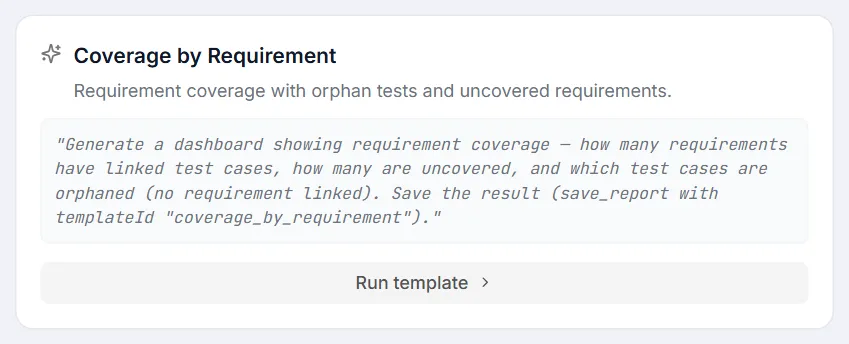
| Coverage by Requirement | Requirement coverage with uncovered requirements and orphaned tests (single-line prompt; the AI picks the layout). |
Reports created this way carry a small template badge on their card in My Reports, showing the id of the preset that produced them (for example qa_daily for QA Daily Report).
Related
Section titled “Related”- Reports overview — the screen and its four tabs.
- My Reports tab — where the generated report is saved.
- AI Assistant — the Reporting mode a template drops you into.