

Testver Cloud, Grid & MailTestver Connections
Testver Connections
What it is
Section titled “What it is”Testver → Connections is the page in the tool where you connect to your Testver account and see every Testver-provided service in one place. It sits behind the pinned Testver entry at the bottom of the sidebar, next to About.
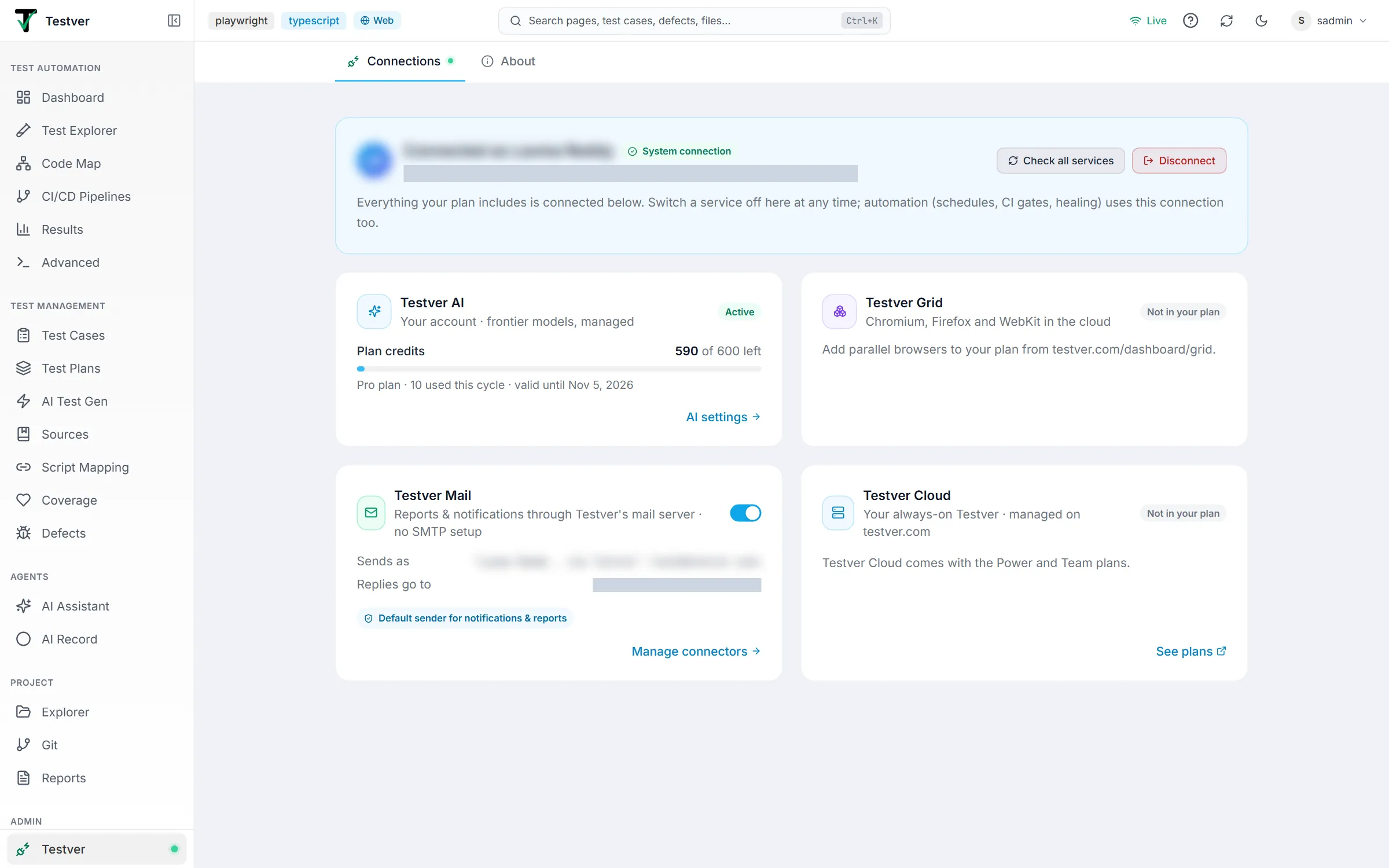

One Connect to Testver button. Once you are connected, everything your plan includes, and every add-on you hold, is on:
| Card | What it shows | What you can do |
|---|---|---|
| Testver AI | Two bars: Plan credits (this cycle’s allowance, the credits used and the date the plan is valid until) and Extra usage reserve (credits from packs, which never expire and are spent only after the plan credits run out — In use now while they are). The badge says Active, Plan expired or Suspended. | Open AI settings; top up or renew on testver.com when it says so |
| Testver Grid | Browsers at once, which installation holds the connection, today’s usage | Switch on/off, take over from another device, open Grid settings |
| Testver Mail | The sender address and where replies go | Switch on/off, open Connectors |
| Testver Cloud | Your workspace address and health — or Not in your plan | Open it, or manage it on testver.com |
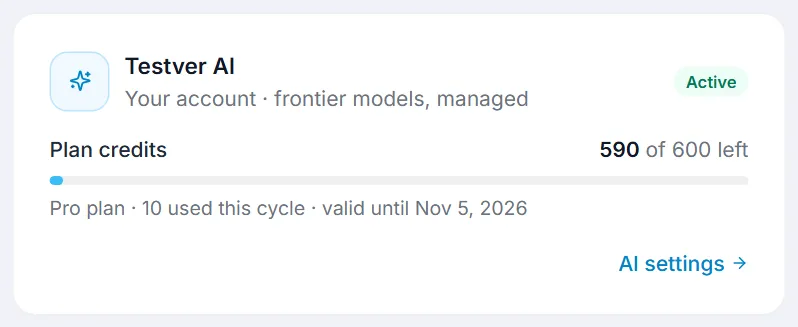
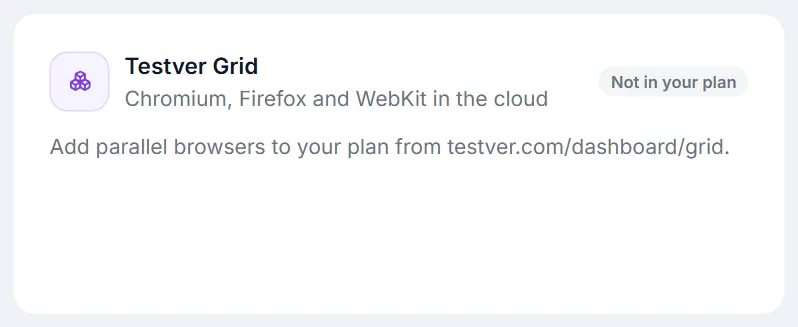
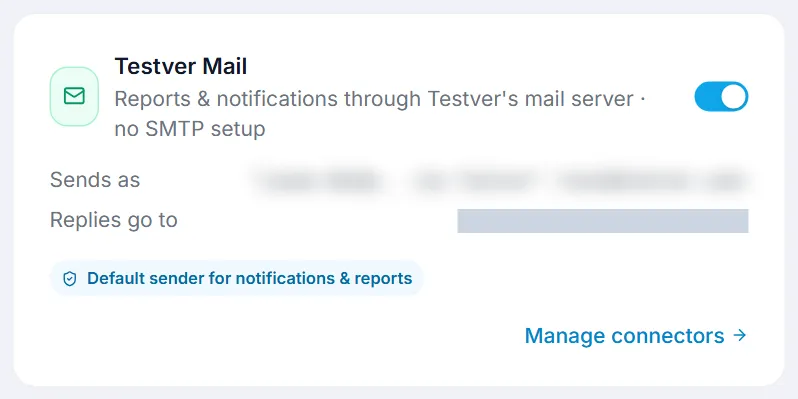
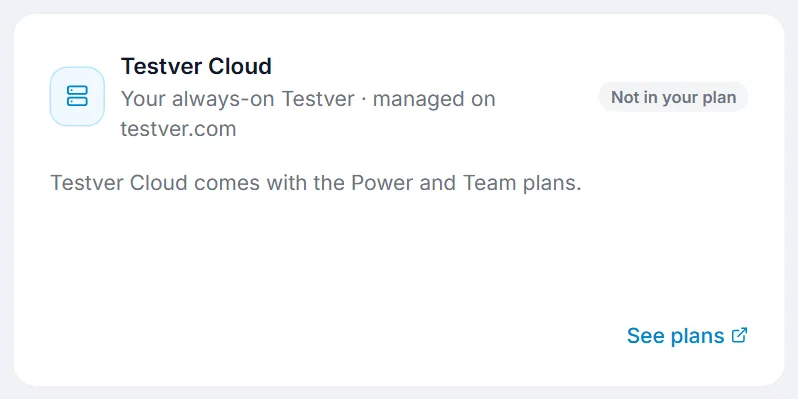
Each card’s link — AI settings, Grid settings, Manage connectors, and Open workspace / Manage on testver.com on the Cloud card — sits in its bottom-right corner. A service your plan doesn’t include, or an add-on you don’t hold, shows Not in your plan (the AI and Cloud cards then link to See plans). The credits are the same figures as Settings → LLM → Testver and your testver.com dashboard; opening the page reads them fresh, and Check all services refreshes everything.
Disconnect turns everything off at once and revokes this installation’s connection on testver.com.

Connecting
Section titled “Connecting”- Open Testver → Connections and press Connect to Testver. A testver.com tab opens.
- Sign in if you are not already, and approve the connection for this installation.
- Come back to the tool. The cards light up on their own: AI credits immediately, Testver Mail if your plan includes it, and Testver Grid if you hold the Grid add-on — unless another installation already holds your Grid connection, in which case the card names it and offers Take over on this device.
Testver never takes a Grid connection over silently. Take-over is offered only when the other installation has been idle for a few minutes, so a running suite is never cut.
Where the old buttons went
Section titled “Where the old buttons went”The Connect and Disconnect buttons that used to live in three places now live only here. The old places keep their status and point you back:
- Settings → LLM → Testver shows the account and the same plan and reserve credits.
- The Testver Grid card under Settings → Connectors → Cloud Testing Providers opens a Grid panel that shows the pool, the holder and the session wall — every live browser of the account, each with Watch live and, when it belongs to a run started from this Testver, an Open run link to that run’s own live view.
- The Email (SMTP) connector on Settings → Connectors offers the Testver mail provider, and links here when the account is not connected.
Teams and shared servers
Section titled “Teams and shared servers”- Team plans. Only the team owner or the platform manager can switch Testver Grid, Cloud and Mail on. Team members see those cards as “managed by your team owner” and get the team’s AI credits. If the team renews with fewer seats than people, members who don’t get a seat show Seat paused on the Testver AI card until the owner gives them one back.
- Shared Testver servers. The super admin’s connection is the system connection: schedules, CI gates and healing use it. If it has Grid or Mail, everyone on the server uses them and the switches are read-only for other users. If it does not, a user can connect their own account for them.