

Install Testver
This page walks you through getting Testver up and running. It assumes zero prior knowledge. By the end, you’ll have the Testver UI open in your browser at http://localhost:3700.
Introduction
Section titled “Introduction”Testver is an AI-powered test-automation dashboard. It scans your test project, runs your tests, shows results with screenshots and step-by-step details, helps you record and fix tests, and can schedule runs — all from a web dashboard in your browser.
What this guide covers. Everything you need to install and run Testver from the official npm package — the prerequisites, the exact software to install, a local setup on your own computer, and a shared server setup for a whole team. Every step is written so that someone with no prior experience can follow it.
How Testver is delivered. Testver is published on the npm registry as @testver/testver. You install it once with a single command and then run it. Docker is optional and is NOT required for any setup in this guide.
Key Terms (Plain English)
Section titled “Key Terms (Plain English)”If any of the words below are new to you, read this short list first. You do not need to memorise it — just refer back when needed.
| Term | What it means |
|---|---|
| Terminal | A text window where you type commands. On Windows it is “Command Prompt” or “PowerShell”; on macOS/Linux it is “Terminal”. |
| Node.js | The runtime (engine) that Testver is built on. You must install it first. Testver needs version 20 or newer. |
| npm | The “Node Package Manager”. It comes bundled with Node.js and is used to install Testver. |
| package | A piece of software published online that npm can download and install. Testver is one such package. |
| global install | Installing a tool so it can be run from anywhere on your computer (used for command-line tools like Testver). |
| dashboard | The Testver web page you open in your browser to see and control everything. |
| port | A numbered “door” on a computer that a program listens on. Testver uses 3700 by default (e.g. http://localhost:3700). |
| localhost | A name that means “this computer”. http://localhost:3700 opens Testver running on your own machine. |
| AI provider | The service supplying Testver’s AI. Either Testver (managed cloud, connected with your Testver account) or a local model server (Ollama / LM Studio). |
Prerequisites & Required Software
Section titled “Prerequisites & Required Software”Before installing Testver, the following must be present on the machine. Items 1–2 are mandatory for everyone. Items 3–5 depend on what kind of tests you run.
Mandatory for everyone
Section titled “Mandatory for everyone”| # | Software | Version | Why it is needed |
|---|---|---|---|
| 1 | Node.js | 20.0.0 or newer | The engine Testver runs on. Installing Node also installs npm. |
| 2 | npm | Comes with Node | Used to download and install the Testver package. |
Minimum hardware: any modern laptop/desktop with at least 4 GB RAM (8 GB+ recommended) and ~2 GB free disk space.
Needed depending on your tests
Section titled “Needed depending on your tests”| If your tests use… | You also need to install | Notes |
|---|---|---|
| Playwright, Cypress, Jest, Mocha, WebdriverIO (JavaScript/TypeScript) | Node.js (already covered) + the browser binaries | Browsers are installed with one command — see Section 4.4. |
| pytest (Python) | Python 3.8+ and pip | Install from python.org or your OS package manager. |
| JUnit / TestNG (Java) | Java JDK 11+ and Maven or Gradle | Required so Testver can run the Java tests. |
| NUnit / xUnit / MSTest (.NET) | .NET SDK 6.0+ | Install from dotnet.microsoft.com. |
| RSpec (Ruby) | Ruby 3.0+ | Install from ruby-lang.org or your OS package manager. |
| Appium (Android / iOS apps) | Nothing extra to run on a cloud device grid. For local devices: Appium, plus the platform SDK (Android SDK / Xcode) and a connected phone or emulator. | Enable your grid or local devices under Settings → Connectors. See Connectors. |
Needed for AI features
Section titled “Needed for AI features”Testver’s AI features (recording, fixing, chat) need one AI provider connected. You can use Testver to run and view tests WITHOUT one, but AI features stay disabled until you connect it.
- Testver — recommended, and the only cloud option. Connect your Testver account from Testver → Connections (the pinned entry at the bottom of the sidebar); Testver supplies the model, so there is no third-party vendor account to create and no API key to manage.
- Ollama or LM Studio — run a model locally on your own machine, free and fully private. Configured by administrators.
See the LLM tab guide for the details of each.
Local Setup (Your Own Computer)
Section titled “Local Setup (Your Own Computer)”Follow these steps in order on the computer where you want to use Testver. This is the right choice for a single developer/tester.
Step 1 — Install Node.js (version 20+)
Section titled “Step 1 — Install Node.js (version 20+)”Windows:
-
Open a web browser and go to https://nodejs.org
-
Download the “LTS” version (the big green button). LTS means “Long-Term Support” — the stable one.
-
Run the downloaded installer and click Next/Agree until it finishes. Leave all options at their defaults. macOS:
-
Go to https://nodejs.org and download the LTS “macOS Installer (.pkg)”, then run it; OR, if you use Homebrew, run the command below.
brew install nodeLinux (Ubuntu/Debian):
# Install Node.js 20 LTS from NodeSourcecurl -fsSL https://deb.nodesource.com/setup_20.x | sudo -E bash -sudo apt-get install -y nodejsStep 2 — Verify Node and npm are installed
Section titled “Step 2 — Verify Node and npm are installed”Open a new terminal window and run these two commands. Each should print a version number.
node --versionnpm --versionYou should see something like v20.11.0 and 10.2.4. If the Node version is below 20, install the LTS version again from Section 4.1.
Step 3 — Install Testver
Section titled “Step 3 — Install Testver”Run this single command. The -g means “global”, so the testver command works from any folder.
npm install -g @testver/testvermacOS/Linux permission errors? If you see an EACCES or “permission denied” error, either re-run with sudo npm install -g @testver/testver, or (better) use a Node version manager such as nvm so global installs don’t need admin rights.
Verify the install:
testver --versionIt should print the version, e.g. testver v1.1.1.
Step 4 — Browser for live web tooling (usually nothing to do)
Section titled “Step 4 — Browser for live web tooling (usually nothing to do)”Testver’s live web features (AI Assistance browser tools, AI Record, live preview) need a Chromium-family browser. Testver finds one automatically, in this order:
- Playwright’s downloaded browsers, if you ever ran
npx playwright install - Google Chrome installed on your machine
- Microsoft Edge (preinstalled on every Windows PC)
So on Windows — and on any machine with Chrome — there is nothing to install for this step.
You only need the command below in two cases: you want Testver’s live sessions to run in Firefox or WebKit (those exist only as Playwright downloads), or the machine has no Chrome/Edge at all (typical for clean CI servers):
npx playwright installNote this is about Testver’s own live tooling. Your test suite runs through your framework’s runner exactly as before — Cypress, Selenium and friends manage their own browsers/drivers as usual.
Step 5 — Start Testver
Section titled “Step 5 — Start Testver”In your terminal, move into your test project’s folder, then start the dashboard server:
# Windows examplecd C:\path\to\your\test-automation-framework# macOS/Linux examplecd /path/to/your/test-automation-framework# Start the dashboardtestver serveYou will see a banner that says the server is running, with a line like Local: http://localhost:3700.
While it starts, a single line shows what Testver is doing — Loading Testver, Preparing AI providers, Opening project data, Mounting services, Starting web server on port 3700 — with a running timer, then ✔ Testver is ready in 1.4 s and the banner. A normal start takes one to two seconds.
The first start after a restart, an update or a rebuild can take noticeably longer. That is not your project: it is the computer reading Testver’s files for the first time since they left its disk cache, with antivirus scanning each one as it is read. Later starts are fast again. When a start takes longer than eight seconds, Testver says so under the banner. (Run from a service manager or Docker, the same steps are written as plain log lines instead of a spinner.)
Step 6 — Open the dashboard and create your account
Section titled “Step 6 — Open the dashboard and create your account”- Open your web browser and go to: http://localhost:3700
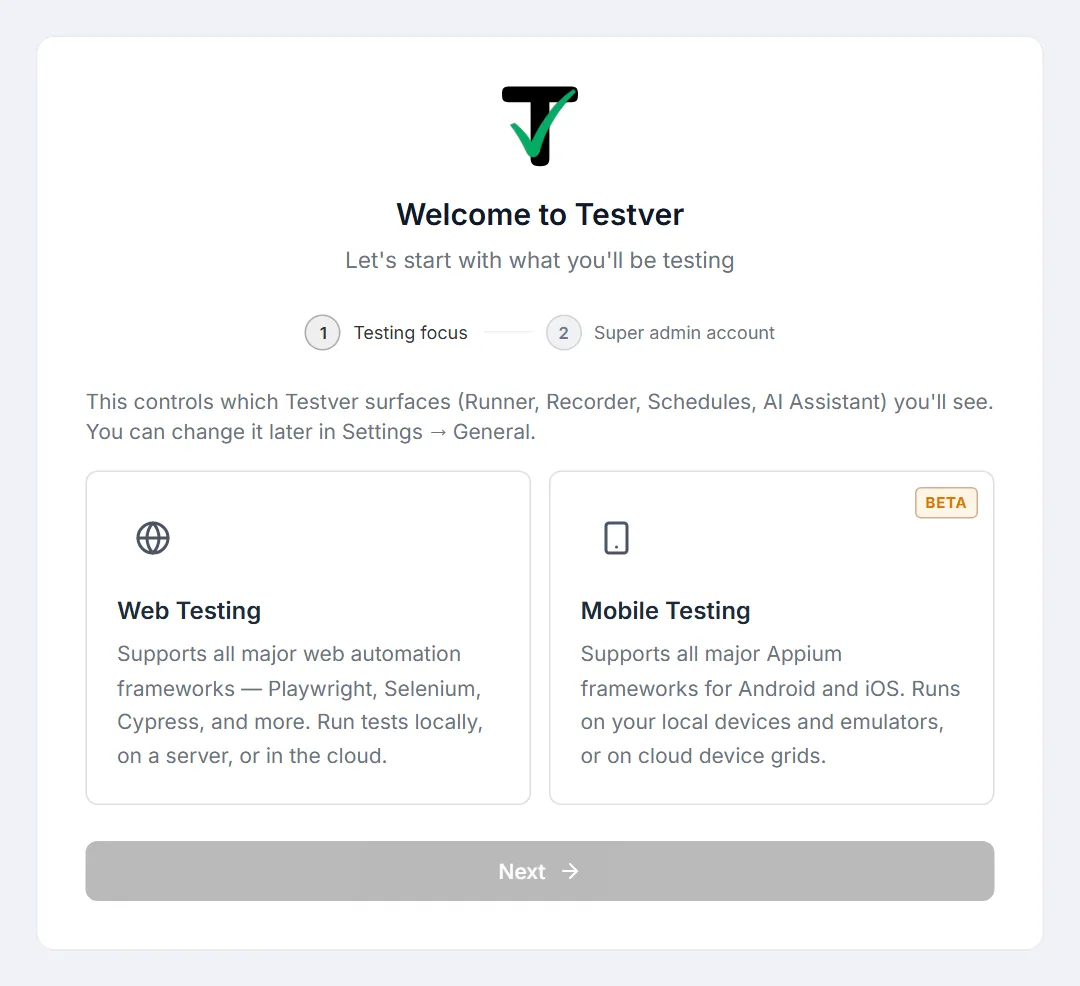
- The first time, Testver shows a one-time Setup screen with two steps: choose your testing mode (Web or Mobile), then create your super admin account (username, display name, email and a strong password — all required). This account is yours; keep the password safe.
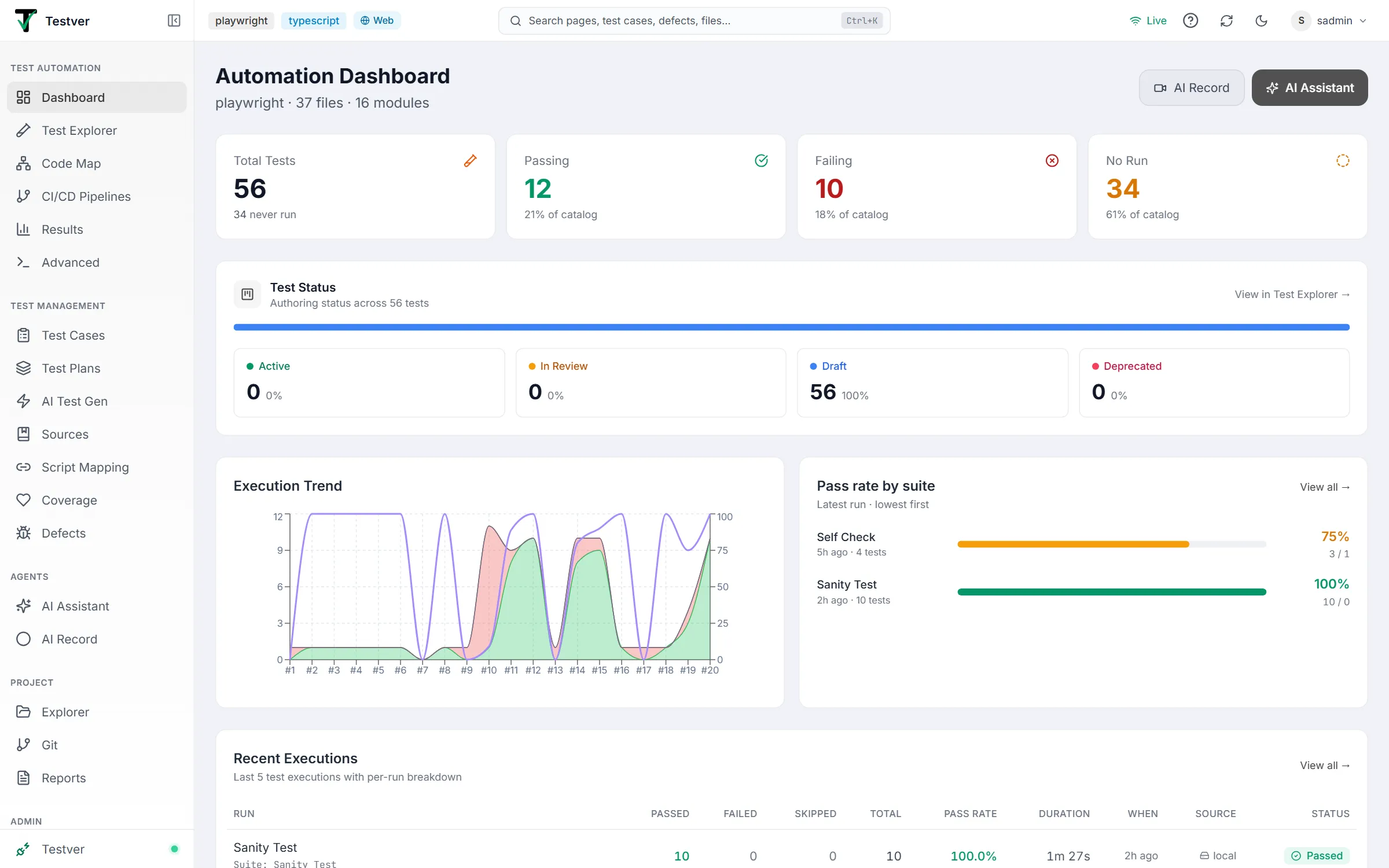
- After setup, you land on the dashboard. Testver auto-detects your framework and lists your tests. You are ready to run tests.
See First-time setup for a walk-through of both wizard steps and what to do next.
Server Setup for a Team (Self-Hosted)
Section titled “Server Setup for a Team (Self-Hosted)”This section hosts the Testver dashboard on one always-on machine (a server) so your whole team can open it in their browsers. No Docker is required — the npm package runs the same dashboard; we just keep it running and put it behind a secure address.
You will: (1) prepare a Linux server, (2) install Node + your test toolchain, (3) install Testver, (4) keep it running with a service manager, (5) put it behind HTTPS, and (6) lock down access.
Step 1 — Choose and prepare a server
Section titled “Step 1 — Choose and prepare a server”- A Linux server (Ubuntu 22.04 LTS is a good default) — a cloud VM (AWS/Azure/GCP/DigitalOcean) or an on-premise machine.
- At least 2 CPU cores and 4 GB RAM (8 GB+ if many tests run at once).
- SSH access to the server, and a user with sudo (admin) rights.
- Optional but recommended: a domain name (e.g. testver.yourcompany.com) pointed at the server’s IP address, for HTTPS.
Step 2 — Install Node.js and your test toolchain on the server
Section titled “Step 2 — Install Node.js and your test toolchain on the server”# Update the systemsudo apt-get update && sudo apt-get upgrade -y# Install Node.js 20 LTS + gitcurl -fsSL https://deb.nodesource.com/setup_20.x | sudo -E bash -sudo apt-get install -y nodejs git# Verifynode --versionnpm --version# Install Browsersnpx playwright install --with-deps chromiumThen install whatever your tests need on the SAME server (only the ones you use):
Step 3 — Install Testver on the server
Section titled “Step 3 — Install Testver on the server”sudo npm install -g @testver/testvertestver --versionStep 4 — Put your test automation framework on the server
Section titled “Step 4 — Put your test automation framework on the server”Copy your test framework onto the server (for example with git):
cd /srvsudo git clone https://github.com/your-org/your-test-framework.gitcd your-test-framework# install the project’s own dependencies, e.g.:npm install # for JS/TS projects# or: pip install -r requirements.txt (Python)Step 5 — Keep Testver running as a background service
Section titled “Step 5 — Keep Testver running as a background service”A server should keep Testver running and restart it automatically after a crash or reboot. Two common ways — pick ONE.
Option A — systemd (recommended on Linux)
Section titled “Option A — systemd (recommended on Linux)”Create a service file:
sudo nano /etc/systemd/system/testver.servicePaste the following (adjust the paths and user):
[Unit]Description=Testver DashboardAfter=network.target[Service]Type=simpleWorkingDirectory=/srv/your-test-projectExecStart=/usr/bin/testver serve --host 127.0.0.1 --port 3700Environment=NODE_ENV=productionRestart=alwaysRestartSec=5User=testver[Install]WantedBy=multi-user.targetEnable and start it:
sudo systemctl daemon-reloadsudo systemctl enable testversudo systemctl start testver# Check status and logssudo systemctl status testverjournalctl -u testver -fOption B — pm2 (Node process manager)
Section titled “Option B — pm2 (Node process manager)”sudo npm install -g pm2cd /srv/your-test-projectpm2 start "testver serve --host 127.0.0.1 --port 3700" --name testverpm2 savepm2 startup # run the command it prints, to start on bootStep 6 — Add HTTPS with a reverse proxy (Nginx)
Section titled “Step 6 — Add HTTPS with a reverse proxy (Nginx)”A reverse proxy gives your team a clean, secure https:// address and handles encryption. Testver uses WebSockets for live updates, so the proxy must forward the Upgrade headers (shown below).
sudo apt-get install -y nginxsudo nano /etc/nginx/sites-available/testverPaste this (replace testver.yourcompany.com with your domain):
server { listen 80; server_name testver.yourcompany.com; location / { proxy_pass http://127.0.0.1:3700; proxy_http_version 1.1; proxy_set_header Upgrade $http_upgrade; proxy_set_header Connection "upgrade"; proxy_set_header Host $host; proxy_set_header X-Real-IP $remote_addr; proxy_read_timeout 86400; }}Enable the site and add a free HTTPS certificate with Let’s Encrypt:
sudo ln -s /etc/nginx/sites-available/testver /etc/nginx/sites-enabled/sudo nginx -t # test the configsudo systemctl reload nginx# Free HTTPS certificate (auto-renews)sudo apt-get install -y certbot python3-certbot-nginxsudo certbot --nginx -d testver.yourcompany.comYour team can now open https://testver.yourcompany.com.
Step 7 — Create the super admin account immediately
Section titled “Step 7 — Create the super admin account immediately”Open the HTTPS address in a browser and complete the one-time Setup screen RIGHT AWAY to create the super admin account. Then add accounts for your teammates from the dashboard.
Step 8 — Restrict who can reach it
Section titled “Step 8 — Restrict who can reach it”Because Testver can run commands on the server, treat access as you would shell access. Choose at least one:
- Keep it on the company network / VPN (e.g. Tailscale, WireGuard) so only employees can reach it.
- Add an IP allow-list in Nginx, or put a single-sign-on (SSO) proxy in front (e.g. Cloudflare Access).
- Open only the needed ports in the server firewall:
sudo ufw allow OpenSSHsudo ufw allow 'Nginx Full'sudo ufw enableSecurity Checklist (Read Before Exposing to a Network)
Section titled “Security Checklist (Read Before Exposing to a Network)”Testver executes your test commands on the host. Anyone who can sign in can effectively run programs on that machine, so protect it accordingly.
- Create the super admin account immediately after first start; use strong, unique passwords.
- Never expose the dashboard directly to the public internet without HTTPS and access control (VPN/SSO/IP allow-list).
- Bind the app to 127.0.0.1 and let the reverse proxy handle public traffic (do not bind 0.0.0.0 directly to the internet).
- Keep credentials only in the server’s environment/.env — never commit them to git. Cloud AI needs no key on the server: it is authorized by connecting your Testver account in the UI.
- Run the service as a non-root user (the systemd example uses User=testver).
- Keep Testver updated (Section 8) — fixes ship frequently.
Configuration Reference (Environment Variables)
Section titled “Configuration Reference (Environment Variables)”Set these in a .env file in your project folder, or as environment variables in your shell / service file.
Server settings
Section titled “Server settings”| Variable | Default | Purpose |
|---|---|---|
| TESTVER_HOST | localhost | Network address to bind. Use 0.0.0.0 only behind a proxy/VPN. |
| TESTVER_PORT | 3700 | Port the dashboard listens on. |
AI provider
Section titled “AI provider”| Variable | Purpose |
|---|---|
| TESTVER_DEFAULT_PROVIDER | Which provider to use by default: testver, ollama, or lmstudio. |
| TESTVER_DEFAULT_MODEL | Optional. Override the model used for the default provider. |
Cloud AI is connected through your Testver account on Testver → Connections rather than through an environment variable, so there is no cloud API key to place here.
Security
Section titled “Security”| Variable | Purpose |
|---|---|
| TESTVER_2FA_KEY | Optional. The key that encrypts two-factor (authenticator) secrets. Leave it unset on a normal install — Testver creates ~/.testver/2fa.key the first time someone turns 2FA on — and testver deploy docker and Testver Cloud set it for you. Set it yourself (any value, 16+ characters) only for your own container or host, and never change it afterwards. See Settings → Two-factor authentication. |
Local model overrides
Section titled “Local model overrides”| Variable | Default |
|---|---|
| OLLAMA_BASE_URL | http://localhost:11434/v1 |
| LMSTUDIO_BASE_URL | http://localhost:1234/v1 |
Updating, Verifying & Uninstalling
Section titled “Updating, Verifying & Uninstalling”Check the running version
Section titled “Check the running version”testver --versionUpdate to the latest version
Section titled “Update to the latest version”npm install -g @testver/testver@latestOn a server, restart the service after updating:
sudo systemctl restart testver # systemd# orpm2 restart testver # pm2Health check (is it running?)
Section titled “Health check (is it running?)”Testver exposes a health endpoint. From the server (or your machine) run:
curl http://localhost:3700/api/healthA healthy server returns a small JSON response with “status”: “healthy” and the version.
Uninstall
Section titled “Uninstall”npm uninstall -g @testver/testverTroubleshooting (Common Problems)
Section titled “Troubleshooting (Common Problems)”| Problem | Cause & Fix |
|---|---|
| ”testver: command not found” or “not recognized” | You installed without -g, or the terminal is stale. Run: npm install -g @testver/testver, then open a NEW terminal. As a fallback, run it with: npx @testver/testver serve |
| Node version error / very old features | Node is below 20. Run node —version; if under 20, reinstall the LTS version from nodejs.org. |
testver serve is sometimes quick and sometimes slow to start | Expected: the first start after a reboot, an update or a rebuild reads Testver’s files cold, with antivirus scanning them; later starts are quick. If every start is slow, add the Node.js global node_modules folder to your antivirus exclusions, and check the progress line to see which step it waits on. |
| ”EADDRINUSE” / port 3700 already in use | Another program (or a previous Testver) holds the port. Start on a different port: testver serve —port 8080 |
| ”EACCES” / permission denied on npm install -g | macOS/Linux global installs need rights. Use sudo, or install a Node version manager (nvm) so global installs do not need admin. |
| ”EMFILE: too many open files” on macOS | A very large project hit the file-watch limit. Update to the latest Testver (it self-protects), or run: ulimit -n 10240 before testver serve. |
| Tests do not run / framework not detected | Make sure the tests run on their own first (e.g. npx playwright test / pytest). The language runtime + project dependencies must be installed on the same machine. |
| AI features greyed out | No AI provider connected. Open Testver → Connections and connect your Testver account (or point Testver at a local Ollama / LM Studio server). See the LLM tab guide. |
| Team cannot reach the server URL | Check the service is running (systemctl status testver), Nginx is reloaded, the firewall allows Nginx, and DNS points to the server. |
| Live log / dashboard freezes on an 8+ hour run | Update to the latest Testver — long-run output is bounded and the live socket is kept alive in current versions. |
Quick Command Reference
Section titled “Quick Command Reference”| Command | What it does |
|---|---|
| npm install -g @testver/testver | Install Testver globally. |
| testver —version | Show the installed version. |
| testver —help | Show all commands and options. |
| testver | Start interactive command-line mode. |
| testver serve | Start the web dashboard on http://localhost:3700. |
| testver serve —port 8080 | Start the dashboard on a custom port. |
| testver serve —host 0.0.0.0 | Listen on all network interfaces (use only behind a proxy/VPN). |
| npx playwright install —with-deps | Install Playwright browsers (optional — only for Firefox/WebKit live sessions or machines without Chrome/Edge). |
| npm install -g @testver/testver@latest | Update to the newest version. |
| curl http://localhost:3700/api/health | Check that the server is healthy. |
End of guide. For the full list of options at any time, run testver --help.