

Workflows
Introduction
Section titled “Introduction”What is the Workflows screen?
Section titled “What is the Workflows screen?”The Workflows screen is where you build, store, and run workflows — automated multi-step pipelines. A workflow is an ordered (and sometimes branching) set of steps that Testver executes for you, one after another, passing results from one step to the next. A single workflow might launch a browser, run a suite of Playwright tests, heal any broken selectors, retry the failures, wait for a human to approve the results, and finally notify a chat channel — all without you clicking anything between steps.
Analogy: think of a workflow like a recipe in a kitchen. Each step is one instruction (“chop the onions”, “wait for approval from the chef”, “if the sauce is too thin, simmer longer”). The recipe runs top to bottom, some steps depend on earlier ones being finished, and you can pause for a taste-test before plating. The Workflows screen is your recipe book and your kitchen — you write the recipe on the left, watch it cook in the center, and read the results at the bottom.
Who this guide is for
Section titled “Who this guide is for”- QA engineers and testers who want to chain a test run with healing, retries, and reporting instead of doing each step by hand.
- Automation owners who need pipelines to fire on a schedule (for example nightly regression) or when an external system (like a Git push) sends a webhook.
- Team leads who want a human-approval Checkpoint in the middle of an otherwise automated flow before something important continues.
- Anyone exploring Testver who wants to start from a ready-made Template or describe a pipeline in plain English and let AI Generate build the YAML. No coding is strictly required: you can build a workflow entirely from the visual Canvas and the Step configuration panels. If you prefer text, every workflow is also editable as YAML.
Key terms
Section titled “Key terms”| Term | What it means in Testver |
|---|---|
| Workflow | A named, saved pipeline made of steps. It has a name, description, version, optional variables, triggers, and a list of steps. Stored with an ID and editable as YAML or on the Canvas. |
| Step | A single unit of work inside a workflow. Each step has a unique ID and a type (Skill, Tool, Condition, Loop, Parallel, Checkpoint, Delay, Sub-Workflow, or Script). Steps can depend on other steps via dependsOn. |
| Trigger | What causes a workflow to run. The built-in triggers are manual (you press Run), schedule (a cron expression), webhook (an HTTP call from outside), and event (another workflow completing/failing). |
| Webhook | A unique, secret-protected URL that external systems POST to in order to start this workflow. Each webhook has its own URL, secret token, optional filter, and optional variable mapping from the incoming payload. |
| Event subscription | A pattern (like workflow:completed:smoke-tests) that chains this workflow to fire when another workflow emits a matching event. Supports * as a wildcard. |
| Run | A single execution of a workflow. A run has a status (running, paused, completed, failed, aborted), a trigger source, per-step results, variables used, a duration, and timestamps. Runs are kept in history. |
| Variable | A named value defined at the workflow level (with a default). Variables can be overridden per run, mapped in from webhook/event payloads, and referenced by steps. |
| Dependency (dependsOn) | A link declaring that one step must finish before another starts. Dependencies define the order and shape of the pipeline (the DAG drawn on the Canvas). |
How it works
Section titled “How it works”At a high level the screen has four moving parts that work together:
- You pick or create a workflow in the left sidebar (from a Template, from AI Generate, from blank Canvas, by importing YAML/URL, or by pasting YAML).
- You build and edit it in the center — either visually on the Canvas (add steps, connect them, configure each step in the side panel) or by editing YAML directly. Every Canvas edit is written back to YAML and auto-saved.
- You decide when it runs: press Run for a manual run, set a Schedule (cron), add a Webhook URL for external triggers, or add an Event subscription to chain off another workflow.
- You run and monitor it in the bottom Run panel — watch each step go from pending to running to completed/failed in real time (streamed live over WebSocket), approve any human checkpoints, then review the run summary, full run History, and aggregate Analytics.
Getting Started
Section titled “Getting Started”Opening Workflows
Section titled “Opening Workflows”- Browse to
/workflows— the Workflows screen is not listed in the sidebar or the command palette. - The left sidebar lists your existing workflows. If you have none yet, it shows “No workflows yet — Create one from a template or YAML”.
- The center shows an empty state (“Select a workflow”) with two quick-start buttons: From Template and AI Generate.
- Pick an existing workflow from the sidebar, or create one (see Section 3 and Section 4).
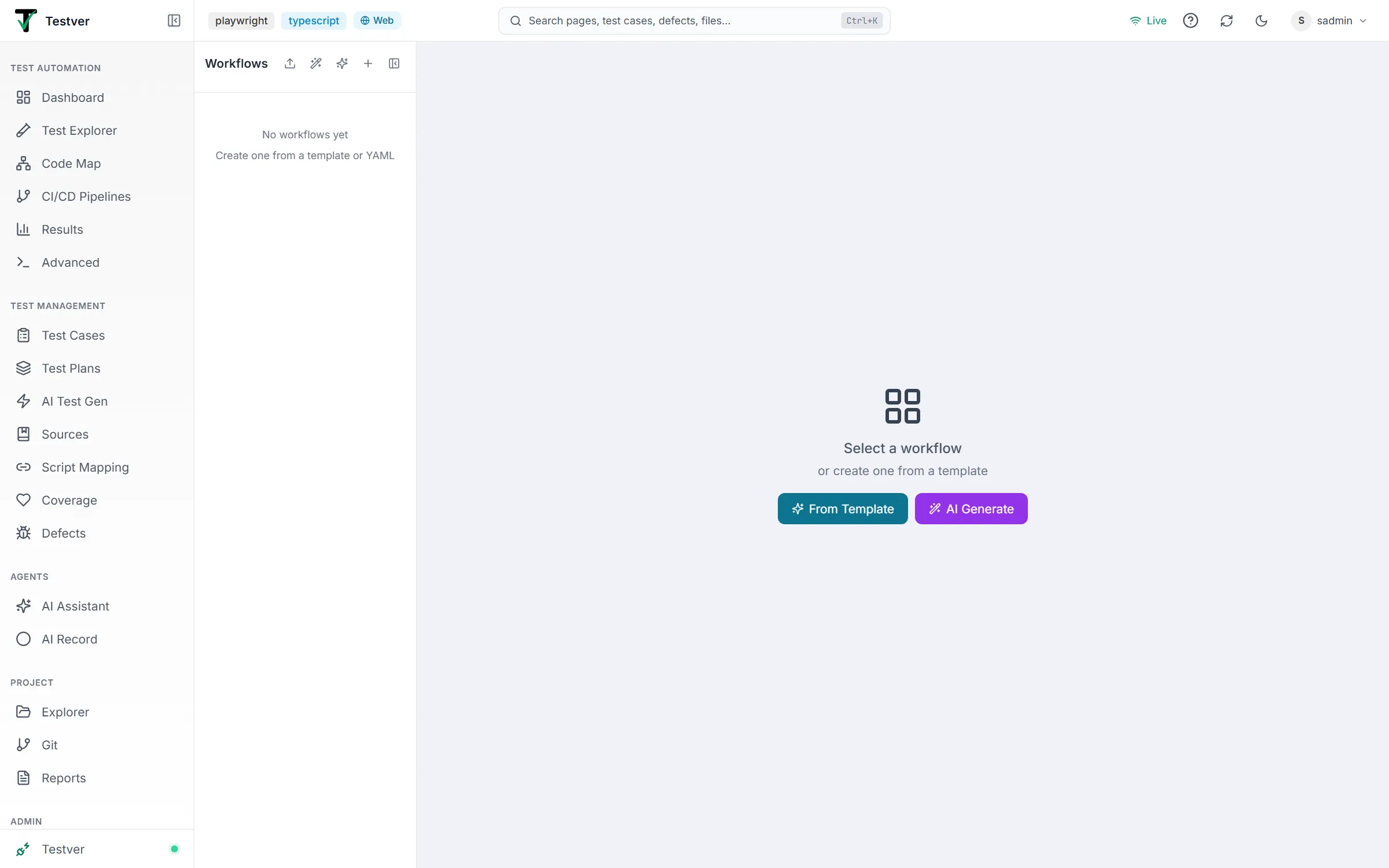
The screen layout
Section titled “The screen layout”| Region | Location | What it contains |
|---|---|---|
| Workflow sidebar | Left, collapsible (264px wide, collapses to a thin 40px strip) | Header with Import, AI Generate, From Template, New Workflow, and collapse buttons; the scrollable list of all workflows with status badges and hover actions. |
| Toolbar | Top of the main area (shown once a workflow is selected) | Editable workflow name + status/schedule badges (left); Canvas / YAML view toggle (center); action buttons — Validate, Save, Dry Run, Variable Inspector, History, Analytics, Webhooks & Events, Schedule, Export (right). |
| Content area | Center | Either the visual Canvas (DAG of step nodes) or the YAML editor. A right-hand side panel opens here for the selected step, webhooks/events, or the variable inspector. |
| Step / side panels | Right of the content area | Step Configuration panel (340px), Triggers panel for webhooks/events (320px), or the Variable Inspector. |
| Run panel | Bottom, full width | Run controls (Run / Pause / Resume / Abort), live progress bar, step-by-step status, run summary, and recent run history. |
| Modals / overlays | Centered overlays | Template picker, New Workflow, AI Generate, Import, Schedule, Delete confirmation, step delete/disable confirmation, full Run History, and Analytics. |
At a glance
Section titled “At a glance”- Everything starts from the left sidebar — that is where workflows live and where you create new ones.
- The center is your editor: visual Canvas or raw YAML, switchable at any time.
- The bottom is where you run and watch — the Run panel is always available once a workflow is open.
- The right is contextual — it shows the configuration for whatever you are focused on (a step, the triggers, or the variables).
- Errors appear as a dismissible red banner in the bottom-right corner and inline near the action that caused them.
The Workflows List
Section titled “The Workflows List”The left sidebar is the home base for all your workflows. Each entry is a clickable card; clicking selects the workflow and loads it into the editor and Run panel.
Reading a workflow card
Section titled “Reading a workflow card”| Element | Meaning |
|---|---|
| Name | The workflow’s display name (from its YAML name). Truncated if long. |
| Step count | ”N steps” — how many steps the workflow contains. |
| Run count | ”N runs” — total times this workflow has been executed (shown only when greater than zero). |
| Success rate % | The percentage of successful runs, color-coded: green when ≥ 80%, amber when ≥ 50%, red below 50% (shown only when there is run history). |
| Webhook icon (link) | A cyan link icon appears when the workflow has one or more webhooks configured; hover shows the count. |
| Event icon (lightning) | A purple lightning icon appears when the workflow has one or more event subscriptions; hover shows the count. |
| Schedule icon (clock) | An amber clock icon appears when the workflow has a cron schedule; hover shows the cron expression. |
| ”Disabled” label + dimming | Disabled workflows are shown at reduced opacity with a “Disabled” label. |
| Chevron | A right-chevron indicating the card is selectable; turns cyan when the workflow is the active selection. |
Quick actions on a card
Section titled “Quick actions on a card”Hovering over a workflow card reveals three quick-action buttons in its top-right corner:
| Button | Icon | Action |
|---|---|---|
| Enable / Disable | Power | Toggles the workflow’s enabled state. A disabled workflow will not run from triggers. Amber when enabling-to-disable, green when disabled (to re-enable). |
| Duplicate | Copy | Creates a copy of the workflow and selects the new copy. |
| Delete | Trash | Opens a confirmation dialog warning that the workflow and all its run history will be removed. |
Creating a new workflow
Section titled “Creating a new workflow”The sidebar header (and the collapsed strip) offers four creation entry points:
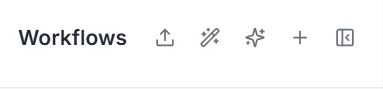
| Button | Icon | What it does |
|---|---|---|
| Import | Upload | Opens the Import dialog to bring in a workflow by pasting YAML or fetching from a URL (see Section 3.4). |
| AI Generate | Wand | Opens the AI Generate dialog where you describe the workflow in plain English and Testver produces the YAML. |
| From Template | Sparkles | Opens the Template picker — searchable, category-filtered, ready-made workflows with fill-in parameters. |
| New Workflow | Plus | Opens the New Workflow dialog offering three paths: From Template, AI Generate, or design visually Using Canvas (creates a blank one-step workflow). |
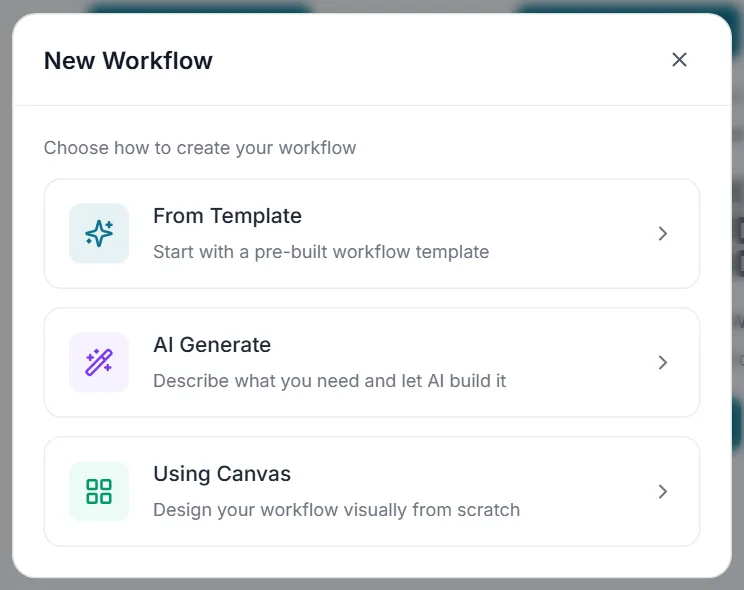
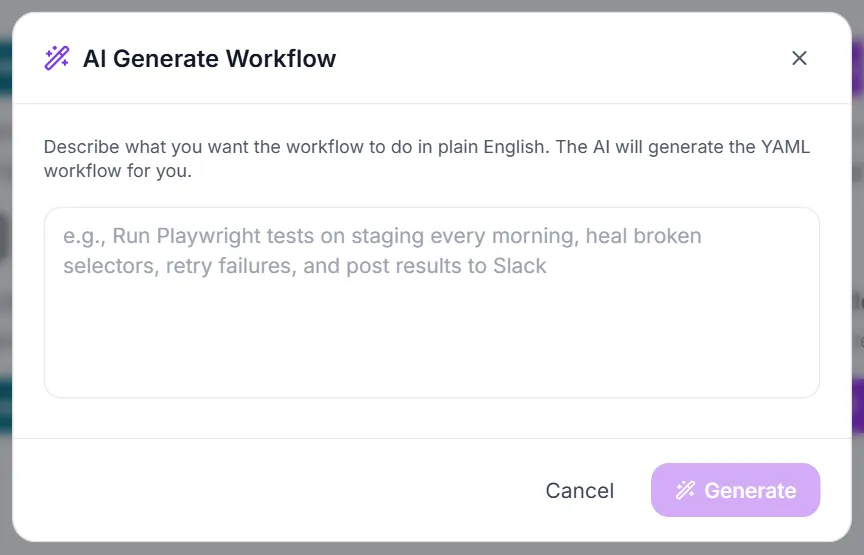
Starting from a template
Section titled “Starting from a template”The Template picker lists pre-built workflows. You can search by name, description, or category, and filter by category tabs (each tab shows a count). Each template card shows an icon, name, a short description, its category, and how many parameters it needs.
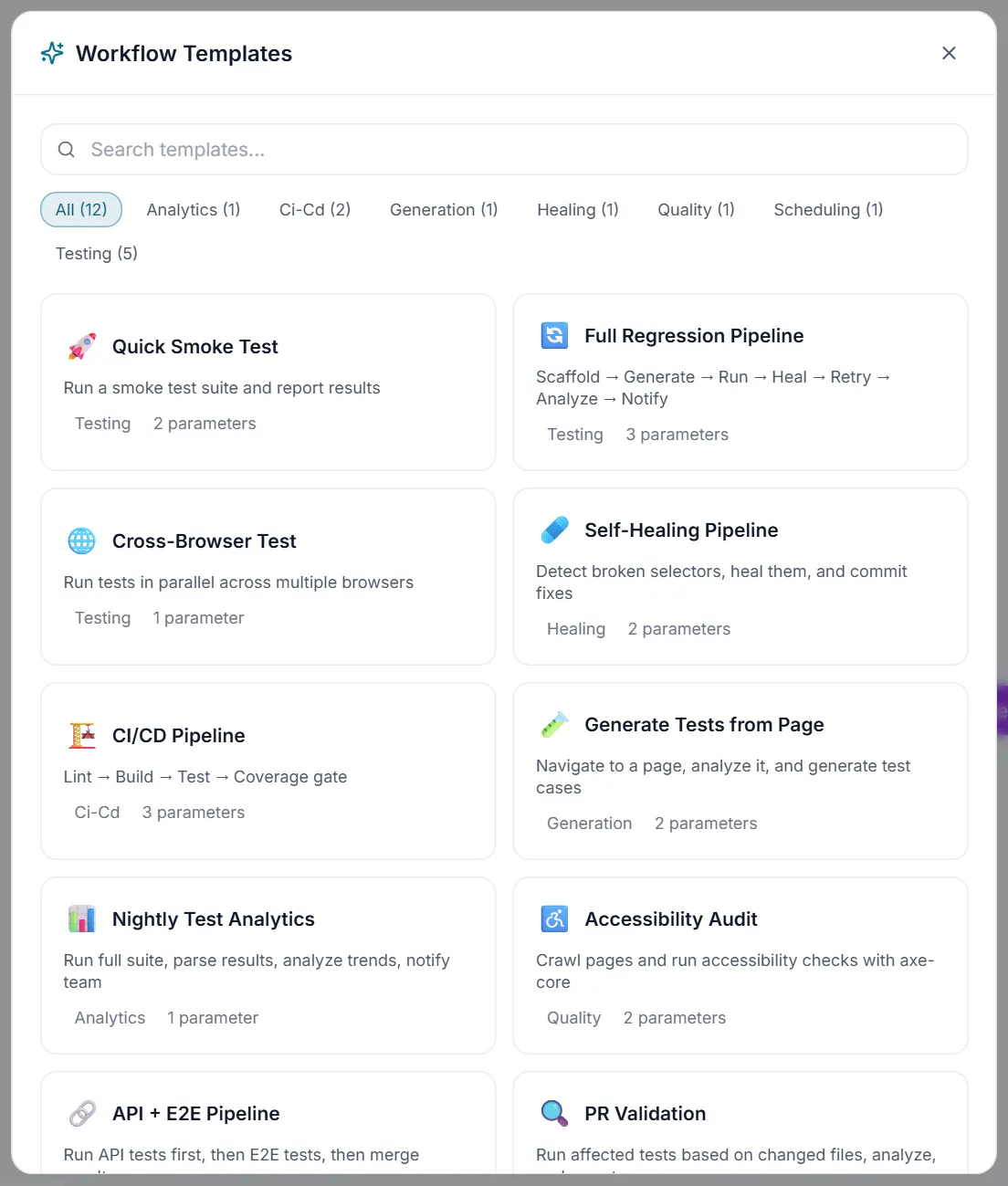
- Click a template card to open its parameter form.
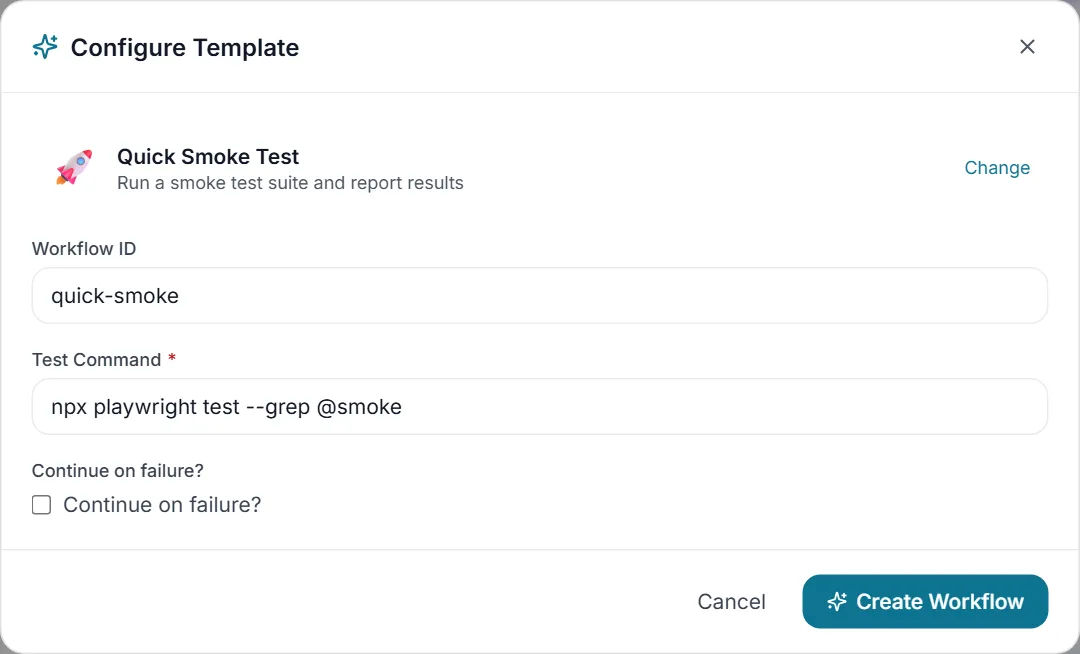
- Set a Workflow ID (defaults to the template’s ID; editable to something like
my-regression-pipeline). - Fill in the template parameters. Parameter inputs adapt to their type: text, number, checkbox (boolean), or a dropdown (select / multiselect). Required parameters are marked with a red asterisk and may show a description and default placeholder.
- Click Create Workflow. The new workflow is created from the template and selected automatically.
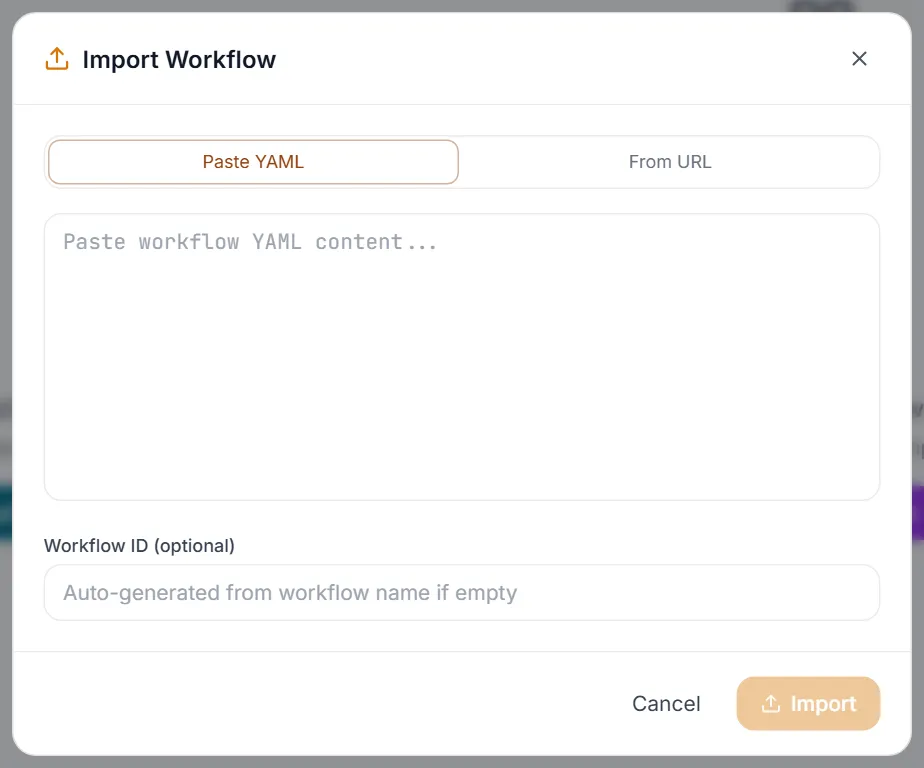
The Import dialog has two tabs: Paste YAML (paste workflow YAML directly) and From URL (fetch YAML from a link, for example a raw GitHub file). Both let you optionally set a Workflow ID (auto-generated from the workflow name if left blank).
Building & Editing a Workflow
Section titled “Building & Editing a Workflow”Once a workflow is selected, the center area is your editor. Use the Canvas / YAML toggle in the toolbar to switch between the visual builder and the raw text. Edits made on the Canvas are serialized back into YAML and auto-saved; edits in the YAML editor are saved with the Save button (the button is enabled only when there are unsaved changes).
Renaming a workflow
Section titled “Renaming a workflow”- Rename: hover the workflow name in the toolbar and click the pencil icon (or it becomes editable inline). Press Enter to save, Escape to cancel. The name is written into the YAML
namefield. - Validate (YAML view): checks the current YAML and reports
Valid workflowor lists errors and warnings in a banner under the toolbar. - Save (YAML view): persists the YAML. Warnings from the server are shown after saving.
- Export: downloads the workflow as
<id>.workflow.yaml. - Dry Run: computes an execution plan without running anything — see Section 5.1.
Adding and arranging steps on the Canvas
Section titled “Adding and arranging steps on the Canvas”On the Canvas, steps are drawn as nodes laid out top-to-bottom by dependency level (a layered DAG). To add a step, use the + affordance on the Canvas and choose a step type; Testver inserts a new step (with a generated ID like step-<id>), optionally wiring it after an existing step, then auto-saves so the node appears immediately.
Newly added steps come pre-seeded with sensible starter fields for their type — for example a Tool step starts with tool: run_command and command: "echo New step", a Delay step starts with waitSeconds: 5, a Checkpoint starts with a message, and a Condition starts with an if plus empty then/else branches.
- Select a step by clicking its node — the Step Configuration panel opens on the right.
- Connect steps by drawing a dependency from one node to another (adds a
dependsOnlink); remove a connection to break the dependency. - Delete a step or Disable a step from the node controls. If the step has dependents or dependencies, a confirmation modal lists them first (see Section 4.6).
- Duplicate a step creates a new step of the same inferred type.
- Remove & reconnect deletes a step but rewires its children to depend on its parents, keeping the chain intact.
Step types
Section titled “Step types”Every step has a type. Testver infers the type from the step’s fields if it is not set explicitly. There are ten step types, grouped into Actions, Flow, and Utilities:
| Step type | What it does |
|---|---|
| Skill | Invokes a Testver skill with LLM reasoning. You pick a skill from a searchable list (only enabled skills) and write an Action / Instructions prompt describing what the skill should do (e.g. “Run all login page tests”). |
| Tool | Calls one or more built-in tools. You select tools from a categorized, searchable, multi-select list (whole categories can be toggled). You can supply a direct Command / Arguments string, and/or a Prompt — with a prompt the LLM reasons about how to use the selected tools (AI mode); without one, the tool runs directly with the command (Direct mode). |
| Condition | If/else branching. You write a condition expression (if), then list step IDs to run when true (Then) and when false (Else). |
| Loop | Iterates over a list. You provide a For Each expression (e.g. variables.testFiles or a literal array) and an Action per iteration; each iteration receives the current item as context. |
| Parallel | Runs multiple named steps at the same time. You list the Parallel Step IDs that should start simultaneously. |
| Checkpoint | Pauses the workflow for human approval. You write an Approval Message shown to the reviewer; the run waits until someone approves. |
| Delay | Waits for a fixed duration. You pick a preset (5s, 10s, 30s, 1m, 5m) or enter a custom number of seconds. |
| Sub-Workflow | Embeds and runs another saved workflow as a single step. You pick the target workflow from a list. |
| Script | Runs custom JavaScript with access to the workflow context (ctx) and variables. |
Configuring a step
Section titled “Configuring a step”Selecting a step opens a 340px side panel showing its full configuration in collapsible sections. The header shows the step’s type icon, its editable ID, and the type label. Click Edit to enter edit mode; Save (disk icon) commits changes and Cancel (X) discards them. If the step is part of an active run, a status badge (and any error/duration) appears at the top.
| Section | What you configure |
|---|---|
| Basic Info | The step Description and, in edit mode, the Step Type (a grid of all ten types you can switch between). |
| Type Configuration | The type-specific editor described in Section 4.3 (skill picker, tool multi-select, condition expression, loop expression, etc.). |
| Dependencies | The steps this one depends on (add via a dropdown of other step IDs, remove via the X chip). Condition steps also show their Then → and Else → branch steps here. |
| Error Handling | The Strategy when the step errors: abort, retry, skip, fallback, or human. Choosing retry reveals Max Retries (0–10), Delay (ms), and a Backoff mode (fixed, linear, exponential). |
| Inputs / Outputs | Key/value Inputs to the step and Output Mappings (which step outputs to capture). When a run exists, captured Run Outputs are shown as JSON. |
| Flags & Advanced | Continue on Error (don’t fail the whole run if this step fails), Disabled (skip this step), and a Timeout (ms). |
Triggers
Section titled “Triggers”A workflow can be started four ways. The default trigger is manual. The other three are configured from the toolbar.
Schedule (Calendar button): set a cron expression in the format minute hour dayOfMonth month dayOfWeek. Quick presets are provided:
| Preset | Cron |
|---|---|
| Every 15 min | */15 * * * * |
| Hourly | 0 * * * * |
| Daily 8 AM | 0 8 * * * |
| Daily 9 AM | 0 9 * * * |
| Weekdays 8 AM | 0 8 * * 1-5 |
| Monday 9 AM | 0 9 * * 1 |
| Nightly 2 AM | 0 2 * * * |
| Weekly Sunday | 0 0 * * 0 |
The Schedule dialog shows the current schedule and last run time, and includes a Remove Schedule button. An active schedule is shown as an amber clock badge in the toolbar and a clock icon on the sidebar card.
Webhooks & Events (Link button) opens the right-hand Triggers panel, which has two tabs: Webhooks and Events. The toolbar button shows a small count badge of total webhooks + event subscriptions.
Trigger fields
Section titled “Trigger fields”| Field | Purpose |
|---|---|
| Name (optional) | A label for the webhook, e.g. “GitHub Push”. Shows as “Unnamed Webhook” if blank. |
| URL | The auto-generated endpoint external systems POST to: <origin>/api/webhooks/<webhookId>. Copyable with one click. |
| Secret | A generated token. Callers must send it as the X-Webhook-Token header. Copyable. |
| Filter (optional) | A condition on the incoming payload: a field, an operator (= / ≠ / contains / matches), and a value. The workflow only runs when the payload matches. |
| Variable Mapping | Pairs that pull values out of the incoming payload into workflow variables — workflowVar ← payload.path. Add as many as needed. |
| Example | A ready-to-copy curl command showing how to call the webhook with the token and a JSON body. |
| Enabled toggle | Turns the individual webhook on or off. |
The Events tab lets you chain workflows. Add an Event Pattern like workflow:completed:smoke-tests (use * as a wildcard, e.g. workflow:completed:* matches all). Quick-pattern buttons are offered for your existing workflows. Each subscription supports its own Variable Mapping (targetVar ← source.path) and an enable/disable toggle.
Deleting or disabling a step with dependencies
Section titled “Deleting or disabling a step with dependencies”When you delete or disable a step that other steps depend on (or that depends on others), Testver shows a confirmation modal before acting. It lists, in color-coded boxes, the steps that depend on this one (amber, with a note that their dependency will be auto-removed on delete) and the steps this one depends on (blue). Re-enabling an already-disabled step happens immediately with no confirmation.
Running & Monitoring
Section titled “Running & Monitoring”The bottom Run panel is where execution happens and where you watch progress. Its control bar adapts to the current run state.
Previewing with Dry Run
Section titled “Previewing with Dry Run”- (Optional) Click Dry Run in the toolbar to preview the Execution Plan: a numbered list of every step, which ones would run (green dot) versus be skipped (dimmed, struck through, with a reason), and the count “N/total steps will execute”. From this banner you can press Run Now or dismiss it.
- (Optional) If the workflow defines variables, open Variable Overrides (the Activity button next to Run) and type per-run values. Each value is parsed as JSON if possible, otherwise treated as a string. Blank fields keep the default.
- Press the green Run button. The run starts and the panel switches to live mode.
- Watch the run progress (Section 5.2). Use Pause, Resume, and Abort as needed.
- When finished, review the run summary and step results (Section 5.3).
Watching a run in progress
Section titled “Watching a run in progress”While a run is active the control bar shows a status badge, a progress fraction (completed+failed / total enabled steps), and elapsed time. A gradient progress bar fills as steps finish. Below it, the Step Progress list shows every enabled step with its live status:
| Status | Meaning |
|---|---|
| pending | Not started yet. |
| running | Currently executing (spinning indicator; row tinted cyan). |
| waiting | Paused at a Checkpoint, awaiting human approval (row tinted amber). |
| completed | Finished successfully (green). |
| failed | Errored (red). |
| skipped | Did not run (e.g. condition not met, or disabled). |
- Each running step can stream progress messages (with an optional percent) and streaming output, shown when you expand the step row.
- Expanding a step reveals its captured output (rendered as markdown when it is a
response/result/output/stdoutfield), structured output values as labeled pills, and any error. - When a step is waiting at a Checkpoint, an amber approval box appears with the approval message and an Approve & Continue button.
- Output auto-scrolls as new chunks arrive. Run control buttons by state: while running you see Pause and Abort; while paused you see Resume and Abort; when the run has finished (completed/failed/aborted) the Run button returns so you can run again.
The Run Summary
Section titled “The Run Summary”When a run completes, the panel shows a themed Run Summary card: a headline (Workflow Completed / Failed / Aborted), the total duration, and counts of passed, failed, and total steps. Any top-level workflow error is shown in a red box. Below the summary, Step Results lists every step with its final status, duration, and an expandable view of its outputs and errors.
Run history
Section titled “Run history”There are two history views. The Run panel’s own History toggle shows the most recent runs inline (status, trigger, short run ID, duration, timestamp), each expandable to its per-step results. The toolbar’s History button opens the full-screen Run History modal with more power:
| Feature | What it does |
|---|---|
| Filters | Filter the list by status (All, Completed, Failed, Aborted, Running, Paused) and by trigger (All, Manual, Schedule, Webhook, Event, API). |
| Expandable rows | Click a run to load its full detail: variables used, per-step results (with markdown/structured output, errors, retry counts, timestamps), run ID, and start/complete times. |
| Re-run | The play button re-runs the workflow with the same variables that run used. |
| Copy Run ID | Copies the run’s ID to the clipboard. |
| Download JSON | Downloads the full run record as workflow-run-<runId>.json. |
| Compare | Select exactly two runs to see a side-by-side table of each step’s status and duration, with differing steps highlighted. |
| Load More | Pages in older runs (10 at a time). |
Analytics
Section titled “Analytics”The toolbar’s Analytics button opens a dashboard built from up to the last 50 runs. It shows four summary cards and several charts:
| Panel | Shows |
|---|---|
| Total Runs | Count of runs analyzed. |
| Success Rate | Percent of runs that completed, color-coded (green ≥ 80%, amber ≥ 50%, red below). |
| Avg Duration | Average run duration across runs that recorded one. |
| Last Run | Date of the most recent run. |
| Pass Rate Over Time | Line chart of daily pass rate over the last 30 days. |
| Average Duration Trend | Area chart of daily average run duration. |
| Most Failed Steps | Bar chart of the top 5 steps by failure count. |
| Slowest Steps | Bar chart of the top 5 steps by average duration. |
| Trigger Distribution | Donut chart of runs by trigger source (manual, schedule, webhook, event, api). |
| Run Status Breakdown | Bars for Completed / Failed / Aborted / Running as a share of all runs. |
Common Tasks (How Do I…?)
Section titled “Common Tasks (How Do I…?)”| I want to… | Do this |
|---|---|
| Create a workflow from scratch visually | Sidebar New Workflow → Using Canvas. A blank one-step workflow is created and opened on the Canvas. |
| Create one from a ready-made template | Sidebar From Template (Sparkles) → pick a template → fill parameters → Create Workflow. |
| Let AI build a workflow | Sidebar AI Generate (Wand) → describe it in plain English → Generate. Review the YAML, then create. |
| Bring in an existing workflow | Sidebar Import (Upload) → Paste YAML or From URL → optional ID → Import. |
| Add a step | On the Canvas, use the + affordance and choose a step type; configure it in the right-hand panel. |
| Change what a step does | Click the step node → Edit in the Step Configuration panel → adjust fields → Save. |
| Make one step wait for another | Select the later step → Dependencies section → add the earlier step’s ID (or draw a connection on the Canvas). |
| Pause a pipeline for human sign-off | Add a Checkpoint step with an approval message; approve it in the Run panel when the run reaches it. |
| Run it now | Press the green Run button in the bottom Run panel. |
| Preview without running | Toolbar Dry Run → review the Execution Plan → Run Now if it looks right. |
| Run it every morning | Toolbar Schedule (Calendar) → pick a preset like Weekdays 8 AM or enter cron → Set Schedule. |
| Trigger it from an external system | Toolbar Webhooks & Events (Link) → Webhooks tab → Add Webhook → copy the URL and secret. |
| Chain it after another workflow finishes | Toolbar Webhooks & Events → Events tab → add a pattern like workflow:completed:<id>. |
| Override a variable for one run | In the Run panel, open Variable Overrides (Activity button) → type values → Run. |
| See past runs and re-run one | Toolbar History → expand a run → use Re-run, Copy Run ID, or Download JSON. |
| Compare two runs | Toolbar History → Compare → select two runs. |
| See trends and failure hot spots | Toolbar Analytics (bar chart icon). |
| Temporarily turn a workflow off | Hover its sidebar card → Power button (Disable). |
| Duplicate a workflow | Hover its sidebar card → Copy button. |
| Export / back up a workflow | Toolbar Export (download icon) → saves <id>.workflow.yaml. |
| Edit the raw definition | Toolbar view toggle → YAML → edit → Validate → Save. |
Tips & Best Practices
Section titled “Tips & Best Practices”- Dry Run before scheduling. Use Dry Run to confirm which steps will actually execute and why others are skipped before you wire a workflow to a cron schedule or webhook.
- Use descriptive step IDs and descriptions. Step IDs appear everywhere — in the Canvas, run progress, history, analytics, and dependency chips — so clear names make every other view readable.
- Prefer dependencies over guessing order. Declaring
dependsOnmakes the execution order explicit and lets the Canvas lay the pipeline out correctly as a DAG. - Set Error Handling deliberately. The default is abort-on-error. For flaky steps use retry with a sensible backoff; for non-critical steps use Continue on Error so one failure doesn’t sink the whole run.
- Insert a Checkpoint before anything irreversible. A human-approval pause is the safest gate before a deploy, a data change, or a notification blast.
- Map webhook/event payloads into variables. Variable mapping lets one workflow react to the specifics of what triggered it (branch name, commit, environment) instead of running blind.
- Lean on Analytics to find weak spots. The Most Failed and Slowest Steps charts tell you exactly where to add retries, timeouts, or refactoring.
- Keep secrets secret. Webhook tokens are credentials; never paste a webhook URL with its secret into a public place.
- Validate after manual YAML edits. The Validate button catches structural problems before you save or run.
Troubleshooting & FAQ
Section titled “Troubleshooting & FAQ”| Symptom / Question | Explanation & fix |
|---|---|
| The Run button is missing. | The workflow is currently running, paused, or otherwise active. The Run button only returns once the run is completed, failed, or aborted. Use Pause/Abort to stop the current run. |
| My scheduled or webhook trigger never fires. | Check that the workflow is enabled (disabled workflows are dimmed in the sidebar and won’t run from triggers), that the schedule cron is valid, and — for webhooks — that the individual webhook toggle is on and the caller sends the correct X-Webhook-Token. |
| The webhook returns but the workflow doesn’t run. | If the webhook has a Filter, the incoming payload must match the field/operator/value. A non-matching payload is ignored. Double-check the filter or remove it to test. |
| A step shows “skipped”. | It was disabled, or its branch/condition wasn’t satisfied (e.g. a Condition’s if was false so only the Else branch ran), or a dependency it needed failed. Dry Run will show the skip reason. |
| I can’t delete a step — a modal lists other steps. | That step has dependents or dependencies. The confirmation modal lists them; on delete, dependents’ references are auto-removed. Consider Remove & reconnect to preserve the chain. |
| A run is stuck at “waiting”. | It hit a Checkpoint and is waiting for human approval. Expand the waiting step in the Run panel and click Approve & Continue (or Resume). |
| The Skill picker is empty or missing a skill. | Only enabled skills are listed. Enable the skill elsewhere in Testver, then reopen the step editor. |
| Analytics / History show nothing. | The workflow has no runs yet. Execute it at least once; Analytics analyzes up to the last 50 runs and History pages 10 at a time. |
| AI Generate produced YAML with errors. | Testver still opens the generated YAML in the New Workflow dialog and reports the errors so you can fix them before creating the workflow. |
| My YAML edits won’t save. | The Save button is only enabled when there are unsaved changes. If saving fails, an error banner explains why; run Validate to find structural problems. |
| Tool step: AI mode vs Direct mode — which runs? | With a Prompt filled in, the step runs in AI mode (the LLM decides how to use the selected tools). With no prompt, it runs in Direct mode using the Command / Arguments you provided. |
Related
Section titled “Related”- Connectors — what workflow steps integrate with.
- Agent Skills — invoke from workflow AI steps.
- Schedules — for simpler “run X on cron” without multi-step logic.