

Manage
Introduction
Section titled “Introduction”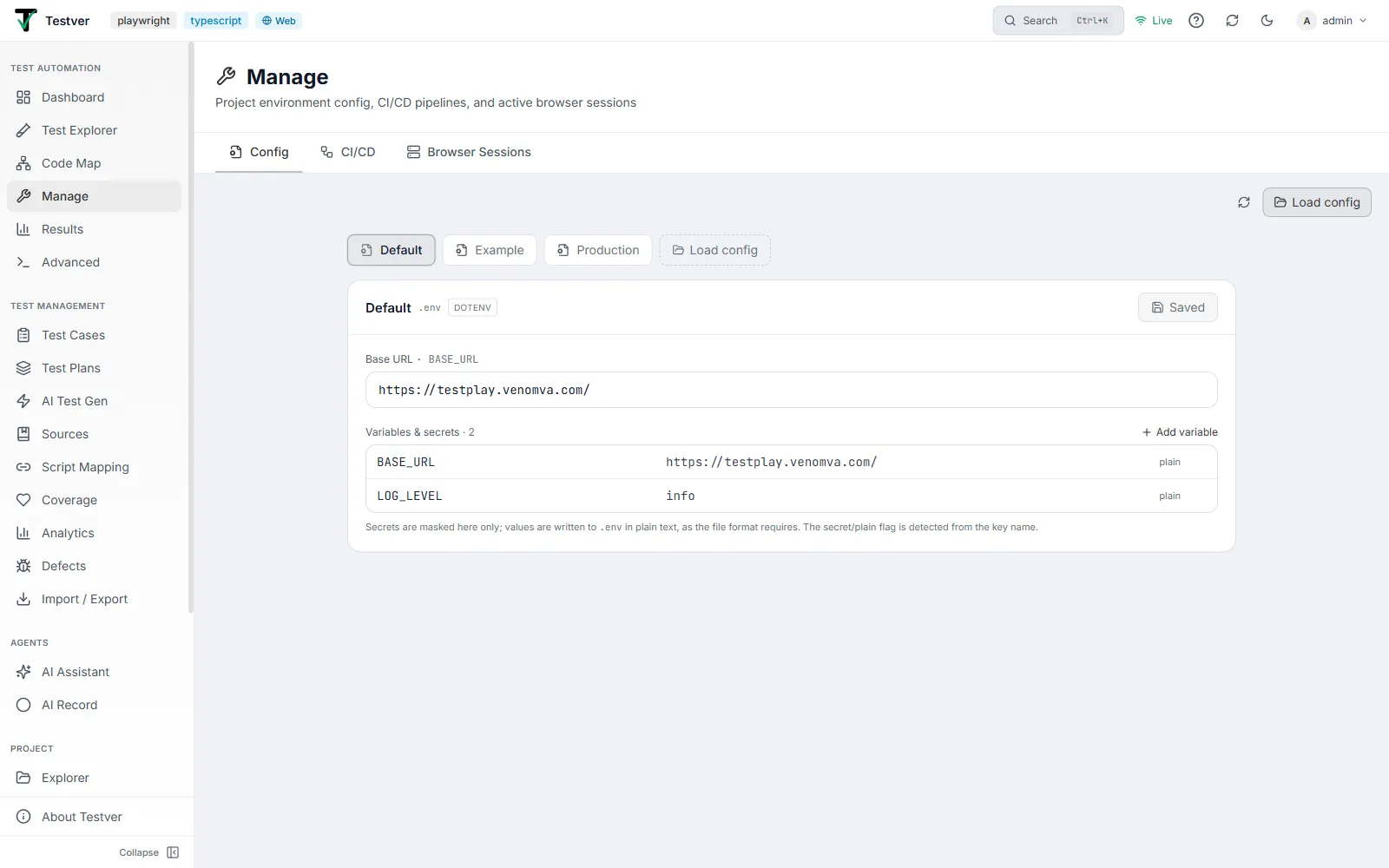
What is the Manage screen?
Section titled “What is the Manage screen?”Manage (at /manage) is the operational console for the project you’re working on. It’s where you edit the configuration your tests read at runtime, generate CI/CD pipeline files, and see which browsers Testver currently has open.
It holds two tabs:
| Tab | Icon | What it covers |
|---|---|---|
| Config | File-cog | Environment and config files in the project — edit key/value pairs, mark values as secret, load extra config files. |
| Browser Sessions | Server | Every browser session this Testver server is tracking, with the ability to close them. |
Who this guide is for
Section titled “Who this guide is for”- QA engineers who need to point a suite at a different environment (QA, staging, production) without editing files by hand.
- Anyone setting up CI who wants a working pipeline file without writing YAML from scratch.
- Anyone troubleshooting a browser that seems stuck or a machine that’s running hot.
Where to find it
Section titled “Where to find it”Manage sits in the left navigation under Test Automation, between Code Map and Results, marked with a wrench icon.
The active tab is stored in the address bar, so /manage?tab=cicd opens straight to CI/CD and /manage?tab=browser-sessions straight to Browser Sessions. Both are safe to bookmark.
The two tabs
Section titled “The two tabs”Each tab has its own guide:
| Tab | Guide | What you do there |
|---|---|---|
| Config | Config tab | Edit environment and config files your tests read at runtime. |
| Browser Sessions | Browser Sessions tab | See and close the browser sessions Testver is tracking. |
Common Tasks (How Do I…?)
Section titled “Common Tasks (How Do I…?)”How do I point my tests at a different environment?
Section titled “How do I point my tests at a different environment?”Open Manage → Config, select the config file your tests read, change the relevant value (for example BASE_URL), and save. Run the suite again from Advanced → Runner.
How do I hide a password from people looking at my screen?
Section titled “How do I hide a password from people looking at my screen?”Testver masks it automatically — it detects credential-looking key names and flags those rows as secret. Click the eye icon to reveal one when you need to check it.
How do I set up a CI pipeline?
Section titled “How do I set up a CI pipeline?”CI/CD has its own screen — see CI/CD Pipelines. Map a pipeline to a suite, cycle, or command, create a CI token, and generate the config for GitHub Actions, GitLab CI, Jenkins, Azure Pipelines, Bitbucket, or CircleCI.
How do I close a browser that’s stuck open?
Section titled “How do I close a browser that’s stuck open?”Open Manage → Browser Sessions, find the entry, and close it. If it carries a Test run badge, remember that closing it also ends that test run.
How do I add a config file Testver didn’t find?
Section titled “How do I add a config file Testver didn’t find?”Use Load a config file on the Config tab and enter its path relative to the project root.
Tips & Best Practices
Section titled “Tips & Best Practices”- Keep one config file per environment. It’s much easier to reason about
qa.envandstaging.envthan one file whose values you keep rewriting. - Save before you run. Unsaved edits (amber dot) aren’t what your tests will read.
- Check Browser Sessions after a crash. Orphaned sessions are the most common cause of “my machine got slow after testing”.
- Commit generated pipeline files. The CI/CD tab generates them; your repository is what actually runs them.
Troubleshooting & FAQ
Section titled “Troubleshooting & FAQ”My config change didn’t take effect. Confirm you saved (the amber unsaved-changes dot should be gone), and confirm the file you edited is the one your tests actually read. Many projects have more than one.
A config file I expect isn’t listed. Press Rescan. If it still doesn’t appear, add it explicitly with Load a config file.
Browser Sessions is empty but I see a browser window. That window probably wasn’t launched by Testver — the tab only tracks sessions this server started or that connected to it.
Where did the Browser Sessions tab go? It used to be in Settings. It moved here. Settings is now scoped to Testver-level configuration (AI providers, skills, MCP servers, connectors), while anything operational for the project lives on Manage.
Related
Section titled “Related”- CI/CD Pipelines — trigger and gate runs from your CI/CD pipelines.
- Settings — Testver-level configuration (LLM, Skills, MCP, Connectors).
- Local Browser Connector — run browsers on your own machine.
- Advanced → Runner — run a command using the config you just edited.