

Config tab
The Config tab of the Manage screen (/manage?tab=config) is where you edit the configuration your tests read when they run. The old /environments URL redirects to this screen.
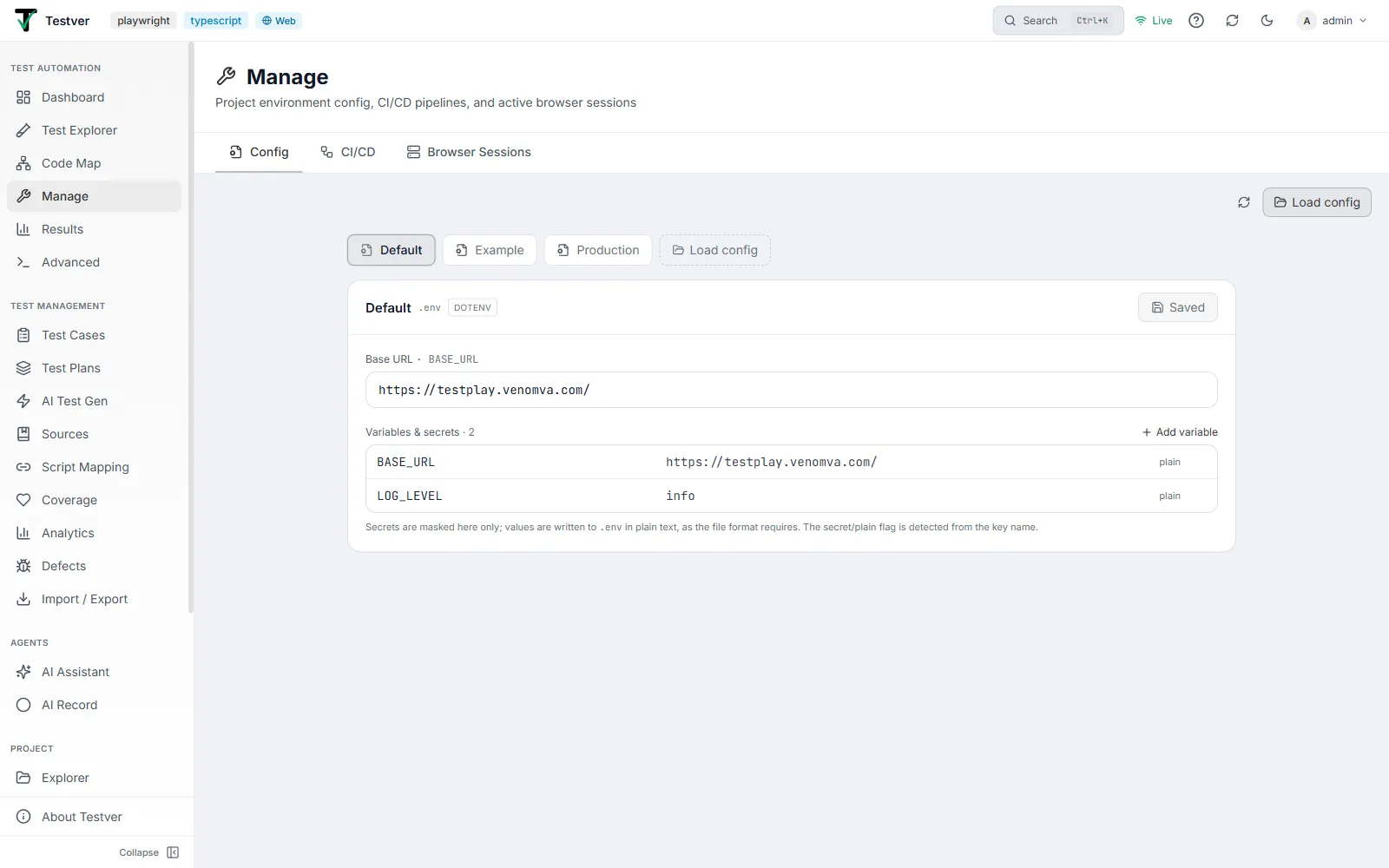
What it does
Section titled “What it does”The Config tab finds the configuration files already in your project — .env files, .properties files, JSON/YAML config — and gives you a form-style editor for them. Instead of opening a file in a text editor and risking a typo in a key name, you edit values in a table and save.
This matters most when you have several environments. A suite that reads BASE_URL from a config file can be pointed at QA, staging, or production by changing one value here, with no code change and no redeploy.
The layout
Section titled “The layout”- Across the top — the file chips. One chip per config file Testver discovered (for example Default, Example, Production), plus a Load config chip for adding your own. The selected chip is highlighted; an amber dot marks a file with unsaved changes.
- Below — the editor. The selected file’s contents. Its header shows the file name, its extension, a format badge (for example
DOTENV), and the Saved / save button. Recognised settings such as Base URL are surfaced as their own labelled field above the raw list.
Editing values
Section titled “Editing values”Each row is one setting:
| Control | What it does |
|---|---|
| Key | The variable name, for example BASE_URL. |
| Value | What the variable is set to. |
| Eye icon | Reveals or hides a value that is being masked. |
plain / secret flag | Shown at the end of each row. Testver detects this from the key name — a key that looks like a credential is treated as secret and masked on screen; everything else shows as plain. |
| Trash icon | Removes the row. |
Changes are staged until you save, so an accidental keystroke doesn’t immediately change how your tests run. The amber dot in the file list and a Discard button let you back out of unsaved edits.
Loading an extra config file
Section titled “Loading an extra config file”If Testver didn’t pick up a file automatically — for example a config nested somewhere unusual — use Load a config file and give it the path relative to the project root (for example config/qa/settings.properties). It joins the list and behaves like any other file. Un-load removes it from the list again without deleting anything from disk.
Use the Rescan button if you’ve added config files to the project since opening the screen.
Related
Section titled “Related”- Manage overview — the other tabs on this screen.
- Advanced → Runner — run a suite using the config you just edited.
- CI/CD Pipelines — trigger and gate runs from CI.