

GuidesSelf-Healing Tests with Auto-Heal
Self-Healing Tests with Auto-Heal
Introduction
Section titled “Introduction”What this guide covers
Section titled “What this guide covers”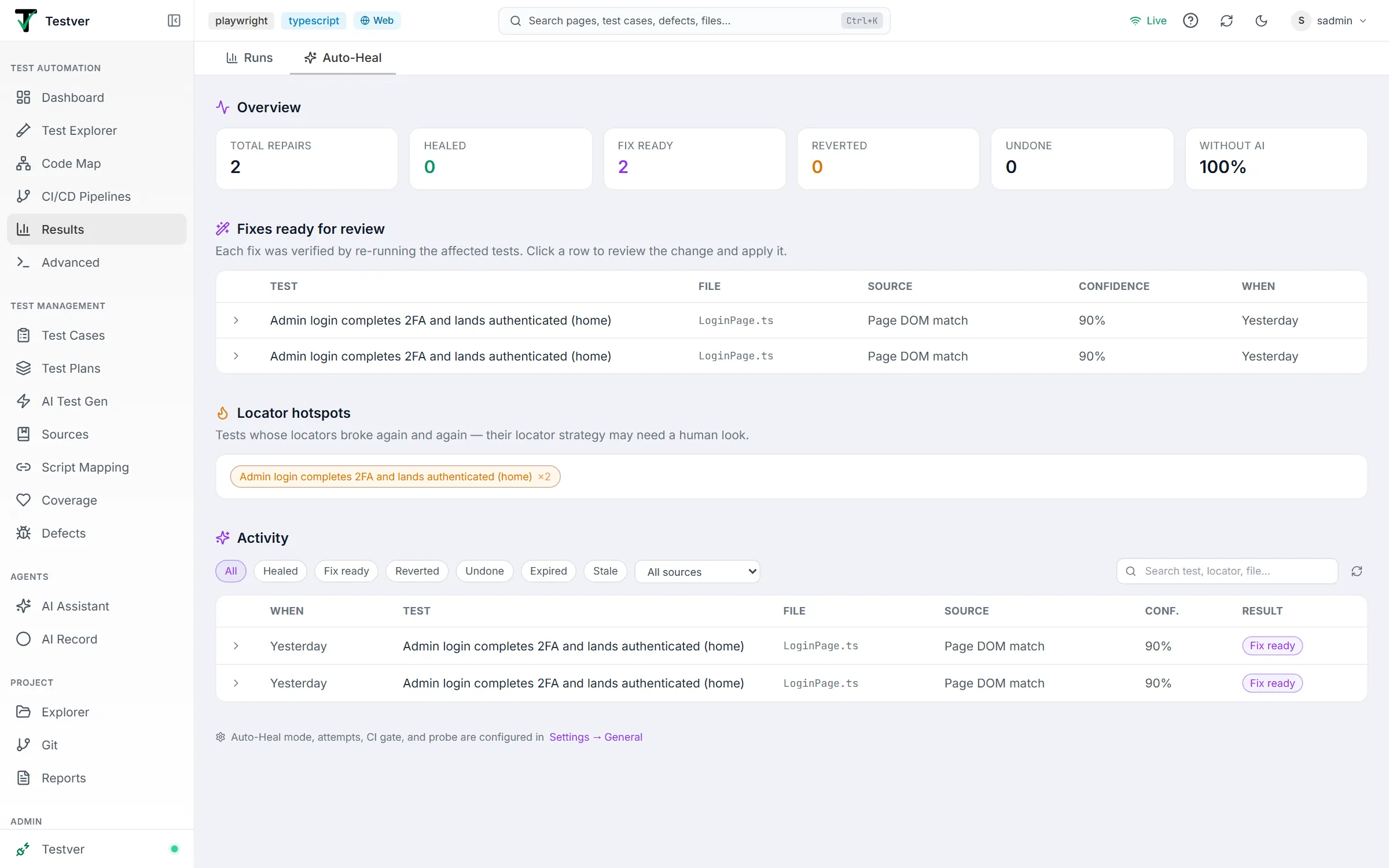
Most “flaky” UI failures aren’t flaky at all: the app changed and a locator no longer matches — a renamed data-testid, a changed id, an Appium resource-id that a developer tidied up. Auto-Heal repairs exactly that. After a run finishes with failures, it finds the broken locator in your code, works out what it should be from the page (or app screen) the run actually saw, re-runs the affected tests to prove the fix, and only then keeps it — or offers it to you for one-click review.
This guide is a tutorial. It starts by turning Auto-Heal on safely and watching it repair one test you break on purpose, then builds up to reviewing a queue of fixes, moving to Auto mode, controlling it per suite and per CI pipeline, and healing mobile apps. Every behaviour is described in full on the Auto-Heal reference page; this guide is the path through it.
What you get at the end
Section titled “What you get at the end”| Output | Where it lands |
|---|---|
| A verified fix | The exact locator value changed in your code — the test file, page object, helper or data file that holds it. Nothing else is edited. |
| Proof | A Heal Verify run in Results, re-running every test that failed on that locator with the original browser, environment and device. |
| A review queue | Fix ready fixes in Results → Auto-Heal, each with the before and after code, the evidence it came from and a confidence. |
| A history | Every repair, kept or reverted, in the Activity log — searchable, filterable, with Undo for kept fixes. |
| An explanation when it can’t | Not healed with a plain-language reason, and a one-click hand-off to the AI Assistant. |
Who this guide is for
Section titled “Who this guide is for”- QA engineers tired of spending the morning after every release renaming locators.
- Test leads who want locator churn handled without anyone’s tests changing invisibly.
- CI owners who want a build broken only by a rename to repair itself — and, if they choose, to go green again.
No coding is needed to turn Auto-Heal on or to review a fix. It helps to be able to read a one-line before/after diff.
When not to use it
Section titled “When not to use it”Auto-Heal acts only when an element could not be found. Everything else belongs somewhere else:
| Situation | Use instead |
|---|---|
| An assertion failed — the app showed the wrong value | Analyze & Fix Failures: it’s likely an application bug. Raise a defect; don’t heal the test. |
| The element was found but couldn’t be used — an overlay covered it, it was disabled, it re-rendered | AI Assistant: a page-state or timing problem; a new locator wouldn’t help. |
| The test’s flow changed — a new step, a different page | AI Assistant in Web or Mobile mode, or re-record it with AI Record. |
| Network, login or test-data failures | Check the environment first — see the Environment Issue category in Analyze & Fix Failures. |
Before you start
Section titled “Before you start”| You need | Why | Where |
|---|---|---|
| Tests Testver runs | Auto-Heal works on runs saved in Testver — from Test Explorer, the Runner, suites, schedules, CI or the AI Assistant. | Test Explorer |
| The admin role | To change Auto-Heal settings. | Users |
| The tester role | To Apply or Undo a fix — they edit source files, the same bar as editing a file. Everyone can view. | Users |
| Optional: an AI provider | Only for the last tiers, when free evidence leaves more than one candidate. Most fixes use no AI at all. | Settings → LLM |
| Optional: rich evidence | Playwright traces on, or tests recorded with Testver (they carry ranked alternative locators). | Lesson 10 |
Supported frameworks: Playwright (JS/TS, Python, Java, .NET), Selenium (Java, Python, C#, Ruby, Kotlin) and Selenide, WebdriverIO, Nightwatch, Robot Framework, Cypress, TestCafe, Puppeteer, Katalon and Appium. What each one gives Auto-Heal to work with is in the framework support table.
Lesson 1: Turn it on in Suggest mode
Section titled “Lesson 1: Turn it on in Suggest mode”- Open Settings → General and scroll to Auto-Heal.
- Set Mode to Suggest.
- Leave the other settings at their defaults for now.
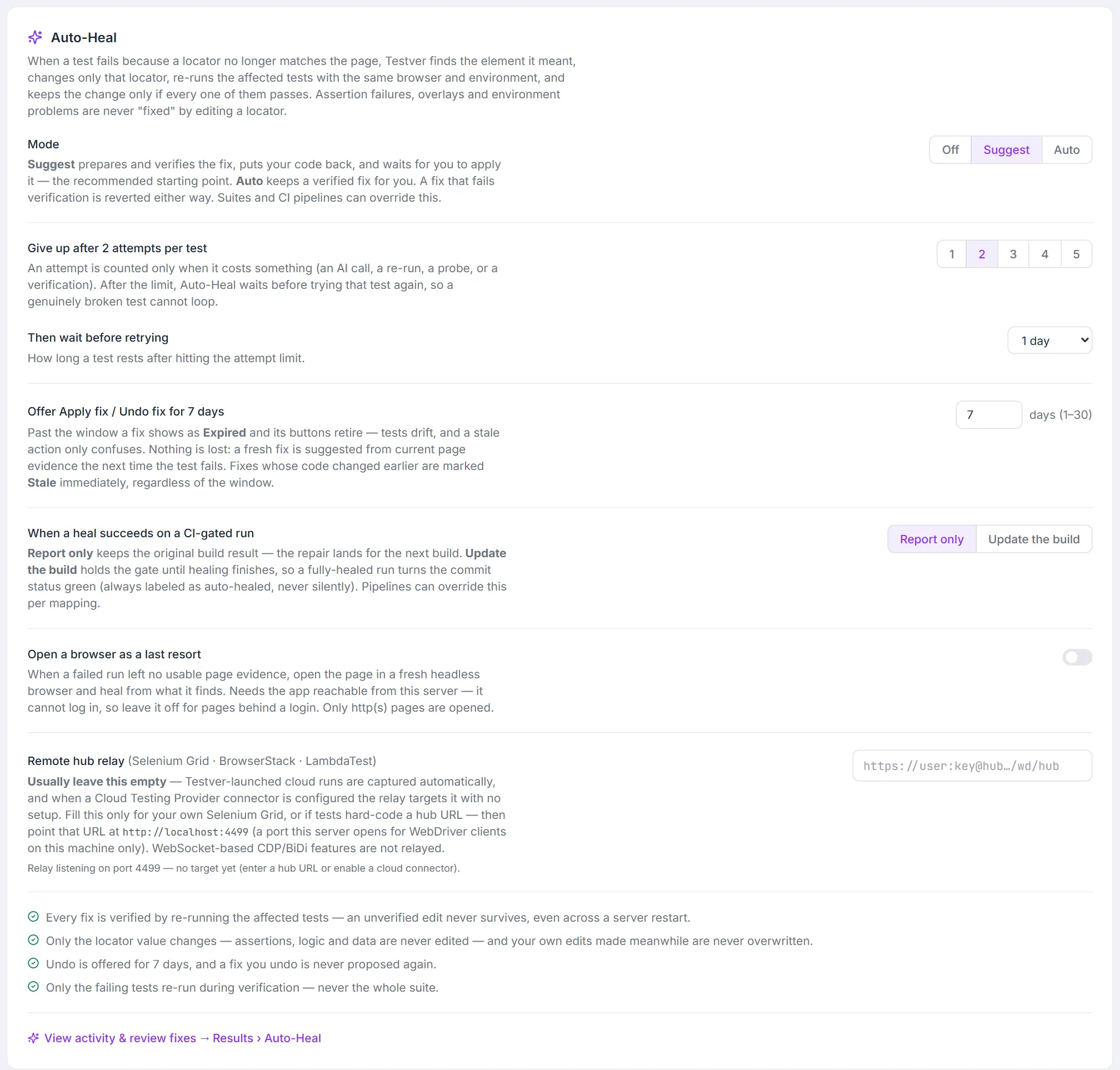
| Mode | What happens after a fix is verified |
|---|---|
| Off (default) | Nothing — Auto-Heal doesn’t run. |
| Suggest | Your code is put back, and the fix waits in Results as Fix ready for you to Apply. |
| Auto | The fix is kept in your code. It’s still shown in Results, still undoable. |
The other settings, for later:
| Setting | Default | What it’s for |
|---|---|---|
| Give up after N attempts per test | 2 (1–5) | A permanently broken test can’t loop. Only attempts that cost something count. |
| Then wait before retrying | 24 hours (6 hours – 1 week) | How long a test that used up its attempts rests. |
| Offer Apply fix / Undo fix for | 7 days (1–30) | The review window — after it, a fix reads Expired. |
| When a heal succeeds on a CI-gated run | Report only | See Lesson 7. |
| Open a browser as a last resort | Off | The live probe: opens the page fresh when no other evidence exists. |
| Remote hub relay | — | Only for your own Selenium Grid or a hard-coded hub URL. Cloud providers in Connectors need nothing here. |
Lesson 2: Your first heal
Section titled “Lesson 2: Your first heal”The fastest way to see Auto-Heal work is to break one locator on purpose — exactly what happens when a developer renames an id.
1. Pick a passing test
Section titled “1. Pick a passing test”Open Test Explorer and pick a test that passes today — a sign-in test is ideal. Open it and find a locator that a step acts on directly: the field it types into, the button it clicks.
2. Break it
Section titled “2. Break it”Change the locator’s value in your page object (or test) to something that no longer exists, as if the app had renamed it:
// beforereadonly passwordInput = this.page.getByTestId('password-input');// after — simulating a rename in the appreadonly passwordInput = this.page.getByTestId('password');3. Run it
Section titled “3. Run it”Run the test from Test Explorer. It fails: the element can’t be found.
4. Watch Auto-Heal work
Section titled “4. Watch Auto-Heal work”Auto-Heal starts only after the run is saved — never mid-test. In the next seconds to minutes:
- It finds
getByTestId('password')in your page object (the failing stack trace says which file and line ran). - It reads the evidence the run left behind — here, the page as it was when the test failed — and finds the element the locator lost:
password-input. - It applies the change and re-runs the test headlessly, with the same browser and environment. This verification run appears in Results with a Heal Verify badge.
- The test passes, so — in Suggest mode — it puts your code back and records the fix as Fix ready.

5. See the result on the run
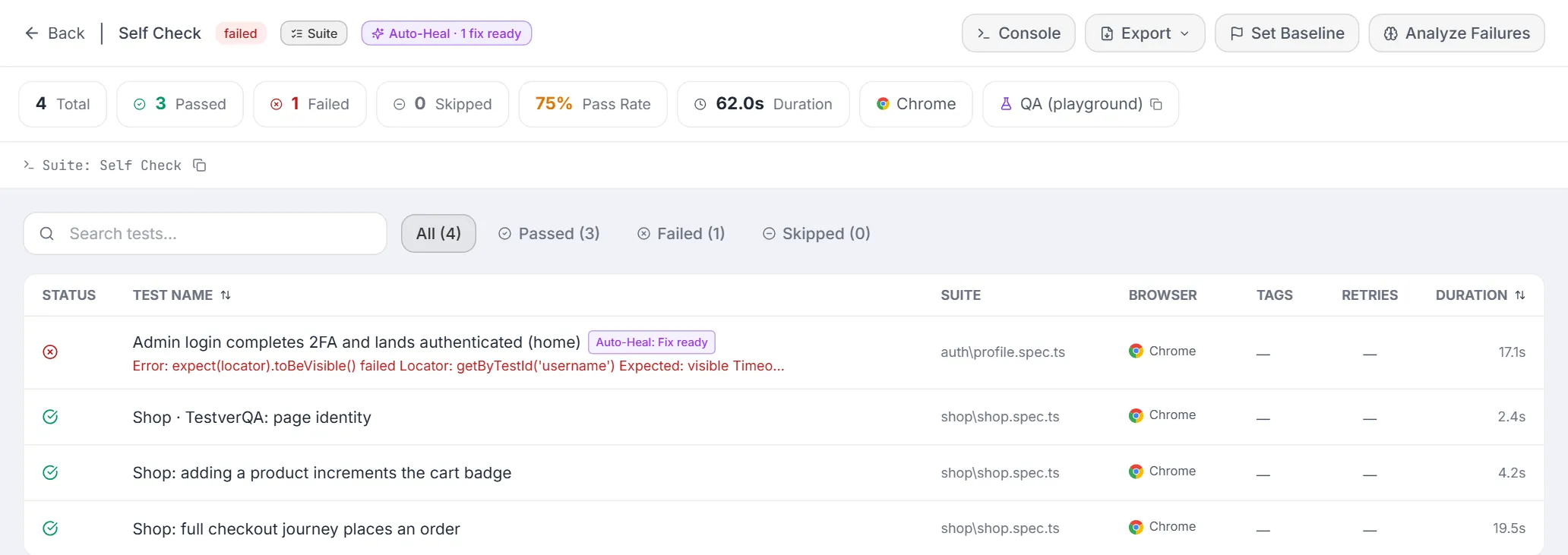
Section titled “5. See the result on the run”Open the failed run. The header carries an Auto-Heal chip, and the failed test a Fix ready chip:

6. Apply it
Section titled “6. Apply it”Open the test. Its Auto-Heal card shows the file, the line before and after, where the fix came from, and how confident Auto-Heal is. Click Apply fix.
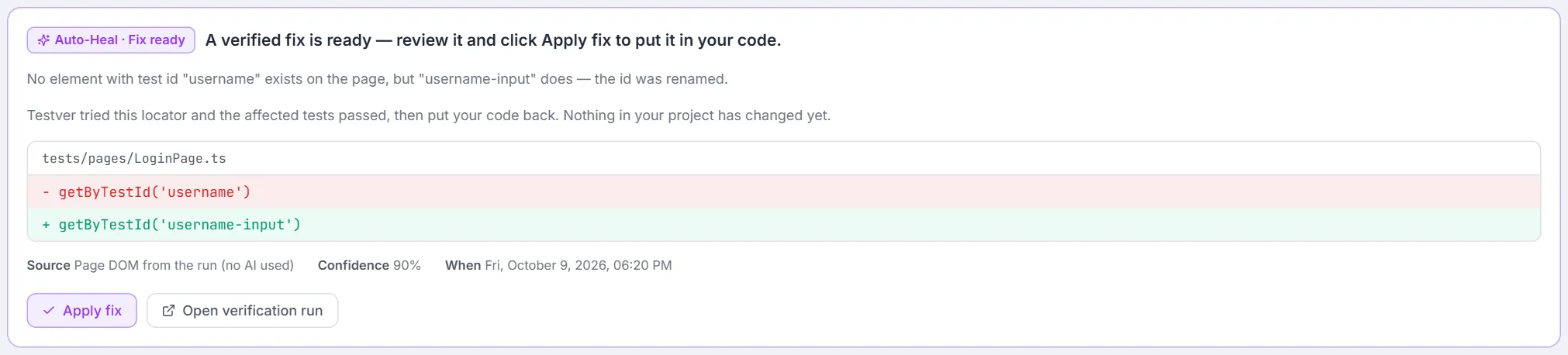
Your page object now reads getByTestId('password-input') again, and the fix reads Healed. That’s a normal edit in your working tree — commit it like any other change.
Lesson 3: Read a fix before you apply it
Section titled “Lesson 3: Read a fix before you apply it”Every fix tells you why it should be trusted. On the test’s card, or a row in the Auto-Heal tab:
| Part | What to look for |
|---|---|
| Before / after | The exact line Apply writes. Only the locator’s value changes — By.id(…) stays By.id(…), getByRole keeps its options, a helper call like byId('x') changes only its argument. |
| Source | The evidence it came from: a recorded fallback, the failure snapshot or page, the trace DOM, the test’s own live session, a capture re-run, an AI choice or proposal, or the live probe. Free evidence is always tried first. |
| Confidence | How sure the match was. A low-confidence fix still had to pass verification to be offered. |
| Rationale | Which clues decided it — a renamed test id, the variable’s name, your comment above the locator, how the code uses the element. |
| Open verification run | The re-run that proved it. Open it when in doubt. |
Two outcomes need a closer look:
- Fix ready — partially verified — the fix got the test past the broken step, then it failed later on something else (shown). Apply it if that next failure is a separate problem, then fix that one. A partial fix is never kept on its own, even in Auto mode.
- Several locators in one test — when a fix works and the test trips over the next broken locator, Auto-Heal repairs that one too (up to three), and keeps or puts back all of them together.
Lesson 4: Review the queue — the Auto-Heal tab
Section titled “Lesson 4: Review the queue — the Auto-Heal tab”After a release that renamed a lot, you don’t review fixes run by run. Open Results → Auto-Heal.

- Overview tiles — total repairs, how many were kept, are waiting, were reverted or undone, and the share fixed without any AI.
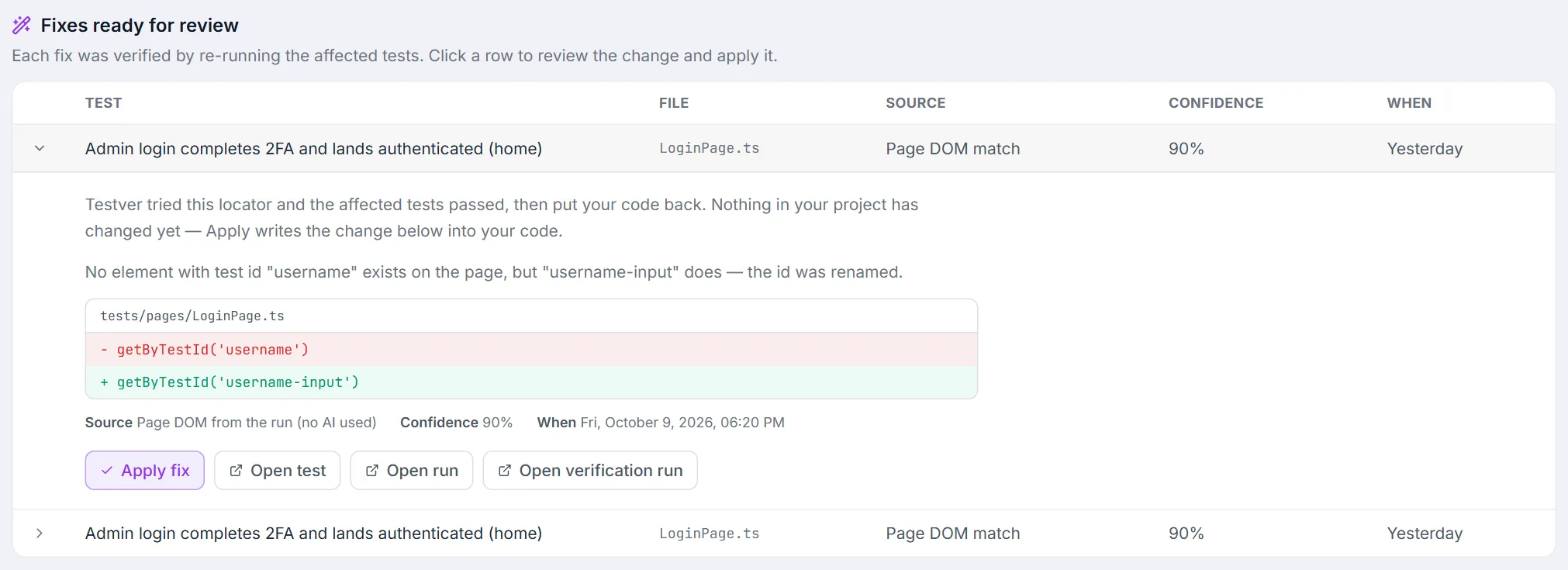
- Fixes ready for review — the work queue. One row per verified fix you can still act on.

- Locator hotspots — tests Auto-Heal has repaired two or more times. The app changes faster than that test’s locator strategy; it’s worth a better locator.

- Activity — every repair, filterable by state and by evidence source, with search.

Click a row to expand it: the explanation, the before and after code, source and confidence, how many tests it healed together, and the actions — Apply fix, Undo this fix, Fix in AI Assistant, Open test, Open run and Open verification run.
Lesson 5: Undo, and what Auto-Heal remembers
Section titled “Lesson 5: Undo, and what Auto-Heal remembers”Disagree with a kept fix? Undo this fix puts the old locator back in every file of the change — all or nothing — and marks it Undone. Testver asks first, because:
- the affected tests will most likely fail again, and
- Auto-Heal never proposes that exact change again. Your version control is the way back if you change your mind.
Apply and Undo both re-check the recorded edit against your current files, so neither can corrupt code that has moved on. A fix whose code has changed since reads Stale; one older than the review window reads Expired. Both keep their history row; only the buttons go. The next time the test fails, a fresh fix is worked out from current evidence.
Lesson 6: Move to Auto mode
Section titled “Lesson 6: Move to Auto mode”Once Suggest mode has been right for a while, switch Mode to Auto in Settings → General → Auto-Heal.
What changes: a fix that passes verification is kept in your code instead of waiting for Apply.
What doesn’t change:
- every fix is still verified first — a fix that doesn’t pass is put back and recorded as Reverted;
- partially verified fixes are still only offered, never kept;
- every kept fix is visible in Results with Undo;
- kept fixes are ordinary edits in your working tree — review and commit them with the rest of your changes.
Lesson 7: Control it per suite and per pipeline
Section titled “Lesson 7: Control it per suite and per pipeline”The workspace mode is a default. Two places override it:
Suites — open the suite → Settings tab → Auto-Heal → Locator repair: Inherit (‹current mode›), Off, Suggest or Auto. See Suites tab.
CI pipelines — each pipeline mapping chooses Inherit, Off, Heal only or Heal + re-gate. See Pipelines tab.
For a build gated on Testver, choose what a heal means:
| CI gate setting | What happens |
|---|---|
| Report only (default) | Heals happen and are reported. The build verdict never changes. |
| Update the build | The gate waits while healing runs. If every failed test is healed and verified, the build turns green, labelled healed & verified. Anything less stays red. |
Suggest mode never turns a build green — nothing was kept. The CI Runs tab shows the heal detail per run: N healed & verified, N fixes ready, N reverted.
Lesson 8: Heal mobile apps
Section titled “Lesson 8: Heal mobile apps”Auto-Heal repairs Appium locators the same way: resource-ids, accessibility ids, Android UiSelector().resourceId("…") and iOS predicate values (name == '…'). It works on local devices (an Android emulator or phone, an iOS simulator or iPhone on a Mac) and on cloud devices (BrowserStack, LambdaTest, Sauce Labs).
The evidence is the app screen as the test saw it — Testver reads the view hierarchy through the test’s own session, at the moment of failure.
| Where the test runs | How Testver reads the screen |
|---|---|
| Cloud device | Through the vendor’s hub, tied to the run that created the session. Nothing to set up. |
| Local device, WebdriverIO or Python | The test reports its Appium session to Testver as it starts. Nothing to set up. |
| Local device, Java, C# or Ruby | Testver asks Appium for the run’s session. Appium 3 answers only when it was started with the session discovery insecure feature allowed; without it there is no screen to read, and the test says no page evidence was captured. |
Helpers are understood. Mobile page objects often build ids with a helper — byId('password') that becomes id=com.shop.app:id/password. Auto-Heal heals the full id the test used, and changes only the short name in your code:
- readonly passwordInput = this.byId('password');+ readonly passwordInput = this.byId('password-input');In the Auto-Heal tab, the fix shows that real line of code, not the expanded id.
Lesson 9: When it says “Not healed”
Section titled “Lesson 9: When it says “Not healed””Auto-Heal would rather do nothing than guess. When it can’t fix a test safely, the test shows Not healed automatically with the reason in plain language:

| The reason says… | What it means | What to do |
|---|---|---|
| the element was found but could not be used | An overlay, a disabled element or a re-render — not a locator problem. | Fix in AI Assistant, or fix the wait by hand. |
| not auto-healable … unclassified failure | Not a “couldn’t find it” failure at all. | Analyze & Fix Failures. |
| was not found in any source file — it may be built dynamically | The locator is assembled at runtime in a way that isn’t a simple template. The value that failed is named. | Fix in AI Assistant. |
| appears 2 times … refusing to guess | The locator is in several places and the stack didn’t say which ran. | Keep each locator in one page object. |
| no page evidence was captured | The session ended before its page could be read. | Turn on the live probe, record the test with Testver, or (Java / C# / Ruby on local devices) allow Appium session discovery. |
| already tried N time(s) | Repeated attempts failed — probably not a locator problem. | Investigate. It tries again after the cooldown. |
| is one you undid before | You rejected that exact change. | Fix it by hand or with the Assistant. |
Fix in AI Assistant opens the AI Assistant with the failure and what Auto-Heal already tried, so it doesn’t repeat it. View group opens the test’s group in Failure Analysis, whose header shows the same Auto-Heal verdict.
The full list is in the reference page’s Troubleshooting.
Lesson 10: Write heal-friendly tests
Section titled “Lesson 10: Write heal-friendly tests”Auto-Heal works from evidence and context. A few habits give it more of both:
- Name locator variables for what they are.
emailInputtells Auto-Heal what to look for;el3tells it nothing. - Add a one-line comment when the name doesn’t say it.
// "Remember me" checkbox on the sign-in formabove a locator is enough for Auto-Heal to pick the right element after a rename. Code written by the AI Assistant, Explore & Automate, AI Record and the framework scaffolds already carries these comments. - Keep each locator in one page object. One place to fix, and no ambiguity about which copy ran.
- Keep assertions next to the element.
expect(this.rememberMe).not.toBeChecked()tells Auto-Heal the element is a checkbox — it will never propose an element of another kind. - Record with Testver. Recorded tests save ranked alternative locators — the cheapest, best evidence there is.
- Keep Playwright traces on. The trace is the richest page evidence. Frameworks scaffolded by Testver save it on failure, including for Java.
- Prefer stable locators. Test ids and accessibility ids heal cleanly; positional selectors (
li:nth-child(3),//div[2]/span) don’t.
Common Tasks (How Do I…?)
Section titled “Common Tasks (How Do I…?)”| I want to… | Do this |
|---|---|
| Turn Auto-Heal on | Settings → General → Auto-Heal → Mode Suggest (admin). |
| See what it fixed overnight | Results → Auto-Heal → the tiles and Activity. |
| Review waiting fixes | Results → Auto-Heal → Fixes ready for review → expand a row → Apply fix. |
| Check a fix really works | Expand it → Open verification run. |
| Reverse a kept fix | Expand it (or open the test) → Undo this fix → confirm. |
| Heal only the nightly suite automatically | Workspace Mode Suggest; that suite’s Settings → Auto-Heal → Auto. |
| Let a healed CI build go green | When a heal succeeds on a CI-gated run → Update the build, or the pipeline’s Heal + re-gate. |
| Stop Auto-Heal for one suite | The suite’s Settings → Auto-Heal → Off. |
| Find tests that keep breaking | Locator hotspots in the Auto-Heal tab. |
| Fix something Auto-Heal couldn’t | The test’s Not healed card → Fix in AI Assistant. |
| Know whether a fix used AI | The fix’s Source; the Without AI tile for the share across all fixes. |
Tips & Best Practices
Section titled “Tips & Best Practices”- Start in Suggest, earn your way to Auto. A week of reviewing fixes tells you how much to trust it on your app.
- Commit healed fixes deliberately. A kept heal is a real change in your working tree; review it in the diff with everything else.
- Treat a hotspot as a signal. A test healed three times needs a better locator, not a fourth heal.
- Don’t heal around application bugs. If an assertion failed, the app is wrong — Auto-Heal rightly leaves it alone.
- Undo only a fix that is wrong. Auto-Heal never proposes that exact change again. A Fix ready you’re unsure about needs no action — leave it unapplied and it expires.
- Give Auto-Heal evidence. Traces on, recorded tests, meaningful names and short comments make the difference between Healed and Not healed.
Troubleshooting & FAQ
Section titled “Troubleshooting & FAQ”| Question / Problem | Answer |
|---|---|
| Nothing happened after my run failed. | Check Mode isn’t Off (and the suite or pipeline doesn’t override it to Off). Auto-Heal starts after the run is saved; a run that failed while another heal was in progress waits its turn. |
| It changed my code without asking. | That’s Auto mode — or a suite or pipeline set to Auto / Heal + re-gate. Every kept fix is in Results with Undo. Use Suggest to review first. |
| The fix is ready but there’s no Apply button. | It has retired: Expired (older than the review window) or Stale (your code changed since). A fresh fix is proposed the next time the test fails. Apply also needs the tester role. |
| Apply or Undo says to try again in a moment. | A heal is verifying right now. Wait for it to finish. |
| My build went green by itself. | The workspace or pipeline is set to Update the build / Heal + re-gate, and every failed test was healed and verified. Review the fixes in Results. |
| Does it use AI on every failure? | No. Deterministic matching on free evidence handles most fixes; one bounded AI call runs only when the evidence leaves a real choice, and its answer must match the page before it’s tried. |
| What does verification cost? | A headless re-run of the affected tests only — on cloud runs, cloud minutes. A fix waiting for review is reused when the same test fails again. |
| Can it heal tests behind a login? | Yes, when the evidence comes from the test’s own session (WebDriver-family and Appium runs, local or cloud) — it’s already logged in. |
| A local Firefox or Safari run can’t be healed. | Their drivers don’t let other programs read the session. Point the test at the relay (http://localhost:4499), or use the live probe or a recorded test. |
| The server restarted during a heal. | The temporary edit is put back at startup. The test heals again on its next failure. |
Related
Section titled “Related”- Auto-Heal — the full reference: every setting, the evidence tiers, framework support, security and every skip reason.
- Analyze & Fix Failures — for failures that aren’t locator problems, and how a group shows Auto-Heal’s verdict.
- AI Assistant — where Fix in AI Assistant takes you.
- AI Record — recorded tests carry the best healing evidence.
- Results — runs, test details and the Auto-Heal tab.
- Cloud Grid Execution — how cloud runs are healed through the vendor’s hub.